Archive
Archive for the ‘e-infrastructure’ Category
How to quickly add resource mailbox calendars as an Outlook calendar group
2013/05/29
Leave a comment
- Right-click the left calendar tree.
-
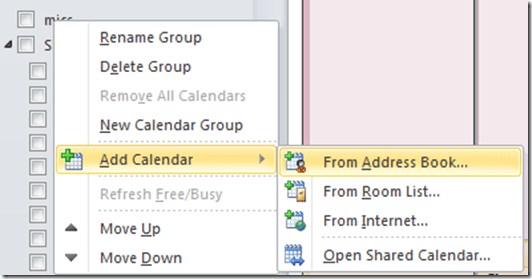
Choose context menu item: add calendar group / from address list:
-
-
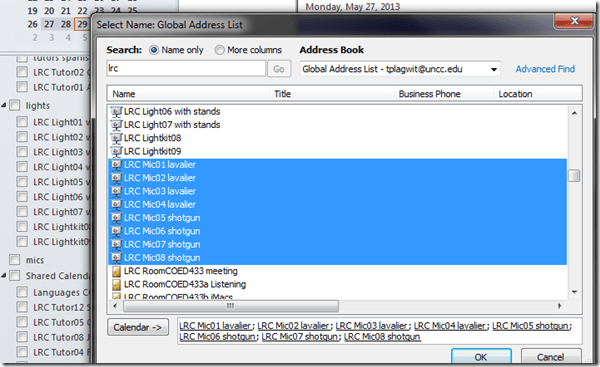
Type " LRC" to search – or the consistent naming scheme you implemented (I hope!).
-
Select all relevant calendars to add.
-
Click on button: "calendar".
-
Click on button: "ok":
-
-
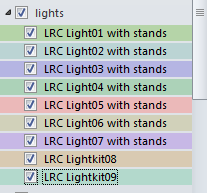
Done:
-


How to organize your email by creating an Inbox rule in OWA
2013/05/28
Leave a comment
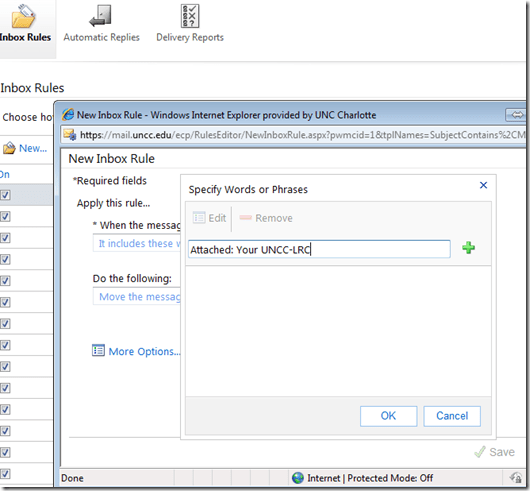
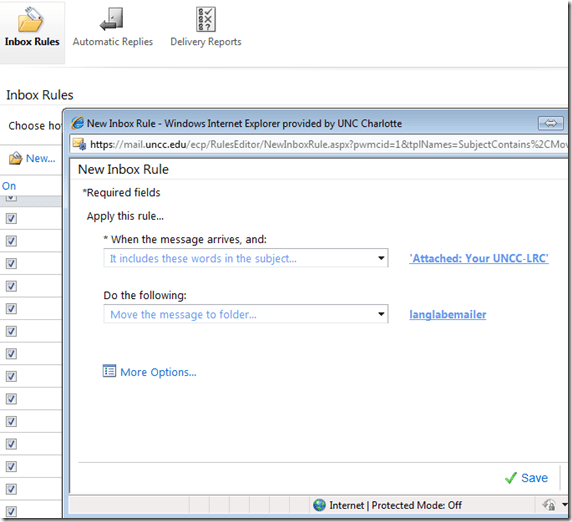
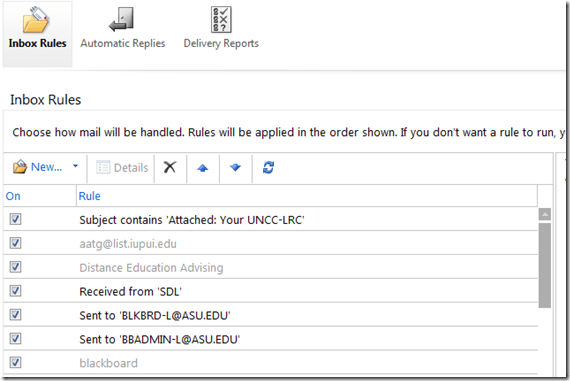
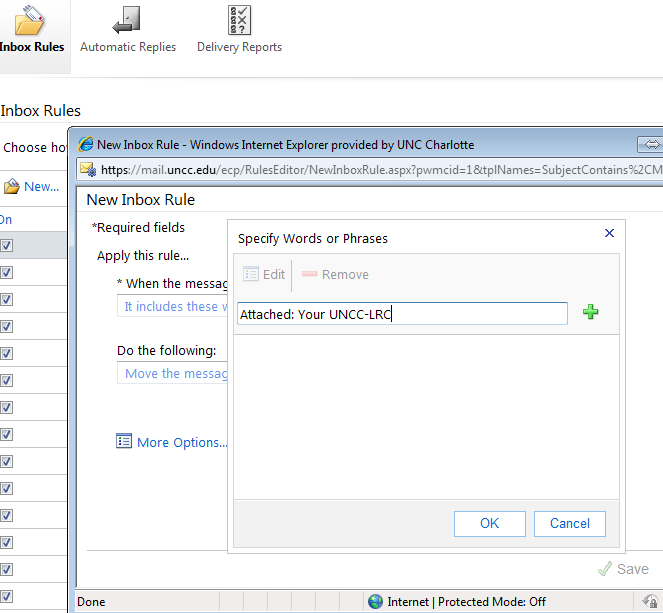
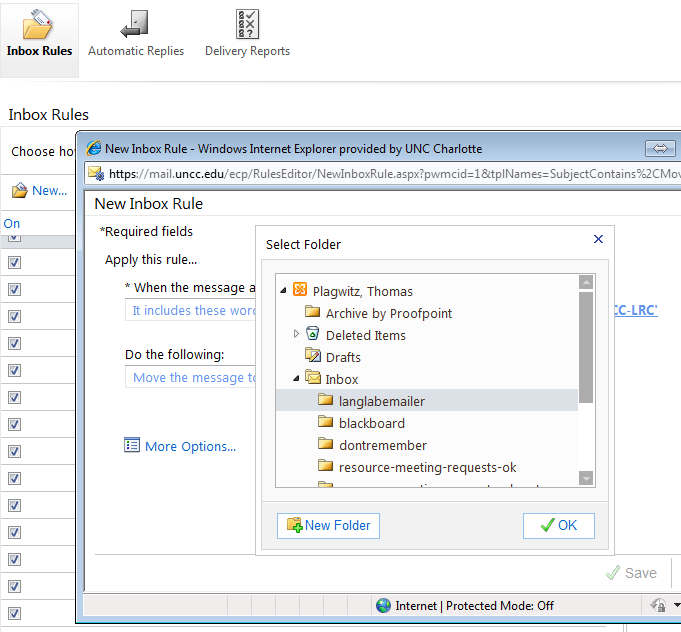
- This step-by-step GUIDE was written for filtering emails from our langlabemailer program (they happen to have “Your UNCC-LRC” in the subject) into a separate folder so that users of the LRC keep the overview:
- students (longitudinally, for their language learner ePortfolios) ,
- but especially teachers (of classes with up to 36 students, throughout the term).
- But you can easily adapt the guide to any other email purpose.
- Including other LRC workflows based on emails: LRC resource booking also relies on OWA emails. All email sent from LRC resource mailboxes have “LRC” at the beginning of the user name and email address.
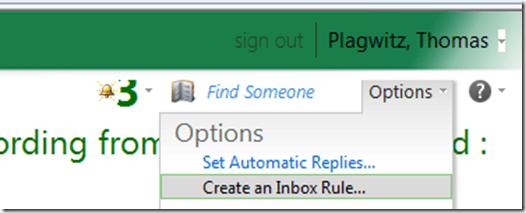
- In short: Options / Create an Inbox Rule / Click “ new” / choose a type / choose keywords / choose folder to sort the email into when it arrives. Or graphically:
-
-

-
-
-
-

-
-

-
-

-
-
-
“
-






How to get access to the LRC Sanako (teacher materials, student recordings) from your office or home PC
2013/05/15
1 comment
- Run the Sanako Installer (first meant for faculty offices only, but now faculty also want to have access from home, so I added that functionality).
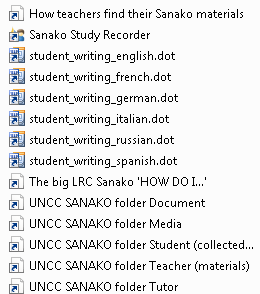
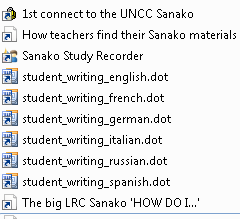
- On your office and or home PC, you get a folder “SANAKO” on your desktop. This folder will contain all you need to access student assessments from past classes or upload learning materials for future classes:
- In the office:
 : It is sufficient to click the additional “UNCC…” links at the bottom of the list .
 - At home:
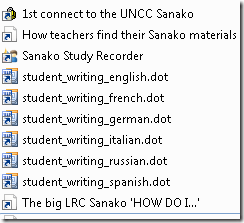
- Click “1st connect…” and log into the campus.
- Click “How teachers find…”, log in with the blog password, open the PDF, click the links in the PDF to the Sanako off-campus folders, log in again with the network credentials as shown in the PDF (sigh…).
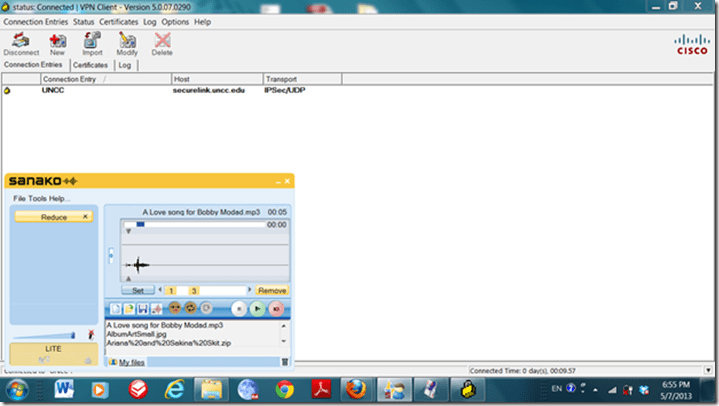
- EXAMPLE: Here you can see on a faculty home PC:
- the sanako recorder and campus connector:
- the SANAKO desktop folder shortcuts:

- You get the Word templates only if you can use them (have WORD installed – remember you can install MS-Office with your free faculty license from here).
- (No, you won’t get the “UNCC…”shortcuts at home, we simplified since.)
- the sanako recorder and campus connector:
- Both office and home:
- Drag any audio files into the Sanako study recorder window (further reading on why the Sanako study recorder is useful for teachers).
- Need to record? configure your microphone in Sanako study recorder, menu Tools.
- In the office:


Categories: audience-is-teachers, documentation, e-infrastructure, e-languages, faculty-offices, Institution-is-University-of-North-Carolina-Charlotte, service-is-configuring-learning-tools, service-is-it-managing, service-is-programming
autoit, iallt2013, MS-Word, sanako-study-1200, sanakorecorderinstall.exe, student.exe, vpn
How faculty can move their local files to the new computer during their office PC upgrade using temporary network space
2013/05/12
Leave a comment
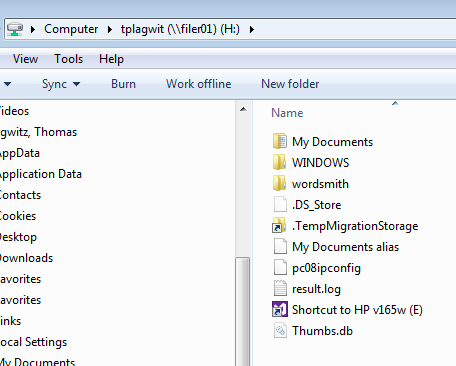
- Go to your H: drive:

- Click on the icon: “TempMigrationStorage”:

- Here is your temporary storage which you should move your files to from your old computer, so that you can move them later to your new computer:

- In this example, I copied my “downloads”folder from my local drive to my network “TempMigrationStorage”. Even when my old computer gets removed, I will be able to access the network from the new computer and download the files from there to the new computer.
- Files on your H: drive do not need to be moved that way. Settings on your old PC cannot be moved that way. Typical candidates for files that should be moved that way include large multimedia files that you could not store on your H: drive. For finding them on your local drive, I recommend examining your C: drive with the free WinDirStat.


How to comprehensively identify your software packages using the MS-Installer infrastructure
2013/05/10
Leave a comment
- Problem:
- Some packages may have built-in checks which prevent installation. The built-in error messages may be difficult to interpret (even if you speak foreign languages).
- Some built-in checks may be erroneous.
- Product name and version may be difficult to identify.
- Etc.
- Solution: Take advantage of the features of the MS Installer infrastructure.
- If necessary (setup file does not come as an MSI file), try to unpack your setup file (7zip alone will work in many cases. There are more advanced free extractors available on the web).
- with the the unpacked MSI’s
- run with the “/log” parameter and to generate and examine the log file for more speaking (an English!) installation errors.
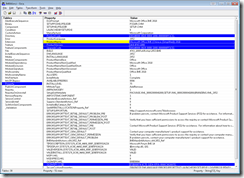
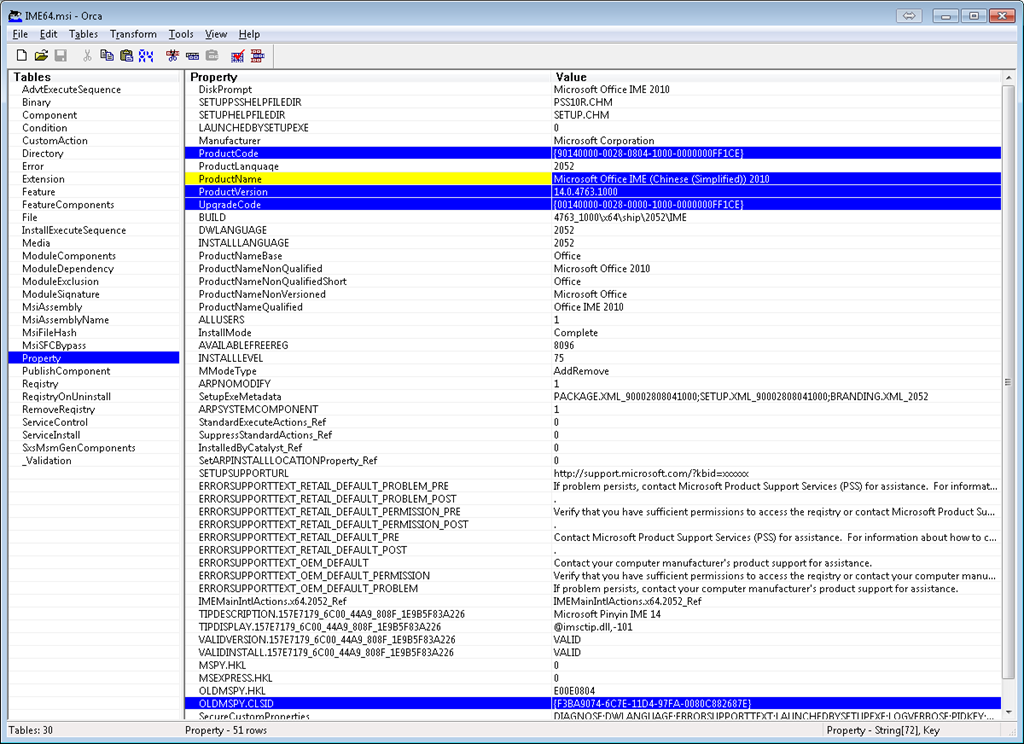
- Open with MS-Orca to examine the software package properties:
 .
. - Right-click and “copy cell” :

- Esp. note the following:
- “Make”
- Productname (base, qualified) variants
- “Model”
- GUID for Upgradecode (e.g. {00140000-0028-0000-1000-0000000FF1CE})
- Productname
- “Year”:
- GUID for Productcode ({90140000-0028-0804-1000-0000000FF1CE})
- ProductVersion
- “Make”
- you can edit your MSI with MS-Orca (better be sure what you are doing).
- you can compare this installer package with what you already have installed in the registry
- use a registry search tool
- you have to search the registry for the compressed GUIDs, to compress, use this: https://thomasplagwitz.com/tag/guid/.

Categories: e-infrastructure, service-is-it-managing
GUID, MS-ORCA, msi
How to upload files into WordPress and link them to articles
2013/05/02
Leave a comment
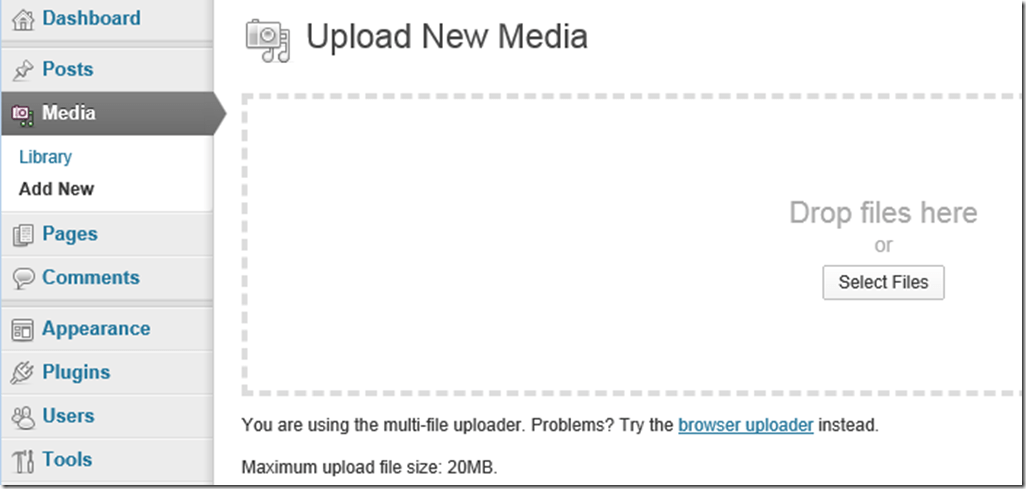
- In the WordPress “Dashboard” (the landing page after you login as WordPress Admin), in the left menu, click menu item : “Media” / “Add New”., and drag&drop (or browse and select them).
-
-
The upload success is visible immediately:
-

-
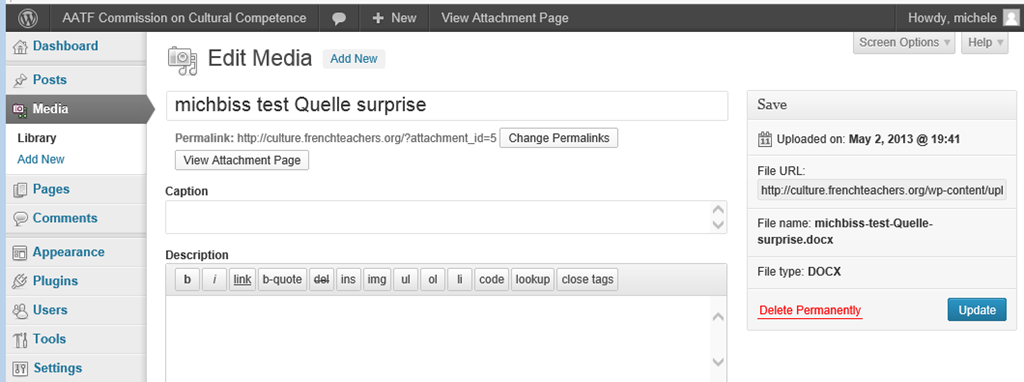
In the media library, after uploading media, on the “edit media”, there is an opportunity for adding metadata to files
-

-
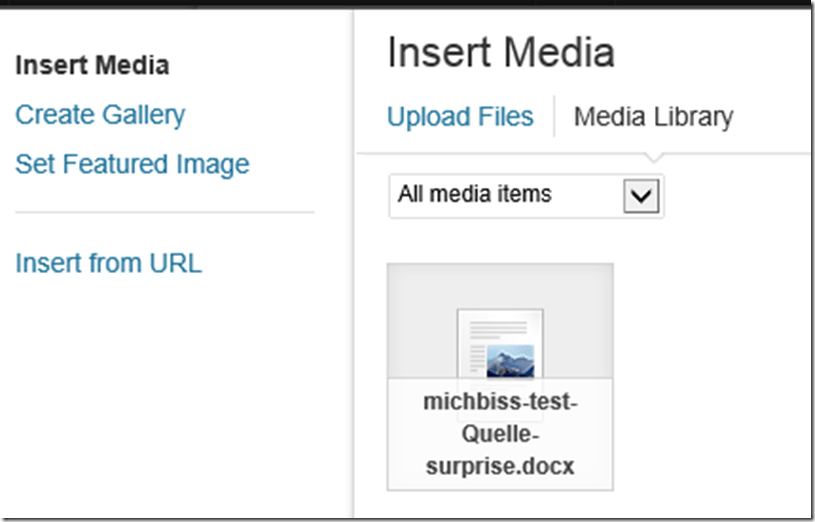
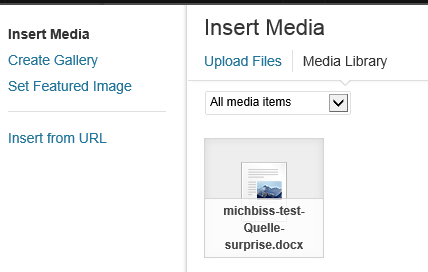
How do you link files from an article? Click on button: “Add media”, and drag&drop files. How about previously uploaded files? Click on button: “Add media”, tab:”media library” (instead of the default tab:”upload files”) , ad find your previously uploaded file in the list.
-


Categories: documentation, e-infrastructure
media-library, uploading, wordpress
How a teacher can easily restart the Sanako Study 1200 licensing classroom server when experiencing a crash
2013/04/26
Leave a comment
- Try clicking and running this (http://goo.gl/lTVLc), if you see that:

- this is for
- if your sanako tutor hangs with status message "verifying tutor" and you are confronted with the error dialogue "Connection to the communication platform has been disconnected and the system is not able to communicate with the classroom server anymore"
- And if you run the classroom server on the same computer as the tutor (as we do)
- And if you have checked your "network connection", like gone to a website, and it is restored (e.g. If you simply had unplugged your the cable)?
- And if you do not want to "restart your system if needed" since, as in our case, that takes a big chunk time out of your class
- Hint: this can’t fix your network if that is the root cause, but may be able to work around temporary service outages.

How to respond to a poll for the best meeting time using Meeting Requests
2013/04/18
Leave a comment
This 30-sec video shows how to cycle through optional meeting time slots: While keeping an eye on the (red underlined) time slot currently polled, click green checkmark or red cross, you will be moved through the messages automatically:
Takes merely a minute, a few mouse clicks, hardly any mouse moves, and will clean up your inbox and send your vote to me at the same time.
Categories: audience-is-teachers, e-infrastructure
2010, calendaring, meeting-requests, ms-exchange, ms-outlook, OWA


Questions? Read the About. Or just ask me a quick Our Databases: Resources with calendars -- Language learning material Moodle Sites, multimedia files -- films


FAQs for LRC student staff or for students or for teachers. To search our FAQs, in the browser addressbar, add after "https://plagwitz.wordpress.com/feed/?tag=faqs+/" "+TAG1" (from tag cloud below) OR "https://plagwitz.wordpress.com/feed/tag=faqs
&category_name=" "CAT1" (from category hierarchy below). OR search both categories and tags, and multiple TAGs/CATs (connect with "," for OR-search, with "+" for AND-search), like so: https://plagwitz.wordpress.com/feed/?tag=TAG1+TAG2+...TAGn&category_name=CAT1
+CAT2+...CATn"
Other ways to find help
If you cannot find it here, look there: 5,500 Language-Learning Links and Programs for learning or teaching 150 languages
Shortcuts:Our Lists, Our Maps, LRC Staff Moodle Site,LRC Project Moodle Site, 49erexpress, UNCC Moodle, Student Recordings: s:claslcslrcsanakostudent
Learning usage samples: Sanako oral exam, Kaltura webcam presentation, Dictation with speech recognition, Sanako written exam, Chinese and Japanese interactive stroke-order practice
Test the Sanako Installer, Webbrowser Popup Konfigurator for XP, or Windows7, faster LRC TeacherPC Log-in Let MS facilitate diacritics writing by installing for you US-International keyboard layout
This is my personal blog (Google+). The views expressed on these pages are mine alone and not those of my employer. The information in this weblog is provided “AS IS” with no warranties, and confers no rights.
 Thomas' Work Space