Archive
Archive for the ‘e-infrastructure’ Category
Yet another couple of glitches solved in setting up Outlook 2013 with Gmail IMAP for GoogleApps
2014/12/19
Leave a comment
- I googled and followed this useful guide. However, a couple of glitches remained:
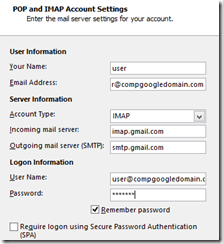
- Connection to Incoming mail server fails if you really just put your username:
- put instead of username@companygoogledomain.com:
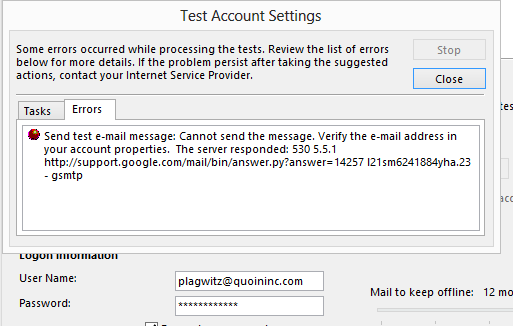
- Test send of email message through outgoing server fails if you just followed instructions:

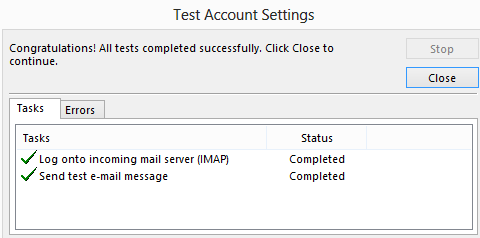
- Click on button: “More” / tab: “Outgoing Server” / do check box “My outgoing server requires authentication ” and log on (I now prefer to be explicit, after the initial mixup of usernames for incoming and outgoing), enter your full user@compgoogledomain.com and password. No need to enable SPA, though.

- Viola

 (and quousque tandem…, sigh
  ).
).


Categories: e-infrastructure, office-software
2013, gmail, imap, outlook
Fun with .docx to .html transforms by means of HtmlConverter from PowerTools for Open XML
2014/12/15
Leave a comment
- The transform is FOSS and platform-independent:
- It neither requires Office nor Windows (The OpenXML SDK runs on Linux via Mono on the server.
- However, the most recent installment of Powertools for OpenXML, a high-level API to the OpenXML SDK, comes with a PowerShell interface (benefit: no Visual studio requirement).
- Valuable features of the transform, among many other things, are:
- HtmlConverter is able to translate MS-Word styles into CSS (insofar needed – my code style has “No proofing” set, however, this cannot be implemented on the WWW), so the layout is preserved as designed, but w/o need for inline formatting:
        span.pt-StrongEmphasis-000052 {
            font-family: Calibri;
            font-size: 11pt;
            font-style: italic;
            font-weight: bold;
            margin: 0in;
            padding: 0in;
        }

        span.pt-lowCodeConsoleChar0 {
            color: #FFFFFF;
            background: #000000;
            font-family: Consolas;
            font-size: 10pt;
            font-weight: normal;
            margin: 0in;
            padding: 0in;
        }
<h3 dir="ltr" class="pt-000040">
<span class="pt-000041">2.2.1</span><span class="pt-000042"><span class="pt-000043">&nbsp;</span></span><span class="pt-Heading2Char"><b>References</b></span>
</h3>
<p dir="ltr" class="pt-BodyText">
<span class="pt-DefaultParagraphFont-000003"><br />
&lrm;</span><span class="pt-000000">&nbsp;</span>
</p>
<h1 dir="ltr" class="pt-000006">
<span class="pt-000007"><b>3</b></span><span class="pt-000008"><b><span class="pt-000009">&nbsp;</span></b></span><span class="pt-Heading1Char"><b>Introduction</b></span>
</h1>
<h2 dir="ltr" class="pt-000018">
<span class="pt-000019">3.1</span><span class="pt-000020"><span class="pt-000021">&nbsp;</span></span><span class="pt-Heading2Char"><b>Purpose of Document</b></span>
</h2>
- There are many more options that I have not yet tried:
            SimplifyMarkupSettings simplifyMarkupSettings = new SimplifyMarkupSettings
            {
                RemoveComments = true,
                RemoveContentControls = true,
                RemoveEndAndFootNotes = true,
                RemoveFieldCodes = false,
                RemoveLastRenderedPageBreak = true,
                RemovePermissions = true,
                RemoveProof = true,
                RemoveRsidInfo = true,
                RemoveSmartTags = true,
                RemoveSoftHyphens = true,
                RemoveGoBackBookmark = true,
                ReplaceTabsWithSpaces = false,
            };
            MarkupSimplifier.SimplifyMarkup(wordDoc, simplifyMarkupSettings);

            FormattingAssemblerSettings formattingAssemblerSettings = new FormattingAssemblerSettings
            {
                RemoveStyleNamesFromParagraphAndRunProperties = false,
                ClearStyles = false,
                RestrictToSupportedLanguages = htmlConverterSettings.RestrictToSupportedLanguages,
                RestrictToSupportedNumberingFormats = htmlConverterSettings.RestrictToSupportedNumberingFormats,
                CreateHtmlConverterAnnotationAttributes = true,
                OrderElementsPerStandard = false,
                ListItemRetrieverSettings = new ListItemRetrieverSettings()
                {
                    ListItemTextImplementations = htmlConverterSettings.ListItemImplementations,
                },
            };
- One would really wish there was a way to get such HTML cleaned up automatically (ouch!):
<span class="pt-DefaultParagraphFont-000006">M</span>
<span class="pt-DefaultParagraphFont-000006">anaged requirements for system integration&nbsp;</span>
<span class="pt-DefaultParagraphFont-000006">of Center</span>
<span class="pt-DefaultParagraphFont-000006">&nbsp;</span>
<span class="pt-DefaultParagraphFont-000006">software&nbsp;</span>
<span class="pt-DefaultParagraphFont-000006">with&nbsp;</span>
<span class="pt-DefaultParagraphFont-000006">iLearning</span>
<span class="pt-DefaultParagraphFont-000006">&nbsp;and with content production and management (BPD). To mitigate lack of integration of $50k LMS software investment into departmental workflow</span>
<span class="pt-DefaultParagraphFont-000006">,</span>
<span class="pt-DefaultParagraphFont-000006">&nbsp;</span>
<span class="pt-DefaultParagraphFont-000006">developed&nbsp;</span>
<span class="pt-DefaultParagraphFont-000006">and documented&nbsp;</span>
<span class="pt-DefaultParagraphFont-000006">software to automate</span>
<span class="pt-DefaultParagraphFont-000006">&nbsp;creation of 4K+ user accounts p.a., 30K+ learning documents and 100K+ interactive content paths in LMS.</span>
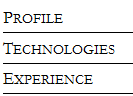
- There are also much more serious conversion errors:
- MS-Word displays a plain text content control and a repeating section content control within a table, containing one Combobox and one plain text content control per row, perfectly:
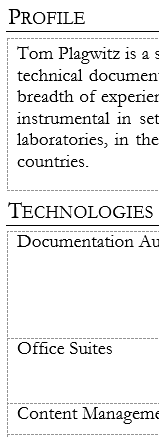
- Convert-DocxToHtml gobbles the content completely (and so does Google Docs Preview):
 The underlying HTML has just a blank table under each heading:
<div class="pt-000001"> <p dir="ltr" class="pt-qiCVHeading1"> <span class="pt-DefaultParagraphFont-000002">Profile</span> </p> </div> <div align="left"> <table border="1" cellspacing="0" cellpadding="0" dir="ltr" class="pt-000003" /> </div> <div class="pt-000001"> <p dir="ltr" class="pt-qiCVHeading1"> <span class="pt-DefaultParagraphFont-000002">Technologies</span> </p> </div> <div align="left"> <table border="1" cellspacing="0" cellpadding="0" dir="ltr" class="pt-000003" /> </div> - MS-Word shows:
 Yet need to look in to the underlying XML to see whether the .docx is to blame for that…
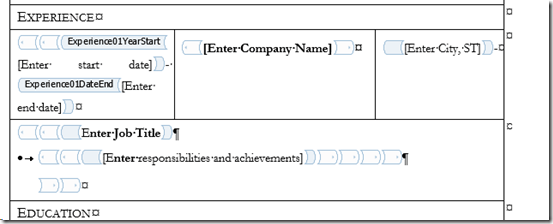
 - But HtmlConverter output in IE or Firefox:
 The underlying HTML reveals that the css does not get applied in the right place:
- MS-Word displays a plain text content control and a repeating section content control within a table, containing one Combobox and one plain text content control per row, perfectly:



<tr>
<td class="pt-000079">
<p dir="ltr" class="pt-BodyTextSmall">
<span class="pt-BodyTextSmallChar-000081">AD</span>
</p>
</td>
<td colspan="2" class="pt-000079">
<p dir="ltr" class="pt-BodyTextSmall">
<span class="pt-BodyTextSmallChar-000081">Active Driector, Microsfot&rsquo;s directory implementation.</span>
</p>
</td>
</tr>
<tr>
<td class="pt-000086">
<p dir="ltr" class="pt-BodyTextSmall">
<span class="pt-000085">&nbsp;</span>
</p>
</td>
<td colspan="2" class="pt-000086">
<p dir="ltr" class="pt-BodyTextSmall">
<span class="pt-000085">&nbsp;</span>
</p>
</td>
</tr>
- One could imagine MS-Word acting less strictly than OpenXML PowerTools:Convert-DocxToHtml, like a web-browser’s parser tolerates and displays bad HTML. However, not only would need to be justified how MS-Word can also serve as the originating HTML WYSIWYG editor. The OpenXML PowerTools:Get-OpenXmlValidationErrors for both of the above documents does not seem to find any OpenXML errors that could explain the bad conversion (other than dozens of Sch_UndeclaredAttribute errors (Version-related? Not sure how this could be) , there is only a Pkg_PartIsNotAllowed relating to a glossary).
- Also yet to do:
- When (not always!) does my page title end up as empty?
<title></title>
- Defaults to doctype xhtml, not html(5).
- When (not always!) does my page title end up as empty?
- Done:
- Pretty-printing. The HtmlConverter output defaults to all content (not css ) on 1 line (e.g. in the example from which above code is taken, 90000chars long). For human readability, and also possibly git tracking, pretty-printing would be better. Can be enforced like so (is there a better way? cannot see a user-configurable option for the SaveOptions enumeration):
openXml\OxPt\OxPtCmdlets\OxPtHelper.cs:var htmlString = html.ToString(SaveOptions.None); // trp: requesting pretty-printing, was:html.ToString(SaveOptions.DisableFormatting);
How to fix primary screen on Linux laptop not coming out of sleep
2014/10/17
Leave a comment
- Problem: My Debian (Jessie) Linux laptop has issues with juggling a secondary screen and sleeping at the same time. More specifically, it seems:
- It seems if you come out of sleep with a secondary screen connected, even if you put the laptop to sleep with “it” (o.k., not the same “it”, just spec-wise the equivalent FULL HD LCD screen on VGA – being able to easily move the laptop to work in multiple places is kind of the point of having one in the first place), the primary laptop screen seems to remain asleep completely. FN keys to switch primary and secondary screen on laptop have no effect.
- If you disconnect the secondary screen, Linux does fall back onto the primary screen, however, “forgets” to turn the backlight on. FN keys to up brightness have no effect
- have not found a reliable way avoiding the issue – maybe always disconnecting secondary screen before putting laptop to sleep? If you don’t want to have to do this, or forget, try to use this:
- Workaround:
- While I could get to the tty shell on secondary screen using
CTRL+ALT+F1, but usingxrandr --autogavecan't open display. - However, try installing this utility which I found recommended in a different context:
aptitude search xbacklightxbacklight - simple utility to set the backlight levelaptitude install xbacklight- Switch to a non-elevated user (or else you’ll get:
No protocol specified" , "Primary laptop", "Can't open display :0", Why can't I run GUI apps from 'root': "No protocol specified"? : " In Debian $XAUTHORITY is usually not set explicitly.", "xauth list xauth: file /root/.Xauthority does not exist"). - Then issue:
xbacklight -set 50ORissuexbacklight -inc 50. - Viola: “Fiat lux”…
- Sleep takes out your primary screen and you are not good at blind starting, finding and typing into your Konsole? Right-click on the desktop of your secondary scree, “Run command”, and issue the same command line.
- Thank you, xbacklight.
- While I could get to the tty shell on secondary screen using
How to export BMC Remedy data into Excel other than via copy-paste
2014/10/10
Leave a comment
- This question came up during consulting (Disclaimer: BMC provides non-customers only limited access to online documentation and trial software).
- BMC Remedy Action Request System 8.1 supports a wide variety of reports, including from a query builder, and editing of reports, using the free Eclipse data visualization and reporting plugin BIRT, and exports of reports in a wide variety of formats, including Excel ( you can find more on Exporting to Excel in these articles).
-
BMC can also read excel and other data: “Data Management is a web-enabled dataload tool that enables you to import data into your system” (source) .
-
BMC Remedy provides ODBC connectivity (note: read-only , so no round-tripping!). Applications that have been used with this feature include Access, Crystal Reports and Excel. In principal, querying an ODBC data source from Excel (2007 and up) works like this:
-
On the Excel machine, install the BMC-provided ODBC driver into ODBCINST.INI (contains information about ODBC drivers available system-wide).
-
Create an ODBC connection, save office data connection files as .odc file for easy reuse.
-
Query the Remedy database using SQL from ribbon: ” Data” / section:”Get External Data”:”From other sources”/ menu item: “From Microsoft Query”, select the Remedy Database, clear “Use the Query Wizard”, log in, in “Microsoft Query” window, add Remedy data tables, then columns to display, then go to menu: “File”/ “Return Data to Microsoft Office Excel”.
-
Some BMC-ODBC-driver-specific limitations are covered in BMC Remedy AR System ODBC considerations
-
If the exact required functionality is not built in, BMC remedy also provides extension points for developing plugins. See Application development with BMC Remedy Developer Studio, which happens with using BMC Remedy Developer Studio, a freely downloadable add-on which can be enabled by a vendor call.
Categories: audience-is-IT-staff, e-infrastructure, service-is-it-managing
bmc-remedy
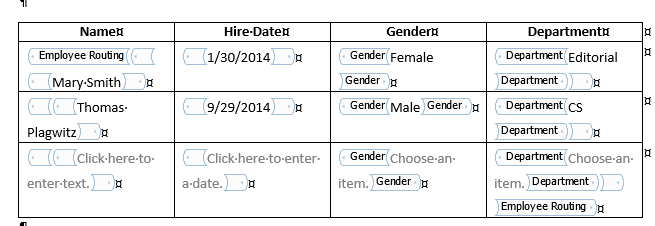
We can nest controls in repeating content controls, including repeating content controls
2014/10/06
Leave a comment
- Just saying, since it seems not easy to find within web search results the ones that nest nesting….

- Have not tried accessing the results in OpenXML yet which will have to be done via the control ID
- since repeating:

- does not autoincrement the titles and tags.

- since repeating:


Categories: animated-GIFs, e-infrastructure, service-is-documenting
2013, content-controls, MS-Word
How to get Square brackets (and hide comments) with ISO690 in Word 2013 bibliography styles
2014/09/14
2 comments
- Lots of people online seem to be looking for square brackets with citations in ISO690 style in Word 2013, but having no luck with getting the Bibliography XSL for older Word versions to work. Trying to edit the old XSL still results in it not loading into the MS-Word Citation Style dropdown.
- What is needed is a way to parse the XSL and debug load errors. In the meantime…

- I had better luck with starting from the current Word2013 ISO style. If you stream Office365, this is now in %appdata%\Microsoft\Templates\LiveContent\15\Managed\Word Document Bibliography Styles
- Puzzlingly, there is also a %appdata%\Microsoft\Bibliography\Style which some of your edited files get copied to – go figure….
- The ISO690 file I based my variation on is called : TC102851224[[fn=iso690nmerical]].xsl
- Copy this file to %appdata%\Microsoft\Templates\LiveContent\15\User\Word Document Bibliography Styles\
- Open it with a text editor (I use NotePad++).
- Change “Openbracket” section like so: And the corresponding for closebracket
<!– trp: –>
[ - Same principle change for the corresponding for “Closebracket“
- Lst time I carelessly introduced printing space characters before my closing brackets – just copy the leading chars from a working XML line if you run into this problem.
- I also needed to not print “Comment”-field of the source in my bibliography”
- Search for:
- Comment out the “print”-action inside (easier than changing each bibliographgy type):<!– trp:
–>
- Change the style name. MS-Word 2013 uses “StyleNameLocalized” instead of “StyleName”, so I added a qualifier to each localized name within the test:
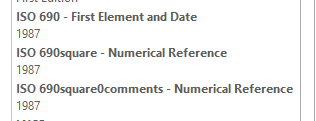
ISO 690YOURNAMEHERE
- Restart MS-Word, and with luck, your styles will show in the ribbon References section style dropdown:
 . Apply them (using F9):
- Download: TC102851224[[fn=iso690nmericalsquare0comments]]

Categories: e-infrastructure, e-research, office-software, service-is-documenting
2013, bibliographies, comments, iso690, MS-Word, square-brackets, styles, XML, xsl
Windows Live Spaces url forwarding still working
2014/08/28
Leave a comment
- It is a long time ago that I migrated my blog from Windows Live Spaces to WordPress.
- It appeared to me recently that the URL forwarding from the original web pages to WordPress which was part of the migration package that Microsoft offered, had stopped working – regrettably, since I still have old documents pointing to the original pages, and the cryptic URL naming scheme seems to make it difficult to find out where the original ULR pointed to.
- However, it seems that only some forwarding stopped working. If I reformat URL format 1 (which redirects to the WordPress homepage) to format 2, the forward still works:
Categories: blog, e-infrastructure
blogging, redirecting, windows-live-spaces, wordpress


Questions? Read the About. Or just ask me a quick Our Databases: Resources with calendars -- Language learning material Moodle Sites, multimedia files -- films


FAQs for LRC student staff or for students or for teachers. To search our FAQs, in the browser addressbar, add after "https://plagwitz.wordpress.com/feed/?tag=faqs+/" "+TAG1" (from tag cloud below) OR "https://plagwitz.wordpress.com/feed/tag=faqs
&category_name=" "CAT1" (from category hierarchy below). OR search both categories and tags, and multiple TAGs/CATs (connect with "," for OR-search, with "+" for AND-search), like so: https://plagwitz.wordpress.com/feed/?tag=TAG1+TAG2+...TAGn&category_name=CAT1
+CAT2+...CATn"
Other ways to find help
If you cannot find it here, look there: 5,500 Language-Learning Links and Programs for learning or teaching 150 languages
Shortcuts:Our Lists, Our Maps, LRC Staff Moodle Site,LRC Project Moodle Site, 49erexpress, UNCC Moodle, Student Recordings: s:claslcslrcsanakostudent
Learning usage samples: Sanako oral exam, Kaltura webcam presentation, Dictation with speech recognition, Sanako written exam, Chinese and Japanese interactive stroke-order practice
Test the Sanako Installer, Webbrowser Popup Konfigurator for XP, or Windows7, faster LRC TeacherPC Log-in Let MS facilitate diacritics writing by installing for you US-International keyboard layout
This is my personal blog (Google+). The views expressed on these pages are mine alone and not those of my employer. The information in this weblog is provided “AS IS” with no warranties, and confers no rights.
 Thomas' Work Space

A little addendum about data types to the +N(“comment”) in-cell formula comment trick in Excel
=IF(
OR(
ISBLANK(
[Related issues]
),
( ISERR(
FIND(
“#“,
[Related issues]
)
) )
) +
N(
“do nothing if no related task in col:related issues“
),
““,
IF(
NOT(
ISERR(
FIND(
“,“,
[Related issues]
)
)
) +
N(
“do nothing if no 2nd value in col:related issues“
),
CONCATENATE(
MID(
MID(
[Related issues],
FIND(
“,“,
[Related issues]
) + 2,
LEN(
[Related issues]
) –
FIND(
“,“,
[Related issues]
) + 1 +
N(
“extracted the 2nd value from col:related issues“
)
),
FIND(
“#“,
MID(
[Related issues],
FIND(
“,“,
[Related issues]
) + 2,
LEN(
[Related issues]
) –
FIND(
“,“,
[Related issues]
) + 1
)
) + 1,
4
) +
N(
“extracted the 4# of id of related issue“
),
MID(
MID(
[Relatedissues],
FIND(
“,“,
[Relatedissues]
) + 2,
LEN(
[Relatedissues]
) –
FIND(
“,“,
[Relatedissues]
) + 1
),
FIND(
“ “,
MID(
[Related issues],
FIND(
“,“,
[Related issues]
) + 2,
LEN(
[Related issues]
) –
FIND(
“,“,
[Related issues]
) + 1
)
) + 1,
2 +
N(
“appended to or from to the 4# of id of related issue“
)
)
),
““
)
)