Archive
Working around problems getting ELTI course worksheet out of Report Express
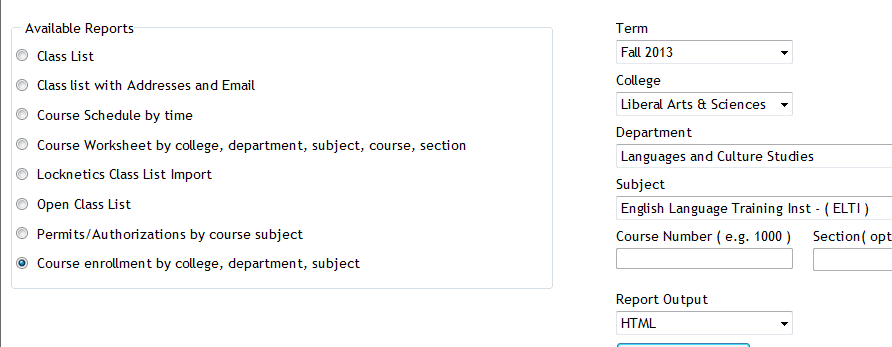
Problem: I used to, but cannot anymore get the course worksheet for ELTI out of Report Express. My choices:

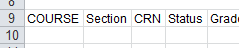
Result set is empty:
Course enrollment does not work either:

I am still in a position to get the full class list out of the system, but that is not what I need, and is not the course worksheet sheet just a calculation based on the


Solution: Use “international programs” as the “department”.
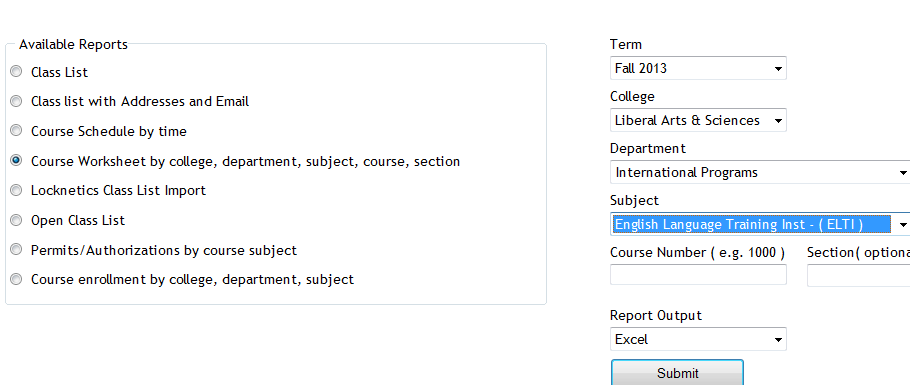
It seems “department”and “subject” drop downs synchronize only with the selection of “college”, but selection of “department” can be in conflict with selection of “subject” (Is this a good GUI?).
It also seems that this affects only the “course worksheet", but not the “class list”(Huh?)
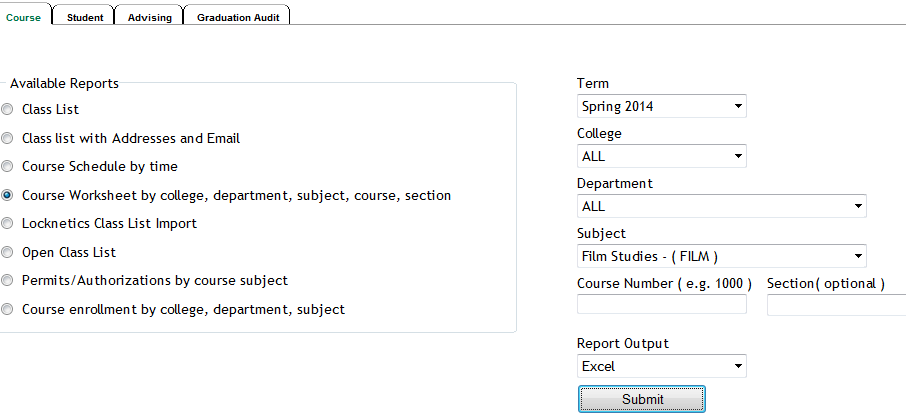
Another example: I seem to be able to get to the Film studies course list only if I leave all other drop down to “all”..
How to save your MS-Office files on SkyDrive
- Having to work on important documents from different locations – including office, classroom, and home – and getting tired of lugging thumb drives around (or worried about losing or inadvertently destroying them)?
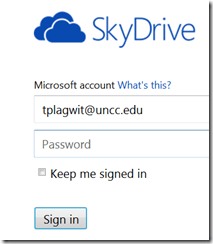
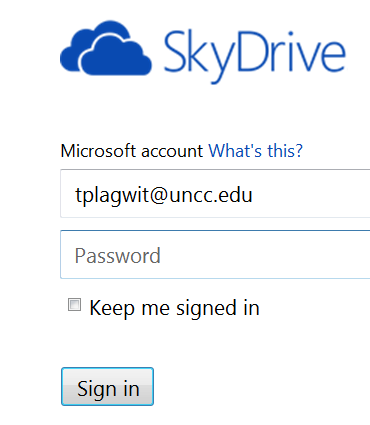
- Use your university email and your password from last June (this one does not get force-updated every 90 days any more, you can manage it yourself).
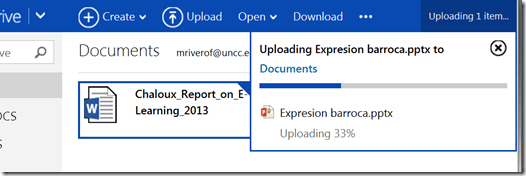
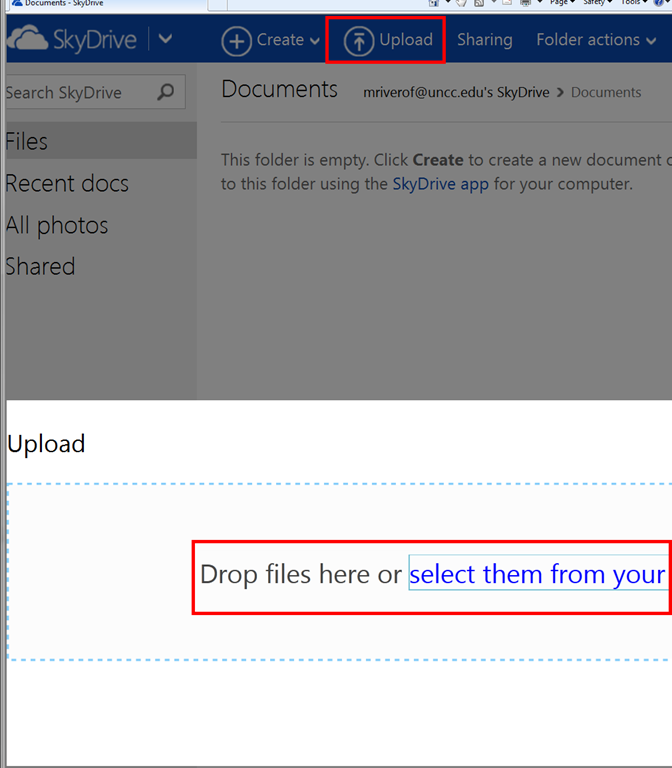
- Upload your important files:

- Drag and drop, e.g. a PowerPoint file:

- Click the file – e.g. a Word file – to view it in your web browser.
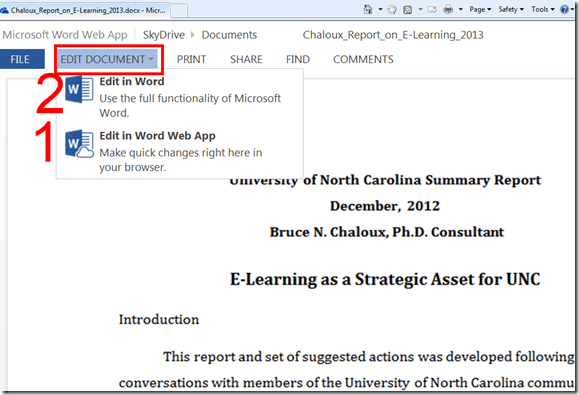
- To edit the file , while viewing, click top menu: “Edit document”. Choose between editing it in the browser (has still some – ever fewer – limitations for complex documents)
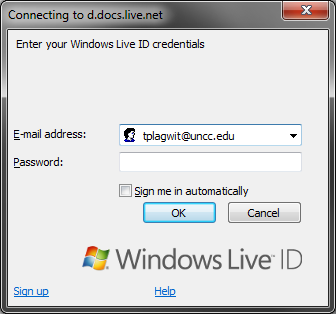
- You will have to log in again (on a non-shared computer I prefer to choose to be “signed in automatically”).

- You have to click “Enable Editing” again, but then you are in your familiar MS-Word environment.

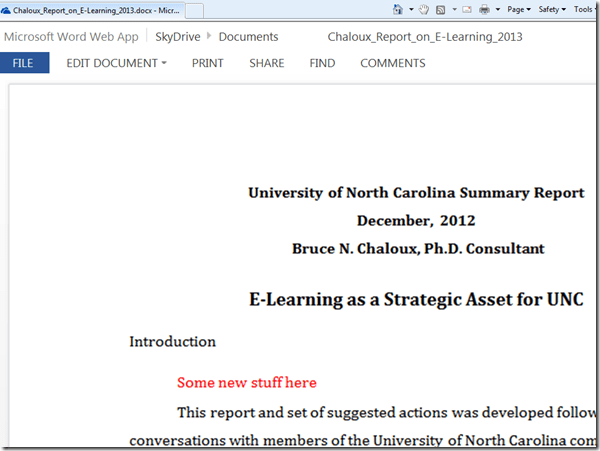
- No need to re-upload the file: Save and close your file, when you open it again in the web browser, it got synched automatically:
- To keep an additional local file backup, use the free MS-SkyDrive App which sets up a local copy of your MS-SkyDrive cloud storage – useful when you have to work offline (e.g. I used to travel every weekend on a plane, but needed to make good use of my travel time).
- Troubleshooting: If you run into problems, the first thing to try usually is a different web browser.




Use CTRL+TAB to switch between tabs in Chrome kiosk fullscreen mode
- On the reception desk, when you open the NINERMAIL after logging into 49erexpress, Chrome opens NINERMAIL in another full screen tab (which hides the 49erexpress tab) – unlike full screen Internet Explorer, which opened NINERMAIL in a new window, but which we had to abandon with the introduction of offfice365.
- The 49erepxress tab is hidden, but still there, and you can switch between full screen tabs wit hthe keyboard shortcut CTRL+TAB (hold CTRL and pressing TAB repeatedly will cycle through all open Chrome tabs).
- So when a client is finished with NINEMAIL (meeting request), have them not only log out of NINERMAIL, but also CTRL+TAB back to the 49erexpress tab to log them out of 49express (and browse from the result window to the Sign-in link to be ready for the next client).
- No need to close the NINERMAIL tab. Next time somebody logs in to 49erexpress tab, Chrome will recycle the previous NINERMAIL tab.
Finding a balance between speed of log-in and readiness on help desk computers
- Problem:
- The LRC reception desk has 3 computers, each with 2 screens, one client-facing, that, when not shared during collaboration for clerical tasks, display (LRC assistants have been instructed which screen has to show which information) LRC-related information (LRC calendar, home page with news and FAQs, slide show with signs).
- However, when a teacher was bringing student to Spanish tutor after tutoring hours, I noticed, that no LRC calendar was visible at reception desk (SAFARI on rightmost computer), nor could be loaded easily.
- Upon my asking, LRC assistant reported, Firefox never comes up correctly on her computer.
- What I could observe: Firefox came up with 2 windows w/o preconfigured tabs.
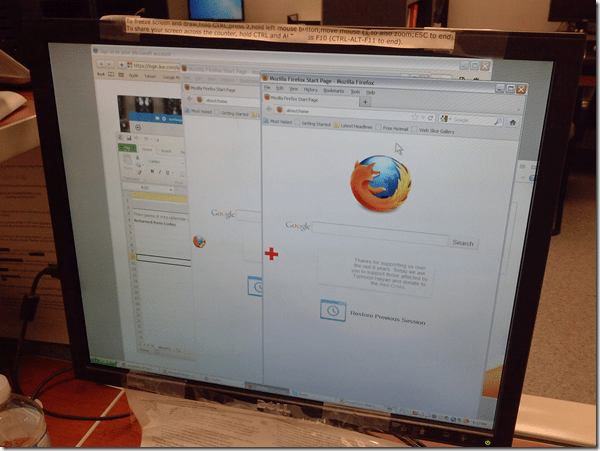
- Safari came up with 2 windows , also empty.

- Root cause:
- It turned out that other students did not have this issue when logging in on the computers.
-
It also turned out that the offending student’s profile had been frozen prematurely (in an obsolete state not incorporating changes we had to do during the term to maintain functionality of the reception desk computers in a changing campus IT environment).
- Workaround: Unfreeze the computer, delete the prematurely frozen profiles, have the student log in to recreate it using current default user settings, freeze the computer, to make the computer, 3 weeks before classes end…
- Solution: not sure I have one.
- Trying to have everything set up stably at term start is not the solution, but the problem.
- How can agility be increased?
- LRC assistants need to report problems. They may need better training to be aware of problems, and need an incentive to report problems, and a culture where reporting problems is not considered a problem in itself, but an achievement.
- The LRC lost its Symantec-Ghost imaging infrastructure which it could not only use for the lab PCs, but also to maintain 3 identical computers at its reception desk. This requirement for imaging was not considered during the recent upgrade of the labs imaging infrastructure, and we do not know how to get this capability back.


Forced downgrade to Color scheme Windows 7 Basic since “exceeded its allowed memory”
-

-
This warning and forced downgrade appeared on the teacher after starting using MS-Community Clips (which is just a GUI wrapper for Windows Media Encoder internally, which we used on the same machine successfully while it was still on XP).
-
The error seems slightly more informative than what we received earlier, but I did not manage to investigate since this was in the middle of supporting a teaching use .

How to find out whether you have access to your classroom early (e.g. for setup tasks), by using the R25 calendar
- Go to http://calendar.uncc.edu/, and follow these steps:
- (1) switch to view by “locations” instead of (the default) “events”,
- (2) select your building,
- (3) find your classroom,
- (4) see whether it is blocked=booked before your class (hover over the block to see by what) –

- in order to browse to your classroom’s schedule – for example, you could also just (5) search for your classroom.
- Sorry, unlike in the LRC calendars from MS-Exchange, here
- no direct links to your room’s schedule;
- no simple flexible booking, even though there seems to be a need for one-time bookings (AFAIK, I did not venture behind the screen after top menu: “Reservation request” since I do not know how to answer its question).

Common video resolutions and ratios
How to shoot movies with the Canon Vixia–files sizes and limitations
Vixia 4:

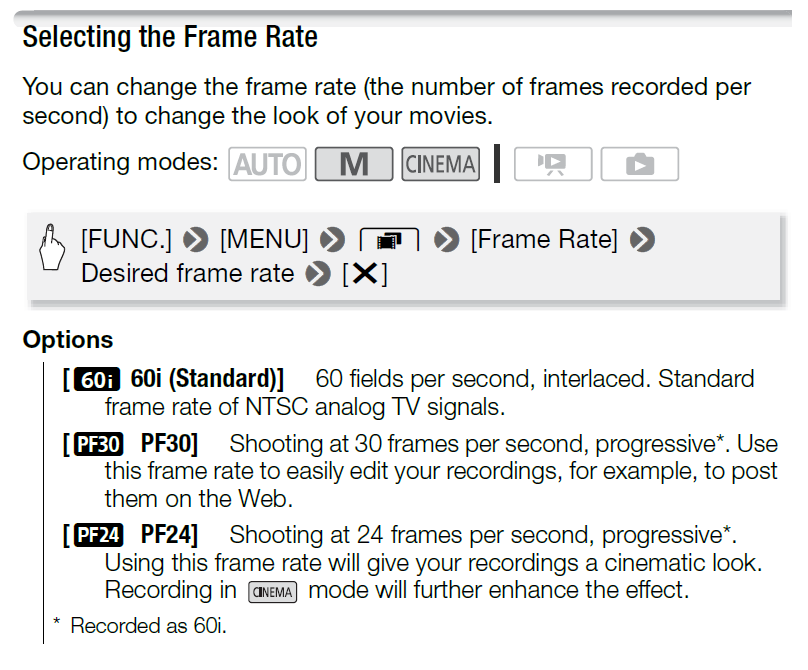
Vixia5:


Full overview:
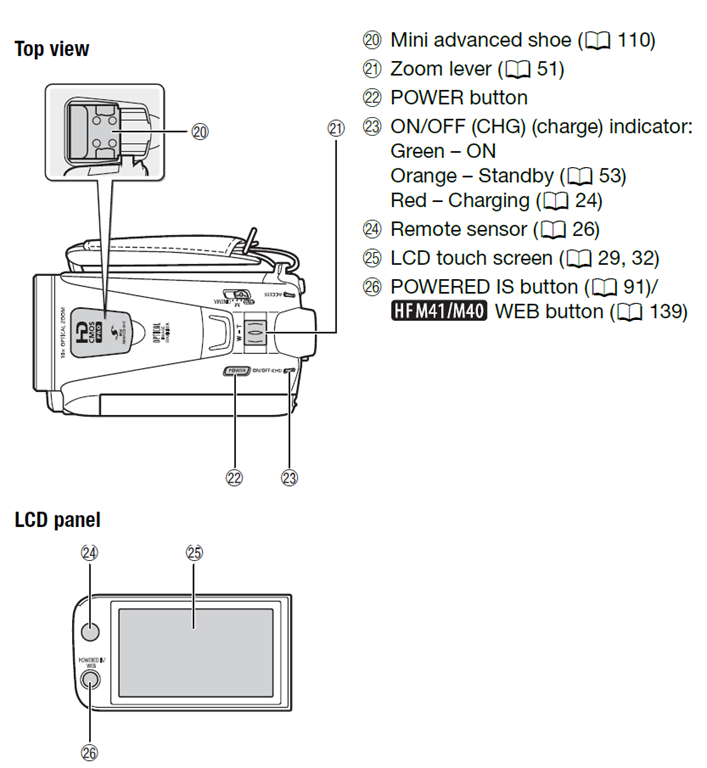

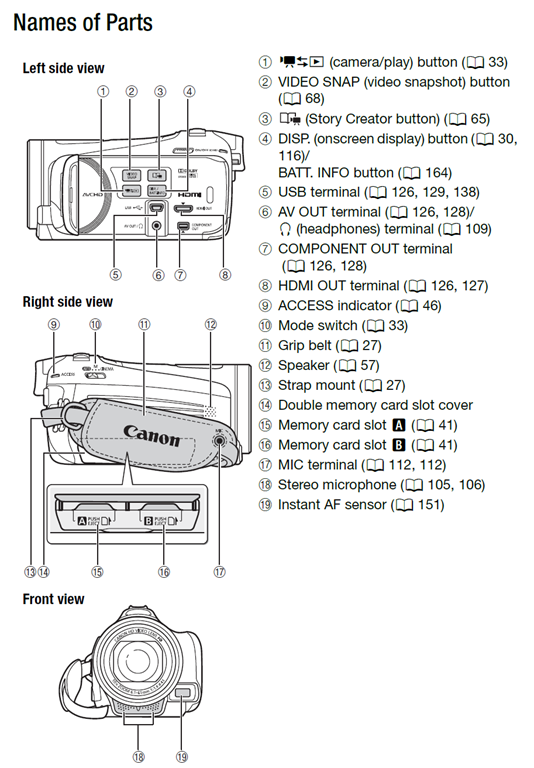


Questions? Read the About. Or just ask me a quick Our Databases: Resources with calendars -- Language learning material Moodle Sites, multimedia files -- films


FAQs for LRC student staff or for students or for teachers. To search our FAQs, in the browser addressbar, add after "https://plagwitz.wordpress.com/feed/?tag=faqs+/" "+TAG1" (from tag cloud below) OR "https://plagwitz.wordpress.com/feed/tag=faqs
&category_name=" "CAT1" (from category hierarchy below). OR search both categories and tags, and multiple TAGs/CATs (connect with "," for OR-search, with "+" for AND-search), like so: https://plagwitz.wordpress.com/feed/?tag=TAG1+TAG2+...TAGn&category_name=CAT1
+CAT2+...CATn"
Other ways to find help
If you cannot find it here, look there: 5,500 Language-Learning Links and Programs for learning or teaching 150 languages
Shortcuts:Our Lists, Our Maps, LRC Staff Moodle Site,LRC Project Moodle Site, 49erexpress, UNCC Moodle, Student Recordings: s:claslcslrcsanakostudent
Learning usage samples: Sanako oral exam, Kaltura webcam presentation, Dictation with speech recognition, Sanako written exam, Chinese and Japanese interactive stroke-order practice
Test the Sanako Installer, Webbrowser Popup Konfigurator for XP, or Windows7, faster LRC TeacherPC Log-in Let MS facilitate diacritics writing by installing for you US-International keyboard layout
This is my personal blog (Google+). The views expressed on these pages are mine alone and not those of my employer. The information in this weblog is provided “AS IS” with no warranties, and confers no rights.
 Thomas' Work Space