Archive
Archive for the ‘e-infrastructure’ Category
How to test Blackboard IM (formerly Wimba Pronto) for Vista Higher Learning Textbooks
2014/02/04
Leave a comment
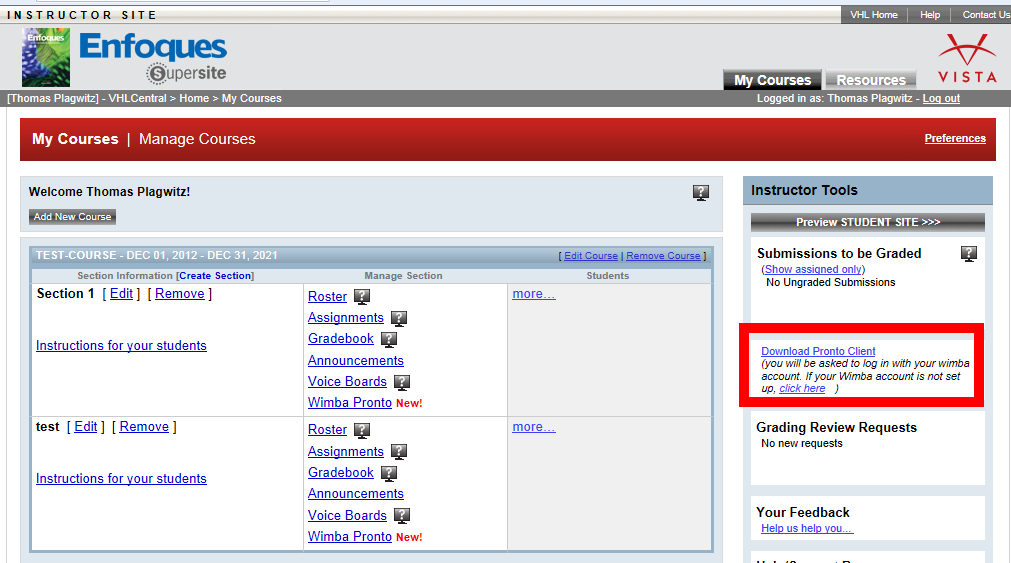
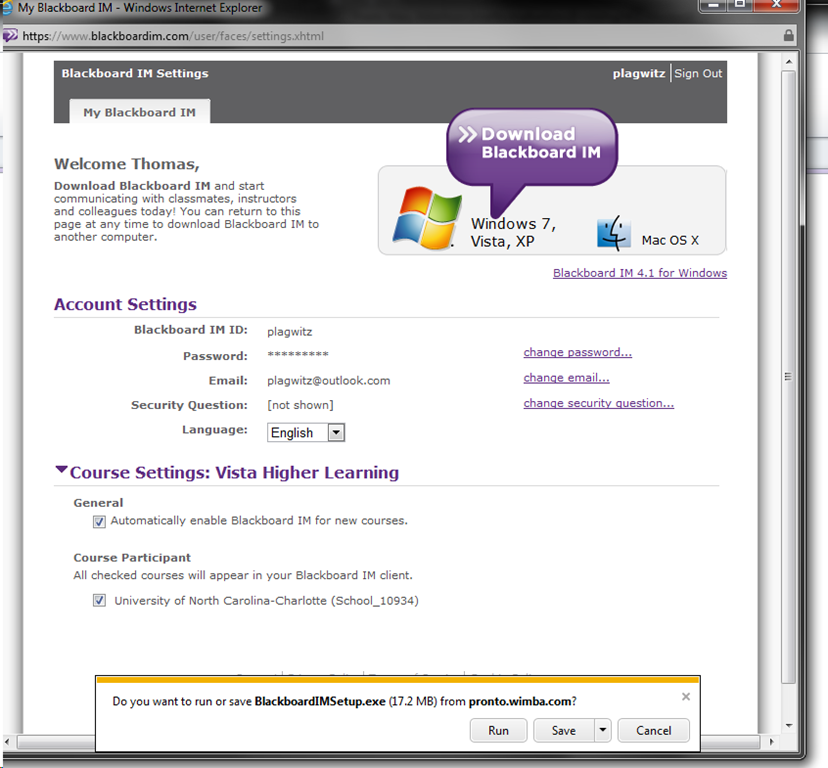
- After logging in on vhlcentral.com,
- the Software is linked on your “My courses” page:
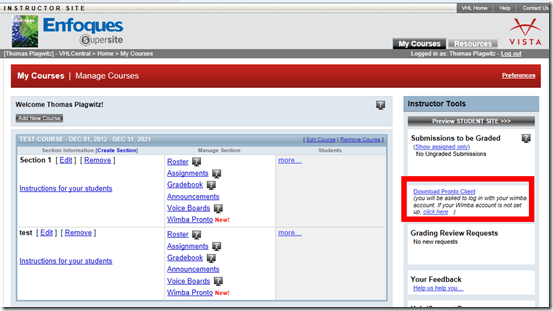
- Download and install:

- After install:
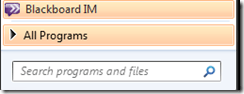
- Mine was already enabled, but the help says:
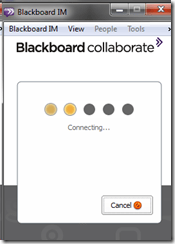
 Log in (Note: my account info was different form my vhlcentral.com)

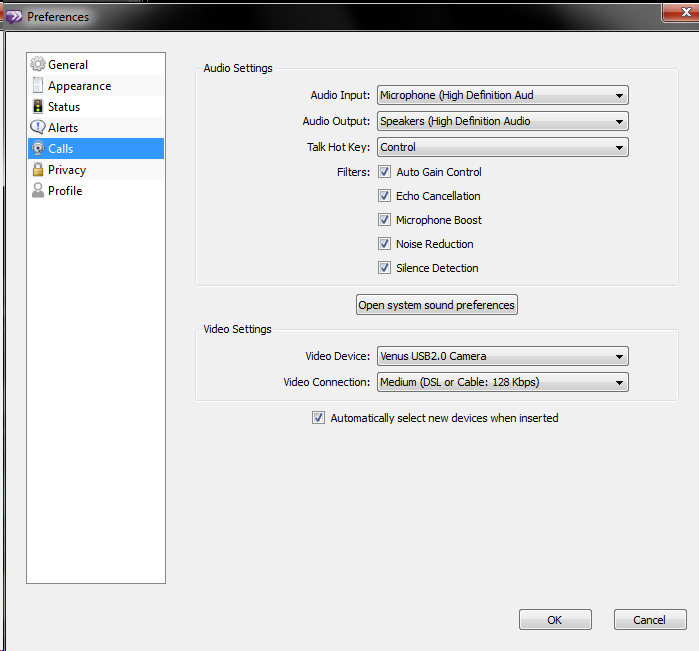
- Check out the Tools menu
- Audio settings should be especially interesting, but there ix no built-on test:

- Need a partner for testing ..


Categories: e-infrastructure, Student-Computers, textbooks, web-conferencing
audio, blackboard, enfoques, im, image2014spring, java, pronto, supersite, vistahigherlearning, wimba
Old new problem in Sanako Study 1200 version 7 with 2 student recorder exe’s running simultaneously on client, under different user accounts?
2014/01/31
Leave a comment
- –
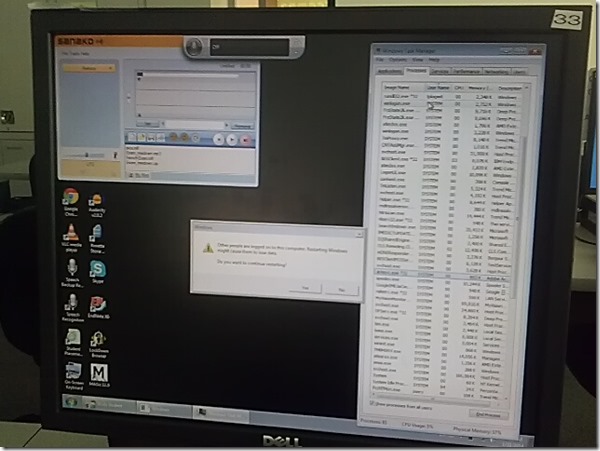
- This images is too low resolution, but I am trying to demonstrate that we still experience the same issue as in the fall: two users can be logged in simultaneously. In both cases ones was me. this can cause the language lab software to fail.
- If generally this is supposed to be prevented in our computing environment, what may be the root cause in these instances?
- I am pretty sure mstsc’ing has nothing to do with it. I do not remote into that PC usually.
- Is it possible for another user to log in when previous (administrative?) users got locked?

Categories: digital-audio-lab, e-infrastructure, Glitches&Errors, os
image2014spring, sanako-study-1200
How to create a form on Google Apps
2014/01/31
Leave a comment
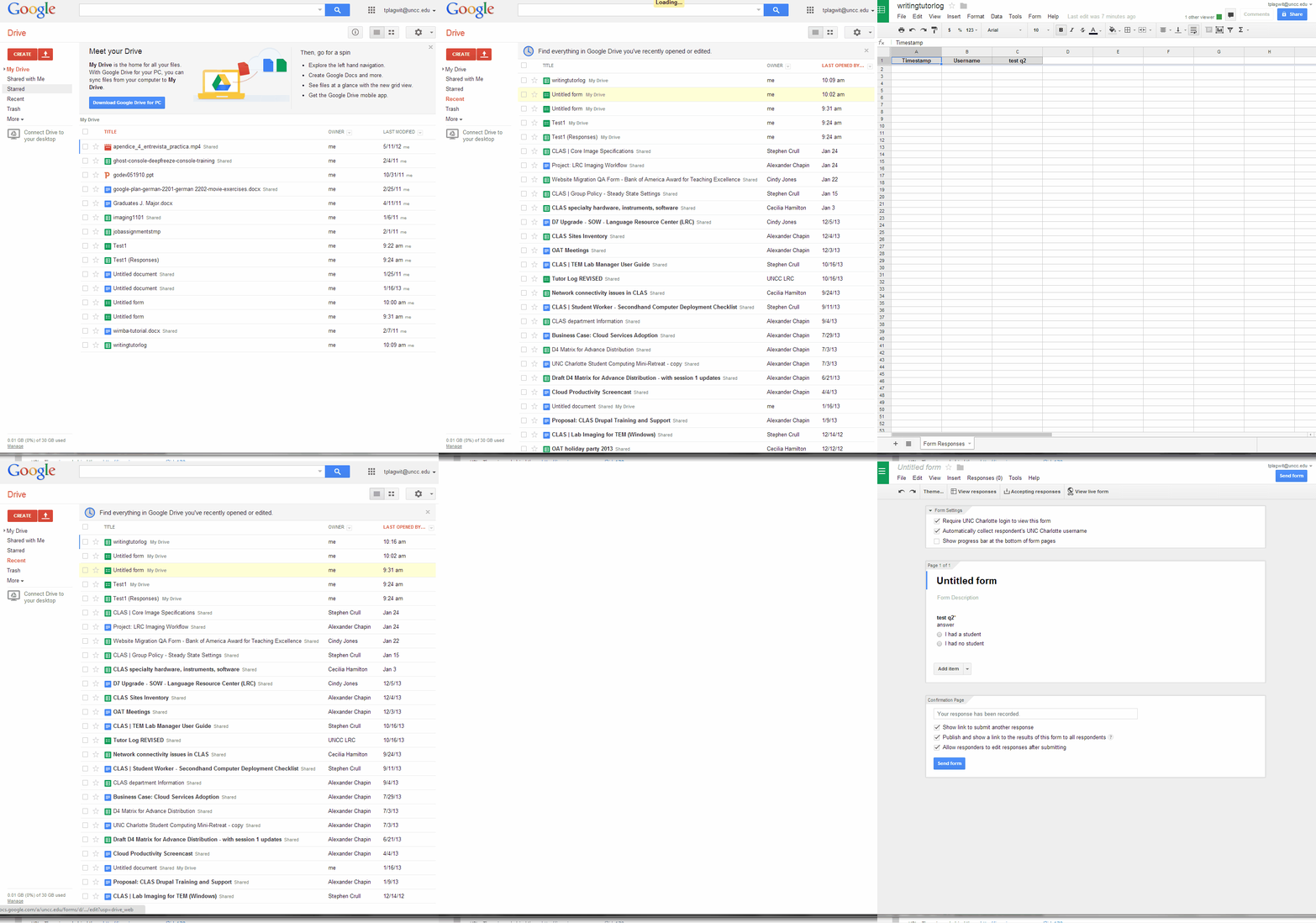
- If you want to collect input from others (including students outside of a course = Moodle), including recurring input from the same student (multiple submissions are the default andsingle submission limit can apparently only be enforced offwith JavaScript hacks)(.
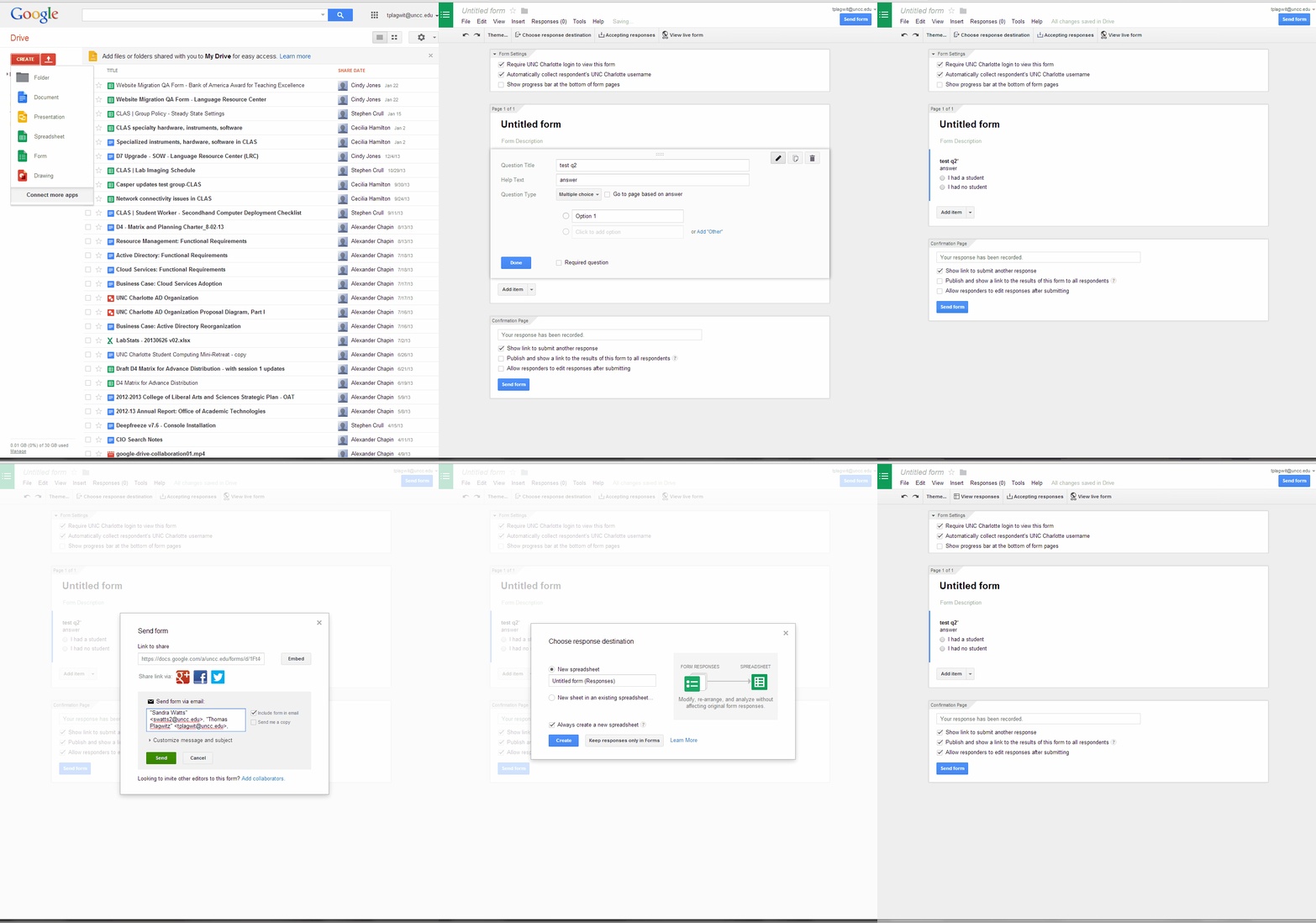
- Do this to create a form in Google Apps:

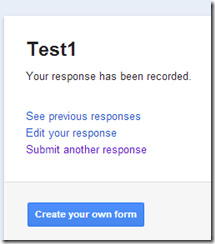
- Here is what you can have your submitters see:


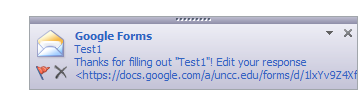
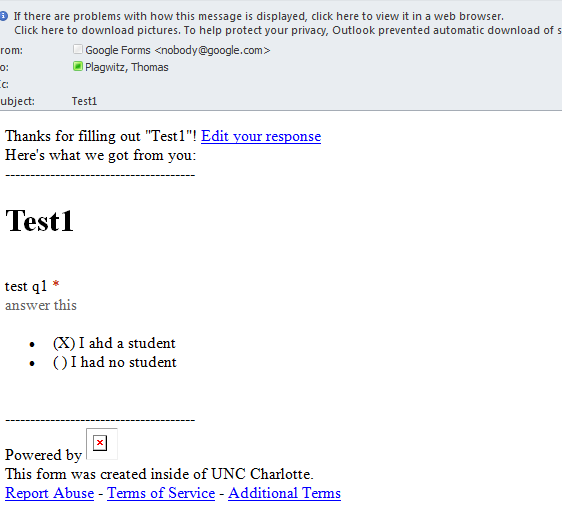
- Here is what you get:


MS-Surface RT unboxing
2014/01/29
Leave a comment


Categories: e-infrastructure, hardware, os, tablets
8.1, ms-surface, ms-windows, rt
Protected: Facilitating equipment circulation and room booking with website calendar aggregation?
2014/01/29
Enter your password to view comments.
How to connect an MS-Surface RT to the secure campus wireless
2014/01/29
Leave a comment
- This worked on a 1st generation Surface, but with Windows 8.1.
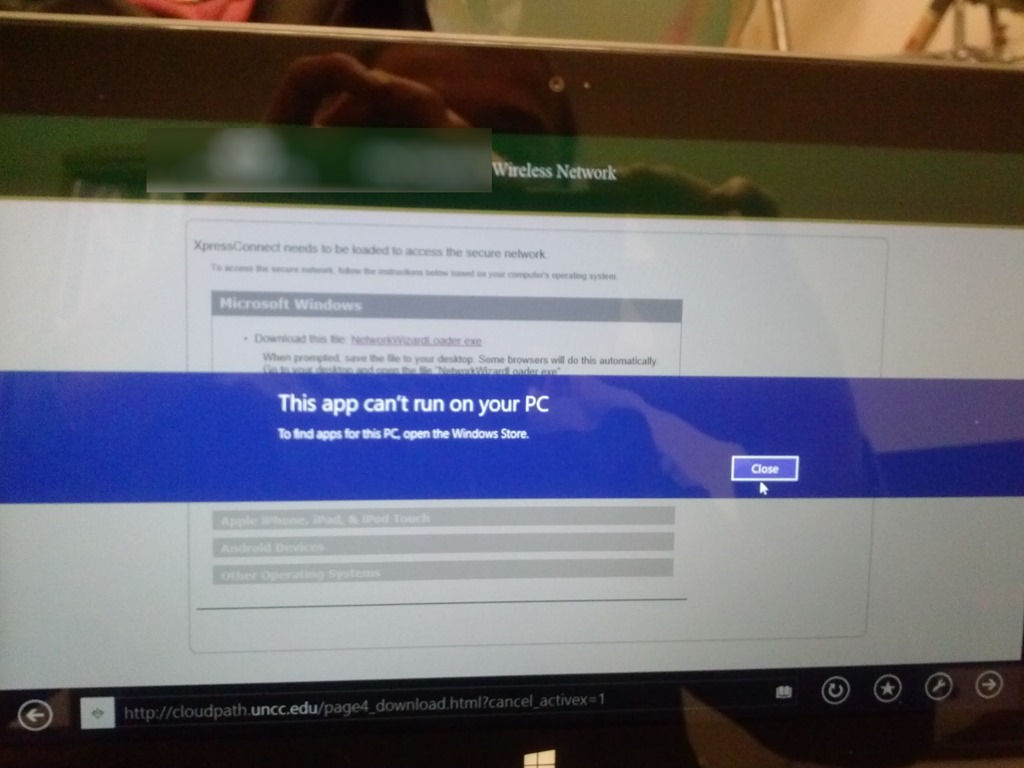
- No problem getting onto the UNCC49er network, but the Surface/Windows 8 is not supported on the NINERWifi-secure yet. Specifically, loading the automated configuration tools provided when first trying to access the NINERWifi-secure, fails on the RT platform.


- I received seemingly conflicting instructions:
- The campus website
- has for devices that are not supported manual configuration settings.
- Another campus that uses the same secure wireless provider has these instructions for Windows 8.
- I could piece it together from there,
- including any translation to (there is none needed that I could see which BTW actually amazes me) Windows 8 RT.
- Maybe the following would have worked also, but I did not try it since I was already in the middle of the above steps:
- Swipe in from the right-edge of the screen, and tap Settings. (If you’re using a mouse, point to upper-right corner of screen, move the mouse pointer down, and then click Settings.)
- Tap or click the wireless network icon Wireless network icon. A list of available wireless networks should appear.
- Look for the “Hidden Network” option and then choose it.
- When it prompts for a SSID, type in exactly: NinerWiFi-Secure
- It should then prompt for username/password (NinerNET credentials).
- Say yes to any certificates warnings that pop up.
- The campus website

“Back to basics”: Need once again to default to color scheme basic on teacher computer
2014/01/27
Leave a comment
- Same problem as last term: (What made it come unstuck/unfixed?):


- No Sanako screen sharing activity involved here, but MS-Community-Clips screen sharing.
- Classes are moving in, and we cannot have the teacher computer slow to a crawl and eventually crash in the middle of a Sanako class, especially not when an assessment is involved.


Why does MS-Exchange calendar publishing with Limited details show the name of the organizer in the subject?
2014/01/22
Leave a comment
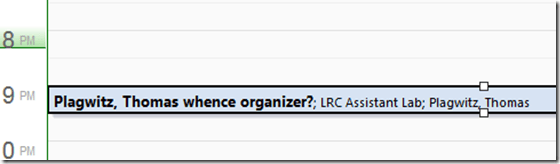
- Partial answer: Because the organizer name gets already put into the booking itself, before publishing (I first thought it was put in by a bug the publishing settings, where there is supposed to be an option to enable/disable showing the organizer name ). UPDATE: Another part of the answer: AddOrganizerToSubject is set to true on the mailbox (Doh! Hm, but why did this not seem to cause a problem before)?
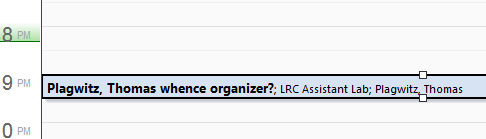
- Booking:

- Result (I saw the correct “whence”part of the subject briefly flickering up, but then the organizer name appeared in front of it):
- Publishing Setting:

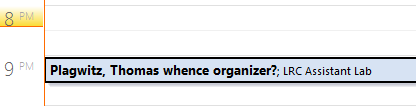
- Published View (which is where we do not want the organizer to show):

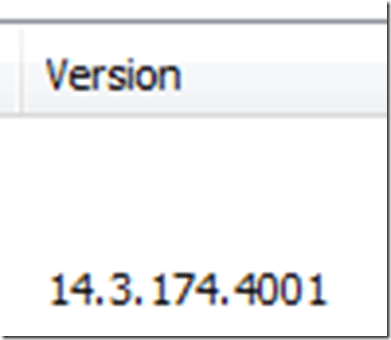 2010 SP?.



Categories: e-infrastructure, Glitches&Errors
calendaring, ms-exchange, outlook, outlook-live, publishing, resources


Questions? Read the About. Or just ask me a quick Our Databases: Resources with calendars -- Language learning material Moodle Sites, multimedia files -- films


FAQs for LRC student staff or for students or for teachers. To search our FAQs, in the browser addressbar, add after "https://plagwitz.wordpress.com/feed/?tag=faqs+/" "+TAG1" (from tag cloud below) OR "https://plagwitz.wordpress.com/feed/tag=faqs
&category_name=" "CAT1" (from category hierarchy below). OR search both categories and tags, and multiple TAGs/CATs (connect with "," for OR-search, with "+" for AND-search), like so: https://plagwitz.wordpress.com/feed/?tag=TAG1+TAG2+...TAGn&category_name=CAT1
+CAT2+...CATn"
Other ways to find help
If you cannot find it here, look there: 5,500 Language-Learning Links and Programs for learning or teaching 150 languages
Shortcuts:Our Lists, Our Maps, LRC Staff Moodle Site,LRC Project Moodle Site, 49erexpress, UNCC Moodle, Student Recordings: s:claslcslrcsanakostudent
Learning usage samples: Sanako oral exam, Kaltura webcam presentation, Dictation with speech recognition, Sanako written exam, Chinese and Japanese interactive stroke-order practice
Test the Sanako Installer, Webbrowser Popup Konfigurator for XP, or Windows7, faster LRC TeacherPC Log-in Let MS facilitate diacritics writing by installing for you US-International keyboard layout
This is my personal blog (Google+). The views expressed on these pages are mine alone and not those of my employer. The information in this weblog is provided “AS IS” with no warranties, and confers no rights.
 Thomas' Work Space