Archive
Wimba Classroom Session with AppSharing for online tutoring or support
Here you can view a 2.5 minutes screencast of how to initiate a Wimba Classroom session with Appsharing.
|
0:28
|
Logging in as participant
|
|
0:44
|
Chime indicates: loading finished
|
|
1:05
|
Demo:hand raising
|
|
1:17
|
Demo:messaging
|
|
1:42
|
Local screen sharing started by remote
|
|
1:57
|
Local dialogue to permit
|
|
2:02
|
Text message: “the app sharing is now displaying Plagwitz’desktop”
|
|
2:07
|
Local frame to select screen portion shared.
|
Now students can share a Moodle or other online assignment or all local text file with their tutor; users in need of computing support the offending application.
One-on-one virtual language tutoring using Wimba Classroom
The most useful tools in Wimba Classroom for synchronous one-on-one online tutoring, apart from the basic text instant messaging, may be not the videoconferencing, but the audio tools combined with screen-sharing or application-sharing AKA desktop sharing (remote user can control the application – especially for reviewing online learning materials with automated feedback which the student may need additional help with.
A two-way audio connection is obviously useful for language learning, and incurs no phone costs. Videoconferencing is only available on the most advanced phones. And more than video even,
we thought that especially the application screen sharing in wimba would be useful, e.g. if tutor and student go through some of the online exercises together live and the tutor can answer additional questions of the student that the automated online correction has not answered).
To start application sharing, click in tab:content button:share, set the desired sharing options and click “begin sharing”
Recommended learning path:
-
Both Wimba.com on their Wimba Classroom page and the CTL on their Wimba entry page have a wealth of learning resources on (notice that I
 loop inductions, learning by doing):
 -
First watch an archived session held using Wimba classroom: Both the vendor (TBA) and the CTL have archived sessions, including introductory sessions on the use of Wimba Classroom and components.
-
Then take the student perspective: You can anticipate student issues and learn from/with the teacher without full responsibility for the session, if you participate in a live session using Wimba Classroom., like the ones the CTL regularly offers (the next one: http://teaching.uncc.edu/how-do-i-moodle-more-course-web-site-30-min-webinar).
-
Read the FAQ, to learn from colleagues with a similar background/context: Intricacies of the talk button (keep it pressed, or set the options so that you do not ; video/audio/text out of sync may indicate slow internet connection, consider dropping video, the biggest bandwidth hog.
-
Practice makes perfect: Once equipped with a computer, I plan to test out the Wimba Classroom instructor room, by using it for intra- and inter-office communications. There are competing platforms that I like, e.g. MS-Communicator with its strong presence and escalation features. But Wimba rooms which span students, teachers and staff – any staff member has one by default, any student can enter a room -, have the strongest network effect).
-
Do one-on-one student support, like in tutoring or online office hours. This can serve you as a gentle introduction to doing more ambitious Wimba classroom projects:
-
Meeting online with small student groups, e.g. when planning or reviewing student groups projects.
-
Teaching large online classes.
-
Before you do this and for your specialized features, you may want to review in–depth multimedia documentation: Wimba Classroom has in depth print manual for presenters and students. Screencast videos (Using Audio, Web Page Display, Application Sharing) are instructional, 1-page “cheat sheets” (Web Page Display, Application Sharing) are perfect for putting up at your computer during your first session.
-
Once you are experts, don’t forget that your studentsmay not have used Wimba classroom.
We can support such online tutoring
-
in the LRC when open (not on weekends unfortunately);
- Or in your office, with spare parts from the LRC hardware resources (headsets and webcams) which we can set up for you;
-
Or – to gain maximum benefit from the flexibility synchronous online affords – from home: This however hinges on teachers’ (and students!) whether you are comfortable independently supporting this and if your setup can handle the requirements – – soundcard, headset with microphone (fewer audio problems than with a microphone/speakers built-in/connected to your webcam/laptop), (webcam is possible, but not necessarily the most useful language learning feature , and but maybe contenting with more instructional screen-sharing or application-sharing, capability of running the Java plugin in your browser, sufficiently fast computer and internet connection
All participants must run the Wimba wizard well ahead of session, to be able to address any technical problems before entering a classroom. You can watch the Wizard at work in this screencast video.
MS-Office Communicator: Tips for using: Presence
No time for playing phone-tag (or “Phone-tag: Next generation”, aka email-tag)? “Presence” is your friend.
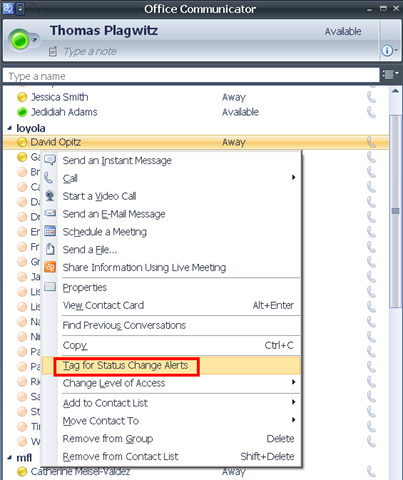
In Communicator, from your contact-list, right-click on a contact, choose “tag-for-status-change-alerts”.
From MS-Help: Tag a contact so you are notified when they are available: “Communicator can notify you of changes in a contact’s availability by displaying an alert whenever their presence status changes to Available or Offline. The alert shows the contact’s name, title, instant messaging address, and new presence status. You can click the alert to start an instant messaging session with the contact. Configuring Communicator to display this alert for a given contact is called tagging.”
Like in these screenshots:

Videoconferencing: Tandberg Conference-Me Test
While we initially ran into a glitch during the client install:
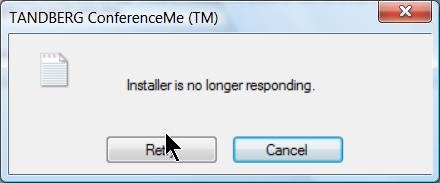
The application did seem to install correctly.
The video quality was acceptable even with low bandwidth settings. The application provides well-structured documentation as well as convenient interface, including through context menus:
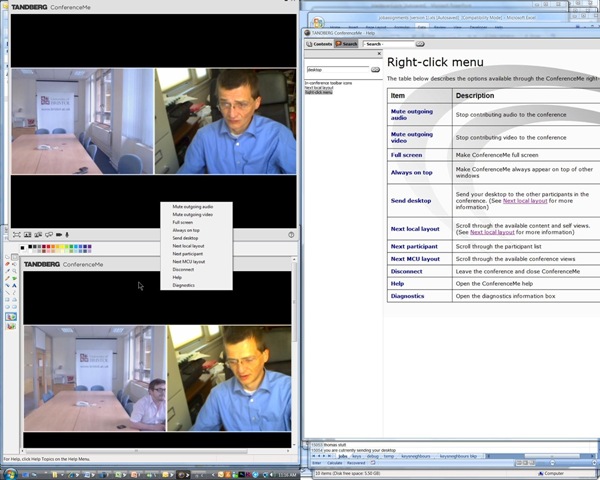
The diagnostic tools also seems strong:

Overall, Tandberg’s Conference-Me application looks like an attractive package.
MS-Office Communicator: Getting Started
https://thomasplagwitz.com/2009/11/13/collaboration-using-ms-office-and-network-shares/Click  , click
  , type “communicator”, click
  .
.
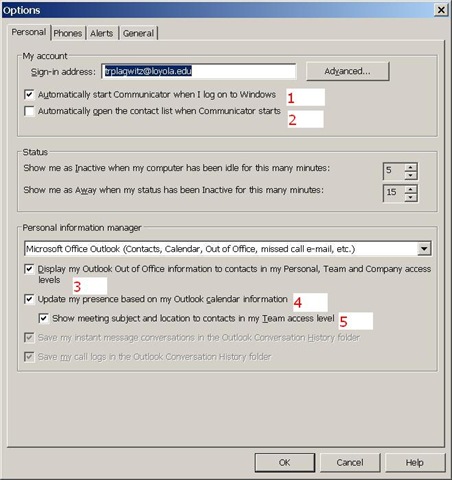
To adjust options, click (1), (2) and (3) here:

To start communicator with Windows, select (1).
To have Outlook automatically show you as busy during calendar appointments (e.g. your classes), select (4).
To get your contact list up to speed, select all the contacts in the to-address line of a mass email and drag them to your communicator window, see this screencast here: communicator-email-contact-drag.wmv.
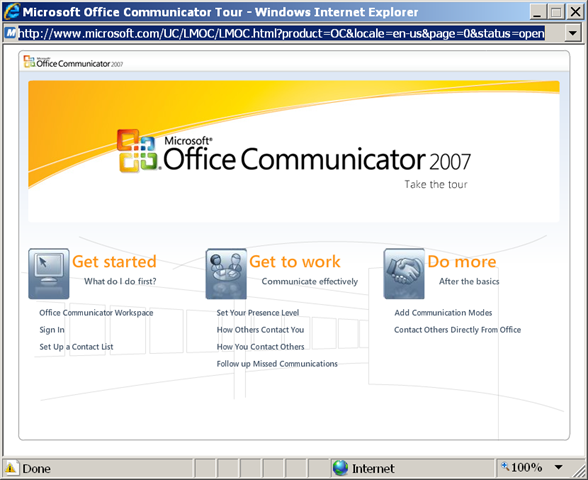
Microsoft has a useful “Getting Started” web-based training here:
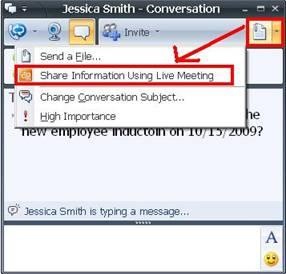
To use the advanced features of Live Meeting, you can either use the context menu of the contact, or within an existing messaging session, escalate to Live Meeting by using the upper right hand corner menu, like in these 2 screnshots:

Video Conferencing during Simultaneous Conference Interpreting Training
- i should probably step further away from implementation details, but i am looking for an anchor in a field which is heavily in flux, and in an environment which seems opaque.
- existing solutions: seem to be a superficially adapted/integrated application of existing video conferencing implementations for business meetings (Polycom VXS 7000 based?). I have seen academics complaining about “the emperor’s new clothes” when it came to teaching with technology innovation that made much more sense to me than this one, so i am concerned what will be the uptake once the hype is over (Yes, you can video conference over the internet. And for quite some time now. My 70-year old mother calls me every Sunday night on Windows Live Messenger. But we do not do interpreting training in an educational business environment).
- solutions more fit for purpose for interpreting in general and interpreter training in particular: the incoming speaker audio can be displayed to every one; but the interpreter audio, insofar outgoing (as opposed to be displayed to select audience locally), while being able to use the video conferencing unit, if its audio is full duplex, should not be universally displayed remotely,
- neither on the speaker-side (it would confuse and interrupt the speaker; but another part of the speaker-side audience likely needs to hear it, either for interpreting or for training (evaluation) purposes;
- nor on the 3rd-party (if video conferencing unit supports 3-point connections) site, but rather be displayed separate from the speaker audio
- for 3-point conferences, if the video conferencing unit supports separate (left – right) tracks for incoming audio, and if the incoming audio can be routed/switched, it should be possible to transmit 1 speaker (a-language) and 2 interpreters (b-language 1 and b-language 2) during the same video conferencing session
- implementation example: audio should be sent from video conferencing unit to headphones, or better a headphone connected to a system that allows switching and routing locally (e.g. a language lab system);
- video is only needed from the speaker
- live video from the speaker is not needed: there is no interaction between the speaker and the interpreter and (practically? sometimes it is recommended that the interpreter can visually sign to the audience) no visual interaction between the interpreter and the audience. if the video of the speaker can be launched to remote sites (streamed or downloaded as an archived file), only audio connections are needed.
Instant language services support on office and classroom IT lab computers. Part I: Initial Setup
-
If you have Windows XP on your office computer, we can use MS-Messenger (ver 4.7) “Application Sharing” to provide immediate live assistance with computer problems in remote parts (also useful for collaboration with colleagues on documents, including web pages, when a phone call is too little and a meeting is too much).
-
click “Start”, “Run”, type (or copy/paste): “C:\Program Files\Messenger\msmsgs.exe“, click “OK”
-
Initial setup (you have to do this only once)
-
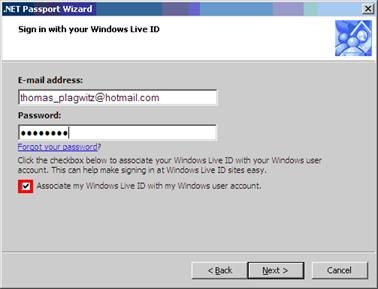
“Add a .net passport to your windows xp user account”:
-
Email account
-

-
Users of http://hale-translation.groups.live.com/, http://hale-interpreting.groups.live.com/, or the Interpreting online calendar (http://calendar.live.com) can re-use their windows live account
-
Other users can use existing hotmail/windows live accounts or create a new hotmail/windows live account (you may want to create a separate account for work related messaging)
-
On your office computer, also check the checkbox to “Associate your account with your windows user account”, like here:
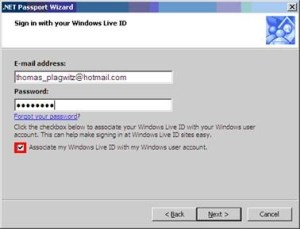 , when asking for help on a student computer, uncheck this
 -
Add “Thomas_plagwitz” at “hotmail.com” as a contact (initially, I will have to accept this before you can contact me):
-
Click on “I Want To … Add A Contact” (green plus sign)
-
Once set up with Messenger like described here, go to PART II.
Instant language services support on office and classroom IT lab computers. Part II: Usage
-
Once set up, if you have Windows XP on your office computer, we can use MS-Messenger “Application Sharing” to provide immediate live assistance with computer problems in remote parts (also useful for collaboration with colleagues on documents, including web pages, when a phone call is too little and a meeting is too much).
Click “Start”, “Run”, type (or copy/paste): “C:\Program Files\Messenger\msmsgs.exe“, click “OK”.
-
Start a conversation by double clicking on the user icon (“Thomas Plagwitz” or whoever) in your contact list.
-
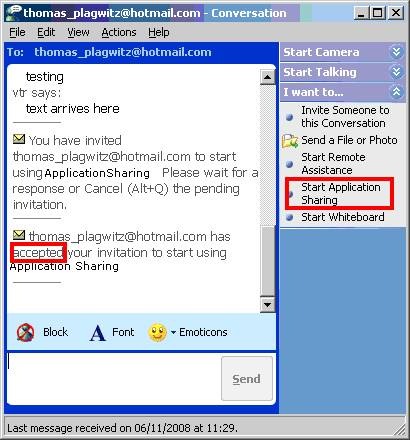
Right Menu: Section: “I want to” / “Start Application Sharing”
-

-
All is well if the other party has “accepted your invitation”, like above – allow some time for the screen sharing to start up on old computers.
-
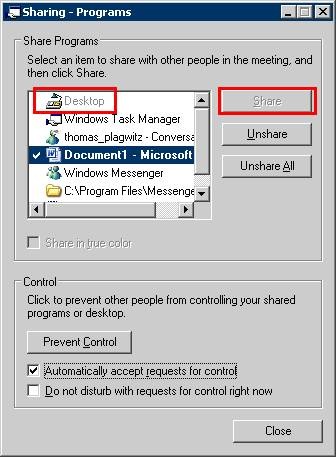
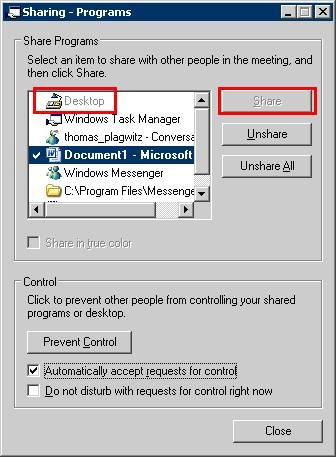
When a dialogue comes up which asks you which application to share, use “Desktop”, like below – this will allow the other party to see your screen.
-

-
At the end of the session, “Unshare” your desktop, or simply end the “conversation”.


Questions? Read the About. Or just ask me a quick Our Databases: Resources with calendars -- Language learning material Moodle Sites, multimedia files -- films


FAQs for LRC student staff or for students or for teachers. To search our FAQs, in the browser addressbar, add after "https://plagwitz.wordpress.com/feed/?tag=faqs+/" "+TAG1" (from tag cloud below) OR "https://plagwitz.wordpress.com/feed/tag=faqs
&category_name=" "CAT1" (from category hierarchy below). OR search both categories and tags, and multiple TAGs/CATs (connect with "," for OR-search, with "+" for AND-search), like so: https://plagwitz.wordpress.com/feed/?tag=TAG1+TAG2+...TAGn&category_name=CAT1
+CAT2+...CATn"
Other ways to find help
If you cannot find it here, look there: 5,500 Language-Learning Links and Programs for learning or teaching 150 languages
Shortcuts:Our Lists, Our Maps, LRC Staff Moodle Site,LRC Project Moodle Site, 49erexpress, UNCC Moodle, Student Recordings: s:claslcslrcsanakostudent
Learning usage samples: Sanako oral exam, Kaltura webcam presentation, Dictation with speech recognition, Sanako written exam, Chinese and Japanese interactive stroke-order practice
Test the Sanako Installer, Webbrowser Popup Konfigurator for XP, or Windows7, faster LRC TeacherPC Log-in Let MS facilitate diacritics writing by installing for you US-International keyboard layout
This is my personal blog (Google+). The views expressed on these pages are mine alone and not those of my employer. The information in this weblog is provided “AS IS” with no warranties, and confers no rights.
 Thomas' Work Space