Archive
Interpreting Suite use: Policies
WHEN YOU BEGIN:
1. Always 1st log on PC
2. Ensure VCR Channel is on A1 
3. No food or drink (except water, on floor)
4. To speak, turn on DIS6132 microphone  (only 1 microphone per booth can be used at a time)
5. To record, wear 1-ear pad black headphones around neck
6. When listening to recorded video, adjust the BT928 volume 
WHEN YOU LEAVE:
7. Turn down the DIS6132 volume 
8. Log off the PC (do not power off)
9. Clean up your desk (handouts, water…)
Shared Calendar for Interpreting Suite Bookings on Windows Live: How to get started
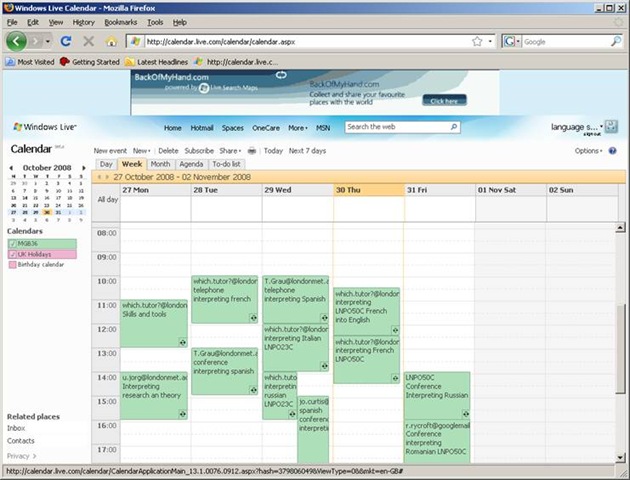
1. We have set up a *shared online calendar*:
2. 
3. Where do I find this calendar?
a. It is on Windows Live.
b. hale.language.services@live.co.uk will email you an invitation to share this calendar on line.
4. What do I do when I receive the email?
a. In the email, click ‘accept’.
i. If the link does not work, copy /paste the text link from the bottom of the email, but first remove line breaks (paste the link into notepad and make sure that the entire link is on single line).
b. If you do not have a Windows Live account, you will be given the option to ‘sign up‘.
i. If you are not asked to sign up, you may be logged in as somebody else: make sure to create your own account with your own password.
c. For best results, open the calendar with a recent Web browser: Firefox 3 or Internet Explorer 7 (if you cannot upgrade, version 6 works also, with some limitations) or better.
5. MGB36 is the coded room number for the interpreting suite. It is also the name of the online calendar.
6. What do I do next?
a. Simply add an appointment to the calendar by hovering over the time slot required and clicking on “ADD“
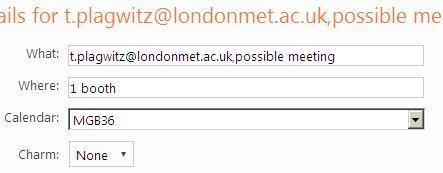
i. Under “Calendar”, select “MGB36” (if you add to your personal Calendar, other users won’t be able to see).
ii. Under “what”, include your e mail address so we can contact you in case of changes, as well as Module number
iii. Under “where” include if you do not need all booths (others may want to share)
iv. for additional options, like recurrence (= enter 1 appointment – recurring weekly, until end of it…, no wait: teaching period! – to book your weekly class meeting for the entire teaching period), click on “Add more details”.
b. Don’t forget to update the calendar if you need to cancel a booking.
c. If you want to see a demonstration, watch the live_calendar_shared_mgb36.wmv using Windows media player
7. Who can view the information on line?
a. Interpreting lecturers only.
b. Students can currently not access the data. We may decide later to let them view it (i.e. make the calendar public).
Did you run into problems with the calendar not explained here? View the FAQ.
Shared Calendar for Interpreting Suite Bookings on Windows Live: Frequently asked questions
-
Problem: How do I return to “Windows live”?
-
Solution: AFTER you followed the “accept” button in the invitation email, you can return to the calendar by simply going to http://calendar.live.com. Or for easy access to other windows live services like groups, go through http://home.live.com and the top menu “more”/ “calendar”.
-
-
Problem: I seem to have lost access to the calendar?
-
Solution: if you go to http://login.live.com, make sure you are logged in with the windows live account that you gave us for calendar access (if you are logged in under a different name, log out from that account first) . Then go to http://calendar.live.com: you should have access now.
-
-
Problem: My calendar time seems off?
-
Solution: adjust your time zone: after going to http://calendar.live.com, in the upper right hand side, click on options / more options / time zone: change this to “Greenwich mean time [….] LONDON” (do NOT choose GMT UNIVERSAL time”, this has no daylight savings time adjustment!). Then click “save”at the bottom Please let me know of any other issues (please provide OS and browser version and error message).
-
-
Problem: Other users cannot see my calendar appointments.
-
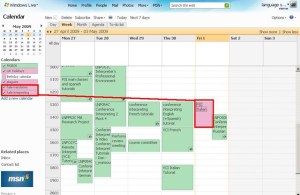
Solution: Make sure you added them to the right calendar, called “MGB-36” (an option when you add an appointment). There are now several calendars for other purposes, but booking of the suite is done in “MGB-36”. You can see something went wrong if your appointment stands out in a different colour (see legend), like here:
-
-
Problem: I would like to book some space (booths) in the suite, but the entire suite seems already booked – what should I do?
-
Solution: The original calendar instructions mentioned to start a booking with your email address under “what” and qualify under “where” if you require only parts of the interpreting suite for your class. If only the latter has been omitted, you can still email the colleague to inquire. If the former has been omitted also, we will have to try tracking down which the information which will take time.
-
-
Problem: There is a (recurring) event which I can not delete (I get the error: “there’s a problem connecting to windows live calendar”).
-
Solution: The error message is misleading. This seems a bug in the software. You can try to work around it like this
: Move one occurrence of the event (drag it with your mouse to a different time). This breaks the recurrence. Now left-click on the moved event to edit it. From the popup, choose to “Edit every occurrence” instead of “Edit this one occurrence”. This should get you to the “Event details” page, where you can delete the entire event from the top menu.
-

Whisper interpreting with radio transmitter/receiver (“bidule” by williamssound.com)

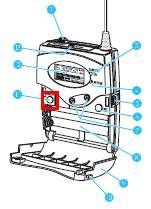
We have:
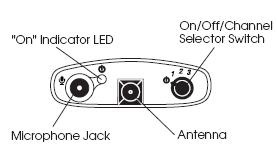
- 3 transmitters (larger antenna), with headset (with microphone) or collar microphone:
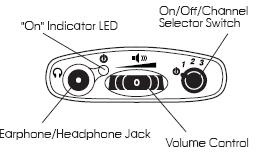
- 10 receivers with regular 3.5 mm headphones (without microphones):

Usage:
- Speaker speaks
- Interpreter
- listens to speaker in room
- wearing one of the transmitters, whisper interprets into target language channel 1,2or 3
- delegates
- wearing receiver and headphones, listens to one of the interpreter channels
Troubleshooting:
- If you cannot send/receive audio at all, check
-
Channel selector on top of unit: make sure you are on the right channel
-
Power indicator light is on? If not , adjust batteries in compartment at rear of unit
- If you cannot send/receive audio well, check
-
Transmitter:
- microphone adjustment wheel under rear panel door
- position yourself and the microphone so that there is no ambient noise going into your (sensitive) microphone, especially not from the speaker
-
Receiver: Volume wheel on top of unit
Language Lab Techniques for (Self-)Evaluation and Grading of Student Recordings with Audacity
This quick and dirty (not narrated and uncut: time is money, and storage cheap…) video demonstrates a technique in (the free audio editor) Audacity with which instructors and students can more easily (self-)evaluate parallel recordings from (be it model imitation, question-response, or consecutive interpreting exercises in) the language lab (in this case the output of a Sanako Study1200, which automatically gets stored in a folder on network share):
|
When? |
What? |
0,00 |
how to load 10 student files à 5mb = 2:30min (but as a batch, allowing you do something else in the foreground instead of waiting) |
2,50 |
how to select a part of the timeline to play |
3,00 |
how to move tracks up to more easily work with them and the menu |
3,30 |
how to play all tracks simultaneously (choir, normally not very useful for evaluation) |
3,40 |
how to play only one track (solo): evaluate & compare |
Network shares: What you need to know
|
NetworkPath |
Mapped as for |
Staff can |
Student can |
Language services use | |||
|
Staff |
Student |
read |
write |
read |
write |
| |
|
\\lgu.ac.uk\lgu$\londonmet departments |
J: |
|
yes |
yes |
no |
no |
\Humanities arts and languages (HAL)\Language_services: documentation for internal use |
|
\\stushare_server\StuShare |
K: |
S: |
|
|
yes |
|
\Humanities, Arts and Languages\Language_Services: public documentation ( including services manual) |
|
\\lgu.ac.uk\lgu$\misres$ |
M: |
|
|
|
|
|
|
|
\\lgu.ac.uk\lgu$\apps07 |
N: |
N: |
|
|
|
|
|
|
\\lgu.ac.uk\lgu$\multimedia student\mmedia\mmedia1 |
O: if requested |
O: if requested |
some(if not, request access) |
some |
Yes |
no |
\Language_services: (large) multimedia files (including teaching materials video clips) |
|
\\lgu.ac.uk\lgu$\multimedia student\mmedia\mmedia2 |
|
|
some |
some |
no |
no |
|
|
\\datacty01\staff$ |
S: |
|
yes |
no: todo |
|
|
TBA |
|
\\venus\homes |
X: |
|
|
|
|
|
|
|
\\misres01\eureka |
Y: |
|
yes |
no |
|
|
|
If mapping failed, from desktop, run  , then click button
How to access trprecord.exe
In the interpreting suite, students can click  , click
  , paste “\\lgu.ac.uk\lgu$\multimedia student\mmedia\mmedia1\language_services\software\trprecord.exe”, click
  . More help.


Questions? Read the About. Or just ask me a quick Our Databases: Resources with calendars -- Language learning material Moodle Sites, multimedia files -- films


FAQs for LRC student staff or for students or for teachers. To search our FAQs, in the browser addressbar, add after "https://plagwitz.wordpress.com/feed/?tag=faqs+/" "+TAG1" (from tag cloud below) OR "https://plagwitz.wordpress.com/feed/tag=faqs
&category_name=" "CAT1" (from category hierarchy below). OR search both categories and tags, and multiple TAGs/CATs (connect with "," for OR-search, with "+" for AND-search), like so: https://plagwitz.wordpress.com/feed/?tag=TAG1+TAG2+...TAGn&category_name=CAT1
+CAT2+...CATn"
Other ways to find help
If you cannot find it here, look there: 5,500 Language-Learning Links and Programs for learning or teaching 150 languages
Shortcuts:Our Lists, Our Maps, LRC Staff Moodle Site,LRC Project Moodle Site, 49erexpress, UNCC Moodle, Student Recordings: s:claslcslrcsanakostudent
Learning usage samples: Sanako oral exam, Kaltura webcam presentation, Dictation with speech recognition, Sanako written exam, Chinese and Japanese interactive stroke-order practice
Test the Sanako Installer, Webbrowser Popup Konfigurator for XP, or Windows7, faster LRC TeacherPC Log-in Let MS facilitate diacritics writing by installing for you US-International keyboard layout
This is my personal blog (Google+). The views expressed on these pages are mine alone and not those of my employer. The information in this weblog is provided “AS IS” with no warranties, and confers no rights.
 Thomas' Work Space