Archive
How a Student takes a Moodle Video Assignment in the LRC
- On one of the LRC iMacs, in the Safari web browser (open new window with COMMAND-key+n),
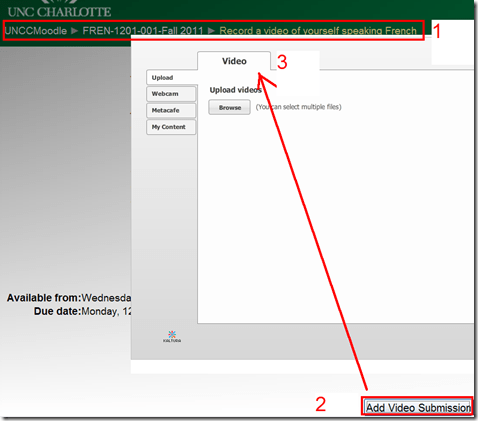
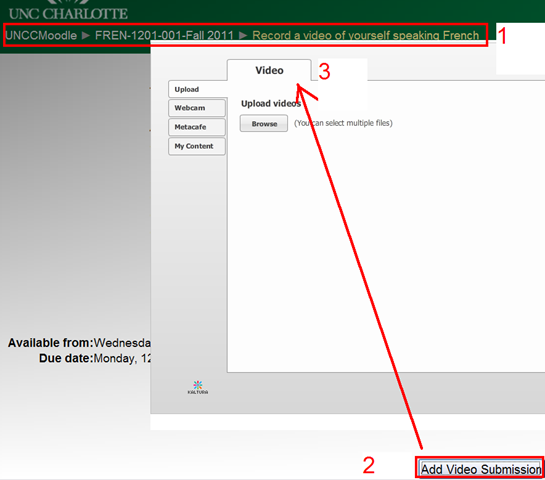
- go to your Moodle course, (1) find the video Assignment, read the assignment instructions (what your teacher wants you to record). Then click underneath the (2) button: “Add video Assignment”, to open the (3) submission window:
- Note that she will also have to allow the flash player to interact with her webcam first.
 If you see no web cam video window, only a black frame, read in.
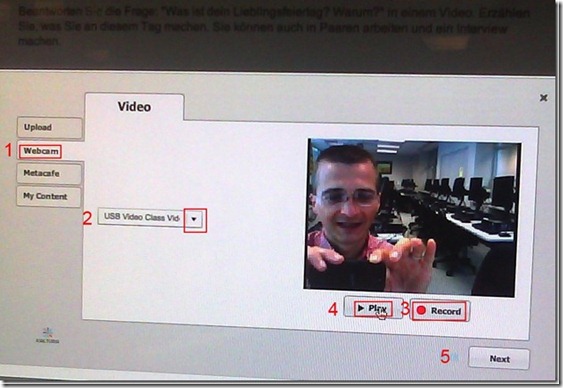
- In the submission window, choose the tab “Webcam” (1), use the dropdown to select the camera hardware (2).

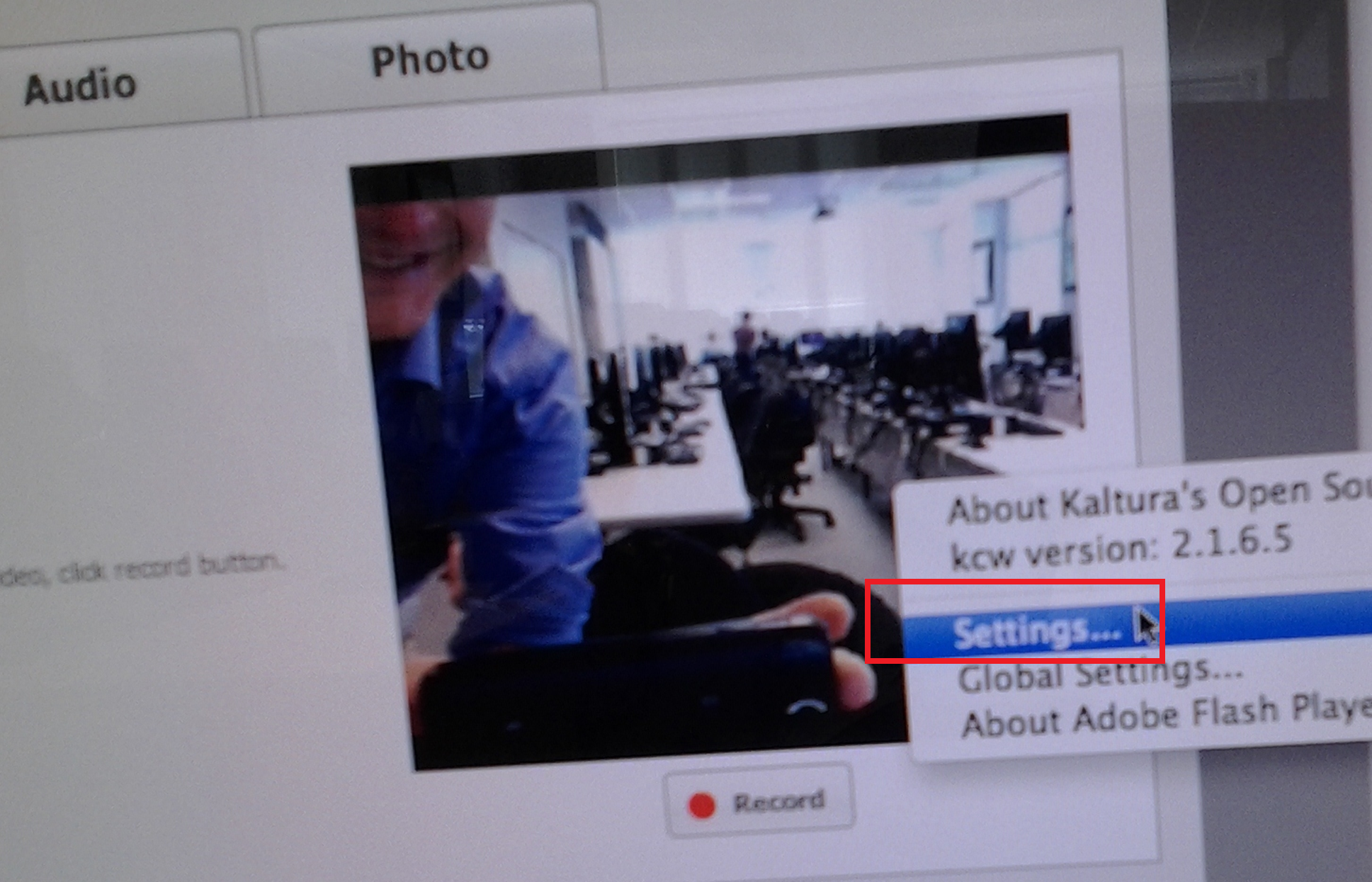
- Check the headset microphone audio: The external headset microphone on the iMacs did not work., but now it does, provided you do this: control-click on Flash’s a video preview window (= the window where you see yourself like in a mirror) for the web camera, and click on “settings”.
-

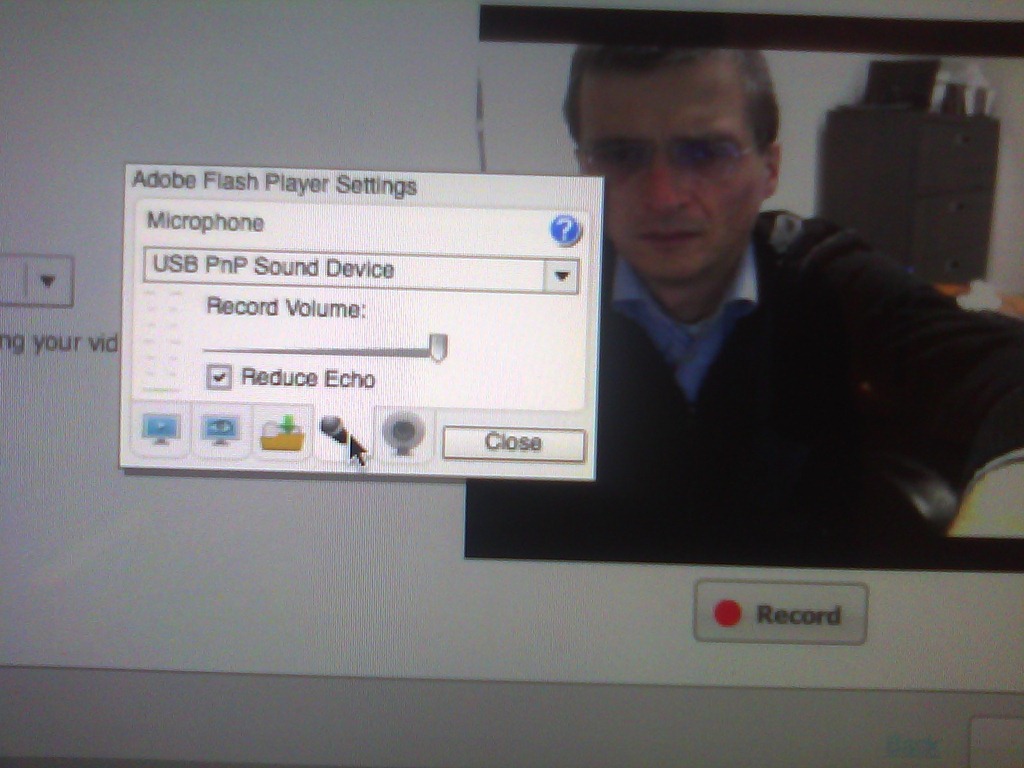
- Click on the microphone icon :

- Make sure the USB PnP device is selected.

- You can bring up the settings dialogue, make sure the USB PnP device is chosen for audio and CRANK up the microphone input sensitivity! Then, by tabbing (don’t speak yet) on the headset microphone, test the volume levels with the built-in volume meter (should show lots of green bars when you tab). Unlike in the picture, do not choose “reduce echo ”.
-
- Start (3) the video recording.
- Afterwards, the student can review (4) her submission.
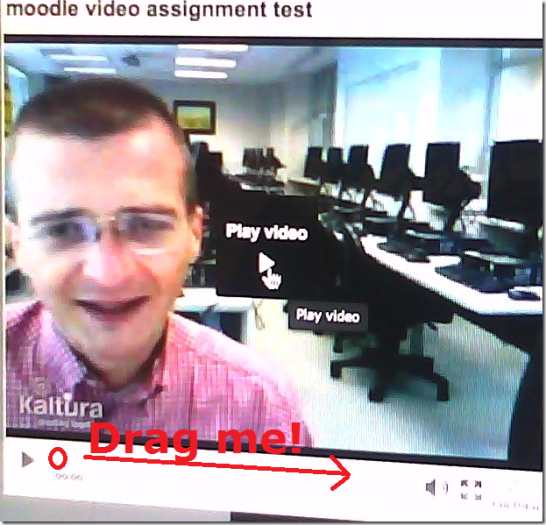
- If you don’t like your first recording, (3) “record” over it and review again with (4) “Play”. If you do this and the video appears frozen, drag the timeline cursor forward to get the re-recorded video to play. If this does not seem to work, you are likely still able to submit your 2nd attempt, just not review it again.
- Click through all the “Next”etc. buttons:
-


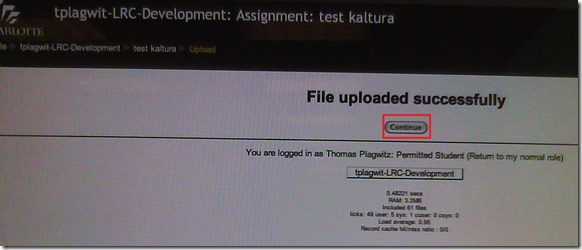
- until you get to the feedback page for the student (caveat: in IE9, the video does not fit into the frame provided on the page).

- Note, it warns you to be patient now:
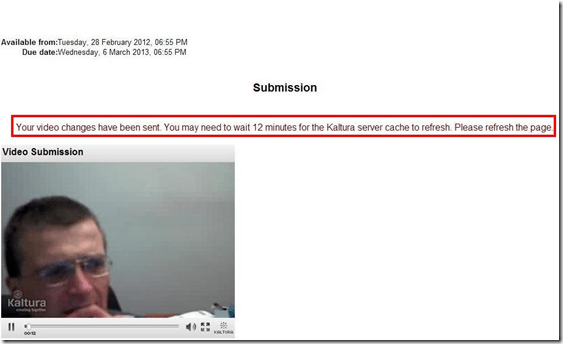
-
- LRC support:
- Depending on your hardware (webcam), software and network support, you can record your language speaking video assignments on any device that has a webcam and a browser that supports flash – and even more devices, if you are willing to post process and upload the video clip.
- If you run into problems or want to use a tested setup, we recommend using the LRC. Since our PCs have no built-in or added webcam (proposed), we can currently only use our 5 8 iMacs (see LRC Layout, see Classroom Calendar and iMacs Calendar for availability). Our (limited) tests worked better in Safari than Firefox.




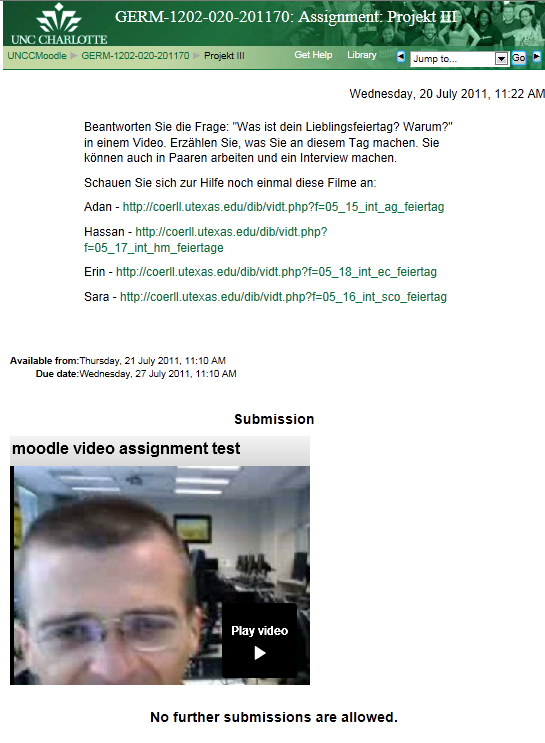

Successful test of the new streaming video recording assignment for language proficiency assessment in Moodle.
- Video recordings allow for a more authentic assessment of spoken language proficiency. Today, we could test a new Moodle video assignment type for Almut’s Summer II Elementary German II class: Preparing a natural sounding statement on one’s favorite holiday. This Moodle assignment type is an extension to students of the teacher video upload tool using a service Kaltura – we hinted at that earlier.
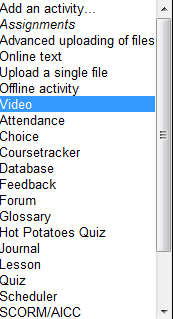
- Teachers, when editing their Moodle course, can find this assignment type in the dropdown: Activity as “Video”.

- The assignment options: Note that creating a video assignment is pretty much the same as creating other assignments in Moodle, and so is grading, except instead of reading, you view the submission, right within the web page.

- An example of guiding questions for a recording assignment is here (topic: holiday, language: German):

- Here is how the teacher sees the student submission in the gradebook.


- Caveat: in Safari, we were not able to close the video popup, after viewing it from the class roster, and could only back out of the entire gradebook. Instead, from the roster, first open the page with the individual student submission, and review the video there on that page:

- For the student experience, see here.
- Further reading: The CTL has a number of step-by-step instructions which we recommend for further reading: Student Video Assignment, and specifically for students: Upload a Video for a Video Assignment; for instructors: Grading Video Assignment Submissions.
- The LRC had originally prepared to record the students with our old, handheld mini-DV cameras, import the movie into iMovie or Windows Movie Maker, then find a way to get the files (with easily identifiable submitter names) to the teachers. Hitherto, our best option was compression of the video to to fit into the Moodle 64MB file upload size limit (which, even if you decide to shoot and produce your video elsewhere and bring it as an uploadable file to the assignment , does not apply to the Video assignment either).
- Preliminary testing seems to indicate that video recording of pairs/dialogues is also possible with the LRC’s webcam setup . However, because of the angle restrictions, capturing such sessions will be less natural.
- Overall, the new Moodle video assignment seems a major improvement for all parties – students, teachers and support –, and can help with more authentic assessment of


UNCC LRC Language Placement Test: Web-CAPE Online Placement Exam Step-by-Step
- “The Online Placement Exam is designed to help you determine the first course you should take, based on your ability. This multiple-choice [no speaking, listening or writing required] exam presents questions of different ability levels, adapting the next question’s level according to your answers. The number of questions you will be required to complete depends upon your ability to use the language. The duration of the test varies, but it usually takes 15-20 minutes to complete [but can be finished after only 4 questions, and we will give you up to an hour time to complete the exam]”.
- The proctored exam takes place in the LRC (COED434). The exam schedule is published in the LRC COED434 calendar. Read more on how to view the LRC calendar from within the new NINERMAIL.
- When taking the exam during the proctored session in the language center [do not take the exam on your own], to sign up for the test, you have to go to: https://www.aetip.com/student/RegisterStudent.cfm (note: the “s” behind “http” is required), this now forwards to:https://www.perpetualworks.com/secure/register/student/, for which sthe shortcut is: http://goo.gl/PBjhhS:

- First chose UNCC (Avoid the common error of choosing another University of the UNC system, you will not be able to take the test if you do):

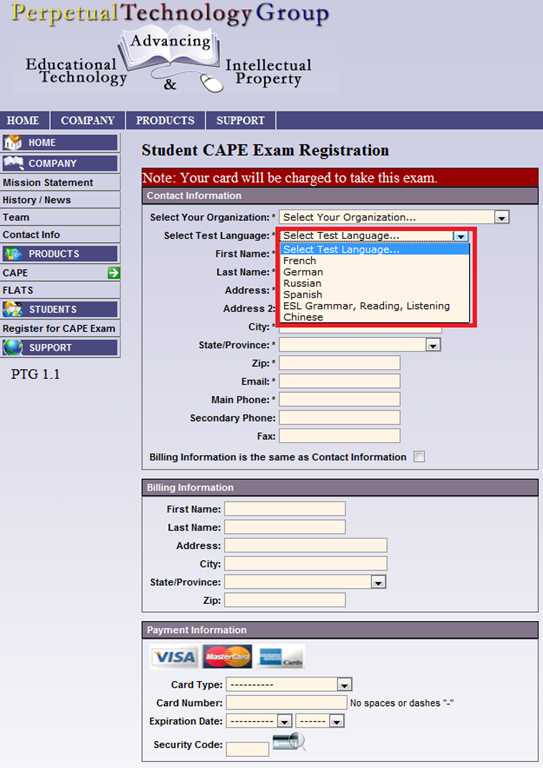
- Then choose your language – note that UNCC only allows testing in French, German and Spanish.

- Fill out the other form fields with your information.
- Finally, you need one of these credit cards, and the proper billing info, to take the test:

- Next, you will have to enter your NINERNET student id number.
- The exam results will eventually go to your file. However, they will have to be post-processed by the department. Do not take the exam without coordinating with the Department of Language and Culture Studies, or else your exam results will get lost!
- Remember that you can repeat the placement test, even though the number of retries per languages is limited to two (your score will get invalidated after that!).
- Remember also that is not advisable to study for (let alone cheat during) a placement exam, or else you will get placed into a course that is not right for you.



Speaking dictionary/pronunciation help, Part 1–the pedagogy
On the LRC PC’s, you can copy foreign language text to the clipboard (or with non-western languages to an MS-Word file) and have a wizard (right click, choose: “Read Clipboard”) pronounce for you, like so:

The following languages are supported:
| Language | Demo |
| American English | |
| French | Le Monde |
| German | |
| Italian | |
| Japanese | Japanese |
| Korean | |
| Portuguese (Brazilian) | |
| Russian | Gazetta |
| Spanish | El Pais@10:34 |
Note 1: In reality, the audio quality is smoother than in these demos which needed to be recorded over the network using MSTSC, because of Windows Media Encoder not being able to capture the special video overlay of the MS-Agent technology.
Note 2: Deskbot has problems understanding the Windows clipboard text encoding of some non-western languages. For these languages, instead of simple double-clicking the deskbot wizard to have him read out the clipboard (which would result in gibberish), paste your text into a MS-Word document and have deskbot read this document for you instead: Use the Deskbot option “Read Word document” (allowing Word to translate the character encoding into a format Deskbot can understand enough to aurally (even if not visually) display).
Listen to the Deskbot’s self-introduction when you log in to learn how to change the default language to the language you study.
You can also change other settings (in the LRC automatically limited to your current user session) by right-clicking the deskbot notification-area icon 
Or if you want to configure your own Windows XP computer to support foreign language text-to-speech, the procedure and settings we recommend are documented in Part 2.
Speaking dictionary/pronunciation help, Part 2 – The technology: Installation & configuration of the free Windows XP text-to-speech wizard
- MS-Speech synthesis which comes free with Windows XP is a mature technology which gets even better if combined with free downloadable voice/language combinations and a simple interface.
- Since 2005, I have set up the following text-to-speech environment in language learning centers, wherever I could: The pleasant, speedy interface and convenient integration into the computing productivity environment (Clipboard, Internet Explorer) seems to lead to higher usage than online speaking dictionaries. And the price is hard to beat (all components are free on Windows XP).
- The Deskbot pronunciation – most of my own testing has been for German and English, but I rely on the feedback of native speaking other teachers and tutors for other supported languages – is good on a word level . The prosody of sentence pronunciation leaves a lot to be desired, but is a start nevertheless.
- If you want to install the Deskbot Text-to-speech wizard for your users, or for your own testing and language learning, here are the steps and settings we recommend:
- Use these installers:
-
Language TTS Engine Language Add-On American English tv_enua.exe already installed British English lhttseng.exe already installed Dutch lhttsdun.exe agtx0413.exe French lhttsfrf.exe agtx040C.exe German lhttsged.exe agtx0407.exe Italian lhttsiti.exe agtx0410.exe Japanese lhttsjpj.exe agtx0411.exe Korean lhttskok.exe agtx0412.exe Portuguese (Brazilian) lhttsptb.exe agtx0416.exe Russian lhttsrur.exe agtx0419.exe Spanish lhttsspe.exe agtx0C0A.exe - Move the Deskbot near the lower right corner notification bar to have it not clutter the user interface.
- Do not automatically read clipboard when changed
- Do NOT play animation sound effect: effects wear out quickly and become distracting or annoying.
- Default set to American male: or whatever in your shared environment is the language all learners understand .
- You have to click “set” to actually effect a change, and close the options dialogue.
- Set read random greeting at startup: in a shared computer setting, you can on startup.
- Have the Deskbot introduce himself with basic usage instructions: In order to have this feature self-advertise in the LRC, beyond my face-to-face-classes in the language center, I have the Deskbot read out an informational welcome message every time it starts up (you could use this feature also to have the Deskbot issue a random greeting in your target language).
- Show balloon – useful since words scroll in as spoken.
- In the Speech control panel, you can set the speed to slow – useful for language learners.
- MS Agent Options: TBA
- You can view the Deskbot install process in sequence as a screencast:
- Or you can view the configuration options screens with recommended settings in this screenshot gallery:


- For my own – and maybe your – reference, here is a raw screencast of the most recent installation and configuration of Deskbot multilingual text-to-speech engine for MS-Windows.
-
time
content
0,00
Base install begin
2,50
Deskbot – including its installer – cannot handle the character encoding of some non-western languages that it speaks (Japanese, Korean, Russian). In order to have Deskbot speak these languages, you have to use the Deskbot option “Read Word document” (allowing Word to translate the character encoding into a format Deskbot can understand enough to aurally (even if not visually) display).
4,13
fine tuning for language learning purposes in deskbot options and speech control panel after install
6,09
“advanced character options”: set the speaking speed
Returning to the base installation of some more languages
8,04
more deskbot options
10,34
test of Spanish pronunciation with elpais.com
- In a computer lab environment with Faronics Deepfreeze and Symantecs Ghost imaging, you will also want to copy these settings to the Default user, and make sure that the deskbot startup items gets added to all users or HKLM registry hive (the interface does not allow for installing for all users).
Protected: How to conduct an easy oral exam with Sanako1200 (Model imitation/Question Response) – Part II: Implementation/instruction of examined students
Foreign Language Character Input on Windows XP in the LRC
The LRC offers the following foreign language characters writing support:
| American English | us international | not needed | us-int |
| Arabic | Google;MS;MS-maren;fontboard | maybe later, now osk | demo |
| British English | us international | not needed | us-int |
| Dutch | us international | not needed | us-int |
| Farsi | Google;MS | maybe later, now osk | demo |
| French | us international | not needed | us-int |
| German | us international | not needed | us-int |
| Greek | Google;MS | maybe later, now osk | demo |
| Italian | us international | not needed | us-int |
| Japanese | MS | not needed | |
| Korean | MS | maybe later, now osk | demo |
| Mandarin | MS;pinyinput | not needed | pinyin |
| Portuguese (Brazilian) | us international | not needed | us-int |
| Russian | Google;MS | maybe later, now osk | demo |
| Spanish | us international | not needed | us-int |
The support is best accessed from the “international toolbar”, like so: 
You can also use the windows on-screen keyboard to input non-Western characters on a computer that has not the corresponding keyboard overlay stickers. In the small-group workspaces, which have writing pads, you can also use the MS-Handwriting IME for East-Asian languages.
Calendaring: How students can view the LRC schedules
- As of Fall 2011, this is obsolete. View instead the new and improved procedure.
- Calendars you can subscribe to:
|
Ind.Instr.Spanish |
webcal://calendars.office.microsoft.com/pubcalstorage/6d826ffz2216669/COED_434-Tutoring-Spanish_Calendar.ics |
|
Tutors French |
webcal://calendars.office.microsoft.com/pubcalstorage/6d826ffz2216669/COED_434-Tutoring-French_Calendar(1).ics |
|
Tutors Russian |
webcal://calendars.office.microsoft.com/pubcalstorage/6d826ffz2216669/COED-434-Tutoring-Russian-2_Calendar.ics |
|
Tutors Portuguese |
webcal://calendars.office.microsoft.com/pubcalstorage/m8qcbqfz1289583/COED-434-Tutoring-Portuguese_Calendar.ics |
|
Tutors Japanese |
webcal://calendars.office.microsoft.com/pubcalstorage/m8qcbqfz1289583/COED-434-Tutoring-Japanese_Calendar.ics |
|
Lab Assistants |
webcal://calendars.office.microsoft.com/pubcalstorage/6d826ffz2216669/COED_434-Lab_Assistants_Calendar.ics |
|
Director Free/Busy |
webcal://calendars.office.microsoft.com/pubcalstorage/m8qcbqfz1289583/Plagwitz_Thomas_Calendar.ics |
- How?
“You can subscribe to published calendars if you use a program that supports the WebCal protocol, such as Outlook, Windows Live Calendar, Google Calendar, or Apple iCal” (MS-Office online Help), as well as Yahoo Calendar.
Is Windows Live Calendar available to everyone with a Windows Live ID?
Yes, the Windows Live Calendar is available to all Windows Live ID accounts. To learn more about setting up and maintaining your calendar, open Windows Live Calendar Help. (Microsoft Live Services for Moodle User FAQ)
Windows Live ID = UNCC Live@edu ID
Using the “webcal://”-links (to be posted also on the LRC website), students will be able to view live LRC schedules from live@edu (and many other applications that support the iCalendar format, like listed on
http://blogs.office.com/b/microsoft-outlook/archive/2007/08/08/publishing-a-calendar-using-office-online.aspx or here):
-
Application
Publisher
Open Source Applications Foundation
Novell & GNOME
Facebook.com
Google
iCal and iCal Server
Apple Computer
The Kontact Team
IBM
Microsoft
Microsoft
Microsoft
Microsoft
Sun
Zimbra
-
How to set this up, taken from the Windows Live help:
-
Sign into Windows live (or later live@edu) with your Windows live (or later live@edu) ID.
-
On the toolbar, go to Calendar.
-
Click Subscribe.
-
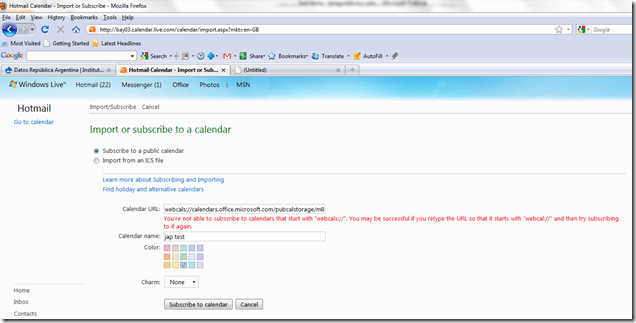
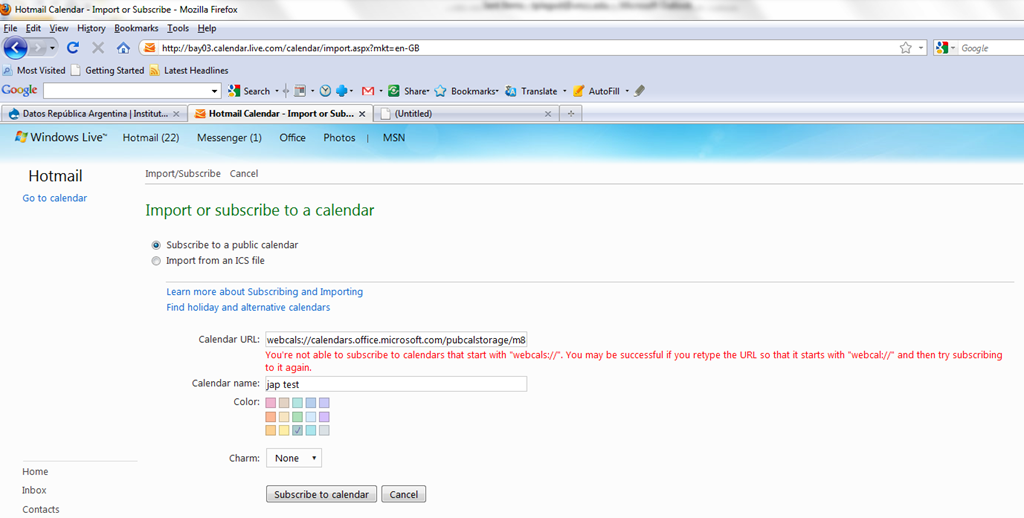
Select Subscribe to a public calendar, and then, in the Calendar URL box, paste the “webcal://” link from the LRC website for the tutoring hours or other LRC schedule that you want to keep an eye on. You begin the link either with “webcal:” or “http:”. Note, however, that trying to subscribe to “webcalS” will result in this error:
-
In the Calendar name box, type a name for the calendar.
-
Next to Color, select a color for the calendar.
-
Click Subscribe to calendar, and then click Done. Result:
-
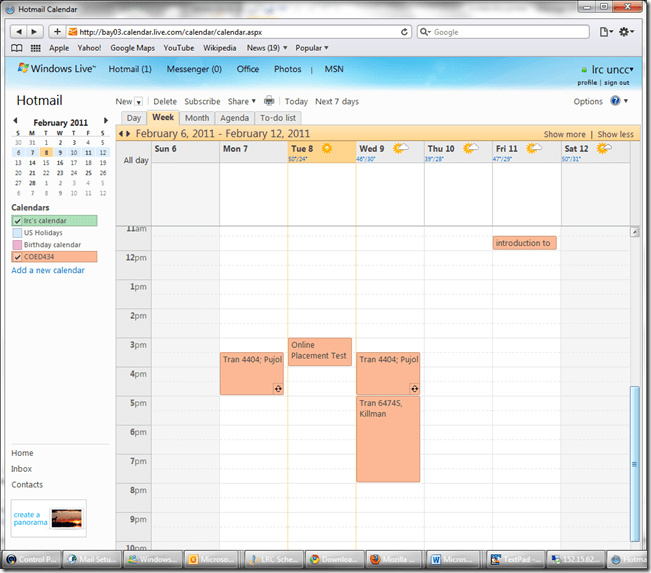
- This calendar will be live, i.e. every subscriber will see any updates the LRC makes (like for late-breaking changes and cancellations of tutoring hours). Note however, that synchronization is not instantaneous. Give it up to 30 minutes, under normal circumstances.



Questions? Read the About. Or just ask me a quick Our Databases: Resources with calendars -- Language learning material Moodle Sites, multimedia files -- films


FAQs for LRC student staff or for students or for teachers. To search our FAQs, in the browser addressbar, add after "https://plagwitz.wordpress.com/feed/?tag=faqs+/" "+TAG1" (from tag cloud below) OR "https://plagwitz.wordpress.com/feed/tag=faqs
&category_name=" "CAT1" (from category hierarchy below). OR search both categories and tags, and multiple TAGs/CATs (connect with "," for OR-search, with "+" for AND-search), like so: https://plagwitz.wordpress.com/feed/?tag=TAG1+TAG2+...TAGn&category_name=CAT1
+CAT2+...CATn"
Other ways to find help
If you cannot find it here, look there: 5,500 Language-Learning Links and Programs for learning or teaching 150 languages
Shortcuts:Our Lists, Our Maps, LRC Staff Moodle Site,LRC Project Moodle Site, 49erexpress, UNCC Moodle, Student Recordings: s:claslcslrcsanakostudent
Learning usage samples: Sanako oral exam, Kaltura webcam presentation, Dictation with speech recognition, Sanako written exam, Chinese and Japanese interactive stroke-order practice
Test the Sanako Installer, Webbrowser Popup Konfigurator for XP, or Windows7, faster LRC TeacherPC Log-in Let MS facilitate diacritics writing by installing for you US-International keyboard layout
This is my personal blog (Google+). The views expressed on these pages are mine alone and not those of my employer. The information in this weblog is provided “AS IS” with no warranties, and confers no rights.
 Thomas' Work Space