Archive
How to switch the input language in Respondus Lockdown browser, e.g. to Arabic
- Short answer:
- Right-click the Language bar on the taskbar and choose “Restore the Language bar”, like so:

- This makes the language bar a floating toolbar on top of the screen, like here:
 . This floating toolbar you can still access when in Lockdown browser.
 - The language bar can be temperamental, you may need to bring it up again, try switching back and forth between input fields.
- Long Answer:
- Respondus Lockdown browser blocks many functionalities, including the shortcut combination to change input languages (usually LEFT ALT + SHIFT) and access to the Language bar on the task bar.
- This is not an issue when your quiz is in a western language and you have US- international keyboard layout configured as your default (which lets you type most Western diacritics without need for keys blocked by Respondus Lockdown browser )
- It is an issue with e.g. Arabic. You cannot even temporarily set Arabic to your default input language before starting lockdown browser, since then you cannot log in (with MS Maren IME, you can override the Arabic default to enter your username in western characters, but not the password. Respondus Lockdown Browser is built on Internet Explorer, but it does not share the cookies, so being logged into your LMS in Internet Explorer does not carry over to your Lockdown Browser session).
- Workaround: See above.


Ipatrainer.com community provides free phonetic transcription tables with sounds and exercises
- This is looking good, but …
- There seem to be some coding issues, I am getting server errors 500 after registering.
- The site is advertisement-based.
- There is no content beyond the IPA sound which would put these bare basics in phonetics into language learning context and practice.
- Site Contains:
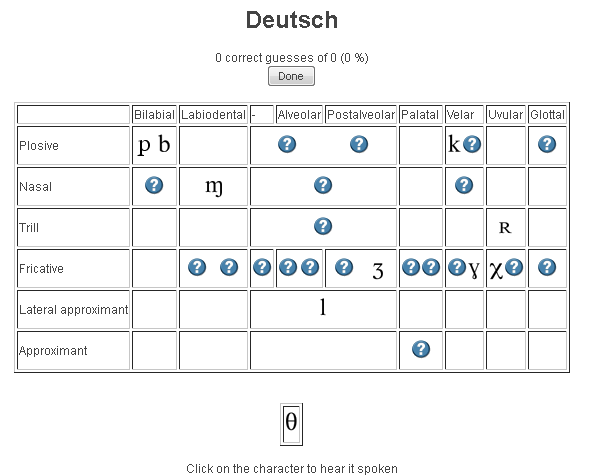
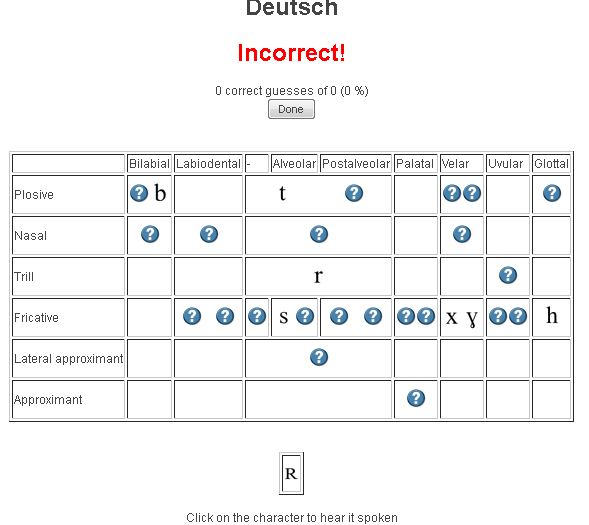
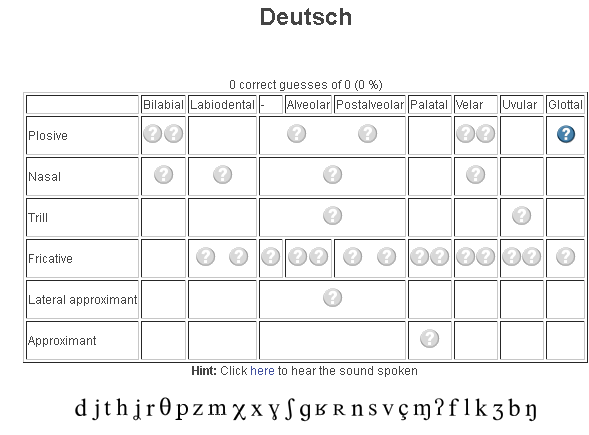
- tables for teaching your language – complete with phonetic symbols and sound samples

- and exercises for your students (e.g. Memory games, Identifying characters


 , places,
  and sounds.
- tables for teaching your language – complete with phonetic symbols and sound samples
- You can
- Create your own, after free registration,
- or assign one of the ones from many other teachers.
- Most popular ones are listed here: http://www.ipatrainer.com/user/site/?language=, and if the use numbers are accurate, there must be really some serious IPA learning going on here…
- I see no way to browse other tables without having the username of the teacher who created and assigned it.
- There is also a phonetic writer.
- And a user forum, in its infancy.



Immerse yourself into your language of study by switching the user interface language on LRC PCs
- Ever imagine yourself studying or working in an e.g. Spanish– Japanese- or Chinese- speaking country? Then you will likely find yourself in front of a computer display that is in that language – what if you could get a sneak preview before you go?
- You can now switch the interface language of the LRC Windows 7 computers (including Internet Explorer and MS-Office (note that you have to change the editing language separately) to your language of study (How?).
- All non-classical languages studied here are supported:
Language Native name Arabic العربية Chinese (Simplified) 中文(简体) Chinese (Traditional) 中文 (繁體) English English French français German Deutsch Greek Ελληνικά Hebrew עברית Italian italiano Japanese 日本語 Korean 한국어 Polish polski Portuguese (Brazil) Português Portuguese (Portugal) português Russian Русский Spanish español - Some languages, however, come only with the limited support of a MS Language Interface Pack :
-
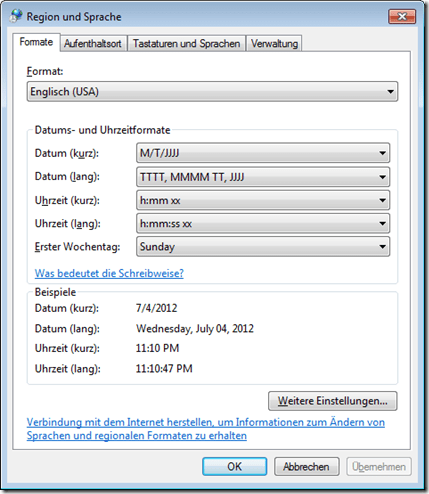
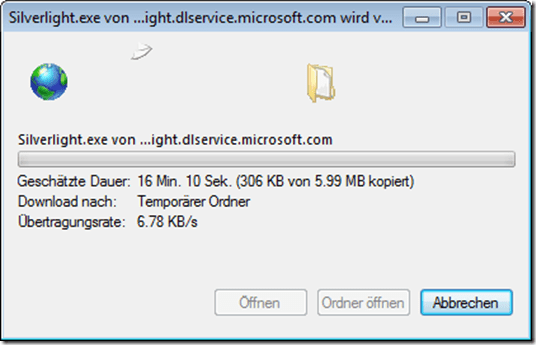
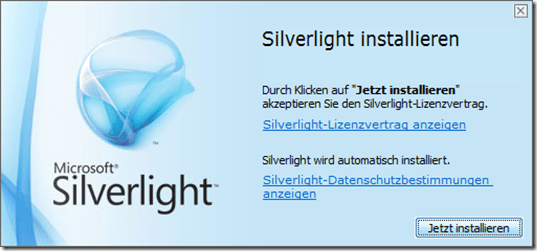
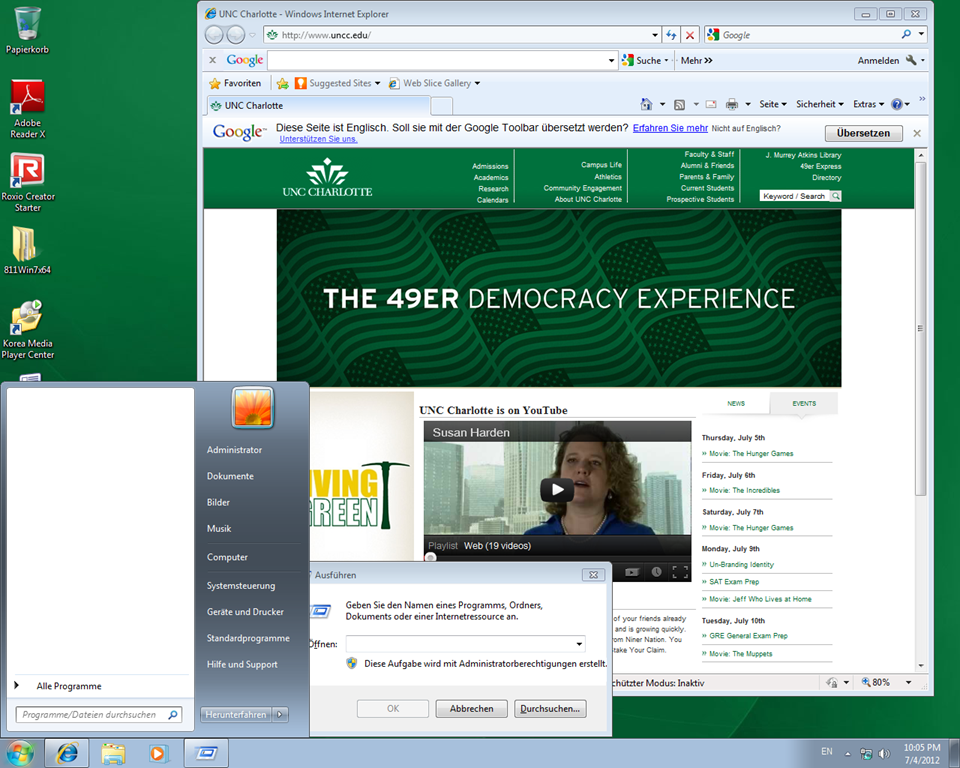
Hindi हिंदी KiSwahili Kiswahili Persian (Farsi) فارسی Yoruba ede Yorùbá - Below are examples (for German) what you get when you switch the operating system language:



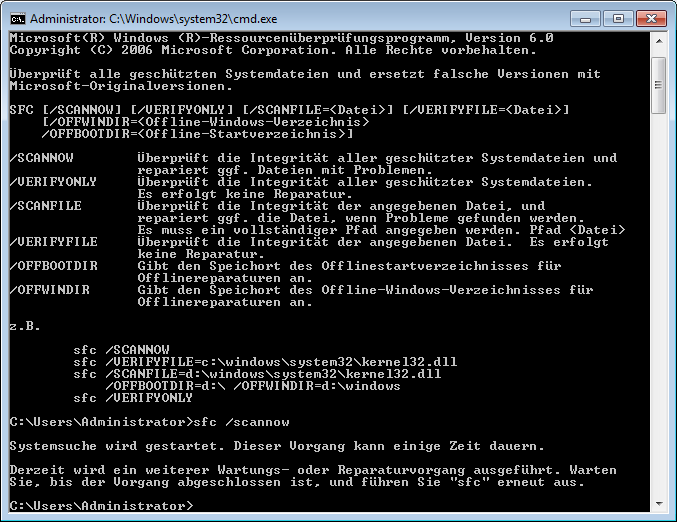

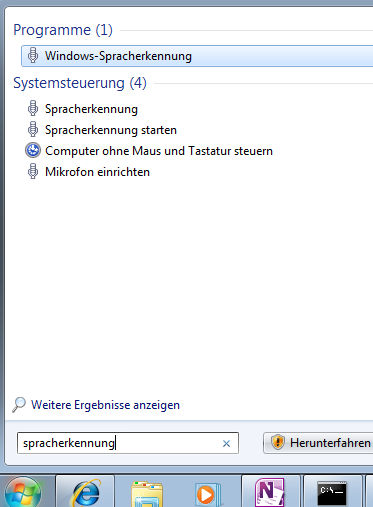

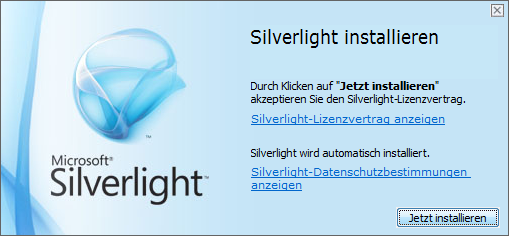
Foreign language support in LRC MS-Office 2010
- A full set of proofing tools is available, thanks to MS-Office Language Packs installed on the Windows 7 computers, for all non-classical languages studied here:
-
Language Native name Arabic العربية Chinese (Simplified) 中文(简体) Chinese (Traditional) 中文 (繁體) English English French français German Deutsch Greek Ελληνικά Hebrew עברית Hindi हिंदी Italian italiano Japanese 日本語 Korean 한국어 Polish polski Portuguese (Brazil) Português Portuguese (Portugal) português Russian Русский Spanish español - Some languages have only limited features provided by the MS-Language Interface Pack:
-
KiSwahili Kiswahili Persian (Farsi) فارسی Yoruba ede Yorùbá
How to change the display language and speech recognition language on LRC Windows 7 computers (and which languages are available)
- UPDATE: Since this page seems to be getting a lot of hits, I want to clarify: The step-by-step guide below only applies after you installed (free) language (or language interface) packs (see list here) on Windows 7 Enterprise or Ultimate SKU (others SKUs cannot add multiple language interfaces). UPDATE2: Things got much easier with Windows 8.
- In order to
- view the GUI of Windows and Internet Explorer in a foreign language,
- use the speech recognition in (a subset of the below) foreign languages,
- and also switch the default language of MS-Office
- Double-click the desktop shortcut “Region and language – Keyboards and languages”.
- Select the desired language from the dropdown box, click “OK”.

- Click: “Log off now”:
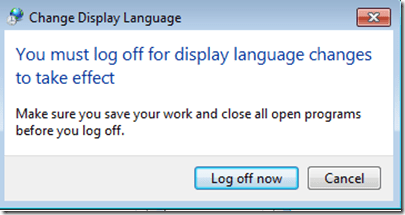
- “Log back in” (without restarting).
- And if you want the available display languages in English,
- here are the fully supported (MS Language packs):
Language Native name Arabic العربية Chinese (Simplified) 中文(简体) Chinese (Traditional) 中文 (繁體) English English French français German Deutsch Greek Ελληνικά Hebrew עברית Italian italiano Japanese 日本語 Korean 한국어 Polish polski Portuguese (Brazil) Português Portuguese (Portugal) português Russian Русский Spanish español - and here the partially supported (MS-Language Interface packs):
Hindi हिंदी KiSwahili Kiswahili Persian (Farsi) فارسی Yoruba ede Yorùbá - And here are the languages that support speech recognition:


Google-Translate for phonetization?
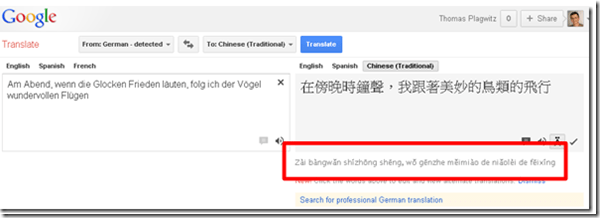
- Google-Translate also offers some phonetic transliterations. You may have noticed this when attempting (remember, though, that it is for a reason that they link to “professional translation” services, and also invite anybody to amend the machine translation offered) to translate from English into other languages,

- However, if you type or paste non-Romanized text into the source textbox, you also get the option button “read phonetically” (meaning transliterate to phonetic symbols or phonetize).
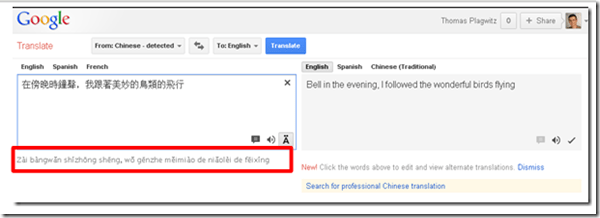
- Limited use in the LRC: Few languages are supported.
- Only languages written in non-roman letters are offered. E.g. French or German are not deemed difficult enough (I know a few that would beg to differ
 ).
).
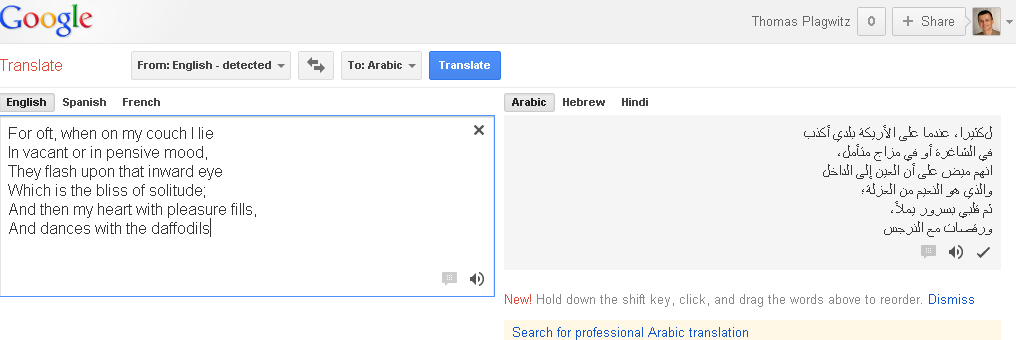
- Arabic, Farsi and Hebrew are also not supported (root cause: right-to-left? Strangely these right-to-left-languages work in the TBA:Google transliterate IME which attempts to do roughly the opposite of phonetization):

- Leaves: Chinese, Greek, Hindi, Japanese, Russian. However, note finally that not a standard phonetic alphabet is being used either for these transcriptions.


Making audio cues for model imitation/question-response oral exams with Sanako Study 1200
We can easily record and post-process audio files in the LRC for use with the Sanako Study 1200 oral exam activities.
This can work not only for outcome exams (course- or chapter-wise), but also or formative assessment:
Think converting your textbook-based “drills” into Sanako, like repetitively recapitulating the newly acquired vocabulary item “donut” with different cues:
Example: “What can you do with [student can enter her favorite new vocabulary item for the current class] on [teacher can ask for one social web service after the other that her students likely are familiar with]?”. In response, student has to practice vocabularry item by forming sentences that fit the vocabulary item that fit like in the whiteboard example.
We can add to these recordings the features explained in the slide below.
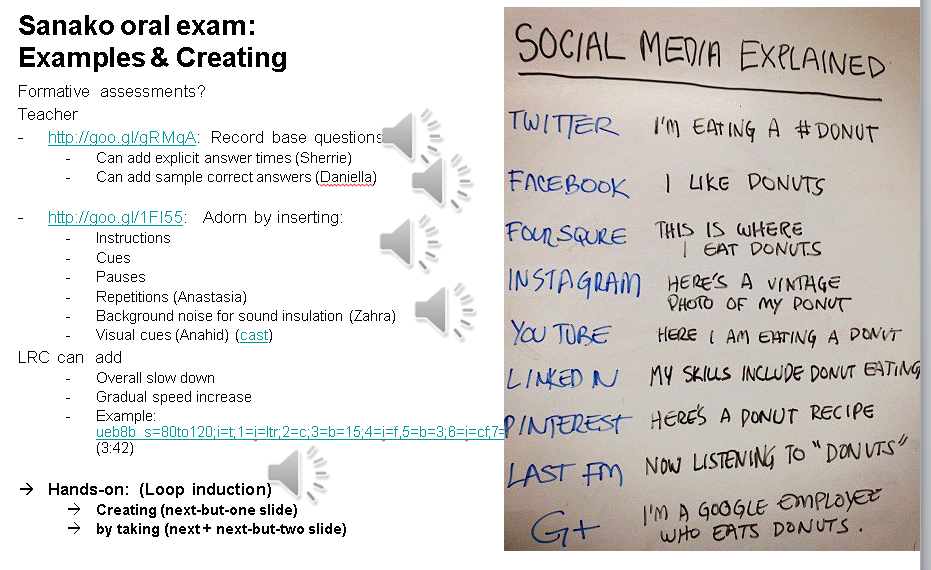
I’d be happy to play you examples from this slide – and more – in the LRC (not to be published here so that the exam files can be reused).


Questions? Read the About. Or just ask me a quick Our Databases: Resources with calendars -- Language learning material Moodle Sites, multimedia files -- films


FAQs for LRC student staff or for students or for teachers. To search our FAQs, in the browser addressbar, add after "https://plagwitz.wordpress.com/feed/?tag=faqs+/" "+TAG1" (from tag cloud below) OR "https://plagwitz.wordpress.com/feed/tag=faqs
&category_name=" "CAT1" (from category hierarchy below). OR search both categories and tags, and multiple TAGs/CATs (connect with "," for OR-search, with "+" for AND-search), like so: https://plagwitz.wordpress.com/feed/?tag=TAG1+TAG2+...TAGn&category_name=CAT1
+CAT2+...CATn"
Other ways to find help
If you cannot find it here, look there: 5,500 Language-Learning Links and Programs for learning or teaching 150 languages
Shortcuts:Our Lists, Our Maps, LRC Staff Moodle Site,LRC Project Moodle Site, 49erexpress, UNCC Moodle, Student Recordings: s:claslcslrcsanakostudent
Learning usage samples: Sanako oral exam, Kaltura webcam presentation, Dictation with speech recognition, Sanako written exam, Chinese and Japanese interactive stroke-order practice
Test the Sanako Installer, Webbrowser Popup Konfigurator for XP, or Windows7, faster LRC TeacherPC Log-in Let MS facilitate diacritics writing by installing for you US-International keyboard layout
This is my personal blog (Google+). The views expressed on these pages are mine alone and not those of my employer. The information in this weblog is provided “AS IS” with no warranties, and confers no rights.
 Thomas' Work Space