Archive
How to type phonetic symbols on a computer
- Web-based On-screen-keyboards (point-and-click; low learning curve, but no fast typing speed; typing into a textbox from where you can copy/paste the result into other programs):
- http://westonruter.github.com/ipa-chart/keyboard/: Sounds are systematically organized. Suitable for learners, but also good for teacher demonstrations.

- Partially based on keyboard shortcuts: http://www.ipatrainer.com/user/site/index.php?pageID=ipawriter:

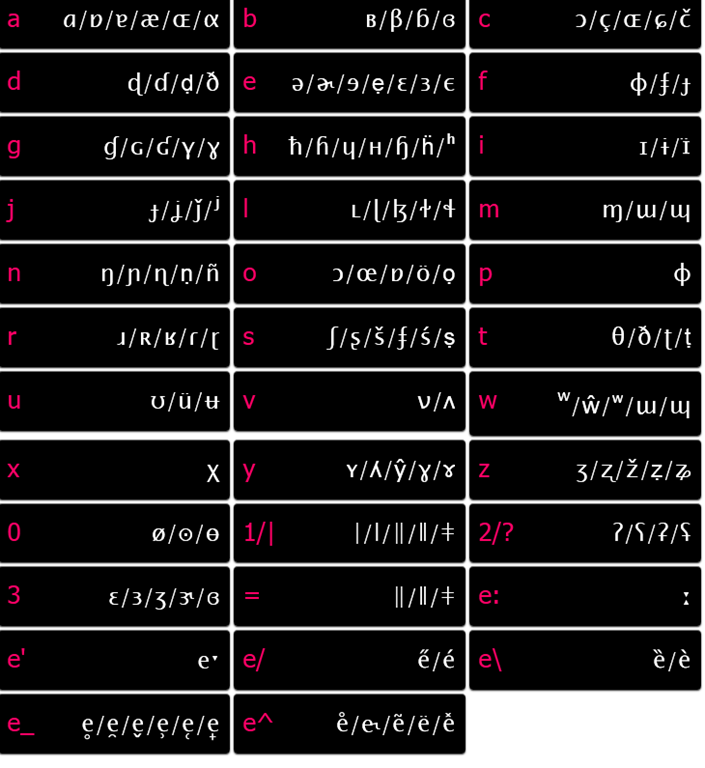
- http://ipa.typeit.org/full/: Other than the English version, the full version includes non-English sounds. The interface is optimized for fast typing (sorted by keyboard key). Presumably better for teachers using a screen projector as a whiteboard.

- i2speak.com (reviewed here earlier):


- Update: Richard Ishida’s seems also impressive,

- and you can use phonetics terminology to get characters selected, like so:

- http://ipa.typeit.org/full/: Other than the English version, the full version includes non-English sounds. The interface is optimized for fast typing (sorted by keyboard key). Presumably better for teachers using a screen projector as a whiteboard.
- http://westonruter.github.com/ipa-chart/keyboard/: Sounds are systematically organized. Suitable for learners, but also good for teacher demonstrations.
- Windows-based:
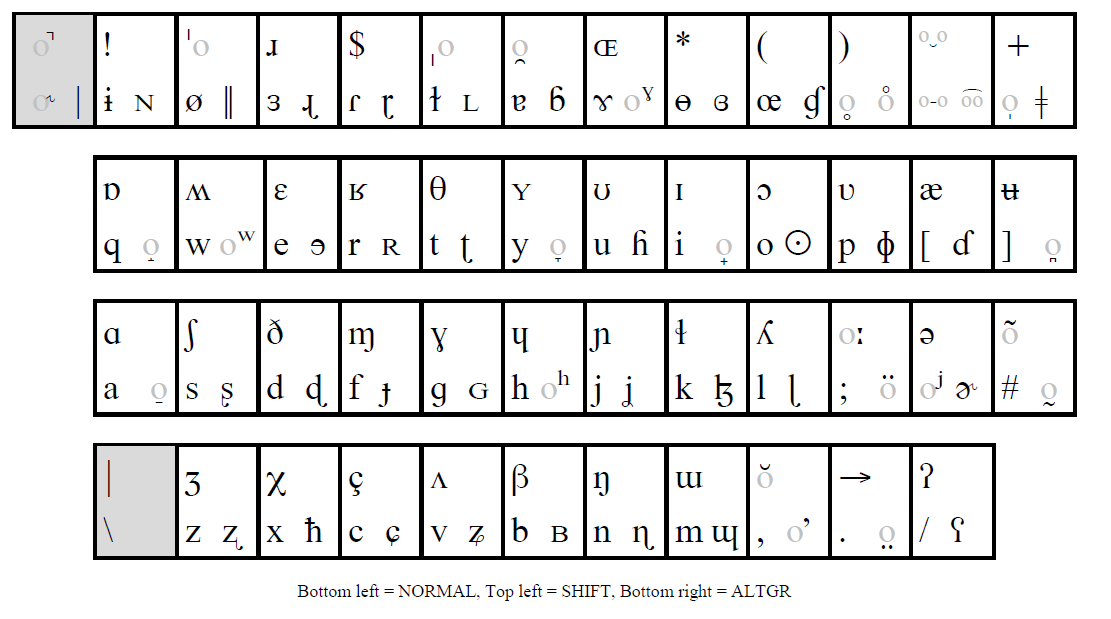
- http://www.phon.ucl.ac.uk/resource/phonetics/: MS-Windows keyboard layout. May be good for even faster typing, if you can memorize the keyboard layout or add keyboard stickers (we unfortunately have too many languages vying for our hardware keyboard space already). Requires download & installation (may be added to the LRC keyboards during next imaging if we receive enough requests).
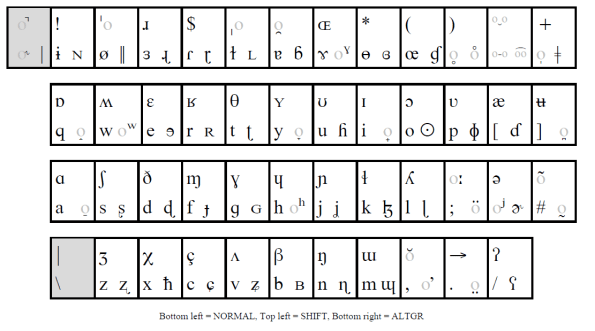
- http://staff.washington.edu/dmontero/IPACharmap/.

- http://sourceforge.net/projects/allchars/: If you are use to the ALT+### method of entering characters and are still on XP, this may be for you: You can generate your own keyboard shortcuts for phonetic characters.
- MS-Word:
- http://email.eva.mpg.de/~bibiko/downloads/uniqoder/uniqoder.html: Allows to select IPA-Symbols from a toolbar. Untested.
- http://www.phon.ucl.ac.uk/resource/phonetics/: MS-Windows keyboard layout. May be good for even faster typing, if you can memorize the keyboard layout or add keyboard stickers (we unfortunately have too many languages vying for our hardware keyboard space already). Requires download & installation (may be added to the LRC keyboards during next imaging if we receive enough requests).
- There are also always X-Sampa and CXS and ASCII-IPA: ways of writing IPA in plain ASCII messages – but yet another thing to teach novices in phonetics may be a bridge too far.




How to create screencasts of student presentations for the language learner ePortfolio in the digital audio lab
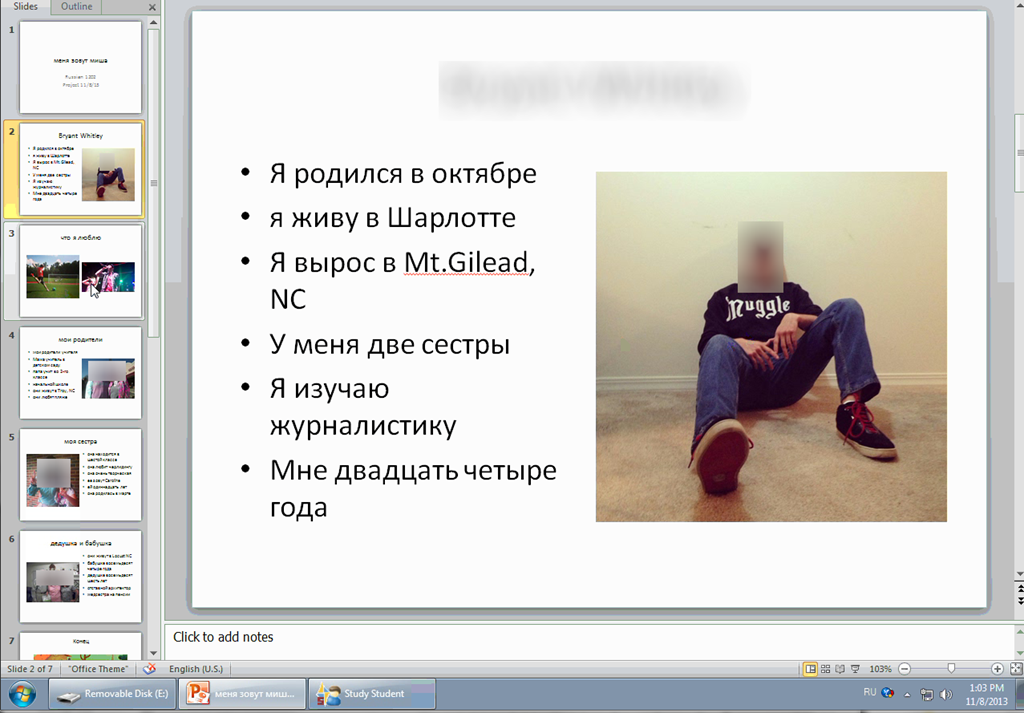
- Students can now easily video-record their own screens during class presentations – not only when using PowerPoint; instead students could demo a website, like their Facebook page.
- Last year, we were limited to PowerPoint’s record slideshow with timing and narration feature, and either send the PPSX (small, but requires the PowerPoint viewer) or the “Save as” video (new in PowerPoint 2010; computing intensive and large file size).
- Now with MS-Community Clips, screencasts are
- minimal effort to create (keyboard shortcut WIN+ALT+R or T; save on desktop; drag/drop into Sanako homework folder)
- and little effort to distribute:
- Students could have uploaded to a Moodle’ file upload assignment (default file size limit: 64MB) or Kaltura file upload assignment (not sure whether there is a size limit). This seems more suitable for assignments with screencasts recordings.
- In this instance
- Sanako collected the Homework files to the Sanako share,
- my langlabemailer emailed them as attachment (so far tested to allow for 25MB attachment size, the equivalent of 7-8 minute screencast, a hefty space to fill in L2! We also established: 45MB is too much…
 ) to the originating student and teacher, for review, grading –
- and – provided it passes muster as an attractive and significant piece – possibly for re-use in the student’s language learner ePortfolio.
- In addition,
- Before the presentations, the teacher easily collaborated on proof-reading the slide decks of individual students, by using the Sanako Remote control screen sharing feature.
- During the presentation, students followed more closely – which seemed to increase their attention and comprehension -, thanks to audio and screen being shared to them from the presenter, using the Sanako’s “Model student” feature.
How to workaround AntWordProfiler error “Cannot open the file”
- Seems a little bug in this otherwise great program. I started getting this on Windows 7 64-bit with
-
 for all files, no matter which size.
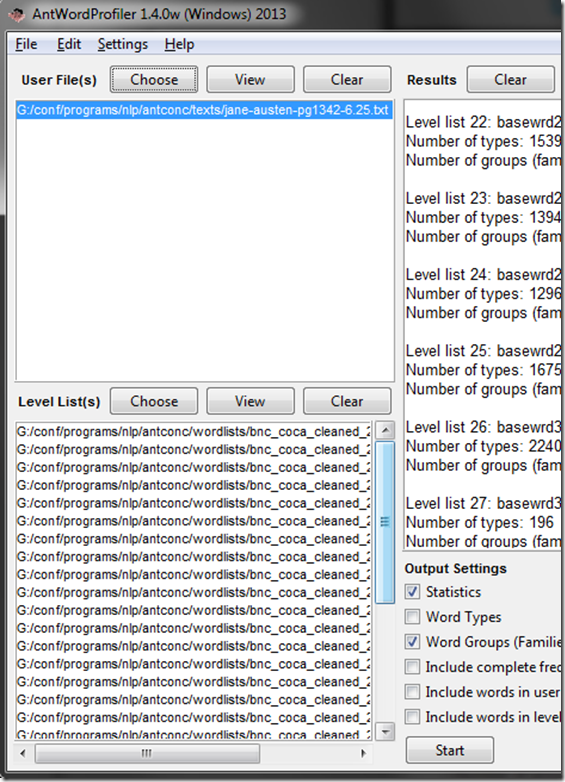
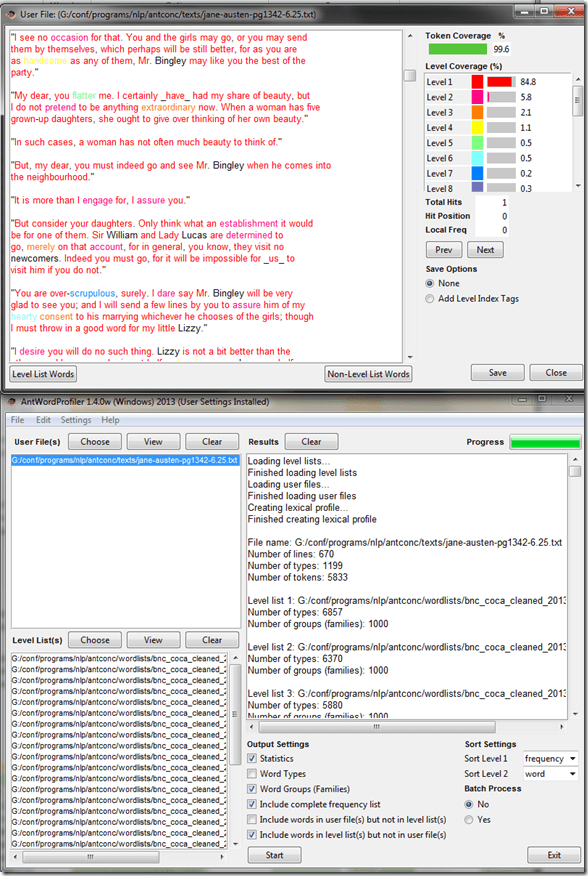
 - It occurred to me to go to menu: Settings/ global settings / file settings / show full pathnames
- Here is what you see: Note the duplicate path to the file.
-

-
How did I get there? Seems like you cannot take my usual preferred shortcut and paste the full file path into the browse dialogue.
-
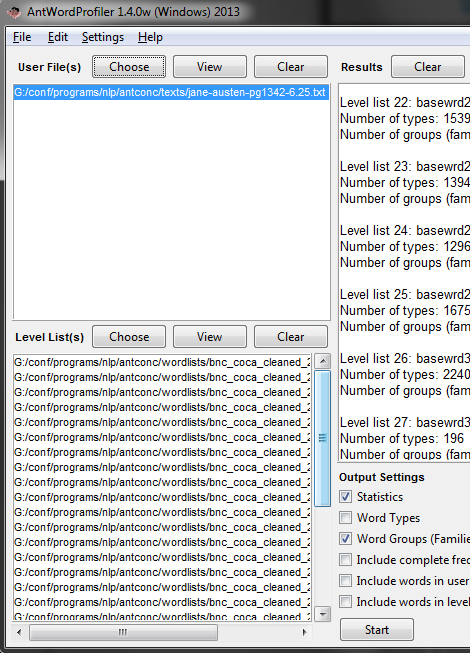
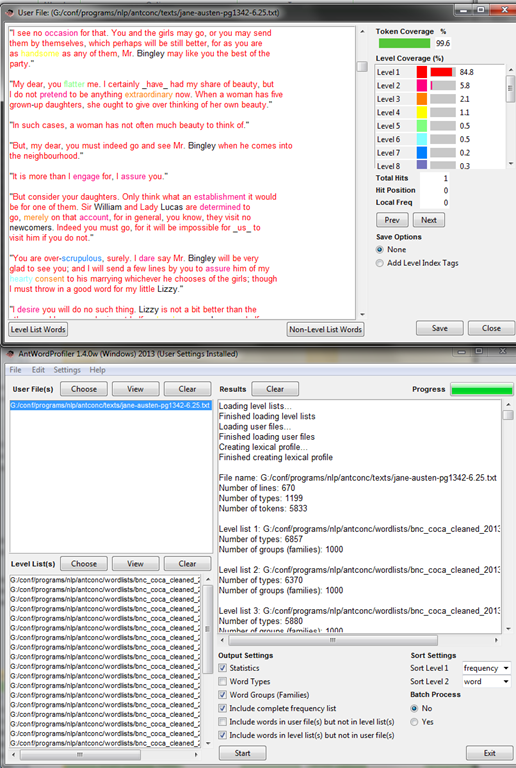
If I browse to the file and select, the same botched up double path does not appear:
-
-
I can then process the file fine.


How to use NanoGong in your Moodle course as an audio file recorder
- NanoGong is primarily meant for submitting audio recordings to the teacher and fellow students.
- However, it can also serve as a simple audio recorder that can save a recording to a files:
- accessible anywhere where you have internet access (on a JAVA-capable device. I have not tested NanoGong’s compatibility with smartphones or tablets, though) and a microphone – provided you/your teacher have added a NanoGong activity to the Moodle Course.
- Might be useful for collecting recordings as pieces for your language learner ePortfolios.
- To use NanoGong as an audio recorder: Instead of (or on top of/before) submitting your recording to the course, click the rightmost button:
 :
:
- and you can save your recording to a file
![image_thumb[17]_thumb[1]](https://thomasplagwitz.com/wp-content/uploads/2013/10/image_thumb17_thumb1_thumb.png?w=600&h=530 "image_thumb[17]_thumb[1]") ,
,- in a variety of formats (compressed WAV is likely most compatible),
- including in the different speeds:
![image_thumb[18]_thumb](https://thomasplagwitz.com/wp-content/uploads/2013/10/image_thumb18_thumb_thumb.png?w=244&h=68 "image_thumb[18]_thumb") that you de/increased the playback speed here:
that you de/increased the playback speed here: ![image_thumb[15]_thumb](https://thomasplagwitz.com/wp-content/uploads/2013/10/image_thumb15_thumb_thumb.png?w=129&h=103 "image_thumb[15]_thumb") .
.

![image_thumb[17]_thumb[1]](https://thomasplagwitz.com/wp-content/uploads/2013/10/image_thumb17_thumb1.png "image_thumb[17]_thumb[1]")
![image_thumb[18]_thumb](https://thomasplagwitz.com/wp-content/uploads/2013/10/image_thumb18_thumb1.png "image_thumb[18]_thumb")
![image_thumb[15]_thumb](https://thomasplagwitz.com/wp-content/uploads/2013/10/image_thumb15_thumb1.png "image_thumb[15]_thumb")
How a student can easily complete an audio recording assignment in Moodle, using the new NanoGong plugin
- Open your assignment (note the loudspeaker/dummy icon for NanoGong assignments/) from the Moodle landing page.
- Unfortunately, there are a considerable number JAVA warning dialogues to bypass during NanoGong activities before you can even see the recorder plugin on the page, and may be more when you try to submit.
- Once you are on the NanoGong assignment page: click red button to record,
![image_thumb[10]](https://thomasplagwitz.com/wp-content/uploads/2013/10/image_thumb10_thumb.png?w=400&h=278 "image_thumb[10]")
- Make sure the volume meter shows input when speaking (loud enough) or playing back:
![image_thumb[13]](https://thomasplagwitz.com/wp-content/uploads/2013/10/image_thumb13_thumb1.png?w=506&h=364 "image_thumb[13]")
- After recording, submit:

- After submitting,
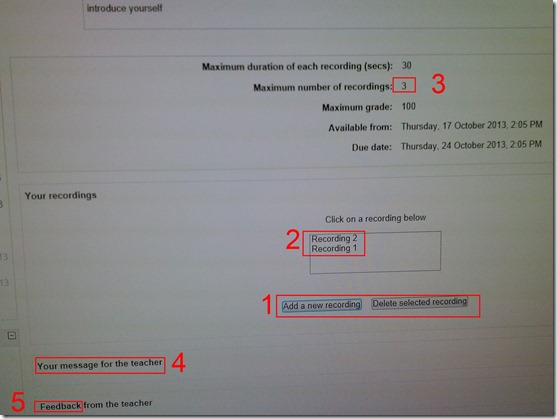
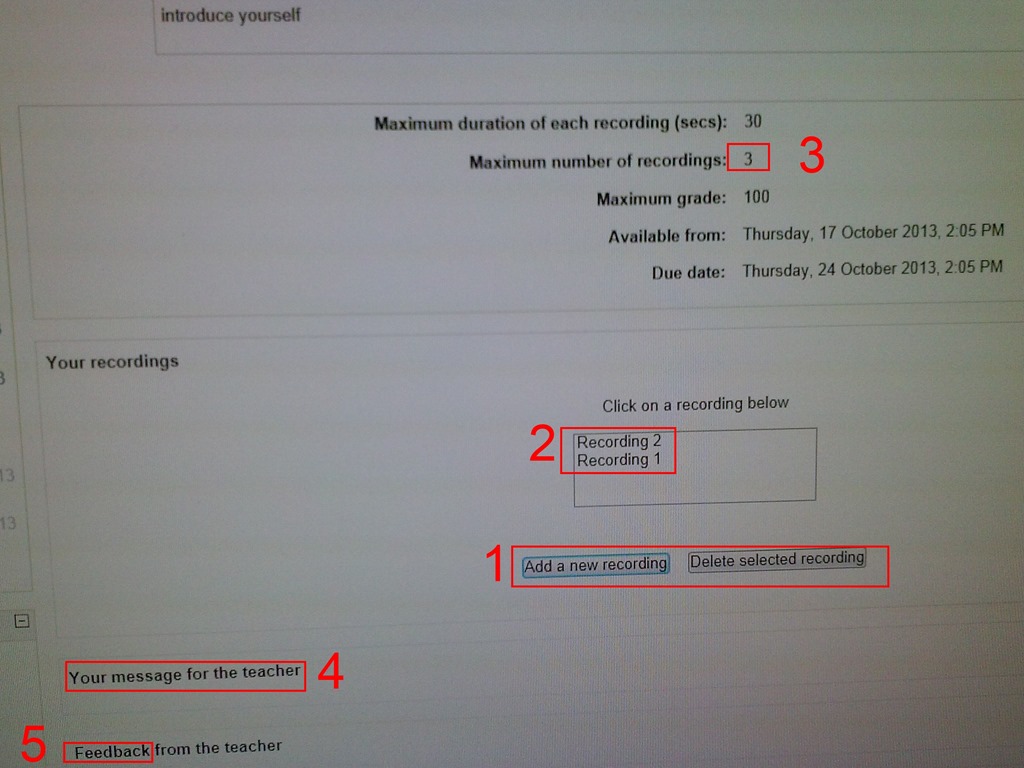
- You can still edit your submission, by
- (1) deleting your recording or
- re-adding – or (provided your teacher’s assignment allows for (3) multiple recordings) just adding – (2) your recordings
- or adding a (4) message to the teacher
- you can also revisit this page to read (5) feedback the teacher gives you about your recording:
- You can still edit your submission, by
- Experiencing issues? Check troubleshooting page here.
![image_thumb[10]](https://thomasplagwitz.com/wp-content/uploads/2013/10/image_thumb101.png "image_thumb[10]")
![image_thumb[13]](https://thomasplagwitz.com/wp-content/uploads/2013/10/image_thumb132.png "image_thumb[13]")

How a teacher can easily assign an audio recording in Moodle, using the new NanoGong plugin
- We are back in business with easy audio recording assignments in the LMS, thanks to NanoGong – the free recorder I recommended when first starting here – now being available in MOODLE (presumably with the Upgrade to Moodle 2, I almost missed that….)
- To assign, click “turn editing on”, “Add activity or resource”, select “NanoGong voice activity”, as pictured below:

- There are a few interesting options:
- you can limit the duration
- you can limit the number of recordings (attempts?) allowed (0 is unlimited)
- You can let students listen to each other recordings. (Is there a rating feature that can be combined with this?)
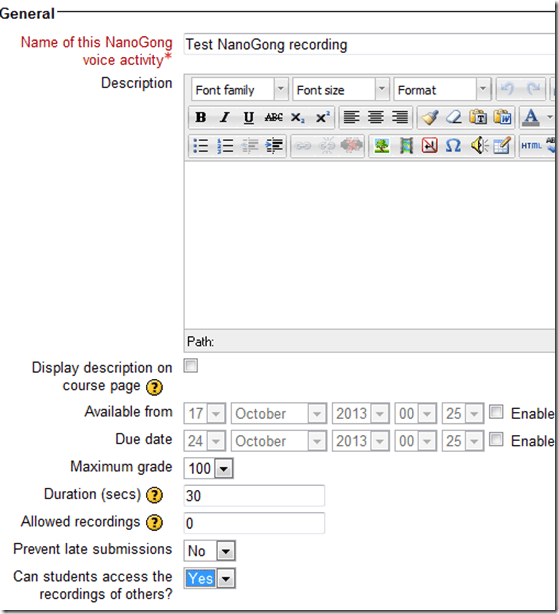
- And this is what
- you will see (TBA:read on for how to listen to student submissions, give feedback and grade.)

- you will see (TBA:read on for how to listen to student submissions, give feedback and grade.)
- your students will see…


Protected: How to configure the LangLabEmailer for your school, and share back
Cheatsheet for typing phonetic symbols with the IPA Keyboard Layout on Windows 7 – the ultimate training…
…using animated .gifs. Slower? Compact: 0.25sec, 0.5sec, 0.75sec, 1sec, 1.5sec, 2sec, 3sec, 4sec, 5sec, 6sec, 7sec, 8sec, 9sec, 10sec. 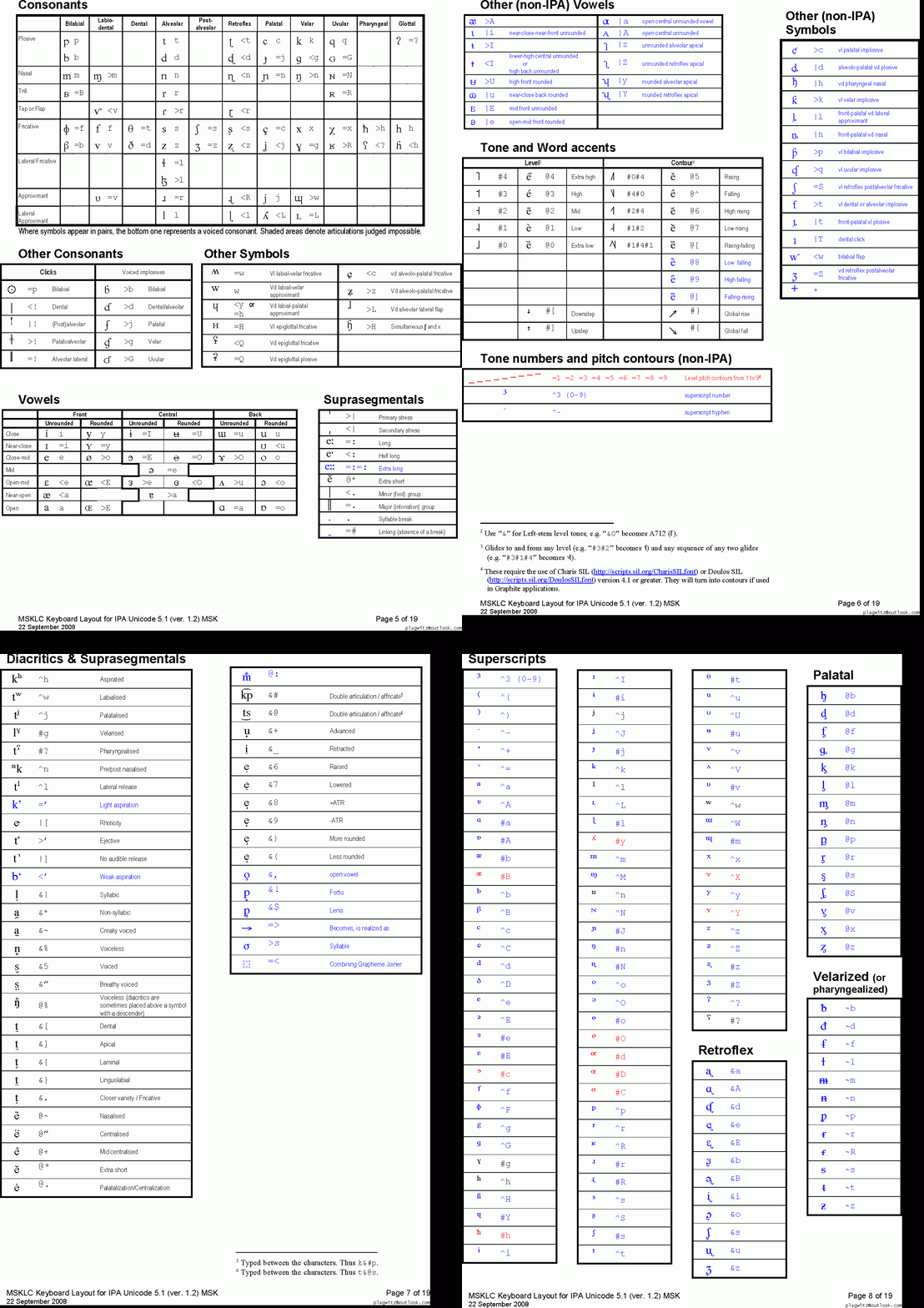
This is taken straight from the great documentation of this great Phonetic symbols Windows keyboard layout by SILS international, but needed a bit of massaging to support hands-free lookup via display on one screen of your dual screen system, while you learn or demo the keyboard to the class). Users without dual screen (including students) are better off with the slideshow below in which they can stop the images on any page:


The IPA MSKLC can produce both regular Roman characters and transcriptions with phonetic symbols by employing certain “dead keys” that can be combined with regular keys. Just and like our default LRC keyboard us-international .
Your first must select the keyboard like so. 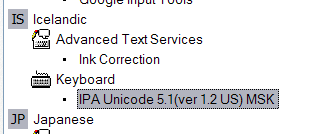 (Icelandic is suitable since it is not used for other purposes much). In the LRC, you must wait until we upgrade to Windows7.


Questions? Read the About. Or just ask me a quick Our Databases: Resources with calendars -- Language learning material Moodle Sites, multimedia files -- films


FAQs for LRC student staff or for students or for teachers. To search our FAQs, in the browser addressbar, add after "https://plagwitz.wordpress.com/feed/?tag=faqs+/" "+TAG1" (from tag cloud below) OR "https://plagwitz.wordpress.com/feed/tag=faqs
&category_name=" "CAT1" (from category hierarchy below). OR search both categories and tags, and multiple TAGs/CATs (connect with "," for OR-search, with "+" for AND-search), like so: https://plagwitz.wordpress.com/feed/?tag=TAG1+TAG2+...TAGn&category_name=CAT1
+CAT2+...CATn"
Other ways to find help
If you cannot find it here, look there: 5,500 Language-Learning Links and Programs for learning or teaching 150 languages
Shortcuts:Our Lists, Our Maps, LRC Staff Moodle Site,LRC Project Moodle Site, 49erexpress, UNCC Moodle, Student Recordings: s:claslcslrcsanakostudent
Learning usage samples: Sanako oral exam, Kaltura webcam presentation, Dictation with speech recognition, Sanako written exam, Chinese and Japanese interactive stroke-order practice
Test the Sanako Installer, Webbrowser Popup Konfigurator for XP, or Windows7, faster LRC TeacherPC Log-in Let MS facilitate diacritics writing by installing for you US-International keyboard layout
This is my personal blog (Google+). The views expressed on these pages are mine alone and not those of my employer. The information in this weblog is provided “AS IS” with no warranties, and confers no rights.
 Thomas' Work Space