Archive
Archive for the ‘service-is-learning-materials-creation’ Category
MS Windows Media Encoder, your free audio and video encoding utility
2012/11/02
Leave a comment
- Benefits
- Free
- Can cut and convert
- video
- Makes screencasts also.
- can capture video
- audio
- including pause removal.
- video
- can stream
- Limitation: Outputs only to MS media formats (WMA, WMV) (
- Download here. There is also a 64-bit version.
- Officially supported on
- Windows 2000 and XP. I use it on Vista and Windows 7 (both 64-bit) also (for audio; no guarantees).
- f I remember correctly, Windows Media Encoder has a built-in limit to support only up to 4 CPU cores, you may have to limit CPU usage if you run on more advanced hardware platforms).
- a bit of config:
- For good quality video and audio, put a prx file like this in "C:\Program Files (x86)\Windows Media Components".
- Put a wme file like this anywhere and start by double clicking the file, then press green “Record” button.
A few tools for speech transcription
2012/10/30
Leave a comment
- For teacher (research, learning material production etc.) transcription tasks (as opposed to language learner tasks, for which we can use the Sanako),
- if you have
- no switch (foot pedal) hardware (which usually comes with its own software), :
- no budget (a professional, but not free tool described here earlier is Swift-TX)
- available freeware tools that can speed up your transcriptions tasks are:
- Simple enough, but functional for the occasional transcription task: http://www-personal.umich.edu/~ebreck/code/sscriber/.
- More oriented towards research and large-scale (corpora) transcriptions:
Use SharePointDesigner here to quickly and cleanly edit legacy static web pages
2012/10/23
Leave a comment
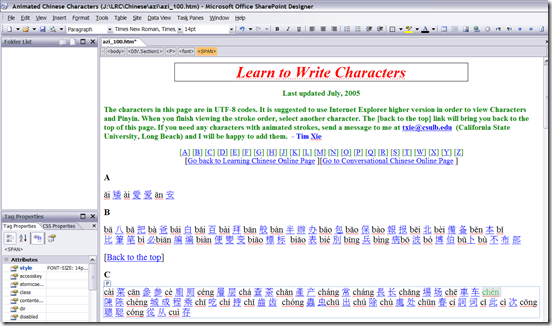
- Confronted with the need to have faculty classify my variable speed animated GIF collection of Mandarin characters linked from static HTML pages, I find:
- SharePointDesigner is a FrontPage derivative, but still beats dealing with the special markup MS-Office tends to smuggle into your legacy web pages.
- And you can download it for free from MS here, install and open a file by right-clicking it and “Open with”, like so:
 .
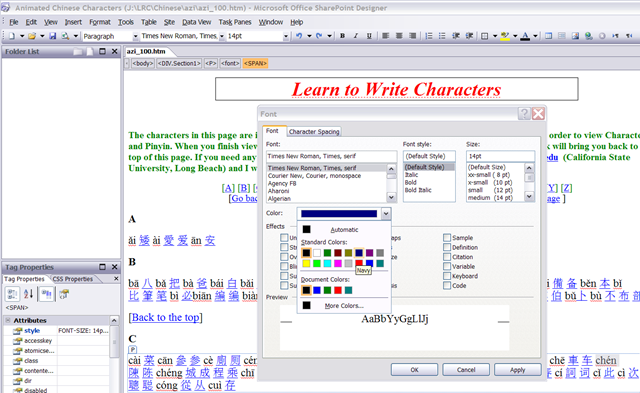
. - User then can e.g. select a pinyin word, right-click it, access the font-dialogue, like so:
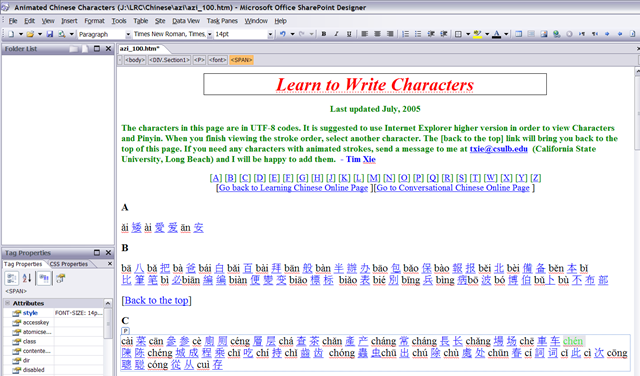
 , and, to align this alphabetic pinyin list to the progression in the syllabus if the Chinese language program, assign a heat-scale like so:
  . E.g this would denote an easy character for Chinese 101:
  .
. - Note 1: Do not use SharePointDesigner 2010,, this doe not allow easy editing of single web pages anymore:
 .
. - Note 2: The CSS style markup that SharePointDesigner puts in smartly for the font color change is ignored by Internet Explorer 8 (Huh?!), so we will have to TBA:ask students to use Firefox instead.
- Note3: Why not just use MS-Word as HTML-Editor. Even if you save as and choose “Web-page filtered, like so:
 , to avoid MS-Office specific markup, MS-word puts spurious markup in that makes it not only slow down the road to open the file, but also difficult to post-process them with regular expression (I have a few hundred copies to make for different animation speeds). Compare the file sizes here:



Replacing the Sanako Authoring Tool
2012/10/18
2 comments
- Problem: Oral exams with visual cues have been popular, but the Sanako Authoring Tool we used to create them has been faded out. How can we quickl replace it?
- Workaround:
- collect your files in my Word template (left part of screenshot) like before (question/cue, repetitions, response pause time), including your images
- Save your MS-Word files as html.
- This will create a subfolder with media (right-side of screenshot). All your images are numbered sequentially in the order they appear in your template. Some are duplicated: select the first ones (the duplicate is a size reduction), plus the unique ones, and copy them to a new folder, e.g. “pictures”, on the Sanako teacher share, somewhere underneath your course folder where also your audio exam files resides.
- During the exam , you can display the pictures while playing the audio portion of your oral exam, from this folder sorted by name (= numbered sequentially) with the default teacher computer image viewer. No need even to fling out PowerPoint….

How to stay up to date by receiving RSS like email newsletters in MS-Outlook– explained in a single screenshot
2012/10/10
Leave a comment


How to start YouTube videos from the middle
2012/10/10
Leave a comment
- To avoid having to manually find a segment of a YouTube video clip during presentations, or worse, downloading the video clips from YouTube before the presentation, to edit them into shape,
- try using the “&t=”(for “time(line)”, I presume) query parameter, followed by “#m” (for minutes) and "##s” (for seconds) where the segment you want to show starts.
- Example links that you can try inserting into your PowerPoint Slide deck:
- http://www.youtube.com/watch?v=tDngRk5vImU starts the movie clip Aicha part 1/10 from the beginning;
- http://www.youtube.com/watch?v=tDngRk5vImU&t=1m10s starts Aicha at 1 minute and 10 seconds;
- http://www.youtube.com/watch?v=tDngRk5vImU&t=5m10s starts Aicha at 5 minutes and 10 seconds.
Digitizing audio tapes in 2012…
2012/09/26
Leave a comment


…comes now at least with “China price”. e-learning is not about digitizing, but in tape, you can get entangled. : –)
Categories: service-is-learning-materials-creation
audio
Animated GIFs workflow using MS-OneNote, MS-Paint, Irfanview and UnFREEZ
2012/09/25
Leave a comment
- To keep things simple (and, at least in our work environment, free) during smaller Animated GIF projects (larger projects may warrant use of ImageMagick, scriptable image editor), you can use
- MS-OneNote screen clipping (configured right, it seems the fastest way to collect source material)
- Update: I recommend now screenshotcaptor instead, if you do screenshot projects more than occasionally. MS-Paint (or pretty much any image editor) to mark up your images
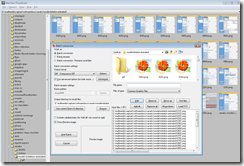
- IrfanView to batch convert to GIF:

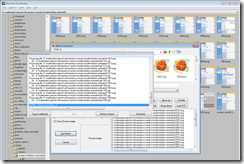
- UnFreez to easily create animated GIFs in differing speeds:

 , which can be automated.




Questions? Read the About. Or just ask me a quick Our Databases: Resources with calendars -- Language learning material Moodle Sites, multimedia files -- films


FAQs for LRC student staff or for students or for teachers. To search our FAQs, in the browser addressbar, add after "https://plagwitz.wordpress.com/feed/?tag=faqs+/" "+TAG1" (from tag cloud below) OR "https://plagwitz.wordpress.com/feed/tag=faqs
&category_name=" "CAT1" (from category hierarchy below). OR search both categories and tags, and multiple TAGs/CATs (connect with "," for OR-search, with "+" for AND-search), like so: https://plagwitz.wordpress.com/feed/?tag=TAG1+TAG2+...TAGn&category_name=CAT1
+CAT2+...CATn"
Other ways to find help
If you cannot find it here, look there: 5,500 Language-Learning Links and Programs for learning or teaching 150 languages
Shortcuts:Our Lists, Our Maps, LRC Staff Moodle Site,LRC Project Moodle Site, 49erexpress, UNCC Moodle, Student Recordings: s:claslcslrcsanakostudent
Learning usage samples: Sanako oral exam, Kaltura webcam presentation, Dictation with speech recognition, Sanako written exam, Chinese and Japanese interactive stroke-order practice
Test the Sanako Installer, Webbrowser Popup Konfigurator for XP, or Windows7, faster LRC TeacherPC Log-in Let MS facilitate diacritics writing by installing for you US-International keyboard layout
This is my personal blog (Google+). The views expressed on these pages are mine alone and not those of my employer. The information in this weblog is provided “AS IS” with no warranties, and confers no rights.
 Thomas' Work Space