Archive
Archive for the ‘service-is-any’ Category
How to link your LRC tutor calendar and Moodle metacourse from your Moodle course
2012/09/26
Leave a comment

Animated GIFs workflow using MS-OneNote, MS-Paint, Irfanview and UnFREEZ
2012/09/25
Leave a comment
- To keep things simple (and, at least in our work environment, free) during smaller Animated GIF projects (larger projects may warrant use of ImageMagick, scriptable image editor), you can use
- MS-OneNote screen clipping (configured right, it seems the fastest way to collect source material)
- Update: I recommend now screenshotcaptor instead, if you do screenshot projects more than occasionally. MS-Paint (or pretty much any image editor) to mark up your images
- IrfanView to batch convert to GIF:

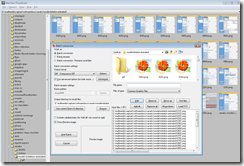
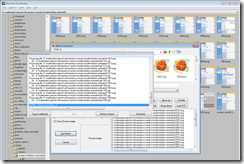
- UnFreez to easily create animated GIFs in differing speeds:

 , which can be automated.


Protected: How to share Exchange room and resource mailbox calendars
2012/09/25
Enter your password to view comments.
Video quizzes on Youtube.com in Beta
2012/09/23
Leave a comment
Video Questions Editor lets channel owners display multiple-choice questions on top of their videos as they play (I see only a “start” in the timeline), offer hints, get results on your feedback page.
But if it supports only summaries, not usernames, it is more a poll than a quiz, which limits it usefulness in foreign language classes as much as that you apparently are limited to your own uploads, and cannot link your questions to the wealth of foreign language video uploaded by others…
More ways of making minor changes to a domain-joined, deepfrozen computer lab image
2012/09/21
Leave a comment
- Re-imaging a domain-joined, deep-frozen Windows XP language lab using Symantec Ghost and Deepfreeze can be a drawn-out process.
- Minor fixes can be achieved by unfreezing and using a Symantec-Ghost file task and a script that loads the default user registry hive – here is how:
-
sTempHive = """HKEY_USERS\Test"""
'//vista and up: sDefaultUserHive = """%USERPROFILE%\..\Default\NTUSER.DAT"""sDefaultUserHive = """%USERPROFILE%\..\Default User\NTUSER.DAT"""
sSName = oUtility.ScriptName
set oShell = WScript.CreateObject ("Wscript.Shell")
- and alters it before freezing the lab again. Here are some examples of such fixes:
- change the default keyboard (after users logs in):
oLogging.CreateEntry sSName & ": Setting US-International as Default Keyboard Layout",LogTypeInfoRegPath = "HKEY_USERS\Test\Keyboard Layout\Substitutes\"oshell.RegWrite Regpath & "00000409", "00020409", "REG_SZ"
If Err<>0 Then
oLogging.CreateEntry sSName & ": Failed to update Default Keyboard Layout setting",LogTypeErrorZTIProcess=60
Exit Function
End If
- change visibility of the developer tab in the ribbon of MS-Word:
oLogging.CreateEntry sSName & ": Setting MS-Word Developer Toolbar to show",LogTypeInfoRegPath = "HKEY_USERS\Test\Software\Microsoft\Office\14.0\Word\Options\"oshell.RegWrite Regpath & "DeveloperTools", "1", "REG_SZ"
If Err<>0 Then
oLogging.CreateEntry sSName & ": Failed to update S-word developer tools settings",LogTypeErrorZTIProcess=40
Exit Function
End If
- change the SDL-Trados licensing server IP:
oLogging.CreateEntry sSName & ": Setting Default User Trados license server",LogTypeInfoRegPath = "HKEY_USERS\Test\Software\Trados\Shared\Licence"oshell.RegWrite Regpath & "Licence_file", "27000@10.18.189.231", "REG_SZ"
If Err<>0 Then
oLogging.CreateEntry sSName & ": Failed to update Default User Trados license server setting",LogTypeErrorZTIProcess=35
Exit Function
End If
oLogging.CreateEntry sSName & ": Setting Default User Screensaver timeout settings",LogTypeInfoRegPath = "HKEY_LOCAL_MACHINE\SOFTWARE\FLEXlm License Manager"oshell.RegWrite Regpath & "Trados_License_File", "27000@10.18.189.231;27000@xlcs4sbynj1www", "REG_SZ"
If Err<>0 Then
oLogging.CreateEntry sSName & ": Failed to update Screensaver to timeout settings",LogTypeErrorZTIProcess=30
Exit Function
End If
- change the default keyboard (after users logs in):
- On Ghost:
- We create a Ghost file task that points to the wsf file with the current changes we want to implement:

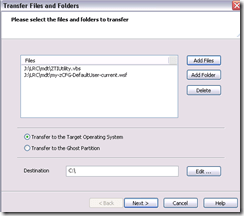
 To apply other changes, just change the filename of your script , e.g.:
- to apply to other computers, just change the target in the ghost task.
- Output:

- These scripts use the ZTIUtility.vbs from the MDT.
- You may have to update the location: <script language="VBScript" src="ZTIUtility.vbs"/>.
- For a while, the logging success made me believe I I had accessed the ntuser.dat and had run into registry permission settings loading it. In fact, I just did not resolve to the XP path of the ntuser.dat. Take advantage of the the logging facilities that come with MDT: Here are your logs on the client:
 .
. - Read the logs with TRACE32, part of the SMS 2003 Toolkit 2.
- Result: Provided the client has been cleanly frozen, and the domain user has no profile created before on this machine, and his profile is based on the altered default user profile, his HKCU will inherit the changes:





Protected: Why does the autoaccept-agent not send messages from on-premise equipment mailboxes to students in the Office365/live@edu cloud?
2012/09/19
Enter your password to view comments.
Film equipment booking FAQ
2012/09/19
Leave a comment
- Do not send the meeting request to lrchelp@uncc.edu or some other person you know in the LRC, but rather send to the equipment email as listed here. Your meeting request will reach this equipment item’s “Resource Attendant who manages the item.
- Do not attempt to book equipment items that are “blocked” on the Scheduling Assistant tab of your meeting request. The Attendant currently mails acceptance responses only to permanent staff, not to students (check for booking success instead using the calendars shared with you in your NINERMAIL), but still has her Scheduling Assistant update the equipment’s publically visible calendar with the booking (tentatively for students). You may have figured by now that TBA:the Resource Attendant and her Scheduling Assistant are actually robots, “Do more with less” and all.
- Do not write in the notes field “I would like a Boom Pole as well” or similar. Nobody but robots is supposed to look at your message, and Robots cannot process this note, and they do not need to: Just add all equipment items,that you plan to check out and back in at the same time, as additional recipients in the “Resources” textbox, as listed here, so that the Resource Attendant and her Scheduling Assistant can manage the sharing of the items.
- Do not load only a single equipment piece – you would be playing a time-consuming lottery with the availability of this item. Rather, load all equivalent equipment pieces in the “Resources” field (see explanation on list of bookable items ) that you could use. E.g. if you need a Vixia camera with a heavy tripod and a microphone, load (-> list of bookable items ) LRC Camera 11-14 and all LRC Tripods 01-04. Then compare availability lines in the scheduling assistant for these items: You will find more easily one Vixia camera and one heavy tripod that fits well into your schedule. Just remember to remove the other equivalent items that do not fit as well into your schedule, before sending the meeting request.
- New memory options from Summer 2013:
- Cameras do not include sd-cards anymore. If you need an LRC sd-card, you have to check it out (and back in) separately, by adding to the “resources:” LRCsd-card##
- Have no way of getting your footage off the camera when returning equipment. Don’t hog the equipment. You can now store your footage temporarily on an LRCthumbdrive##.
Protected: Why we need autoaccept messages from on-premise equipment mailboxes to students in the Office365/live@edu cloud
2012/09/19
Enter your password to view comments.


Questions? Read the About. Or just ask me a quick Our Databases: Resources with calendars -- Language learning material Moodle Sites, multimedia files -- films


FAQs for LRC student staff or for students or for teachers. To search our FAQs, in the browser addressbar, add after "https://plagwitz.wordpress.com/feed/?tag=faqs+/" "+TAG1" (from tag cloud below) OR "https://plagwitz.wordpress.com/feed/tag=faqs
&category_name=" "CAT1" (from category hierarchy below). OR search both categories and tags, and multiple TAGs/CATs (connect with "," for OR-search, with "+" for AND-search), like so: https://plagwitz.wordpress.com/feed/?tag=TAG1+TAG2+...TAGn&category_name=CAT1
+CAT2+...CATn"
Other ways to find help
If you cannot find it here, look there: 5,500 Language-Learning Links and Programs for learning or teaching 150 languages
Shortcuts:Our Lists, Our Maps, LRC Staff Moodle Site,LRC Project Moodle Site, 49erexpress, UNCC Moodle, Student Recordings: s:claslcslrcsanakostudent
Learning usage samples: Sanako oral exam, Kaltura webcam presentation, Dictation with speech recognition, Sanako written exam, Chinese and Japanese interactive stroke-order practice
Test the Sanako Installer, Webbrowser Popup Konfigurator for XP, or Windows7, faster LRC TeacherPC Log-in Let MS facilitate diacritics writing by installing for you US-International keyboard layout
This is my personal blog (Google+). The views expressed on these pages are mine alone and not those of my employer. The information in this weblog is provided “AS IS” with no warranties, and confers no rights.
 Thomas' Work Space