Archive
Archive for the ‘Speaking’ Category
How a teacher creates audio recordings for use with Sanako Student Voice Insert mode
2012/01/24
Leave a comment
- One of the Sanako Student player’s useful features geared toward language learning activities, is that it can save the teacher the time and effort for inserting pauses into their audio recordings, so that students can record responses into them.
- Meaning the teacher can just press the red speak button
 and record through the entire file in one sitting.
 - The teacher can still help students finding their way around the file, especially where to insert their own audio recording responses, by adding aural cues.
- This can be done in minimal time: I once saw a teacher use a bicycle bell – and why not, if it saves time.
- A spoken instruction “Respond”/”Answer in 10 seconds” is not more difficult to spot (unless only the voice graph is being browsed) and might be even better.
- If you have spare time:
- You can post-edit the file with audacity, generating and inserting sinus tones.
- You can use the Sanako player to insert bookmarks instead of cues.
- Meaning the teacher can just press the red speak button
- As long as students have been instructed to how to use voice insert recording mode with the Sanako student recorder.
- This is for self access of students to teacher recorded files – be it during class or homework.
- If you want to record students under exam conditions, a similar insert recording feature is available within the activity: Model imitation, but not with a pre-recorded file, only when the live teacher is the program source students listen to for cues.

Categories: Arabic, audience-is-teachers, documentation, English, Farsi, French, German, Greek (modern), Hindi, Italian, Japanese, Korean, Listening, Mandarin, Polish, Portuguese, presenter-computer, Russian, service-is-learning-materials-creation, software, Spanish, Speaking, Student-Computers, Swahili, Yoruba
audio, recording, sanako-study-1200, student.exe, voice-insert
Sanako comparative recording exercises using Moodle
2012/01/13
Leave a comment
- Comparative recordings are one of the best-established practices in SLA with technology. We can implement them here using:
- The Sanako Study 1200 language lab software installed in LRCRoomCoed434 facilitates comparative recordings by students, based on a teacher-provided model audio, with its student dual track recorder software.
- Moodle’s Simple file upload assignment aids in managing the workflow,
- from delivering the audio file with the model recording to the student
- to organizing, assessing and grading the student input.
- For the teacher
- to create such an exercise, she
- creates an audio recording that serves as a model for the student pronunciation – a special application of our Audacity recording introduction. It is advised, however, to insert clear cues for the student to start his repetition.
- creates a Moodle’s Simple file upload assignment to which she attaches the audio recording
- continue with How a teacher grades a Moodle simple file upload assignment
- to create such an exercise, she
-
For the students to take such an exercise:
- How a student takes a Moodle Simple file upload assignment
- TBA: Sanako Student Recorder
Categories: Absolute-Beginner, Arabic, audience-is-teachers, Beginner, documentation, e-languages, English, Farsi, French, German, Greek (modern), Intermediate, Italian, Japanese, Korean, Mandarin, Polish, Portuguese, Russian, software, Spanish, Speaking, Student-Computers, Yoruba
moodle, sanako-study-1200, student.exe
How a teacher grades a Moodle simple file upload assignment
2012/01/13
1 comment
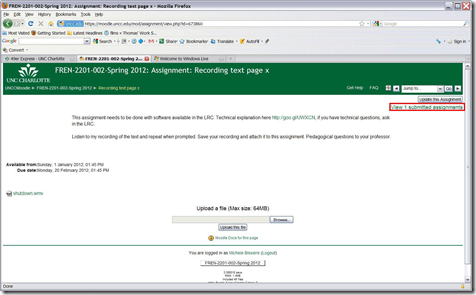
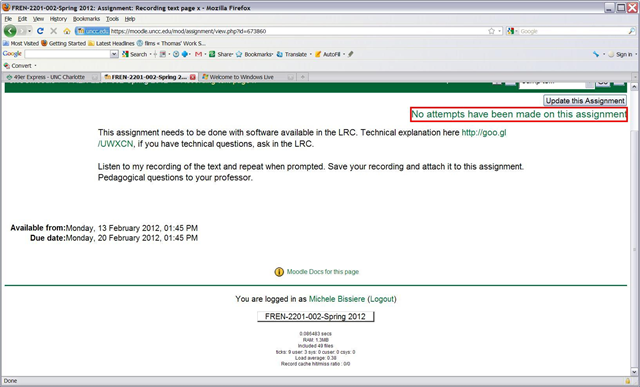
- When you initially createdyour single file upload assignment, there were no student submissions:
- Once there are, the link in the upper right of the assignment will tell you and take you right to the gradebook:
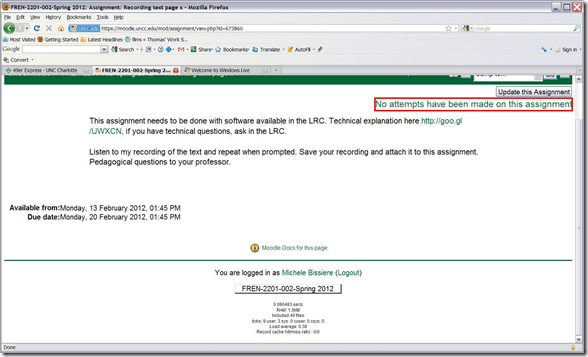
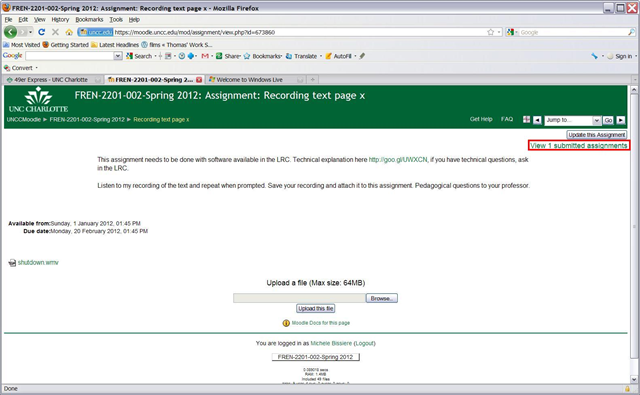
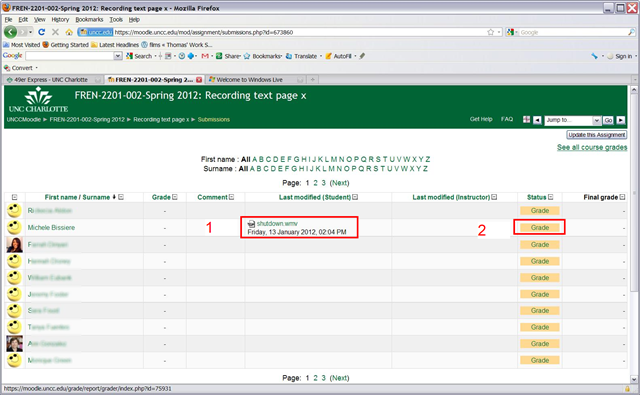
- Here you have an (1) overview who has submitted, and can click (2) to grade;

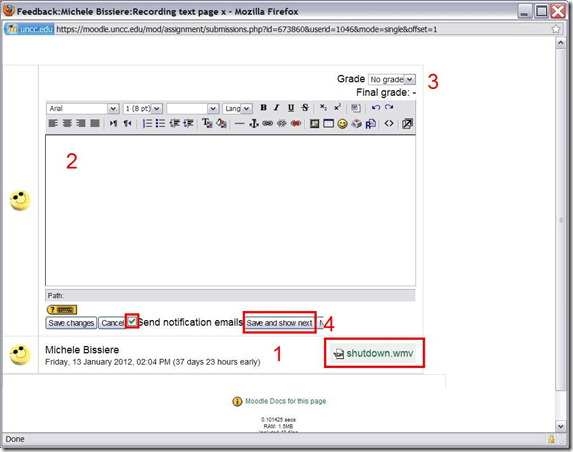
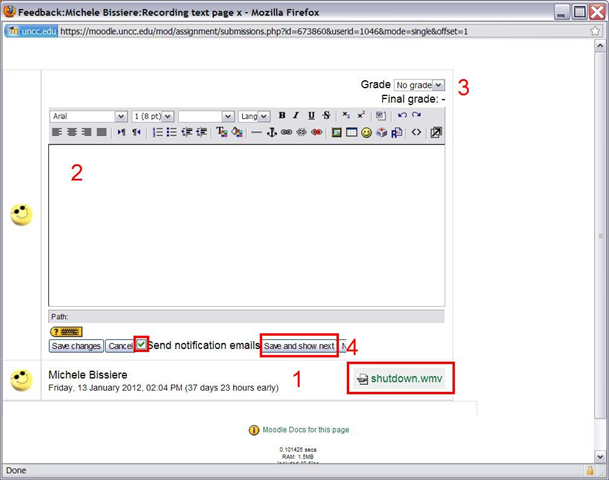
- In the grading dialogue, you can (1) download and open the file submission (see techniques of grading student audio submissions with Audacity), (2) write comments as you assess the file, (3) assign a final grade and (4) save and move on to the next submission (fastest, when you do batch grading, the notify student of your grading feedback is still useful under these circumstances, but even more so when you your self asked to be notified by email of student submissions as they come in: faster feedback)
Categories: assignments, audience-is-teachers, e-learning, lms, Speaking
audacity, moodle, simple-file-upload
More Moodle Kaltura video assignments here: French
2011/11/30
Leave a comment
- Yay! You can find the assignment right on your course home page:


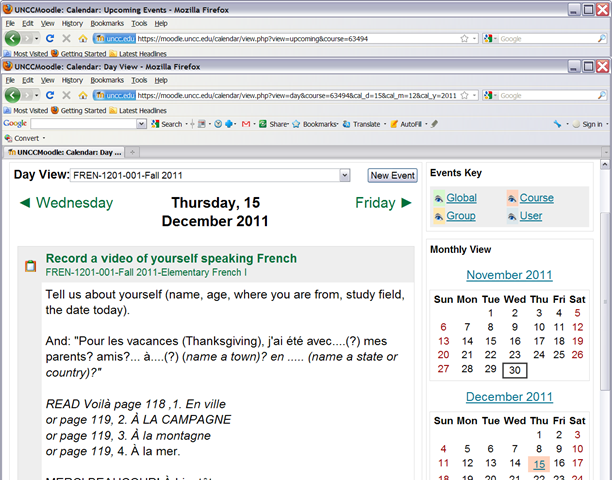
- Provided you do not miss the deadline – visit your calendar
 , better load your deadlines into NINERMAIL at term start
 - Come to the LRC to record your Moodle video assignment and practice speaking with our webcams.


Categories: audience-is-teachers, e-languages, French, learning-usage-samples, lms, marketing, multimedia-recording, Speaking
kaltura, moodle, video
How to do model imitation recording exercises to improve language learner pronunciation in the LRC and beyond
2011/11/22
Leave a comment
- Sometimes teachers ask about support for voice recognition in the LRC. The term voice recognition or speech recognition (the former appears to be analogous to face recognition in authentication and other security contexts?) is usually reserved for software that can transcribe your voice into text – still no free option for this, AFAIK. Dragon naturally speaking is the oft recommended market leader outside of education (and within, Auralog Tell me more, see below). Update summer 2012: We are working on enabling the Speech recognition built into Windows 7 Enterprise for English, Chinese (Simplified and Traditional), French, Spanish, German, and Japanese.
- Often times, what is actually desired is a digital audio recorder with voice graph, ideally a dual track recorder.
- In the LRC student computers, we have for exactly this purpose a digital audio recorder as part of the SANAKO Study 1200language learning system
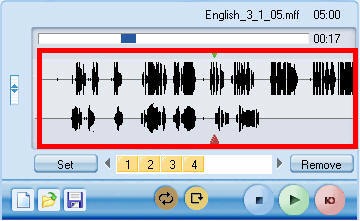
- It features a dual track recorder (allows to listen to teacher track which can be a prerecorded model to imitate on the left channel while recording the student track on the right channel of a stereo track) with a voice graph:
 . See this dual-track-voice-graph screencast demo from the vendor and also our student cheat sheet from the vendor documentation.
 - The Sanako is available in the LRC, as well as in many other educational institutions around the world, but neither free nor web-based (although a web-based version seems to be in the works). It currently requires MS-Windows to run.
- It features a dual track recorder (allows to listen to teacher track which can be a prerecorded model to imitate on the left channel while recording the student track on the right channel of a stereo track) with a voice graph:
- A popular and free audio editor (but not an SLA – specific application, let alone geared towards model imitation; also, for all practical ends and purposes, requires an extra download and installations of an MP3 encoder to be able to save recordings as compressed MP3) is Audacity. To use for model imitation exercises,
- the student can open a model track (mp3 recommended)
- and manage within the program the imitation portion, using the voice graph:

- then export back out as mp3,
- either her responses individually (see my demo screencast, requires Windows Media Player on Windows, which actually shows a question/response rather than a model imitation, but same principle),
- or, by deleting the model track, the response parts mixed down to one track,
- or also, if, like in my demo screencast, the timeline sequence of model (with pauses) and responses is carefully managed (so that model and imitation do not overlap), mixed down to one track.
- In one language program, I have worked extensively with Auralog Tell me more
- which was (not exclusively, but arguably too much) based on this pedagogic concept of having students compare the voice graph of their imitation with the model voice graph (while it do did not allow for teachers to upload their own content, and was certainly not free).

- To my knowledge, Auralog Tell me more does not allow for adding teacher-produced content as models.
- I did like the self-reflective and repetitive practice element. However, I found that students – apart from intonation and (not useful for not pitch based languages) pitch -, did not benefit as much as one might have expected from viewing the voice graph, indeed tended to get overwhelmed, even confused by the raw voice information in such a voice graph.
- And automated scoring of pronunciation (or speech recognition” – not free form, but on a level that has been commoditized in operating systems like Windows 7, the level of voice-directed selection between a limited set of different options, like menu options, and in the case of Auralog, choosing between different response options) seemed iffy and less than transparent in Auralog Tell me more, even though this is their primary selling point. E.g. when I made deliberate gross mistakes, the program seemed to change its standards and wave me through ( English pronunciation example; also observed by me when testing Auralog with East Asian speakers of English).
- which was (not exclusively, but arguably too much) based on this pedagogic concept of having students compare the voice graph of their imitation with the model voice graph (while it do did not allow for teachers to upload their own content, and was certainly not free).
- In the LRC student computers, we have for exactly this purpose a digital audio recorder as part of the SANAKO Study 1200language learning system
- A voice graph is not the same as a more abstract phonetic transcription (although I do not know whether language learners can be trained in phonetic symbol sets like the IPA). There are now experimental programs that can automate the transcription of text into phonetic symbol sets for e.g. Portuguese or Spanish. Maybe you will find that practice with recording and a phonetic transcription of the recorded text is more useful for your students’ pronunciation practice than a fancy voice graph.


How to use the online Spanish pronunciation help to generate phonetic alphabet transcriptions and text-to-speech
2011/11/18
Leave a comment
- Go to http://showroom.daedalus.es/es/tecnologias-de-la-lengua/phonetictrans/phonetictrans.php, enter your text, select your phonetic symbol set:
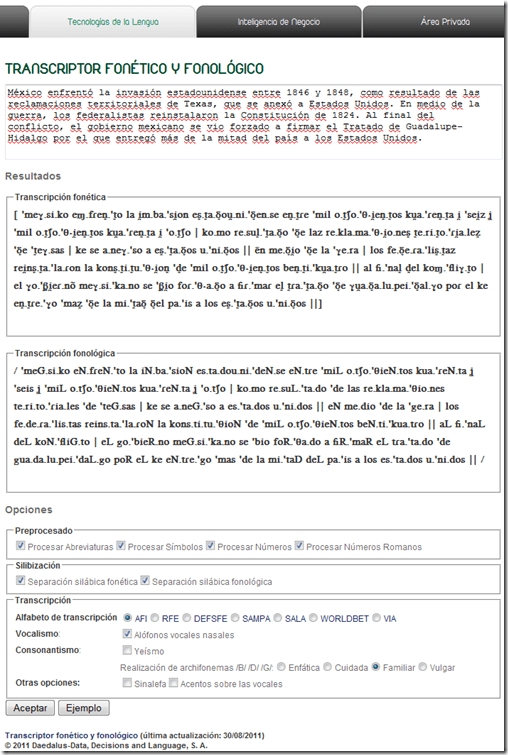
- Unlike with the Portuguese help, there is no text-to-speech option here.

Microsoft Contextual Translator
2011/11/14
Leave a comment
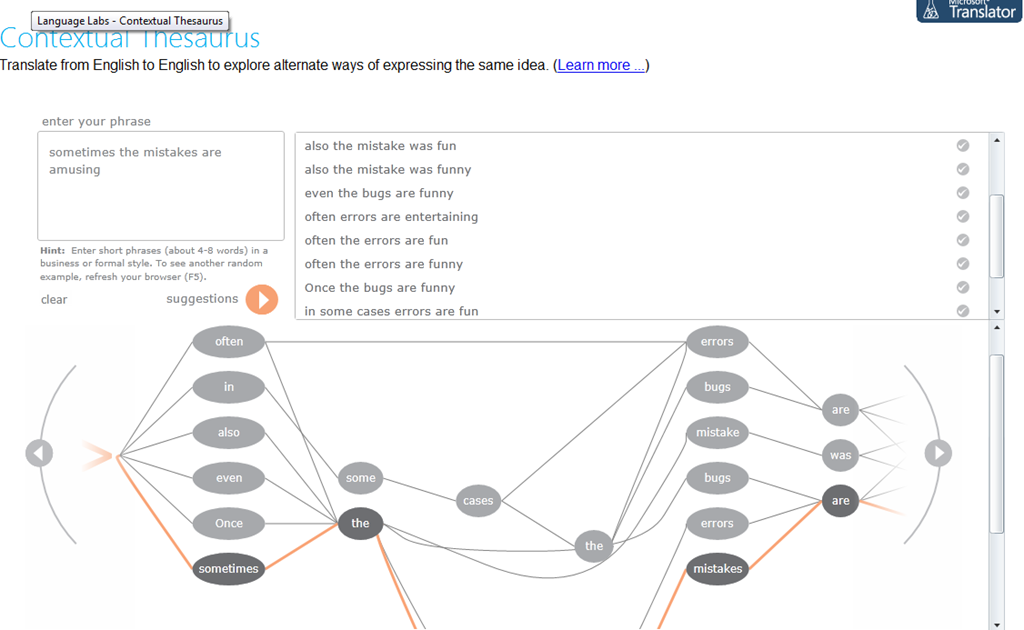
Certainly an advance over the MS-Word thesaurus (unlike the MS-Word 2007 and up spell check, still not contextual). Does this work at least well enough to serve as a fruitful pedagogical exercise: “Which phrase does not belong in the group?”
Categories: Advanced, audience-is-students, audience-is-teachers, Beginner, e-languages, English, Intermediate, Speaking, websites, Writing
links, thesaurus
How a teacher creates and grades a Moodle streaming video assignment.
2011/11/02
Leave a comment
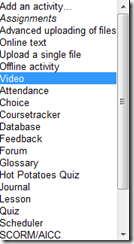
- Click button: “Turn editing on”, from the “add an activity dropdown, choose: “video”, like so:
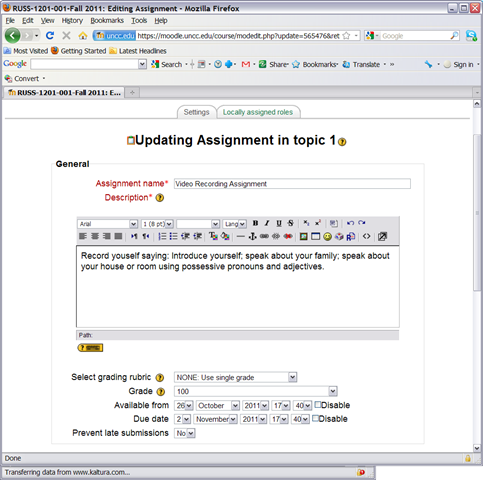
- Edit your assignment, like so:

- using the following options (or else expect problems)
- Due date: not DISABLED (is the default)
- Prevent late submissions: YES (is not the default)
- Allow resubmitting: NO (is the default)
- using the following options (or else expect problems)
- after you post your assignment and your students took it, like so,
- and if you turned notifications (not recommended; rather grade the assignment well after the deadline, or else expect problems) on (if you get already enough email, remember you can turn notifications off, rather send a deadline to the assignments which the students can see in their calendar, and until they get used to it, tell them there will be more video assignments, best: make it a routine and leave 2 for extra credit could be enough to get everybody to catch), you will get an email like this:

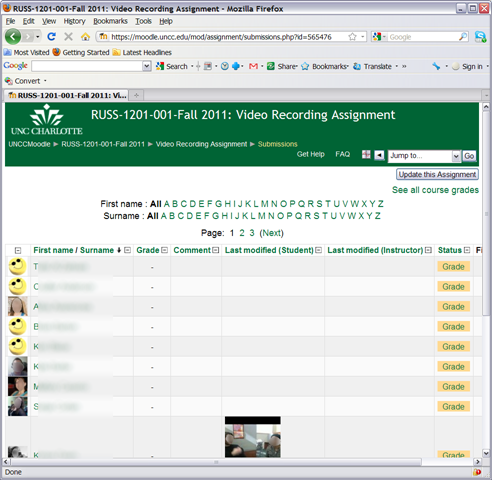
- where you click either on the link (1) to go to the assignment, then click through to the submissions (3)

- or on (2) to go directly to the grade book:

- where you are best advised to click on the button: “grade” to view the video submission, , or else you might run into this bug.
- In the grading window,
 play the video, add helpful comments, if any, add final Grade and click “save and next” (but click “next” if no video submitted yet and you grade before the submission deadline. Better: do not grade before the submission deadline).
 - If video seems unwilling to play (frozen frame), drag the play cursor forward on the timeline underneath the video.
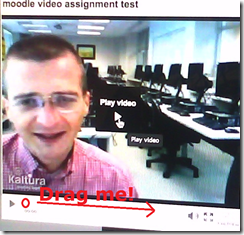 If this does not unfreeze the video, let the timeline run to the end (both workarounds have helped with Kaltura issues we encountered here).





Categories: all-languages, audience-is-teachers, e-languages, lms, Speaking, step-by-step-guides
1.9, kaltura, moodle, video


Questions? Read the About. Or just ask me a quick Our Databases: Resources with calendars -- Language learning material Moodle Sites, multimedia files -- films


FAQs for LRC student staff or for students or for teachers. To search our FAQs, in the browser addressbar, add after "https://plagwitz.wordpress.com/feed/?tag=faqs+/" "+TAG1" (from tag cloud below) OR "https://plagwitz.wordpress.com/feed/tag=faqs
&category_name=" "CAT1" (from category hierarchy below). OR search both categories and tags, and multiple TAGs/CATs (connect with "," for OR-search, with "+" for AND-search), like so: https://plagwitz.wordpress.com/feed/?tag=TAG1+TAG2+...TAGn&category_name=CAT1
+CAT2+...CATn"
Other ways to find help
If you cannot find it here, look there: 5,500 Language-Learning Links and Programs for learning or teaching 150 languages
Shortcuts:Our Lists, Our Maps, LRC Staff Moodle Site,LRC Project Moodle Site, 49erexpress, UNCC Moodle, Student Recordings: s:claslcslrcsanakostudent
Learning usage samples: Sanako oral exam, Kaltura webcam presentation, Dictation with speech recognition, Sanako written exam, Chinese and Japanese interactive stroke-order practice
Test the Sanako Installer, Webbrowser Popup Konfigurator for XP, or Windows7, faster LRC TeacherPC Log-in Let MS facilitate diacritics writing by installing for you US-International keyboard layout
This is my personal blog (Google+). The views expressed on these pages are mine alone and not those of my employer. The information in this weblog is provided “AS IS” with no warranties, and confers no rights.
 Thomas' Work Space