Archive
Phonetic transcription websites
Computerized Language resource centers are supposed to work wonders improving SLA students’ pronunciation: Can’t computers analyze and visualize sound for us?
However, it turned out there seems to be a considerable “impedance mismatch” not only between computers analyzing and understanding the signal, but also between a computer voice graph and the capability of a language learner to process and improve pronunciation on the basis of it.
Voice graphs may have some use for tonal languages. But can you even tell from a voice graph of a letter which sound is being produced?
Enter the traditional phonetic transcription that pre-computerized language learners remember from their paper dictionaries (provided you can teach your language learners phonetic symbol sets like the IPA). Not only are good online dictionaries perfectible capable of displaying phonetic symbol sets on the web (it’s all in Unicode nowadays).
There are now experimental programs that can automate the transcription of text into phonetic symbol sets for e.g. English, Portuguese or Spanish. The more advanced ones also come with text-to-speech.
You can provide your students with audio (or, text-to-speech capability provided) or text models and have them study the phonetic transcription, listen to the audio, and record their model imitation in the LRC. Maybe you will find that practice with recording and a phonetic transcription of the recorded text is more useful for your students’ pronunciation practice than a fancy voice graph.
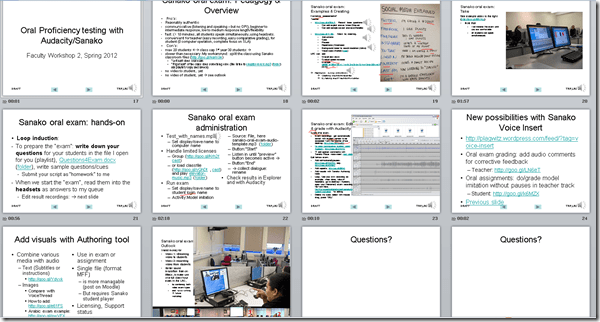
Spring 2012 Faculty Workshop II: Oral Proficiency testing with Audacity/Sanako
- View screens (best viewed side by side, but note that left and right screen are not synchronized):
- for full slide show (note the included short links for convenient further reading), left screen

- for Sanako interface and full audio track, right screen
 .
.
- for full slide show (note the included short links for convenient further reading), left screen
- Table of contents:
- Overview of a Sanako Oral Exam
- Examples of Exam teachers’ exam question recordings
- Example of a Sanako Exam
- Loop induction
- creating an exam question recording
- by taking a Sanako exam as a student
- Step-by-Step of administering a Sanako oral exam
- Grading Sanako oral exam student files
- Sanako voice insert for
- facilitating recording oral assignments for student without hard-coded pauses
- commenting on student responses during grading
- Sanako voice insert for
- Sanako authoring tool for providing visual on top of aural cues to students

How a teacher can use Sanako voice insert to easily add spoken comments to students’ Sanako oral proficiency exams
- All other things equal (given a limited amount of time), teachers can provide more and better corrective feedback on student oral proficiency recordings if, during their grading, they could easily insert their own oral comments into the students’ recordings (delivered as MP3 files to teachers’ desktops after Sanako oral exams).
- Both the Sanako Tutor and Student Player have a voice insert mode that is much easier and quicker to use than (albeit not free as) editing the student audio in Audacity (which we still recommend for bare-bone viewing/listening because of Audacity’s capability of loading and displaying multiple tracks simultaneously).
- Fortunately, Sanako tutor/student player are available on the teacher/student station PCs in the LRC (the latter’s insert function is available when the PC connected to the running Sanako Tutor on the teacher station).
- How easy and fast is it to use this? As you can see in this demo screencast on how to use Sanako voice insert to add spoken comments into your students’ Sanako oral exams
 , voice insert only requires:
 - a click on the voice insert button in the center, whenever a user wants to speak during listening,
- and, from the top left menu, a “file”/ “save as” at the end.
- In a next step – not only during the grading process –, how easy is it to distribute student recordings made with Sanako to students? That is TBA:a different story.
Protected: Sanako Study 1200 Final oral exam for advanced Business Spanish: A Job interview
Moodle Kaltura teacher and student video uploads combined
- You can combine
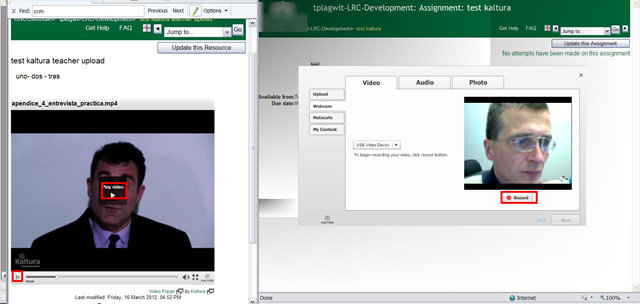
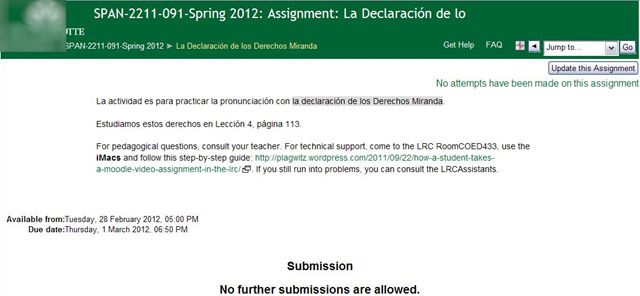
- a Model/Question video, uploaded by the teacher as a video resource
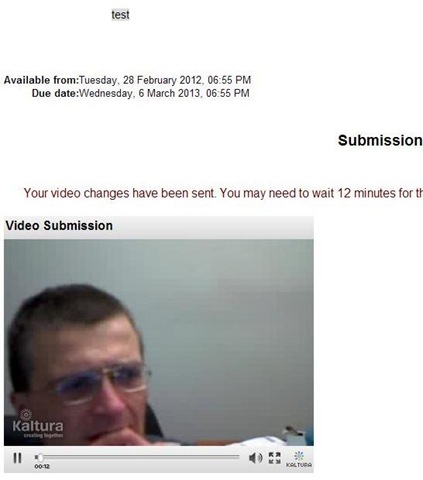
- with an Imitation/Response video captured by the student.

- Cons:
- When viewing the teacher upload video models/questions, the student has to alternate between pause/play (which are not even on the same button).
- Student does not have to also handle pausing/restarting the video recording, but that may be another con: The student cannot pause her video, so the grader will have to skip over pauses in his recording.
- Pros: Looks like a video recording can peacefully coexist with a simultaneous video playback (XP, IE8):



Questions? Read the About. Or just ask me a quick Our Databases: Resources with calendars -- Language learning material Moodle Sites, multimedia files -- films


FAQs for LRC student staff or for students or for teachers. To search our FAQs, in the browser addressbar, add after "https://plagwitz.wordpress.com/feed/?tag=faqs+/" "+TAG1" (from tag cloud below) OR "https://plagwitz.wordpress.com/feed/tag=faqs
&category_name=" "CAT1" (from category hierarchy below). OR search both categories and tags, and multiple TAGs/CATs (connect with "," for OR-search, with "+" for AND-search), like so: https://plagwitz.wordpress.com/feed/?tag=TAG1+TAG2+...TAGn&category_name=CAT1
+CAT2+...CATn"
Other ways to find help
If you cannot find it here, look there: 5,500 Language-Learning Links and Programs for learning or teaching 150 languages
Shortcuts:Our Lists, Our Maps, LRC Staff Moodle Site,LRC Project Moodle Site, 49erexpress, UNCC Moodle, Student Recordings: s:claslcslrcsanakostudent
Learning usage samples: Sanako oral exam, Kaltura webcam presentation, Dictation with speech recognition, Sanako written exam, Chinese and Japanese interactive stroke-order practice
Test the Sanako Installer, Webbrowser Popup Konfigurator for XP, or Windows7, faster LRC TeacherPC Log-in Let MS facilitate diacritics writing by installing for you US-International keyboard layout
This is my personal blog (Google+). The views expressed on these pages are mine alone and not those of my employer. The information in this weblog is provided “AS IS” with no warranties, and confers no rights.
 Thomas' Work Space