Archive
Learn Chinese character stroke-order with slowed-down animated GIFs
Further to our prior tips on learning Chinese stroke order, now you can take your time, in the LRC: To facilitate your practicing of Chinese character stroke-order, we have used the most helpful site (also available by direct download) created by Tim Xie for the California State University, Long Beach, to create 100 different speed versions, and one comic strip like static image, for each of the several hundred of animated GIFs demonstrating Chinese character writing, and made them available on the LRC computers under Internet Explorer Favorites – Example:
 |
 |
 |
|
 |
|
 |
|
 |
|
 |
|
 |
|
 |
You can access the files with the stroke order speed of your preference from the LRCCOED434 student computers, like so:
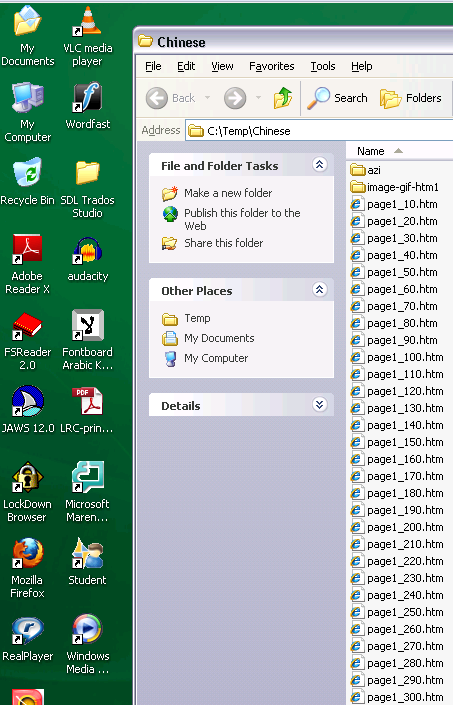
(Many thanks also to the authors of programmable ImageMagick image editor and corresponding Unix shell scripts that we could use in the production of the slowed down animated GIFs. To create your own version of these slowed down animated GIFs, or others similar websites, feel free to pick up and/or adapt our shell script here).
Subtitling Audio Files with Windows Media Player Enhanced Tag Editor
Working with (target language) subtitles is a common requirement in digital language labs.
While the method demonstrated in the following screencast requires some getting used to – remember to share and reuse the result -, the advantage over Sanako Media Assistant subtitling is that the subtitles get stored in the file and not only linked to in a separate file (links tend to/are bound to break if you try to manage your product in course management systems or erepositories): subtitling-with-windows-media-player-enhanced-tag-editor.wmv.
And then there is this very nice capability of YouTube.com: http://www.google.com/support/youtube/bin/answer.py?answer=100077, if you dare navigate the waters of copyright, data protection and privacy (FERPA).
An outline of the MS-Word Cloze Quiz, MS-PowerPoint Multiple Choice Quiz and Internet Lookup tools for
- To facilitate lesson delivery and student interaction in our language lab and computerized classrooms, I am programming two MS-Office templates with interactive lookup and quiz functions and create new/convert traditional language teaching materials in French, German and Spanish with them.
- These templates support the learner by strengthening learner autonomy and providing immediate corrective feedback and – in conjunction with the grouping facilities of the centre’s infrastructure – allow for custom-tailored instruction based on the immediately available outcome of formative assessments.
- MS-Word-Template
- The student can be given additional hints when tabbing into a form entry field.
- The student can easily look up words and terms in internet-based reference works and collections.
- Double clicking on a word opens a browser window with the corresponding entry in a dictionary of the corresponding foreign language.
- Selecting a word or phrase and clicking on a menu item in the lookup menu a browser window with the corresponding entry of various reference works and databases (Figure 3: Look up Internet Reference Works, Figure 4: Look up Internet Illustrations).
- The student will receive instant feedback when tabbing out of an entry field.
- During quiz-taking, the screen will be formatted (font face, size, spacing, colors) so that the teacher keeps easily informed, whether through a computer lab management system / screen monitoring tool or by a more “pedestrian” approach for student monitoring.
- After collection and before correction by the teacher and reviewing by the student, the screen will be re-formatted to facilitate reading outside of the classroom setting.
- The template can be used for a wide variety of typical foreign language teaching exercises:
- Instructors have requested fuzzy matching for fill-in-the-blank exercises, which I am planning to implement by integrating an existing COM add-in that can make available the Levenshtein Distance Metric to MS-Word.
- Upgrade of Templates from Sanako Lab300 to better integrate with the new Sanako Study1200 software features.
- Teaching Content Creation:
- Making subtitles for foreign language movie digitally available;
- Programming regular expressions ins VS.Net that match function words (example: demonstrative pronouns in Spanish) to run over these templates in order to batch create fill-in-the-blank exercises;
- Importing them into the templates and creating grammar and listening comprehension exercises
- Support: Implementing an Error Logging Application
- MS-PowerPoint-Template
- The teacher can easily lookup words and terms in internet-based reference works and collections
- Currently implementing additional lookup options (NLP and Corpus Linguistics (ACORN, BNC, Sketchup), Dictionaries (Visurwords, Wiktionary, Google Define).
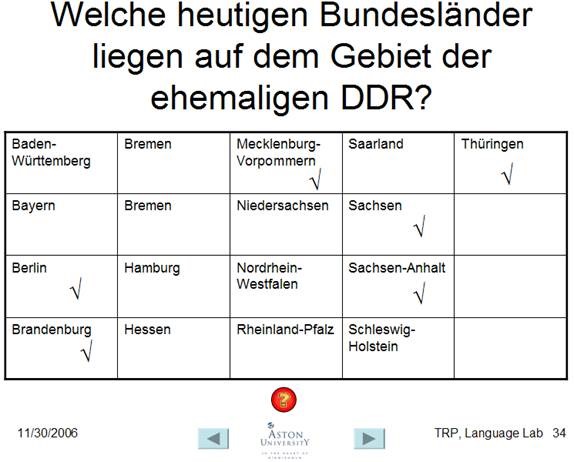
- A number of templated custom-animated exercises can be used for
- presenting students with guiding questions before watching/listening to a target language segment
- Revealing correct answers after the segment.
- A number of templated interactive exercises can be used for revealing correct answers (word lists) depending on students’ responses.
- The templates support typical activities in the digital language lab (interactive presentations with multimedia, listening comprehensions, speaking and dialoguing activities for language learning, view usage examples in my Templates Eurocall Presentation video of September 2007). Teachers can use them as exercise-generating engines: they allow copy/paste of their own exercises into these templates. These templates have the advantage of being able to hook into the rich infrastructure that MS-Office provides for language teaching; they work with all Western Languages (but have been thoroughly tested only with ESL, French, German, Italian and Spanish so far). These templates that are better geared than VLE and other CALL resources for daily use in a computerized classroom environment: easy to author, take and monitor and either multimedia-heavy or focused on human interaction. These templates support the instructor by relieving of routine tasks in favor of well-informed, well-focused non-routine intervention, and extend the centre’s screen-sharing and VOIP infrastructure to provide the instructor with an unprecedented control of the learning of an entire class.
- APP delivery format:
- MS-PowerPoint: 1 template-file (.pot) and 1 addin (.ppa)
- MS-Word: 1 template (.dot – incorporates Lookup application) and 1 COM application (fuzzy matching)
- Apart from the templates themselves, there is
- Explanation: documentation of the tool
- see Figure 4: Template Documentation,
- Figure 8: PowerPoint Exercise Templates,
- sample materials which illustrate the practical exploitation of a tool the development of a skill or the response to an issue
- see Figure 3: Quiz Template with Chanson Lyrics
- Figure 9: PowerPoint-Exercises for German History Documentary,
- Sample Exercise material: hands-on activities for materials development, skills training or discussion
- Figure 9: PowerPoint-Exercises for German History Documentary)
- Explanation: documentation of the tool
- Since January 2008, the templates have been adapted for use in the Aston university Study1200 lab and a series of 3 teacher training workshops has been delivered in May/June of 2008. During that time, the implementation of the distance metrics within the templates has been started also which is currently still in the debugging state (see following slide below.)

Figure 1: Look up Internet Reference Works
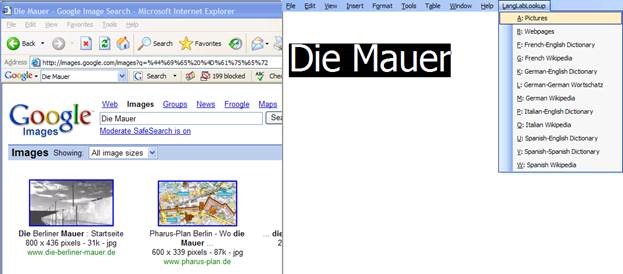
Figure 2: Look up Internet Illustrations
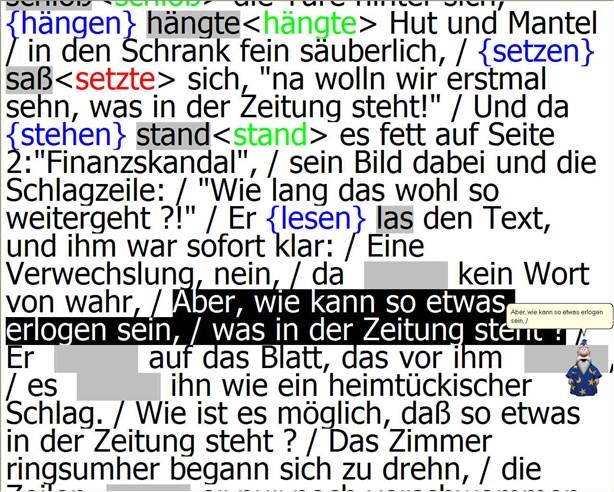
Figure 3: Quiz Template with Chanson Lyrics
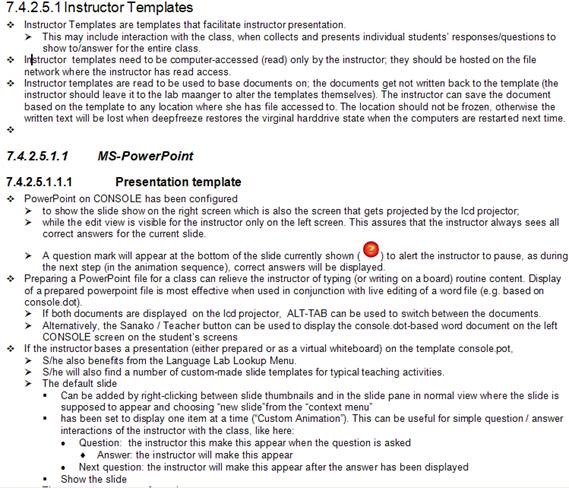
Figure 4: Template Documentation

Figure 5: Quiz Result Summary

Figure 6: Spanish Movie Subtitling Exercise Creation

Figure 7: Information Gap Dialogues (Language Lab Example)

Figure 8: PowerPoint Exercise Templates


Questions? Read the About. Or just ask me a quick Our Databases: Resources with calendars -- Language learning material Moodle Sites, multimedia files -- films


FAQs for LRC student staff or for students or for teachers. To search our FAQs, in the browser addressbar, add after "https://plagwitz.wordpress.com/feed/?tag=faqs+/" "+TAG1" (from tag cloud below) OR "https://plagwitz.wordpress.com/feed/tag=faqs
&category_name=" "CAT1" (from category hierarchy below). OR search both categories and tags, and multiple TAGs/CATs (connect with "," for OR-search, with "+" for AND-search), like so: https://plagwitz.wordpress.com/feed/?tag=TAG1+TAG2+...TAGn&category_name=CAT1
+CAT2+...CATn"
Other ways to find help
If you cannot find it here, look there: 5,500 Language-Learning Links and Programs for learning or teaching 150 languages
Shortcuts:Our Lists, Our Maps, LRC Staff Moodle Site,LRC Project Moodle Site, 49erexpress, UNCC Moodle, Student Recordings: s:claslcslrcsanakostudent
Learning usage samples: Sanako oral exam, Kaltura webcam presentation, Dictation with speech recognition, Sanako written exam, Chinese and Japanese interactive stroke-order practice
Test the Sanako Installer, Webbrowser Popup Konfigurator for XP, or Windows7, faster LRC TeacherPC Log-in Let MS facilitate diacritics writing by installing for you US-International keyboard layout
This is my personal blog (Google+). The views expressed on these pages are mine alone and not those of my employer. The information in this weblog is provided “AS IS” with no warranties, and confers no rights.
 Thomas' Work Space