Archive
How to use the MS-Word Quiz Template (and the MS-Excel subtitles spreadsheet)
How to make formative assessment quizzes for face-to-face teaching settings like in the examples here?
Part I: quiz_dot_create_excel: Watch a screencast on How to ready target language subtitle source material for the quiz template
|
0,00 |
Working with subtitle material from the source: time coding is not correct
1,40
spreadsheet formulae can fix the subtitle time codes
2,00
why using DVD chapters as learning units
2,20
filtering on chapters in the DVD
3,00
ready to copy paste the filtered learning unit text data into the quiz template
Part II: Watch a screencast on How you can apply your pedagogy with ease to a text and transform the same to a quiz, and how the student benefits from both
|
0,00 |
start quiz from word template (on file share)
0,35
paste text data, e.g. for listening comprehension, e.g. from target language movie subtitles
1,15
create markup from pedagogy
3,14
generate quiz from markup : parenthesis 1 {helpful hint}, parenthesis 2 [correct answer]
3,35
closing and saving the quiz, receiving a summary
3,55
create a backup
4,00
open the quiz to test the quiz from student perspective
4,30
what opening information the student receives
5,00
how the student inputs answers and receives feedback
5,20
language learning lookup menu , after pausing the quiz
6,30
or double-click words to look them up in the default dictionary for the set language
7,10
how the student resumes the quiz
7,20
how the student closes the quiz
Part III: Watch a screencast on How you can revise your pedagogy
|
0,15 |
open the quiz, enable macros
0,30
unprotect the quiz
0,45
office 2003: tools / macros / macros
1,00
now you can edit your pedagogical markup
1,10
regenerated the altered quiz
Using the MS-Word Quiz Template (and the MS-Excel subtitles spreadsheet)
Part I: quiz_dot_create_excel: Watch a screencast on How to ready target language subtitle source material for the quiz template:
|
0,00
|
Working with subtitle material from the source: time coding is not correct
|
|
1,40
|
spreadsheet formulae can fix the subtitle time codes
|
|
2,00
|
why using DVD chapters as learning units
|
|
2,20
|
filtering on chapters in the DVD
|
|
3,00
|
ready to copy paste the filtered learning unit text data into the quiz template
|
Part II: Watch a screencast on How you can apply your pedagogy with ease to a text and transform the same to a quiz, and how the student benefits from both
|
0,00
|
start quiz from word template (on file share)
|
|
0,35
|
paste text data, e.g. for listening comprehension, e.g. from target language movie subtitles
|
|
1,15
|
create markup from pedagogy
|
|
3,14
|
generate quiz from markup : parenthesis 1 {helpful hint}, parenthesis 2 [correct answer]
|
|
3,35
|
closing and saving the quiz, receiving a summary
|
|
3,55
|
create a backup
|
|
4,00
|
open the quiz to test the quiz from student perspective
|
|
4,30
|
what opening information the student receives
|
|
5,00
|
how the student inputs answers and receives feedback
|
|
5,20
|
language learning lookup menu , after pausing the quiz
|
|
6,30
|
or double-click words to look them up in the default dictionary for the set language
|
|
7,10
|
how the student resumes the quiz
|
|
7,20
|
how the student closes the quiz
|
Part III: Watch a screencast on How you can revise your pedagogy
|
0,15
|
open the quiz, enable macros
|
|
0,30
|
unprotect the quiz
|
|
0,45
|
office 2003: tools / macros / macros
|
|
1,00
|
now you can edit your pedagogical markup
|
|
1,10
|
regenerated the altered quiz
|
Plagwitz – eLearning Papers presented
Language Lab Web Portal, University of Michigan – Dearborn
For lack of even an LMS – which in post-secondary language lab environments in the US in the “noughties” commonly has had to double as CMS and Groupware -, the lab web portal in the post title had to fulfill many functions.
While the technically most advanced features probably was full text search against both database and file system (uploaded documents) – which I could relatively easily implement thanks to MS-SQL-Server and a limited number of database tables –, I liked best the collaborative building of a bank of language learning exercises using authentic materials, i.e. interactive websites from the target culture.
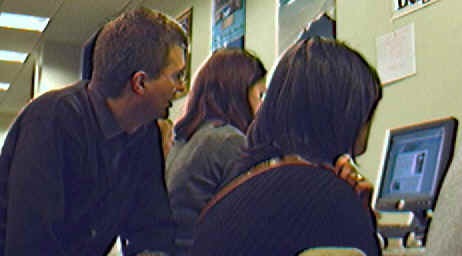
A few sample illustrations of the use in both language lab and affiliated computerized classrooms you can see here:



The list below links to a series screencasts of the Language Lab Web Portal that I made for training and demonstration purposes. They show the language lab web portal software in action:


Data cleansing and ETL with Perl to remove broken links

Video Library: Scheduling for Reserve Desk and Viewings
Lab staff instruction for editing the video-reserves spreadsheet H:\LLC\scheduling\video-reserves&mh441b-showing\video-reserves.xls:
- Lab supervisors build the spreadsheet for the reserve desk and viewing: video-reserves-reservedonthisday-unfold-schedule-viewing.wmv, video-reserves-viewing-selecting-timeslots&venues.wmv
- Lab assistants read the spreadsheet and handle the actual media (i.e. update the reserve desk and show the videos): video-reserves-reservedonthisday-filter-viewing-or-reserve.wmv
Sanako Lab300 Oral-exam-question-response-recording-cycle
A 6-minute screen-cast explaining the sanako-lab300-oral-exam-question-response-recording-cycle.wmv
Please consult the transcript for a table of contents:
|
0,00 |
Here we are administering an oral exam. we are going to play pre-recorded teacher-questions to multiple students, we are going to record their responses and, at the end, we are going to collect their recordings in a batch: |
|
0,12 |
for this, we have all seats where a student is present added to group a, and have set the program source for group a to media file |
|
0,22 |
we monitor the situation on the student computers by accessing menu: other / thumbnail of group, |
|
the screen sharing is slow here, has been improved somewhat by installing more memory, the crowded screen situation has also been improved by installing a secondary monitor, use it for viewing the thumbnail window |
|
|
0,59 |
in the group a pane, we use the button: duo launch, and ok the dialogue, to open th estudent recorder on the student computers |
|
1,07 |
in the section:media source, button: file open, we access our pre-recorded question file |
|
1,13 |
in the meantime, the duo has launched on the student computers – as you can see in the classroom layout from the squares on the student seats, as well as on the mosaic thumbnail screens |
|
1,35 |
we double-click on a single thumbnail to demo to the students on the screen projector how to adjust the volume |
|
1,43 |
we click button:transfer to play the volume test file to the students |
|
we have the students record their name at the end of the sound test, to check all recorders, and to be able to identify the speaker in the actual exam file (which will be saved with only the student number in lab 300) |
|
|
we stop the button:transfer and go to menu:test:response recording |
|
|
in the pane:”response recording”, in section:”collect”, we click button:”start” |
|
|
we save the recording in a subdirectory with a meaningful name of our choice |
|
|
we ok the dialogue that informs us of the response recording |
|
|
in the window:mosaic, the encoding activity window briefly flashes on the student screens |
|
|
we browse to the student collect folder, where all subdirectories are saved |
|
|
we check the folder visibly for the right number (use select all), size or duration of audio files – |
|
|
it would be even safer, even though more time consuming, to open all the test recordings with audacity, especially on a slow computer, and check the volume graph – open audacity and drag and drop all files onto it |
|
|
4,07 |
the soundtest is a complete recording cycle. Simply repeat for the actual exam, but |
|
first close the pane:response recording, to go back to your pane:group, |
|
|
in section:program transfer, click button:group control, click icon:file/new, to flush the prior test out of the student recorders, |
|
|
in the dialogue:”save changes”, click no |
|
|
and this time load the actual exam audio file |
|
|
once the sound check is done, we could use button:lock for the students to prevent them from interfering with the computers during the exam |
Create a PowerPoint slide with a timer from template for a timed audio recording exercise
If you require an audio recording exercise, where you allot to students a longer period of time for a free-form response, possibly to a visual cue, here is a demo screencast, based on the teacher.pot powerpoint template collection: powerpoint-timer-slide.wmv.


Questions? Read the About. Or just ask me a quick Our Databases: Resources with calendars -- Language learning material Moodle Sites, multimedia files -- films


FAQs for LRC student staff or for students or for teachers. To search our FAQs, in the browser addressbar, add after "https://plagwitz.wordpress.com/feed/?tag=faqs+/" "+TAG1" (from tag cloud below) OR "https://plagwitz.wordpress.com/feed/tag=faqs
&category_name=" "CAT1" (from category hierarchy below). OR search both categories and tags, and multiple TAGs/CATs (connect with "," for OR-search, with "+" for AND-search), like so: https://plagwitz.wordpress.com/feed/?tag=TAG1+TAG2+...TAGn&category_name=CAT1
+CAT2+...CATn"
Other ways to find help
If you cannot find it here, look there: 5,500 Language-Learning Links and Programs for learning or teaching 150 languages
Shortcuts:Our Lists, Our Maps, LRC Staff Moodle Site,LRC Project Moodle Site, 49erexpress, UNCC Moodle, Student Recordings: s:claslcslrcsanakostudent
Learning usage samples: Sanako oral exam, Kaltura webcam presentation, Dictation with speech recognition, Sanako written exam, Chinese and Japanese interactive stroke-order practice
Test the Sanako Installer, Webbrowser Popup Konfigurator for XP, or Windows7, faster LRC TeacherPC Log-in Let MS facilitate diacritics writing by installing for you US-International keyboard layout
This is my personal blog (Google+). The views expressed on these pages are mine alone and not those of my employer. The information in this weblog is provided “AS IS” with no warranties, and confers no rights.
 Thomas' Work Space