Archive
How to do Sanako Oral Exams with large classes, but few licenses: A workaround using partial classroom layouts
When you open the Study1200 tutor, a dialogue comes up which lets you select you the “classroom layout’. What this actually means – since the physical classroom (LRC layout) is obviously immutable –, is: which computers do you want the Study1200 to connect.
The “template classroom” (this happens to be just the default name within Sanako) tries to connect all students logged in on computer in COED434 to the teacher from the “corridor” (= where Study1200 leaves all computers that it knows of, but that you do “into” want to let into the classroom; the corridor has link in the bottom center of the Study1200 teacher window, and it flashes if there is a change “in “ the corridor Stuy1200 wants to make you aware of) that the Study1200.
However, beyond the 20th client (first come, first serve), this will fail because of licensing restrictions, and a grey exclamation mark will appear in the classroom layout in the Study1200 window for these student icons.
The “left-half”and “right-half” layouts that I created load only the computers in either the left or right half of the COED434 classroom (each without the wall/window-facing computers at the very edges) into the classroom layout (other logged-in students will remain in the “corridor”, linked in the bottom center of the tutor interface, if you want to add select students – note that the student icon will not appear on screen in their approximate physical position in the classroom.
You can also bring up the dialogue from which you can choose classroom layout after the initial startup of the tutor: Go to top menu: file / classroom layout. A 45-second screencast of this switching our classroom layouts in Sanako Study 1200 is available for download (requires Windows Media player).
In the screencast, you can see how the visual layout on screen reflects the physical layout in the classroom (the number labels on top of our computer monitors appear (optionally) in seat numbers): rotate by 90% clock- or counterclockwise (I wish we would have not only more licenses, but also a higher screen resolution. Stay tuned).
This technique of splitting the classroom, unloading and loading half of it at a time, you can exploit for administering oral exams consecutively with class sizes (current maximum is 25/30, depending on level) that exceed the number of licenses we have (currently 20 + teacher).
This technique of excluding computers from connecting to the teacher we could also use to merge the listening station computers, even though they have a different audio hardware configuration (analog headsets only, no Sanako headsets with built-in sound card and disabled on board sound) into the main software image without consuming valuable licenses – not without other problems.
LRC Outlook/Exchange 2010 Resource Calendaring: How to cancel meetings in OWA
- View instead a short screencast how to cancel meeting requests in OWA.
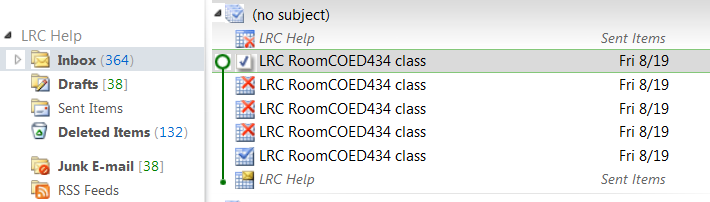
- Or: You start out with a meeting request conversation like this, showing:
- a request send from account LRC help (example)
- an accepted meeting response from the resource (e.g. the room) account

- to cancel that meeting, you can go to your (!) calendar in OWA,
- select (click on) the meeting and choose “delete”
- either from the context menu after right-click the meeting
- or from the ribbon after selecting the meeting
- if the meeting was repeating/recurring, you will be given the option to
- cancel this occurrence
- cancel all future occurrences
- cancel all occurrences (be CAREFUL not to delete past meetings that have taken place; cancel all future meetings in a series by updating the meeting series end time (leaves past meetings of the series intact))
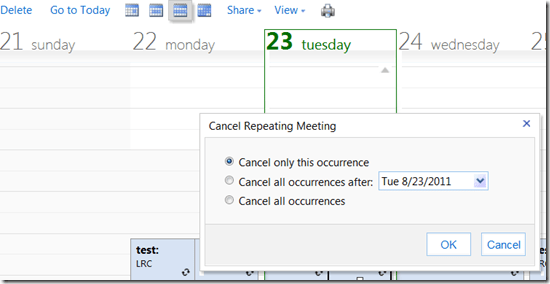
- either from the context menu after right-click the meeting
- select (click on) the meeting and choose “delete”
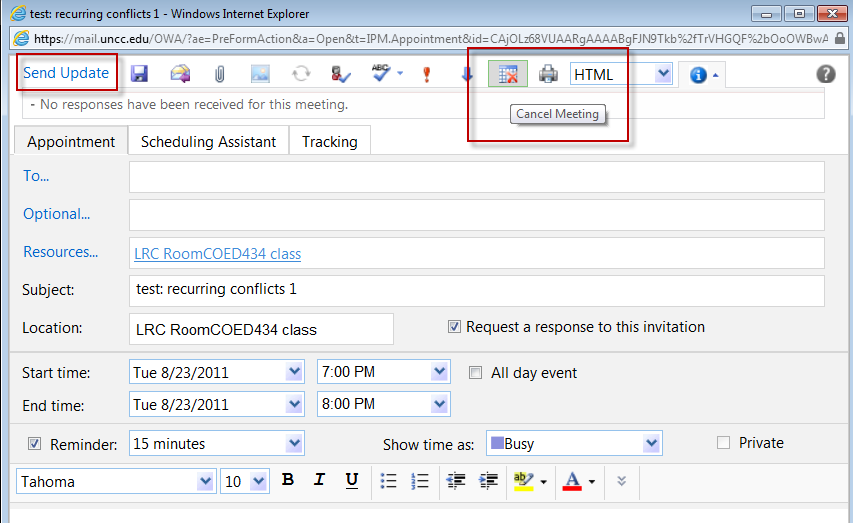
- you can also just open the meeting and choose from the top menu the “Cancel meeting” button, then press menu button: “Send update”:

- Again, for recurring/repeating meetings, you will be asked to confirm what exactly you want to cancel, the individual occurrence or the entire series of meetings:
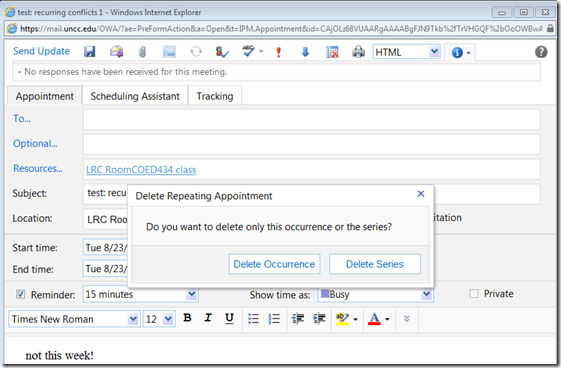
- Again, for recurring/repeating meetings, you will be asked to confirm what exactly you want to cancel, the individual occurrence or the entire series of meetings:
- You have the opportunity to include an informative note in your update before sending.

- After the cancellation has gone through, this is how the results will look like in the e-paper trail:
- “sent items”
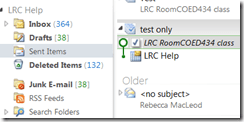
- a cancelled meeting conversation in your “inbox” in “conversation view”:

- Here is a complete icon legend:

- “sent items”





Sanako Study 1200 Workshop Fall 2011
Those who wanted to, but did not make it to the vendor training by Sanako’s David Golden (who gave us a basic orientation displaying functions of teacher screen and student screen and demonstrated basic activity functions and what happens at the student screen), might want to have a look at the unedited screencast footage (for Windows Media Player on Windows, if necessary, resort to LRC) I recorded during the entire 2 1/4-hour session:
- the first one recording the screen of a sample student station
- with an explanation of the student player at the beginning,
- the second one recording the screen of the teacher computer
- have a look at the end around 2:10:00 where we connect a group of students via screensharing and audio (headsets), so that a group, dispersed across the classroom, can orally collaborate on an MS-Word document that one student types into but all students see.
- The Sanako features used for this are from the dropdown: activity: discussion, and from the button: pc control:model student. Both can be combined with each other, and with a third feature, the capability to subdivide the class in multiple groups.
- This application I found useful when, before reviewing materials with one half of the class, I sent my more advanced learners off to a more independent and applied group writing task. I allows any member of the class to join the advanced group, no matter where they are located. It also forces the group members to communicate all the target language aurally to the model student. Finally, it affords them access (though not individually) to the language learning tools of a computer while working on their tasks
Sanako Study 1200 Workshop Spring 2011
Those who wanted to, but did not make it to my introductory training for the newly installed Sanako Study-1200 in LRC COED434 might want to have a look at the unedited screencast footage of the teacher computer that I recorded during this session (for Windows Media Player on Windows, if necessary, resort to LRC PCs).
Our Office 2010 & Office365/Live@Edu/Live not yet @Edu/Ninermail Upgrade: A running log
- Just logging some notes, observations, issues, step-by-step instructions…
- Office 2010ff install (office2010-full-install-labadmn.wmv [all links are to the folder only, choose screencast by name):
- 0:00-2:00: you can easily install Office 2010 from the ISO file without physical CD media, if you first install the free Magic Disc, then from the system notification tray, mount the ISO file to the , open the pseudo-drive from Explorer, which starts the installer through Autorun
- 2:00-4:00: since we do not want frozen imaged lab computers to ask for the installation media “on first run”of Office features, we choose button:customize, tab:installation options: “run all from Computer” (top – level selection is sufficient, rest of video is looking around), then button:upgrade
- Lots of waiting ensues…
- At the end, 28:55, “Microsoft office professional plus 2010 encountered and error during setup”, also the installer complains once about another instance running, then 38:12 asks for rebooting,
- Office 2010 first run (office2010first-run-excel-web-app-test.wmv):
- after reboot, the installation seems to have completed
- changing Office update policies seems to be not allowed
- file /save&send / save to web / windows live / log in / browse to a folder / give a filename:

- type something, save and exit
- in web browser, open windows live:
- log in, go to menu:SkyDrive, browse to the folder, find the file, click on it to view in browser,
- from top menu, choose edit in browser, type something, save,
- from top menu choose edit in excel, wait for download to open, type something, save&close,
- go back to web browser, open the update document from the right users (lab staff).
- sharing with windows live
- first uncc-LRC needs to make some friends:
- eventually, we want the staff of the uncc-LRC be able to use these online extensions of the most common tools in our work environment, MS-Windows and MS-Office. For this, we need to wait until live@edu/ninermail is up, so that we can invite lab staff using their @uncc.edu email addresses
- for testing purposes, I have invited myself and the lab coordinator using their personal Hotmail/live addresses
- friends need to accept the invitation email – and even on Hotmail/live mail, look for them in their Junk mail folder (this has been one of the unresolved mysteries of inter-office politics at Microsoft since at least 2007).

- second, in SkyDrive, share your files with these friends, and with the right permissions
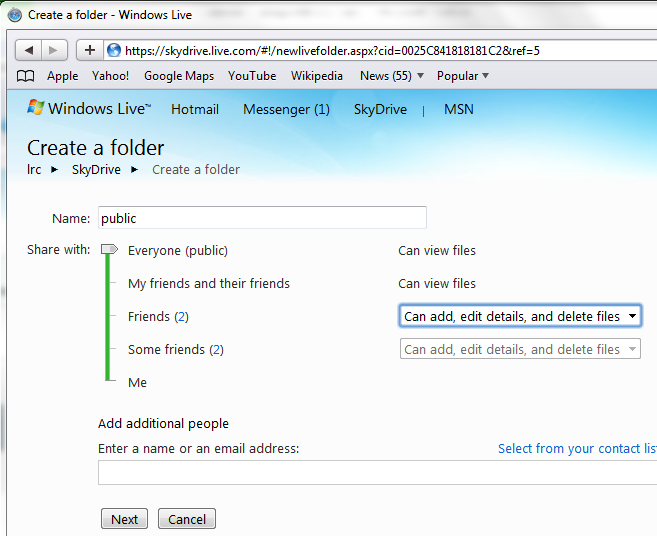
 a sharing policy, per folder, needs to be decided upon
 - uncc-non-secure permissions: all view, friends edit:

- uncc-secure-settings: only friends view and edit (shall we limit editing to some friends? permanent staff?)
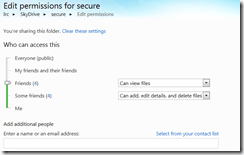
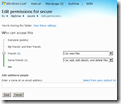 note that some granularity of permissions is already supported, like
- folder:”secure”- “friends”:”can add,edit,delete”
- folder:”secure”- “friends”:”can read”
- folder:”secure”- “some friends”:”can add,edit,delete”
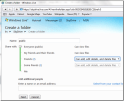 note that you can give read, but not write access to files beyond the circle of your friends (“friending” within the organization should, however, become are more acceptable option when/if live@edu will allow for @uncc.edu accounts, and interesting, since it offers disintermediation for office network admin tasks).
 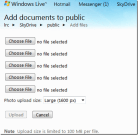 you can add files through a standard web-interface, or a more advanced Active-x control (looks like your mileage may still widely vary outside of Internet Explorer which is even more confusing when the ActiveX interface is offered in Firefox, but shows glitches). Note, however, that opening a local file in Office 2010 and save&share to SkyDrive is more attractive – however, will you in MS-Office see the folders that are merely shared with you to add to? Does not look like it. Stay tuned…
 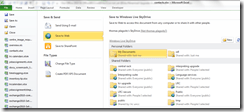 . one can still upload the spreadsheet from the web browser, then, also from a web browser, click “open in excel”. From then on, one can open it ore easily from the excel File / history shortcut. I am still working on figuring out how to map SkyDrive folders to local drives (it worked for one set, but other mappings run into problems: Is this because MS allows only one windows live identity to be mapped to your local windows account?)
 - To publish (possible embed in a web page) spreadsheets with Excel Web App, you can choose:
- SkyDrive menu: add files
- add an existing file
- or SkyDrive menu: “new”
- Excel web app ribbon menu: “Open in Excel”
- Copy/Paste your content and Save, Close
- Excel Web app menu “
 Share”/ “Embed”:i
 - Adjust your options in this sharing dialog:

- To embed, take the html-code (you can increase the max width beyond 640 outside of this dialog) and paste it into your web publishing program
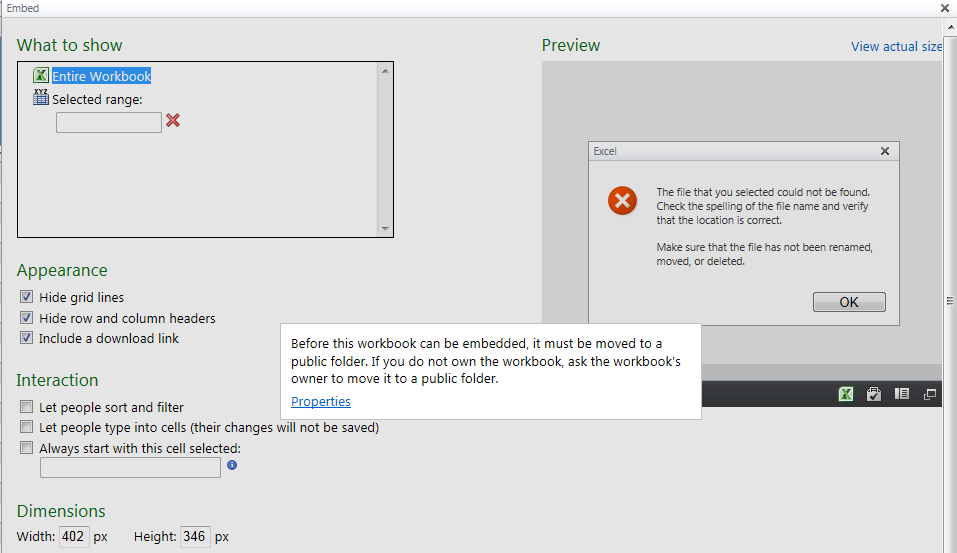
- Gotcha: To be embeddable, the spreadsheet needs to be in a public folder, or else:

- To move the file, use the “move”option in the file details pane to the right:
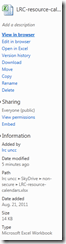
- This setting should make it work:

- And interestingly, it does, automagically: You do not have to update the embed code. It seems the link within the embed code goes to a “file” which has the “folder” it is in not as a path (in the link), but as an attribute:
- To move the file, use the “move”option in the file details pane to the right:
- SkyDrive menu: add files
- to share a file: Examples for MS-office live file collaboration
- MS-Excel
- Do not use the “embed” link from SkyDrive, e.g. https://r.office.Microsoft.com/r/rlidExcelEmbed?su=10634757809471938&Fi=SD25C841818181C2!133: this opens in read-only even if I am logged in (in Firefox and in Excel)( as a friend with editing rights)
- use the “edit” link from SkyDrive, e.g https://skydrive.live.com/edit.aspx?cid=0025C841818181C2&resid=25C841818181C2%21133: “edit in browser” attempts first opening in browser (Firefox – not asking for permissions, since I am logged in as friend with editing permissions), unsupported features redirect to excel 2010, opening in “protected view“ – but can enable editing.
- Note that when opening in excel 2010, you lose the concurrency that excel web app offers – thus, only 1 LRC assistant can have the online spreadsheet open to make update to the film collection (we have one barcode scanner equipped PC only anyway, so use this one for editing the film-collection.xlsx)
- MS-PowerPoint
- here is a folder link from where you can click on ""open in PowerPoint":
https://skydrive.live.com/redir.aspx?cid=0025c841818181c2&resid=25C841818181C2!115 - this may take time:
- here is the ""edit in browser"" link https://skydrive.live.com/edit.aspxcid=0025C841818181C2&resid=25C841818181C2%21146
- here is a folder link from where you can click on ""open in PowerPoint":
- MS-Excel
- to delete a file on SkyDrive:
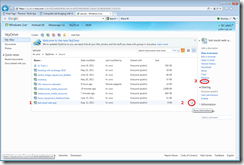
- in detail view, hover over the file row
- click on the blue info button at the right end of the file row
- in the property pane that opens up on the right, click “delete”.
- MS-Word
- Just in case you were wondering about the underlying WEBDAV: You cannot paste the “open in word” link into a MS-Word 2010 file open dialogue (you used to be able to paste WebDAV links form the Blackboard Content System into MS-Word’s File-Open, but those were fully qualified URIs to MS-Word-files without JavaScript trickery), or else:

- As of 9/27/2011, I also now managed to get in to SkyDrive with my university credentials, for how, see here: Skydrive@uncc.edu
- first uncc-LRC needs to make some friends:
- Natural language features testing in MS-Office 2010 is being logged here.








QuickNotes: For ELTI 201/202/501 Student Recordings with Sanako Study1200
- This is 20 students class doing a model imitation for English phonetics and grammar – use right half of classroom plus 2 rightmost columns of left half.
- Have a couple of spare student computers logged in as labadmn (not as presenter: has no permissions to s-drive to save recordings) for emergencies.
- Your students will log in, then take their break. Wait until entire class shows up in the Sanako Classroom layout. Then you can lock their keyboard and mouse – but remember when computers go into locked mode, Sanako cannot control them
- See http://plagwitz.org, upper right corner “Quick links” for the path to copy/paste. Or, on the teacher computer in LRC 434, in folder C:\Temp, you can find a shortcut to the Sanako folders
- “media” with teacher audio (to be prepared with pauses and beeps once it has been recorded and sent; you can easily prepare it yourself: download and view how with Windows Media Player);
- “student” with student recordings
- You can download and view with Windows Media Player the (unedited) screencast of our summative walkthrough here.
Sanako Study 1200: Student Basics II: The Screencast
This screencast covers the basics of Study 1200 for students
For a quick guide to the Student interface, see Student Basics I: The Screenshots


Questions? Read the About. Or just ask me a quick Our Databases: Resources with calendars -- Language learning material Moodle Sites, multimedia files -- films


FAQs for LRC student staff or for students or for teachers. To search our FAQs, in the browser addressbar, add after "https://plagwitz.wordpress.com/feed/?tag=faqs+/" "+TAG1" (from tag cloud below) OR "https://plagwitz.wordpress.com/feed/tag=faqs
&category_name=" "CAT1" (from category hierarchy below). OR search both categories and tags, and multiple TAGs/CATs (connect with "," for OR-search, with "+" for AND-search), like so: https://plagwitz.wordpress.com/feed/?tag=TAG1+TAG2+...TAGn&category_name=CAT1
+CAT2+...CATn"
Other ways to find help
If you cannot find it here, look there: 5,500 Language-Learning Links and Programs for learning or teaching 150 languages
Shortcuts:Our Lists, Our Maps, LRC Staff Moodle Site,LRC Project Moodle Site, 49erexpress, UNCC Moodle, Student Recordings: s:claslcslrcsanakostudent
Learning usage samples: Sanako oral exam, Kaltura webcam presentation, Dictation with speech recognition, Sanako written exam, Chinese and Japanese interactive stroke-order practice
Test the Sanako Installer, Webbrowser Popup Konfigurator for XP, or Windows7, faster LRC TeacherPC Log-in Let MS facilitate diacritics writing by installing for you US-International keyboard layout
This is my personal blog (Google+). The views expressed on these pages are mine alone and not those of my employer. The information in this weblog is provided “AS IS” with no warranties, and confers no rights.
 Thomas' Work Space