Archive
Practice Chinese Stroke Order at varying speeds
Here we are providing over 80,000 animated GIF files for you to practice Chinese Stroke Order at varying (hopefully increasing) speeds of your choice (millisecs denotes the time you have for each stroke): strip, 1010millisecs, 1000millisecs, 990millisecs, 980millisecs, 970millisecs, 960millisecs, 950millisecs, 940millisecs, 930millisecs, 920millisecs, 910millisecs, 900millisecs, 890millisecs, 880millisecs, 870millisecs, 860millisecs, 850millisecs, 840millisecs, 830millisecs, 820millisecs, 810millisecs, 800millisecs, 790millisecs, 780millisecs, 770millisecs, 760millisecs, 750millisecs, 740millisecs, 730millisecs, 720millisecs, 710millisecs, 700millisecs, 690millisecs, 680millisecs, 670millisecs, 660millisecs, 650millisecs, 640millisecs, 630millisecs, 620millisecs, 610millisecs, 600millisecs, 590millisecs, 580millisecs, 570millisecs, 560millisecs, 550millisecs, 540millisecs, 530millisecs, 520millisecs, 510millisecs, 500millisecs, 490millisecs, 480millisecs, 470millisecs, 460millisecs, 450millisecs, 440millisecs, 430millisecs, 420millisecs, 410millisecs, 400millisecs, 390millisecs, 380millisecs, 370millisecs, 360millisecs, 350millisecs, 340millisecs, 330millisecs, 320millisecs, 310millisecs, 300millisecs, 290millisecs, 280millisecs, 270millisecs, 260millisecs, 250millisecs, 240millisecs, 230millisecs, 220millisecs, 210millisecs, 200millisecs, 190millisecs, 180millisecs, 170millisecs, 160millisecs, 150millisecs, 140millisecs, 130millisecs, 120millisecs, 110millisecs, 100millisecs, 090millisecs, 080millisecs, 070millisecs, 060millisecs, 050millisecs, 040millisecs, 030millisecs, 020millisecs, 010millisecs. 
Downloading the originals from the most helpful site (also available by direct download) created by Tim Xie for the California State University, Long Beach, and applying my bash shell script from here, then generating your own speed-differentiated versions, seems to difficult for most users. Even better, instead of perusing the above links, you could just hit my server once and download the whole lot of post-processed animated Gif files with different speeds from here.
Enterprise Library Logging Sample
Using Enterprise Library (still on 5), You can declaratively configure the logger properties (including desired formatting, see Textformatter template below)) in the app.config’s appsettings:
  <loggingConfiguration name="Logging Application Block" tracingEnabled="true"
  defaultCategory="General" logWarningsWhenNoCategoriesMatch="true">   <listeners>    <add name="Event Log Listener" type="Microsoft.Practices.EnterpriseLibrary.Logging.TraceListeners.FormattedEventLogTraceListener, Microsoft.Practices.EnterpriseLibrary.Logging, Version=5.0.505.0, Culture=neutral, PublicKeyToken=31bf3856ad364e35"
    listenerDataType="Microsoft.Practices.EnterpriseLibrary.Logging.Configuration.FormattedEventLogTraceListenerData, Microsoft.Practices.EnterpriseLibrary.Logging, Version=5.0.505.0, Culture=neutral, PublicKeyToken=31bf3856ad364e35"
    source="Enterprise Library Logging" formatter="Text Formatter 2"
    log="" machineName="." traceOutputOptions="None" />    <add name="Rolling Flat File Trace Listener" type="Microsoft.Practices.EnterpriseLibrary.Logging.TraceListeners.RollingFlatFileTraceListener, Microsoft.Practices.EnterpriseLibrary.Logging, Version=5.0.505.0, Culture=neutral, PublicKeyToken=31bf3856ad364e35"
    listenerDataType="Microsoft.Practices.EnterpriseLibrary.Logging.Configuration.RollingFlatFileTraceListenerData, Microsoft.Practices.EnterpriseLibrary.Logging, Version=5.0.505.0, Culture=neutral, PublicKeyToken=31bf3856ad364e35"
    fileName="%AppData%\trpsoft\langlabemailer\trace-rolling.log"
    footer="" formatter="Text Formatter" header="" rollFileExistsBehavior="Increment"
    rollInterval="Day" rollSizeKB="1000" maxArchivedFiles="10" traceOutputOptions="None" />    <add name="Flat File Trace Listener" type="Microsoft.Practices.EnterpriseLibrary.Logging.TraceListeners.FlatFileTraceListener, Microsoft.Practices.EnterpriseLibrary.Logging, Version=5.0.505.0, Culture=neutral, PublicKeyToken=31bf3856ad364e35"
    listenerDataType="Microsoft.Practices.EnterpriseLibrary.Logging.Configuration.FlatFileTraceListenerData, Microsoft.Practices.EnterpriseLibrary.Logging, Version=5.0.505.0, Culture=neutral, PublicKeyToken=31bf3856ad364e35"
    fileName="%AppData%\trpsoft\langlabemailer\exception.log" header=""
    footer="" formatter="Text Formatter" traceOutputOptions="None" />    <add name="Rolling Flat File Trace Listener 2" type="Microsoft.Practices.EnterpriseLibrary.Logging.TraceListeners.RollingFlatFileTraceListener, Microsoft.Practices.EnterpriseLibrary.Logging, Version=5.0.505.0, Culture=neutral, PublicKeyToken=31bf3856ad364e35"
    listenerDataType="Microsoft.Practices.EnterpriseLibrary.Logging.Configuration.RollingFlatFileTraceListenerData, Microsoft.Practices.EnterpriseLibrary.Logging, Version=5.0.505.0, Culture=neutral, PublicKeyToken=31bf3856ad364e35"
    fileName="%AppData%\trpsoft\langlabemailer\exception-rolling.log"
    footer="" formatter="Text Formatter" header="" rollFileExistsBehavior="Increment"
    rollInterval="Hour" rollSizeKB="100" maxArchivedFiles="10" filter="All" />   </listeners>   <formatters>    <add type="Microsoft.Practices.EnterpriseLibrary.Logging.Formatters.TextFormatter, Microsoft.Practices.EnterpriseLibrary.Logging, Version=5.0.505.0, Culture=neutral, PublicKeyToken=31bf3856ad364e35"
    template="Timestamp	 {timestamp}	Message	 {message}	Category	 {category}	Priority	 {priority}	EventId	 {eventid}	Severity	 {severity}	Title	{title}	Machine	 {localMachine}	App Domain	 {localAppDomain}	ProcessId	 {localProcessId}	Process Name	 {localProcessName}	Thread Name	 {threadName}	Win32 ThreadId	{win32ThreadId}	Extended Properties	 {dictionary({key} - {value})}"
    name="Text Formatter" />    <add type="Microsoft.Practices.EnterpriseLibrary.Logging.Formatters.TextFormatter, Microsoft.Practices.EnterpriseLibrary.Logging, Version=5.0.505.0, Culture=neutral, PublicKeyToken=31bf3856ad364e35"
    template="Timestamp: {timestamp}{newline}
Message: {message}{newline}
Category: {category}{newline}
Priority: {priority}{newline}
EventId: {eventid}{newline}
Severity: {severity}{newline}
Title:{title}{newline}
Machine: {localMachine}{newline}
App Domain: {localAppDomain}{newline}
ProcessId: {localProcessId}{newline}
Process Name: {localProcessName}{newline}
Thread Name: {threadName}{newline}
Win32 ThreadId:{win32ThreadId}{newline}
Extended Properties: {dictionary({key} - {value}{newline}
)}"
    name="Text Formatter 2" />   </formatters>
<categorySources> <add switchValue="All" name="General"> <listeners> <add name="Rolling Flat File Trace Listener" /> </listeners> </add> <add switchValue="All" name="Exceptions"> <listeners> <add name="Event Log Listener" /> <add name="Rolling Flat File Trace Listener 2" /> </listeners> </add> </categorySources> <specialSources> <allEvents switchValue="All" name="All Events" /> <notProcessed switchValue="All" name="Unprocessed Category" /> <errors switchValue="All" name="Logging Errors & Warnings"> <listeners> <add name="Event Log Listener" /> </listeners> </errors> </specialSources> </loggingConfiguration> <exceptionHandling> <exceptionPolicies> <add name="Log and Rethrow"> <exceptionTypes> <add name="All Exceptions" type="System.Exception, mscorlib, Version=2.0.0.0, Culture=neutral, PublicKeyToken=b77a5c561934e089"
postHandlingAction="NotifyRethrow"> <exceptionHandlers> <add name="Logging Exception Handler" type="Microsoft.Practices.EnterpriseLibrary.ExceptionHandling.Logging.LoggingExceptionHandler, Microsoft.Practices.EnterpriseLibrary.ExceptionHandling.Logging, Version=5.0.505.0, Culture=neutral, PublicKeyToken=31bf3856ad364e35"
logCategory="Exceptions" eventId="100" severity="Error" title="Enterprise Library Exception Handling"
formatterType="Microsoft.Practices.EnterpriseLibrary.ExceptionHandling.TextExceptionFormatter, Microsoft.Practices.EnterpriseLibrary.ExceptionHandling"
priority="0" /> </exceptionHandlers> </add> </exceptionTypes> </add> </exceptionPolicies> </exceptionHandling> <appSettings>
Import and call the logger like so:
using Microsoft.Practices.EnterpriseLibrary.ExceptionHandling.Logging;

using Microsoft.Practices.EnterpriseLibrary.Logging;

Logger.Write("regex:RegExRecordingFileGroup - target:" + "\t" + _filenamenoext + "\t" + strGroups);
Which outputs: 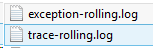 and
and
 ,
,
the latter can be easily imported and analyzed in MS-Excel:

These are obviously only the simplest examples, study the Enterprise Library documentation for more customization

Protected: Elti0162 Syllabus with learning materials for listening and speaking
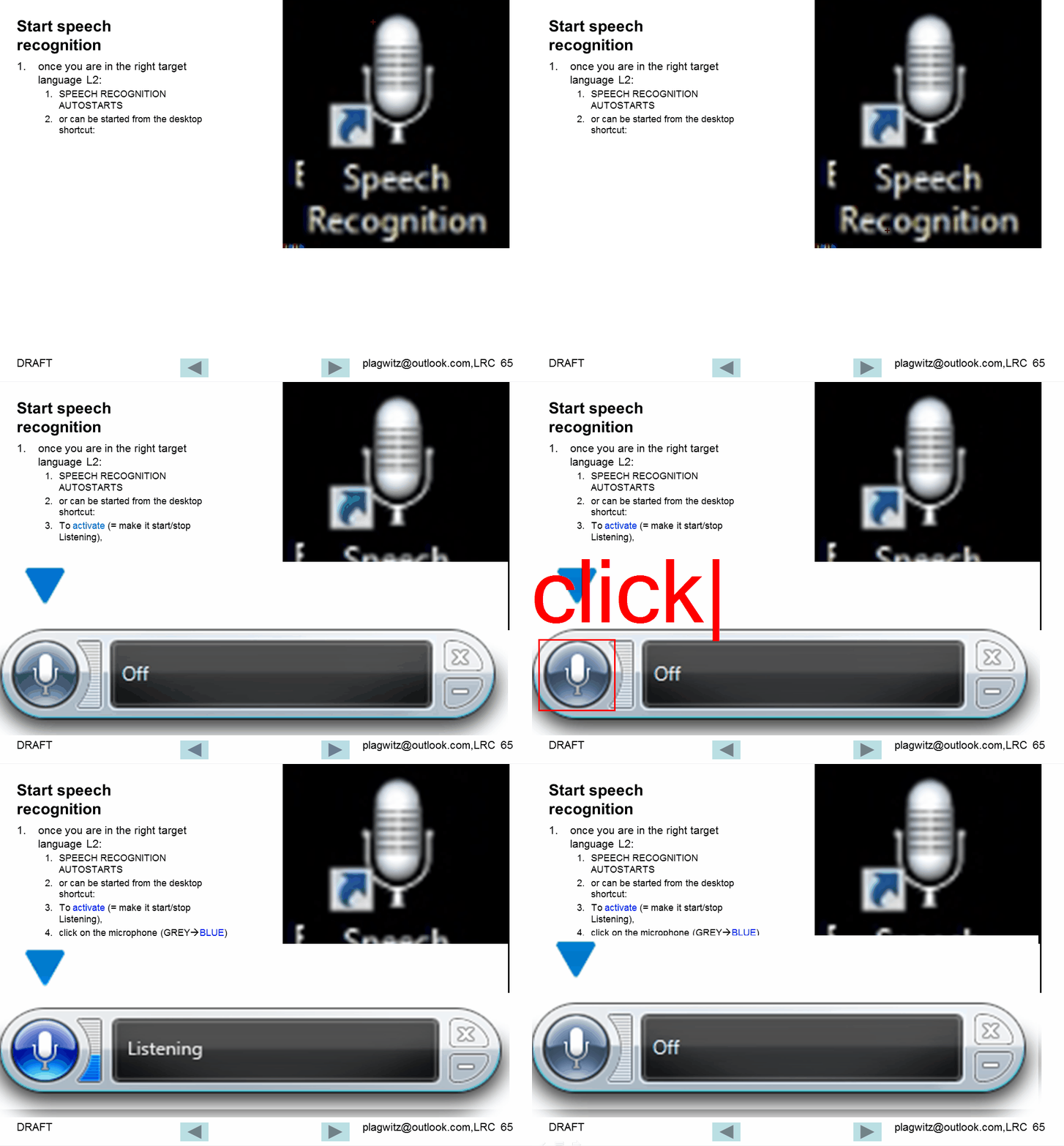
Watch how to start and activate speech recognition from the desktop
Watch how to configure the speech recognition wizard on Windows 7
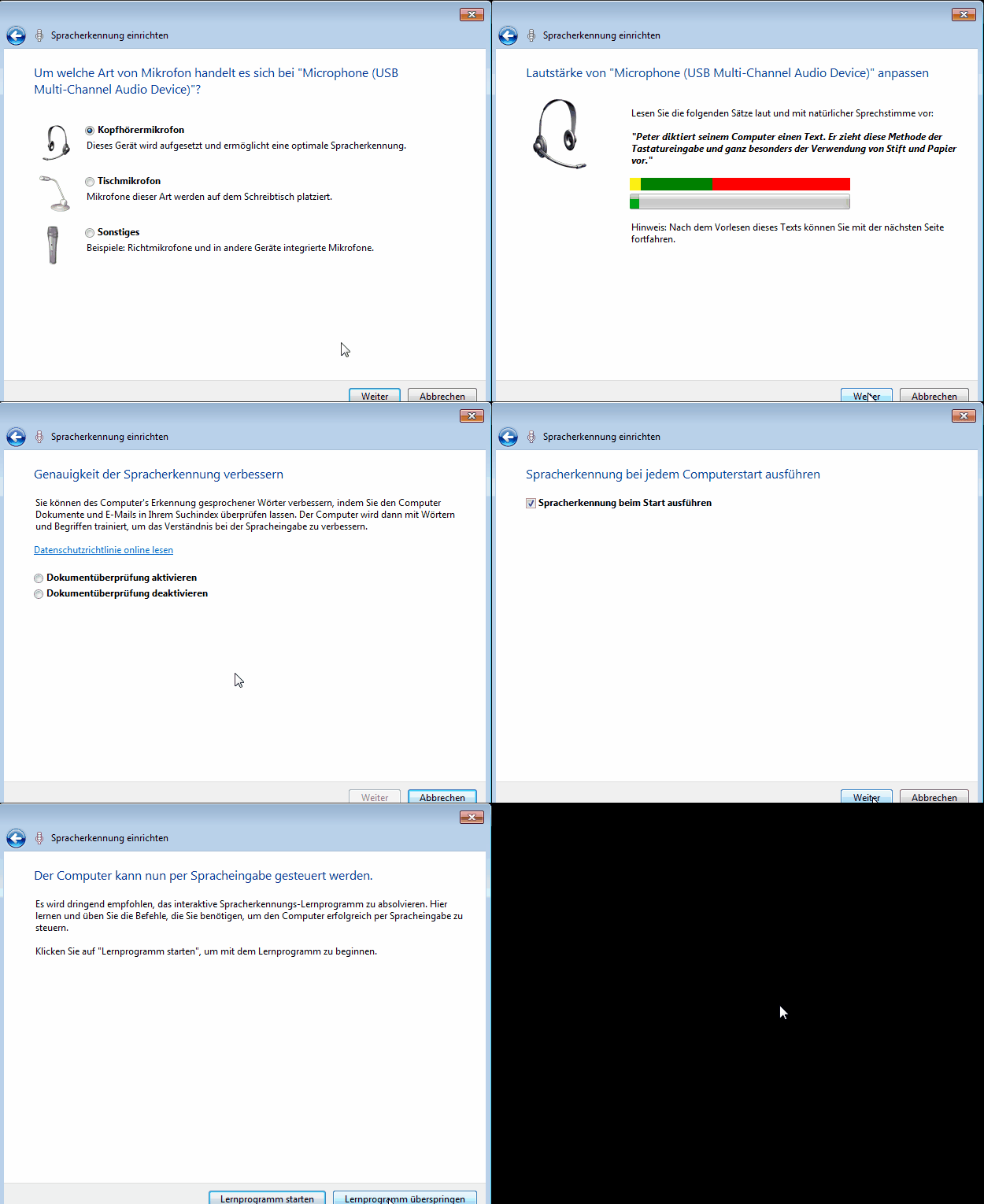
Choose the same options in your language (every time you log in, until we find a way to set these options on a per-machine level).
Manage some of your teacher computer settings per logged in user
- Another day, another hack, and inconsequential, unless of course you are in my situation:
- If you need a simple way to change some of your Sanako settings per logged in user
- but cannot use the logged-in user system built into Sanako Study 1200:
$path = "C:\ProgramData\Sanako\Study\Tutor\"If (@UserName = "PRTOTECTTHEINNOCENT") Then; change the sanako default save to dual track supporting mff; prereq: customized settings files in the folder ready to renameFileCopy($path & "mffTutor.Settings", $path & "Tutor.Settings", 1)ElseIf (@UserName = "tplagwit") Then; change the sanako default save to dual track supporting wma, for testingFileCopy($path & "wmaTutor.Settings", $path & "Tutor.Settings", 1)Else; keep the default mp3, but we may have to reset the tutorsettings on this unfrozen computerFileCopy($path & "mp3Tutor.Settings", $path & "Tutor.Settings", 1)EndIf; tutor.exe could be hardcoded to (re)load hereIf ProcessExists("Tutor.exe") Then; determine: we could kill tutor to reload it, but that could be disruptive of a classElseRun("C:\Program Files (x86)\SANAKO\Study\Tutor\Tutor.exe")EndIfExit


Questions? Read the About. Or just ask me a quick Our Databases: Resources with calendars -- Language learning material Moodle Sites, multimedia files -- films


FAQs for LRC student staff or for students or for teachers. To search our FAQs, in the browser addressbar, add after "https://plagwitz.wordpress.com/feed/?tag=faqs+/" "+TAG1" (from tag cloud below) OR "https://plagwitz.wordpress.com/feed/tag=faqs
&category_name=" "CAT1" (from category hierarchy below). OR search both categories and tags, and multiple TAGs/CATs (connect with "," for OR-search, with "+" for AND-search), like so: https://plagwitz.wordpress.com/feed/?tag=TAG1+TAG2+...TAGn&category_name=CAT1
+CAT2+...CATn"
Other ways to find help
If you cannot find it here, look there: 5,500 Language-Learning Links and Programs for learning or teaching 150 languages
Shortcuts:Our Lists, Our Maps, LRC Staff Moodle Site,LRC Project Moodle Site, 49erexpress, UNCC Moodle, Student Recordings: s:claslcslrcsanakostudent
Learning usage samples: Sanako oral exam, Kaltura webcam presentation, Dictation with speech recognition, Sanako written exam, Chinese and Japanese interactive stroke-order practice
Test the Sanako Installer, Webbrowser Popup Konfigurator for XP, or Windows7, faster LRC TeacherPC Log-in Let MS facilitate diacritics writing by installing for you US-International keyboard layout
This is my personal blog (Google+). The views expressed on these pages are mine alone and not those of my employer. The information in this weblog is provided “AS IS” with no warranties, and confers no rights.
 Thomas' Work Space