Archive
JAVA warning dialogues to bypass during NanoGong activities
- You may be prompted to update JAVA – likely a not a bad idea:
![java outdated warning_thumb[1]](https://thomasplagwitz.com/wp-content/uploads/2013/10/java-outdated-warning_thumb1_thumb1.png?w=560&h=354 "java outdated warning_thumb[1]")
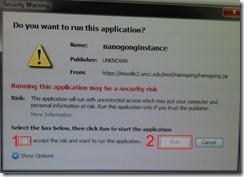
- Click “RUN”:
![image_thumb[8]_thumb[1]](https://thomasplagwitz.com/wp-content/uploads/2013/10/image_thumb8_thumb1_thumb1.png?w=461&h=542 "image_thumb[8]_thumb[1]")
- Check (1) “Accept”and Click (2) “Run”:

- Click “Don’t Block”:
![CAM03106_thumb[1]](https://thomasplagwitz.com/wp-content/uploads/2013/10/cam03106_thumb1_thumb1.jpg?w=556&h=294 "CAM03106_thumb[1]")
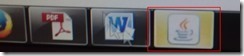
- Even more annoying when warning dialogues do not come to the foreground, and your computer/web browser simply seems to be stuck. Check your task bar/dock for blinking/jumping JAVA notifications, like here:
 .
. - You have to bypass these dialogues only once – per session (lab) or possibly per computer. Choose the right answer, for university assignments, it is safe to “Allow! Allow! Allow! (“run”, “don’t block:”, update”, what ever – use common sense).
- Remember, thinks could be worse, – like if you try to use NanoGong in a Firefox that has not been explicitly configured to allow JAVA applets – read more on our troubleshooting NanoGong page.
![java outdated warning_thumb[1]](https://thomasplagwitz.com/wp-content/uploads/2013/10/java-outdated-warning_thumb11.png "java outdated warning_thumb[1]")
![image_thumb[8]_thumb[1]](https://thomasplagwitz.com/wp-content/uploads/2013/10/image_thumb8_thumb11.png "image_thumb[8]_thumb[1]")
![CAM03106_thumb[1]](https://thomasplagwitz.com/wp-content/uploads/2013/10/cam03106_thumb11.jpg "CAM03106_thumb[1]")
How teachers can ease their editing pain by turning on "filters" in Moodle
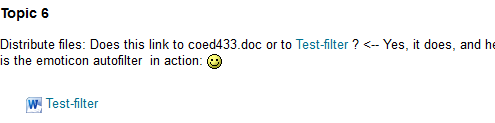
- A teacher called my attention to the filters when she reported that the automatic linking of references to chapter/topic activities in the chapter/topic text stopped working for her with the upgrade to Moodle 2. If you change the below setting for "Activity names auto-linking", it will start working again:
-

-
A "filter" in Moodle (if turned on) examines what is being add to your course by you (also by your students: That’s at least what I assume the Word censorship” filters is meant for!) and if it finds a certain pattern/feature, “automagically” enhances or adorns your input. This can save you a lot of manual editing time .
-
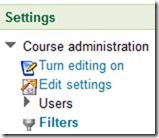
You can view and change the filter settings by clicking on "filters" in Activities:
-
-
There is a campus default – which, to judge from my course, seems to be this:
-

-
The teacher of the individual course can override this default (there seems to be no personalization that would allow you to use the same settings for all courses you teach, within and across terms):
-
The documentation linked on the filter settings page explains what these filters do. I only quote the filters which I think are of interest to language and humanities:
-
“Activity names auto-linking – This scans text for activity titles that exist in the same course and creates a link
-
Convert URLs into links – This filter converts URLs in selected formats, such as Moodle auto-format, to click-able links
-
Database auto-linking – As the name suggests, this filter enables automatic linking of Database module entries
-
Display emoticons as images – This converts emoticon (smiley) characters into images
-
Glossary auto-linking – This scans text for glossary entries that exist in the same course and creates a link
-
Multimedia plugins – This finds a link in text that points to a multimedia resource and replaces the link with an appropriate multimedia player code which can play the resource.”
-
[This one we do not seem to have installed, unfortunately:] Multi-language content – This filter enables resources to be created in multiple languages.
-
[These ones are not included in the documentation linked on the filter settings page, since these plugins are specific to our campus installation, but extremely useful for authentic speaking proficiency assignments: ] NanoGong, Kaltura.
-
-
For what it is worth, here are the filter settings that I am testing now in my course:
-



How a student can easily complete an audio recording assignment in Moodle, using the new NanoGong plugin
- Open your assignment (note the loudspeaker/dummy icon for NanoGong assignments/) from the Moodle landing page.
- Unfortunately, there are a considerable number JAVA warning dialogues to bypass during NanoGong activities before you can even see the recorder plugin on the page, and may be more when you try to submit.
- Once you are on the NanoGong assignment page: click red button to record,
![image_thumb[10]](https://thomasplagwitz.com/wp-content/uploads/2013/10/image_thumb10_thumb.png?w=400&h=278 "image_thumb[10]")
- Make sure the volume meter shows input when speaking (loud enough) or playing back:
![image_thumb[13]](https://thomasplagwitz.com/wp-content/uploads/2013/10/image_thumb13_thumb1.png?w=506&h=364 "image_thumb[13]")
- After recording, submit:

- After submitting,
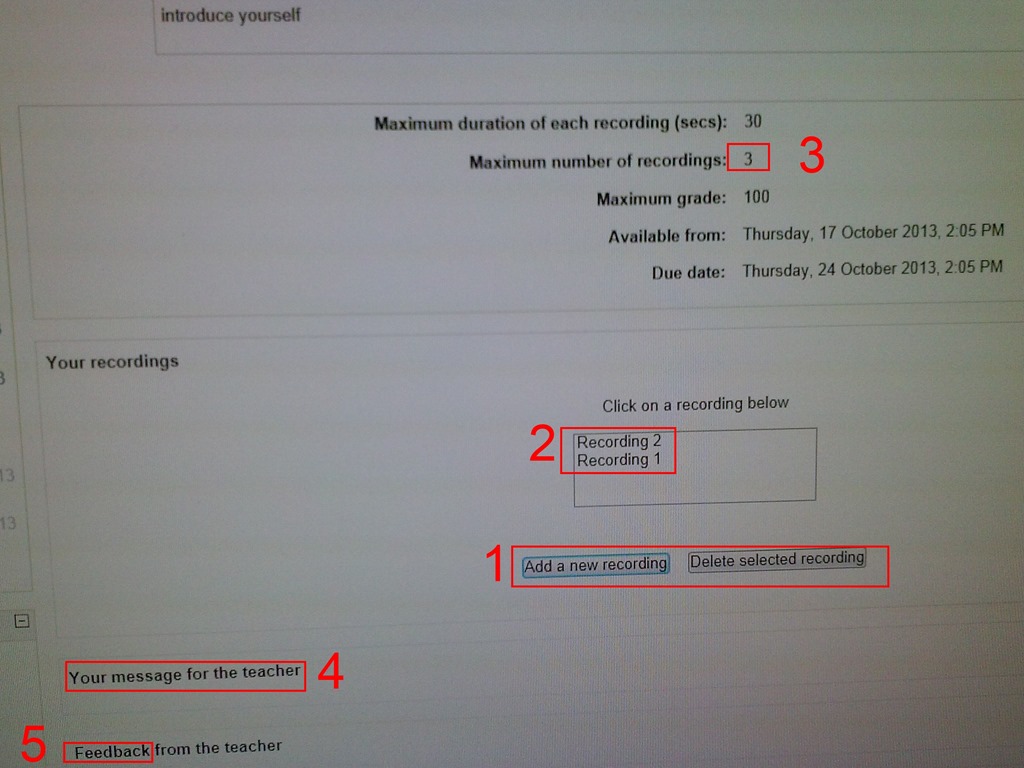
- You can still edit your submission, by
- (1) deleting your recording or
- re-adding – or (provided your teacher’s assignment allows for (3) multiple recordings) just adding – (2) your recordings
- or adding a (4) message to the teacher
- you can also revisit this page to read (5) feedback the teacher gives you about your recording:
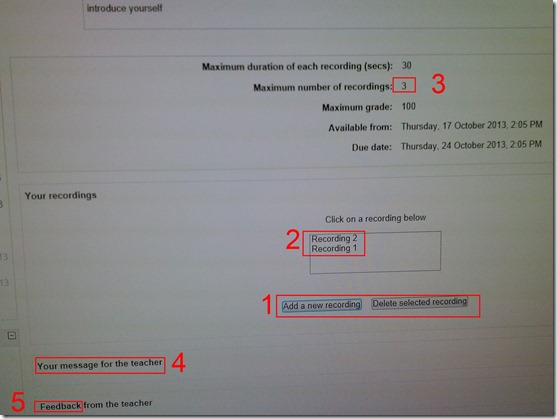
- You can still edit your submission, by
- Experiencing issues? Check troubleshooting page here.
![image_thumb[10]](https://thomasplagwitz.com/wp-content/uploads/2013/10/image_thumb101.png "image_thumb[10]")
![image_thumb[13]](https://thomasplagwitz.com/wp-content/uploads/2013/10/image_thumb132.png "image_thumb[13]")

How a teacher can easily assign an audio recording in Moodle, using the new NanoGong plugin
- We are back in business with easy audio recording assignments in the LMS, thanks to NanoGong – the free recorder I recommended when first starting here – now being available in MOODLE (presumably with the Upgrade to Moodle 2, I almost missed that….)
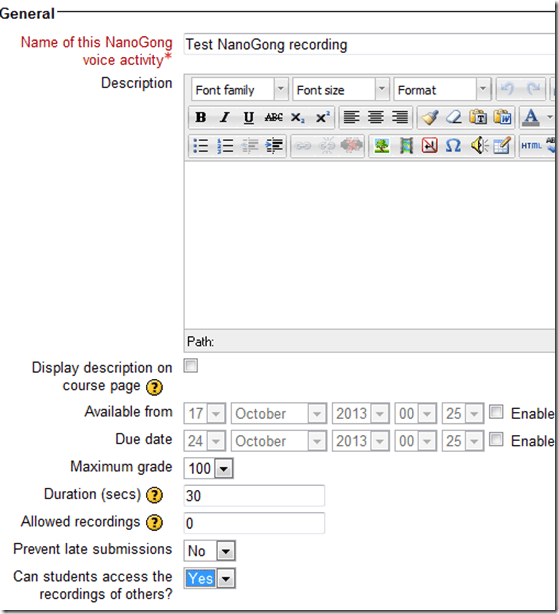
- To assign, click “turn editing on”, “Add activity or resource”, select “NanoGong voice activity”, as pictured below:

- There are a few interesting options:
- you can limit the duration
- you can limit the number of recordings (attempts?) allowed (0 is unlimited)
- You can let students listen to each other recordings. (Is there a rating feature that can be combined with this?)
- And this is what
- you will see (TBA:read on for how to listen to student submissions, give feedback and grade.)

- you will see (TBA:read on for how to listen to student submissions, give feedback and grade.)
- your students will see…


If you get an error when trying to edit your Moodle settings…
- Like this: “Error: Database connection failed It is possible that the database is overloaded or otherwise not running properly. The site administrator should also check that the database details have been correctly specified in config.php”
- Try click on “Edit settings” again. It may well work the second time (overload?).
New issues with Respondus-lockdown-browser
- Problem description:
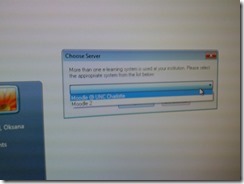
- Upon starting the quiz, Students are asked to select the right Moodle server (assuming Moodle2 is the right answer – how long will this step be necessary?)
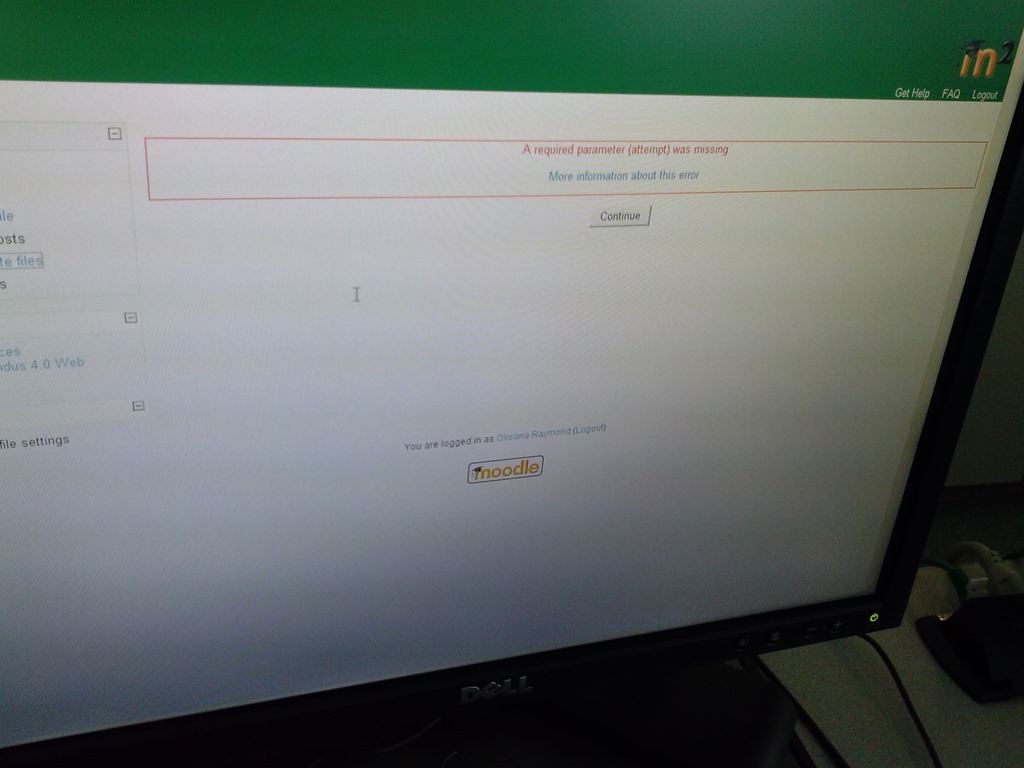
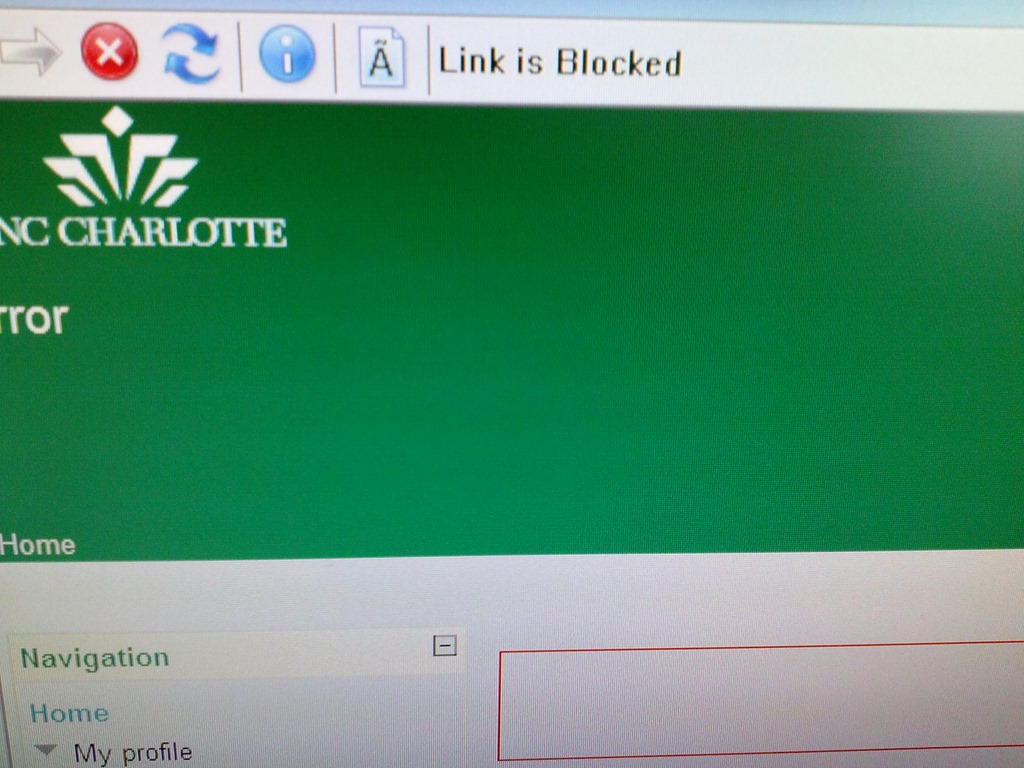
- When they are finished with the quiz, Students receive a combined “Ar required parameter is missing” (a link with “more information on this error” is offered underneath the red error message, but cannot be opened) and “Link is blocked” error

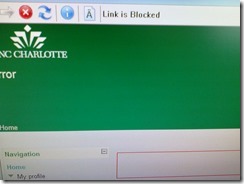
- before they reach the “SAVED” screen with the “submit all and finish”button: Meaning their attempt was not saved and since it cannot be submitted, will be lost.
- When logging in on a different computer, and starting the quiz in Lockdown browser, it tells students that the attempt is in progress,
- upon continue, they have to start afresh (nothing has been saved).
- This is on version from Dec 6 , 2012.

- Upon starting the quiz, Students are asked to select the right Moodle server (assuming Moodle2 is the right answer – how long will this step be necessary?)
- Workaround: Restarting the quiz on a different computer has been the best workaround I have seen so far.


Check today’s date if you’re the only one in your Saba centra class
-
And if your neighbors do not have problems connect to Saba centra.
-
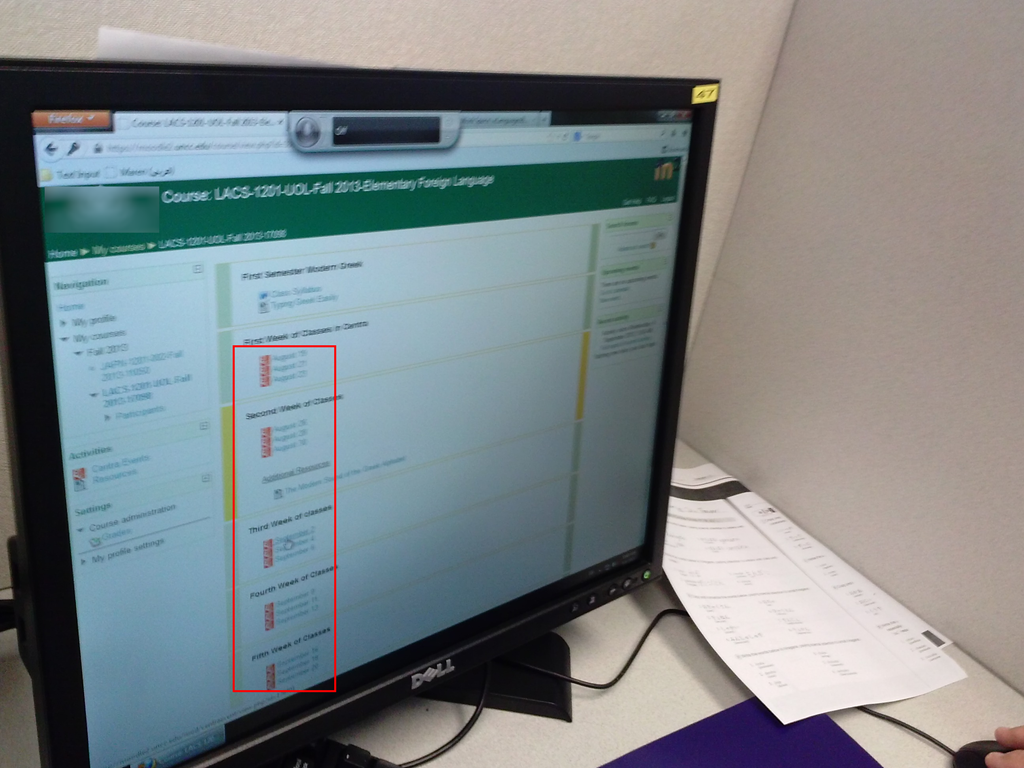
Your teacher may have put one Saba centra link for every class session, like in the list of links you can see in the center column here:

- You have to click on today’s one to participate.
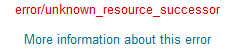
Moodle 1 into Moodle 2 course restore fails with error “unsupported subplugin” or “unknown resource successor” or “parameter (contextid) was missing
-
I could not get the course to convert, until I deleted everything but the fora , and not even my rss blocks converted with urls – if this helps somebody, I describe the steps I took here:


-
upconclicking on more info: error/moodle/unsupported subplugin From MoodleDocs
-
The cause of this is likely due to an unsupported subplugin not being available in the version of Moodle you are using. If this error appeared during the restore of a Moodle course check the plugins within the backed up course against what is available in the Moodle you are restoring the course to. The Moodle you are restoring the course to is likely to be missing a plugin that is present in the backed up course. There is a tracker for this error to be a bit more graceful during course restore for Moodle version 2.x.x http://tracker.moodle.org/browse/MDL-29288 <http://docs.moodle.org/23/en/error/moodle/unsupported_subplugin>
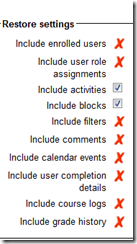
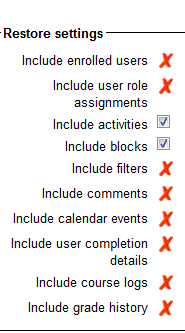
- Do not include "Video Assignments" means not only video files, but also Kaltura streamed video.
- If I remove pretty much anything which was useful and retry backup/restore with these settings

- I removed the video, however, there is a new error

error/moodle/unknown resource successor
From MoodleDocs
Jump to: navigation, search
There is currently no text in this page. You can search for this page title in other pages.
Pasted from <http://docs.moodle.org/23/en/error/moodle/unknown_resource_successor>
- There seems no way for me to deselect Centra events, soi I sem to have to delete them from the original course (whee I would still have had a use for them).
- Did I see these linked file warnings before?
Backup Details:
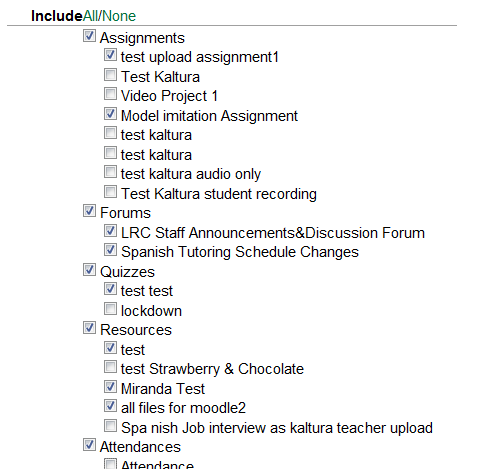
Include Assignments without user data
test upload assignment1
Model imitation Assignment
Include Forums without user data
LRC Staff Announcements&Discussion Forum
Spanish Tutoring Schedule Changes
Include Quizzes without user data
The Cloze(multianswer) question "" does not contain any question
Linked file 18197_4c96c46e/books01.gif doesn’t exist
Linked file 18197_4c96c46e/partcimage2jpg.jpg doesn’t exist
Linked file 18237_4c97eaaf/key.gif doesn’t exist
Linked file 18237_4c97eaaf/testpic1.jpg doesn’t exist
Linked file Ch5picture.jpg doesn’t exist
Linked file ST_two_image_halfsize.jpg doesn’t exist
Linked file Untitled-4.jpg doesn’t exist
Linked file f0test6ph.PNG doesn’t exist
Linked file lafamilleducharme.gif doesn’t exist
Linked file map1.gif doesn’t exist
Linked file moodle-upload-zip-files-unzipped.PNG doesn’t exist
Linked file testpic2contrast.jpg doesn’t exist
Pasted from <https://moodle.uncc.edu/backup/backup.php>
Error remains:

-
Now remove really all Saba Centra and Kaltura references.
-
Error remains:

-
Now we are removing everything except fora:
-
Not much point anymore, but now we reach the next step:
-
RSSs blocks were transferred, but without feeds.
-
In addition, you may see this error, when you get logged out and have to log in again after uploading the backup file:






Questions? Read the About. Or just ask me a quick Our Databases: Resources with calendars -- Language learning material Moodle Sites, multimedia files -- films


FAQs for LRC student staff or for students or for teachers. To search our FAQs, in the browser addressbar, add after "https://plagwitz.wordpress.com/feed/?tag=faqs+/" "+TAG1" (from tag cloud below) OR "https://plagwitz.wordpress.com/feed/tag=faqs
&category_name=" "CAT1" (from category hierarchy below). OR search both categories and tags, and multiple TAGs/CATs (connect with "," for OR-search, with "+" for AND-search), like so: https://plagwitz.wordpress.com/feed/?tag=TAG1+TAG2+...TAGn&category_name=CAT1
+CAT2+...CATn"
Other ways to find help
If you cannot find it here, look there: 5,500 Language-Learning Links and Programs for learning or teaching 150 languages
Shortcuts:Our Lists, Our Maps, LRC Staff Moodle Site,LRC Project Moodle Site, 49erexpress, UNCC Moodle, Student Recordings: s:claslcslrcsanakostudent
Learning usage samples: Sanako oral exam, Kaltura webcam presentation, Dictation with speech recognition, Sanako written exam, Chinese and Japanese interactive stroke-order practice
Test the Sanako Installer, Webbrowser Popup Konfigurator for XP, or Windows7, faster LRC TeacherPC Log-in Let MS facilitate diacritics writing by installing for you US-International keyboard layout
This is my personal blog (Google+). The views expressed on these pages are mine alone and not those of my employer. The information in this weblog is provided “AS IS” with no warranties, and confers no rights.
 Thomas' Work Space