Archive
Why MS-OneNote may let you run out of storage space here
I am running into out of file space issues in a number of applications. Turns out that OneNote is the culprit, but it is not obvious from the OneNote Save & Backup why: 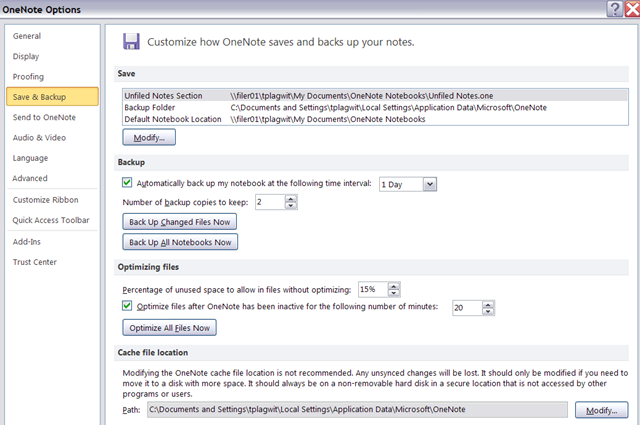
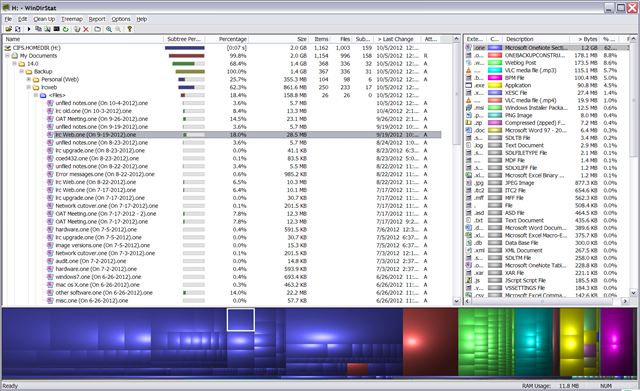
The Reason is that Application Data\Microsoft\OneNote gets redirected to the personal network drive:\My documents folder, the disk quota for which is limited:
Protected: How to show the Developer Tab in the MS-Word 2007/2010 Ribbon
Why to save Audacity projects locally …
… with enough file space to avoid unspecific problems, including later parts of your recording becoming inaudible.
This problem was caused by attempting to save an Audacity project to a network share over a slow network and with limited storage space.
This Audacity project (.aup extension, with subfolders) had a size of a 200MB – the exported .mp3 likely less than 1% off that.
So always save Audacity projects you are working on on local hard drive or USB thumb drive.
Problems with accented characters in Respondus Lockdown Browser
Update: Just click on the menu item “ A” under Respondus titlebar window to bring the floating accents window back. 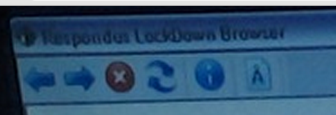 Problem is only: this menu disappears now also. Anyhow: using below keyboard shortcuts is faster, and MS FixIT can now enable it for you on your home or office PC also.
Respondus Lockdown browser limits the use of modifier keys (e.g. on Windows CTRL, ALT). This prevents the use of certain traditional keyboard shortcuts for entering foreign language accented characters – including the method from times yore: ALT+number code.
Respondus Lockdown browser can work with a floating toolbar for accented characters. Unfortunately, reports are in that the floating toolbar disappears (may be related to a recent Respondus upgrade?).
Fortunately, Windows US-international keyboard – the default in the LRC – is not as much hampered by Respondus – except in t he few cases where US-international keyboard also relies on ALT- and CTRL-modifier: consult this table.
|
Press (, then release) |
then press |
Example Result |
|
` (accent grave) |
any letter that can have this accent, e.g. “a”, also cedilla ç |
à |
|
‘ (apostrophe) |
á |
|
|
^ (caret)- |
â |
Phonetic Russian character input on US-keyboards with Google IME in the LRC
- To write Russian phonetically in Cyrillic:
- Since “input methods”are specific to each window (and automatically switch to that of the window you make active), first open the application you want to write in, preferably MS-Word (has proofing tools for Russian).
- In the language bar on the lower right, click on “EN”, select “Russian” instead

- Click on the keyboard symbol and select “Google”:

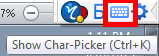
- You first may have to right-click on the language bar on the lower right of your desktop and select “Adjust” to show the keyboard symbol:
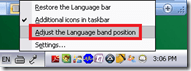
- You first may have to right-click on the language bar on the lower right of your desktop and select “Adjust” to show the keyboard symbol:
- If you now type in MS-Word Russian (your selection did not “stick” in MS-Word? do the above steps again, eventually it will…) phonetically on a US-keyboard, you will be able to select from suggestions in Cyrillic:

- Click the desired suggestion to have it entered into MS-Word:

- To go back to writing temporarily in English (without changing the entire input method back to English), click the (Cyrillic/Latin) letter symbol on the Google Russian IME menu:
 and you can enter English (Latin alphabet) without the popup suggesting you Russian equivalents: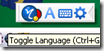
- To switch from the phonetic input to a floating Cyrillic keyboard,
- click on the keyboard symbol in the Google Russian IME.

- Or from the Language bar, switch to the other (Microsoft) keyboard layout for "Russian" (see #4 above), and go to "Start" / "Run" / type OSK, click "OK".
- click on the keyboard symbol in the Google Russian IME.





How best to edit PDF here
The college provides each faculty and staff member with a full version of Adobe Acrobat (with editing capabilities) on their office computer. If it is not already installed, you can submit a request here.
Immerse yourself into your language of study by switching the user interface language on LRC PCs
- Ever imagine yourself studying or working in an e.g. Spanish– Japanese- or Chinese- speaking country? Then you will likely find yourself in front of a computer display that is in that language – what if you could get a sneak preview before you go?
- You can now switch the interface language of the LRC Windows 7 computers (including Internet Explorer and MS-Office (note that you have to change the editing language separately) to your language of study (How?).
- All non-classical languages studied here are supported:
Language Native name Arabic العربية Chinese (Simplified) 中文(简体) Chinese (Traditional) 中文 (繁體) English English French français German Deutsch Greek Ελληνικά Hebrew עברית Italian italiano Japanese 日本語 Korean 한국어 Polish polski Portuguese (Brazil) Português Portuguese (Portugal) português Russian Русский Spanish español - Some languages, however, come only with the limited support of a MS Language Interface Pack :
-
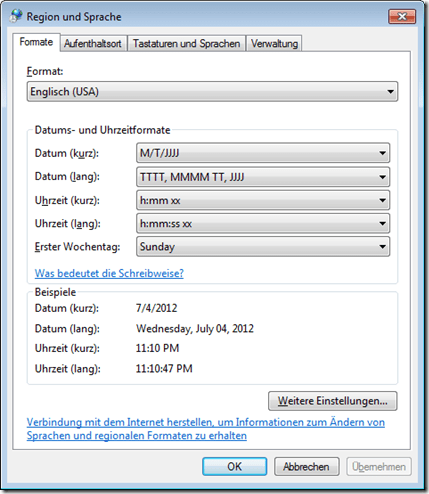
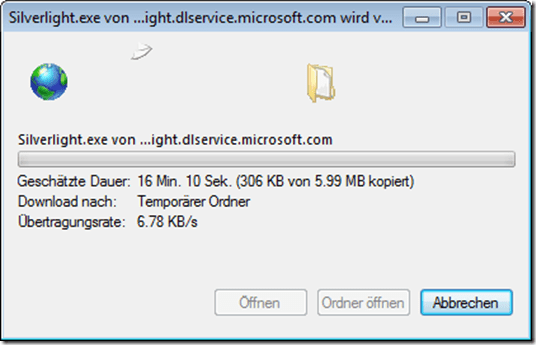
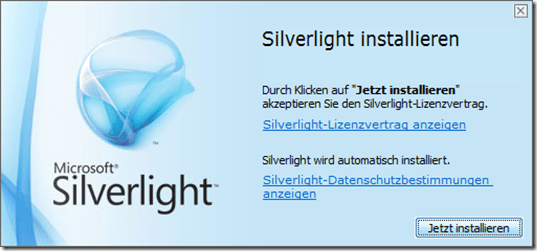
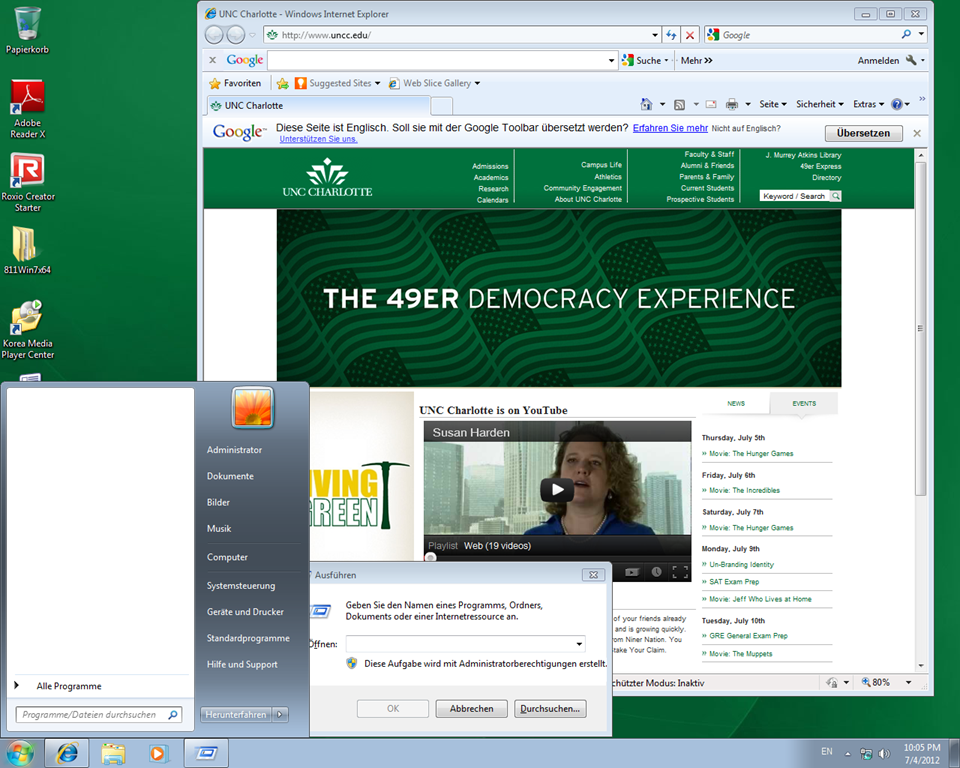
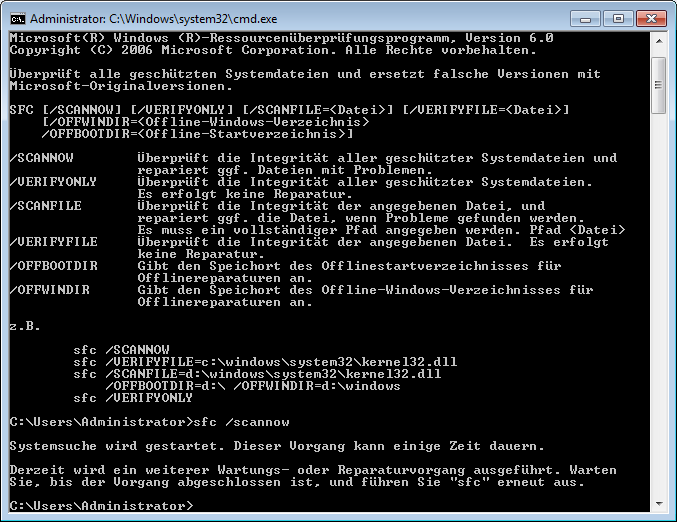
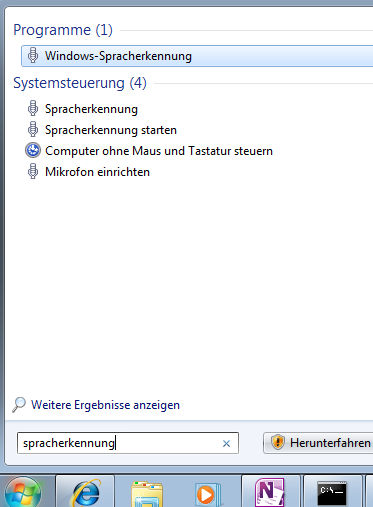
Hindi हिंदी KiSwahili Kiswahili Persian (Farsi) فارسی Yoruba ede Yorùbá - Below are examples (for German) what you get when you switch the operating system language:





Foreign language support in LRC MS-Office 2010
- A full set of proofing tools is available, thanks to MS-Office Language Packs installed on the Windows 7 computers, for all non-classical languages studied here:
-
Language Native name Arabic العربية Chinese (Simplified) 中文(简体) Chinese (Traditional) 中文 (繁體) English English French français German Deutsch Greek Ελληνικά Hebrew עברית Hindi हिंदी Italian italiano Japanese 日本語 Korean 한국어 Polish polski Portuguese (Brazil) Português Portuguese (Portugal) português Russian Русский Spanish español - Some languages have only limited features provided by the MS-Language Interface Pack:
-
KiSwahili Kiswahili Persian (Farsi) فارسی Yoruba ede Yorùbá


Questions? Read the About. Or just ask me a quick Our Databases: Resources with calendars -- Language learning material Moodle Sites, multimedia files -- films


FAQs for LRC student staff or for students or for teachers. To search our FAQs, in the browser addressbar, add after "https://plagwitz.wordpress.com/feed/?tag=faqs+/" "+TAG1" (from tag cloud below) OR "https://plagwitz.wordpress.com/feed/tag=faqs
&category_name=" "CAT1" (from category hierarchy below). OR search both categories and tags, and multiple TAGs/CATs (connect with "," for OR-search, with "+" for AND-search), like so: https://plagwitz.wordpress.com/feed/?tag=TAG1+TAG2+...TAGn&category_name=CAT1
+CAT2+...CATn"
Other ways to find help
If you cannot find it here, look there: 5,500 Language-Learning Links and Programs for learning or teaching 150 languages
Shortcuts:Our Lists, Our Maps, LRC Staff Moodle Site,LRC Project Moodle Site, 49erexpress, UNCC Moodle, Student Recordings: s:claslcslrcsanakostudent
Learning usage samples: Sanako oral exam, Kaltura webcam presentation, Dictation with speech recognition, Sanako written exam, Chinese and Japanese interactive stroke-order practice
Test the Sanako Installer, Webbrowser Popup Konfigurator for XP, or Windows7, faster LRC TeacherPC Log-in Let MS facilitate diacritics writing by installing for you US-International keyboard layout
This is my personal blog (Google+). The views expressed on these pages are mine alone and not those of my employer. The information in this weblog is provided “AS IS” with no warranties, and confers no rights.
 Thomas' Work Space