Archive
Blackboard: Content System: Permissions, Roles and Gotchas
- The “Course user list“ refers to courses.
- The “Organization user list” refers to departmental groups. The subdivision is meaning list for our department.
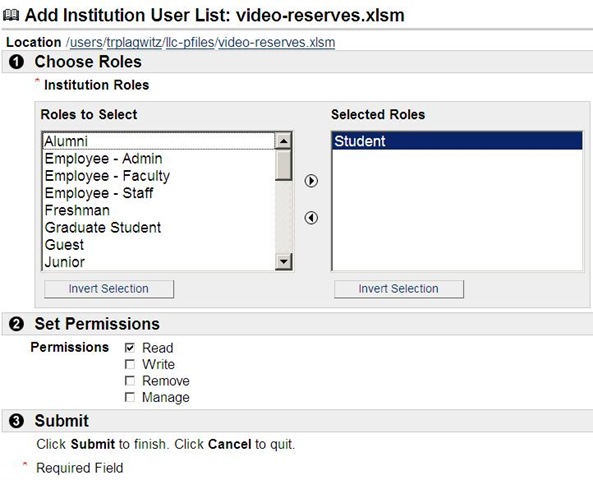
- The “Institution user list” adds the most global group level.

- Finally, you can make files available to the “Public”. Note, however, that this seems to effectively bypass the more fine-grained permission checks. E.G. if you give read access to the public, users who open your files will not receive an authentication challenge, so if you try to give some of the users write access to your files, that will not trickle through. Workaround: Do not use “public”.
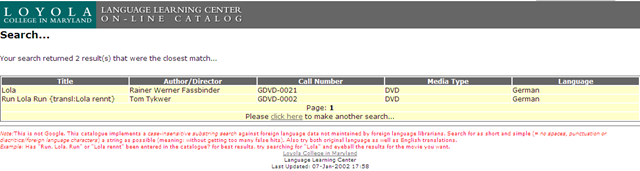
LLC Catalogue: This is not Google!
-
I have been given access to the online catalogue program, learned that VS.net 2008 still supports classic ASP, and managed to make a couple of changes to the catalogue home and search result and pages which will hopefully make your learning material searches more successful.


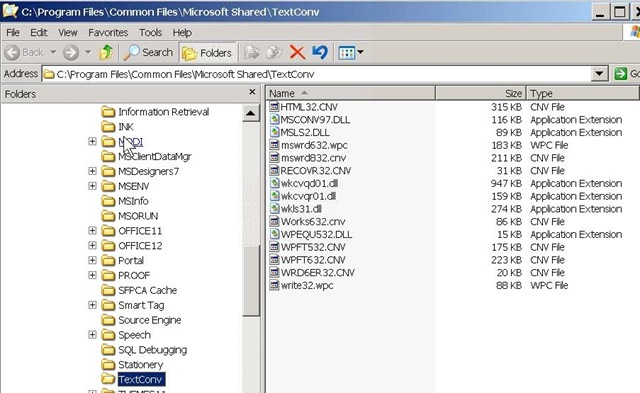
How to save MS-Word files in Wordperfect format.
- Teachers receive new computers with MS-Word 2007, but need to send files to publishers that accept only Wordperfect format.
- I located and installed an old (= not supported in MS-Office2007 anymore) WP-converter for Word 2003 which is the MS-word version we still have, side-by-side with MS-Word 2007, installed on the teacher computer in the Sanako LAB 300 (MH441).

- Now you can save the MS-Word files created on your new office computer on the shared network drive (H: in your office). Here is how:
- From the MH441 teacher computer, open the saved file: First open Ms-Word 2003 from the start-button. Then open the H-drive. I made this drive accessible as start-button / “h-drive”on the MH441 teacher computer:


- Browse to your document, drag it into the MS-Word 2003 window. Click Menu: “File”/ “Save As””. From the dropdown: “Save as type”, you can now choose one of the old Wordperfect format.

- Assuming you do not publish more than a handful of papers per year, this should keep you afloat until your publisher (I suggest sending them the URL of this webpage) accepts other file formats (RTF is a widely supported minimum standard, and MS-Word 2007 can save as RTF, Word Perfect can read it).


A better way to do student homework audio recordings in the Sanako LAB 300, using Blackboard:Assignment
-
More robust than the more common way using the default network shares of a Sanako Lab 300 – to my knowledge, up to this day Sanako Labs lack any integration with the LMS/VLE regarding the upload of student output – is using the assignment tool of the VLE which provides integration with the Student Information System and an entire infrastructure for assessment purposes (gradebook and beyond).
-
I know that some teachers use Blackboard email with attachments for assignments, others the blackboard drop-box. Some, including me, use the assignment tool which, since it appears to be far superior to the older tools, this post would like to advertise.
-
The assignment tool automatically creates a grade center column.
-
You can batch download student file submission (papers or recordings) and blackboard assignment tool puts the assignment name and the username in the file name for easier management,
-
and you can upload a graded version to return assignments to the student and include comments.
-
You can also create comments for the instructors only to view.
-
Faculty can also use track changes and insert more fine-grained comments and corrections within MS-Word.
-
-
Here are the parts of this series:
-
How the student reviews a grade Blackboard audio recording assignments: TBA.
Video Library: Scheduling for Reserve Desk and Viewings
Lab staff instruction for editing the video-reserves spreadsheet H:\LLC\scheduling\video-reserves&mh441b-showing\video-reserves.xls:
- Lab supervisors build the spreadsheet for the reserve desk and viewing: video-reserves-reservedonthisday-unfold-schedule-viewing.wmv, video-reserves-viewing-selecting-timeslots&venues.wmv
- Lab assistants read the spreadsheet and handle the actual media (i.e. update the reserve desk and show the videos): video-reserves-reservedonthisday-filter-viewing-or-reserve.wmv
Blackboard: Rolling over courses between terms
In your old course, go to CONTROL PANEL > COURSE COPY”.
Choose: “Copy Course Materials into an Existing Course” (assuming your new course shell has been created for you by your IT admin).
Click button:“Browse” and in the opening window, choose your existing current course, by the term identifier:
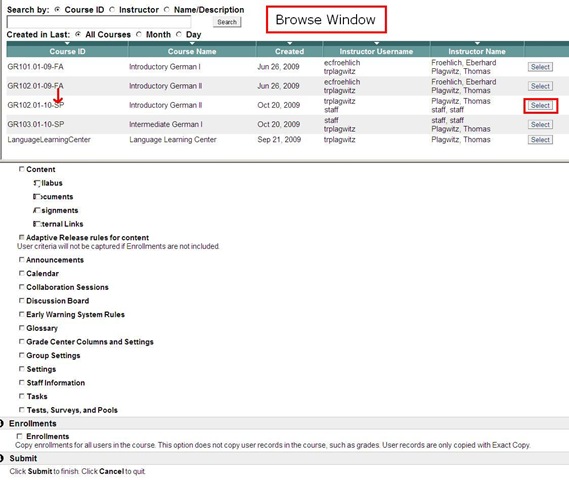
Check all items you want to copy. What is safest to avoid errors? Everything, except enrollments?
Click “Submit”/“OK” until done.
The course copy operation will be queued up, and you will be notified when the operation is finished.
Then go to your new course. This operation also copied the content items, including the content management system items.

Sanako Lab300 Oral-exam-question-response-recording-cycle
A 6-minute screen-cast explaining the sanako-lab300-oral-exam-question-response-recording-cycle.wmv
Please consult the transcript for a table of contents:
|
0,00 |
Here we are administering an oral exam. we are going to play pre-recorded teacher-questions to multiple students, we are going to record their responses and, at the end, we are going to collect their recordings in a batch: |
|
0,12 |
for this, we have all seats where a student is present added to group a, and have set the program source for group a to media file |
|
0,22 |
we monitor the situation on the student computers by accessing menu: other / thumbnail of group, |
|
the screen sharing is slow here, has been improved somewhat by installing more memory, the crowded screen situation has also been improved by installing a secondary monitor, use it for viewing the thumbnail window |
|
|
0,59 |
in the group a pane, we use the button: duo launch, and ok the dialogue, to open th estudent recorder on the student computers |
|
1,07 |
in the section:media source, button: file open, we access our pre-recorded question file |
|
1,13 |
in the meantime, the duo has launched on the student computers – as you can see in the classroom layout from the squares on the student seats, as well as on the mosaic thumbnail screens |
|
1,35 |
we double-click on a single thumbnail to demo to the students on the screen projector how to adjust the volume |
|
1,43 |
we click button:transfer to play the volume test file to the students |
|
we have the students record their name at the end of the sound test, to check all recorders, and to be able to identify the speaker in the actual exam file (which will be saved with only the student number in lab 300) |
|
|
we stop the button:transfer and go to menu:test:response recording |
|
|
in the pane:”response recording”, in section:”collect”, we click button:”start” |
|
|
we save the recording in a subdirectory with a meaningful name of our choice |
|
|
we ok the dialogue that informs us of the response recording |
|
|
in the window:mosaic, the encoding activity window briefly flashes on the student screens |
|
|
we browse to the student collect folder, where all subdirectories are saved |
|
|
we check the folder visibly for the right number (use select all), size or duration of audio files – |
|
|
it would be even safer, even though more time consuming, to open all the test recordings with audacity, especially on a slow computer, and check the volume graph – open audacity and drag and drop all files onto it |
|
|
4,07 |
the soundtest is a complete recording cycle. Simply repeat for the actual exam, but |
|
first close the pane:response recording, to go back to your pane:group, |
|
|
in section:program transfer, click button:group control, click icon:file/new, to flush the prior test out of the student recorders, |
|
|
in the dialogue:”save changes”, click no |
|
|
and this time load the actual exam audio file |
|
|
once the sound check is done, we could use button:lock for the students to prevent them from interfering with the computers during the exam |
Renaming Outlook Calendars
Calendaring is still an underutilized data source, but sharing of and collaboration on calendars are picking up.
If you find yourself juggling more and more calendars of your own and others that are shared with you, you will want to organize your calendars by naming them.
In MS-Outlook, however, you may find that the renaming option is grayed out and disabled when trying to rename your Calendar:  .
.
To work around this issue, do this:
-
Download the Exchange 2003 Information Store Viewer to your computer.http://www.microsoft.com/downloads/details.aspx?FamilyId=3D1C7482-4C6E-4EC5-983E-127100D71376&displaylang=en, unpack Mdbvu32.exe (CAUTION: THIS IS A POWERFUL UTILIITY THAT CAN ALTER YOUR DATA IN MANY WAYS, INCLUDING DELETING IT. HANDLE WITH CARE!).
-
Create an Outlook profile that can connect to the problem mailbox.[If you work on your own mailbox, you can skip this].
-
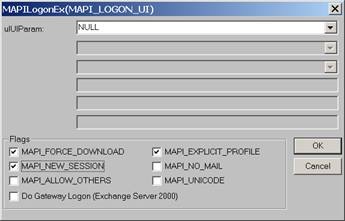
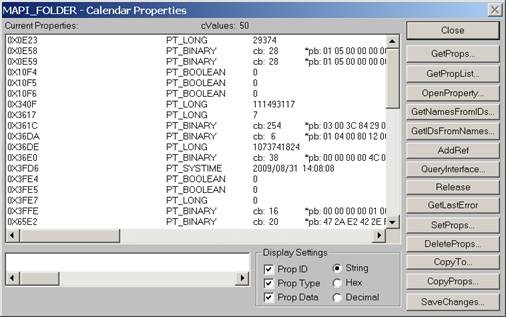
Run Mdbvu32.exe. Select the following three options and click OK: MAPI_FORCE_DOWNLOAD, MAPI_EXPLICIT_PROFILE, MAPI_NEW_SESSION
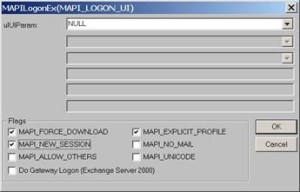
-
Make sure that the profile you have created in Step 2 [or your default profile] is selected. Click OK.
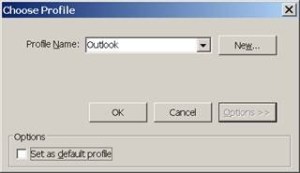
-
Click MDB -> OpenMessageStore.
-
Make sure the problem mailbox is selected and click Open.

-
Click MDB -> Open Root Folder.
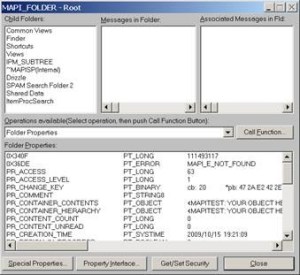
-
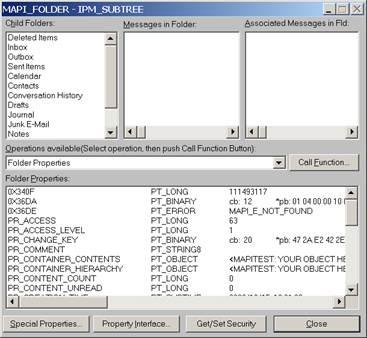
Double-click “IPM_SUBTREE” in the left list (if for some reason you don’t see this double click each entry in the top/left until you get a folder list.)

-
Double-click the Calendar.
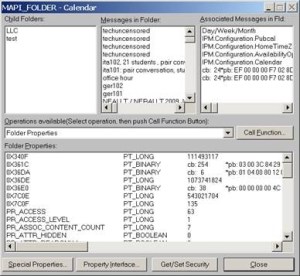
-
Click the “Call Function” button.

-
Click the “SetProps” button.

-
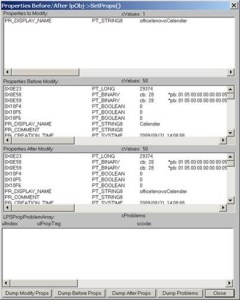
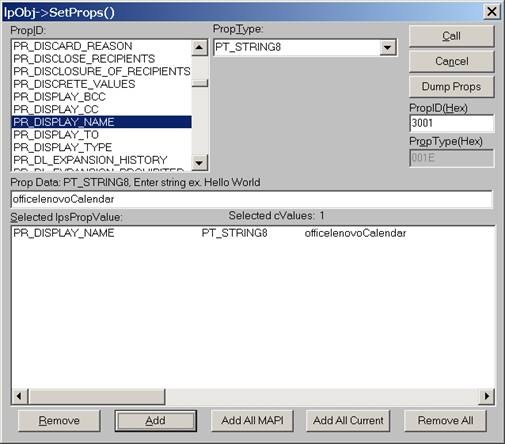
Make sure the “PR_Display_Name” is selected from the PropID list. Change its name to <whatever> in the textbox below and click the ”Add” button. You will see that the change action is added to the list. Click the “Call” button on the right-top corner to apply the change.

-
4. Click Close until you drop out of the windows, then close the MDBVU utility and OK to the logoff. From:
 To:
To: 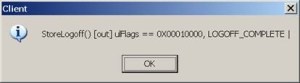
-
You may need to close and reopen Outlook to refresh the folder name.
-
And voilà:







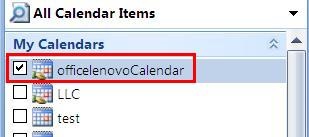
I just verified this to work on MS-Outlook 2007 against MS-Exchange 2007 (and assume it to work on stand-alone PST files also), and added the screenshots to clarify this. My thanks go to user traval and MS for the heavy lifting (although I wish MS would make my lifting still easier).

Questions? Read the About. Or just ask me a quick Our Databases: Resources with calendars -- Language learning material Moodle Sites, multimedia files -- films


FAQs for LRC student staff or for students or for teachers. To search our FAQs, in the browser addressbar, add after "https://plagwitz.wordpress.com/feed/?tag=faqs+/" "+TAG1" (from tag cloud below) OR "https://plagwitz.wordpress.com/feed/tag=faqs
&category_name=" "CAT1" (from category hierarchy below). OR search both categories and tags, and multiple TAGs/CATs (connect with "," for OR-search, with "+" for AND-search), like so: https://plagwitz.wordpress.com/feed/?tag=TAG1+TAG2+...TAGn&category_name=CAT1
+CAT2+...CATn"
Other ways to find help
If you cannot find it here, look there: 5,500 Language-Learning Links and Programs for learning or teaching 150 languages
Shortcuts:Our Lists, Our Maps, LRC Staff Moodle Site,LRC Project Moodle Site, 49erexpress, UNCC Moodle, Student Recordings: s:claslcslrcsanakostudent
Learning usage samples: Sanako oral exam, Kaltura webcam presentation, Dictation with speech recognition, Sanako written exam, Chinese and Japanese interactive stroke-order practice
Test the Sanako Installer, Webbrowser Popup Konfigurator for XP, or Windows7, faster LRC TeacherPC Log-in Let MS facilitate diacritics writing by installing for you US-International keyboard layout
This is my personal blog (Google+). The views expressed on these pages are mine alone and not those of my employer. The information in this weblog is provided “AS IS” with no warranties, and confers no rights.

