Archive
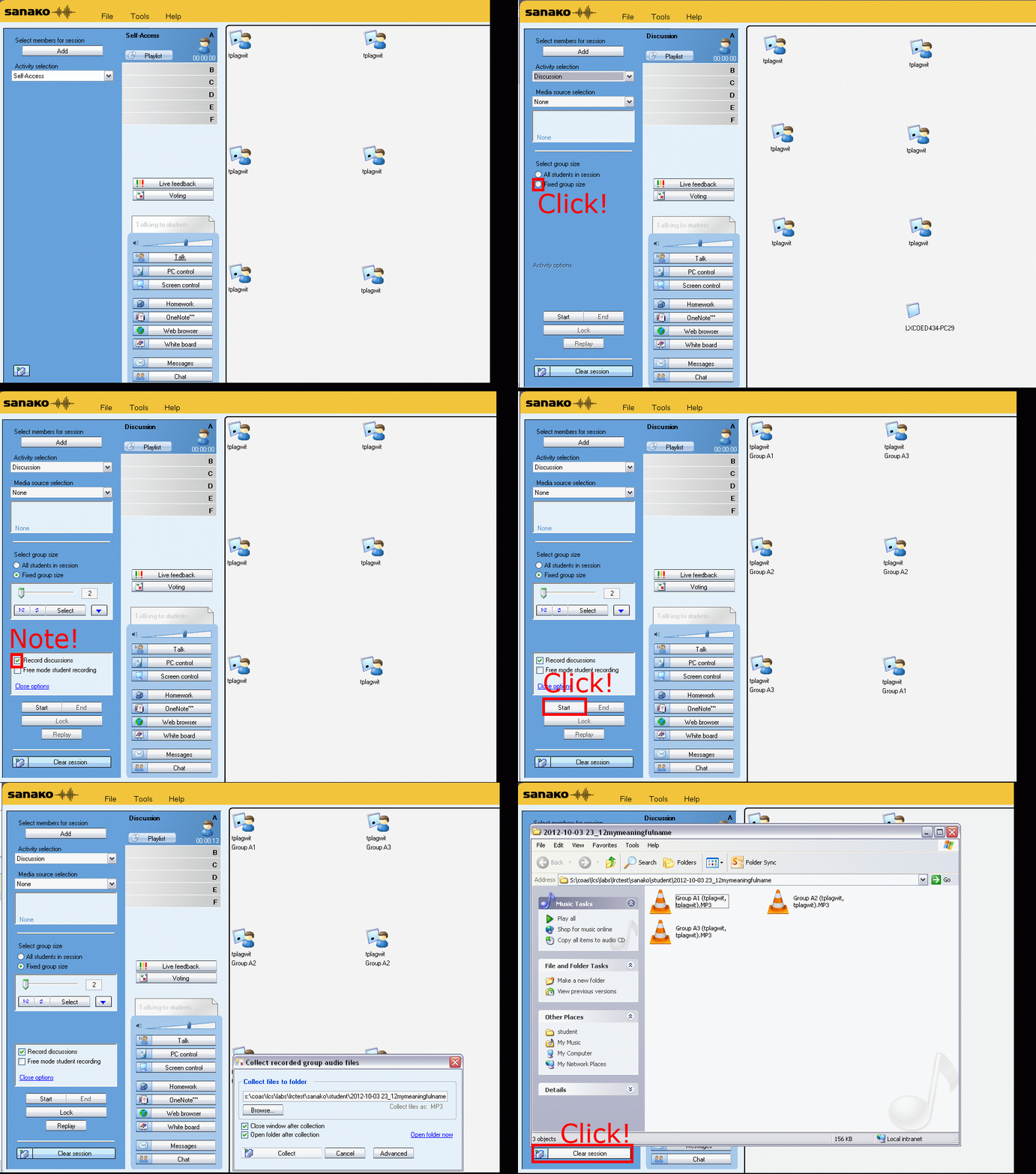
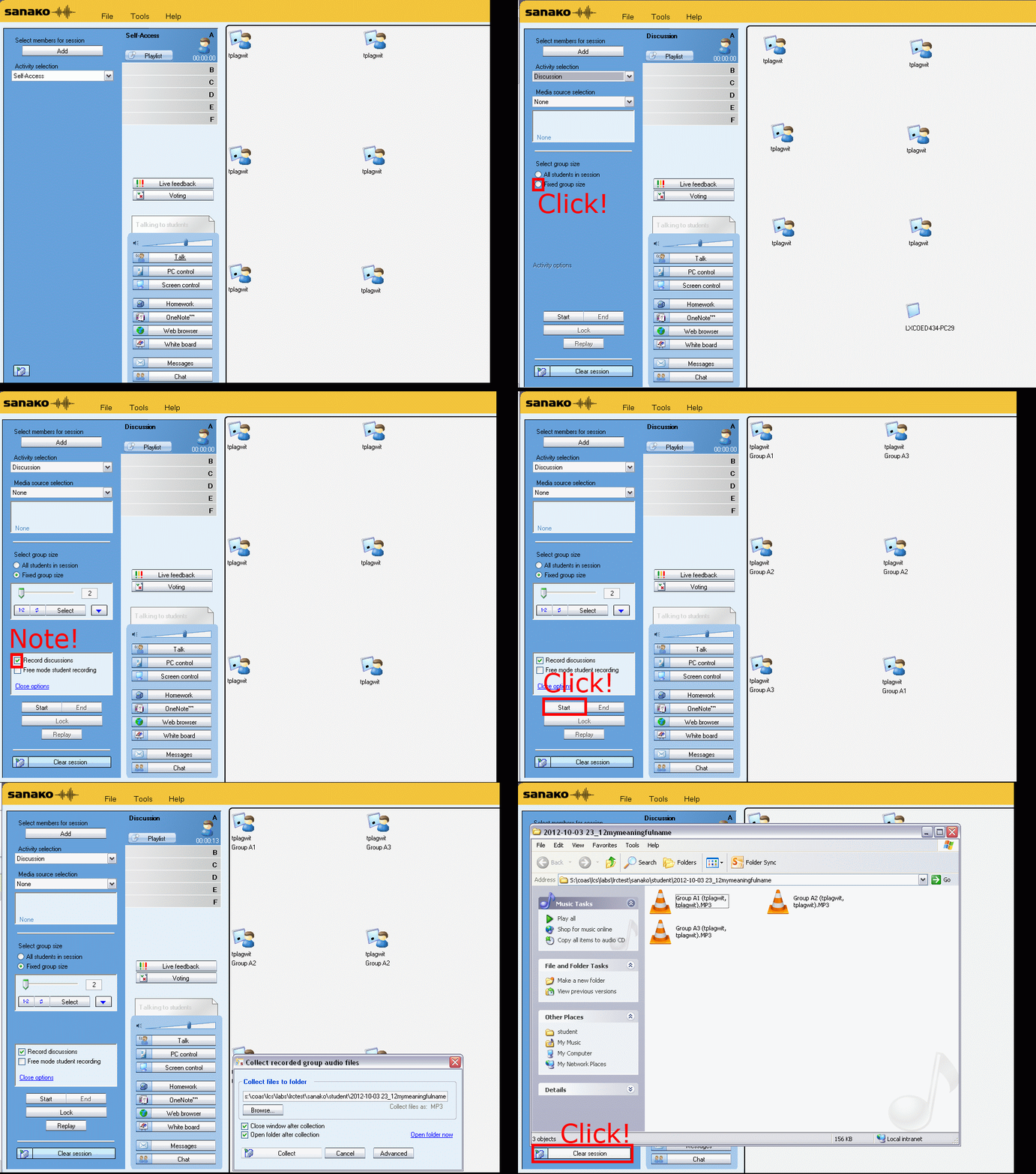
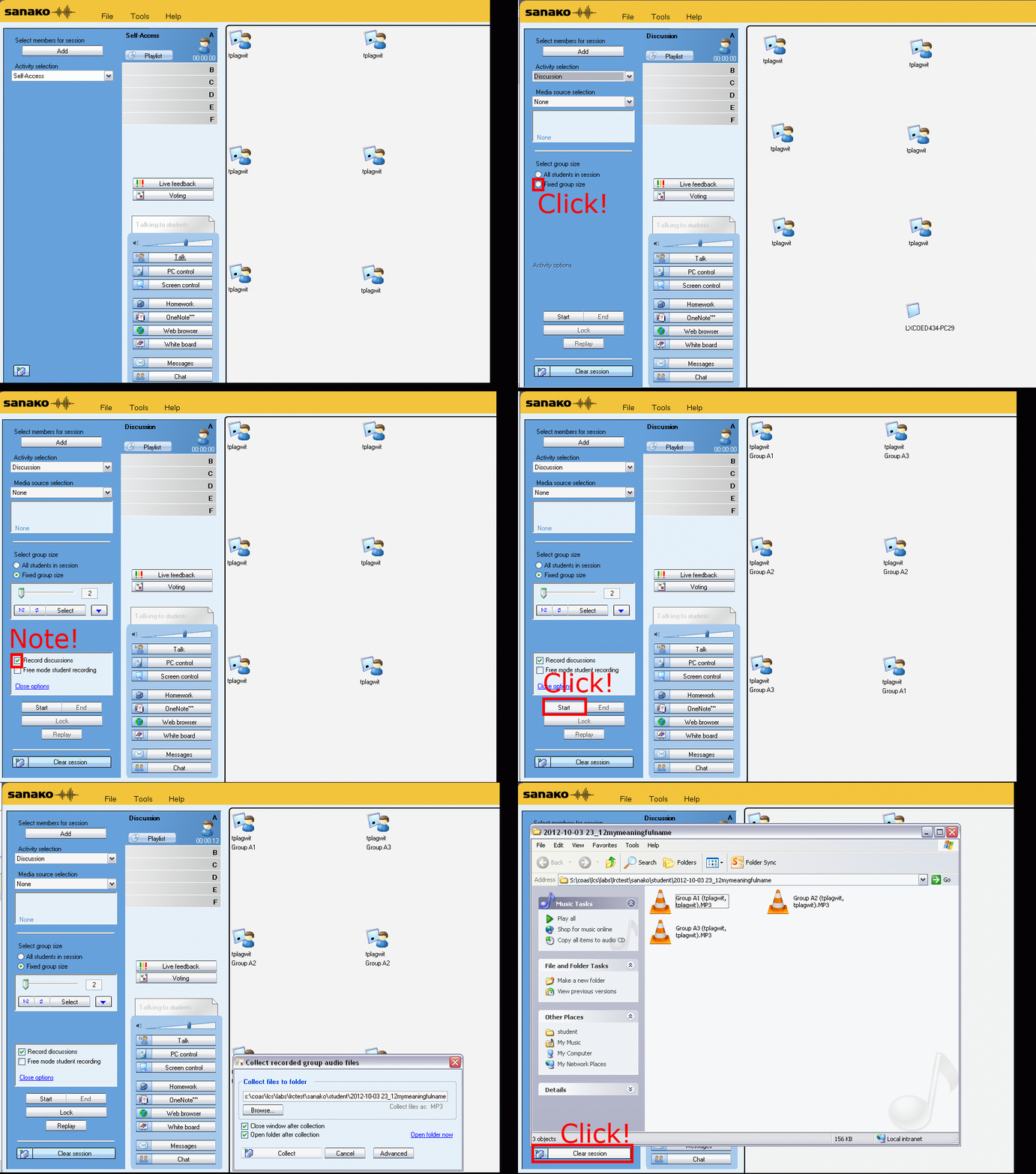
How teachers randomly pair and record students over their headphones with Sanako Study 1200–the ultimate training summary…
…thanks to animated gGIFs. Slower? 050ms, 075ms, 100ms, 200ms, 300ms, 400ms,500ms, 600ms, 700ms, 800ms,900ms, 1000ms. Load the speed of your choosing into the left screen of the teacher station before trying to pair your students, with the window active, press F5 to restart the animation from the beginning at any time:

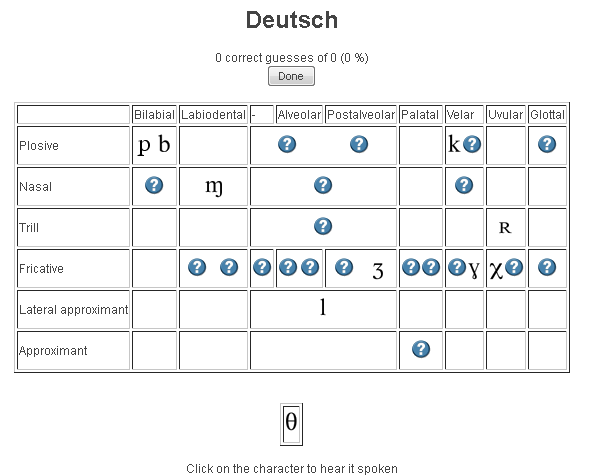
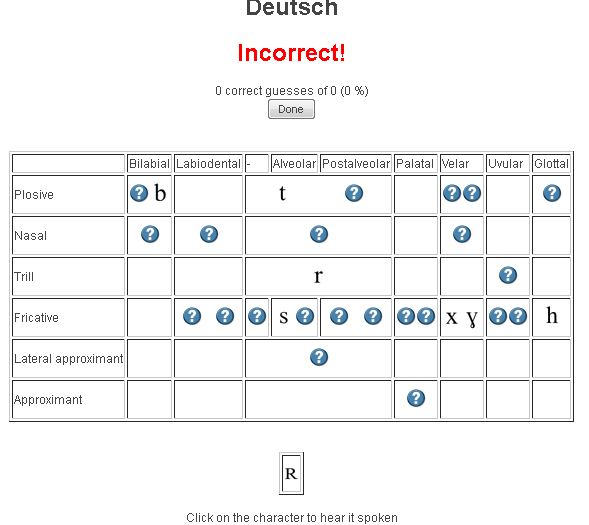
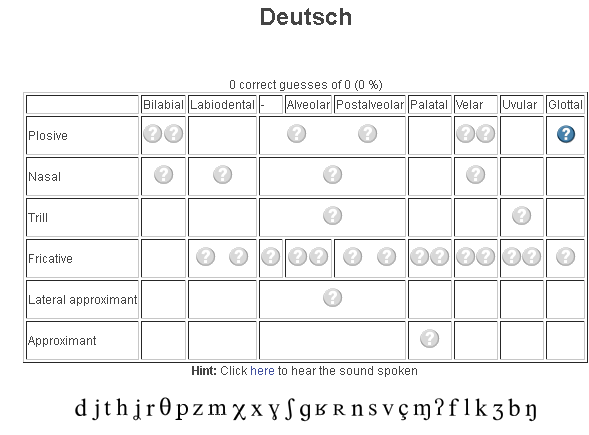
Ipatrainer.com community provides free phonetic transcription tables with sounds and exercises
- This is looking good, but …
- There seem to be some coding issues, I am getting server errors 500 after registering.
- The site is advertisement-based.
- There is no content beyond the IPA sound which would put these bare basics in phonetics into language learning context and practice.
- Site Contains:
- tables for teaching your language – complete with phonetic symbols and sound samples

- and exercises for your students (e.g. Memory games, Identifying characters


 , places,
 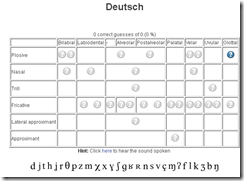 and sounds.
- tables for teaching your language – complete with phonetic symbols and sound samples
- You can
- Create your own, after free registration,
- or assign one of the ones from many other teachers.
- Most popular ones are listed here: http://www.ipatrainer.com/user/site/?language=, and if the use numbers are accurate, there must be really some serious IPA learning going on here…
- I see no way to browse other tables without having the username of the teacher who created and assigned it.
- There is also a phonetic writer.
- And a user forum, in its infancy.



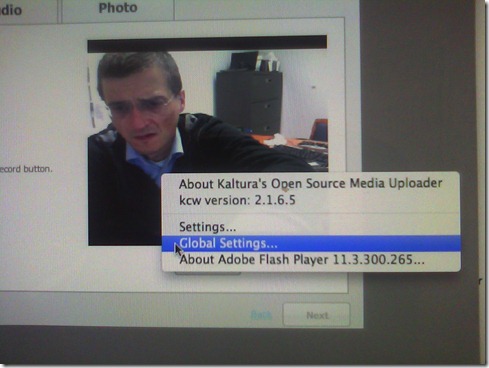
Delete the Flash Global Settings if the iMacs webcam displays black frame only
- Problem: Safari and (not recommended after last testing round) Firefox both hung on iMAC6 when a student tried to do a Moodle Kaltura Webcam assignment and got to the built-in ISight camera display page.
- Cause: maybe a Flash security problem accessing the web cam? maybe security dialogue was not answered by the student correctly earlier, and the “preference”stored in her account?
- Solution (presumably): System started working again after I deleted the Flash Global settings, by right-clicking on the webcam video preview window like so:
-
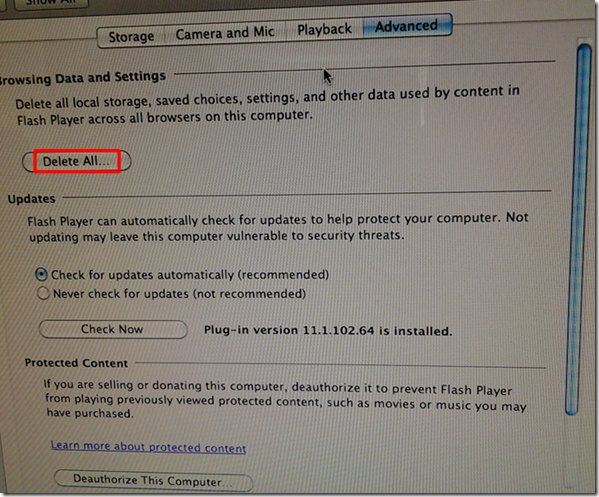
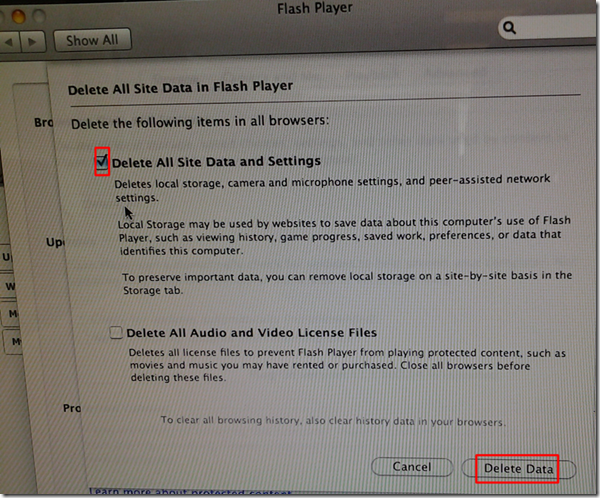
- Ceterum censeo that we need a computer management infrastructure if we want to use MACs for language learning technology. Faronics-Deepfreeze would have prevented this problem, provided we have a software imaging system (CASPER coming up apparently) that can let us start with a usable image, and the staff time to learn and configure 2 usable OS images and dual usable computer management infrastructures. TCO now > TCO dual OS infrastructure > TCO web cams for 45 PCs.


How to fix “no audio” on the computers with black Sanako headsets
- First, show the Sanako student application (e.g. from button:Start / Student).
- Is the Volume Control slider set to 0? Move it up where it says “Adjust volume”:

- Still hear no audio playing on the black Sanako headsets? Then the volume slider was likely moved to 0 since the headset was not detected: On the rear of the computer, check the connection
- of the blue headset plug into the USB extension cord, and
- of the extension cord into the rear of the computer.

How to start YouTube videos from the middle
- To avoid having to manually find a segment of a YouTube video clip during presentations, or worse, downloading the video clips from YouTube before the presentation, to edit them into shape,
- try using the “&t=”(for “time(line)”, I presume) query parameter, followed by “#m” (for minutes) and "##s” (for seconds) where the segment you want to show starts.
- Example links that you can try inserting into your PowerPoint Slide deck:
- http://www.youtube.com/watch?v=tDngRk5vImU starts the movie clip Aicha part 1/10 from the beginning;
- http://www.youtube.com/watch?v=tDngRk5vImU&t=1m10s starts Aicha at 1 minute and 10 seconds;
- http://www.youtube.com/watch?v=tDngRk5vImU&t=5m10s starts Aicha at 5 minutes and 10 seconds.
Sanako Study 1200 Homework step-by-step
1. In the Sanako student player window, in the upper left of your screen, above the red “homework” tab, an MS-Word file will show in the list.
2. Click on this MS-Word file in the Sanako student player list.
3. A window will open that asks you to save the word file. Use the default, your Desktop. Click “OK” to save. The file will be added to your desktop.
4. Do whatever other activities your teacher assigned. Once the teacher aks you to do so, open the MS-Word file from the desktop.
5. Write in the MS-Word file what it asks you to do.
6. When done, close the MS-Word file.
7. MS-Word will ask you whether you want to save. Click “yes” (and do NOT “save as”, or change the file name or file format).
8. The file on your desktop will look the same, but it will have been updated with your input.
9. The teacher will open a window titled “homework” on your desktop.
10. Drag and drop the MS-Word file into this window.
11. If the file in the homework” window does not automatically say it was “delivered” to the teacher, click the lower right button: “Send”.
12. Once the file says “delivered”, you can go to the next task or log out.
13. If in doubt, ask for help. Use the Sanako student player button:“Call” to get into the queue. Somebody will connect to your headsets and screen ASAP.
Why MS-OneNote may let you run out of storage space here
I am running into out of file space issues in a number of applications. Turns out that OneNote is the culprit, but it is not obvious from the OneNote Save & Backup why: 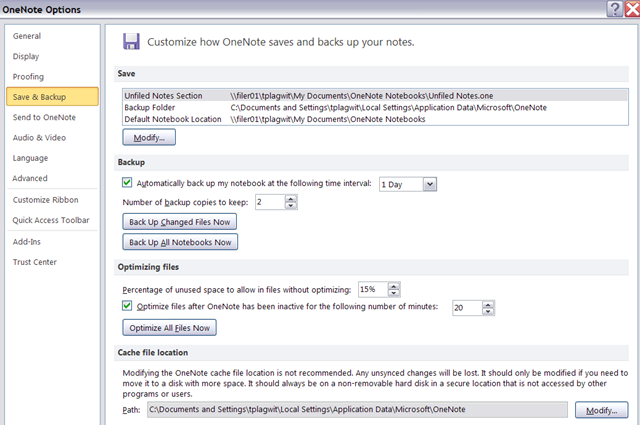
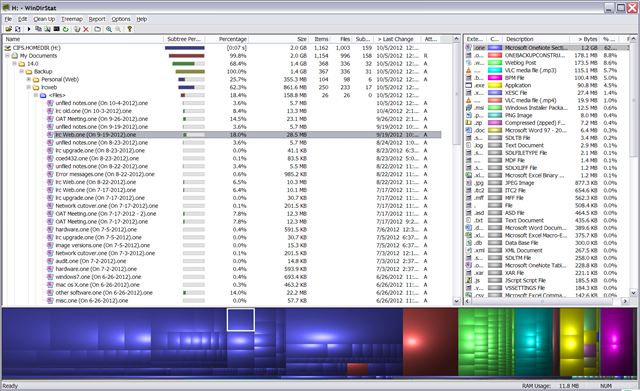
The Reason is that Application Data\Microsoft\OneNote gets redirected to the personal network drive:\My documents folder, the disk quota for which is limited:
Protected: How to show the Developer Tab in the MS-Word 2007/2010 Ribbon


Questions? Read the About. Or just ask me a quick Our Databases: Resources with calendars -- Language learning material Moodle Sites, multimedia files -- films


FAQs for LRC student staff or for students or for teachers. To search our FAQs, in the browser addressbar, add after "https://plagwitz.wordpress.com/feed/?tag=faqs+/" "+TAG1" (from tag cloud below) OR "https://plagwitz.wordpress.com/feed/tag=faqs
&category_name=" "CAT1" (from category hierarchy below). OR search both categories and tags, and multiple TAGs/CATs (connect with "," for OR-search, with "+" for AND-search), like so: https://plagwitz.wordpress.com/feed/?tag=TAG1+TAG2+...TAGn&category_name=CAT1
+CAT2+...CATn"
Other ways to find help
If you cannot find it here, look there: 5,500 Language-Learning Links and Programs for learning or teaching 150 languages
Shortcuts:Our Lists, Our Maps, LRC Staff Moodle Site,LRC Project Moodle Site, 49erexpress, UNCC Moodle, Student Recordings: s:claslcslrcsanakostudent
Learning usage samples: Sanako oral exam, Kaltura webcam presentation, Dictation with speech recognition, Sanako written exam, Chinese and Japanese interactive stroke-order practice
Test the Sanako Installer, Webbrowser Popup Konfigurator for XP, or Windows7, faster LRC TeacherPC Log-in Let MS facilitate diacritics writing by installing for you US-International keyboard layout
This is my personal blog (Google+). The views expressed on these pages are mine alone and not those of my employer. The information in this weblog is provided “AS IS” with no warranties, and confers no rights.