Archive
Archive for the ‘Learning-Tool-is-any’ Category
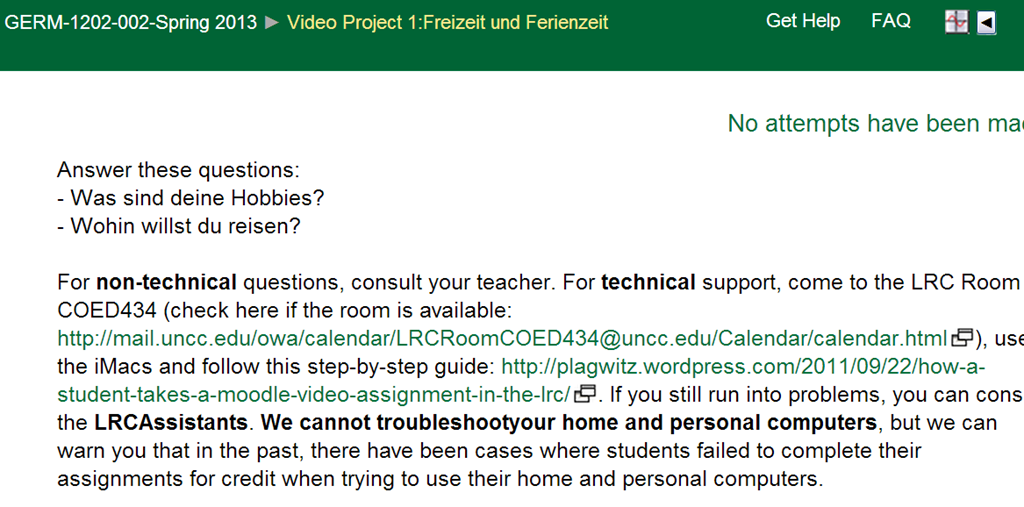
Kaltura Webcam assignment GRMN1201 example
2012/12/13
Leave a comment
Categories: e-languages, German, learning-usage-samples, lms, Speaking
kaltura, moodle
The big LRC SANAKO “How do I…?”
2012/12/05
Leave a comment
(Work in progress).
View larger Word version than this embed:
Categories: all-languages, animated-GIFs, audience-is-students, audience-is-teachers, classroom-management-system, digital-audio-lab, documentation, e-languages, Institution-is-University-of-North-Carolina-Charlotte, learning-usage-samples, Listening, LRCRoomCoed434, Presenter-Computer, Reading, recording-software, Screencasts, screenshot-albums, service-is-documenting, service-is-training, Speaking, Student-Computers, training, Writing
sanako-study-1200
Pictolang, another flashcard site for vocabulary learning
2012/12/05
Leave a comment
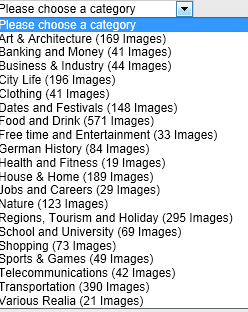
- Distinguishing mark: Pictolang is based on the Culturally authentic Picture Lexicon. Here is an overview of the currently available languages and imagery:
-
Language Region # Images German 2631 Mandarin China 2336 ESL North America 2074 Russian 1420 French France 1231 Spanish Southern Cone 1022 Spanish Mexico 1000 Spanish Central America & Caribbean 872 Spanish Peninsular 579 Arabic 287 Special Collections 151 Ukrainian 139 Japanese 106 French Canada 47 Arabic Oman 11 - You can focus vocabulary your study on specific topics, which will likely integrate it better with your core textbook material (often divided into topical chapters).

- Suitable for self-study, the use of CAPL makes this an especially interesting tool for preparing work/study/travel abroad. It also allows for playing a classroom flashcard game in language culture and area studies, where the teacher can provide context and background information in the images from the target culture.

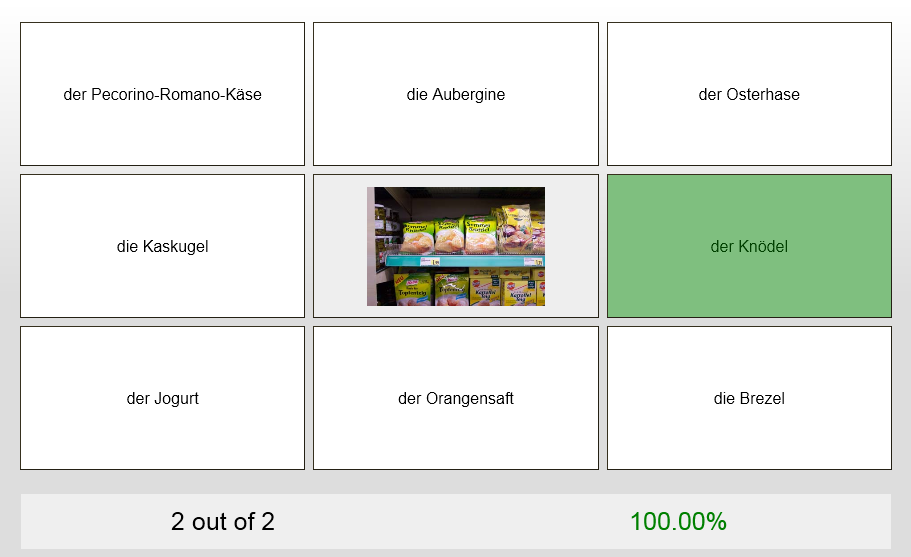
- Example o the Word Match Game right answer feedback:
- Wrong answer feedback:


Categories: Absolute-Beginner, Advanced, Arabic, audience-is-students, audience-is-teachers, Beginner, English, French, German, Intermediate, Japanese, Mandarin, Photos, Russian, Spanish, Vocabulary, websites
flashcards, pictolang
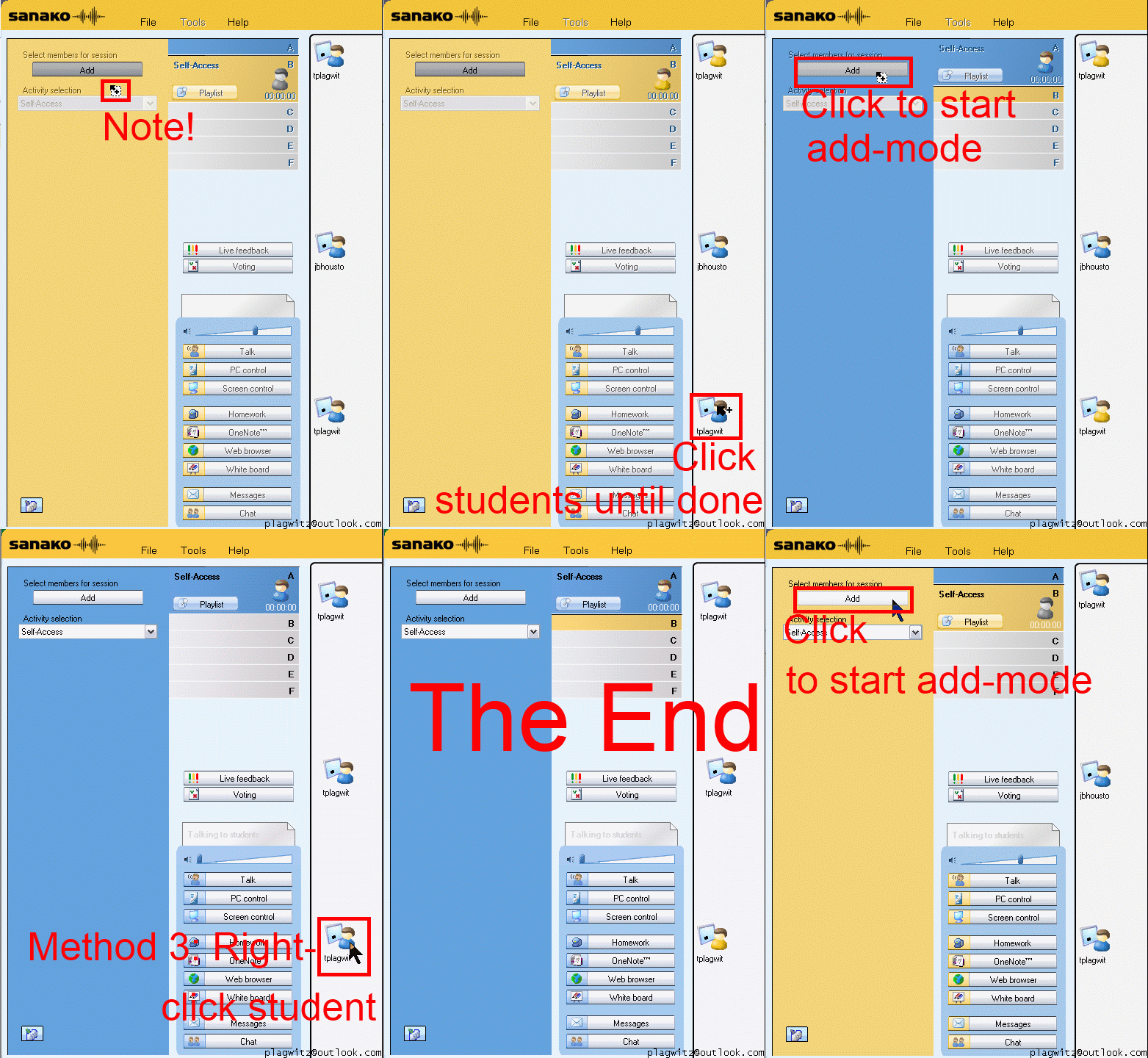
How a teacher can differentiate students into groups in Sanako Study 1200–the ultimate training summary…
2012/12/04
Leave a comment


How to terminate Sanako student.exe
2012/12/04
Leave a comment
- Since I am getting search engine hits from the above query on my blog, a quick answer:
- You likely need to terminate the helper.exe in the process manager first, since this service restarts the student.exe, for the good reason that
- you do not want students to opt out of your Sanako class,
- and also in case of student.exe crashes.
- Now here is wondering why you want to terminate it….

ICS corruption in Moodle calendar events?
2012/11/28
Leave a comment
- I am seeing once again a large number of events loaded as internet calendar into MS-Outlook via an iCal link default to the same day:

- This time the iCal sources is Moodle, but it also displays the iCal feed internally so:

- I observed a similar issue when loading certain Drupal calendars into MS-Outlook, only that
- it seems to have affected only certain sites on the same (?) Drupal instance (is this user input error?)
- Events defaulted to the current day in MS-Outlook – the Moodle issue does not.
- All events were effected – not so in this Moodle issue.


Categories: documentation, Glitches&Errors, lms
calendaring, drupal, ical, moodle, ms-outlook
Help with MyLanguageLab recordings
2012/11/28
Leave a comment
- Taken almost straight from the BB_Voice_Troubleshooting_Guide.pdf:
- When using the Voice Recorder, first click the (0) blue “Record” to load the recorder. You may have to accept a security warning.
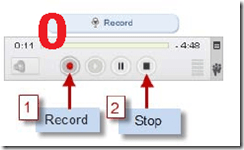
- Then click the (1) red record button

- IMPORTANT: Click the (2) black STOP
![clip_image001[14]](https://thomasplagwitz.com/wp-content/uploads/2012/11/clip_image00114_thumb.jpg?w=37&h=34 "clip_image001[14]") button to save your recording. (If you do not click the stop button, your recording will NOT be saved and your instructor will not be able to hear your voice). When you stopped, the timer in the upper right will change from showing “time remaining” to “time recorded”.
button to save your recording. (If you do not click the stop button, your recording will NOT be saved and your instructor will not be able to hear your voice). When you stopped, the timer in the upper right will change from showing “time remaining” to “time recorded”. - Click the (now not grayed out, but ) green PLAY
![clip_image001[8]](https://thomasplagwitz.com/wp-content/uploads/2012/11/clip_image0018_thumb.jpg?w=38&h=36 "clip_image001[8]") button to confirm your voice was recorded. If you do not hear anything, check your microphone and the volume controls on your computer.
button to confirm your voice was recorded. If you do not hear anything, check your microphone and the volume controls on your computer. - If you wish, to re-record your voice,
- click the red record button again.
- Click YES when asked if you want to Override Current Recording.
![clip_image001[16]](https://thomasplagwitz.com/wp-content/uploads/2012/11/clip_image00116_thumb.jpg?w=244&h=62 "clip_image001[16]")
- Re-record and again click STOP. and play to Playback your recording.
- When finished, Click Submit for Grading to submit the recording to your instructor for review.


![clip_image001[14]](https://thomasplagwitz.com/wp-content/uploads/2012/11/clip_image00114.jpg "clip_image001[14]")
![clip_image001[8]](https://thomasplagwitz.com/wp-content/uploads/2012/11/clip_image0018.jpg "clip_image001[8]")
![clip_image001[16]](https://thomasplagwitz.com/wp-content/uploads/2012/11/clip_image00116.jpg "clip_image001[16]")
Categories: audience-is-students, e-languages, multimedia-recording, textbooks, websites
mylanguagelab


Questions? Read the About. Or just ask me a quick Our Databases: Resources with calendars -- Language learning material Moodle Sites, multimedia files -- films


FAQs for LRC student staff or for students or for teachers. To search our FAQs, in the browser addressbar, add after "https://plagwitz.wordpress.com/feed/?tag=faqs+/" "+TAG1" (from tag cloud below) OR "https://plagwitz.wordpress.com/feed/tag=faqs
&category_name=" "CAT1" (from category hierarchy below). OR search both categories and tags, and multiple TAGs/CATs (connect with "," for OR-search, with "+" for AND-search), like so: https://plagwitz.wordpress.com/feed/?tag=TAG1+TAG2+...TAGn&category_name=CAT1
+CAT2+...CATn"
Other ways to find help
If you cannot find it here, look there: 5,500 Language-Learning Links and Programs for learning or teaching 150 languages
Shortcuts:Our Lists, Our Maps, LRC Staff Moodle Site,LRC Project Moodle Site, 49erexpress, UNCC Moodle, Student Recordings: s:claslcslrcsanakostudent
Learning usage samples: Sanako oral exam, Kaltura webcam presentation, Dictation with speech recognition, Sanako written exam, Chinese and Japanese interactive stroke-order practice
Test the Sanako Installer, Webbrowser Popup Konfigurator for XP, or Windows7, faster LRC TeacherPC Log-in Let MS facilitate diacritics writing by installing for you US-International keyboard layout
This is my personal blog (Google+). The views expressed on these pages are mine alone and not those of my employer. The information in this weblog is provided “AS IS” with no warranties, and confers no rights.

