Archive
Which browser and operating system we could get which Moodle Kaltura webcam assignments to work in
Below please find our current (work in progress) test matrix. Use one of the combinations that worked (“YES”) to avoid problems when taking or grading webcam assignments (or come to the LRC where we set up a working combination). You can view your version of the Kaltura video player and of Adobe Flash by right-clicking on the Kaltura video window.
Sanako Study 1200 V6.1 implements text-to-speech with language learner features
- Sanako continues its foray into learning materials – this time semi-automated (makes sense to me: what can be automated, will be automated) and into text-to-speech automation (makes sense to me: one of the more robust (since simpler) applications of AI to NLP) for pronunciation help (also makes sense to me: can help my language learners fight their fear of losing face).
- Text-to-speech looks like a great addition in Sanako Study 1200 V.61 for the language learner:

- especially since it
- includes play speed options
- allows for download of speech rendition for review
- can blend with a human expert in the face-to-face classroom
- while saving human experts time to record audio learning materials.
- Caveats:
- Would like to know more about IVONA voices.
- Pricing? Available Languages?
- especially since it
- We are still on Sanako 5.2, but will be losing our Deskbot text-to-speech wizard with XP soon – so coincidentally I have just been wondering whether we will be able to hack together a text-to-speech on Windows 7, maybe using Google translate voices, but without the Google translate features that are commonly abused by language learners? Update: Look here for automating Google translate text-to-speech.

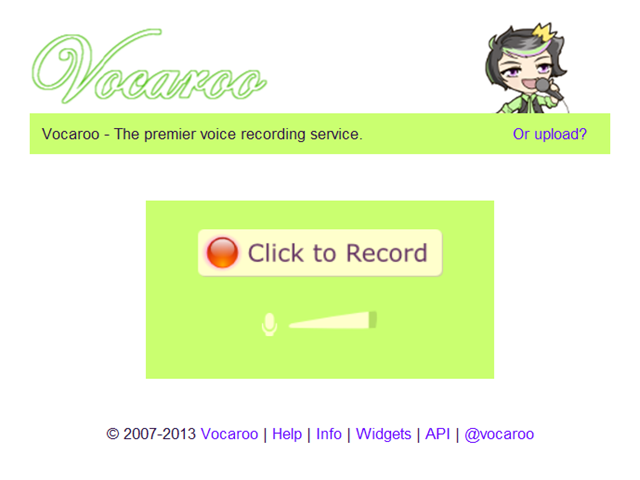
How to record your voice with Vocaroo.com
- Click the red record button:
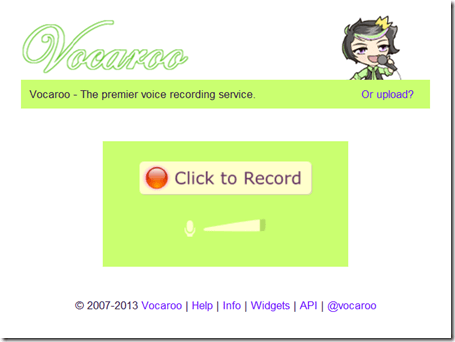
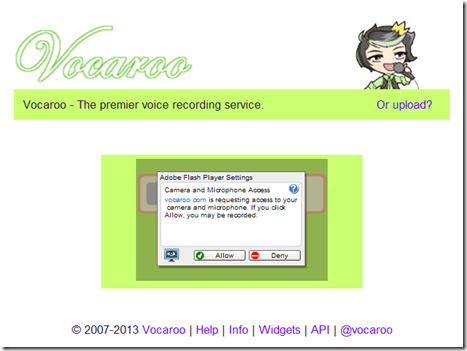
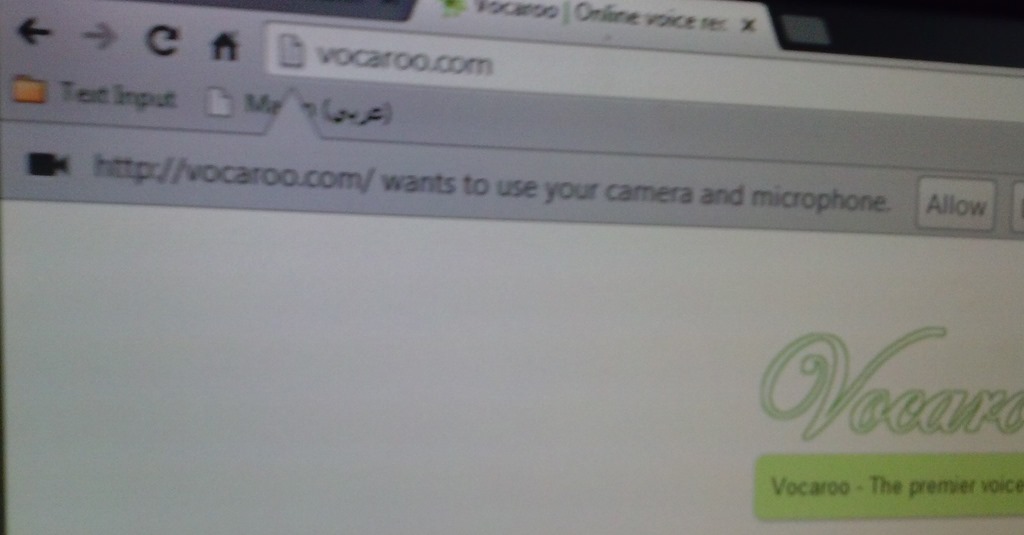
- IMPORTANT: You have to allow the web app access to your microphone (you would not want webpages be able to record you without having been asked for permission, would you?):

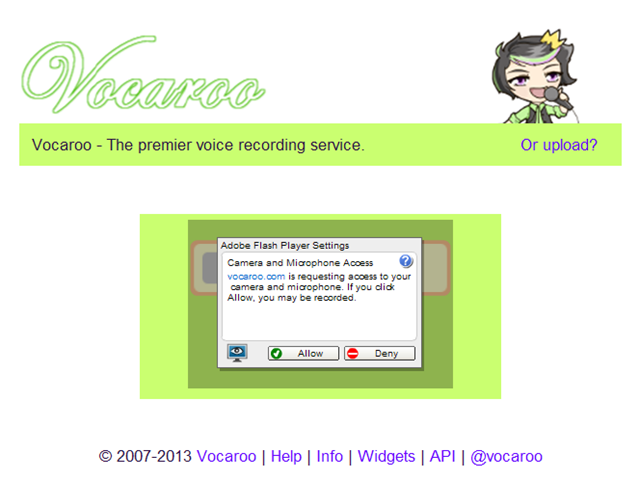
- And/or Click “allow” on this screen:
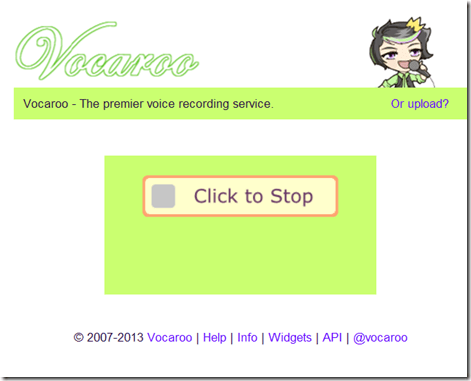
- Speak, when done, click the square stop button:
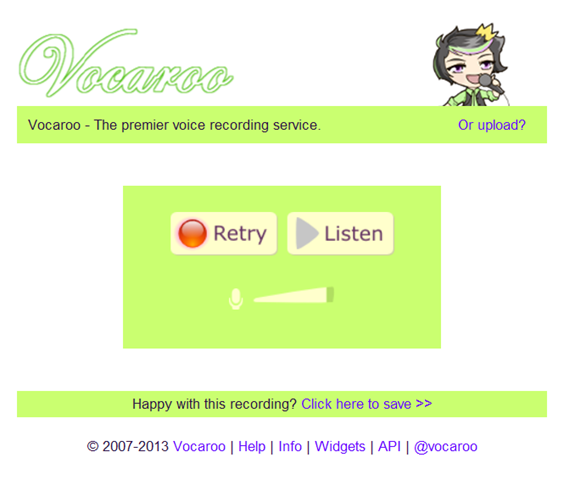
- Click the triangle to listen to your recording (if you do not see the triangle, but a warning at the bottom, have you clicked “allow ” in step 3 above? If you are not sure, press “F5” now to refresh the page, that will bring up the dialogue again for you press “allow ”):

- Listen:
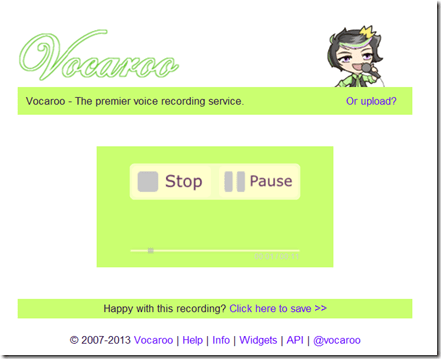
- “Save”.


Multilingual WordNet search interface
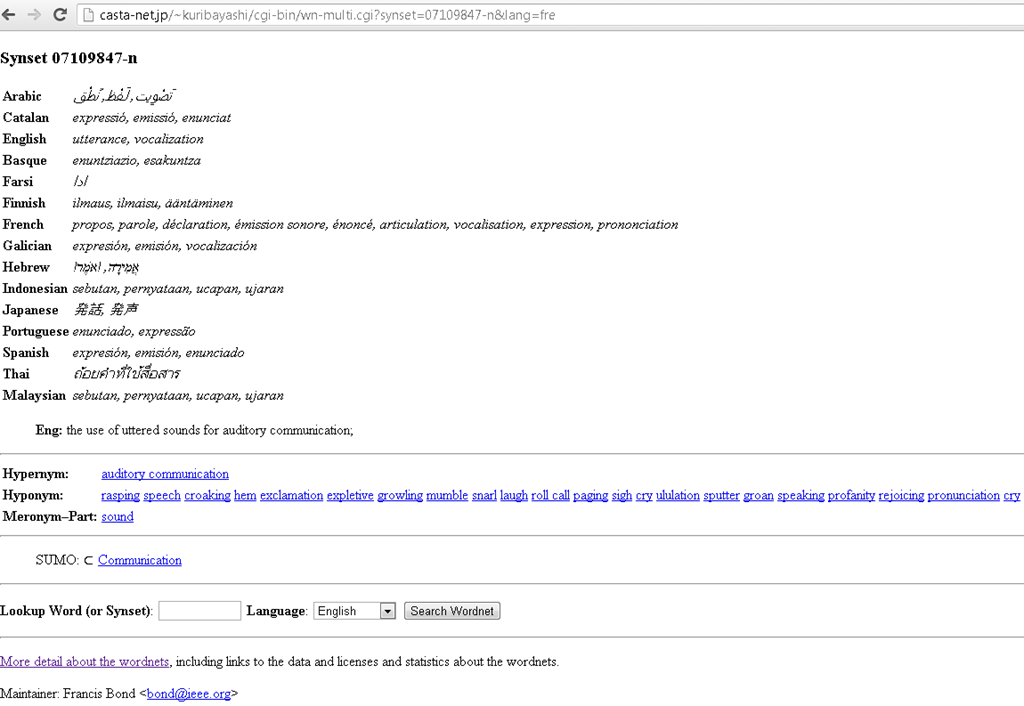
Covers a subset of the languages supported by the LRC. Based on Wordnet which is rather than a dictionary for human consumption, a machine-readable semantic network, but here is one of its machine-generated applications.
Copy/paste meetings with resource mailboxes in Outlook on MS-Exchange 2010?
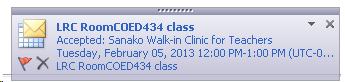
For schedules too complex to be managed in the repeating dialogue, why can I, in Outlook calendar, copy/paste meeting requests that include rooms into a new time slot, but while the new meeting appears immediately in my calendar, no update gets sent to the room unless I open the new meeting and click the button: “send” manually:
How you can fix student homework “file save errors” on Sanako Study 1200 and Windows XP
- Background: We recently got our Sanako network share permissions set up to vendor specifications, and the privileges tightened up appropriately. Fortunately, in the process of this, I was warned to make sure Windows XP has the registry key set: MoveSecurityAttributes, as otherwise XP does not update the permissions when moving files between folders:
- Symptom: Here is how this seems to have played out with Sanako ”homework” files (which get sent from the teacher to the student for writing and submitted back), specifically with files that I had:
- uploaded from my office PC (XP without the MoveSecurityAttributes key) to the Sanako teacher share
- tried to deploy as homework from the Sanako Study 1200 teacher station (also XP without the MoveSecurityAttributes key), resulting in a “file save” error:

- Additional context:
- sending files to students failed, but not to teachers;
- student had not run out of file space on the network share;
- students did not lack permissions to the Sanako network share in general;
- we did not run into issues with Sanako exam audio recordings which are sent from the student PCs to the network share.
- Resolution:
- adding HKLM\SOFTWARE\Microsoft\Windows\CurrentVersion\Explorer\MoveSecurityAttributes, DWORD ,1, to the computer the files originates from:
- first the office pc: this did not fix the issue.
- then the teacher PC: this seems to have fixed the issue:

- Here is hoping that this can fix your “file save”error also.
- adding HKLM\SOFTWARE\Microsoft\Windows\CurrentVersion\Explorer\MoveSecurityAttributes, DWORD ,1, to the computer the files originates from:
- Update: Also consult Raymond Chen’s "Wait, so does moving a file recalculate inherited permissions or doesn’t it?", and the hearty discussion that ensued.


Protected: Block common translator, webmail and/or social web sites during LRC class by loading a RUL file in Sanako Study 1200


Questions? Read the About. Or just ask me a quick Our Databases: Resources with calendars -- Language learning material Moodle Sites, multimedia files -- films


FAQs for LRC student staff or for students or for teachers. To search our FAQs, in the browser addressbar, add after "https://plagwitz.wordpress.com/feed/?tag=faqs+/" "+TAG1" (from tag cloud below) OR "https://plagwitz.wordpress.com/feed/tag=faqs
&category_name=" "CAT1" (from category hierarchy below). OR search both categories and tags, and multiple TAGs/CATs (connect with "," for OR-search, with "+" for AND-search), like so: https://plagwitz.wordpress.com/feed/?tag=TAG1+TAG2+...TAGn&category_name=CAT1
+CAT2+...CATn"
Other ways to find help
If you cannot find it here, look there: 5,500 Language-Learning Links and Programs for learning or teaching 150 languages
Shortcuts:Our Lists, Our Maps, LRC Staff Moodle Site,LRC Project Moodle Site, 49erexpress, UNCC Moodle, Student Recordings: s:claslcslrcsanakostudent
Learning usage samples: Sanako oral exam, Kaltura webcam presentation, Dictation with speech recognition, Sanako written exam, Chinese and Japanese interactive stroke-order practice
Test the Sanako Installer, Webbrowser Popup Konfigurator for XP, or Windows7, faster LRC TeacherPC Log-in Let MS facilitate diacritics writing by installing for you US-International keyboard layout
This is my personal blog (Google+). The views expressed on these pages are mine alone and not those of my employer. The information in this weblog is provided “AS IS” with no warranties, and confers no rights.

