Archive
How speech recognition speaking practice integrates with LRC activities for oral practice, assessment and ePortfolio
- My use of Windows7 Automated Speech recognition in 7 languages integrates with
- other LRC activities for oral practice, assessment and ePortfolio.
- A lower-key and more frequent homework assignment
- than our Kaltura student presentation webcam recordings NRBFS (using a URL shortener, as in http://goo.gl/NRBFS),
- and with better feedback than our voice-insert recordings with Sanako mV1DR,
- these homework assignments prepare for in-class assessments
- All except Kaltura (incompatible with Mahara) also produce language learner ePortfolio pieces.
How to change the display language and speech recognition language on Windows 8 computers
- I seem to be getting a lot of hits on this post for Windows 7 where the globalized language features are still limited to Enterprise and Ultimate SKU (and especially not available in Home and Home basic which most language learning users will work with).
- Windows 8 to the rescue, as per Steven Sinofsky’s blog post:
- Or if you need a visual step-by-step, here is me adding German to English on Windows 8.1 Professional:



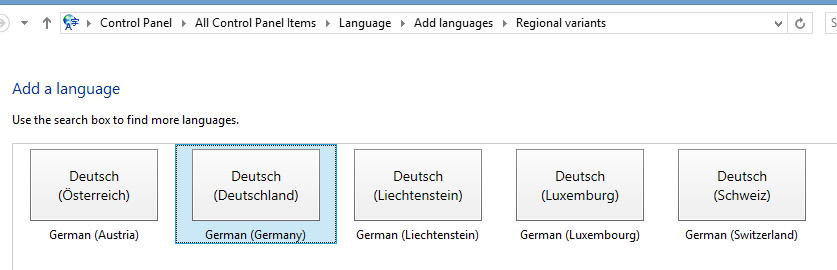
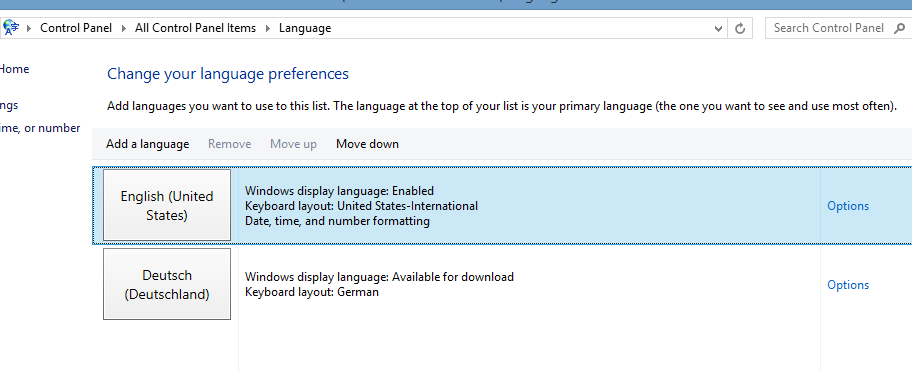

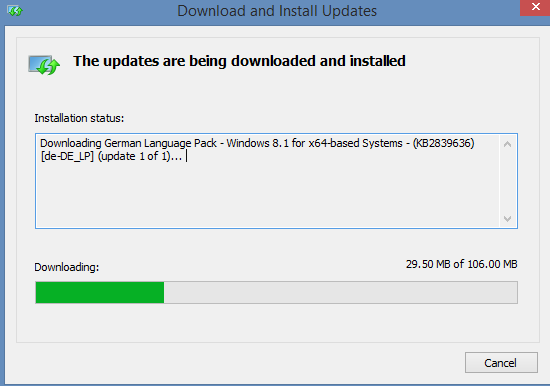


Just 1 easy option now is they input language: 
Skype video conference live machine translation –“way to go…”?
… as in “has a way to go”- there are many more such difficulties in natural language for machine translation.
These sample screenshots from a recent demo show a lot of them in a nutshell.
You can probably sense that something is wrong with this company representative’s smile, 
even if you do not speak German. If you do:
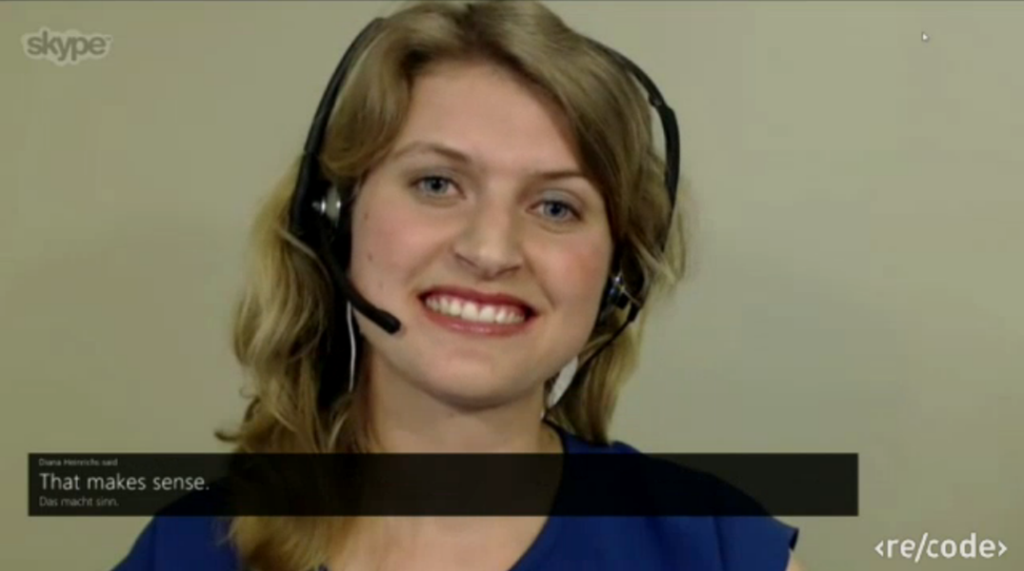
… as in “NOT!”  (Don’t forget, though, that there is an initial speech recognition layer in this demo which seems to have become almost transparent as a technology now? See Gartner’s hype cycle of 2014.)
Windows Live Spaces url forwarding still working
- It is a long time ago that I migrated my blog from Windows Live Spaces to WordPress.
- It appeared to me recently that the URL forwarding from the original web pages to WordPress which was part of the migration package that Microsoft offered, had stopped working – regrettably, since I still have old documents pointing to the original pages, and the cryptic URL naming scheme seems to make it difficult to find out where the original ULR pointed to.
- However, it seems that only some forwarding stopped working. If I reformat URL format 1 (which redirects to the WordPress homepage) to format 2, the forward still works:
Beep – beep – boop?! Cannot get classic mode to stick for editing my existing WordPress.com pages
Looks like I can get classic mode to stick by clicking on “classic mode” in the upper right of edit mode, for creating new posts.
Looks like I cannot for editing existing posts – what gives?
Best advice seems currently to edit through the “dashboard” – unacceptable to me, I often need to revise/refine posts when I browse them.
UPDATE: Well, the test-“Edit” to refine after publishing this post gave me the classic mode of editing – does it remember something? Currently, the behavior seems more like hit or miss…
UPDATE2: The edit for an old post still gets me “Beep – beep – boop” edit mode. Is it possible that the choice of “classic mode” affects only new posts after choosing?!
Update3: OK, looks like my choice of the old-style editor is being remembered now. Not sure that I did something to achieve that.
Arachne, online database for archaeology
“ARACHNE is the free [account creation required] object database of DAI and the Institut of Classical Archaeology in Cologne. It provides more than 1 Million images of finds, architecture and excavations with meta information as well as digitised historical literature” (http://www.ariadne-infrastructure.eu/Services/Online-Services: Find more information and help on this page). Example of Advanced Search start choice page: 
Continue with Einzelmotive (singular motifs) (gets you back into an English interface also – the field-specific explanation on the right certainly helps): 
There is auto-search completion/suggestion, however, it seems to work only for German, and very eclectic: 
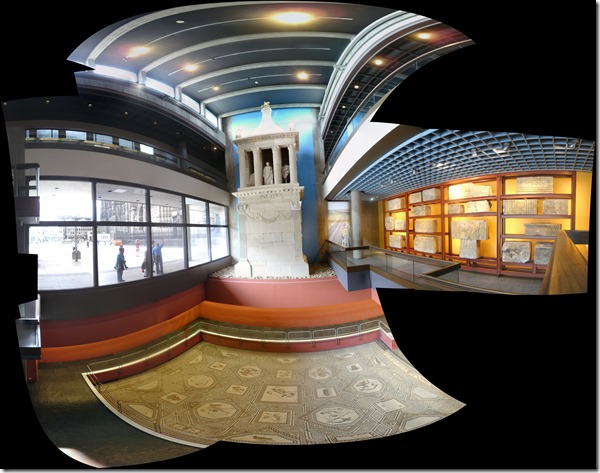
Beats having to plaster your surroundings with photos for making your own panoramas. 
How to add control of student sound/recording volume, sidetone, restart, and more to a Sanako Study 1200 environment, using the Launch Program feature and AutoIt
- UPDATE: A Windows7 (and Vista) version – which also uses a simplified deployment mechanism – is in the works, check back for a new post here.
- In refining our Sanako classroom setup, we improved the control, that the Sanako Study 1200 affords the teacher over the student clients in the computerized classroom,
- by extending the built-in Launch Program feature
- with custom-made executables (realized in AutoIt V3) that can control the volume (here on Windows XP SP3).
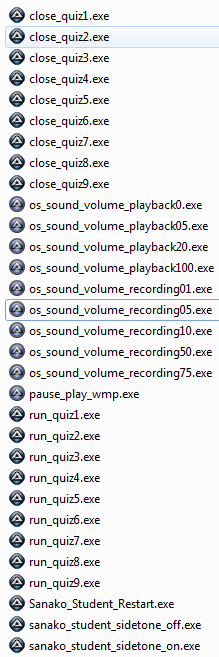
- This it how it works: Launch any of the programs (what each does is in its name) to any individual/group of students or the entire class in order to do any of these things on the student computers that the Sanako out of the box does not allow you to control, and that I often wish I could do when teaching language classes in a Sanako (or other computerized classroom management system) environment, like
- controlling the volume of what the students
- hears
- records
- turning the student sidetone (= echoing back the student microphone into the student headset) on and off
- starting/pausing Windows Media Player
- launching/closing quiz files in MS-Word
- restarting an entire (misbehaving) student applications
- controlling the volume of what the students
- Here is what we have:

- Here is how using what we have looks like:

- You can now request the download of these language lab enhancing programs, including source code, here.



Questions? Read the About. Or just ask me a quick Our Databases: Resources with calendars -- Language learning material Moodle Sites, multimedia files -- films


FAQs for LRC student staff or for students or for teachers. To search our FAQs, in the browser addressbar, add after "https://plagwitz.wordpress.com/feed/?tag=faqs+/" "+TAG1" (from tag cloud below) OR "https://plagwitz.wordpress.com/feed/tag=faqs
&category_name=" "CAT1" (from category hierarchy below). OR search both categories and tags, and multiple TAGs/CATs (connect with "," for OR-search, with "+" for AND-search), like so: https://plagwitz.wordpress.com/feed/?tag=TAG1+TAG2+...TAGn&category_name=CAT1
+CAT2+...CATn"
Other ways to find help
If you cannot find it here, look there: 5,500 Language-Learning Links and Programs for learning or teaching 150 languages
Shortcuts:Our Lists, Our Maps, LRC Staff Moodle Site,LRC Project Moodle Site, 49erexpress, UNCC Moodle, Student Recordings: s:claslcslrcsanakostudent
Learning usage samples: Sanako oral exam, Kaltura webcam presentation, Dictation with speech recognition, Sanako written exam, Chinese and Japanese interactive stroke-order practice
Test the Sanako Installer, Webbrowser Popup Konfigurator for XP, or Windows7, faster LRC TeacherPC Log-in Let MS facilitate diacritics writing by installing for you US-International keyboard layout
This is my personal blog (Google+). The views expressed on these pages are mine alone and not those of my employer. The information in this weblog is provided “AS IS” with no warranties, and confers no rights.
 Thomas' Work Space
How to get Square brackets (and hide comments) with ISO690 in Word 2013 bibliography styles
<!– trp: –>
[
–>
ISO 690YOURNAMEHERE