Archive
Archive for the ‘headphones’ Category
LRC headset test on iMacs
2014/01/02
Leave a comment
- Logon to the iMac.
-
Double click Macintosh HD.
-
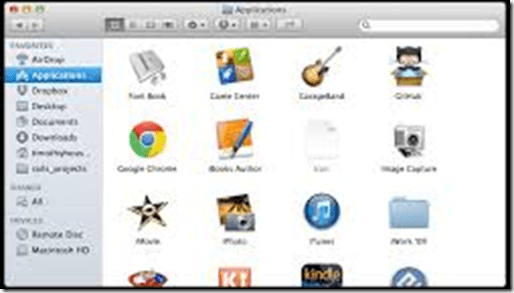
Click Application.
-
Find Garage band and double click it.
-
-
Save the file to the desktop
-
Press record

-
Speak into the microphone; then tab the microphone with your finger several times, to make sure you are recording through this source.
-
Stop then play
-
If there is no sound or you cannot hear anything, go to the Apple menu

-
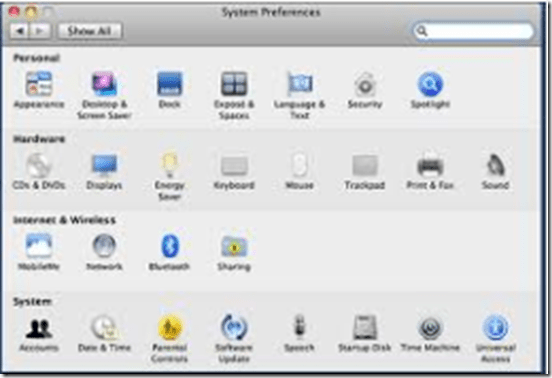
and click system preferences
-
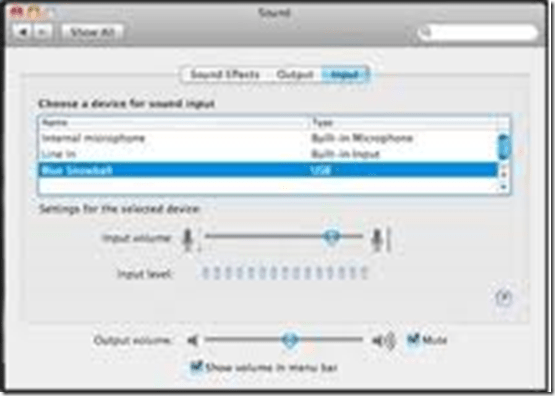
Click sound then select the output tab
-
-
Choose the usb option
-
Select the input tab then again choose the usb option
-
Close system preferences
-
Try again to record then listen.
-
Still not working? Check the iMac headset hardware , as described here: LRC routine walkthrough for iMacs and printer.
-
If it still does not work, report Computer # on clip board.





Testing and semi-automatically changing the Sanako student audio configuration
2013/12/09
Leave a comment
- Problem
- We have had teacher complaints about too much background noise from neighboring students being recorded in our Sanako Study 1200, with SLH-07 headsets.
- In addition, upon looking through some recordings as samples for a workshop, I found cases of clipping audio, especially in pair recordings.
- We are using the default settings for the Sanako SLH-07 headset. However, the default recording level (67) seems high.
- Solution approach
- We need to test
- many other settings quickly for these recording levels. We use my sanakoaudioconfigonthefly utility for this
- in an acoustically realistic environment: 5 Lab assistants site in tight lab area and read out sample English text during a Sanako reading activity
- Reading practice
- Todo: Pairing
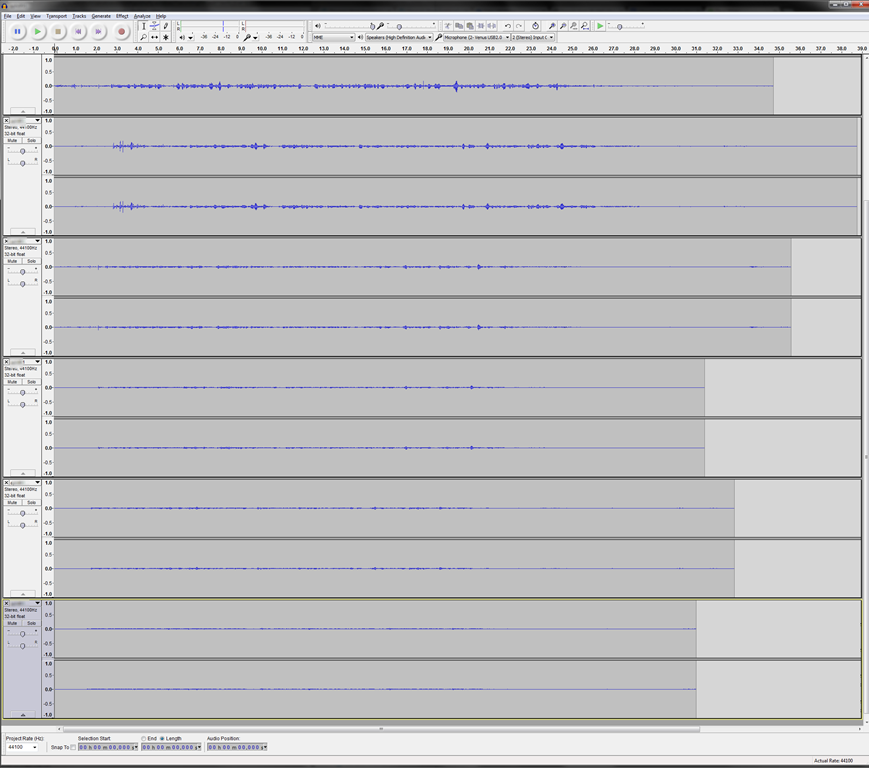
- Here is a “window” into the recorded results set, a student’s audio recording shown in Audacity at various (but all lowered) recording levels from (visible) 30 to 5, you can see the diminishing waveform amplitude.

- The waveform per se is not conclusive. You will have to listen in and compare, especially to evaluate background noise (the original complaint – we have no and will not be able to go back to language lab carrels). The Sanako SLH-07 headset microphones are supposed to be highly directional. However, our students to not always wear the headsets properly. And our acoustics is marred by large (almost 50%) window spaces and a tight positioning of the student seats.
- Any test recording is only as good as it can mimic the acoustics during an actual class session which we did as much as we could with only 6 concurrent LRC staff. This means unfortunately some more testing will have to spill into actual classes, but this test is a start.
- We need to test
Static noise on sanako headsets
2013/11/08
Leave a comment
We seem to have one of these outages in ever class recently. Not sure, whether it is the hardware – the headphone seems not always have static, but frequently. What would be a good way to test this before class, or – to not have to log in individually on all lab computers – at beginning of class?
Categories: digital-audio-lab, Glitches&Errors, hardware, headphones
sanako-slh-07, sanako-study-1200
A few thoughts on headphones for the language lab
2013/10/28
Leave a comment
- Analog (3.5mm connector): the traditional way; still cheaper.
- Digital (USB connector): comes with its own soundcard – potentially better compatibility, especially with software form the same vendor (digital audio labs)
- Sanako SLH-07 has long connectors that stick out too much for our purposes. Students have broken them open inadvertently with their backrests of their chairs. But you can defuse this risk with a simple male-female USB extension cord (disadvantages: extra cost, extra layer of items to be managed and extra connection that can break…)
- Sometimes there is (intermittent or permanent) static on startup – must be some driver loading error. Restart the computer.
- Sans SHS-100 (for the Sony Virtuoso) have short connectors. I have only briefly tested a Sony headset, seemed fine.
- For any USB headset, I recommend having the built-in analog audio card that comes with the computer disabled (normally done in the BIOS). Again: more options means here more failure points and more confusion and distraction from language learning.
- Sanako SLH-07 has long connectors that stick out too much for our purposes. Students have broken them open inadvertently with their backrests of their chairs. But you can defuse this risk with a simple male-female USB extension cord (disadvantages: extra cost, extra layer of items to be managed and extra connection that can break…)
- For either analog or digital:
- Less is more. Volume control and mute are available through software. duplicate that, and you multiply potential for error, confusion and troubleshooting. Also, what is not there, cannot break.
- Light headsets may be fashionable, but, in a shared “lab”environment, what about
- sound insulation in a , now that the cubicles are long gone (outside of professional interpreter facilities)?
- ruggedness? I recommend buying headsets that have as few movable parts as possible, especially not the microphone boom: short circuits will ensue in no time (case in point: Sanako and Sony have zero moving parts)
- connect your headsets on the rear – out of the way and out of reach (and secured, cable-tied: to avert theft, but also “troubleshooting” by troublemakers).
Categories: e-languages, hardware, headphones
How to quickly check if onboard audio is disabled on student PCs with Sanako headsets
2013/07/05
Leave a comment
- Sanako Study 1200 works best with its own Sanako SLH-07 headsets (they include a USB soundcard). When using these, it is best to completely disable the analog or other sound chip/card that came with your system (onboard). Usually, you can do this in the BIOS.
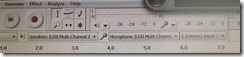
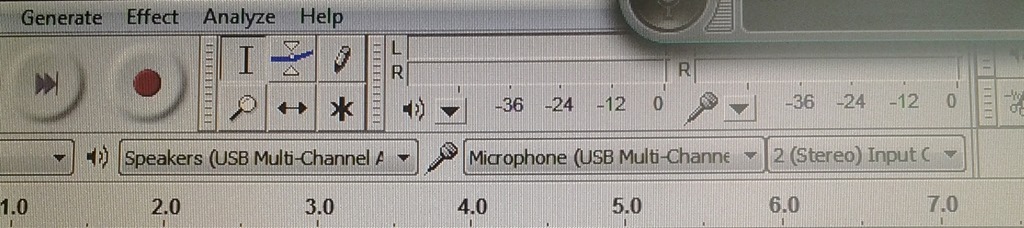
- Before you venture in there, an easy check on which computers is necessary is possible thanks to Audacity displaying the sound card options: Start Audacity form the desktop and look in the dropdowns under the top menu which sound devices Audacity has detected on the system:
- This example is form a PC where I had to fix it:
 . Audacity should not see the SoundMax if it has been disabled in the BIOS.
 - And this is what audacity should see (the USB sound card that comes with the Sanako SLH-07):
- This example is form a PC where I had to fix it:

Make life simpler in the language lab by disabling extra audio panels
2013/05/10
Leave a comment
- Problem: Having multiple audio panels enabled can led to too many options = sources of errors and confusion.
- Software (e.g. Saba Centra) may defaults to different audio panels (front “Microphone” preferred over a “Rear Input” that can be used as a Microphone and is the preferred device in your lab (for security, safety and ergonomic reasons).
- Students may make erroneous assumptions and try to reconfigure the PC audio by plugging cables into a different outlet.
- ESP Panel software detects plugging in of devices and asks users to identify whether microphone or line-in device has been plugged into rear input which confuses our users even more.
- Software configuration: On Dell Optiplex 760 under Windows 7 , you can
- run mmsys.cpl,
- go to tab:“recording” devices
- to disable the front panel input microphone:
- select “microphone”(that is the front input)
- right-click and choose “disable”:

- result:

- right-=click and uncheck “show disabled devices”
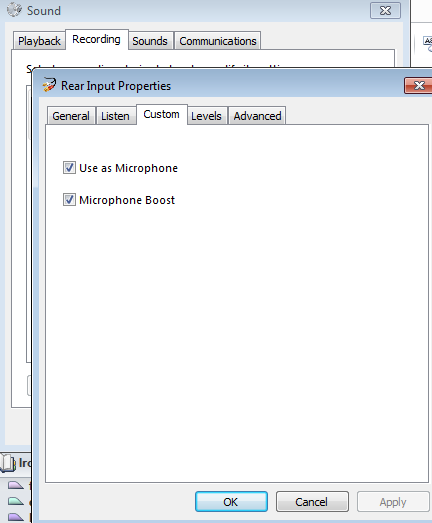
- to configure the “rear input”:
- select and click “properties”

- go to tab “custom” (may require having an add-on driver installed, consult the DELL driver update utility)
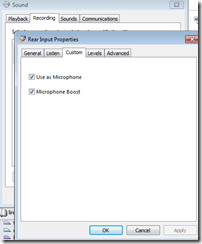
- check “use as microphone”
- check (optional, recommended): “microphone boost”
- select and click “properties”
- “Ok” out of all mmsys.cpl dialogues and (for good measure) restart computer.
- Test your software configuration to work (listening, recording) with the applications used in your lab:
- Sanako student recorder
- Saba Centra
- Audacity
- Voicethread
- Moodle: Audio and Kaltura (even though no webcam)
- Etc.?
- Hardware configuration
- Plug your headset microphone and speaker into the rear audio panel. Tie the microphone cable down with a cable tie. Students have managed to pull the cable through the cable tie, so tie the cable into a knot around the cable tie to prevent that
- Tape (plastic that student cannot push a plug through easily) over the front audio panel and put a label on top: “Do not use! Get help at desk!”. Instruct your help desk student staff.


How to conduct a Sanako Study 1200 functionality test before oral exams
2012/10/30
Leave a comment
- Why? Before high-stakes oral assessments, it is best practice to test the functionality of all computers in the digital audio lab.
- How?
- Log into 2 computers with your own account (these will serve as a backup computers. Should you need backup computers later, there will be no delay waiting for them to start up and become operational).
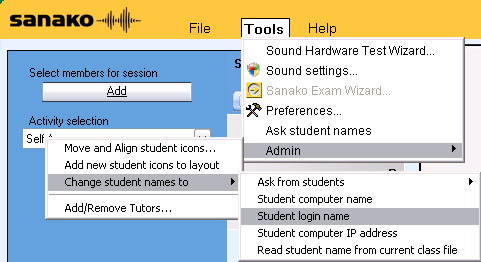
- Change Sanako classroom layout names to computer or position name (whatever makes it easier for you to identify any non-functioning machines).
- If you are doing this for a first time with a class, load your test exam audio into Audacity and display the voice graph to students on a projector. This way you make sure that students understand from the voice graph that they are supposed to
- hear an instruction over the headphones and
- respond to the instruction by saying their names into their microphones.
- Perform a name-test recording using Sanako activity:”Model imitation”and examine the results:
- Make sure the Sanako collection folder opens – meaning all student recordings could be collected. If not, identify the offending positions from the Sanako collection dialogue and open the folder with the remaining collected recordings manually from the Sanako collection dialogue
- Drag the recorded files into an empty Audacity window and examine the collected recordings visually, plus, where in doubt, aurally, by clicking “solo” and play on the track in question.
- React accordingly:
- If some positions show problems, move students to one of the backup machines that you logged into earlier.
- move backup machines not needed to a different session by right-clicking on their classroom layout icon.
- if more than one backup machine is indeed needed, Sanako – since it is you who are logged in on both – will ask you later for permission to number collected files for duplicate students sequentially. Allow that and rename the files manually.
- Don’t forget to change Sanako classroom layout names back to student login name.
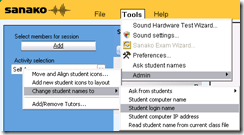 . Or else here is how you can later recover student recordings by student login names.
How to fix “no audio” on the computers with black Sanako headsets
2012/10/10
Leave a comment
- First, show the Sanako student application (e.g. from button:Start / Student).
- Is the Volume Control slider set to 0? Move it up where it says “Adjust volume”:

- Still hear no audio playing on the black Sanako headsets? Then the volume slider was likely moved to 0 since the headset was not detected: On the rear of the computer, check the connection
- of the blue headset plug into the USB extension cord, and
- of the extension cord into the rear of the computer.



Questions? Read the About. Or just ask me a quick Our Databases: Resources with calendars -- Language learning material Moodle Sites, multimedia files -- films


FAQs for LRC student staff or for students or for teachers. To search our FAQs, in the browser addressbar, add after "https://plagwitz.wordpress.com/feed/?tag=faqs+/" "+TAG1" (from tag cloud below) OR "https://plagwitz.wordpress.com/feed/tag=faqs
&category_name=" "CAT1" (from category hierarchy below). OR search both categories and tags, and multiple TAGs/CATs (connect with "," for OR-search, with "+" for AND-search), like so: https://plagwitz.wordpress.com/feed/?tag=TAG1+TAG2+...TAGn&category_name=CAT1
+CAT2+...CATn"
Other ways to find help
If you cannot find it here, look there: 5,500 Language-Learning Links and Programs for learning or teaching 150 languages
Shortcuts:Our Lists, Our Maps, LRC Staff Moodle Site,LRC Project Moodle Site, 49erexpress, UNCC Moodle, Student Recordings: s:claslcslrcsanakostudent
Learning usage samples: Sanako oral exam, Kaltura webcam presentation, Dictation with speech recognition, Sanako written exam, Chinese and Japanese interactive stroke-order practice
Test the Sanako Installer, Webbrowser Popup Konfigurator for XP, or Windows7, faster LRC TeacherPC Log-in Let MS facilitate diacritics writing by installing for you US-International keyboard layout
This is my personal blog (Google+). The views expressed on these pages are mine alone and not those of my employer. The information in this weblog is provided “AS IS” with no warranties, and confers no rights.
 Thomas' Work Space