Archive
Archive for the ‘Institution-is-any’ Category
Delete the Flash Global Settings if the iMacs webcam displays black frame only
2012/10/11
Leave a comment
- Problem: Safari and (not recommended after last testing round) Firefox both hung on iMAC6 when a student tried to do a Moodle Kaltura Webcam assignment and got to the built-in ISight camera display page.
- Cause: maybe a Flash security problem accessing the web cam? maybe security dialogue was not answered by the student correctly earlier, and the “preference”stored in her account?
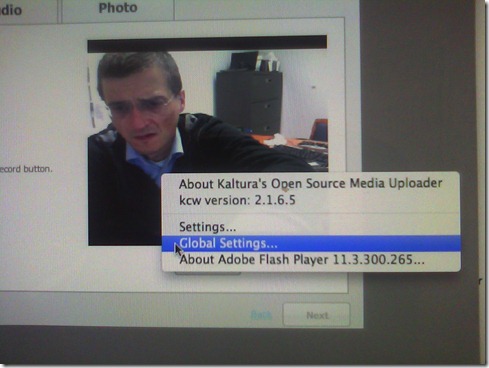
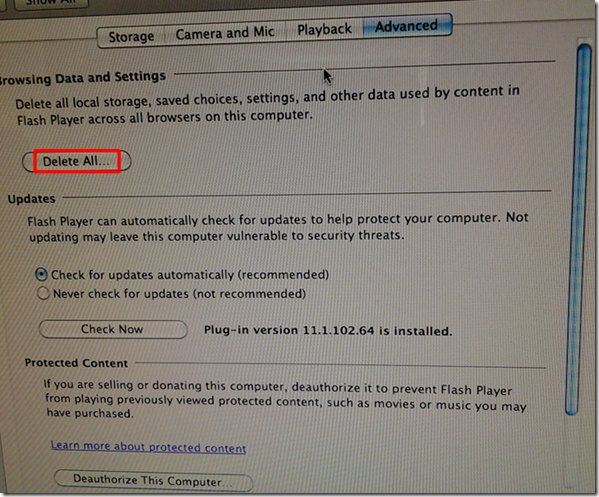
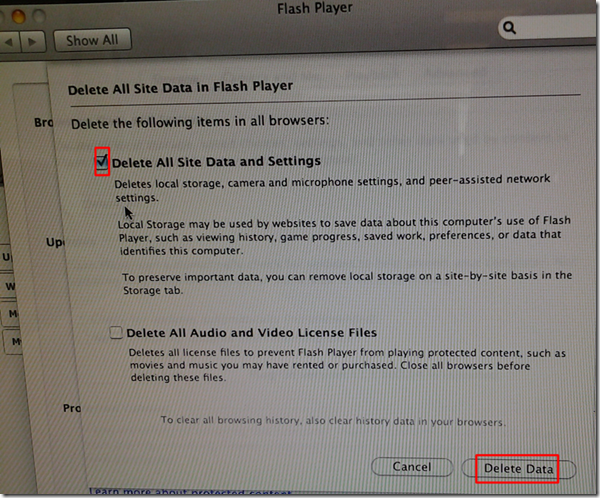
- Solution (presumably): System started working again after I deleted the Flash Global settings, by right-clicking on the webcam video preview window like so:
-
- Ceterum censeo that we need a computer management infrastructure if we want to use MACs for language learning technology. Faronics-Deepfreeze would have prevented this problem, provided we have a software imaging system (CASPER coming up apparently) that can let us start with a usable image, and the staff time to learn and configure 2 usable OS images and dual usable computer management infrastructures. TCO now > TCO dual OS infrastructure > TCO web cams for 45 PCs.


How the LRC provides volunteer tutoring services
2012/10/10
Leave a comment
- The volunteer tutor student gets a tutor calendarto publicize her services (non-personal information only) online.
- The LRC assistants at the LRC reception desk will train and set up the tutor initially. If the volunteer tutor needs more practice in using her NINERMAIL calendar than her initial training provided her with, she can come in and log in for the LRC assistants at the LRC reception desk and the LRC assistants will guide her. During LRC opening hours, at any time we have 3 computers and 2-3 LRC assistants staffing the LRC reception desk which is right next to the group rooms where the volunteer tutors work, so there should be minimal delay and overhead with maximum administrative benefit.
- From then on, the volunteer tutor is in charge of her own tutor calendar. If the volunteer tutor needs to announce changes, the volunteer tutor goes to NINERMAIL, section: calendar, and
- for single cancellations, deletes her appointment, like so: http://plagwitz.blob.core.windows.net/content/lrc/owa-cancel-by-rightclick-delete-appointment.html
- for changing the schedule, opens her old appointment (series), cancels it (only future occurrences) and creates her new altered (recurring) appointment, like so: https://thomasplagwitz.com/2012/01/10/how-to-make-changes-to-a-meeting-request/
- The volunteer tutor logs in and out of her tutor calendar appointment, whenever she starts/ends her tutoring hours, so that the LRC assistants at the reception desk can check her in and out of the LRC (LRC Assistants have a special program for this), and so that she can enter a summary of whom she tutored and on what. A the end of the term, the LRC coordinator can provide tutor supervisors with a report on the tutoring log collected this way.
- To maximize learning and minimize missed connections, bottlenecks and delays throuhg intermediaries – including tutor supervisors and LRC staff -, the volunteer tutor – the authoritative source of her tutoring time – can communicate directly through http://mail.uncc.edu/owa/calendar/LRCTutor01@uncc.edu/Calendar/calendar.html (sample only, for actual Tutor## see https://thomasplagwitz.com/?tag=lists+resources), with her stakeholders:
- the tutees who need to know her tutorung times, can communicate directly via
- the tutor supervisors, who, if they do not approve of the live or end-of-semester report tutor schedule, can let the tutor know, by asking her to change her time, deny her credit, not rehiring her…
- Currently, all tutoring is walk-up only. Enabling tuteees to sign-up for tutor help to avoid pile-ups is still TBA. If you would like to see sign-up tutoring implemented, please drop us a line explaining how this would be helpful for you.
- As far as the LRC is concerned:
- Tutors have to be within the within the opening hours of the LRC: http://mail.uncc.edu/owa/calendar/LRCRoomCOED434@uncc.edu/Calendar/calendar.html.
- The LRC being increasingly busy with classes, exams, self-access assessments and distance education sessions these days, we also require all tutors to include one of the group rooms in the box “resources:” LRCRoomCOED433c, LRCRoomCOED433d of their tutor calendar meeting request. Doing so will secure the tutor and tutee a convenient work place.
- Summaries of our tutor training in LRC language learning technology facilities are available here: https://thomasplagwitz.com/?category_name=service-is-tutoring+training.
MyGermanLab shortlinks and step-by-step chapter test for GERM1201, GERM1202 classes
2012/10/10
Leave a comment
- Using Internet Explorer, go here: goo.gl/JUSUC.
- Log into MyGermanLab.
- to open your test:
-
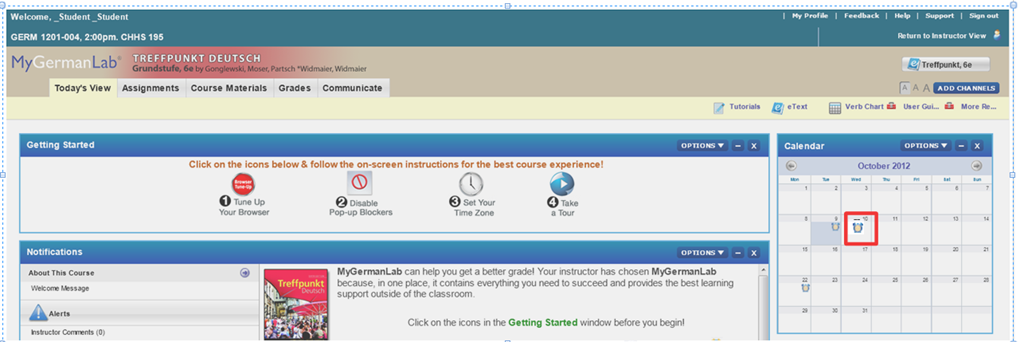
- Click on the assignment for today on your assignment calendar to the right:

- if your test does not show as assignment in the calendar (Update for proctored make-up exam: this applies espeially to you), go to the top tab: “course materials”“. Hold the CTRL key and click on the assignment
- either in the list on the right or
- at the bottom in the list on the left.
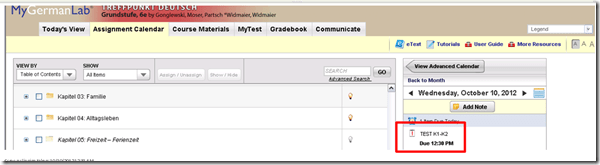
- if your test does not show as assignment in the calendar (Update for proctored make-up exam: this applies espeially to you), go to the top tab: “course materials”“. Hold the CTRL key and click on the assignment
- Enter the password that you will be given during the exam in the LRC:
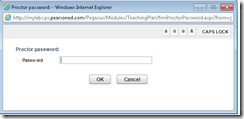 , hold the CTRL key and click button: “OK”.
 - Click button: “start”.

- Click through the pages until it tells you you have “submitted” the test.
- Click on the assignment for today on your assignment calendar to the right:
- to handle multimedia:
- Use the headsets hanging behind the screens for questions that require listening/speaking.
-
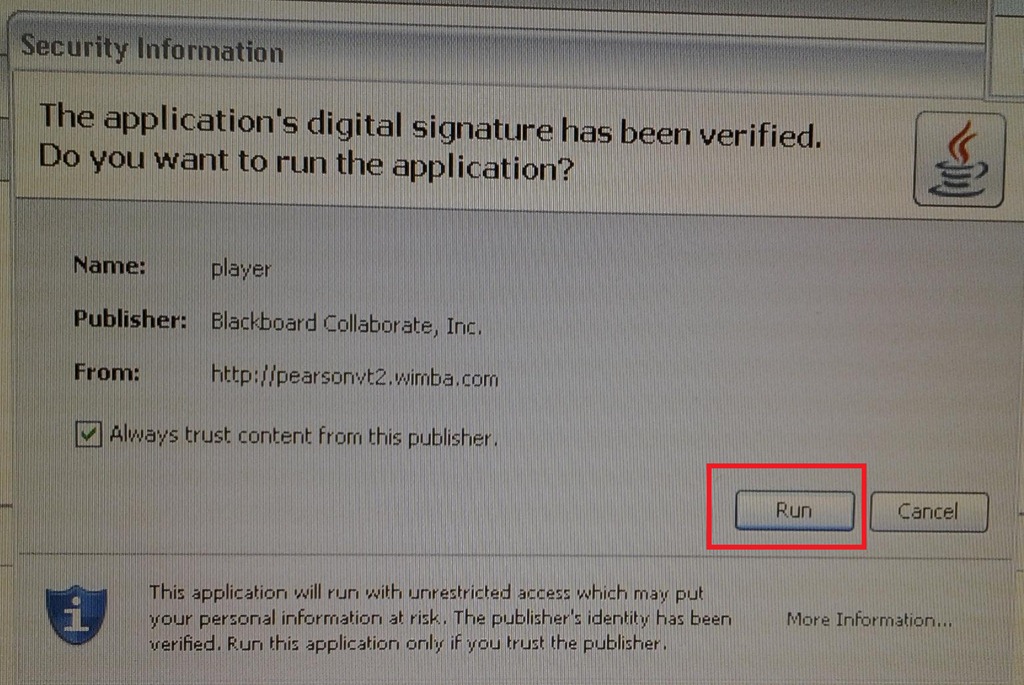
When you load the audio player or audio recorder, you will see a dialogue like these, click button: ”Run” or “Trust”:
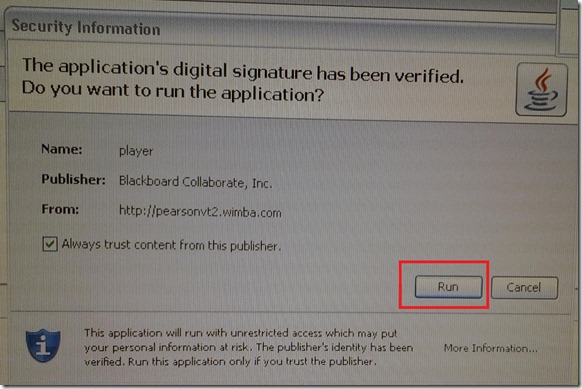
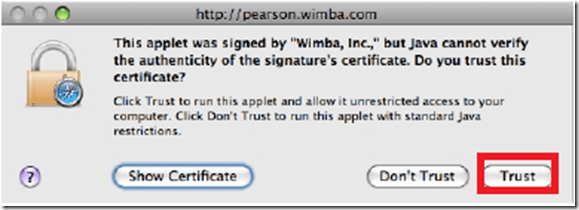
- There is a step-by-step guide on how to record here.
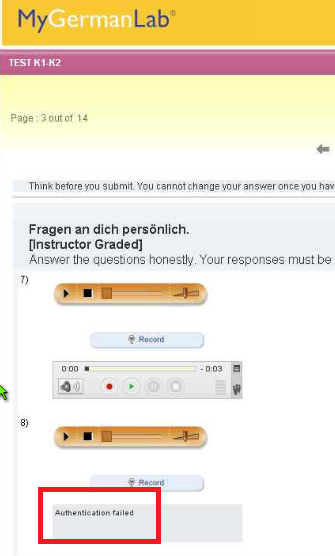
- If you get an error for the audio recorder saying “Authentication failed”, keep calm and carry on, your recording is not lost, you only cannot review it anymore:
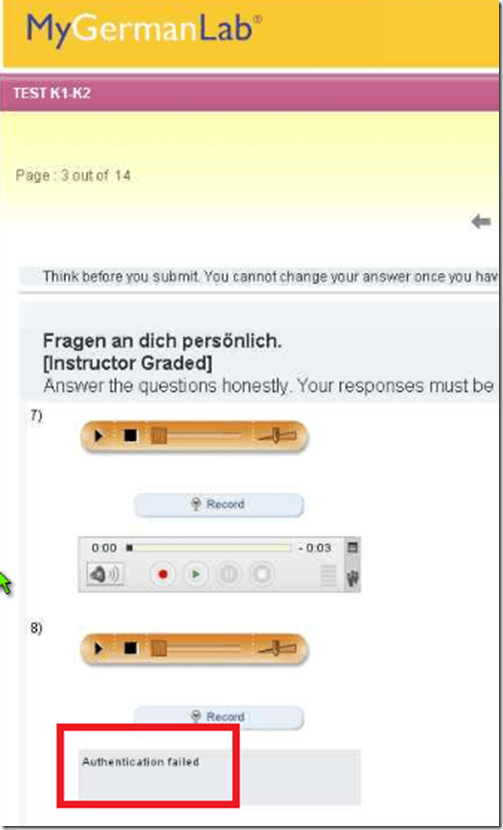
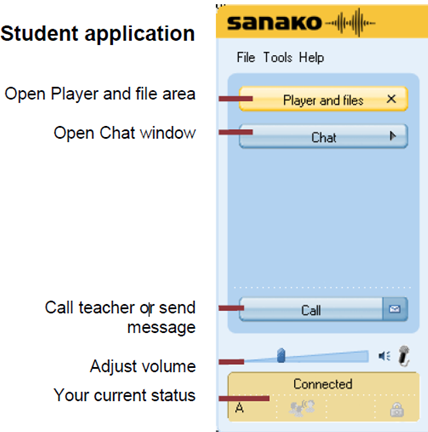
- If you have a question, do not disturb others. Rather put your headsets on and get in the queue by clicking button: “Call” in this window
 . Your call will be answered shortly.
- Please be advised that this exam is
- proctored and that your screen can be seen by the proctor at any time.
- randomized, so that your neighbors’ screen will most likely display your current test question at a quite different time.



Why MS-OneNote may let you run out of storage space here
2012/10/04
Leave a comment
I am running into out of file space issues in a number of applications. Turns out that OneNote is the culprit, but it is not obvious from the OneNote Save & Backup why: 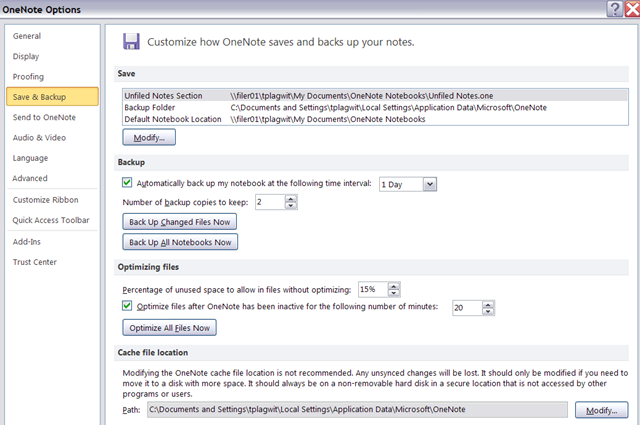
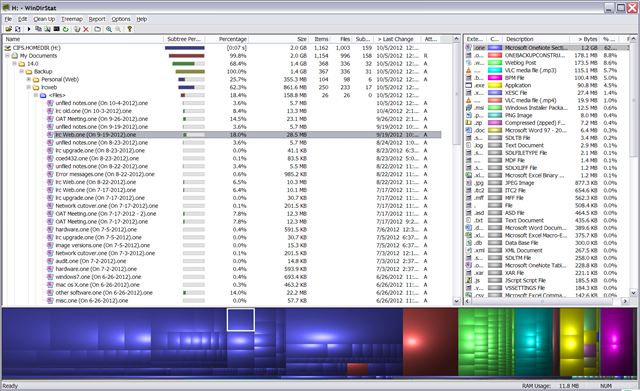
The Reason is that Application Data\Microsoft\OneNote gets redirected to the personal network drive:\My documents folder, the disk quota for which is limited:
No audio on listening stations and group rooms, and workaround
2012/09/26
Leave a comment
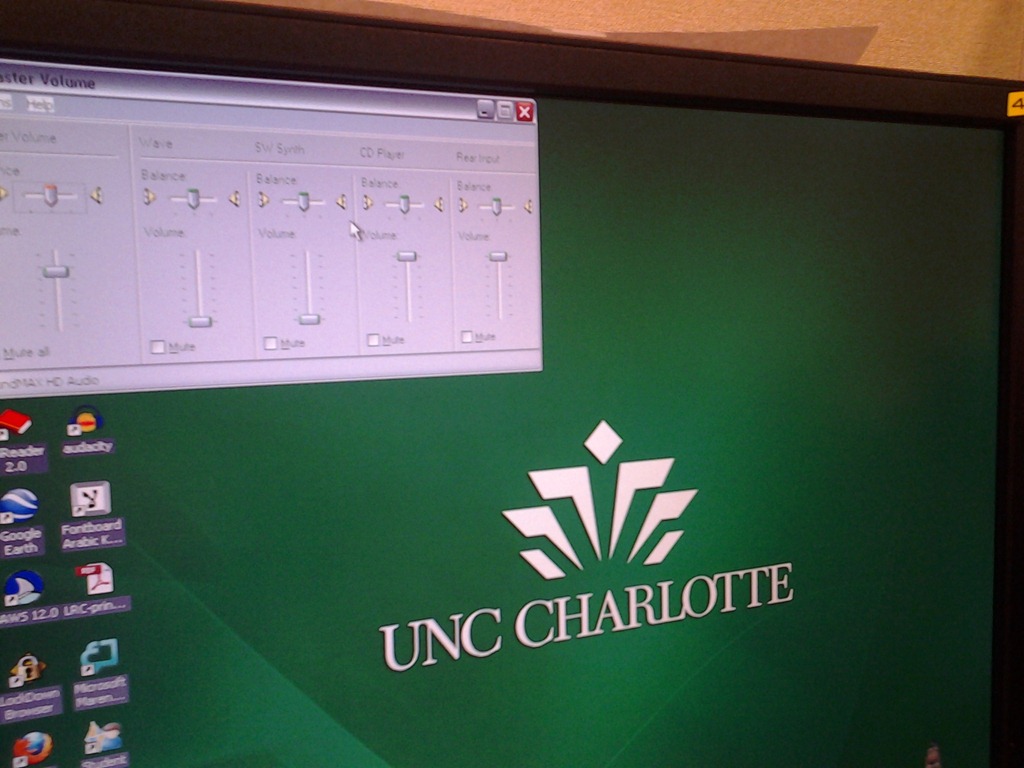
- Symptom: Headsets work (test feedback by putting microphone near headset speakers), but audio files from internet do not play with sound.
- Cause: having to support 2 different kinds of headsets (USB with built-in soundcard versus traditional analog) in one PC software image.
- The workaround
- for temp staff is to start / run / sndvol32.exe and up the low volume sliders here:

- for permanent staff is to unfreeze any computers that have been missed previously
 and put this script into the all users startup folder now: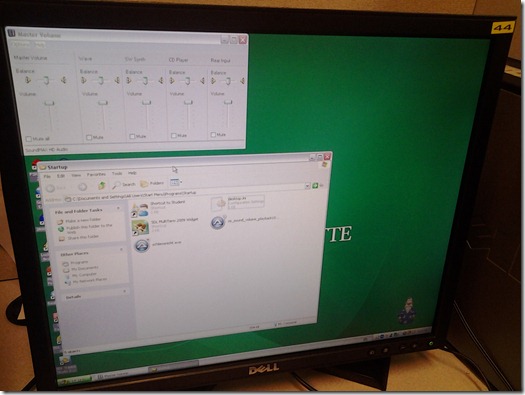
- The solution: standardize on USB headsets when you get a chance.


Categories: audience-is-language-learning-center-staff, audience-is-language-learning-center-temp-staff, e-infrastructure, Institution-is-University-of-North-Carolina-Charlotte, Listening-Stations, service-is-it-managing, service-is-testing-troubleshooting-debugging, small-group-work-spaces
audio, FAQs
How to link your LRC tutor calendar and Moodle metacourse from your Moodle course
2012/09/26
Leave a comment

Protected: Why does the autoaccept-agent not send messages from on-premise equipment mailboxes to students in the Office365/live@edu cloud?
2012/09/19
Enter your password to view comments.


Questions? Read the About. Or just ask me a quick Our Databases: Resources with calendars -- Language learning material Moodle Sites, multimedia files -- films


FAQs for LRC student staff or for students or for teachers. To search our FAQs, in the browser addressbar, add after "https://plagwitz.wordpress.com/feed/?tag=faqs+/" "+TAG1" (from tag cloud below) OR "https://plagwitz.wordpress.com/feed/tag=faqs
&category_name=" "CAT1" (from category hierarchy below). OR search both categories and tags, and multiple TAGs/CATs (connect with "," for OR-search, with "+" for AND-search), like so: https://plagwitz.wordpress.com/feed/?tag=TAG1+TAG2+...TAGn&category_name=CAT1
+CAT2+...CATn"
Other ways to find help
If you cannot find it here, look there: 5,500 Language-Learning Links and Programs for learning or teaching 150 languages
Shortcuts:Our Lists, Our Maps, LRC Staff Moodle Site,LRC Project Moodle Site, 49erexpress, UNCC Moodle, Student Recordings: s:claslcslrcsanakostudent
Learning usage samples: Sanako oral exam, Kaltura webcam presentation, Dictation with speech recognition, Sanako written exam, Chinese and Japanese interactive stroke-order practice
Test the Sanako Installer, Webbrowser Popup Konfigurator for XP, or Windows7, faster LRC TeacherPC Log-in Let MS facilitate diacritics writing by installing for you US-International keyboard layout
This is my personal blog (Google+). The views expressed on these pages are mine alone and not those of my employer. The information in this weblog is provided “AS IS” with no warranties, and confers no rights.
 Thomas' Work Space