Archive
Archive for the ‘step-by-step-guides’ Category
Refine your pronunciation by operating the LRC Windows 7 PCs using voice commands
2012/08/20
Leave a comment
- No speech recognition assignment, and only a bit of spare time to practice the language you study in the LRC? Try the Command mode with these Try the Command mode with these voice commands that Windows 7 speech recognition recognizes
- Note there are some hoops to jump through, including some one-time setup: We have them/you covered in this step-by-step guide on using speech-recognition in the LRC
.
How to change the display language and speech recognition language on LRC Windows 7 computers (and which languages are available)
2012/08/15
Leave a comment
- UPDATE: Since this page seems to be getting a lot of hits, I want to clarify: The step-by-step guide below only applies after you installed (free) language (or language interface) packs (see list here) on Windows 7 Enterprise or Ultimate SKU (others SKUs cannot add multiple language interfaces). UPDATE2: Things got much easier with Windows 8.
- In order to
- view the GUI of Windows and Internet Explorer in a foreign language,
- use the speech recognition in (a subset of the below) foreign languages,
- and also switch the default language of MS-Office
- Double-click the desktop shortcut “Region and language – Keyboards and languages”.
- Select the desired language from the dropdown box, click “OK”.

- Click: “Log off now”:
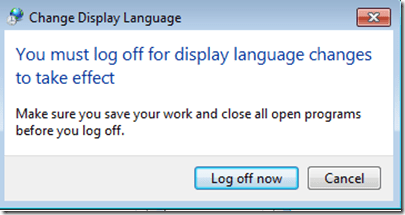
- “Log back in” (without restarting).
- And if you want the available display languages in English,
- here are the fully supported (MS Language packs):
Language Native name Arabic العربية Chinese (Simplified) 中文(简体) Chinese (Traditional) 中文 (繁體) English English French français German Deutsch Greek Ελληνικά Hebrew עברית Italian italiano Japanese 日本語 Korean 한국어 Polish polski Portuguese (Brazil) Português Portuguese (Portugal) português Russian Русский Spanish español - and here the partially supported (MS-Language Interface packs):
Hindi हिंदी KiSwahili Kiswahili Persian (Farsi) فارسی Yoruba ede Yorùbá - And here are the languages that support speech recognition:


Categories: Arabic, documentation, e-languages, English, French, German, Greek (modern), Hebrew, Hindi, Italian, Japanese, Korean, Mandarin, office-software, Operating-system, Polish, Portuguese, Reading, Russian, Spanish, Speaking, step-by-step-guides, Uncategorized, web-browsers, Writing
language-interface-packs, language-packs, office-2010, speech-recognition, windows-7
How to do successful Moodle-Kaltura webcam recording assignments
2012/06/29
Leave a comment
Kaltura turned out to have a number of limitations, and we have some of our own in the LRC. Both required some debugging and finding of workarounds, which you can benefit of if you follow carefully our step-by-step guides for teachers or for students.

Spring 2012 Faculty Workshop II: Oral Proficiency testing with Audacity/Sanako
2012/04/30
Leave a comment
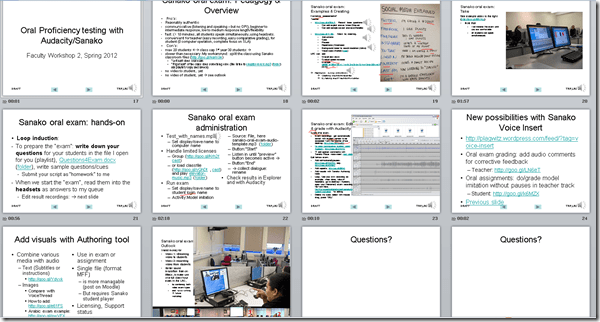
- View screens (best viewed side by side, but note that left and right screen are not synchronized):
- for full slide show (note the included short links for convenient further reading), left screen

- for Sanako interface and full audio track, right screen
 .
.
- for full slide show (note the included short links for convenient further reading), left screen
- Table of contents:
- Overview of a Sanako Oral Exam
- Examples of Exam teachers’ exam question recordings
- Example of a Sanako Exam
- Loop induction
- creating an exam question recording
- by taking a Sanako exam as a student
- Step-by-Step of administering a Sanako oral exam
- Grading Sanako oral exam student files
- Sanako voice insert for
- facilitating recording oral assignments for student without hard-coded pauses
- commenting on student responses during grading
- Sanako voice insert for
- Sanako authoring tool for providing visual on top of aural cues to students

Categories: Absolute-Beginner, Advanced, Arabic, audience-is-teachers, Beginner, digital-audio-lab, e-languages, English, Farsi, French, German, Greek (modern), Hindi, Intermediate, Italian, Japanese, Korean, Listening, Mandarin, multimedia-recording, Polish, Portuguese, Presenter-Computer, Russian, Screencasts, service-is-assessing, service-is-learning-materials-creation, Slideshows, Spanish, Speaking, step-by-step-guides, Student-Computers, Swahili, workshops, Yoruba
audacity, authoring-tool, sanako-study-1200, student.exe
Protected: Sanako Study 1200 Final oral exam for advanced Business Spanish: A Job interview
2012/04/19
Enter your password to view comments.
Categories: Advanced, Arabic, audience-is-teachers, classroom-management-system, English, Farsi, French, German, Greek (modern), Hindi, Italian, Japanese, Korean, learning-usage-samples, Listening, LRCRoomCoed434, Mandarin, multimedia-recording, Photos, Polish, Portuguese, Presenter-Computer, Russian, Screencasts, Spanish, Speaking, step-by-step-guides, Student-Computers, Swahili, Videos, Yoruba
oral-exams, sanako-study-1200
How a student uses the Sanako Recorder Voice Insert mode for Moodle comparative recording exercises
2012/01/25
2 comments
- to load a file
- from Moodle:
- Find your assignment with the model audio file, presumably in your Moodle course.
- download the model audio file
- open the Sanako Student Recorder (introduction).
- go to menu: file / open, and open the file you downloaded
- from student recorder playlist: double-click the file.
- from Moodle:
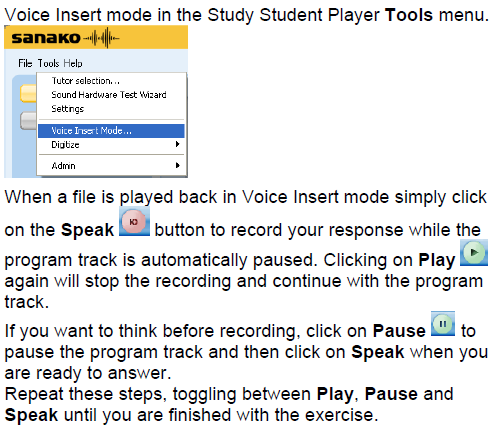
- enable voice insert:
- To activate voice insert (which is a toggle that changes the behavior of the other buttons)
- either go to tools/ voice insert mode
- or click the voice insert button
 (darker shade of brown = OFF; tooltip should say “Toggle Voice Insert OFF”, meaning: it is ON now)
- To activate voice insert (which is a toggle that changes the behavior of the other buttons)
- press the green play button to listen until you reach the point (your teacher may have inserted a pause or aural cue) where you can repeat or respond.
- Then click the red speak-button
 to repeat after/respond to the source/teacher
 - When you are done repeating/responding, press the green play-button.
- At the end, press the blue stop-button.
- Rewind and review your recording (e.g. compare your pronunciation with the teacher’s model).
- When done, click file / save as and save only your, the student track, as mp3 or wma.
- Additional notes:
- TBA: you can overwrite your pronunciation where you deem necessary.
- Fixed in Sanako 7:
you cannot show the voice graph when in Voice insert mode – both are incompatible. - To see in action how to record with voice insert and save the student track, view
- The previous is just a step-by-step for our environment based on the Sanako Study 1200 documentation which follows here:


UNCC LCS Language Placement Exam Information
2012/01/11
Leave a comment
- Short URL of this page for over the phone inquiries: http://goo.gl/ezQLu.
- The dates for the language placement exam are listed
- on the LCS department webpage. If you have trouble locating this page, use this canned Google search “placement exam site:uncc.edu”;
- on the calendar of the LRC main classroom (where the exam is held).
- The requirements, limitations and step-by-step procedure off the exam are explained here: https://plagwitz.wordpress.com/2011/06/08/uncc-lrc-language-placement-test-cape-online-placement-exam-step-by-step/
Calendaring: How to view all your Moodle course assignments in Ninermail, OWA or MS-Outlook – Shortest
2012/01/05
3 comments

Categories: audience-is-students, audience-is-teachers, documentation, lms, Screenshots, step-by-step-guides
calendaring, FAQs, moodle, ms-outlook, OWA


Questions? Read the About. Or just ask me a quick Our Databases: Resources with calendars -- Language learning material Moodle Sites, multimedia files -- films


FAQs for LRC student staff or for students or for teachers. To search our FAQs, in the browser addressbar, add after "https://plagwitz.wordpress.com/feed/?tag=faqs+/" "+TAG1" (from tag cloud below) OR "https://plagwitz.wordpress.com/feed/tag=faqs
&category_name=" "CAT1" (from category hierarchy below). OR search both categories and tags, and multiple TAGs/CATs (connect with "," for OR-search, with "+" for AND-search), like so: https://plagwitz.wordpress.com/feed/?tag=TAG1+TAG2+...TAGn&category_name=CAT1
+CAT2+...CATn"
Other ways to find help
If you cannot find it here, look there: 5,500 Language-Learning Links and Programs for learning or teaching 150 languages
Shortcuts:Our Lists, Our Maps, LRC Staff Moodle Site,LRC Project Moodle Site, 49erexpress, UNCC Moodle, Student Recordings: s:claslcslrcsanakostudent
Learning usage samples: Sanako oral exam, Kaltura webcam presentation, Dictation with speech recognition, Sanako written exam, Chinese and Japanese interactive stroke-order practice
Test the Sanako Installer, Webbrowser Popup Konfigurator for XP, or Windows7, faster LRC TeacherPC Log-in Let MS facilitate diacritics writing by installing for you US-International keyboard layout
This is my personal blog (Google+). The views expressed on these pages are mine alone and not those of my employer. The information in this weblog is provided “AS IS” with no warranties, and confers no rights.
 Thomas' Work Space