Archive
How best to edit PDF here
The college provides each faculty and staff member with a full version of Adobe Acrobat (with editing capabilities) on their office computer. If it is not already installed, you can submit a request here.
Immerse yourself into your language of study by switching the user interface language on LRC PCs
- Ever imagine yourself studying or working in an e.g. Spanish– Japanese- or Chinese- speaking country? Then you will likely find yourself in front of a computer display that is in that language – what if you could get a sneak preview before you go?
- You can now switch the interface language of the LRC Windows 7 computers (including Internet Explorer and MS-Office (note that you have to change the editing language separately) to your language of study (How?).
- All non-classical languages studied here are supported:
Language Native name Arabic العربية Chinese (Simplified) 中文(简体) Chinese (Traditional) 中文 (繁體) English English French français German Deutsch Greek Ελληνικά Hebrew עברית Italian italiano Japanese 日本語 Korean 한국어 Polish polski Portuguese (Brazil) Português Portuguese (Portugal) português Russian Русский Spanish español - Some languages, however, come only with the limited support of a MS Language Interface Pack :
-
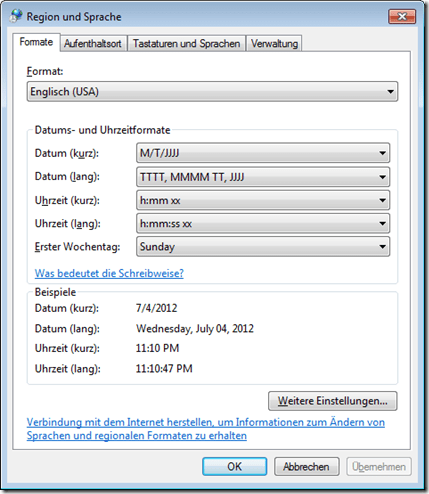
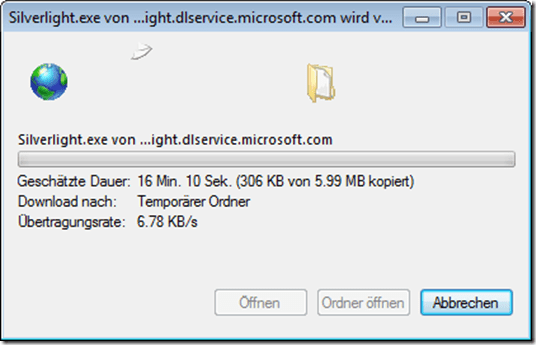
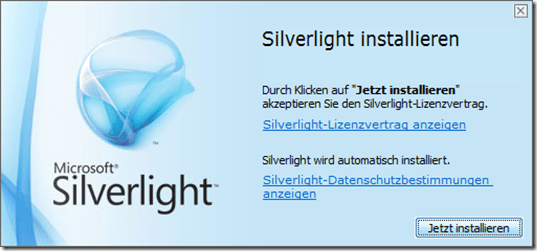
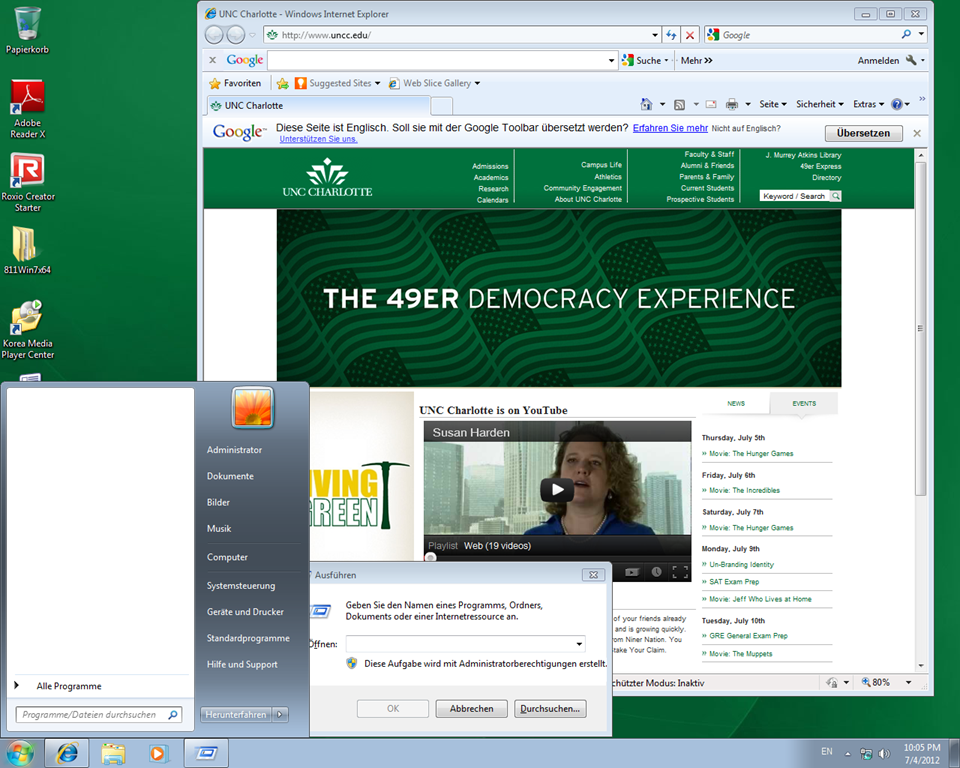
Hindi हिंदी KiSwahili Kiswahili Persian (Farsi) فارسی Yoruba ede Yorùbá - Below are examples (for German) what you get when you switch the operating system language:



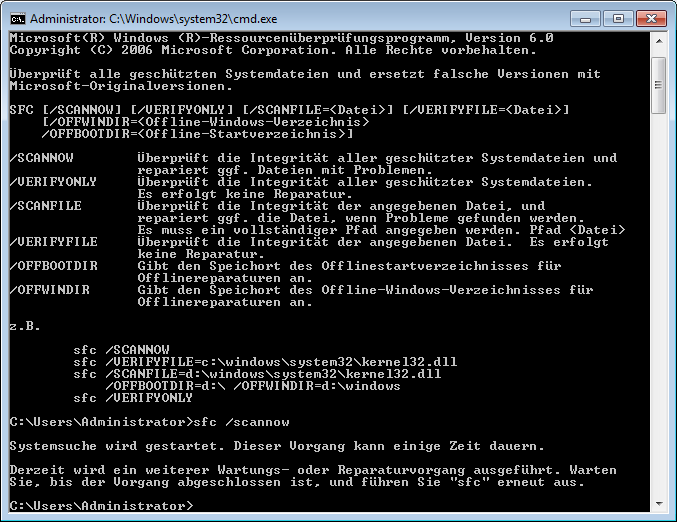

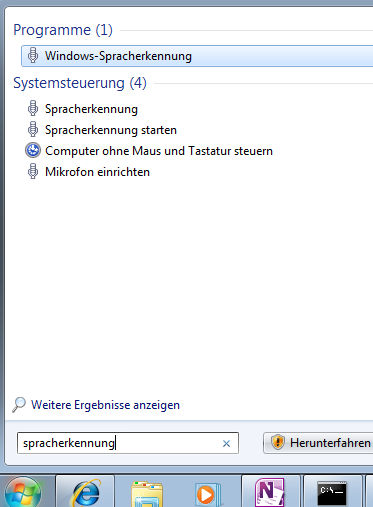

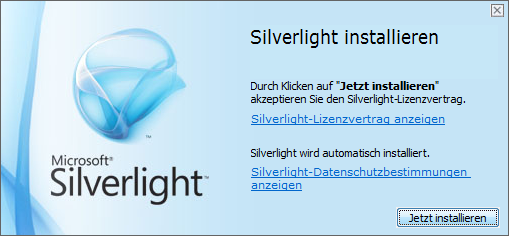
Foreign language support in LRC MS-Office 2010
- A full set of proofing tools is available, thanks to MS-Office Language Packs installed on the Windows 7 computers, for all non-classical languages studied here:
-
Language Native name Arabic العربية Chinese (Simplified) 中文(简体) Chinese (Traditional) 中文 (繁體) English English French français German Deutsch Greek Ελληνικά Hebrew עברית Hindi हिंदी Italian italiano Japanese 日本語 Korean 한국어 Polish polski Portuguese (Brazil) Português Portuguese (Portugal) português Russian Русский Spanish español - Some languages have only limited features provided by the MS-Language Interface Pack:
-
KiSwahili Kiswahili Persian (Farsi) فارسی Yoruba ede Yorùbá
Keyboard layouts and IME’s on LRC Windows 7 PCs
You can change the input language using the language toolbar which appears next to the notification area in the lower right of the task bar.
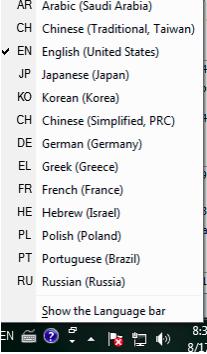
Note that many languages need not be listed since their characters can be typed, Windows-wide, using keyboard shortcuts of the English-US (international extended) keyboard layout.
Some installed input methods benefit from having keyboard overlays which have been installed on some computer. Other input methods allow for drawing characters, e.g. in Japanese or Mandarin, which works better with the Wacom tablet installed on PC01 and PC02 than with a mice.
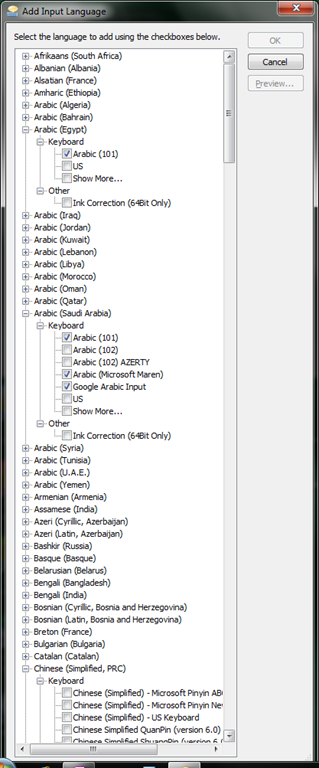
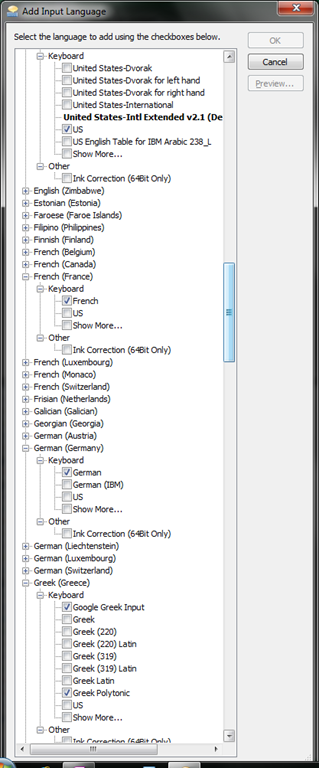
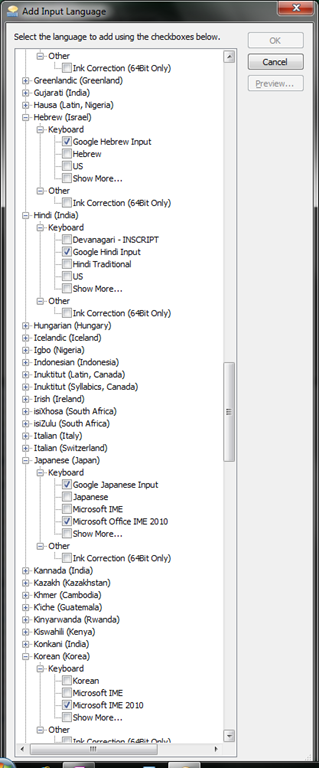
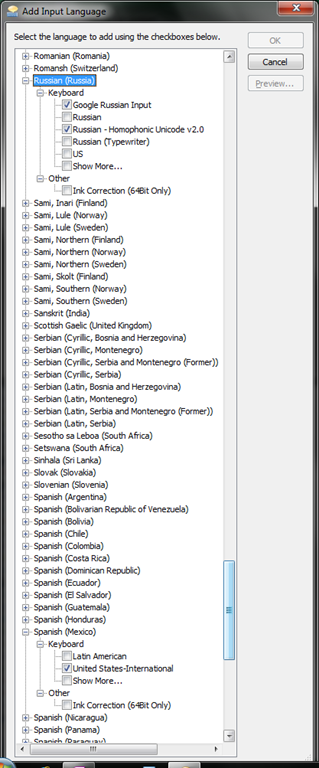
Many languages have more than one keyboard/input method. After changing to your language on the language toolbar, you can switch from the language’s default keyboard layout to another by clicking on keyboard icon behind the 2-letter language abbreviation.
 Below is a comprehensive list of all layouts that are available to you:



How to query lab computers for new IPs after network reconfiguration using Symantec Ghost
How you can reuse your speech profile even on deepfrozen Language resource center computers
- “A [Windows Speech] profile is basically the collection of all settings and information about how to recognize your voice when using Windows Speech Recognition. Before changing the language used or letting other persons use Windows Speech Recognition it is best to create a new profile so that your current one will remain unaltered”.
- To be able reuse your effort training the computer to recognize your voice speaking in your study language – even though the LRC Windows 7 computers get reset when restarted -, you can backup, and later reload, your Speech Profile, preferably to your H:-drive.
- The Microsoft tool that allows you to do that has been put on WSRProfile.exe desktop of the LRC Windows 7 PCs. I can copy these instructions directly from the Microsoft blog page:
- Double-click WSRProfile.exe to start the WSR Profile tool wizard.

- To back up a speech profile using the WSR Profile tool, select Backup my speech profile.
- In the Select your Speech Profile dialog box, choose the speech profile you wish to back up and then click Next.
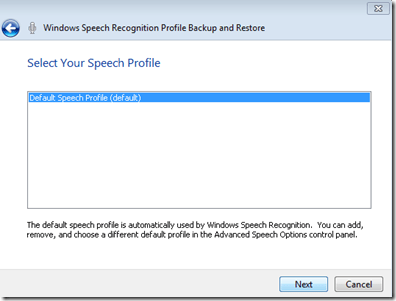
- The wizard will prompt you for a filename and location to save the file. When you have entered this information, click Next. The WSR Profile tool wizard will start the backup process of the selected speech profile.

- After the backup operation successfully finishes, click Close .

- In the Select your Speech Profile dialog box, choose the speech profile you wish to back up and then click Next.
- To restore a speech profile using the WSR Profile tool, select Restore my Speech Profile.
- On the File to Restore wizard page, click Browse and locate the backed up speech profile, and then click Next.
- Choose the speech profile you want to restore to.
- Select Use the current speech profile if you want to overwrite the current default speech profile.
- Select Create a new speech profile if you want to restore to a new speech profile. If you choose to restore to a new speech profile you will be prompted to provide a name for the new profile.
- After the restore operation successfully finishes, click Close.


How students upload a video file to Moodle using Kaltura
-
My closest related instruction so far has been for teachers, and the CTL also seems to have only instructions for how teachers upload videos for students. However, instructions for students are very similar, follow these steps:
-
Open the kaltura assignment and click “Add video submission”:

-
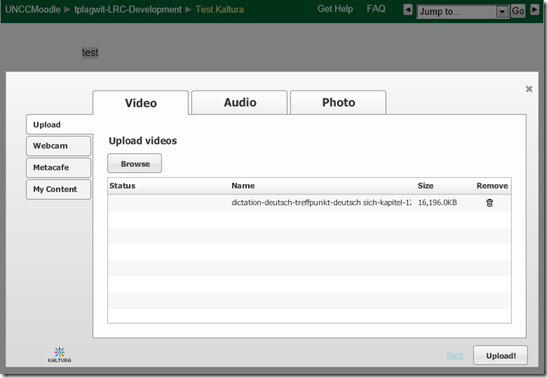
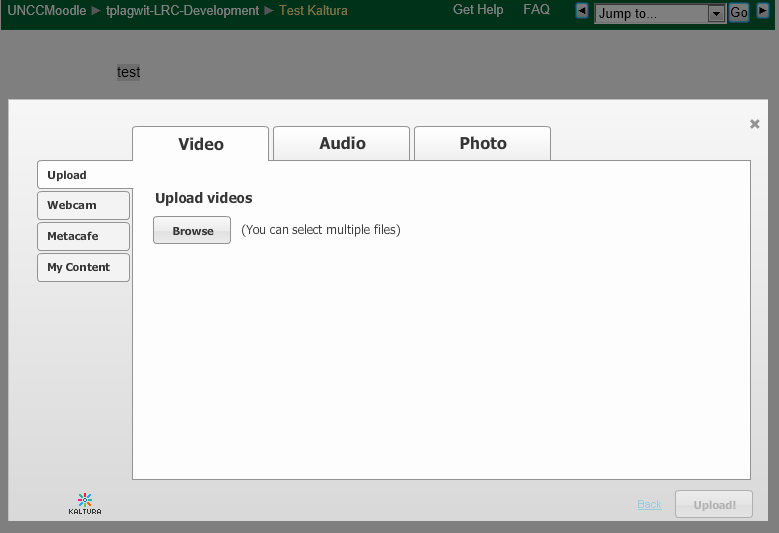
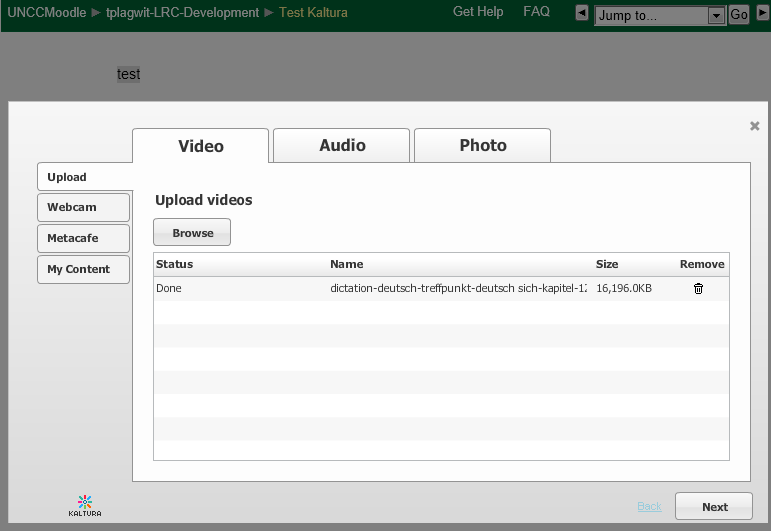
Under left tab “Upload”, Click “Browse”:

-
Browse to your video file (note the “files of type”allow only the upload of certain extensions) and click “Open”:

-
Click “Upload”
-
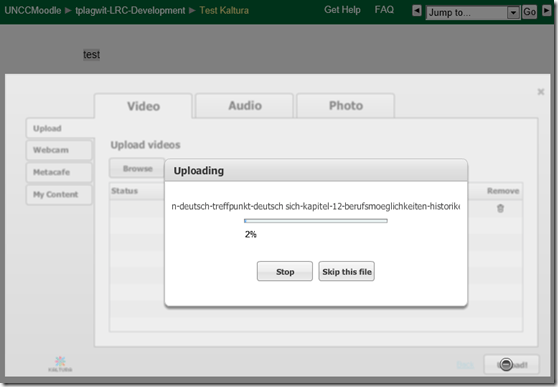
Wait for the upload to complete:
-
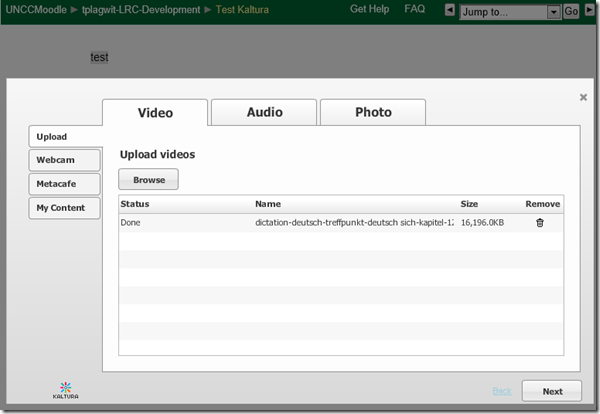
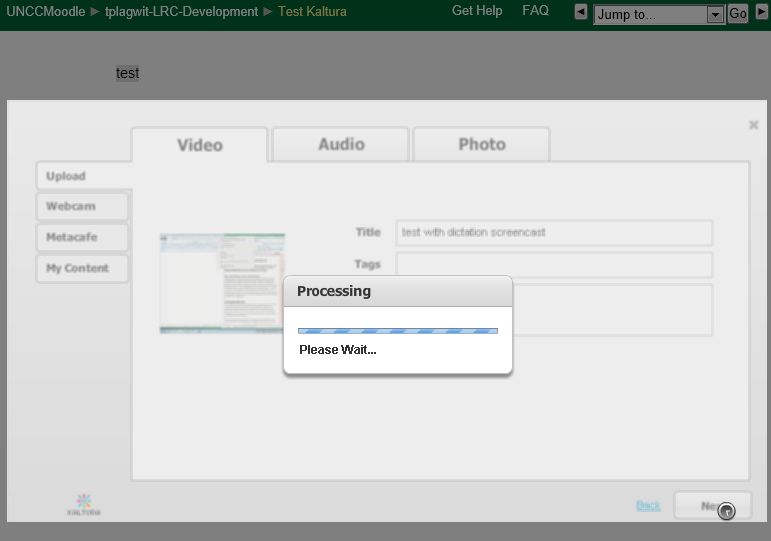
Click “Next” :
-
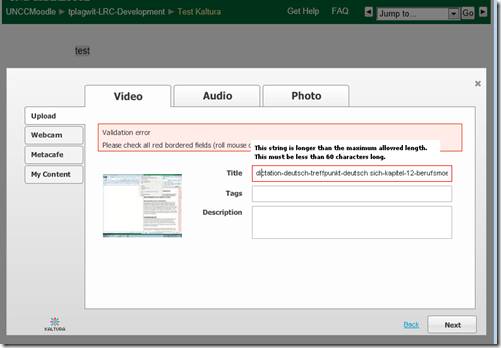
Add at least a “title”, and fix any errors you might get:
-
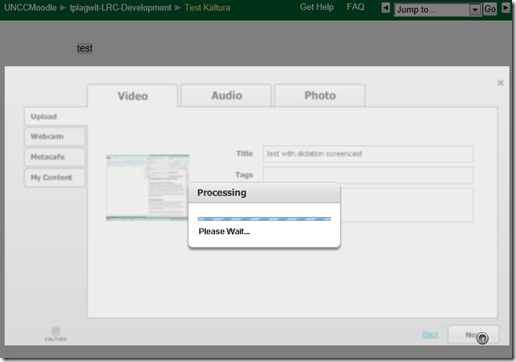
Click “Next”:
-
Click “Submit”:

-
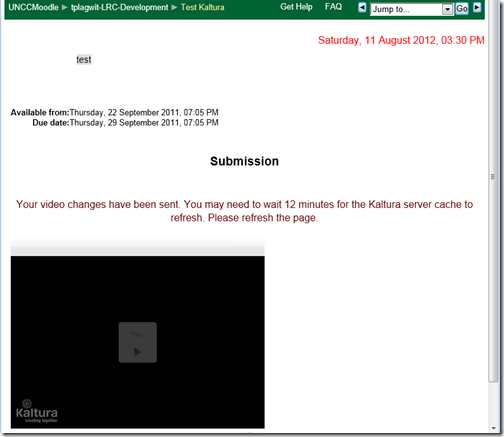
Look for the success message:

-
You will have to wait for the video preview to become available:
-
If you refresh the page, the wait time gets updated, take the amount with a grain of salt. Here I could already view…

-
Be aware that your video resolution will likely be downscaled (my 1280*1024 screencast in this example ended up pretty grainy).






Setting time zone for all and for all misconfigured OWA users
live@edu/Office365 Exchange in the cloud does not seem to allow setting a default time zone, but rather leaves it to the user to change the time zone (defaulting to the time zone the cloud server is in that the user happens to hit) on first login – in the world I operate in, большая ошибка!
How to use the cmdlet set-MailboxRegionalConfiguration with parameter TimeZone to change the time zone of all your mailboxes is nicely explained on the blog How Exchange Works here, including screenshot and PowerShell command.
Unfortunately such an operation is reported to have needed 3 days for updating all mailboxes in an educational live@edu installation with 30000 users… You can restrict the mailboxes touched by examining first which are not in your local time zone (consult the MS TimeZone table for syntax, e.g. US “Eastern Standard Time”):
$mymailboxes = get-mailbox
ForEach ($examinedmailbox in $mymailboxes){
$regionalconfig = get-MailboxRegionalConfiguration –identity $examinedmailbox.identity
if ($regionalconfig.timezone -ne “Eastern Standard Time”){
Set-MailboxRegionalConfiguration -identity $examinedmailbox.identity -TimeZone “Eastern Standard Time” -confirm:$false
}
}


Questions? Read the About. Or just ask me a quick Our Databases: Resources with calendars -- Language learning material Moodle Sites, multimedia files -- films


FAQs for LRC student staff or for students or for teachers. To search our FAQs, in the browser addressbar, add after "https://plagwitz.wordpress.com/feed/?tag=faqs+/" "+TAG1" (from tag cloud below) OR "https://plagwitz.wordpress.com/feed/tag=faqs
&category_name=" "CAT1" (from category hierarchy below). OR search both categories and tags, and multiple TAGs/CATs (connect with "," for OR-search, with "+" for AND-search), like so: https://plagwitz.wordpress.com/feed/?tag=TAG1+TAG2+...TAGn&category_name=CAT1
+CAT2+...CATn"
Other ways to find help
If you cannot find it here, look there: 5,500 Language-Learning Links and Programs for learning or teaching 150 languages
Shortcuts:Our Lists, Our Maps, LRC Staff Moodle Site,LRC Project Moodle Site, 49erexpress, UNCC Moodle, Student Recordings: s:claslcslrcsanakostudent
Learning usage samples: Sanako oral exam, Kaltura webcam presentation, Dictation with speech recognition, Sanako written exam, Chinese and Japanese interactive stroke-order practice
Test the Sanako Installer, Webbrowser Popup Konfigurator for XP, or Windows7, faster LRC TeacherPC Log-in Let MS facilitate diacritics writing by installing for you US-International keyboard layout
This is my personal blog (Google+). The views expressed on these pages are mine alone and not those of my employer. The information in this weblog is provided “AS IS” with no warranties, and confers no rights.
 Thomas' Work Space