Archive
Google new maps’ photo tour slideshow viewer

<Grumble> If these internet companies invent anything else, I won’t get out much anymore.</Grumble> (I have always loved “travelling on a map” too much already ).
).
This is not your grandparents’ photos feature in Google maps anymore. The new photo tour automatically (I must assume? Based on GIS data included in the photo, image recognition to cluster motifs?) intelligently tags the map includes highlights of well-known sights, and it seems to automatically group similar shots/motifs, providing the feel of an in-depth exploration, even presence. And the occasional grandparents in the foreground remind us, that this remains a crowd-sourced project…
Now how to plan a better intercultural map exploration class with this…
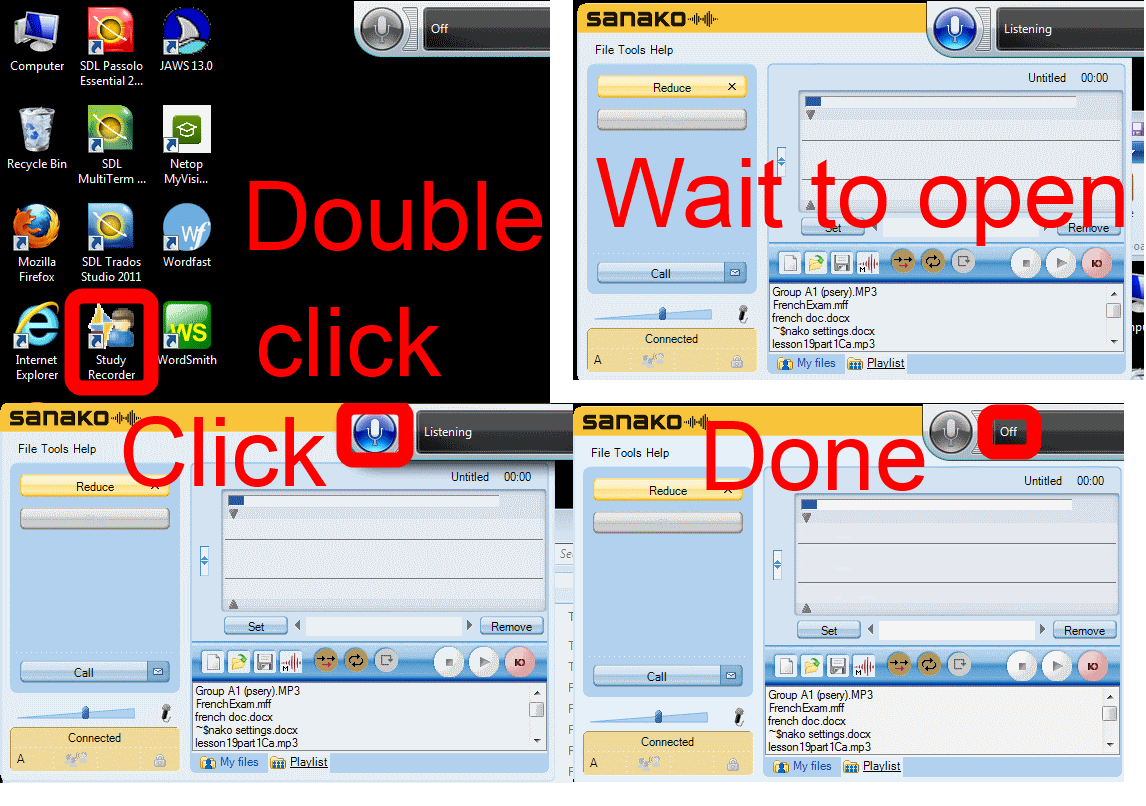
How students need to work around Sanako startup issues at start of 2014
UPDATE: Step 1 is not necessary anymore, Step2 (Microphone click) still is.
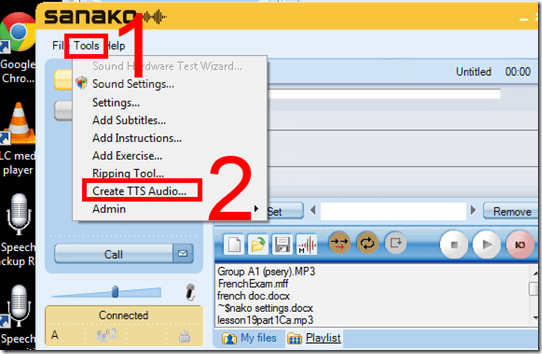
How to get started with the new text-to-speech support in Sanako 7
- With the new text-to-speech feature, students can generate their own pronunciation help:
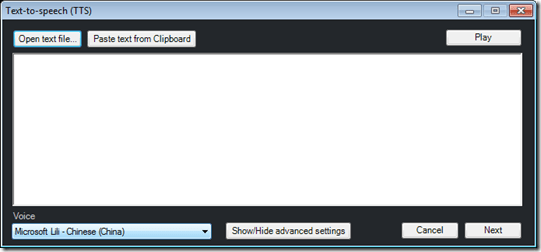
- Using the button:Advanced settings, you can even
- vary the speed of,
- insert bookmarks to use with Sanako player
- or insert thinking pauses for the learner into the audio – excellent ideas, I find
 !
!
- Unfortunately, the LRC currently has voices only for English and Mandarin. Extra voices cost extra
 .
. - Then there is Google translate text-to-speech, but that cannot be saved to file.


Free interactive online learning materials for Heinle Interaction
- Available here – in spite of the prominent user login button, you do not need to sign up.
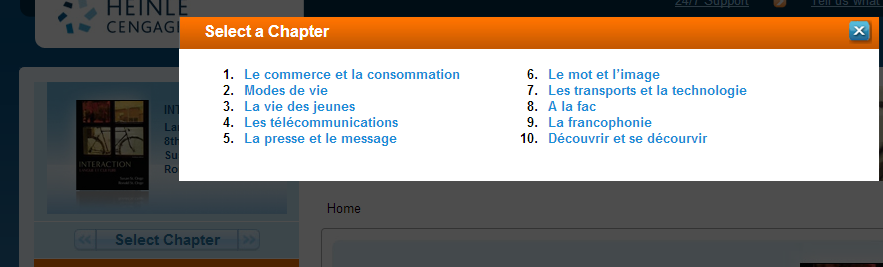
- Rather simply click the “Select Chapter” to get started.

- You then have access to some of these types of exercises, per chapter:

- Free (a (free) account is not needed):
- Tutorial Quiz
- Audio
- Web Search Activities
- Concentration
- Heinle Playlist
- Google Earth Coordinates
- Web Links
- Not free
- Flashcards
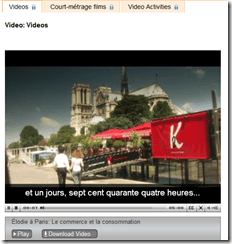
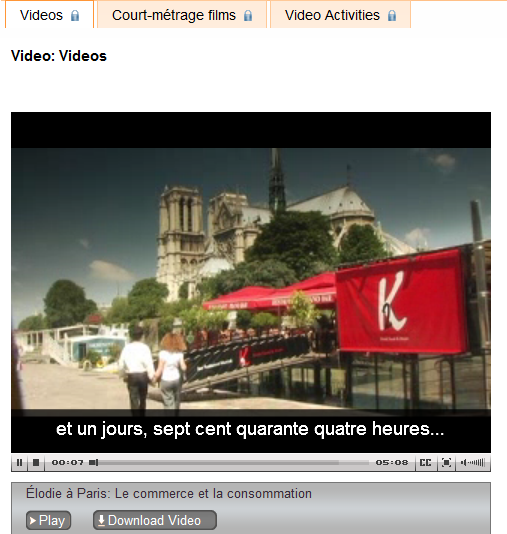
- Video (except for chapter 1 as taster)
- Podcasts
- Crossword
- Chapter Glossary
- What this content is good for:
- Practicing. Including with a tutor, for since this content is not assessed, there is no ethical issue if the tutor helps with these materials.
- It is from edition 8, which is not the current edition – but I expect it to be still reasonably to the current chapters chapter:
- Le commerce et la consommation
- Modes de vie
- La vie des jeunes
- Les télécommunications
- La presse et le message
- Le mot et l’image
- Les transports et la technologie
- A la fac
- La francophonie
- Découvrir et se décourvir

If your keyboard stops typing in English in a Respondus lockdown browser quiz…
- Short answer
- press key combination LEFT ALT + SHIFT, then try typing:
- Are you back at typing in English?
- If not, repeat, until you are.
- If yes: Do not rejoice too soon. Try inserting a character with the Respondus Lockdown Browser accent bar. If it only inserts a “?“, then repeat also, until this works also.
- Long answer
- The Respondus Lockdown browser blocks use of most key combinations, but not this default combination on Windows for switching keyboard languages (and it cannot – the user may need access to other language keyboards for the quiz!).
- A user may inadvertently have switched the keyboard from the default (which works fine in most language quizzes in Respondus).
- The Respondus Lockdown browser hides the language toolbar near the notification are in the lower right, so the change is not obvious, and also cannot be undone from the menu there.
Layout of the Language Resource Center (LRC)
The numbers in the layout correspond to the numbers we posted (to facilitate teacher and student orientation and to aid in LRC temp staff troubleshooting) on the computer monitors and also (for IT staff) to the number part of the underlying computer names which can also be displayed in the classroom management systems NetOP School and Sanako Study 1200 on the teacher computer (32).

LRC headset tests
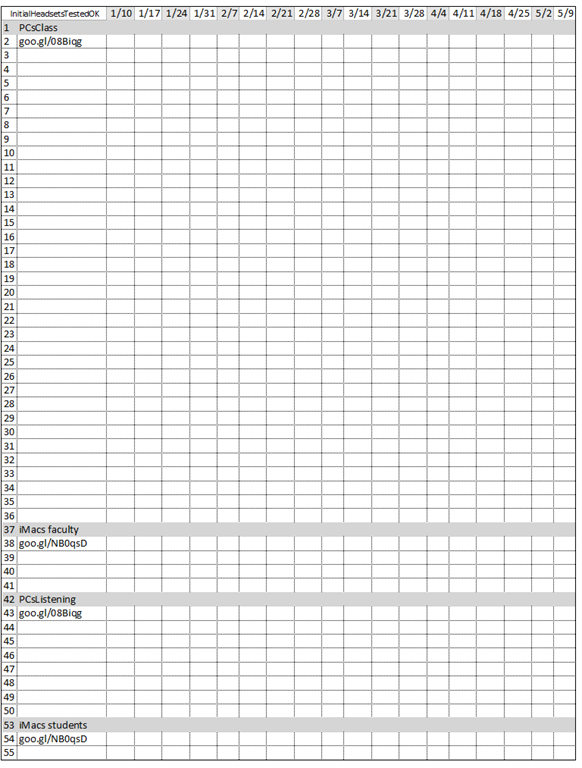
- To improve LRC readiness – given that headsets are the most prominent component of the language center, as well as a wear and tear part –,
- every Friday during the term (see column),
- a group of expert LRC assistants, armed with the above checklist on a clip board on the reception desk,
- tests each headset (see rows) in the LRC for functionality (play, record), using the procedure outlined in step-by-step instructions linked in the 2nd column from the left above
- and reports the test results on the clip board:
- upon success, puts tester’s initials,
- otherwise marks as “not ok”, e.g.
- “no plug”,
- ”no mic”, or “mic w/ static”
- “no sound”,
- etc.
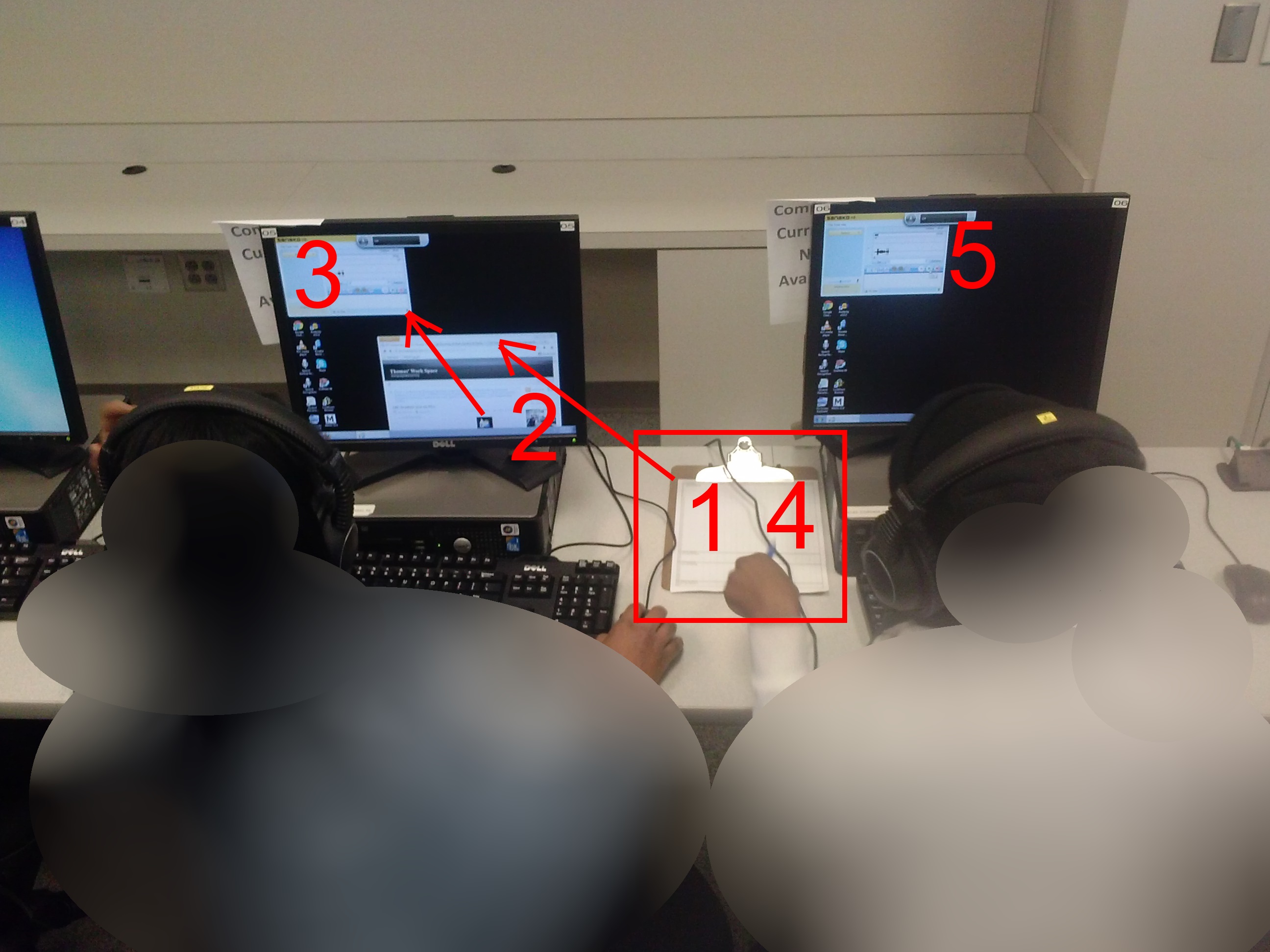
- LRC assistants should, as pictured:

- from the clipboard,
- access the instructions
- follow the instructions
- record the results
- while working side-by-side to cut the load in half.
- In addition (not pictured), they can log in on multiple computers and start working on the first pair while the last pair stills starts up.


Questions? Read the About. Or just ask me a quick Our Databases: Resources with calendars -- Language learning material Moodle Sites, multimedia files -- films


FAQs for LRC student staff or for students or for teachers. To search our FAQs, in the browser addressbar, add after "https://plagwitz.wordpress.com/feed/?tag=faqs+/" "+TAG1" (from tag cloud below) OR "https://plagwitz.wordpress.com/feed/tag=faqs
&category_name=" "CAT1" (from category hierarchy below). OR search both categories and tags, and multiple TAGs/CATs (connect with "," for OR-search, with "+" for AND-search), like so: https://plagwitz.wordpress.com/feed/?tag=TAG1+TAG2+...TAGn&category_name=CAT1
+CAT2+...CATn"
Other ways to find help
If you cannot find it here, look there: 5,500 Language-Learning Links and Programs for learning or teaching 150 languages
Shortcuts:Our Lists, Our Maps, LRC Staff Moodle Site,LRC Project Moodle Site, 49erexpress, UNCC Moodle, Student Recordings: s:claslcslrcsanakostudent
Learning usage samples: Sanako oral exam, Kaltura webcam presentation, Dictation with speech recognition, Sanako written exam, Chinese and Japanese interactive stroke-order practice
Test the Sanako Installer, Webbrowser Popup Konfigurator for XP, or Windows7, faster LRC TeacherPC Log-in Let MS facilitate diacritics writing by installing for you US-International keyboard layout
This is my personal blog (Google+). The views expressed on these pages are mine alone and not those of my employer. The information in this weblog is provided “AS IS” with no warranties, and confers no rights.
 Thomas' Work Space