Archive
Archive for the ‘audience-is-students’ Category
International TV on the Internet
2011/10/06
Leave a comment
http://wwitv.com/portal.htm, lists 2244 online TV stations, by topic and “country” (note that this does not equal “language”).
Categories: all-languages, audience-is-students, audience-is-teachers, learning-materials, Listening, websites
tv, video
How not to book LRC equipment: Scheduling conflicts
2011/09/23
3 comments
- Do not send a meeting request to an item for a time when the item has a prior meeting request.
- The tab: scheduling assistant within the meeting request you edit is there to tell you when items have prior meeting requests.
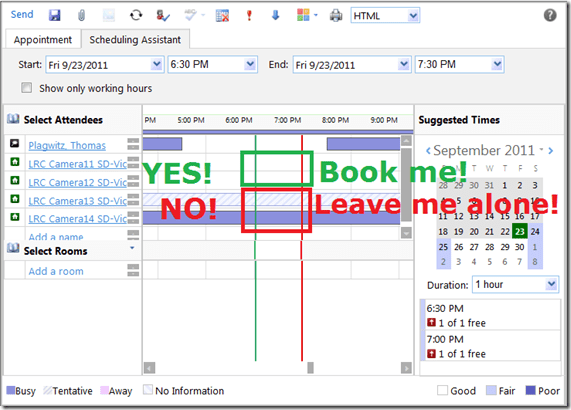
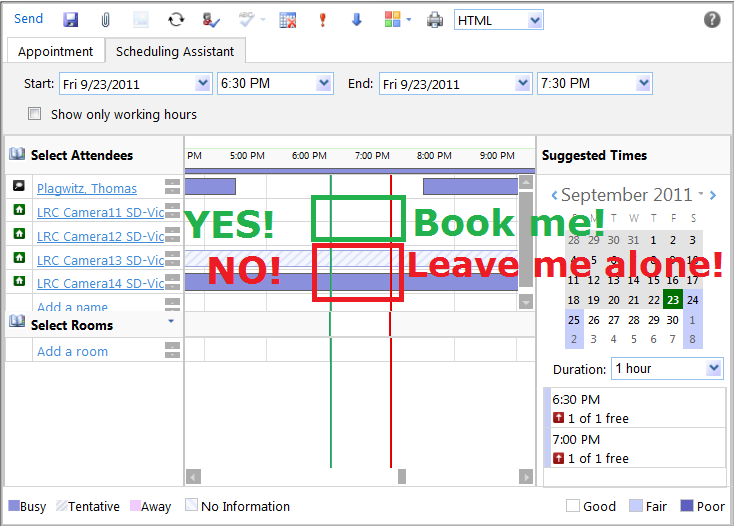
- A “blocked” timeline denotes a prior meeting request: The item has already been booked (solid block) or requested (hatched block) during the start and end time of your meeting. Do not crash their party.
- “blank” timeline means “item is free”. Go ahead: You can request a meeting with this item between your start and end time.
- Once you have this overview, you can easily remove, by right-clicking on the resource, extra resources that you cannot book or could, but which you do not need:

- Once the university has mail-enabled your cloud-accounts on campus, we will have a computer decline such conflicting requests automatically, and force you to start over with a new meeting request. It will be still worth your while memorizing the above: You can save time and avoid disappointment.

How a Student takes a Moodle Video Assignment in the LRC
2011/09/22
2 comments
- On one of the LRC iMacs, in the Safari web browser (open new window with COMMAND-key+n),
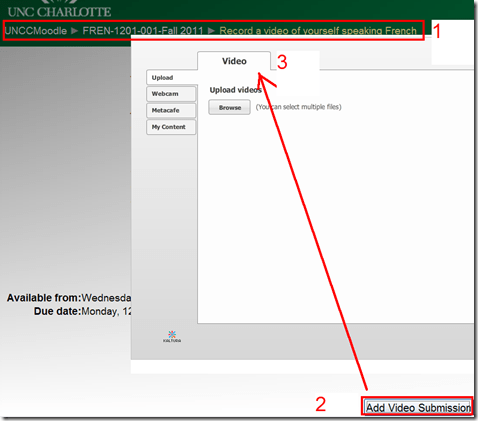
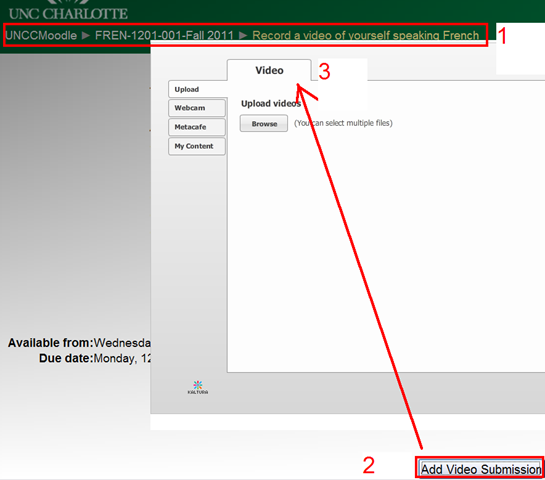
- go to your Moodle course, (1) find the video Assignment, read the assignment instructions (what your teacher wants you to record). Then click underneath the (2) button: “Add video Assignment”, to open the (3) submission window:
- Note that she will also have to allow the flash player to interact with her webcam first.
 If you see no web cam video window, only a black frame, read in.
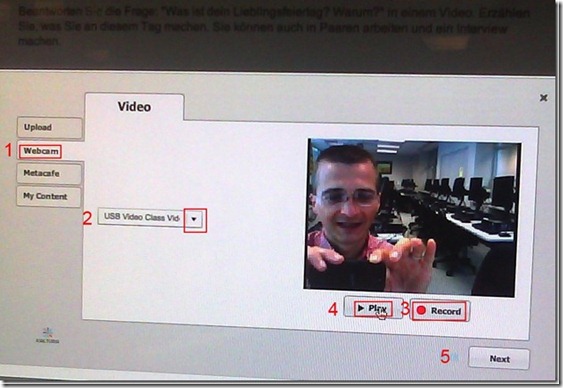
- In the submission window, choose the tab “Webcam” (1), use the dropdown to select the camera hardware (2).

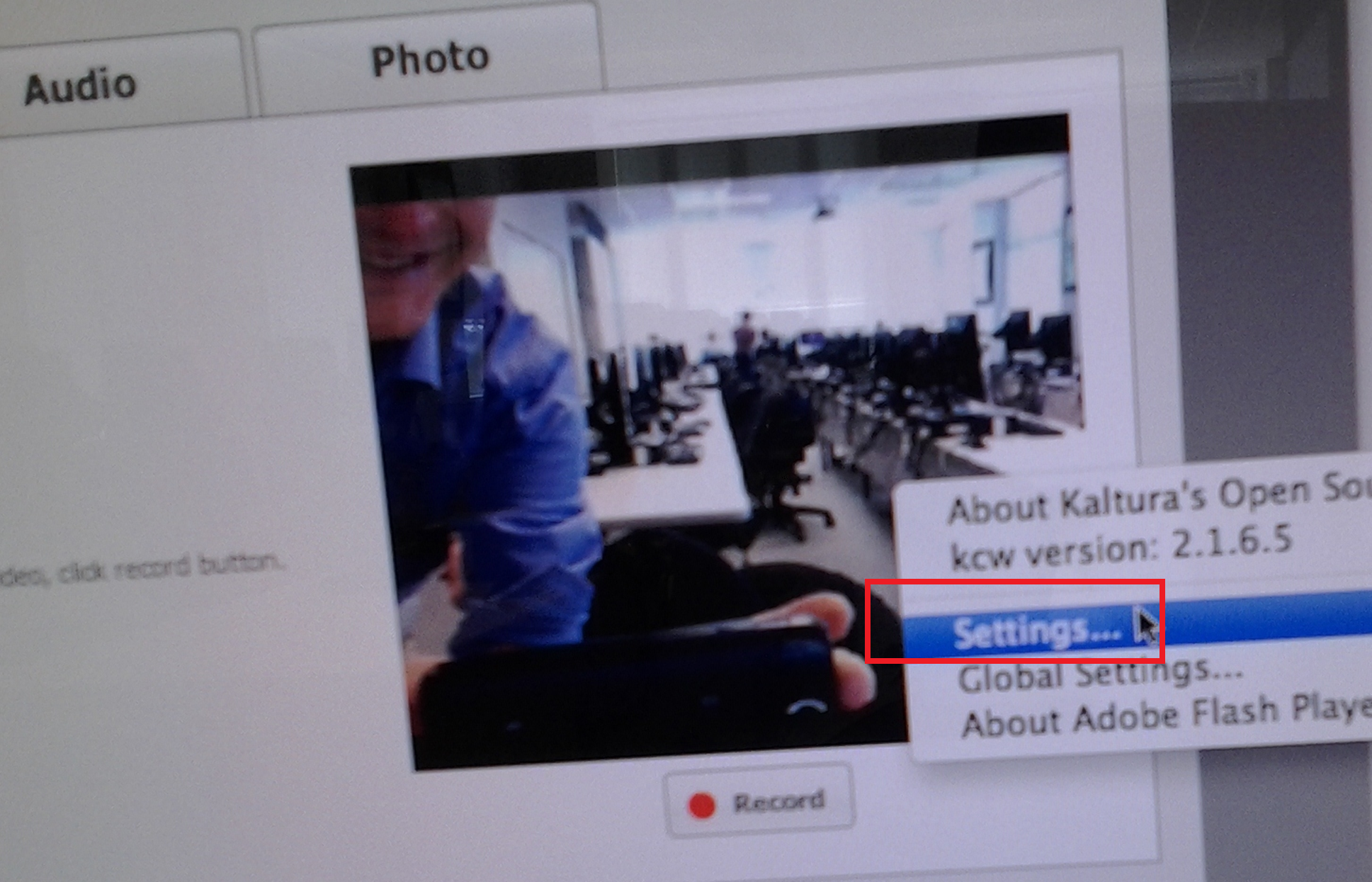
- Check the headset microphone audio: The external headset microphone on the iMacs did not work., but now it does, provided you do this: control-click on Flash’s a video preview window (= the window where you see yourself like in a mirror) for the web camera, and click on “settings”.
-

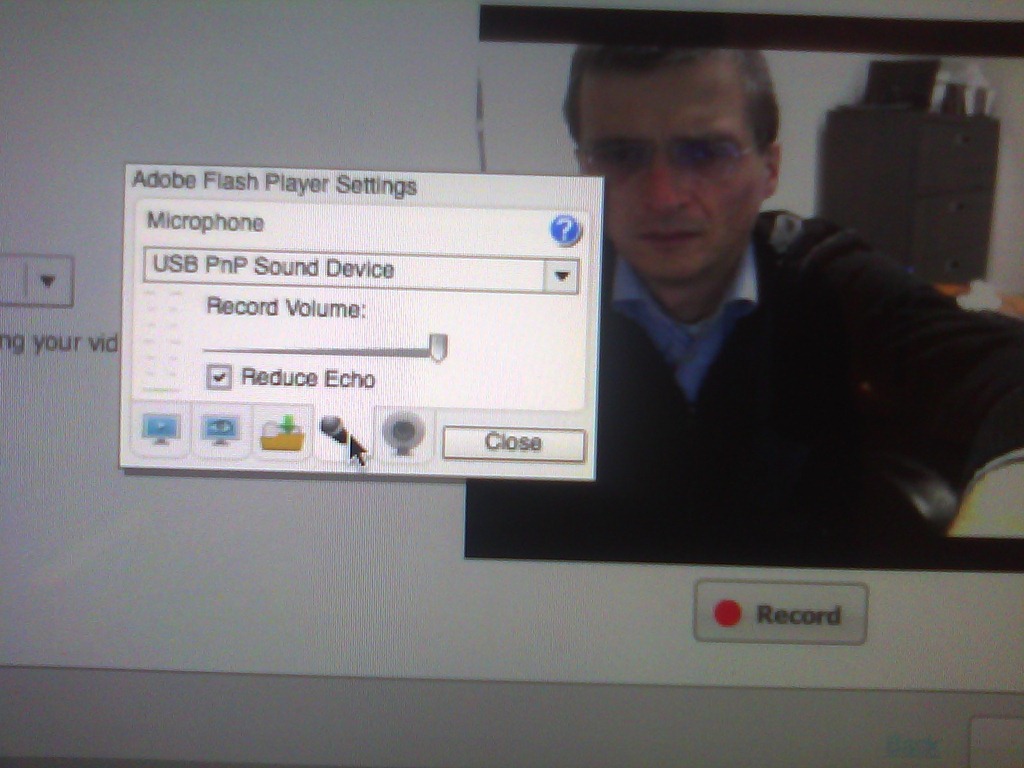
- Click on the microphone icon :

- Make sure the USB PnP device is selected.

- You can bring up the settings dialogue, make sure the USB PnP device is chosen for audio and CRANK up the microphone input sensitivity! Then, by tabbing (don’t speak yet) on the headset microphone, test the volume levels with the built-in volume meter (should show lots of green bars when you tab). Unlike in the picture, do not choose “reduce echo ”.
-
- Start (3) the video recording.
- Afterwards, the student can review (4) her submission.
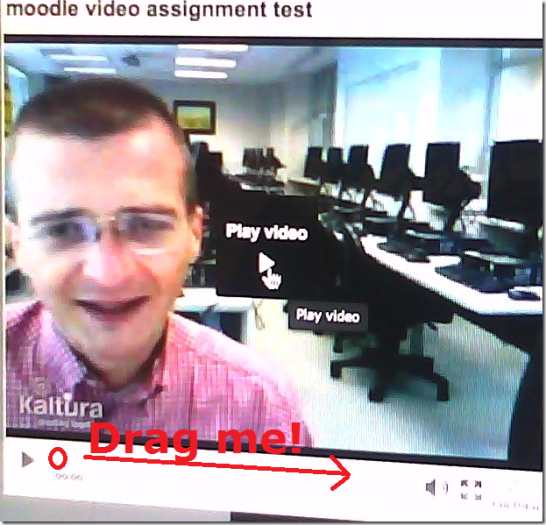
- If you don’t like your first recording, (3) “record” over it and review again with (4) “Play”. If you do this and the video appears frozen, drag the timeline cursor forward to get the re-recorded video to play. If this does not seem to work, you are likely still able to submit your 2nd attempt, just not review it again.
- Click through all the “Next”etc. buttons:
-


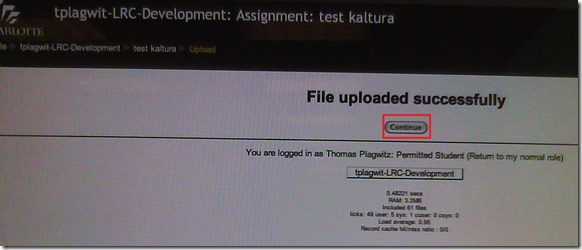
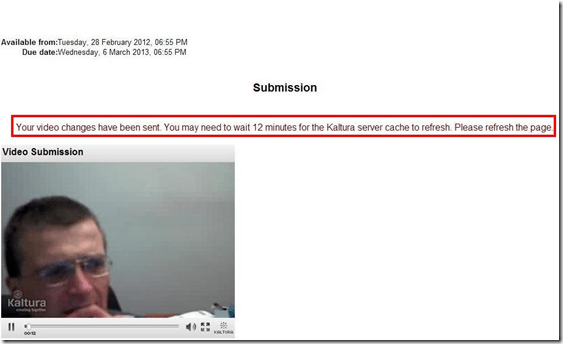
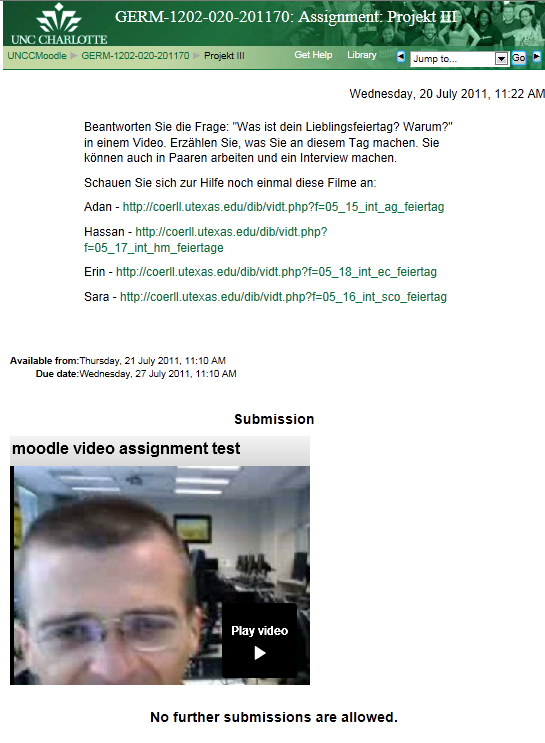
- until you get to the feedback page for the student (caveat: in IE9, the video does not fit into the frame provided on the page).

- Note, it warns you to be patient now:
-
- LRC support:
- Depending on your hardware (webcam), software and network support, you can record your language speaking video assignments on any device that has a webcam and a browser that supports flash – and even more devices, if you are willing to post process and upload the video clip.
- If you run into problems or want to use a tested setup, we recommend using the LRC. Since our PCs have no built-in or added webcam (proposed), we can currently only use our 5 8 iMacs (see LRC Layout, see Classroom Calendar and iMacs Calendar for availability). Our (limited) tests worked better in Safari than Firefox.





Categories: Arabic, assessments, audience-is-students, e-languages, English, Farsi, French, German, Greek (modern), Italian, Japanese, Korean, Latin, Mandarin, Polish, Portuguese, Russian, Spanish, Speaking, step-by-step-guides
audio, kaltura, moodle, recording, video
LRC Outlook/Exchange 2010 Resource Calendaring: How students can view resource "Calendars from the Internet" in web browser and OWA
2011/09/20
5 comments
- Want a shorter version?
- Students, unless specifically TBA:invited, will encounter a permission problem when trying to view calendars like staff.
- Instead, students can use the scheduling assistant to view a basic version of the resource’s calendar. This works “out of the box”.
- Students can also view an advanced version of the resource’s calendars (one-time, or bookmark this link in your web browser – hope you know how to synch your bookmarks between all the devices you use…). This requires little work: click on the “view” link in the “student calendar” column of our list of LRC resources that you can book or check out, to see the current calendar in your web browser:

- For students who check the calendar of a resource regularly (e.g. to see when the LRC main classroom is available for your self-access/the tutor in your language, for help), it is better to “bookmark” the resources’ calendars in NINERMAIL. Here is how:
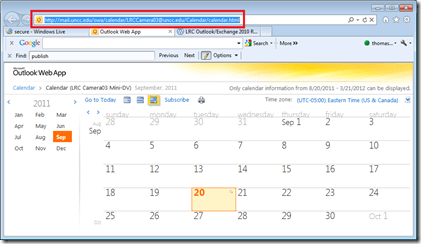
- Copy the URL for the calendar you just opened, from the web browser address bar:
- Go to NINERMAIL, click on the lower left “Calendar-icon”
 to unfold the “My Calendars” list
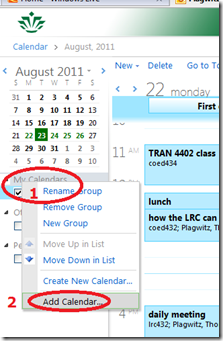
  in the left pane, then right-click on “My Calendars”, choose “Add Calendar”
 .
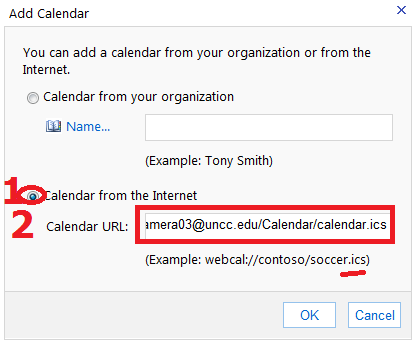
. - In the “Calendar URL” field, paste URL of the calendar you just opened, but replace “html” at the end with “ics”:
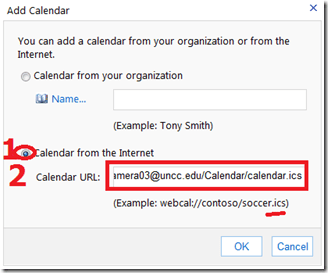 , click “OK”.
 - For on-premise users in OWA (seems OWA stirs on-premise users to the superior intranet calendars, which would be good. But what if the intranet calendar has not been shared with this user, but internet sharing is intended?), This may not work as advertised (neither with protocol http and webcal) OR just need a lot of time (~12hours?) to synchronize,
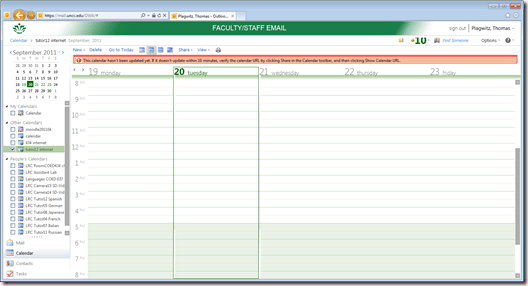 while it works (both with protocol http and webcal) when subscribing from Windows Live?
 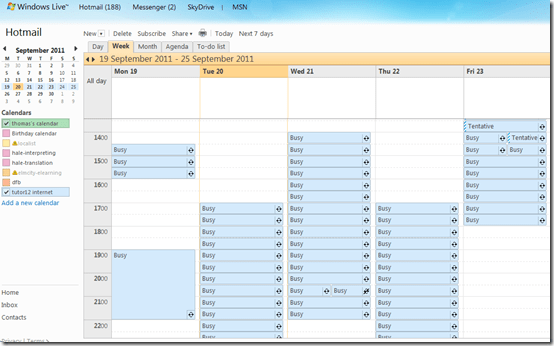 . Most importantly for us (as we have now tested), it works for students with accounts in the cloud from NINERMAI.
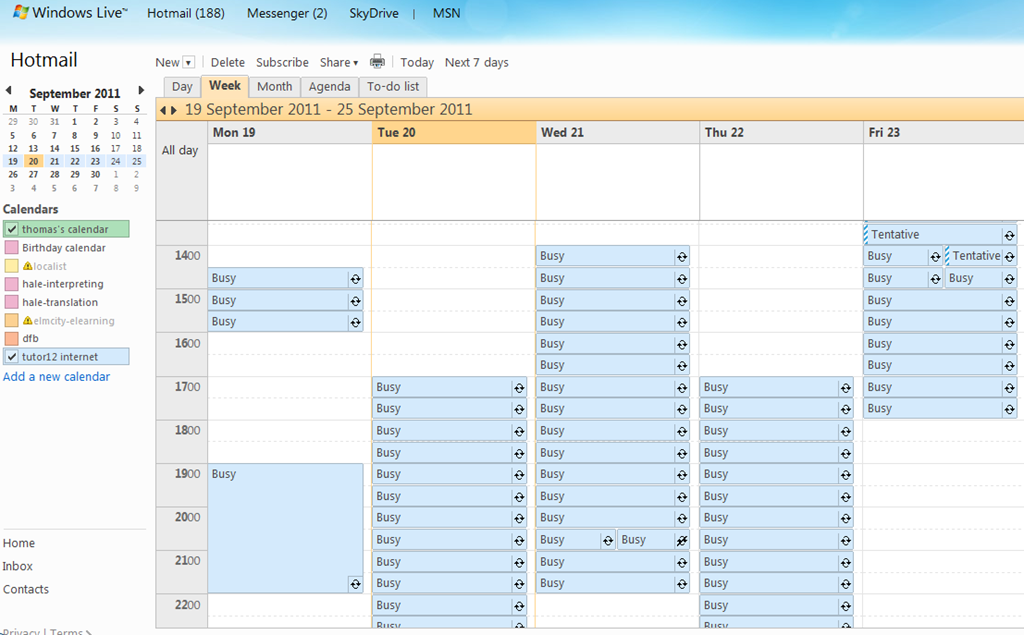
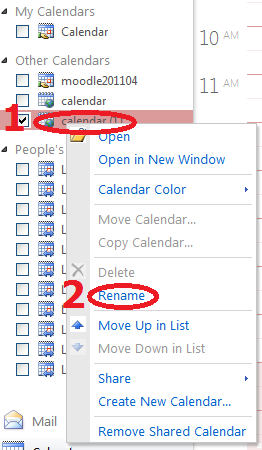
 - OWA remembers your internet calendar subscriptions, and you can easily display or hide them, using the checkboxes it provides. To keep an overview over your calendars added from the internet, you need to rename them, by right-clicking on them, like so:




How to use the LRC Lists
2011/09/20
2 comments
- The LRC lists are built with MS-Excel Web app, one of the new features which came with NINERMAIL (live@edu, try logging into http://skydrive.com .
- Important benefits of MS-Excel Web app include
- sorting: click on column header / down arrow, and choose menu item: “Sort Ascending/Descending”
- filtering: click on column header / down arrow, and choose menu item:
- either “filter”,
 , to choose from a condensed overview of all unique items that occur in the column, and e.g. filter out “Blanks” by removing the checkmark in front of it: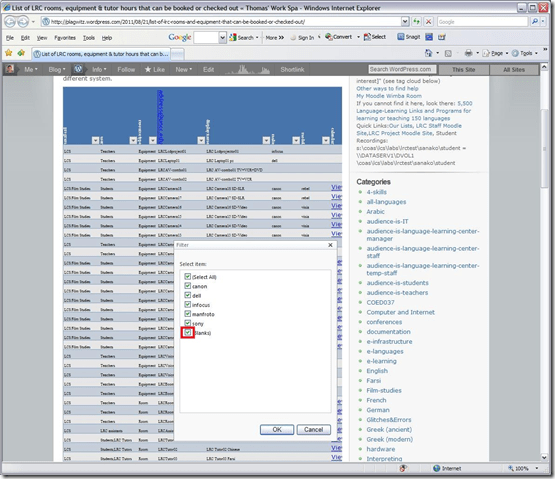
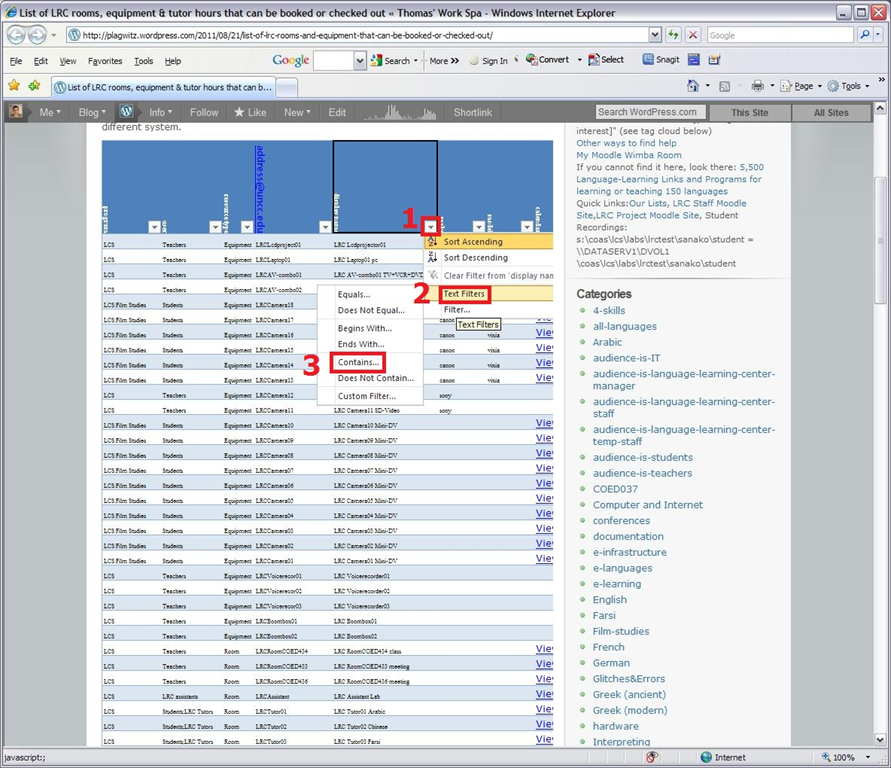
- or the advanced “number filter” (in columns with numbers) or “textfilter”,
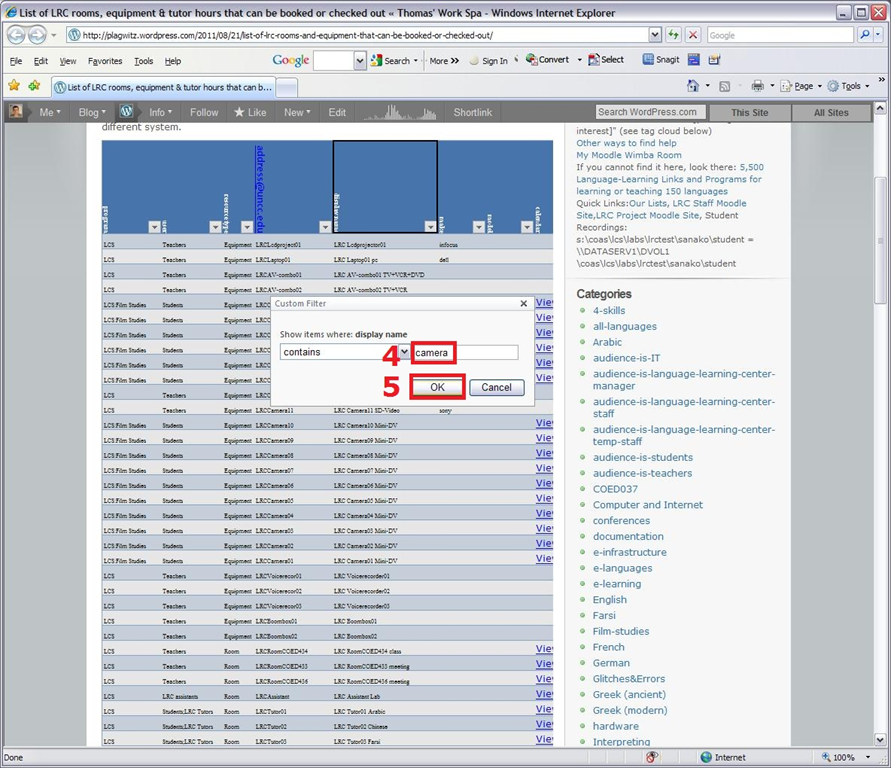
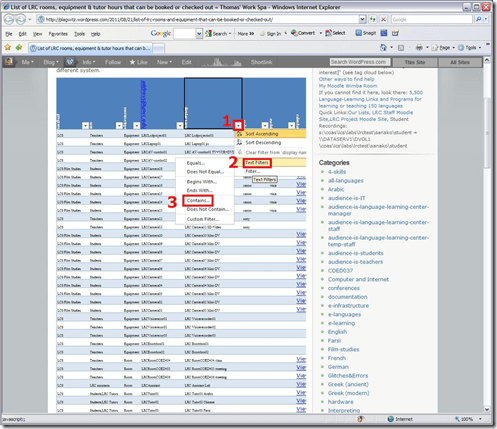 , to do more advanced searches, like for all items that contain “camera”: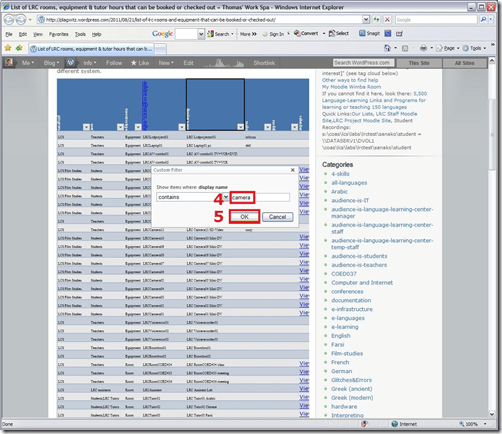
- sharing beyond viewing: Authorized users can click on an “edit link” below the list display to update the information from their web browser.
- either “filter”,


The new way from Fall 2011 how teachers and students check LRC equipment in and out with LRC student assistants
2011/09/01
2 comments
- After booking an LRC resource, if the resource is a piece of physical equipment (versus a room or tutor hours), the teacher/student needs to check it out from the LRC student assistant in COED433. We are testing the following procedure:
- Check-out procedure when picking up
- On the secondary screen of the PC at the reception desk (mirroring mode), in whatever browser the LRC assistant is not using, the teacher or student that wants to check out an LRC resource
- logs into her university email in OWA/NINERMAIL
- opens their “meeting request” with the resource from her calendar
- or, if they have no prior meeting request, create one now
- the LRC assistant on her screen, views the “meeting request” to make sure
- that the checkout time is not in the future OR the item is not past due. If necessary and possible (= no conflicts, duraiton dos not exceed maximum allowed), adapt the meeting request start time , and end time, but mark in the notes field if the item was returned late
- what the item is, including the number (if any)
- handles the item
- gets the item from storage shelves in COED436; make sure it is the same number as in the meeting request
- checks item, with the user, for functionality and completeness
- in the MS-Excelfile: checkoutin.xlsm (auto-loaded during login of LRC assistant, if not open it from the recent files list in MS-Excel or from c:\temp),
- presses button:”check-in code” which generates a unique code in the file and puts it in the windows clipboard)
- even if the user has multiple meeting requests in her calendar, the LRC assistant can use the same code for all her meeting requests
- in the “meeting request”, in the big notes field at the bottom:
- pastes the code at the end of the the subject line
- adds necessary remarks regarding broken or incomplete equipment (if any)
- sends the updated request
- logs the teacher/student out of OWA
- If you need large amounts of equipment for an entire class, I recommend having select students access NINERMAIL during class (or prior and wherever they are ready to book equipment), book the equipment for your class hour with meeting requests (1 for each piece of equipment required). The person who booked it has to be present during pickup and is responsible for the equipment. One student can book as many pieces as she can carry. Since I hope to have 2 reception desk computers and 2 LRC assistants at the reception desk, 2 students picking up should make for the fastest checkout process.
- On the secondary screen of the PC at the reception desk (mirroring mode), in whatever browser the LRC assistant is not using, the teacher or student that wants to check out an LRC resource
- Check-in procedure when returning: same as above, in reverse.
The new way of booking LRC rooms and equipment from Fall 2011: How?
2011/08/31
7 comments
- Read here why.
- You can book LRC resources like rooms, equipment, even tutor hours:
- as
- faculty & staff: from [MS-Outlook“(pretty much) whatever version”]:
- on the desktop Outlook 2007, Outlook 2010 or Outlook 2011 (preferred option for faculty & staff) – if you are familiar with Outlook Desktop, it is the recommended tool
- or at http://mail.uncc.edu, using Outlook Web Access (OWA) at http://mail.uncc.edu, in most browsers – we, however, decided to focus our training of new users on OWA.
- student: in Outlook Live (the only option for students) at Ninermail or http://outlook.com,
- faculty & staff: from [MS-Outlook“(pretty much) whatever version”]:
- through
- creating from menu:”new” a “meeting request”
 (for details see How to book an LRC resource)
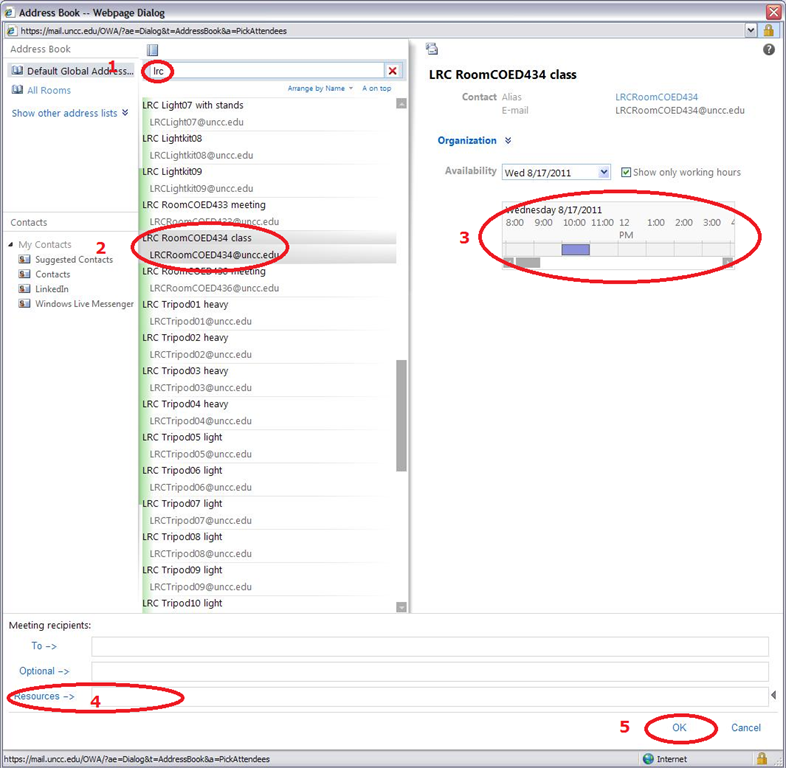
 - and adding a resource (or several: temporarily, to compare which one’s availability fits best into your own schedule; permanently, to book multiple items at once, as long as all start/end times are the same) by clicking on the “Resources”, like here

- all LRC resources names begin with “LRC” and will appear if your search the Global address list (GAL) for “LRC”; all bookable rooms and equipment have been given an email address listed here):
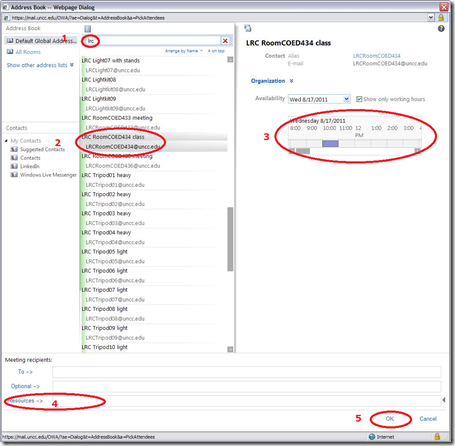
- e.g. to book the LRC main classroom, send to LRC RoomCOED434 class <LRCRoomCOED434@uncc.edu>
- all LRC resources names begin with “LRC” and will appear if your search the Global address list (GAL) for “LRC”; all bookable rooms and equipment have been given an email address listed here):
- and adding other meeting participants, e.g. co-teachers of your class, or LRC staff if you need more than routine support
- If you hold a class in the LRC, to remind students of the new location, teachers could also try and add your class, if you made a convenient group of all students in your class in Outlook.
- and, from the “scheduling assistant”, choosing a time when the room/equipment is free (= blank), not blocked (= solid or hatched) (and all participants),

- and adding a subject with class number and possibly special instructions:
- if you do not allow self-access students on free seats: *EMPTY ROOM*
- if you do not allow tutoring in corners: *NO TUTORING*:
- I will ask the LRC assistants (unfortunately we have large gaps in the schedule) and tutors to load and check the lrcroomcoed434@uncc.edu so that tutors can relocate with their students on time.
- and sending it (like email to a person) to the room or equipment
- What happens next?
- await responses: Read more in What happens after the meeting request.
- monitor calendars: you can link into your OWA the calendars of those resources that you use frequently (e.g. a piece of equipment, an LRC classroom or tutor office for the language you study). Read more in View Calendars.
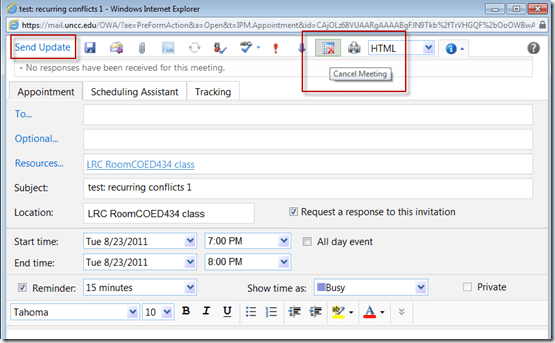
- If you need to release the resource, i.e. to free up the room/equipment for others to use – esp. helpful when you have the LRC booked for your entire class, but won’t meet there this week), open the meeting form your calendar and click in the top menu the buttons cancel series, ”send update”
 (for details see how to cancel a meeting request)
 - SummaryList of Links:
- this intro
- list of LRC resources that you can book or check out
- request resource meeting
- change meeting request
- cancel meeting resource
- resources in OWA’s Global Address List (GAL)
- scheduling assistant, avoiding scheduling conflicts
- resource responses
- resource calendars for staff, and for students
- equipment check-out/in
- why?
- For further reading: Microsoft explains Scheduling for Outlook Livein more detail here:






Questions? Read the About. Or just ask me a quick Our Databases: Resources with calendars -- Language learning material Moodle Sites, multimedia files -- films


FAQs for LRC student staff or for students or for teachers. To search our FAQs, in the browser addressbar, add after "https://plagwitz.wordpress.com/feed/?tag=faqs+/" "+TAG1" (from tag cloud below) OR "https://plagwitz.wordpress.com/feed/tag=faqs
&category_name=" "CAT1" (from category hierarchy below). OR search both categories and tags, and multiple TAGs/CATs (connect with "," for OR-search, with "+" for AND-search), like so: https://plagwitz.wordpress.com/feed/?tag=TAG1+TAG2+...TAGn&category_name=CAT1
+CAT2+...CATn"
Other ways to find help
If you cannot find it here, look there: 5,500 Language-Learning Links and Programs for learning or teaching 150 languages
Shortcuts:Our Lists, Our Maps, LRC Staff Moodle Site,LRC Project Moodle Site, 49erexpress, UNCC Moodle, Student Recordings: s:claslcslrcsanakostudent
Learning usage samples: Sanako oral exam, Kaltura webcam presentation, Dictation with speech recognition, Sanako written exam, Chinese and Japanese interactive stroke-order practice
Test the Sanako Installer, Webbrowser Popup Konfigurator for XP, or Windows7, faster LRC TeacherPC Log-in Let MS facilitate diacritics writing by installing for you US-International keyboard layout
This is my personal blog (Google+). The views expressed on these pages are mine alone and not those of my employer. The information in this weblog is provided “AS IS” with no warranties, and confers no rights.
 Thomas' Work Space