Archive
How not to have to join a Saba Centra online class from the LRC late, for lack of speaking capabilities
- Problem: We continue getting reports from teachers that students who try to participate in a Saba Centra online class from the LRC listening station computers (with analogue headphones) experience a considerable delay in joining and cause disruption to online classes since they have to troubleshoot their microphones, for lack of being audible online.
- Root cause: Saba Centra on startup automatically selects the “microphone” as recording device…
- Workaround:
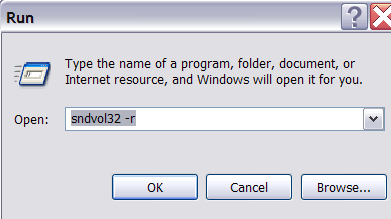
- On XP, click “Start”, click “Run”, type (without quotes) “SndVol32 –R” (meaning: “SoundVolume for Recording”), click “OK” which opens the volume mixer for recording devices. The radio button selected will be “Rear input”.

- Start Saba Centra.
- Switch back to the volume mixer you opened in step 1. Note that the radio button now selected is “Microphone”. This is wrong for the listening stations (and the teacher station) in the LRC. Switch it back to “Rear input” (you know that your headset is supposed to be plugged into the rear).

- And off you go… Plus note: There is no need for “expensive” workarounds like:
- haphazardly trying to replug headphones,
- purchasing your own USB headphones,
- hogging the main classroom with its USB headphones.
- On XP, click “Start”, click “Run”, type (without quotes) “SndVol32 –R” (meaning: “SoundVolume for Recording”), click “OK” which opens the volume mixer for recording devices. The radio button selected will be “Rear input”.

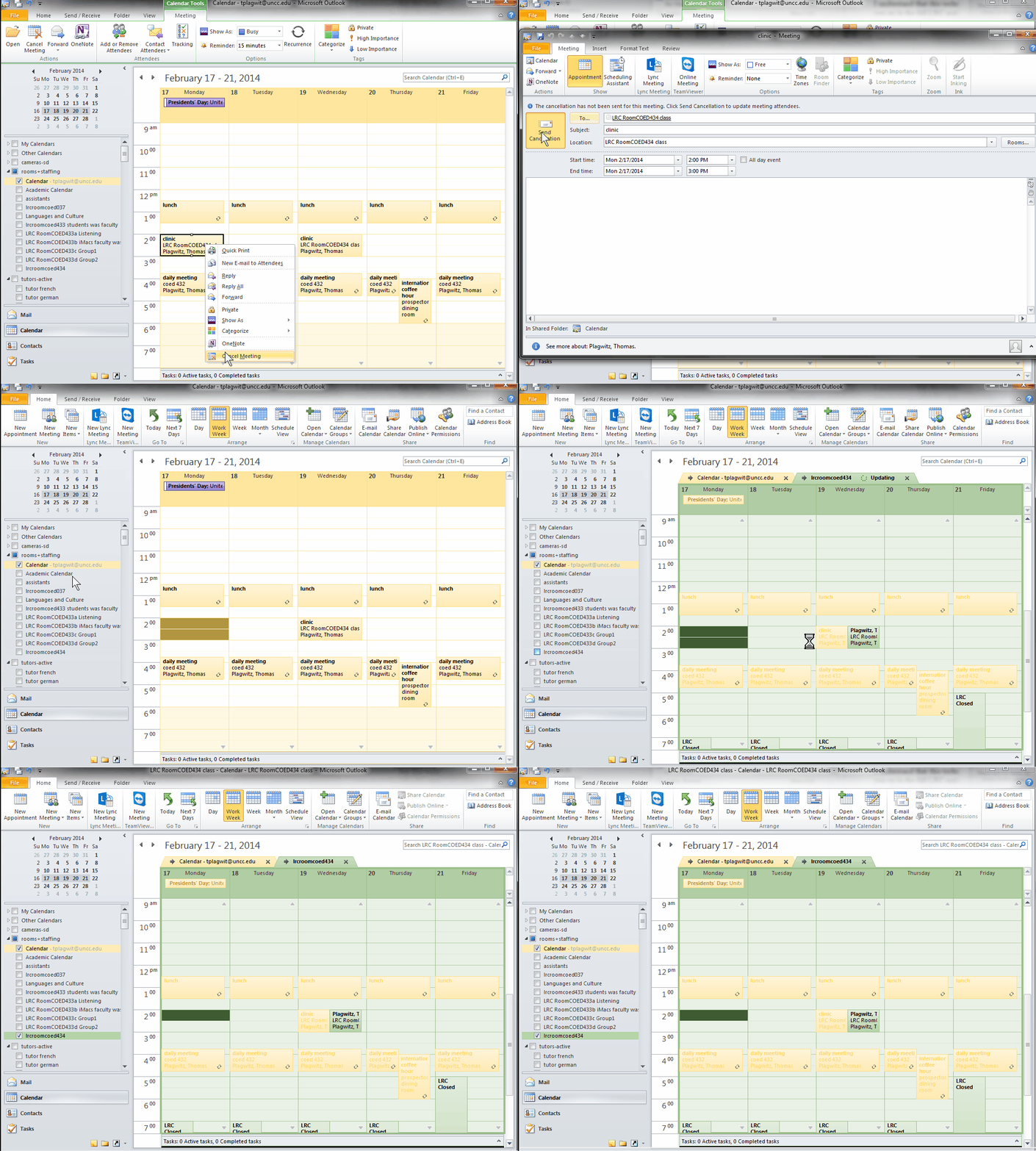
How to make (and cancel) a room/resource booking without conflict by sending a meeting request from OWA and OUTLOOK–the ultimate training…
…using animated .gifs. Note the update for Outlook (desktop) users at the bottom. (Slower? Click the Links.)You can not only book lrcroomcoed434@uncc.edu like this, but any resource listed here.If you need the classroom repeatedly or other advanced features, read on.
To Book:
0.25sec,0.5sec, 0.75sec, 1sec, , 2sec, 3sec, 4sec, 5sec, 6sec, 7sec, 8sec, 9sec, 10sec. 1.5sec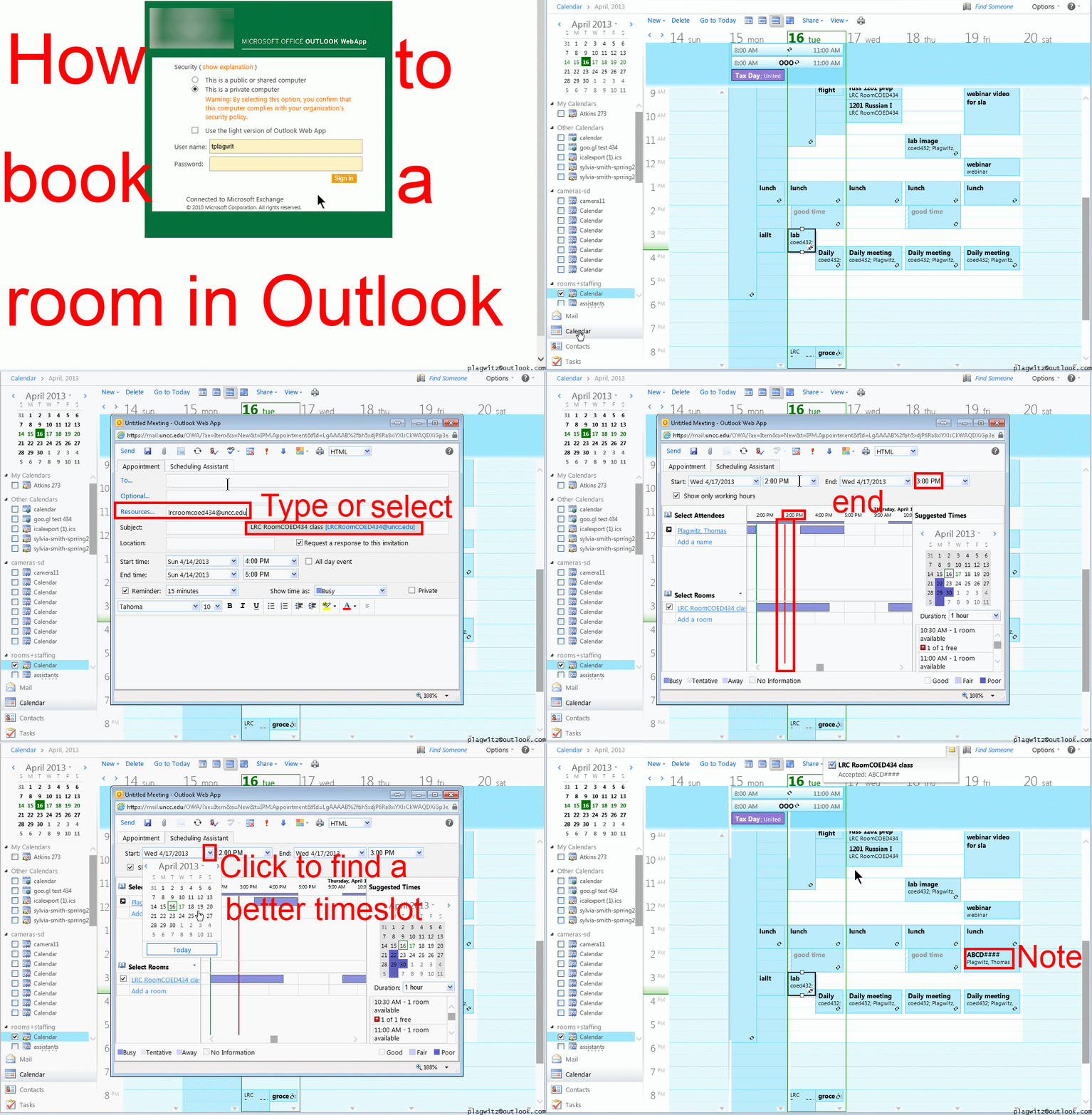
To Cancel booking (why so?):
0.25sec,0.5sec, 0.75sec, 1sec, , 2sec, 3sec, 4sec, 5sec, 6sec, 7sec, 8sec, 9sec, 10sec. 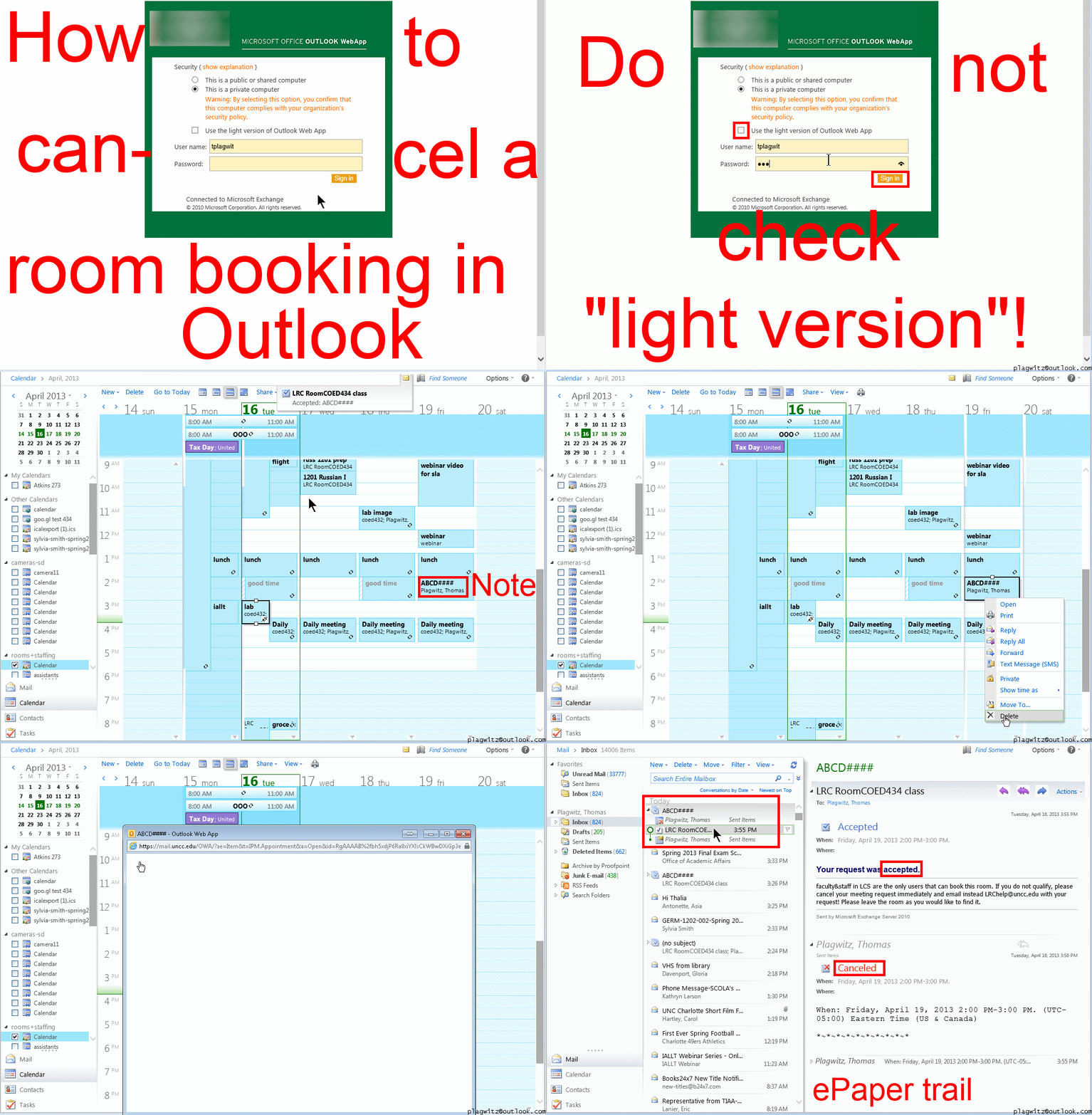
Both book and cancel booking: Compact: 0.25sec,0.5sec, 0.75sec, 1sec, , 2sec, 3sec, 4sec, 5sec, 6sec, 7sec, 8sec, 9sec, 10sec. 1.5sec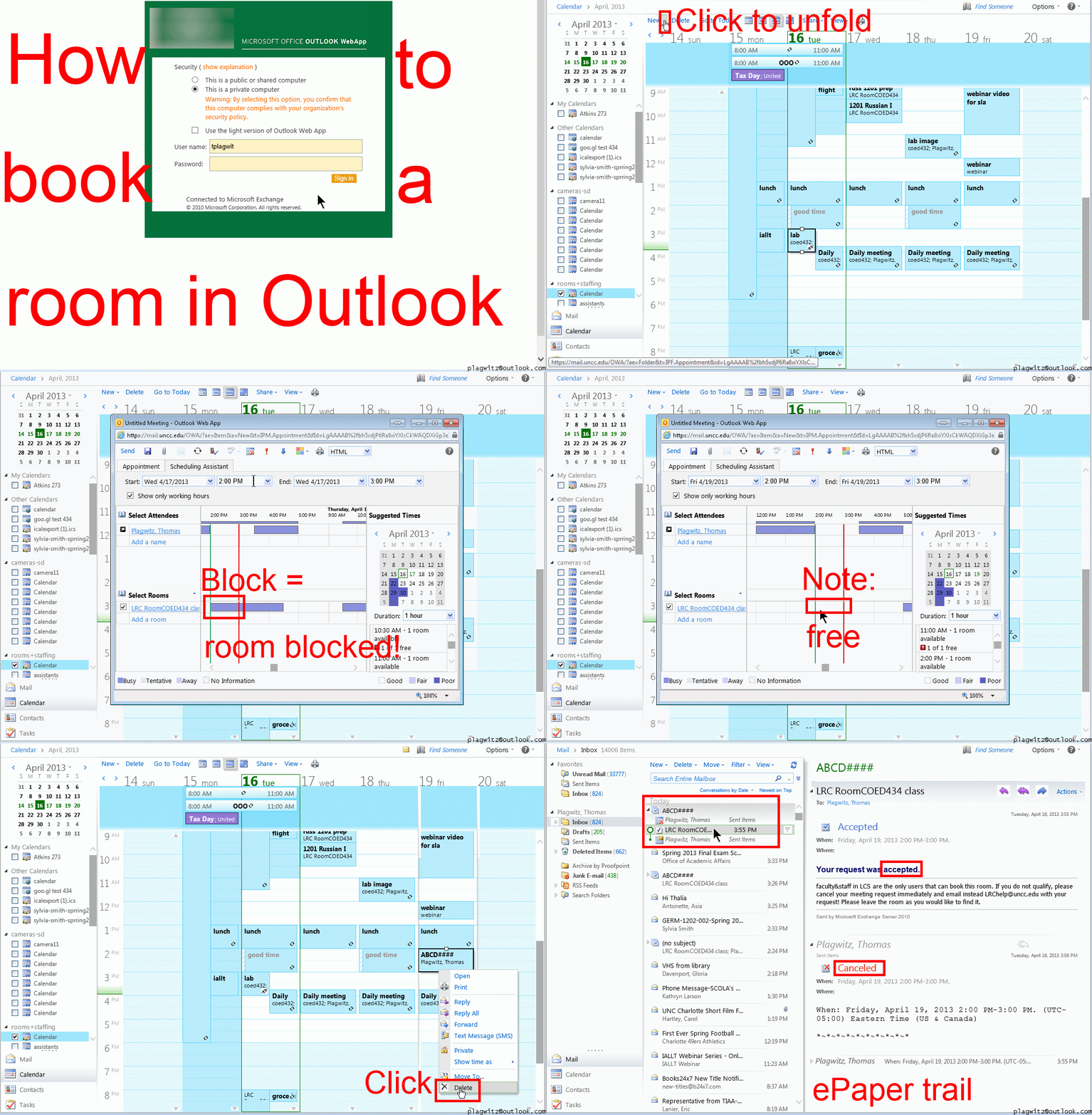 Or including unmarked frames: 0.25sec, 0.5sec, 0.75sec, 1sec, 1.5sec, 2sec, 3sec, 4sec, 5sec, 6sec, 7sec, 8sec, 9sec, 10sec.
And now in addition 2 screencasts (make/cancel reservation) for our OUTLOOK (desktop) users:

How to prevent squealing noise on the brown headphones AKA audio feedback
- Symptom:high-pitched squealing sound, usually when logged into the computers along the wall (listening stations –other computers have different black headsets which are not as prone to this problem,) and not wearing the headset.
- Short answer: LRC Assistants will let the student who causes the squealing noise know:
- ”Turn the volume knob on the brown headset down!”
- “You can turn it back up once you have put the headset on”.
- Explanation:
- The brown (analog) headsets on the listening stations exhibit this squealing noise when
- the students do not wear the headset
- AND the microphone is too close to the headphone speakers
- AND the headphone volumne knob is turned up to high.
- This phenomenon is called an (audio) feedback loop:
- The headphone speakers echo what is spoken into the microphone (this is called sidetone).
- This is an important language learning feature (helps you control your pronunciation).
- However, it spirals out of control when students do not wear the headset. They also need to “wear the headset!” (general recommendation in the language lab) to have the benefit of the sidetone (and then their head insulates between speakers and microphones).
- The brown (analog) headsets on the listening stations exhibit this squealing noise when
Have I reserved the LRC? 10 safety nets for you, plus a bonus
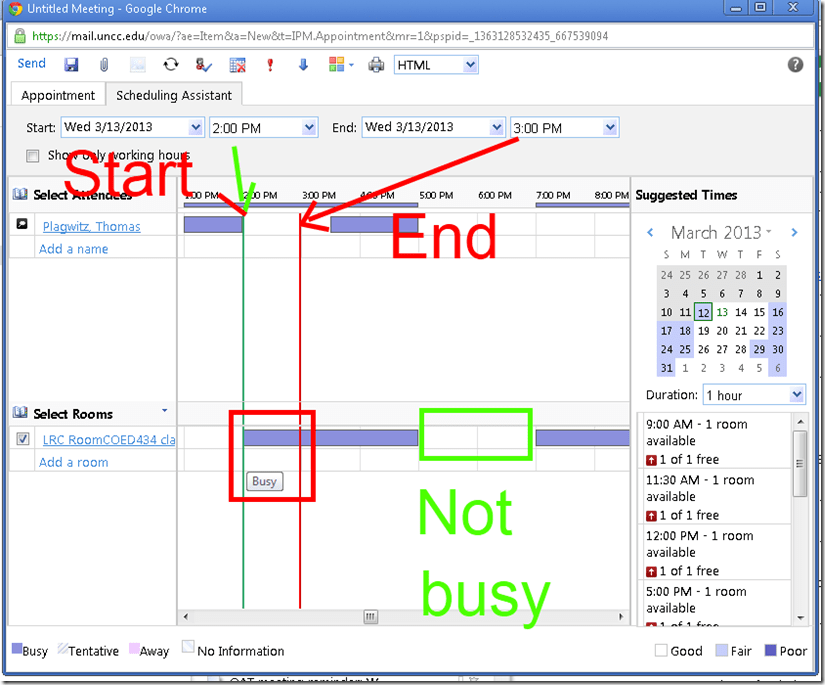
- No need to use them all: The first one you notice suffices. But we hope 1 of the 10 will work for you. Starting (that is why it is in explained in How to book LRC resources – explained in one screenshot: “Book me!”versus “Leave me alone!”) with the tab: “scheduling assistant” in your “meeting request” itself before you try to book the room: It tells you when the room is free (white or blank along the timeline). Don’t try to book the room when the room’s timeline is not blank and the hovering tool tip tells you “Busy”: It is futile.
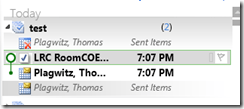
- But if you do, there will be more alerts: Immediately after you send the meeting request, a so-called “toast” (think of a slice of bread jumping out of a toaster – depending on email client you are using for NINERMAIL in the lower or upper right of the screen) flashes briefly with the automatic response from the room attendant. The response has in the subject : “Accepted or Denied” (you will not get “Tentative” from the room like in the example – UPDATE: only faculty and staff used to receive such toasts, but with the next upgrade of NINERMAIL, students will also!):

- Never mind if you miss the toast: it just notified you that the automatic response from the room attendant went into your inbox. You can see it on top there (here I unfolded it).
 It tells you in the subject and in bold in the body whether your booking was accepted or denied. If you have questions about these messages, you can forward them with your comment like any other email (no point in responding though).
 This does NOT remove the appointment from your own NINERRMAIL calendar (makes sense if you think about it: You still have your appointment (exam etc.), just the room can not be part of it).
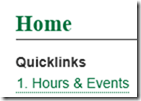
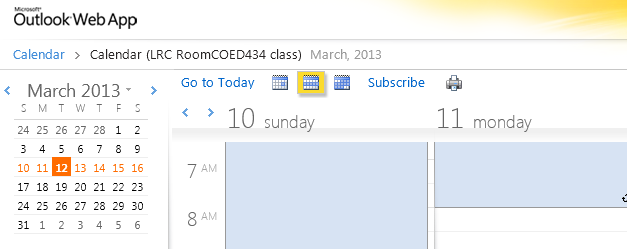
 - If you miss that also, go to the LRC homepage and click on “Hours&Events” under the Quick links in the upper left (How to view ?)

- You do not even need to visit the LRC home page: you have privileged access to the the LRC hours end events calendar from your NINERMAIL, if you subscribe to it there (shortcut: start @ #3 armed with this link:http://mail.uncc.edu/owa/calendar/LRCRoomCOED434@uncc.edu/Calendar/calendar.ics).
- You can do all this under guidance at the LRC reception desk: We try to have 1-3 name-tagged student assistants there at all times during LRC opening hours, 8 eyes see more than 2.
- One day after your booking, you will also be able to see your reservation (if successful!) on the
 : .
: . - If in doubt, do all this well before your class takes place.
- Take a training: ITS supports NINERMAIL and CTL teaches Taming your inbox.
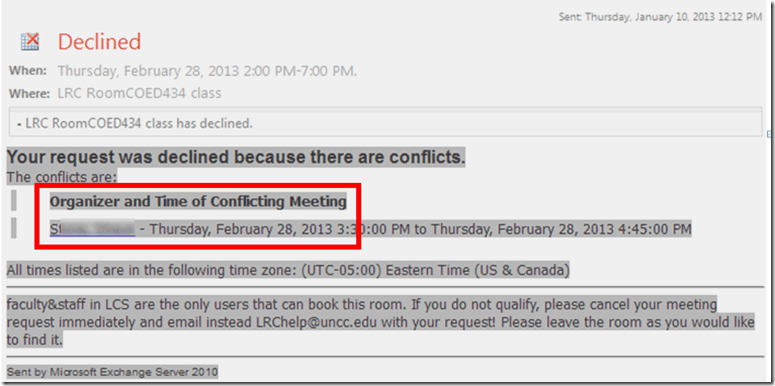
- Bonus: In the unfortunate event of a “Denied” response to your booking request, if it is not just an AM/PM error or similar which you can easily correct, the response includes information on the prior reservation, organizer, and email address.
- Why not email the colleague (click on the underlined name of the colleague that booked the LRC before you) from right here and see whether you both can rearrange? Remember: Sharing is caring.
- There is a departmental initiative to reschedule entire classes that might conflict over the use of the LRC. Talk to the departmental office well before the the prior term ends (i.e. before next term’s class schedules are finalized).
- Still confused? At this point, talk to LRC permanent staff who will go through above list with you. Please understand that the LRC staff cannot cancel other faculty’s bookings, we only extended the availability and bookability of the LRC which is readily available and easily bookable at many times during each term.
- Why not email the colleague (click on the underlined name of the colleague that booked the LRC before you) from right here and see whether you both can rearrange? Remember: Sharing is caring.



How the LRC tracks volunteer tutoring usage
LRC Volunteer tutors (different from the tracking of CAE tutors; but modeled after their tracking, to be promoted to a CAE tutor), when they arrive AND when they leave the LRC:
- at the LRC reception desk (ask the LRC assistant to show the 49erExpress window),
- log into their NINERMAIL, go to their calendar,
- open their tutor appointment ("series", NOT "occurrence" – however, if this is a non-repeating appointment, create one),
- receive a check-in/out code from the LRC assistant spreadsheet (ask the LRC assistants for that),
- 5. when checking out, also briefly describe work done:
- tutoring done (which student(s),
- what topic(s) and work (make sure to comply with the tutor ethics code)
- how much time spent on each topic.
- "Send update" to meeting request
- log out.
If you cannot log into Windows because of accessibility dialogues offering you help
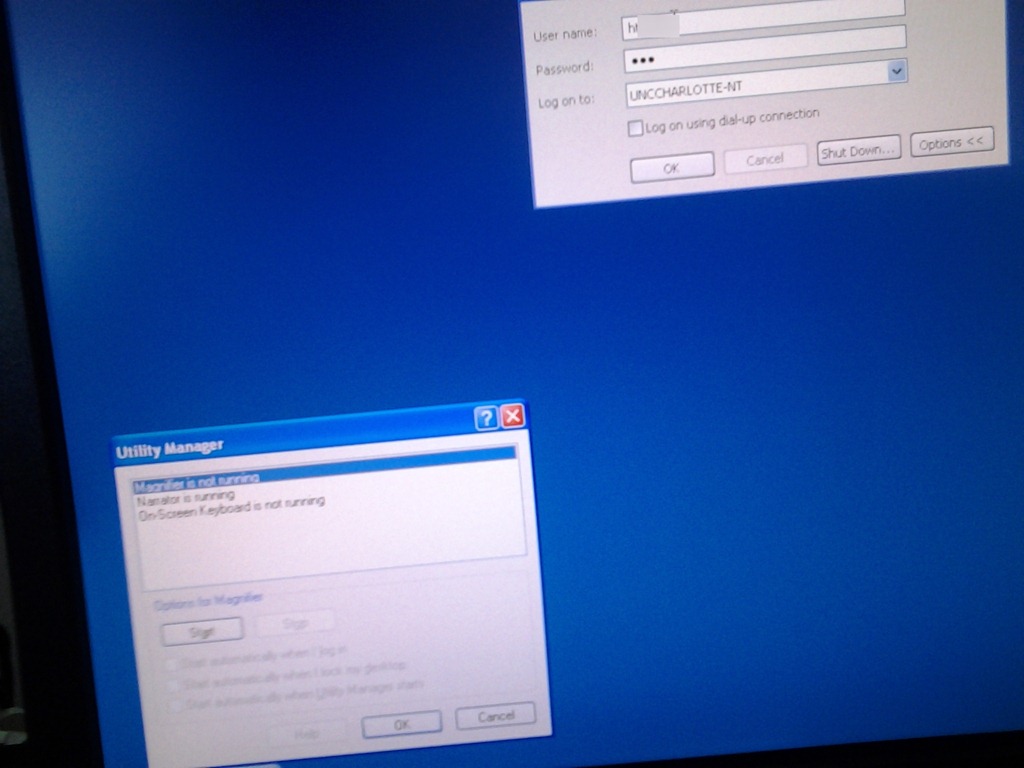
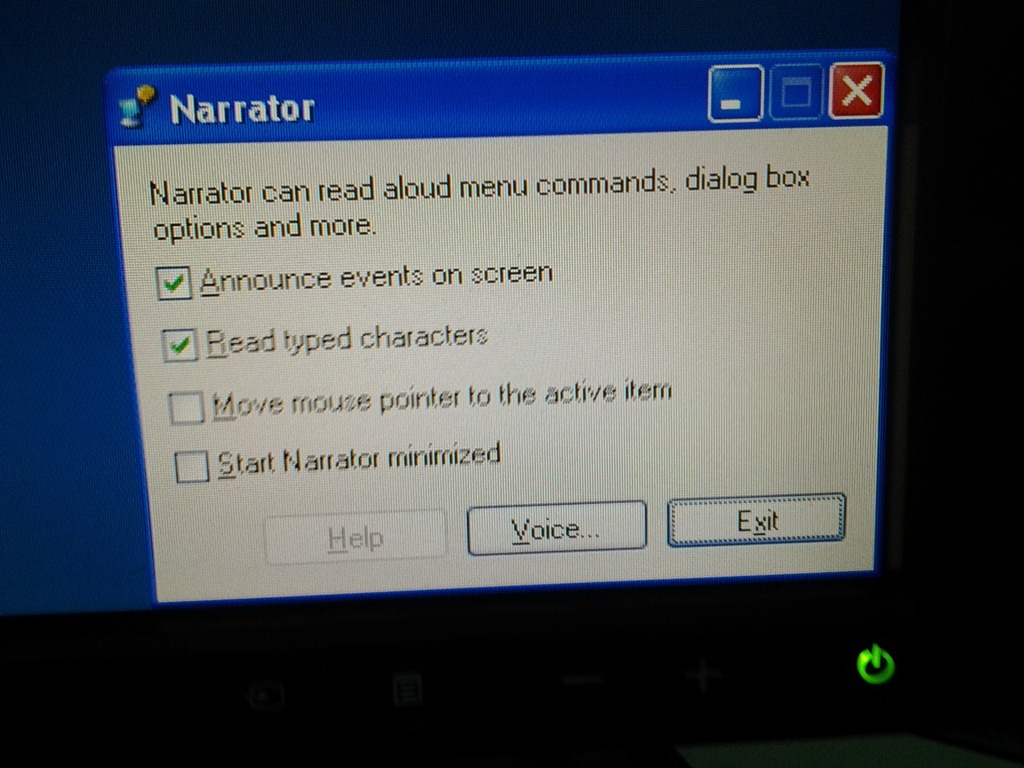
- Symptom: You cannot log in since accessibility tool dialogues (like above) come up when typing your password
- Workaround: Restart the computer (and make sure you have no item sitting on the keyboard while doing so, usual suspects: textbooks, bags). If you do not want to restart, but fix it immediately, you can read more about Windows XP accessibility features and keyboard shortcuts here.
- Root cause: You may have activated Windows accessibility features by erroneously depressing for a long time or repeatedly pressing a modifier key while the LRC computer was on the welcome screen. You may not run into this behavior from your personal computer (or read here how to disable Windows 7 Sticky and Filter Keys), but the LRC needs to be ADA compliant. Think of it as another LRC language tool that sometimes may get into your way temporarily if you do not study the language, but that you would not want to miss for the language you do study.


Questions? Read the About. Or just ask me a quick Our Databases: Resources with calendars -- Language learning material Moodle Sites, multimedia files -- films


FAQs for LRC student staff or for students or for teachers. To search our FAQs, in the browser addressbar, add after "https://plagwitz.wordpress.com/feed/?tag=faqs+/" "+TAG1" (from tag cloud below) OR "https://plagwitz.wordpress.com/feed/tag=faqs
&category_name=" "CAT1" (from category hierarchy below). OR search both categories and tags, and multiple TAGs/CATs (connect with "," for OR-search, with "+" for AND-search), like so: https://plagwitz.wordpress.com/feed/?tag=TAG1+TAG2+...TAGn&category_name=CAT1
+CAT2+...CATn"
Other ways to find help
If you cannot find it here, look there: 5,500 Language-Learning Links and Programs for learning or teaching 150 languages
Shortcuts:Our Lists, Our Maps, LRC Staff Moodle Site,LRC Project Moodle Site, 49erexpress, UNCC Moodle, Student Recordings: s:claslcslrcsanakostudent
Learning usage samples: Sanako oral exam, Kaltura webcam presentation, Dictation with speech recognition, Sanako written exam, Chinese and Japanese interactive stroke-order practice
Test the Sanako Installer, Webbrowser Popup Konfigurator for XP, or Windows7, faster LRC TeacherPC Log-in Let MS facilitate diacritics writing by installing for you US-International keyboard layout
This is my personal blog (Google+). The views expressed on these pages are mine alone and not those of my employer. The information in this weblog is provided “AS IS” with no warranties, and confers no rights.
 Thomas' Work Space