Archive
Archive for the ‘audience-is-language-learning-center-temp-staff’ Category
How to make a screenshot of your computer screen
2011/10/18
Leave a comment
- You can look it up, or:
- on Windows, press the “PrintScr” key (upper right corner of your keyboard)
- on Mac OS X, Command+Shift+3.
- Then paste the clipboard into an application that can handle images and that you are familiar with (your best bet may be MS-Word).
How we provide more computer support for walk-up clients at the LRC reception desk
2011/10/05
Leave a comment
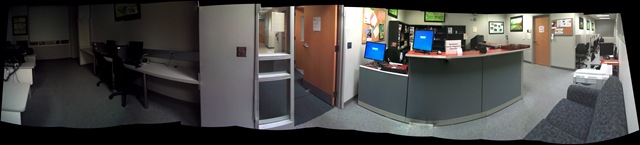
- We have set up 3 PCs at the reception desk. They all contain an exactly identical software configuration (based on Symantec Ghost imaging and Faronics Deepfreeze).
- Except that two (we could not get hold of another monitor) have a secondary screen connected that can extend the Windows Desktop, or mirror it (use CTRL-ALT-F11 and CTRL-ALT-F10 to switch between the modes of the )
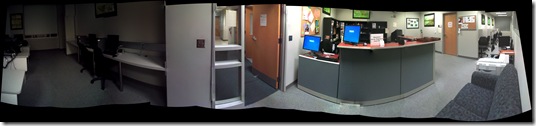

- To aid in this communication over the counter, press CTRL-2 to freeze and on the screen (uses MS-ZoomIt) which helps when pointing out screen elements.
- So that LRC staff and clients can both use the university’s most important web applications, the computers have been configured to automatically launch a number of web browsers on startup, and within each browser, open a number of home pages with(LRC website, Moodle, NINERNET, faculty&staff Mail, WordPress, Excel Web App with he LRC databases for hardware, software, media and learning materials inventories). (When done, instead of closing the browser, use the “sign out” link of each web application).
- As a reminder, the most basic instructions (with keyboard shortcuts) have been posted on both primary and secondary monitor.
- Can we also implement a screen sharing solution allowing for MS-remote assistance, to enable reception desk LRC staff to escalate client questions they cannot resolve, like our IT department?

Categories: audience-is-language-learning-center-staff, audience-is-language-learning-center-temp-staff, audience-is-teachers, e-infrastructure, Institution-is-University-of-North-Carolina-Charlotte, Reception-desk, software
ati, FAQs, faronics-deepfreeze, ms-excel-web-app, ms-zoomit, symantec-ghost
Meta: WordPress Categories–what are they good for?
2011/09/29
Leave a comment

Not for AND-searches, as a matter of fact.
How not to book LRC equipment: Scheduling conflicts
2011/09/23
3 comments
- Do not send a meeting request to an item for a time when the item has a prior meeting request.
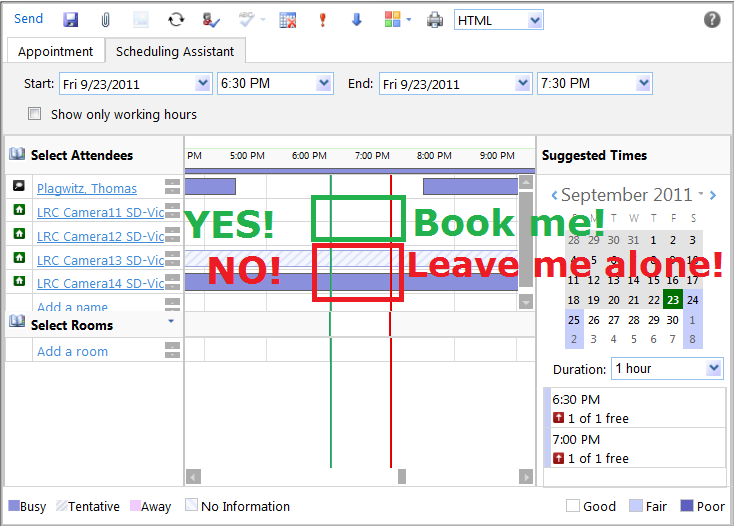
- The tab: scheduling assistant within the meeting request you edit is there to tell you when items have prior meeting requests.
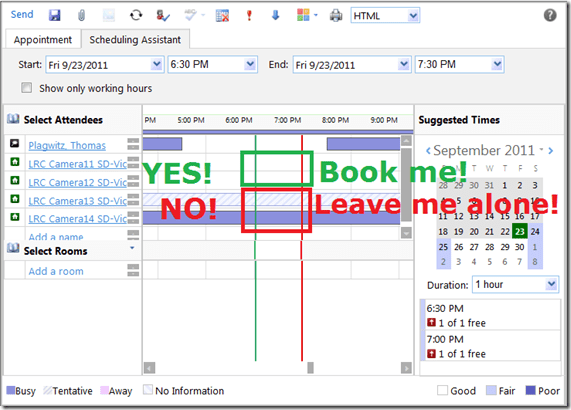
- A “blocked” timeline denotes a prior meeting request: The item has already been booked (solid block) or requested (hatched block) during the start and end time of your meeting. Do not crash their party.
- “blank” timeline means “item is free”. Go ahead: You can request a meeting with this item between your start and end time.
- Once you have this overview, you can easily remove, by right-clicking on the resource, extra resources that you cannot book or could, but which you do not need:

- Once the university has mail-enabled your cloud-accounts on campus, we will have a computer decline such conflicting requests automatically, and force you to start over with a new meeting request. It will be still worth your while memorizing the above: You can save time and avoid disappointment.

Printing Problems in the LRC
2011/09/22
Leave a comment
- One problem
- Printer printing garbage like this?
_thumb.jpg "CIMG0002 (2)")
- To fix it, try power-cycling the printer
- Another problem
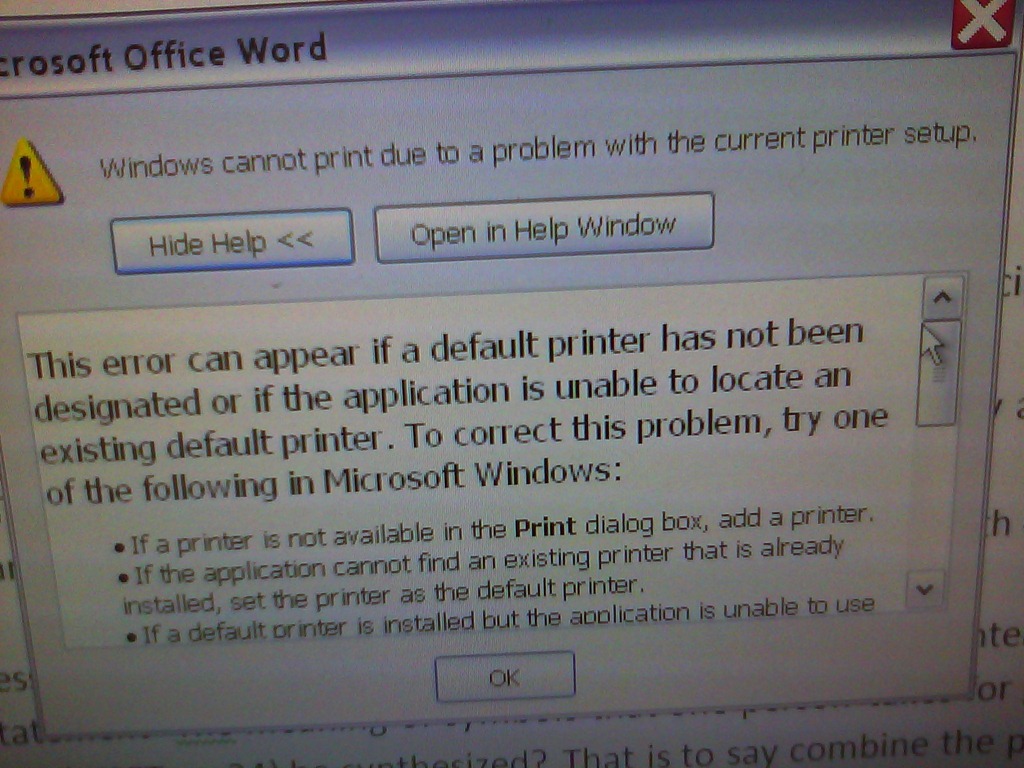
- Received this error, repeatedly with students trying from different LC computers.

- Until I told her to save the document (I thought she was authoring it), log out and log in on a different computer. Then miraculously she could print.
- Now I am left wondering: Did she open the document, maybe from Moodle, in her web browser, and the MS-Word browser plugin is not set up to print too our printer. Would be not a solution, but a workaround for this situation.
[3].jpg "CIMG0002 (2)")
LRC Outlook/Exchange 2010 Resource Calendaring: How students can view resource "Calendars from the Internet" in web browser and OWA
2011/09/20
5 comments
- Want a shorter version?
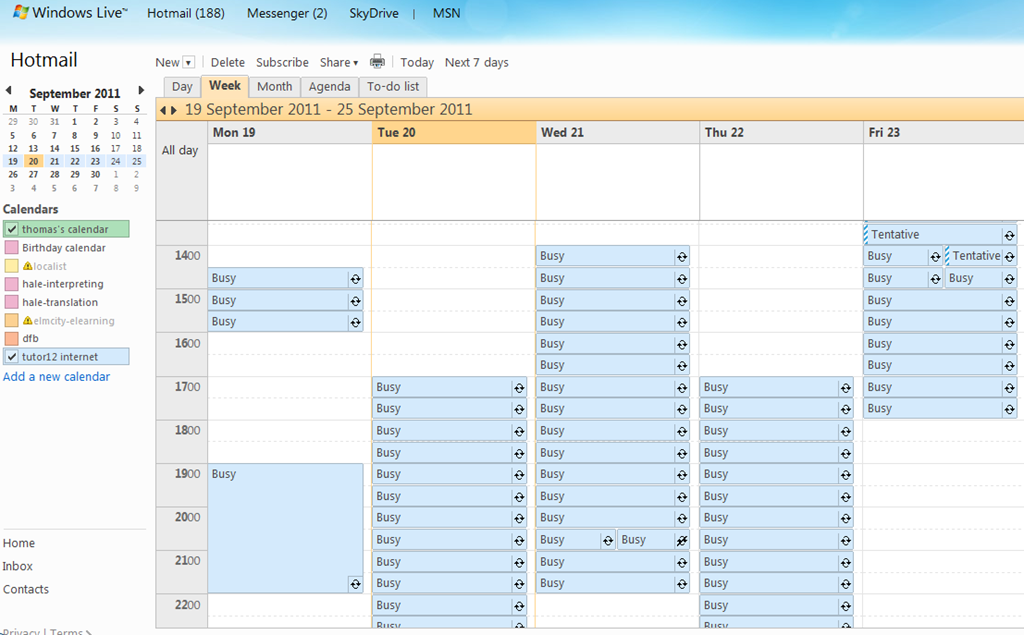
- Students, unless specifically TBA:invited, will encounter a permission problem when trying to view calendars like staff.
- Instead, students can use the scheduling assistant to view a basic version of the resource’s calendar. This works “out of the box”.
- Students can also view an advanced version of the resource’s calendars (one-time, or bookmark this link in your web browser – hope you know how to synch your bookmarks between all the devices you use…). This requires little work: click on the “view” link in the “student calendar” column of our list of LRC resources that you can book or check out, to see the current calendar in your web browser:

- For students who check the calendar of a resource regularly (e.g. to see when the LRC main classroom is available for your self-access/the tutor in your language, for help), it is better to “bookmark” the resources’ calendars in NINERMAIL. Here is how:
- Copy the URL for the calendar you just opened, from the web browser address bar:
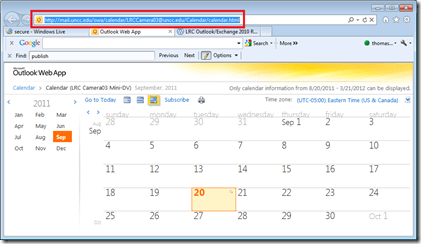
- Go to NINERMAIL, click on the lower left “Calendar-icon”
 to unfold the “My Calendars” list
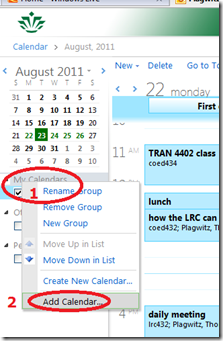
  in the left pane, then right-click on “My Calendars”, choose “Add Calendar”
 .
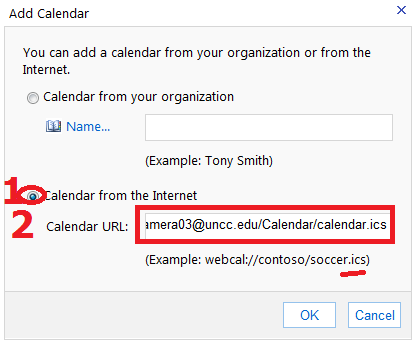
. - In the “Calendar URL” field, paste URL of the calendar you just opened, but replace “html” at the end with “ics”:
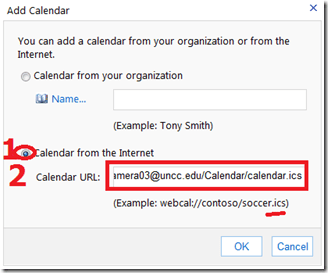 , click “OK”.
 - For on-premise users in OWA (seems OWA stirs on-premise users to the superior intranet calendars, which would be good. But what if the intranet calendar has not been shared with this user, but internet sharing is intended?), This may not work as advertised (neither with protocol http and webcal) OR just need a lot of time (~12hours?) to synchronize,
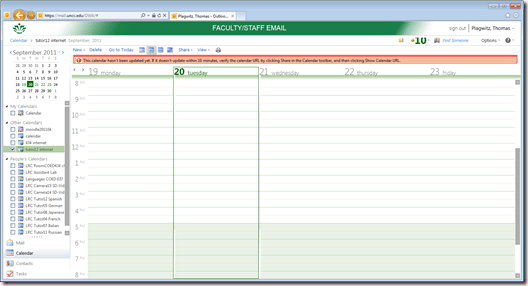 while it works (both with protocol http and webcal) when subscribing from Windows Live?
 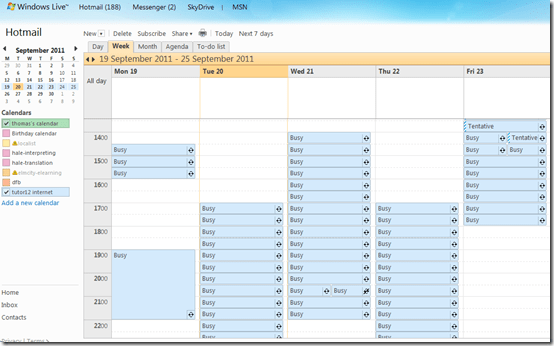 . Most importantly for us (as we have now tested), it works for students with accounts in the cloud from NINERMAI.
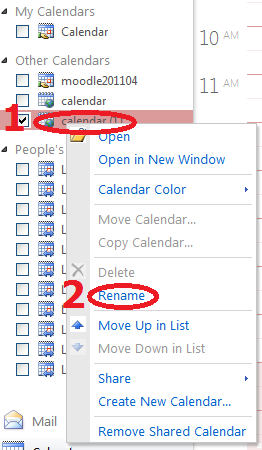
 - OWA remembers your internet calendar subscriptions, and you can easily display or hide them, using the checkboxes it provides. To keep an overview over your calendars added from the internet, you need to rename them, by right-clicking on them, like so:




How to use the LRC Lists
2011/09/20
2 comments
- The LRC lists are built with MS-Excel Web app, one of the new features which came with NINERMAIL (live@edu, try logging into http://skydrive.com .
- Important benefits of MS-Excel Web app include
- sorting: click on column header / down arrow, and choose menu item: “Sort Ascending/Descending”
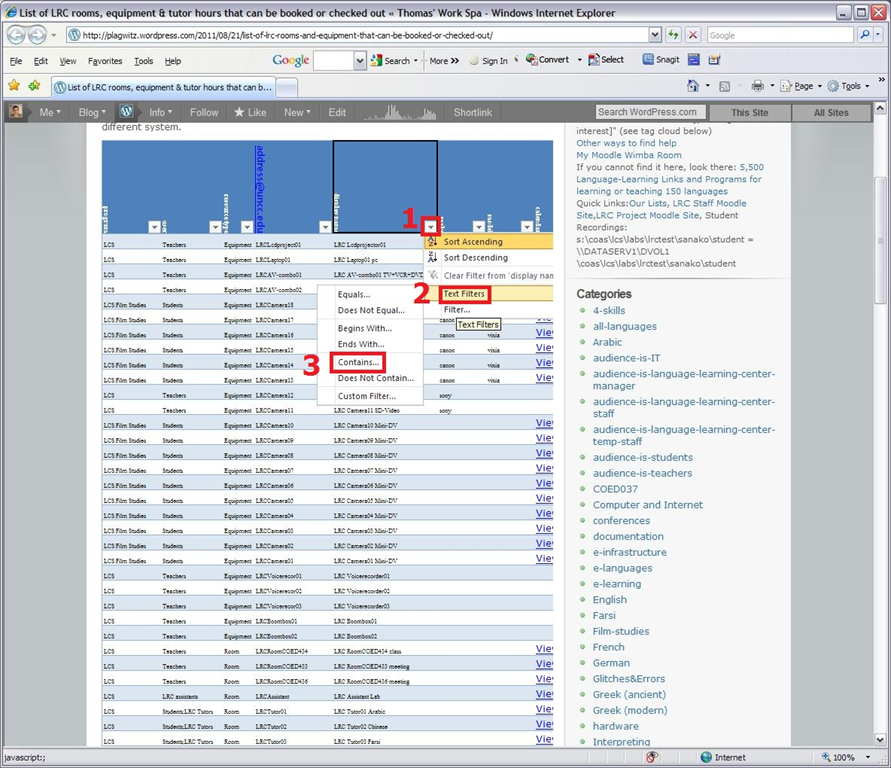
- filtering: click on column header / down arrow, and choose menu item:
- either “filter”,
 , to choose from a condensed overview of all unique items that occur in the column, and e.g. filter out “Blanks” by removing the checkmark in front of it: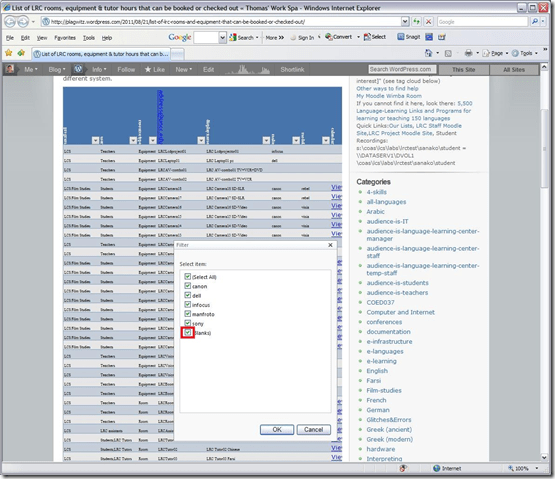
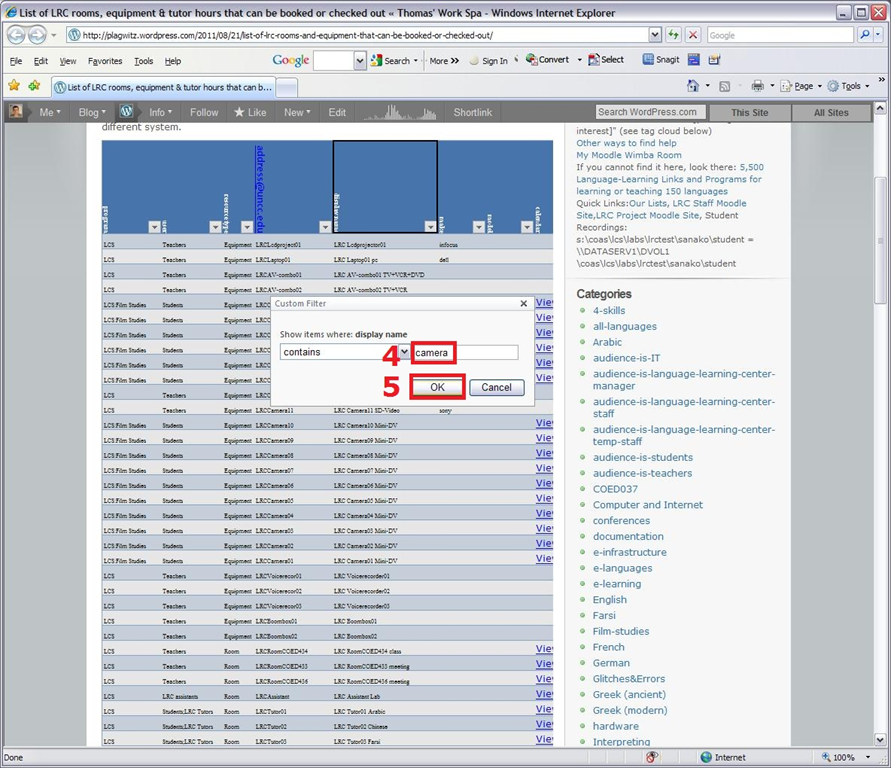
- or the advanced “number filter” (in columns with numbers) or “textfilter”,
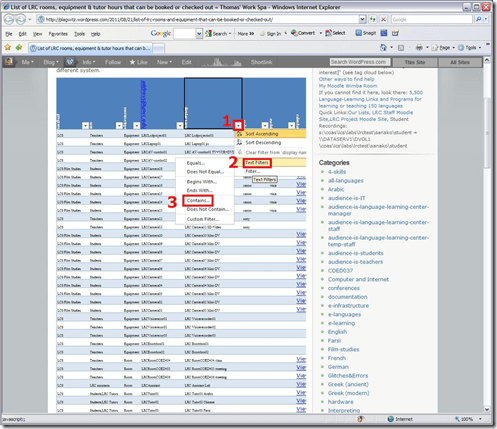 , to do more advanced searches, like for all items that contain “camera”: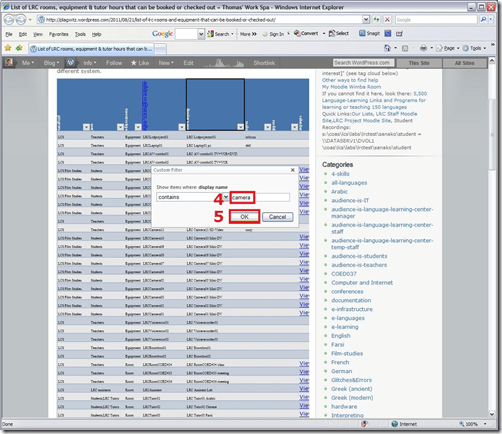
- sharing beyond viewing: Authorized users can click on an “edit link” below the list display to update the information from their web browser.
- either “filter”,




Questions? Read the About. Or just ask me a quick Our Databases: Resources with calendars -- Language learning material Moodle Sites, multimedia files -- films


FAQs for LRC student staff or for students or for teachers. To search our FAQs, in the browser addressbar, add after "https://plagwitz.wordpress.com/feed/?tag=faqs+/" "+TAG1" (from tag cloud below) OR "https://plagwitz.wordpress.com/feed/tag=faqs
&category_name=" "CAT1" (from category hierarchy below). OR search both categories and tags, and multiple TAGs/CATs (connect with "," for OR-search, with "+" for AND-search), like so: https://plagwitz.wordpress.com/feed/?tag=TAG1+TAG2+...TAGn&category_name=CAT1
+CAT2+...CATn"
Other ways to find help
If you cannot find it here, look there: 5,500 Language-Learning Links and Programs for learning or teaching 150 languages
Shortcuts:Our Lists, Our Maps, LRC Staff Moodle Site,LRC Project Moodle Site, 49erexpress, UNCC Moodle, Student Recordings: s:claslcslrcsanakostudent
Learning usage samples: Sanako oral exam, Kaltura webcam presentation, Dictation with speech recognition, Sanako written exam, Chinese and Japanese interactive stroke-order practice
Test the Sanako Installer, Webbrowser Popup Konfigurator for XP, or Windows7, faster LRC TeacherPC Log-in Let MS facilitate diacritics writing by installing for you US-International keyboard layout
This is my personal blog (Google+). The views expressed on these pages are mine alone and not those of my employer. The information in this weblog is provided “AS IS” with no warranties, and confers no rights.
 Thomas' Work Space