Archive
Archive for the ‘audience-is-language-learning-center-temp-staff’ Category
LRC computer and other hardware inventory
2011/11/24
Leave a comment
- These lists document hardware owned by the LRC:
- Symantec-Ghost generated.
- A handmade overview (partially based on the previous) can be (permissions provided) viewed or edited here.
Troubleshooting the wireless headsets in the TV viewing area
2011/11/18
Leave a comment
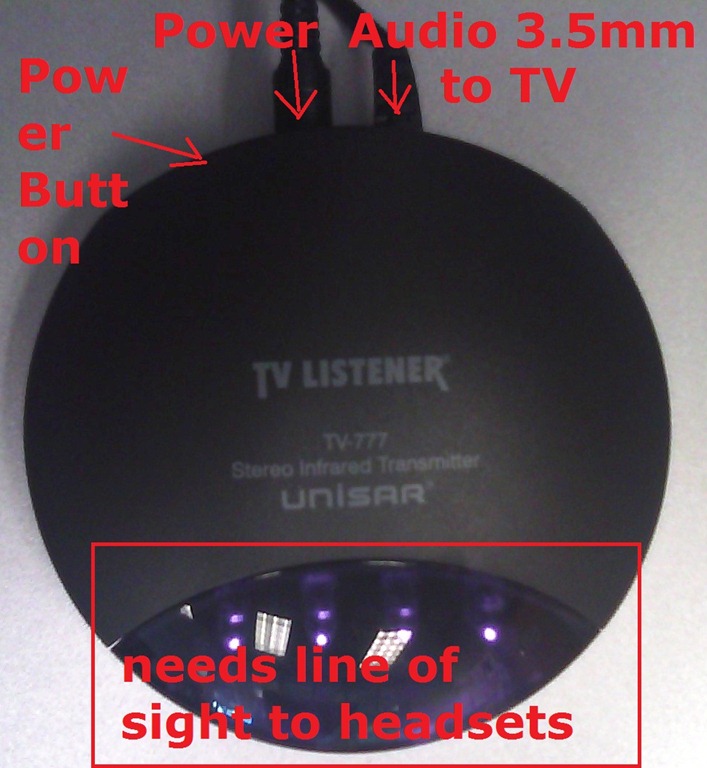
- For lack of small group work areas, the 3 headsets help sharing the LRCROOMCOED433. They amplify the sound for the TV viewing audience, allowing to turn the TV volume down so as not to disturb other users in the shared area.
- No sound?
- headsets turned on?
- headset volume turned up?
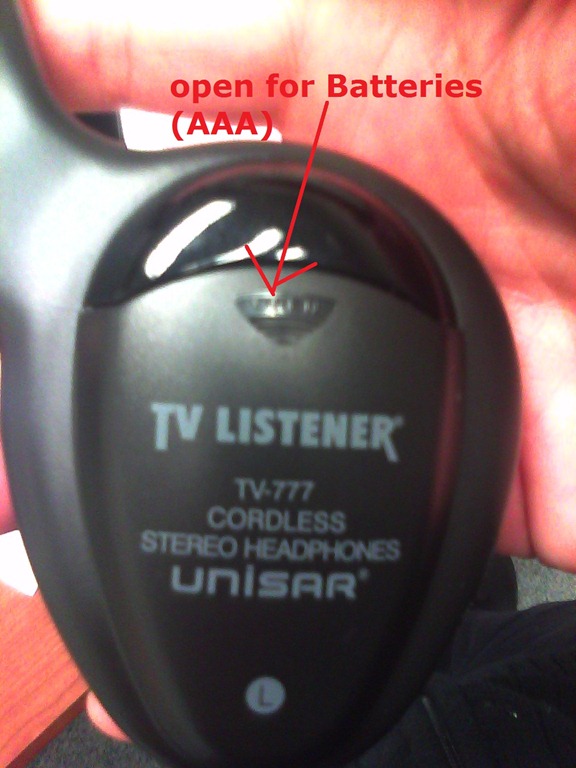
- headsets batteries dead?
- transmitter turned on?
- Static noise on headsets?
- headsets batteries weak?
- no line of sight to transmitter?
- Other things you can try:
- a different headset. We have 3.
- a different transmitter. We have 2.
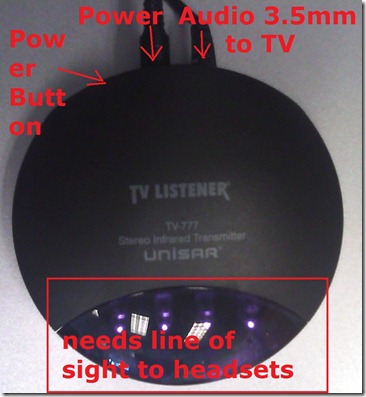
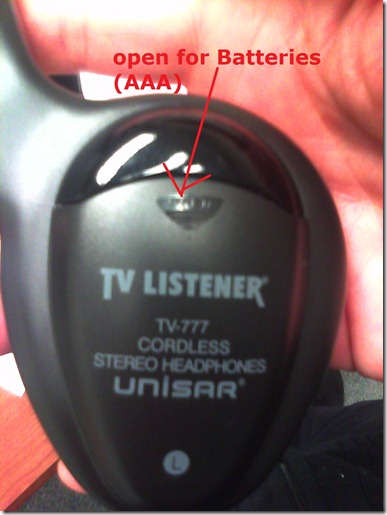
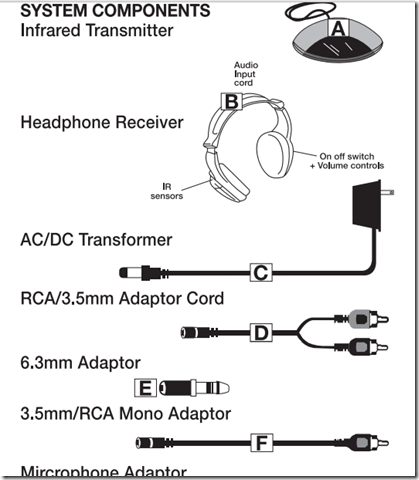
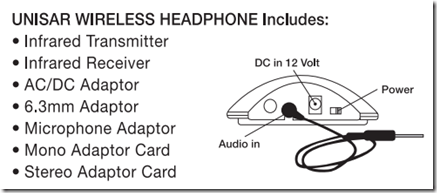
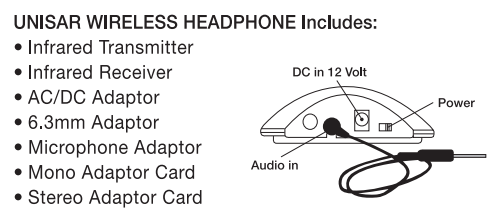
- An image says more than 1000 words:





How to restart the LRC student printer station
2011/11/16
Leave a comment
- On the computer keyboard of the print release station computer, press the windows-key.
- This will bring up ("It’s a Windows system! I know this!") the Start Menu.
- Choose Shutdown/ Restart from there.
Categories: audience-is-language-learning-center-temp-staff, printer
FAQs, printing
More printing problems in the LRC: How to deal with student swipe card not being read
2011/11/16
Leave a comment
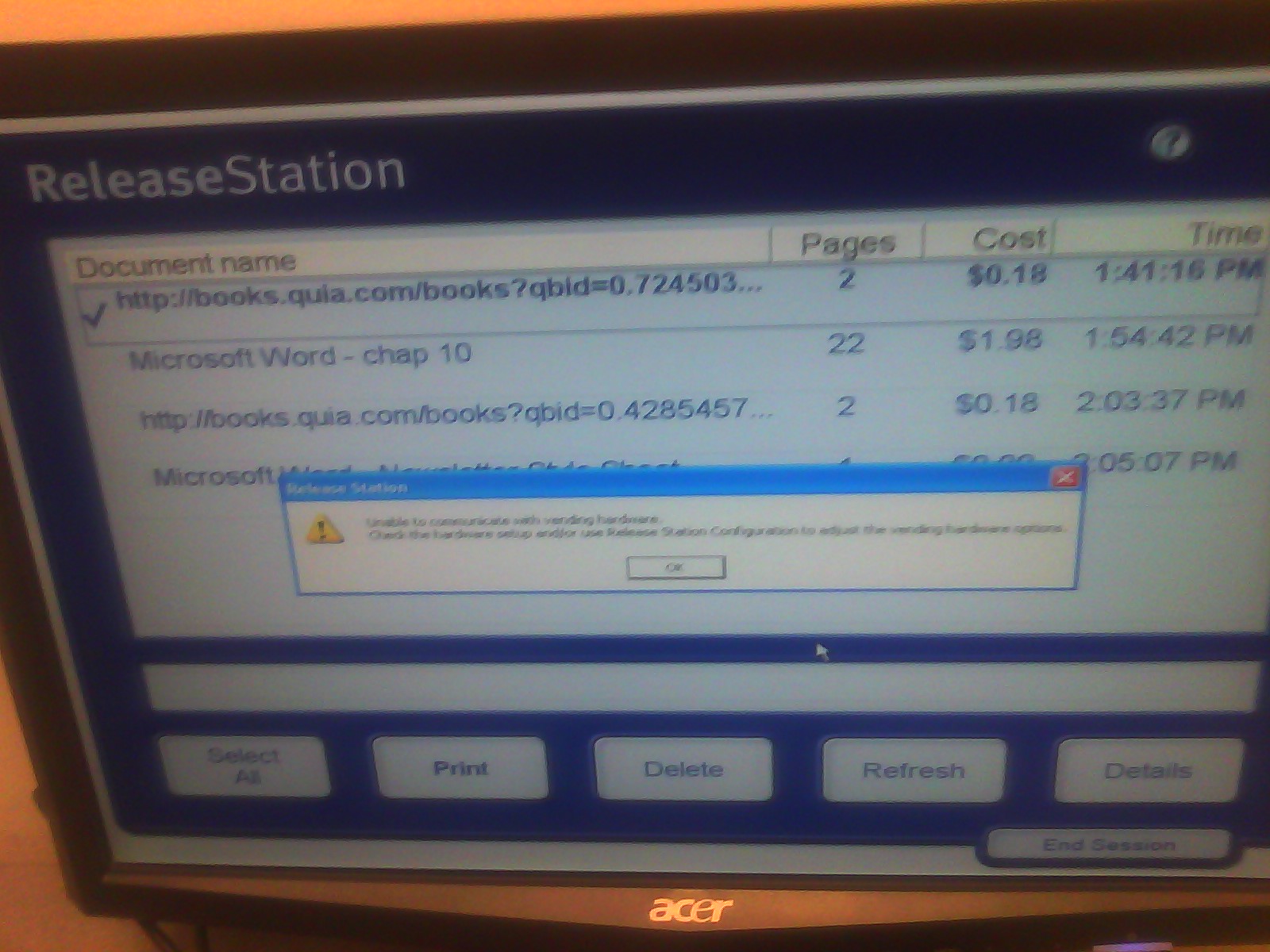
- Problem: You get this error message "Unable to communicate with vending hardware" (when student swipes the student id card):

- Things to try: Try first restarting the print release station computer (How?). If this does not help, in the past, this has indicated campus-wide problems. Call the HELPDESK to find out more. If they confirm, post a warning note for students on the print release station.
How LRC assistants can print LRC jobs from the reception desk
2011/11/03
Leave a comment
- If you have (ONLY! printing is tracked) work-related jobs to print from the reception desk, please use this method:
- Choose “print” as normal and then this Toshiba printer driver ONCE I HAVE IT INSTALLED:

- the printer driver will ask you for a code; the code in the LRC Moodle announcement board sticky post, above the threads:
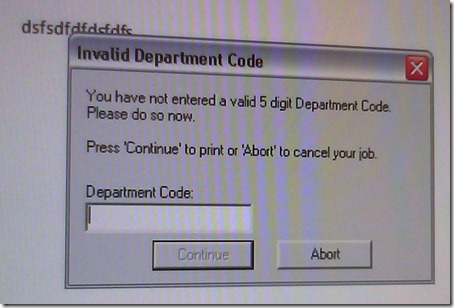
- You can pick up the print outs in the mailroom behind the LCS department’s main office.
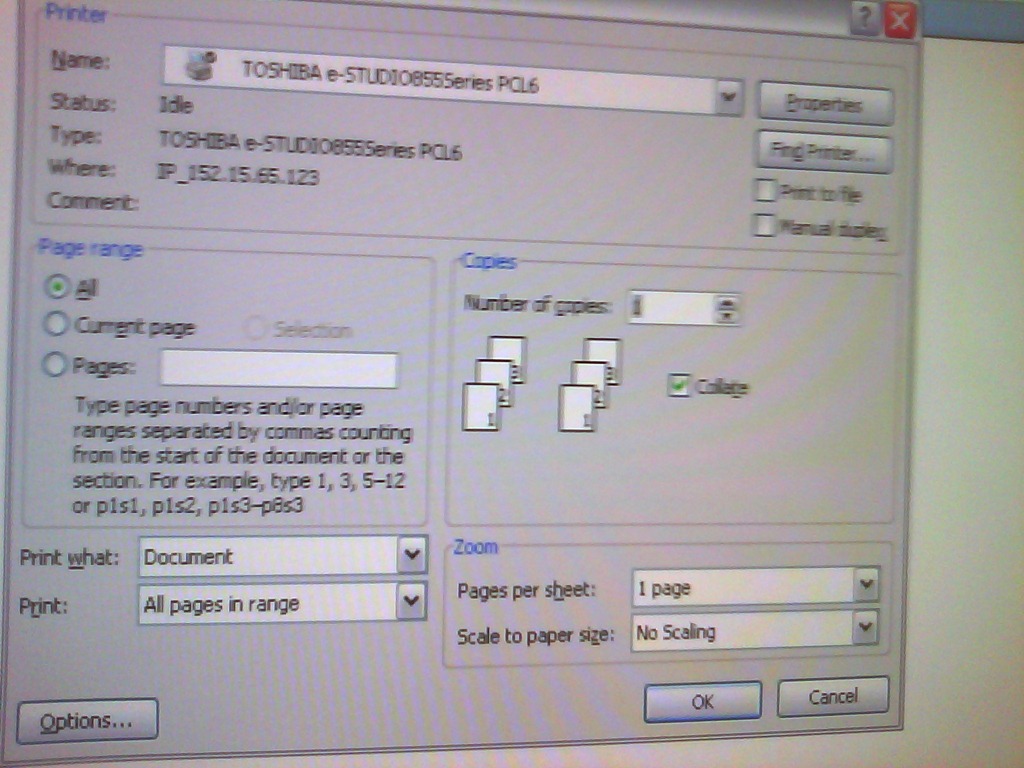

How LRC assistants get paid: web time sheet entry
2011/11/02
1 comment
- log into your 49er express, click on “Banner Self Service”:
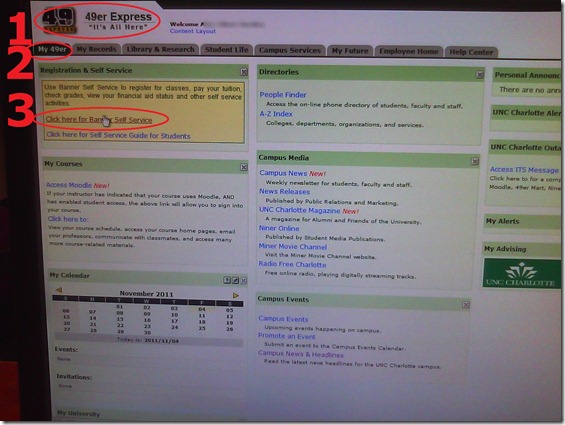
- click 1: tab employee, 2: click timesheet .

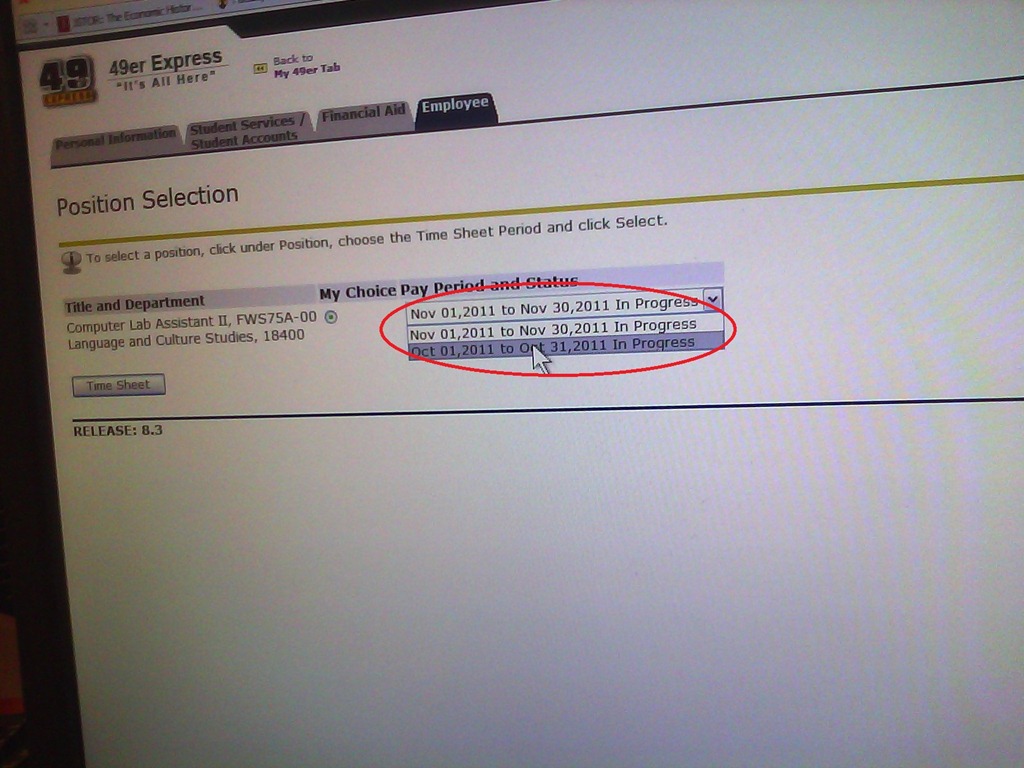
- select the pay period

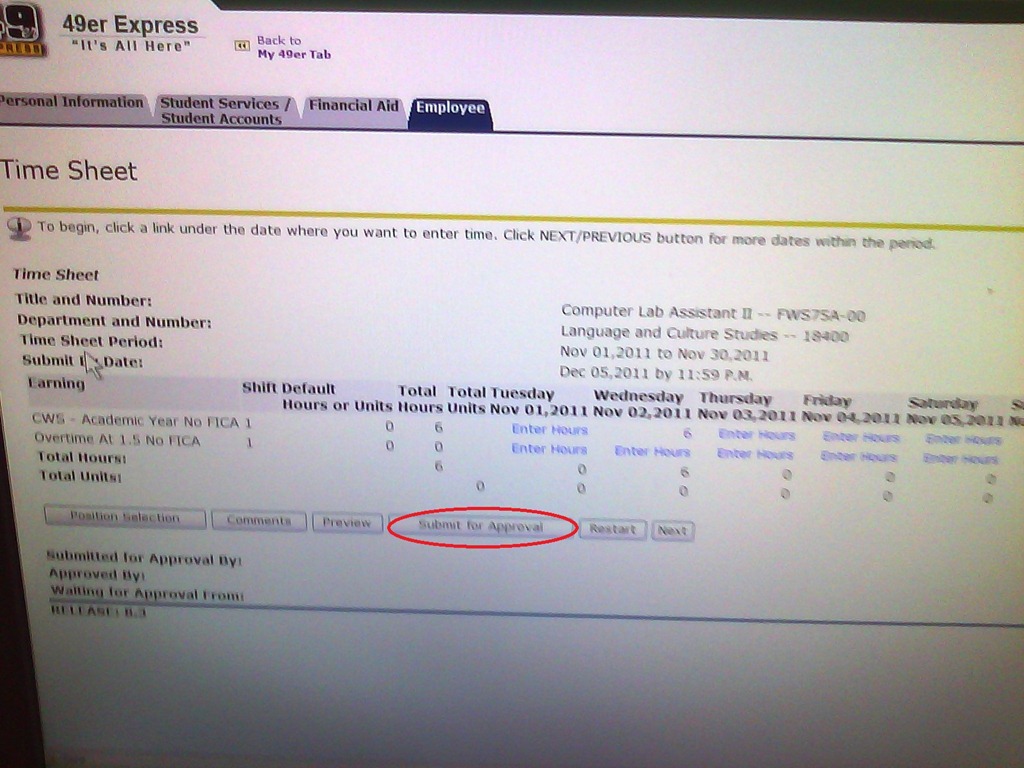
- fill in your times…
- do not forget to click button “submit for approval”
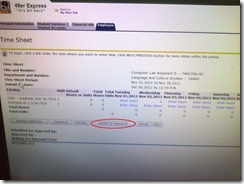
- if you don’t, you will remain “in limbo”: I cannot approve your times.
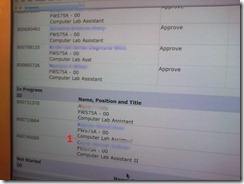
- if you do, you get moved up in line:




LRC assistant responsibilities: A checklist (on reception desk next to your screen)
2011/10/26
Leave a comment
For larger view, click “Full screen”windows in lower right corner. Mote that the sheet with LRC assistant responsibilities is handily posted right under your screen at your work station – refer to it as needed,



Questions? Read the About. Or just ask me a quick Our Databases: Resources with calendars -- Language learning material Moodle Sites, multimedia files -- films


FAQs for LRC student staff or for students or for teachers. To search our FAQs, in the browser addressbar, add after "https://plagwitz.wordpress.com/feed/?tag=faqs+/" "+TAG1" (from tag cloud below) OR "https://plagwitz.wordpress.com/feed/tag=faqs
&category_name=" "CAT1" (from category hierarchy below). OR search both categories and tags, and multiple TAGs/CATs (connect with "," for OR-search, with "+" for AND-search), like so: https://plagwitz.wordpress.com/feed/?tag=TAG1+TAG2+...TAGn&category_name=CAT1
+CAT2+...CATn"
Other ways to find help
If you cannot find it here, look there: 5,500 Language-Learning Links and Programs for learning or teaching 150 languages
Shortcuts:Our Lists, Our Maps, LRC Staff Moodle Site,LRC Project Moodle Site, 49erexpress, UNCC Moodle, Student Recordings: s:claslcslrcsanakostudent
Learning usage samples: Sanako oral exam, Kaltura webcam presentation, Dictation with speech recognition, Sanako written exam, Chinese and Japanese interactive stroke-order practice
Test the Sanako Installer, Webbrowser Popup Konfigurator for XP, or Windows7, faster LRC TeacherPC Log-in Let MS facilitate diacritics writing by installing for you US-International keyboard layout
This is my personal blog (Google+). The views expressed on these pages are mine alone and not those of my employer. The information in this weblog is provided “AS IS” with no warranties, and confers no rights.
 Thomas' Work Space