Archive
Archive for the ‘audience-is-language-learning-center-temp-staff’ Category
How to fix Canon Vixia “Cannot write on card” error when starting recording by initializing
2012/02/15
Leave a comment
- To fix this error,
- go to: Menu / Function / Tools / Tab: / menu item: Initialize – choose the card slot A or B with the mal-formatted card.
- or view how to access the initializing procedure here TBA
- To avoid this problem: You may get this error after you the SD card has been formatted in another device but the camera (e.g. on your computer, using a memory card reader). If you are trying to delete footage, initialize the card within the camera instead. This page is taken from the Vixia manual, the full manual you can find linked in our list of bookable resources under Vixia.


Unable to edit MS-Excel online spreadsheet because of other user locking
2012/02/08
Leave a comment
- Problem: Why is a user opening a spreadsheet in the browser (even if with edit.aspx URL) causing a warning "The spreadsheet is locked by another user" if i try to open it in MS-Excel? I thought Excel Web App allows multiple uses to edit the spreadsheet at the same time?
- Solution: Opening the spreadsheet for editing in the browser still locks it for being opened in MS-Excel (and vice versa), but not for opening it for editing in another browser.
LRC demo, troubleshooting and debugging screencasts
2012/02/07
Leave a comment
- The LRC student PC image contains a file C:\temp\screencastfullhighaudio.wme
- Doubleclick or run the file, in the encoder window that comes up, click the green menu button to record your screen.
- When done demonstrating on screen, swtich back to the encoder window and click the red button to stop recording.
- Rename and archive (the student hard drive is “frozen”) the screencast video output file which you will find in c:\temp\screencast.wmv.
Screencasts for Spring 2012 Student Staff Workshop: LRC layout,, calendaring, tutoring, example Japanese
2012/02/05
Leave a comment
- Here are two screencasts of my presentation:
- one for the right screen/participant screen (using the Study1200 teacher to student screen casting). Requires Windows Media Player on PC, like in the LRC: download from MS-SkyDrive.
- one for the left screen/projector, where I displayed mostly a PowerPoint. You can watch this in parallel using another player, e.g. the VLC player, like in the LRC. However, it can also stream from MS-SkyDrive.
Sharing vs. subscribing to Calendars in OWA/Ninermail
2012/02/02
Leave a comment
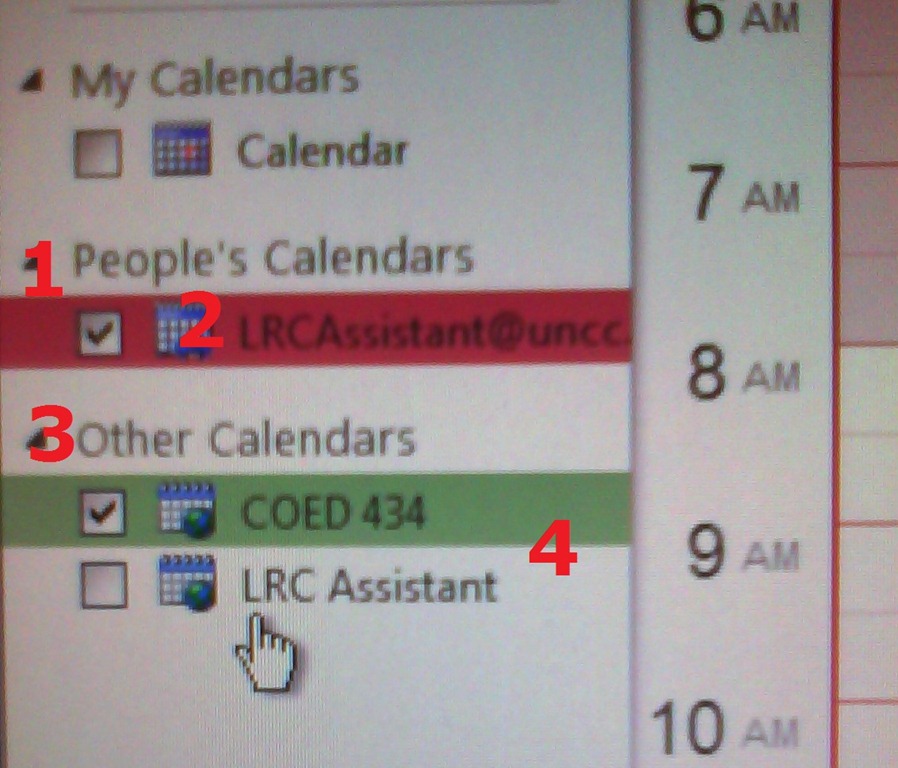
- Why does this matter? Different information may be visible to you, especially shared calendars can display more sensitive information than internet published calendars.
- How can I tell the difference? Apart from the amount of information that gets displayed to you, different calendar types appear :
- in a different place:
- Shared calendars appear under (1) heading “people” (even if it is a room or other resource),
- subscribed calendars under (3) heading “Other Calendars”
- with a different type of name:
- Shared calendars have as name the email address (2) “@uncc.edu”
- subscribed calendars have as default name only “calendar”. Only if you rename the calendar, it has a meaningful identifier, like was done here (4)
- in a different place:

How we improve client service through changes to the reception desk computer image
2012/01/31
Leave a comment
- These browser windows will now load automatically when student staff logs into the reception desk computers:
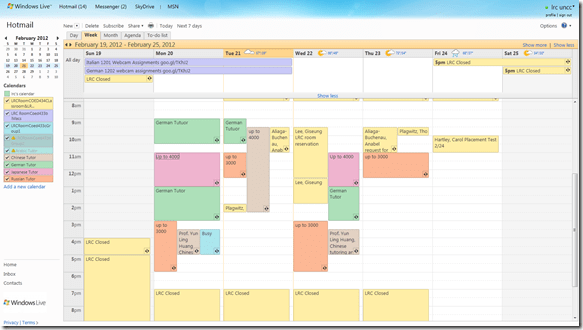
- Safari: In the entrance area, we display the live calendar of LRC events and services, containing the schedule of events (classes and other room and computer bookings from our bookable resources):
- Internet explorer
- is used by clients exclusively
- displays only the 49erexpress login screen in full screen
- clients do not close, but only log off
- dependent application windows can be opened from there
- Moodle
- Ninermail
- Firefox
- is used by LRC Assistants exclusively
- better overview thanks to fewer duplicate tabs
- immediate access to online spreadsheets
- bookable LRC resources
- film collection
- Moodle teaching resources
- LRC homepage, displayed for walk-in clients in the entrance area:

- Safari: In the entrance area, we display the live calendar of LRC events and services, containing the schedule of events (classes and other room and computer bookings from our bookable resources):


How to make a tally on student staff performance
2012/01/30
Leave a comment
- We have a “Do’s and Don’ts” checklist for student workersas a Word web app
- easy to view/print for student staff,
- easy to update/print (and stash the work places with) for permanent staff – where each item has their point value.
- We have a tally of points earned (sorry, permanent staff only) by temp staff member with date+time and explanation in Excel Web app which can be easily updated with observations by permanent staff when walking the LRC floor
How a student uses the Sanako Recorder Voice Insert mode for Moodle comparative recording exercises
2012/01/25
2 comments
- to load a file
- from Moodle:
- Find your assignment with the model audio file, presumably in your Moodle course.
- download the model audio file
- open the Sanako Student Recorder (introduction).
- go to menu: file / open, and open the file you downloaded
- from student recorder playlist: double-click the file.
- from Moodle:
- enable voice insert:
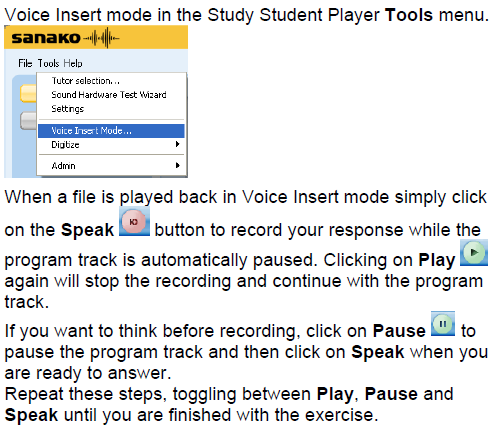
- To activate voice insert (which is a toggle that changes the behavior of the other buttons)
- either go to tools/ voice insert mode
- or click the voice insert button
 (darker shade of brown = OFF; tooltip should say “Toggle Voice Insert OFF”, meaning: it is ON now)
- To activate voice insert (which is a toggle that changes the behavior of the other buttons)
- press the green play button to listen until you reach the point (your teacher may have inserted a pause or aural cue) where you can repeat or respond.
- Then click the red speak-button
 to repeat after/respond to the source/teacher
 - When you are done repeating/responding, press the green play-button.
- At the end, press the blue stop-button.
- Rewind and review your recording (e.g. compare your pronunciation with the teacher’s model).
- When done, click file / save as and save only your, the student track, as mp3 or wma.
- Additional notes:
- TBA: you can overwrite your pronunciation where you deem necessary.
- Fixed in Sanako 7:
you cannot show the voice graph when in Voice insert mode – both are incompatible. - To see in action how to record with voice insert and save the student track, view
- The previous is just a step-by-step for our environment based on the Sanako Study 1200 documentation which follows here:




Questions? Read the About. Or just ask me a quick Our Databases: Resources with calendars -- Language learning material Moodle Sites, multimedia files -- films


FAQs for LRC student staff or for students or for teachers. To search our FAQs, in the browser addressbar, add after "https://plagwitz.wordpress.com/feed/?tag=faqs+/" "+TAG1" (from tag cloud below) OR "https://plagwitz.wordpress.com/feed/tag=faqs
&category_name=" "CAT1" (from category hierarchy below). OR search both categories and tags, and multiple TAGs/CATs (connect with "," for OR-search, with "+" for AND-search), like so: https://plagwitz.wordpress.com/feed/?tag=TAG1+TAG2+...TAGn&category_name=CAT1
+CAT2+...CATn"
Other ways to find help
If you cannot find it here, look there: 5,500 Language-Learning Links and Programs for learning or teaching 150 languages
Shortcuts:Our Lists, Our Maps, LRC Staff Moodle Site,LRC Project Moodle Site, 49erexpress, UNCC Moodle, Student Recordings: s:claslcslrcsanakostudent
Learning usage samples: Sanako oral exam, Kaltura webcam presentation, Dictation with speech recognition, Sanako written exam, Chinese and Japanese interactive stroke-order practice
Test the Sanako Installer, Webbrowser Popup Konfigurator for XP, or Windows7, faster LRC TeacherPC Log-in Let MS facilitate diacritics writing by installing for you US-International keyboard layout
This is my personal blog (Google+). The views expressed on these pages are mine alone and not those of my employer. The information in this weblog is provided “AS IS” with no warranties, and confers no rights.
 Thomas' Work Space