Archive
Archive for the ‘Student-Computers’ Category
The big LRC SANAKO “How do I…?”
2012/12/05
Leave a comment
(Work in progress).
View larger Word version than this embed:
Categories: all-languages, animated-GIFs, audience-is-students, audience-is-teachers, classroom-management-system, digital-audio-lab, documentation, e-languages, Institution-is-University-of-North-Carolina-Charlotte, learning-usage-samples, Listening, LRCRoomCoed434, Presenter-Computer, Reading, recording-software, Screencasts, screenshot-albums, service-is-documenting, service-is-training, Speaking, Student-Computers, training, Writing
sanako-study-1200
A classroom-management-system-based emporium to improve tutoring support for Hybrid Spanish students
2012/11/26
Leave a comment
- “[T]o bridge the gap between students’ demand for introductory Spanish courses and adequately staffing”, UNC-Charlotte – using, among others, a UNC-Chapel Hill pilot as a model, which, however, served a different student population and was soon faded out again – introduced a hybrid model for 1st year Spanish:
- Weekly contact hours were cut in half (effectively doubling student numbers per teacher ) ,
- and attempted to be replaced by more extensive assignment of homework exercises/quizzes from the online textbook component
- for lack of own technical resources (p.54), not that the components were designed for a hybrid purpose – but always nice to see language teachers adopt technology for ROI in creative ways when they have to.
- for the same reason of incapability of “adequately staffing”, so that teachers do not have to operate the computers, only those activities from the online components were chosen that could be automatically graded (while the continued reliance of online quizzes on right/wrong black/white schemes instead of at least considering editing distance (maybe reasonably also for foreign language diacritics), not to mention attempts on a truly semantic understanding of student input, makes one wonder if this subset of assignments could effectively and should be left to auto grading).
- and other, auxiliary syllabus guidelines, like:
- taking more advantage of the online textbook component for
- heavier formative testing
- outcome testing
- requiring “oral testing administered two or three times a semester” (p.46, 64)
- increased focus on taking advantage of contact hours by communicating, what is now often deemed flipped classroom pedagogy and used to be called homework preparation
- taking more advantage of the online textbook component for
- tutoring, for students that could not handle the cut in face-to-face time with teacher (note, tutors were from the grad student teacher pool – not all teachers were grad students)
- face-to-face:
- online, during off-hours (weekends):
- seems a welcome extension, and a convenient time-saver
- however, little adoption
- additionally, hindered by a technology change from Wimba to Centra.
- also hybrid? The LRC
- could be host to an emporium like Virginia Tech’s: computerized for access to online assignments, but under tutor guidance;
- could provide the Sanako classroom management and digital audio lab system for making this learning experience even ore efficient. The tutor on teacher station can monitor many students (simultaneously or automatically cycling through student stations at an interval of choice, while stopping interactively where desired) via screen sharing. Interact with any student computer via remote control, with the student over headphones, without disrupting,
- easily escalate presentation of tutor or model student screen and audio discussion of endemic problems to either student group as a whole or subset (meaningful as long as 2 or more students overlap in their assignment activity and have similar issues) via the Sanako – and of course also use the classroom projector.
- Hybrid Spanish clearly constitutes a radical program change, dictated by shortness of funds and requiring measures to efficiency and effectiveness of instruction, upholding of standards, and management of attrition.
Announcing new MS-Word templates for writing assignments during face-to-face-classes in the LRC
2012/11/08
Leave a comment
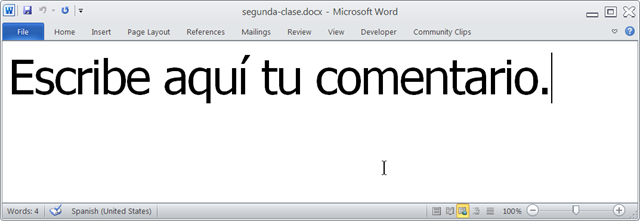
- Benefits
- MS-Word is technology that has become “transparent”for most users:
- Have teachers focus on assignment pedagogy, not authoring technology.
- Have students focus on the target language, not authoring technology.
- Document is protected (for restricting formatting to predefined Word-styles):
- Have students focus on form or content, but not on distracting formatting issues.
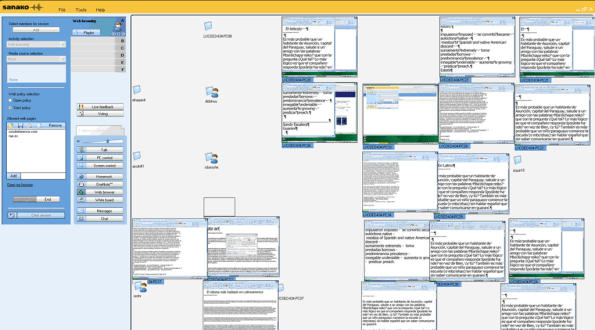
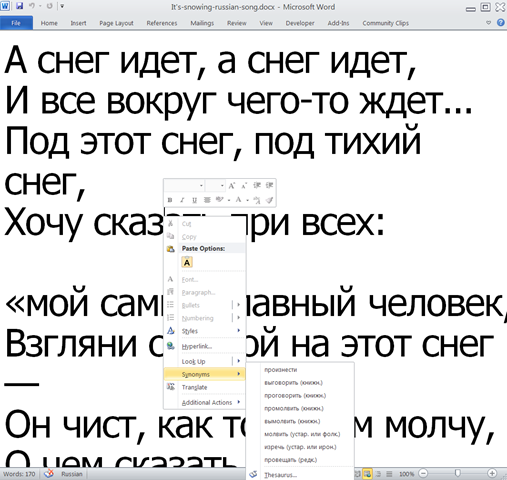
- Styles are designed to facilitate teacher monitoring students’ work using Sanako screensharing, like so:
- Take advantage of MS-Office Proofing tools (templates are preset for your target language).
- Take advantage of easy assignment file management with Sanako homework activity.
- Take advantage of internet lookup process, especially pedagogical if you combine with Sanako controlled-web-browsing activity
- MS-Word is technology that has become “transparent”for most users:
- Requirements:
- Teacher
- The easiest is to save the writing template for your language in C:\Program Files\Microsoft Office\Templates\1033 (or if your run 32-bit MS-Word on a 64-bit Windows, C:\Program Files (x86)\Microsoft Office\Templates\1033)
- Then base your writing assignment document on the template (e.g. by double-clicking the template in the folder you saved it to).
- Then save your writing assignment to your class material folder on the Sanako network share (from the office or in the LRC).
- In class, launch the Sanako homework activity.
- Student: none other than downloading and submitting the Sanako homework.

- Teacher
Categories: announcements, audience-is-teachers, classroom-management-system, e-languages, office-software, Presenter-Computer, service-is-configuring-learning-tools, service-is-learning-materials-creation, service-is-programming, Student-Computers, Writing
homework-activity, MS-Word, sanako-study-1200, screensharing, templates, trpStudentWriting, web-browsing-activity
How to mix SANAKO- recorded individual students’ audio tracks together
2012/11/05
Leave a comment
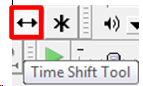
- If the students’ audio tracks are not already time-aligned, first use audacity: "time shift tool" to align individual tracks
 (with this tool selected, you can move individual tracks back and forth, to the left or right).
 - If/ When they are time-aligned, use audacity/ menu: tracks/"stereo track to mono".
How to conduct a Sanako Study 1200 functionality test before oral exams
2012/10/30
Leave a comment
- Why? Before high-stakes oral assessments, it is best practice to test the functionality of all computers in the digital audio lab.
- How?
- Log into 2 computers with your own account (these will serve as a backup computers. Should you need backup computers later, there will be no delay waiting for them to start up and become operational).
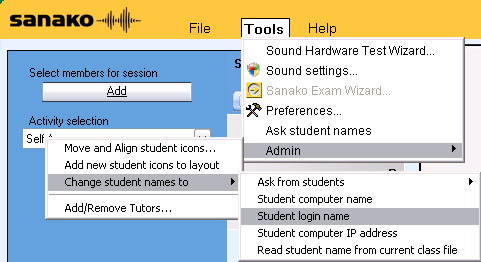
- Change Sanako classroom layout names to computer or position name (whatever makes it easier for you to identify any non-functioning machines).
- If you are doing this for a first time with a class, load your test exam audio into Audacity and display the voice graph to students on a projector. This way you make sure that students understand from the voice graph that they are supposed to
- hear an instruction over the headphones and
- respond to the instruction by saying their names into their microphones.
- Perform a name-test recording using Sanako activity:”Model imitation”and examine the results:
- Make sure the Sanako collection folder opens – meaning all student recordings could be collected. If not, identify the offending positions from the Sanako collection dialogue and open the folder with the remaining collected recordings manually from the Sanako collection dialogue
- Drag the recorded files into an empty Audacity window and examine the collected recordings visually, plus, where in doubt, aurally, by clicking “solo” and play on the track in question.
- React accordingly:
- If some positions show problems, move students to one of the backup machines that you logged into earlier.
- move backup machines not needed to a different session by right-clicking on their classroom layout icon.
- if more than one backup machine is indeed needed, Sanako – since it is you who are logged in on both – will ask you later for permission to number collected files for duplicate students sequentially. Allow that and rename the files manually.
- Don’t forget to change Sanako classroom layout names back to student login name.
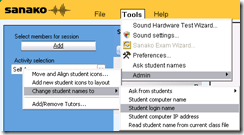 . Or else here is how you can later recover student recordings by student login names.
Mylanguagelab.com “Authentication failed” glitch in audio recorder
2012/10/18
Leave a comment
Common error in IE8 when students review their test before submitting. No worries, the student recording is not lost. Still, what is the solution?

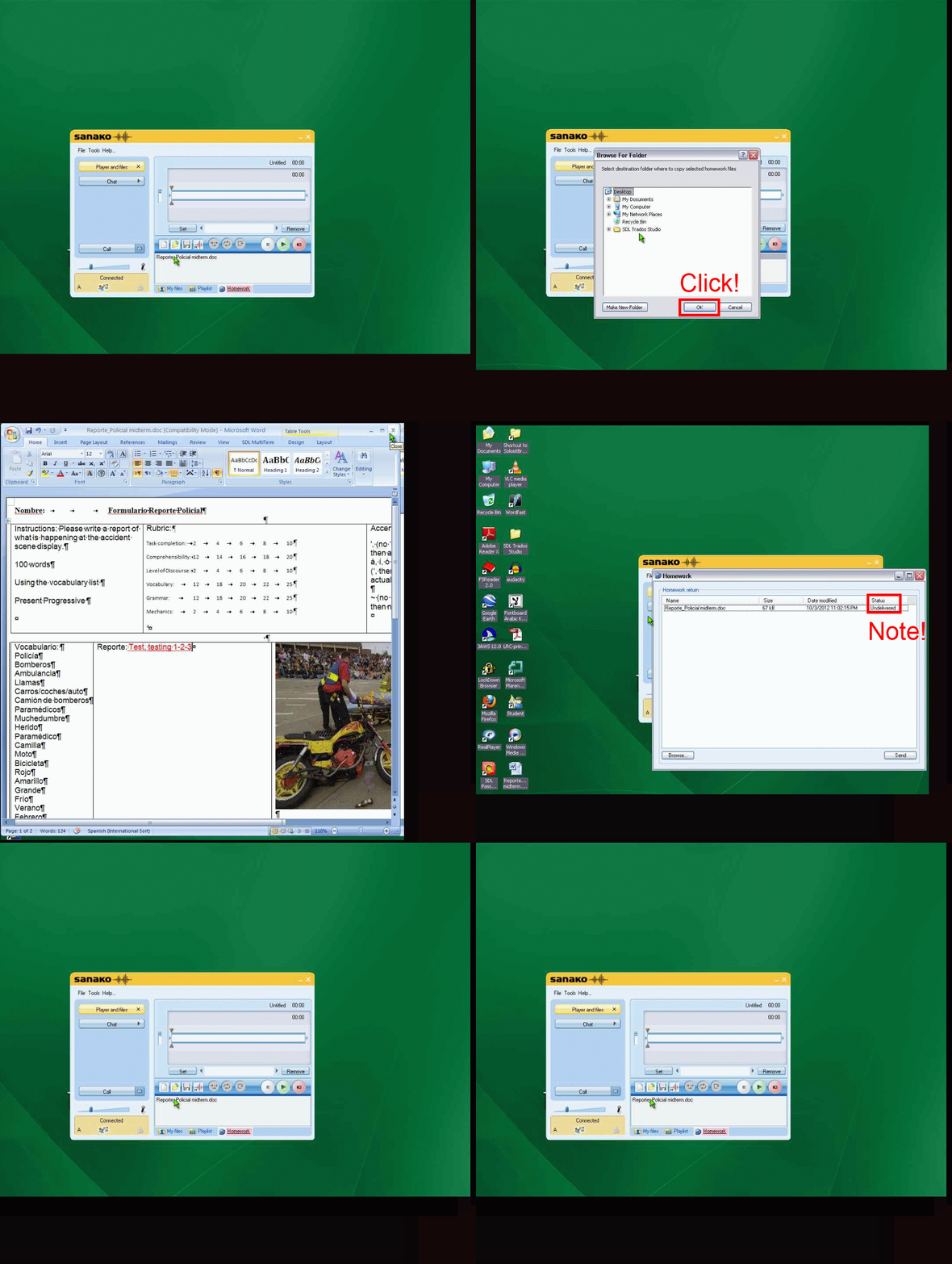
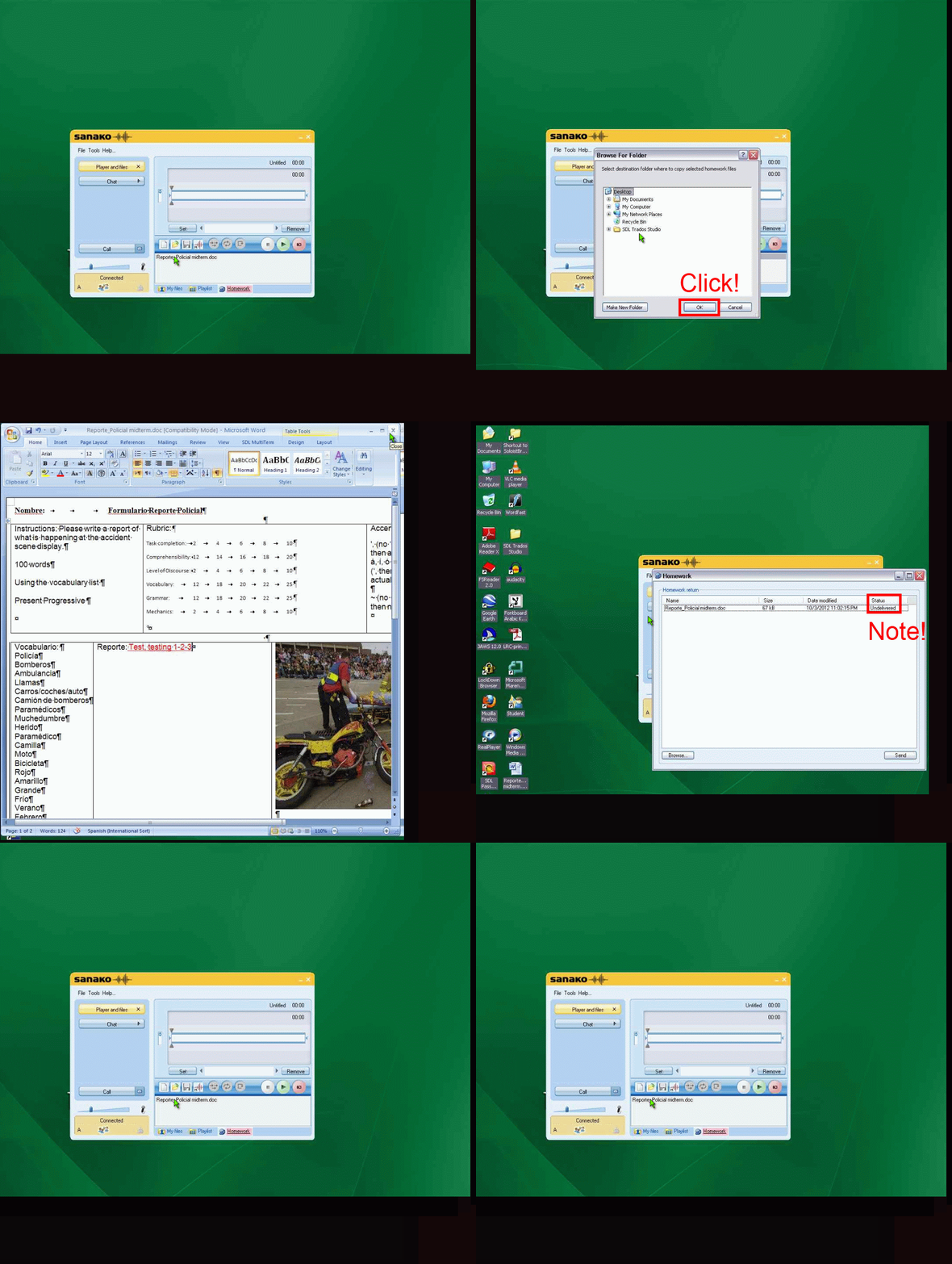
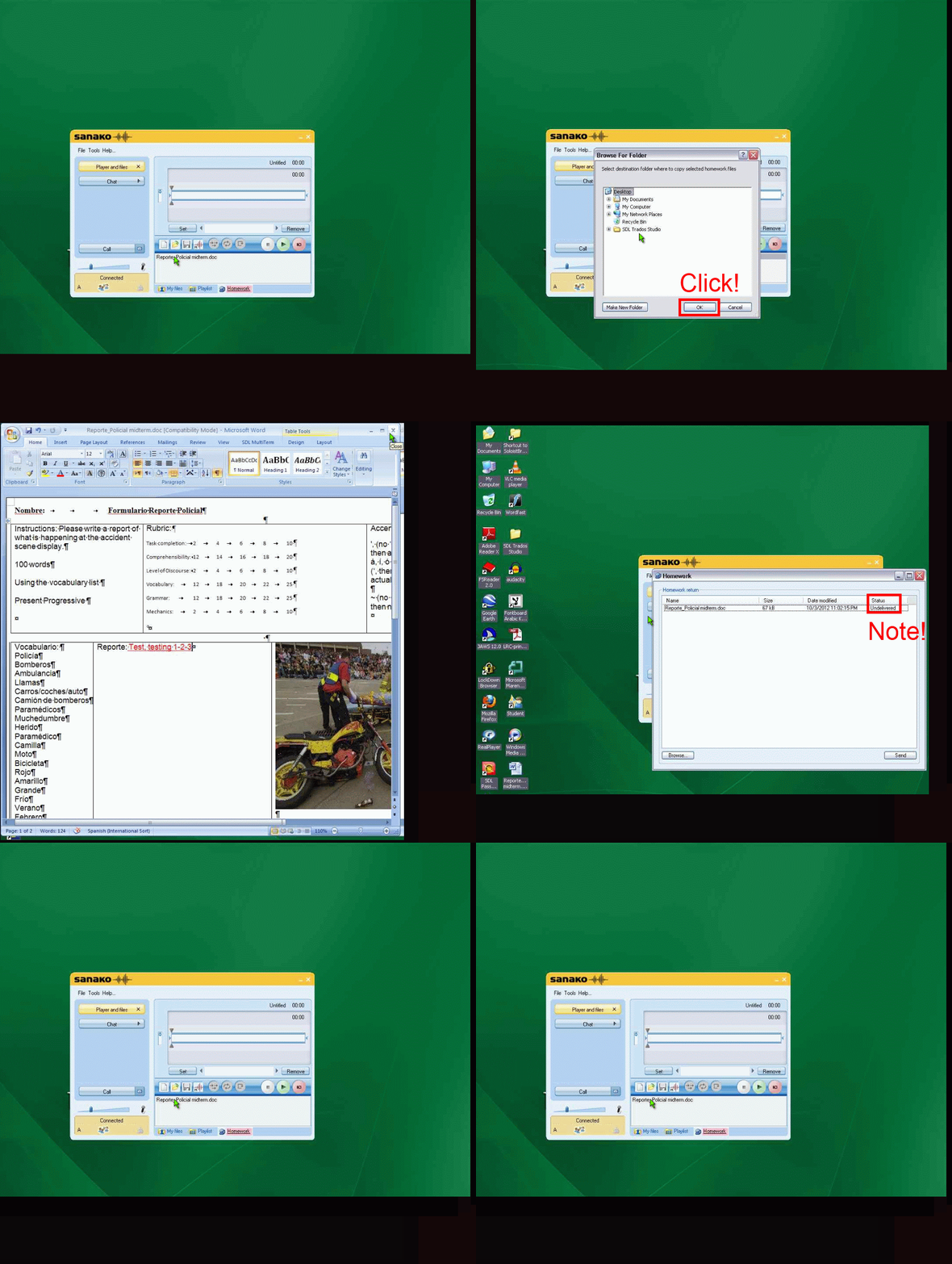
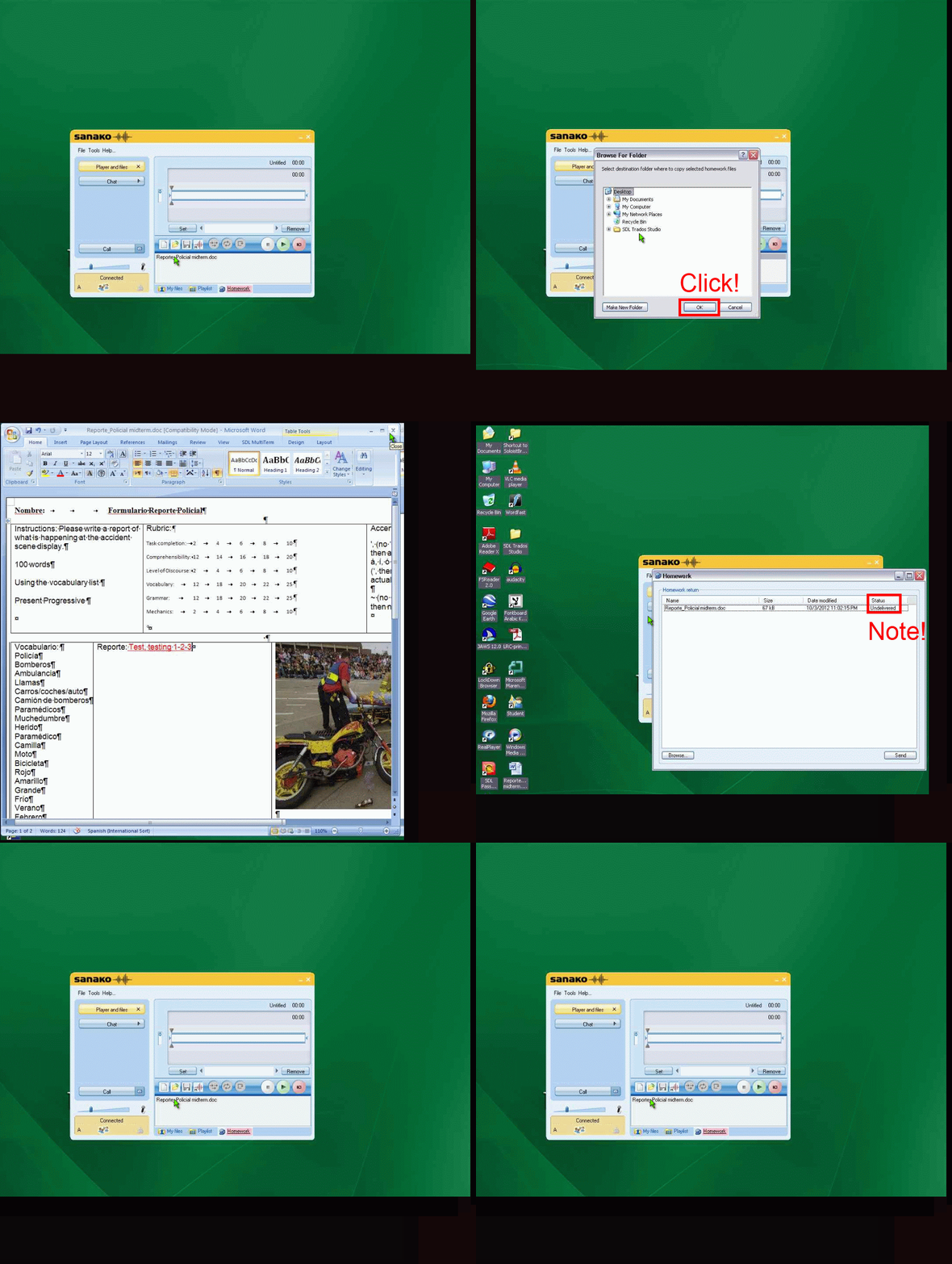
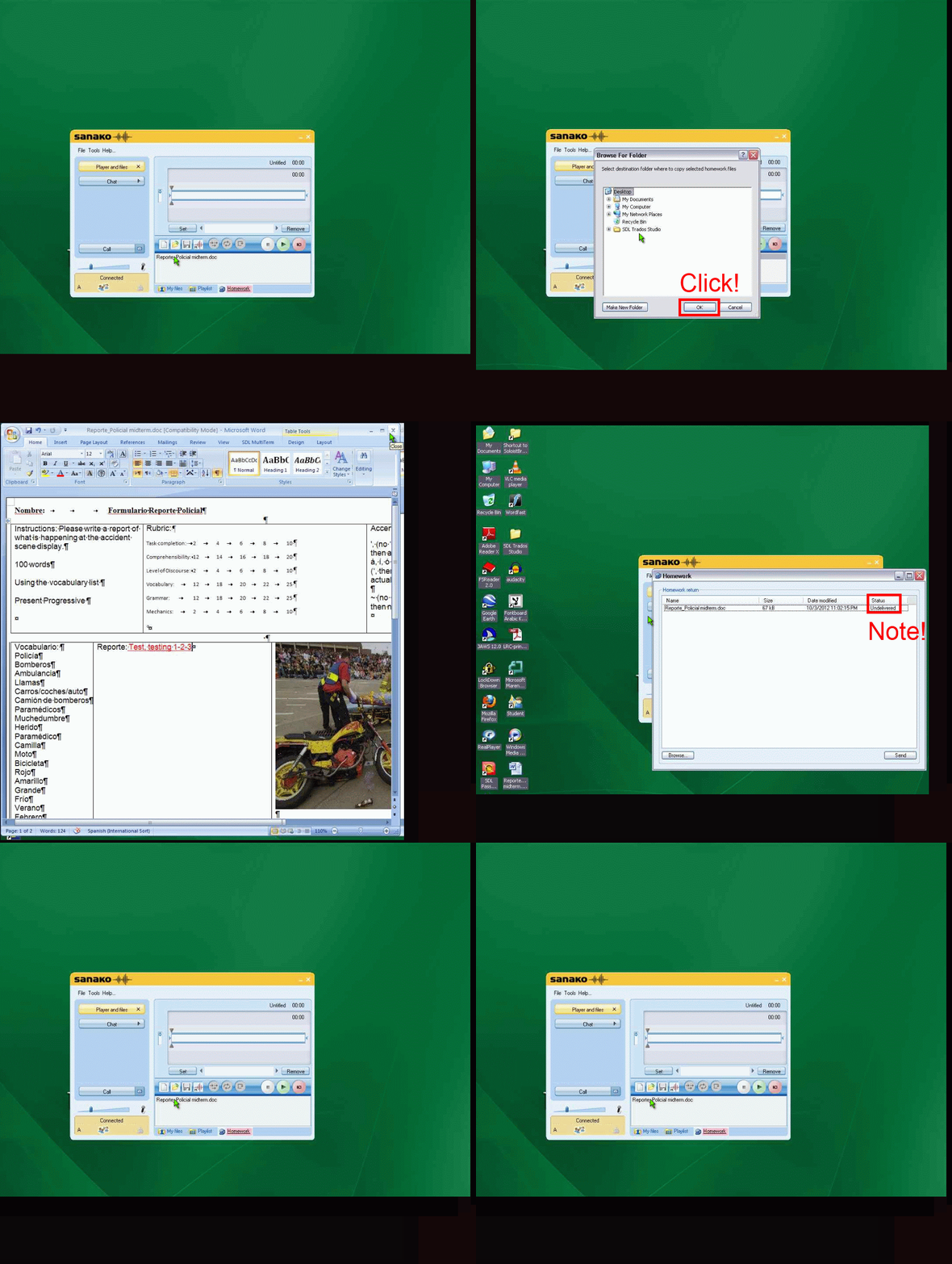
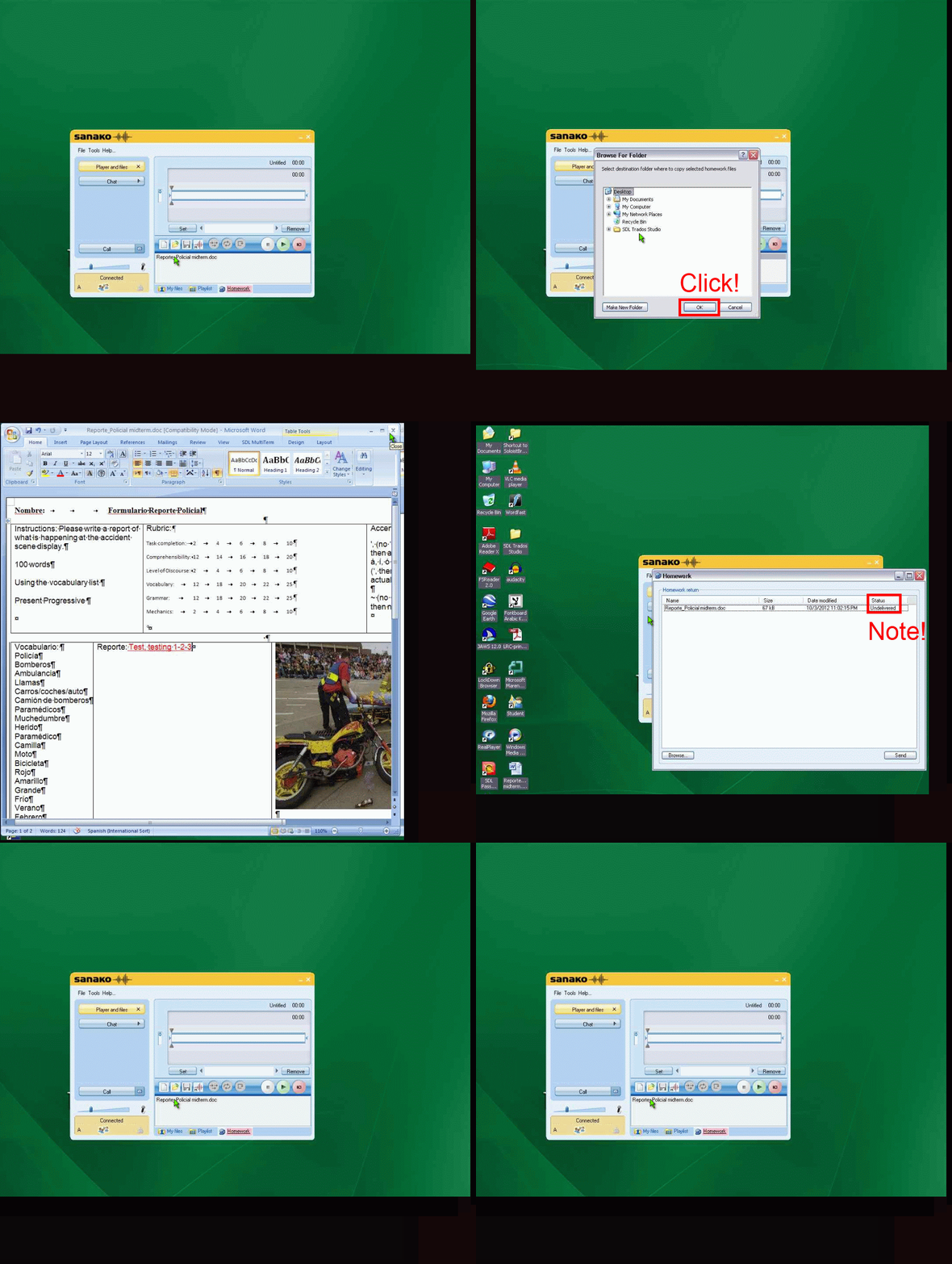
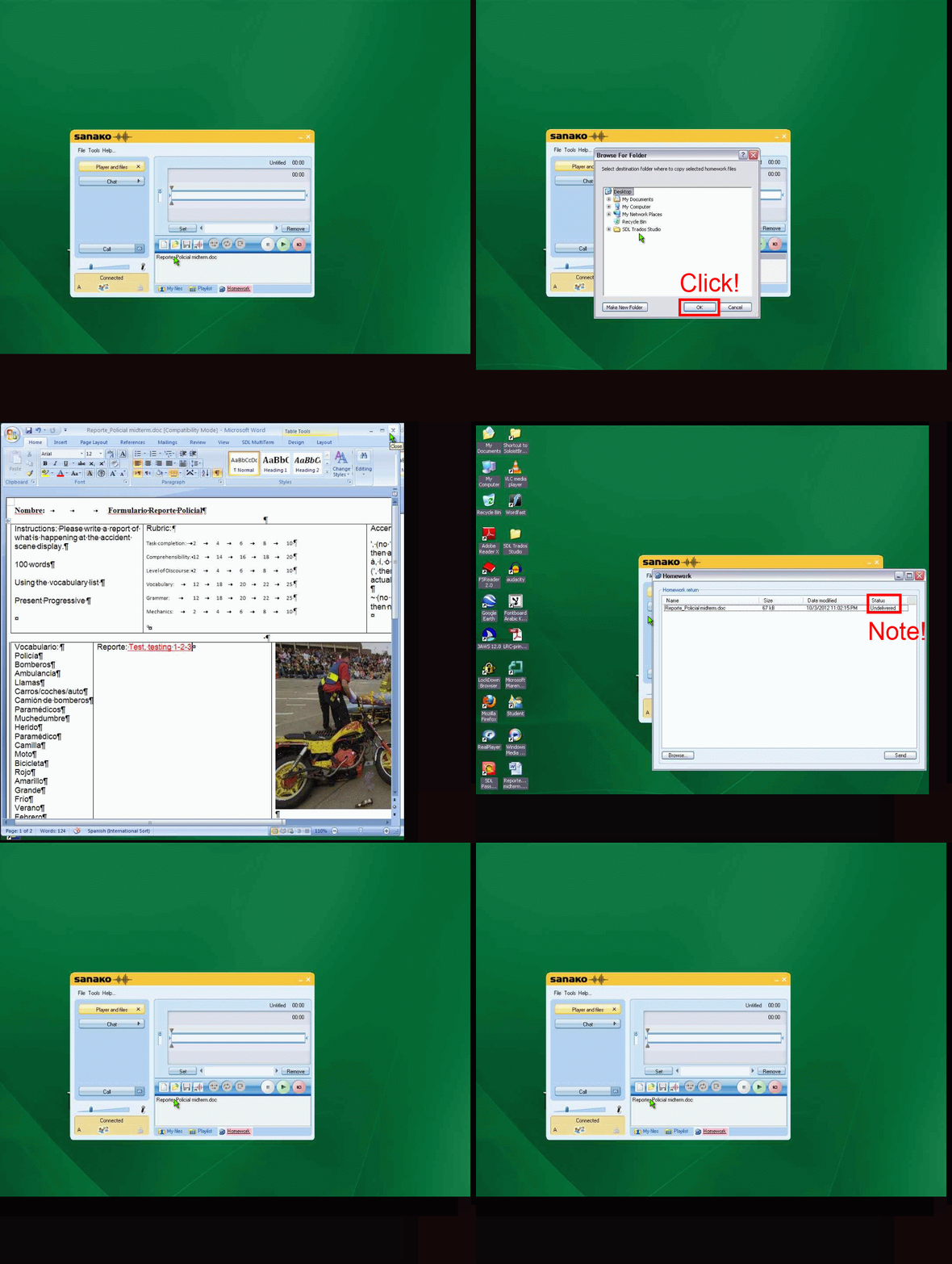
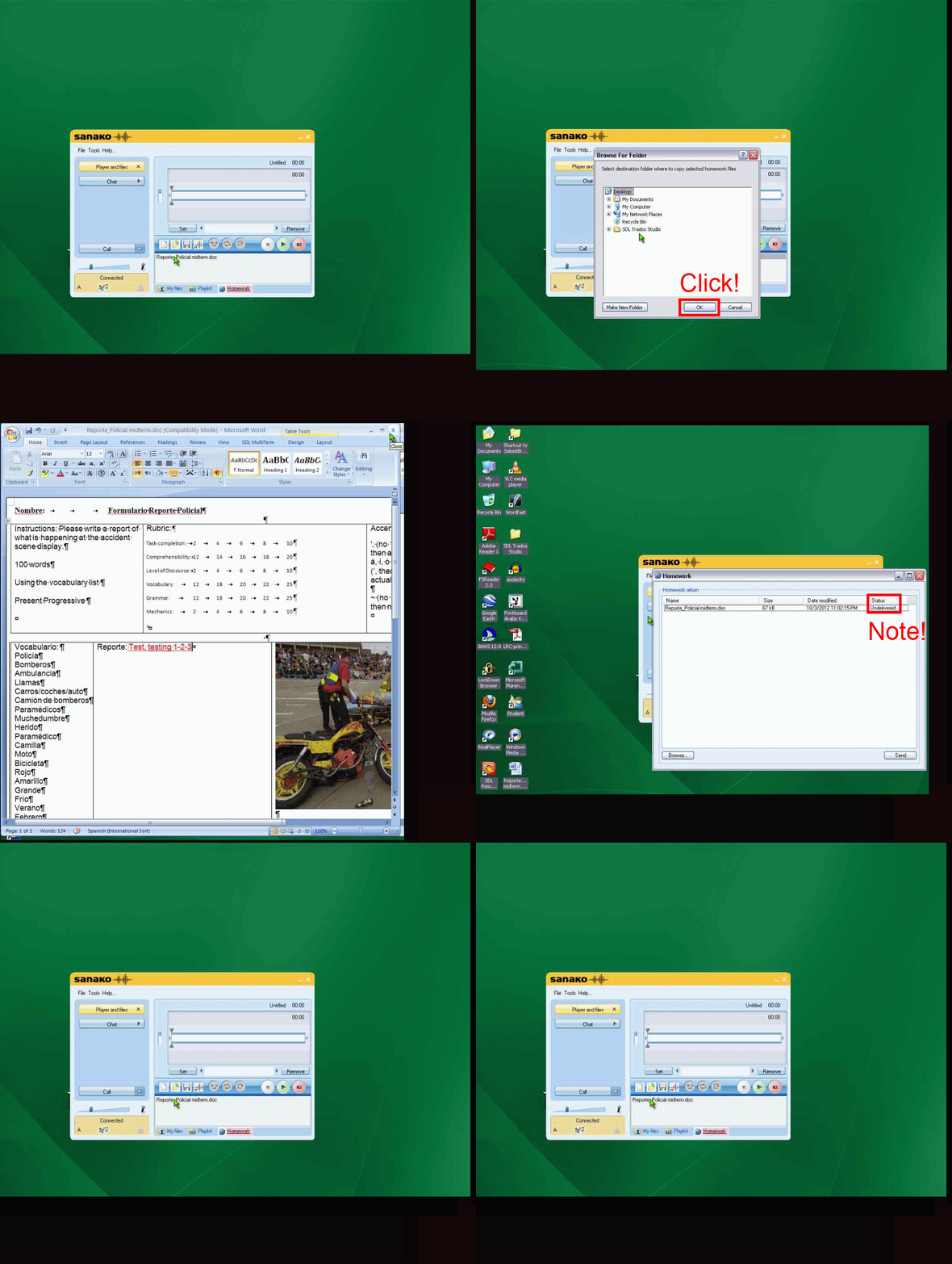
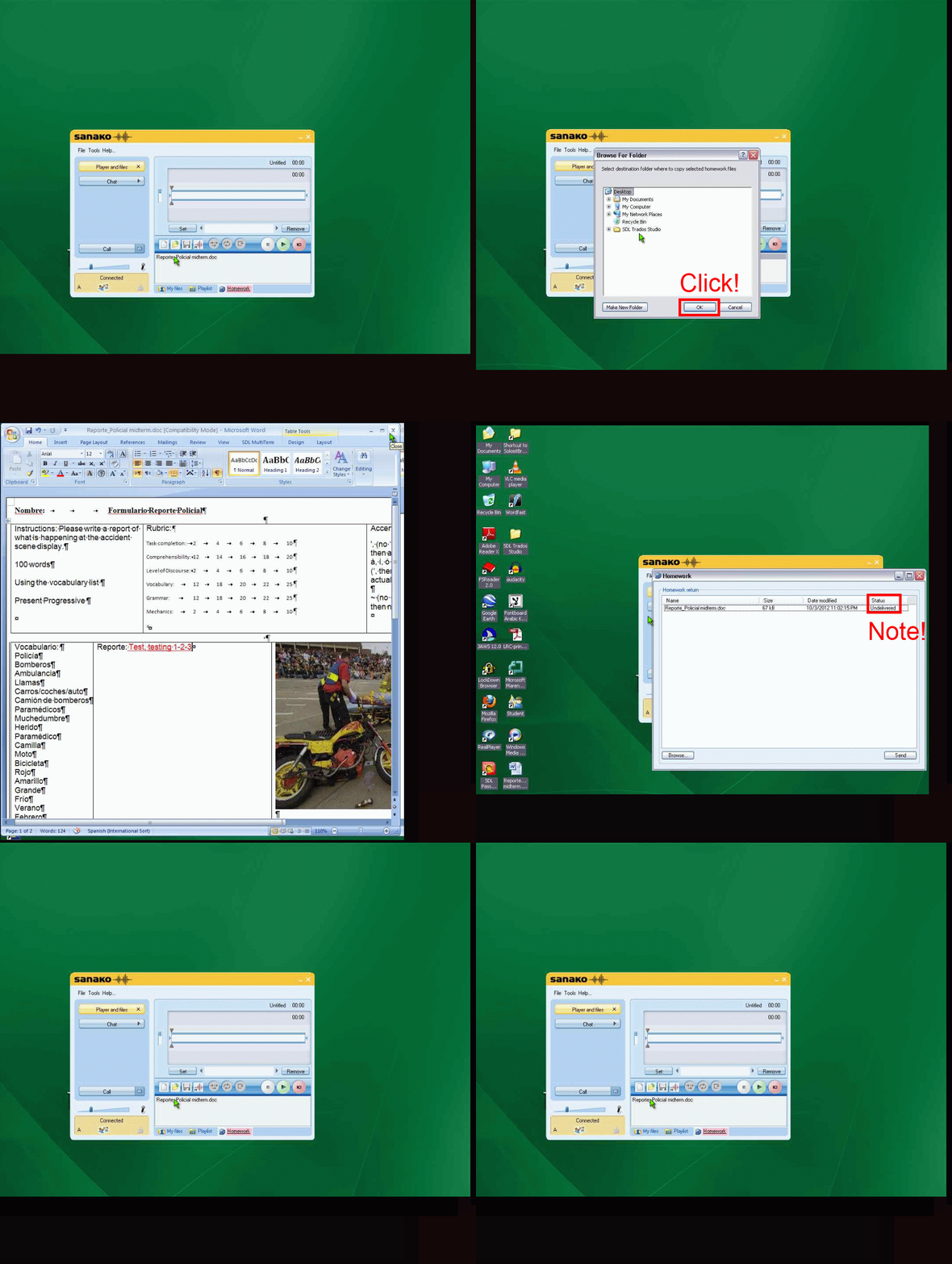
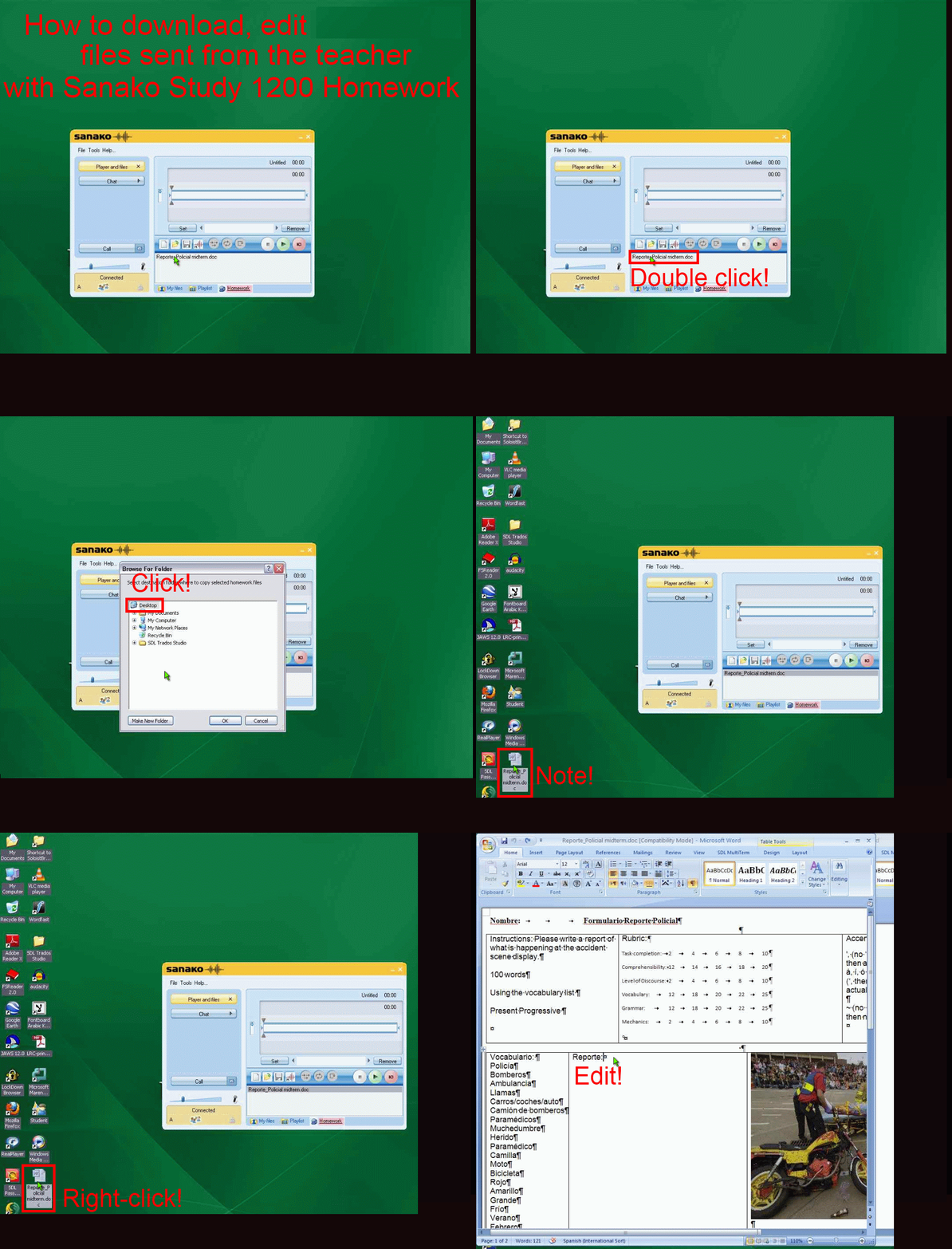
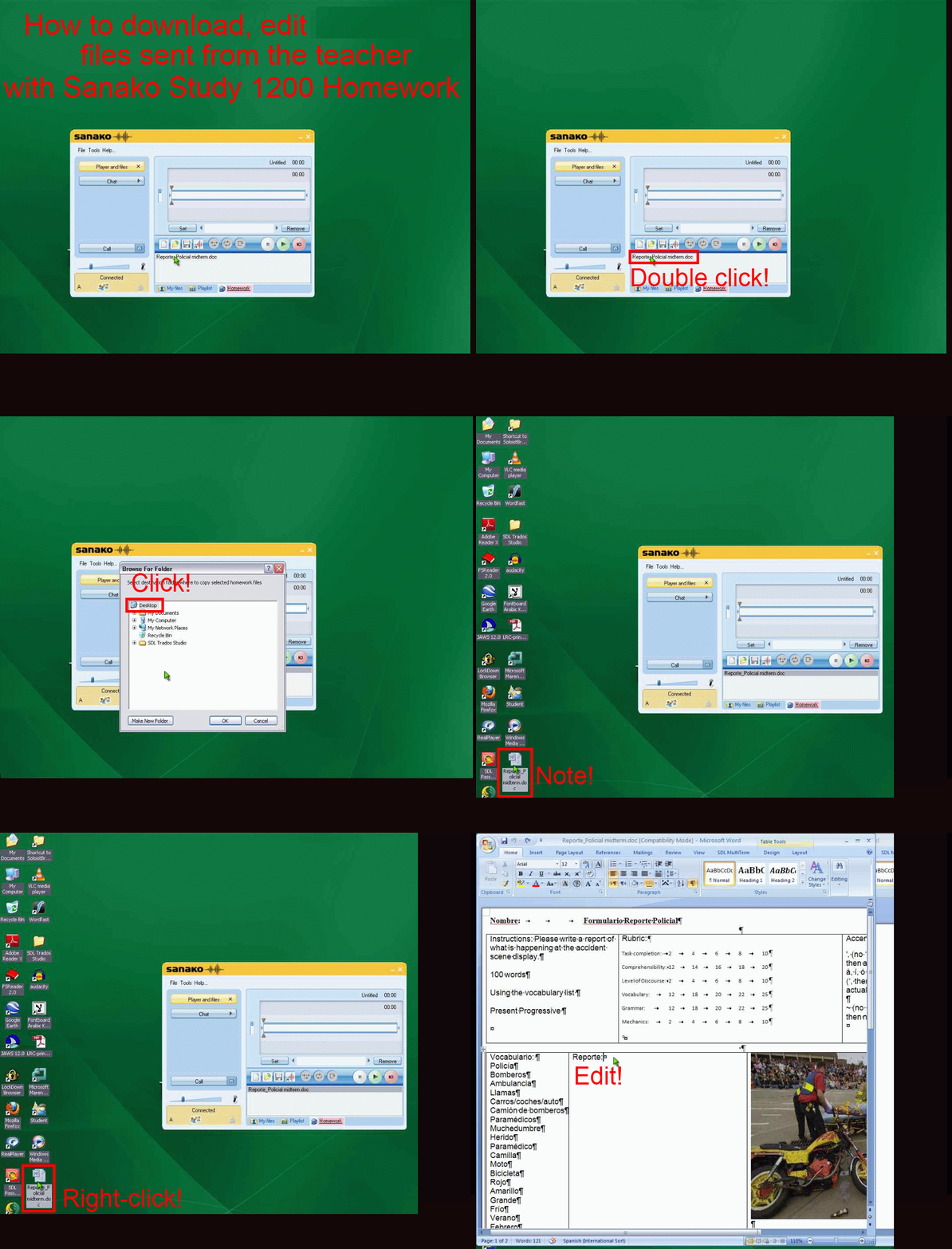
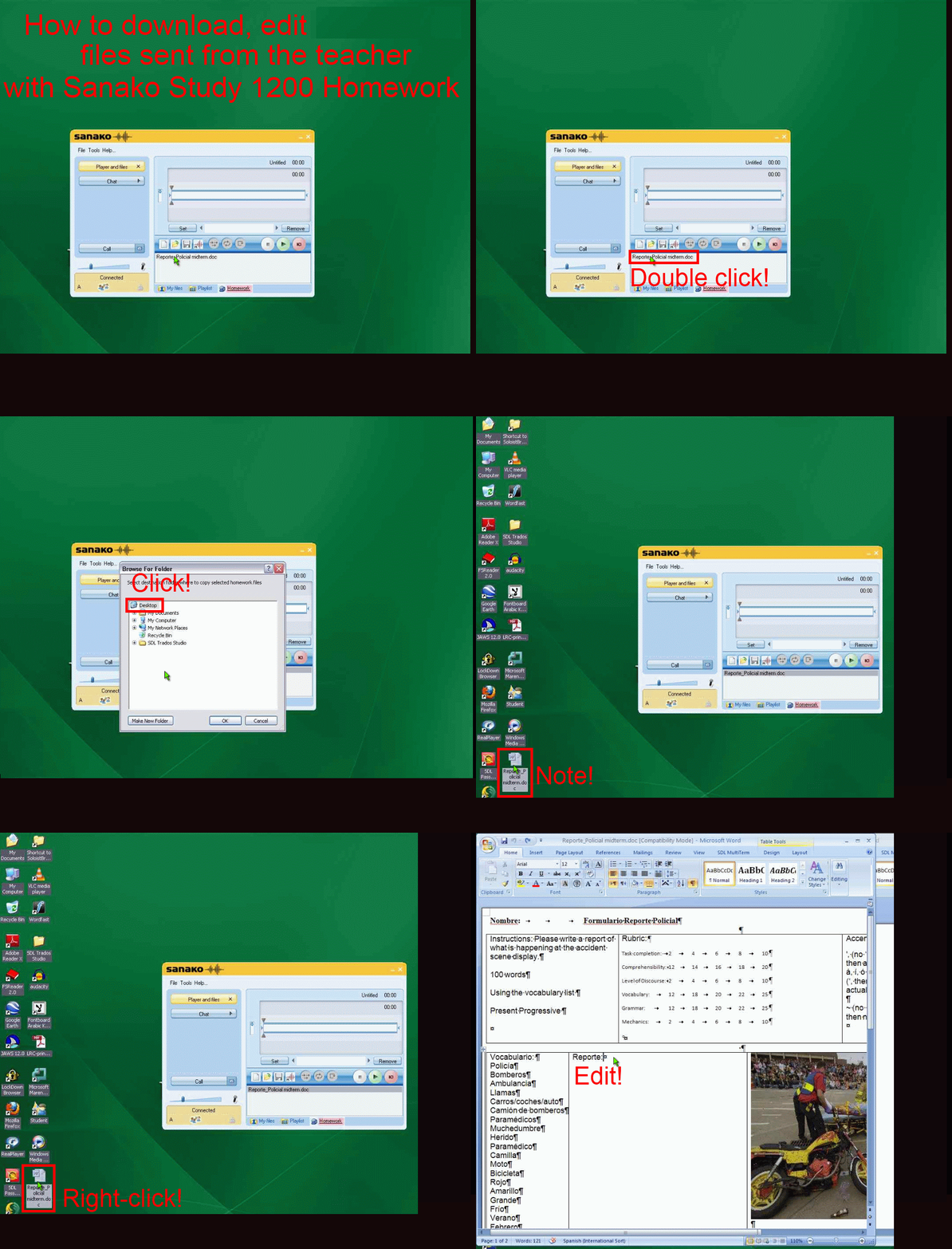
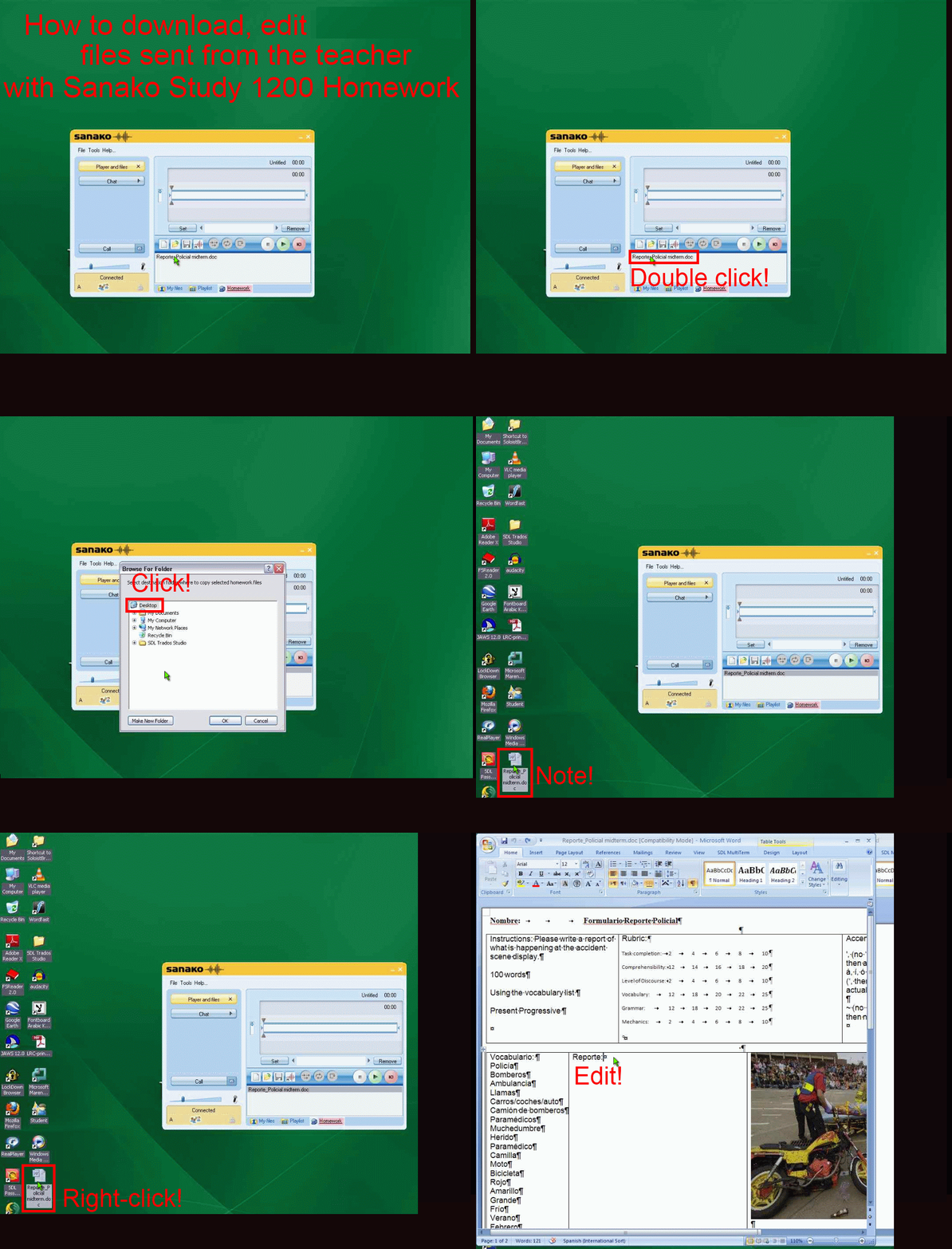
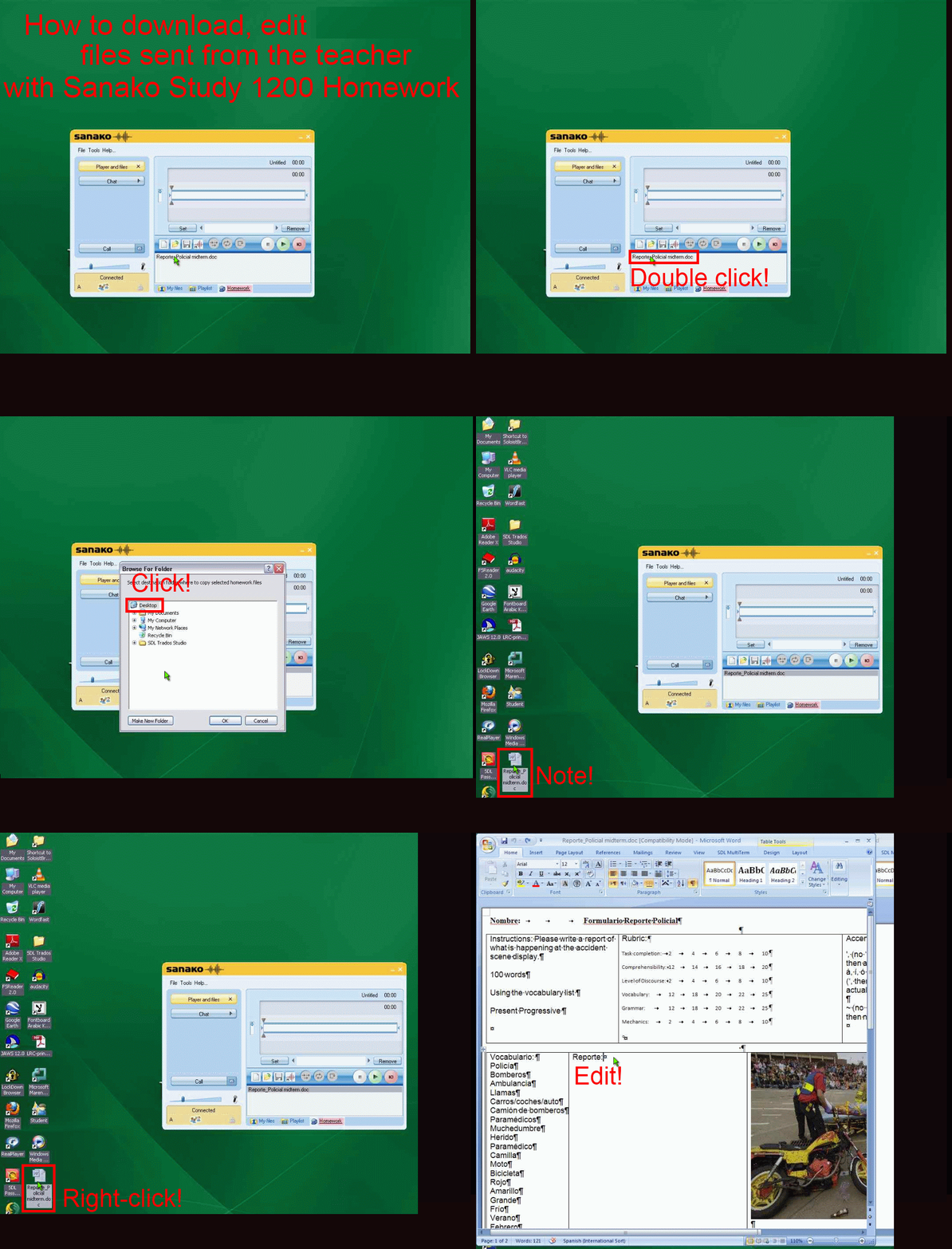
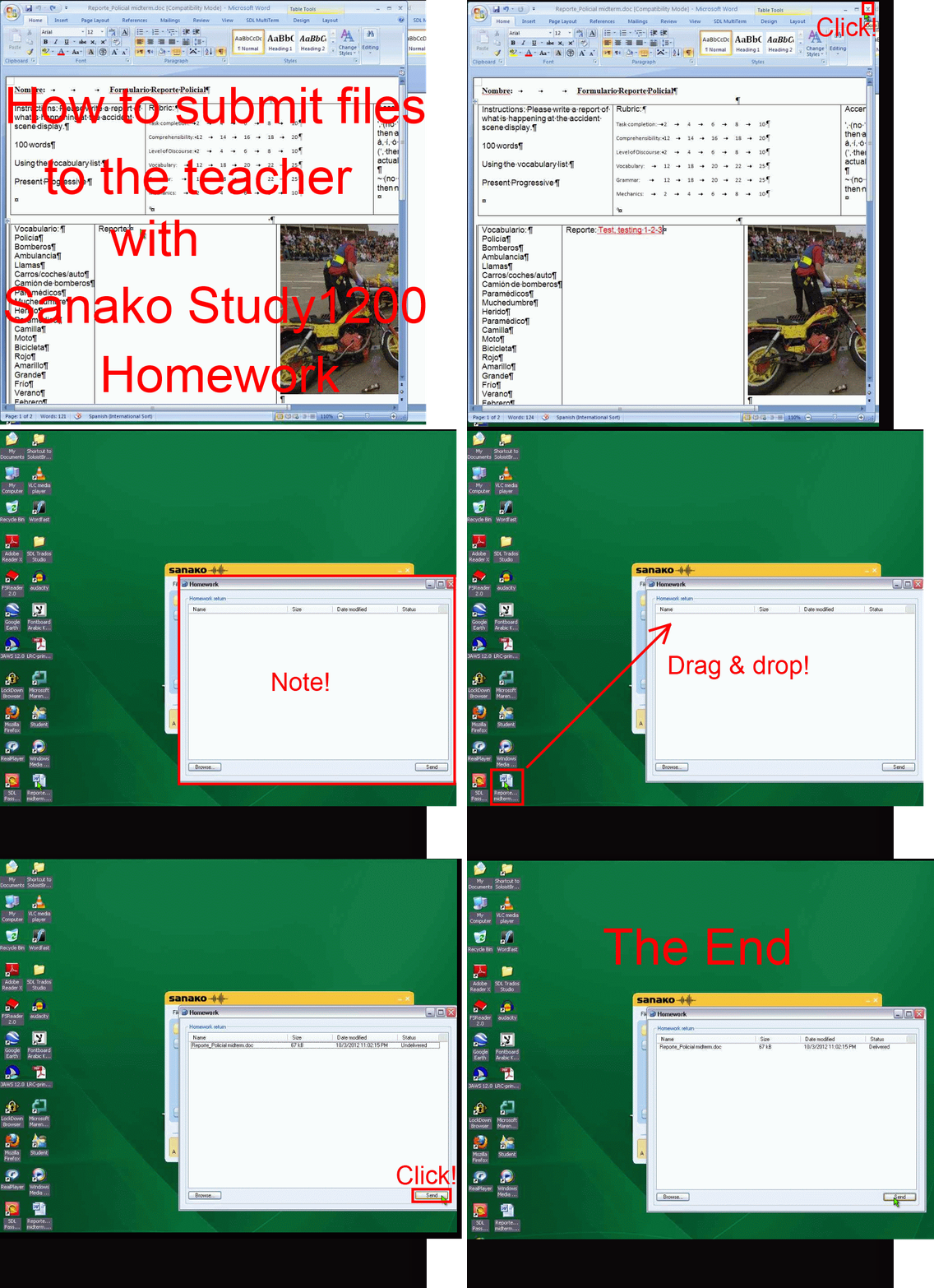
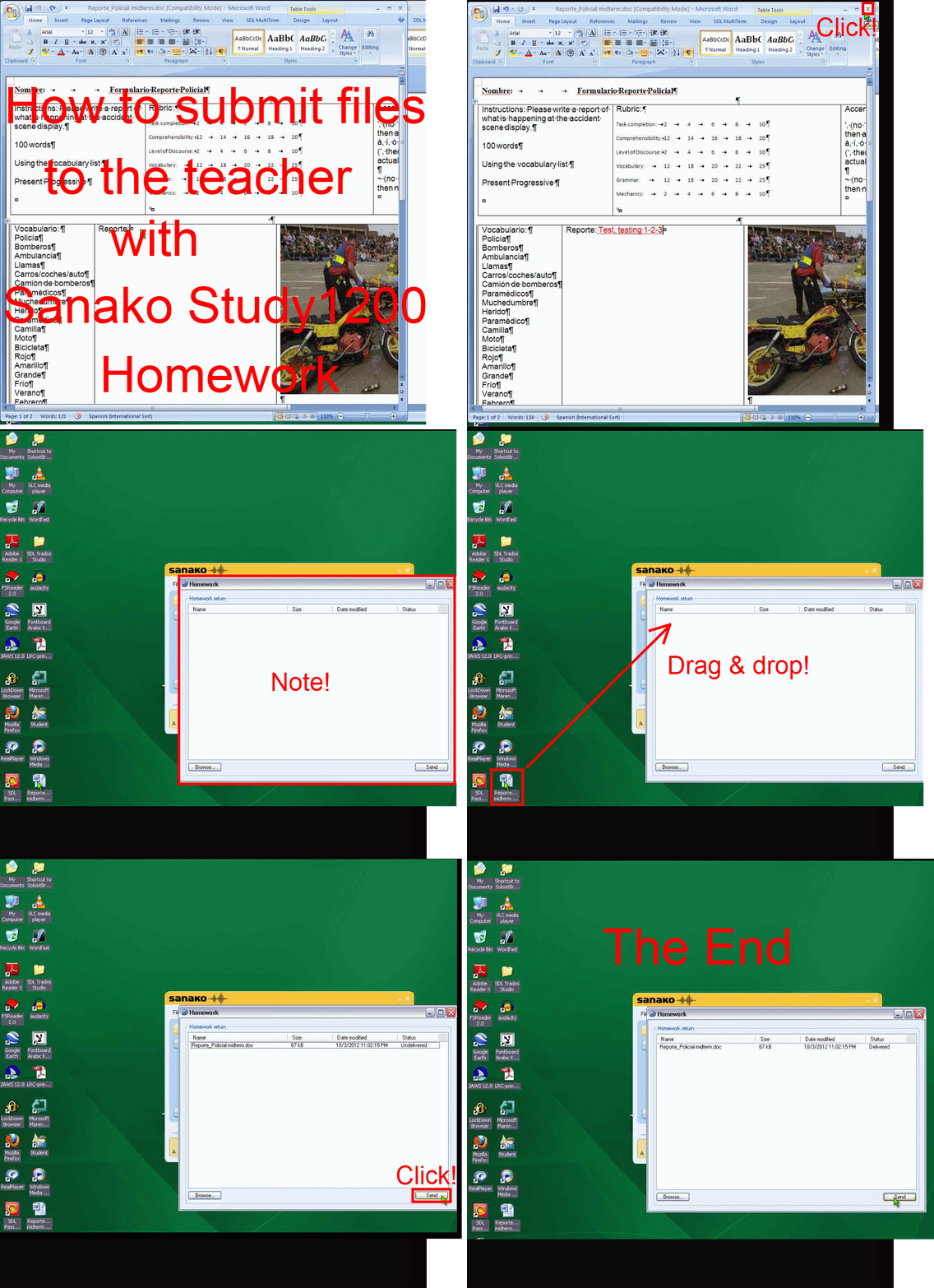
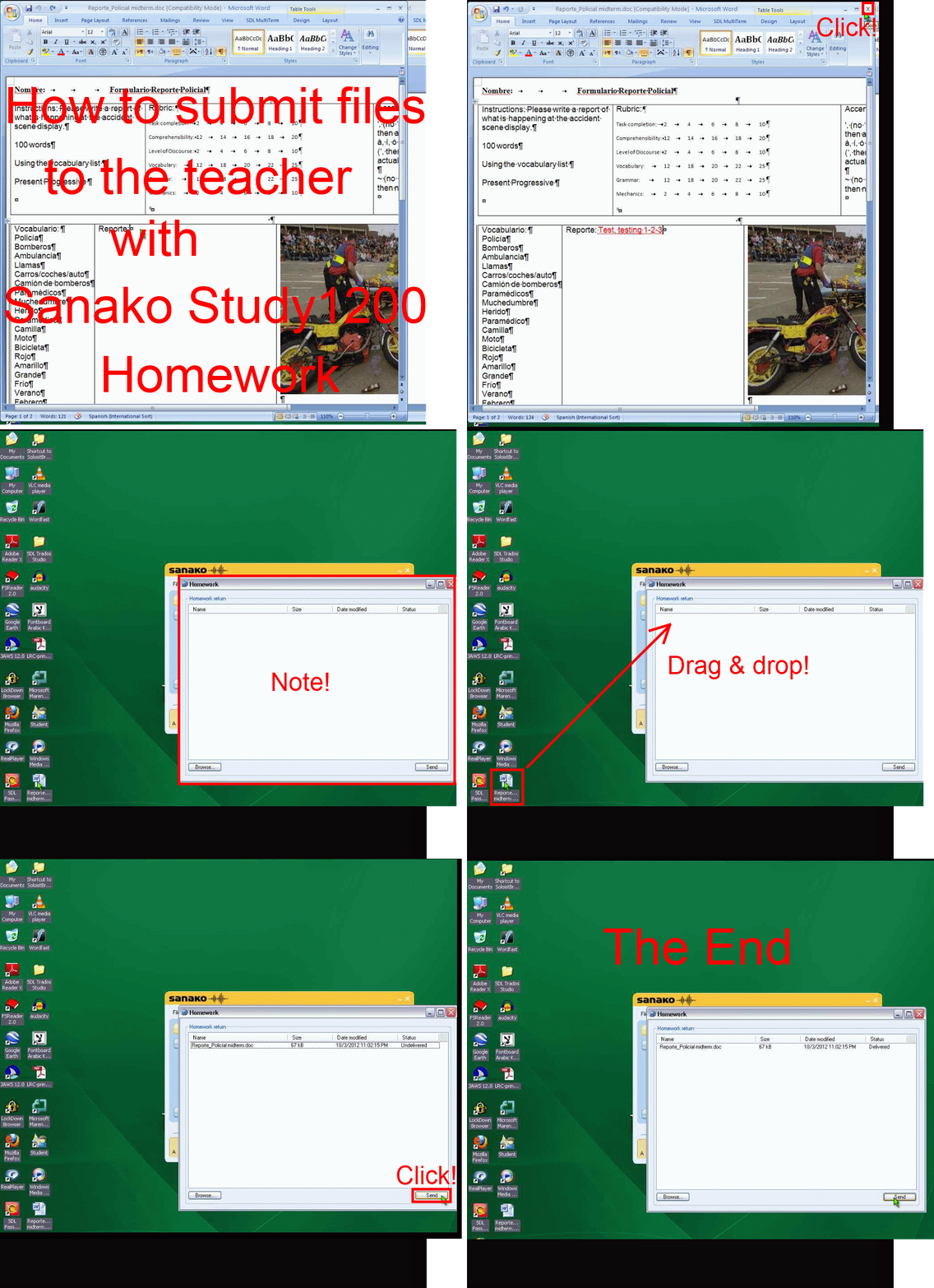
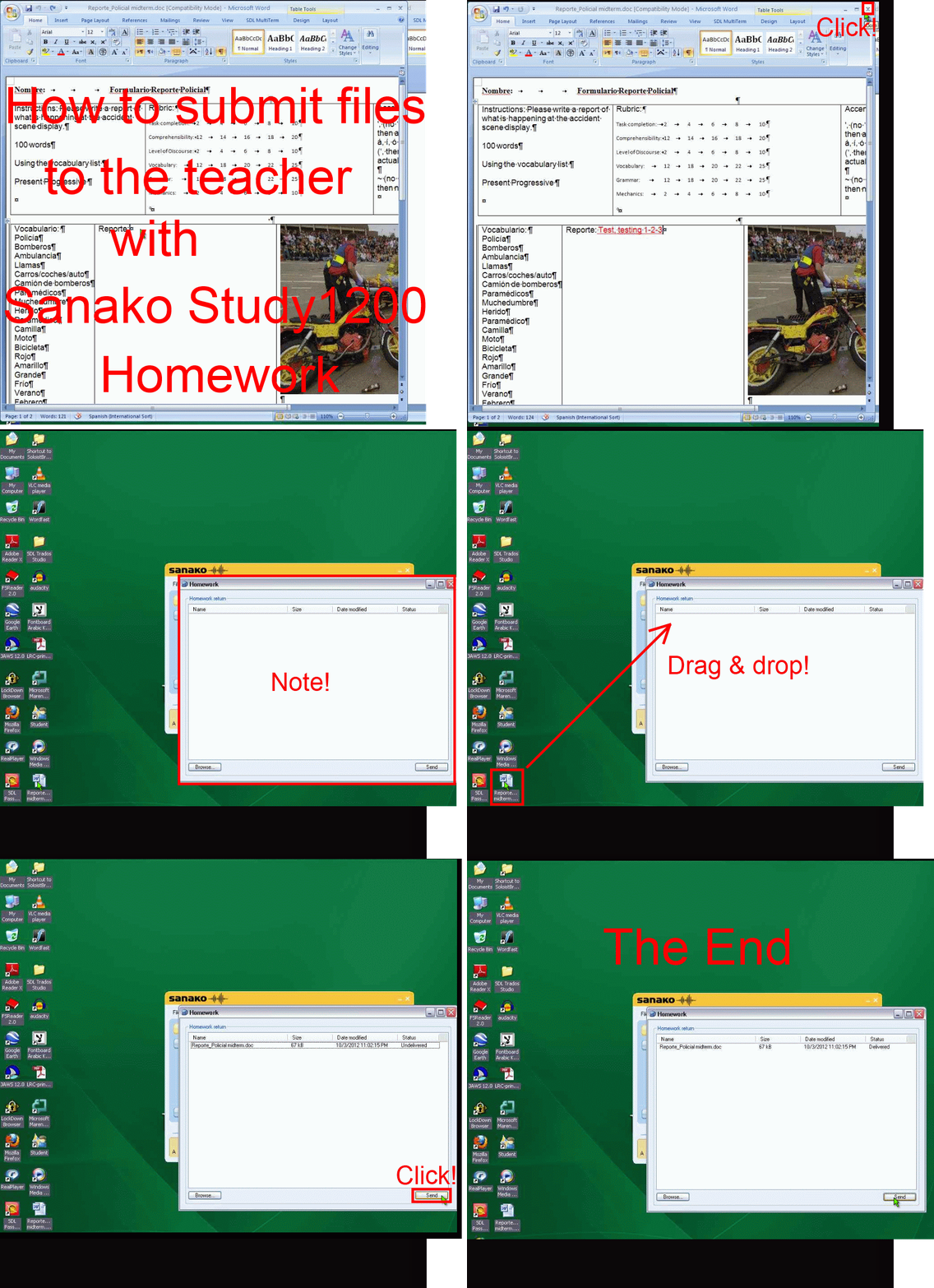
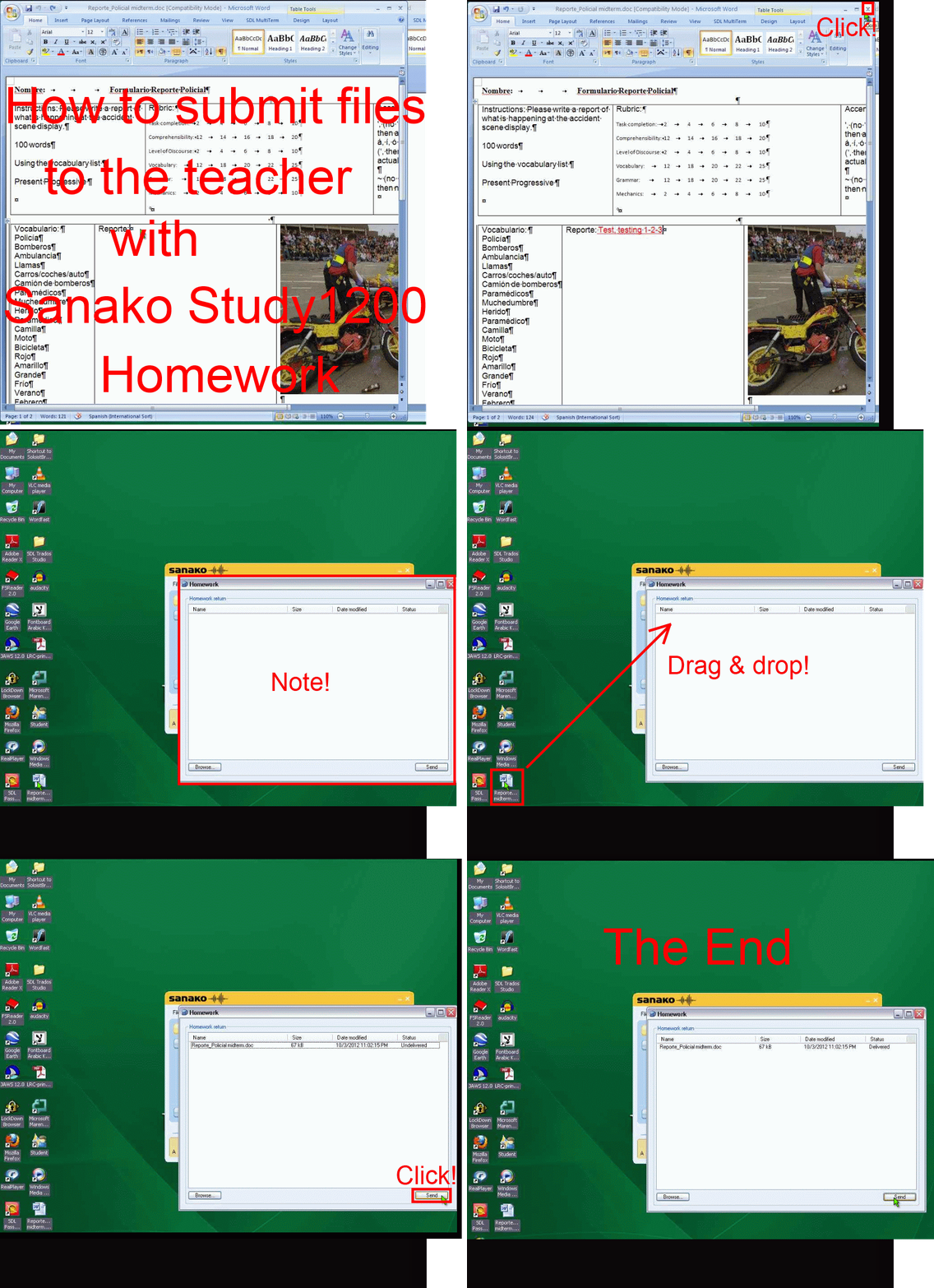
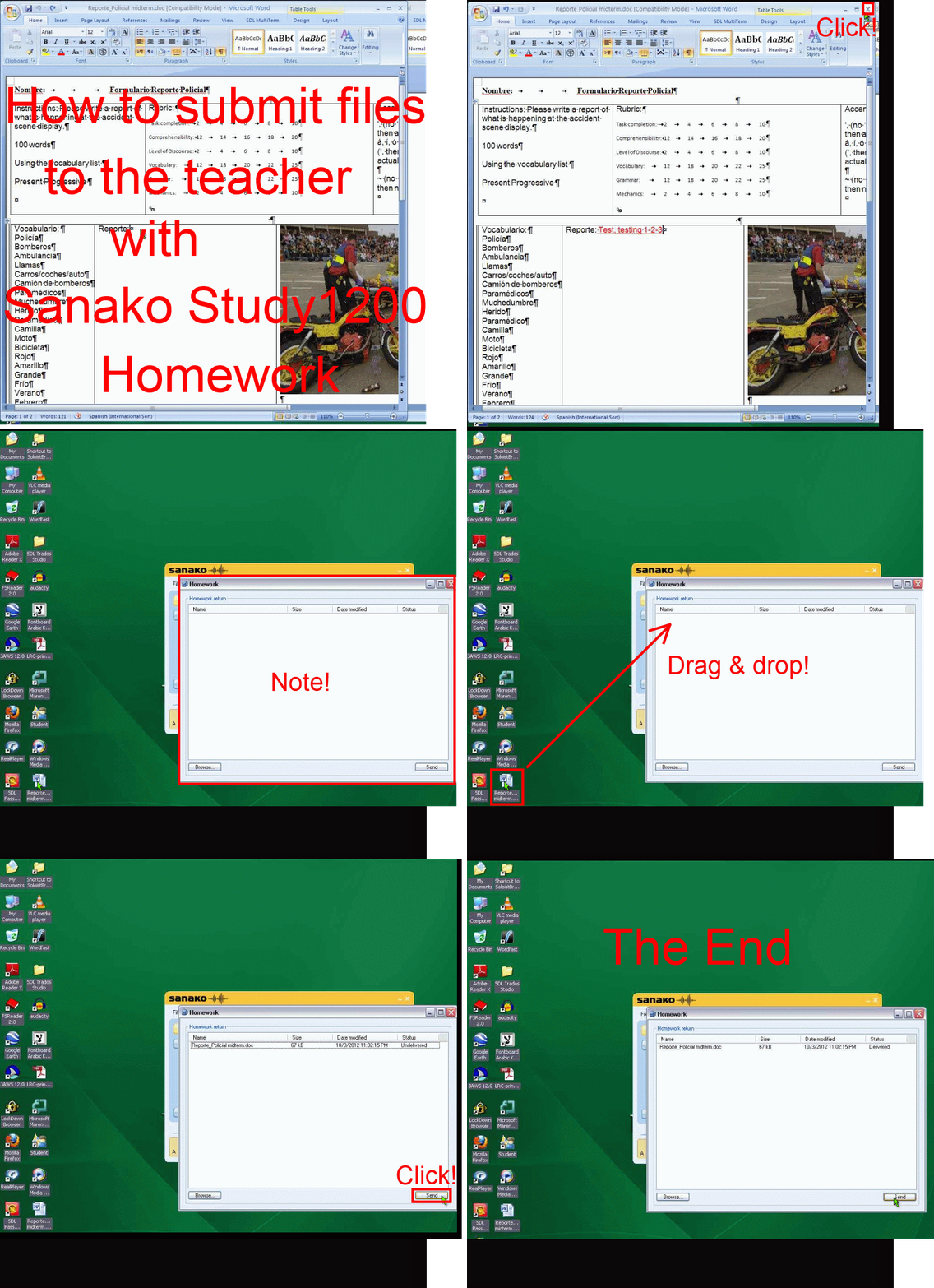
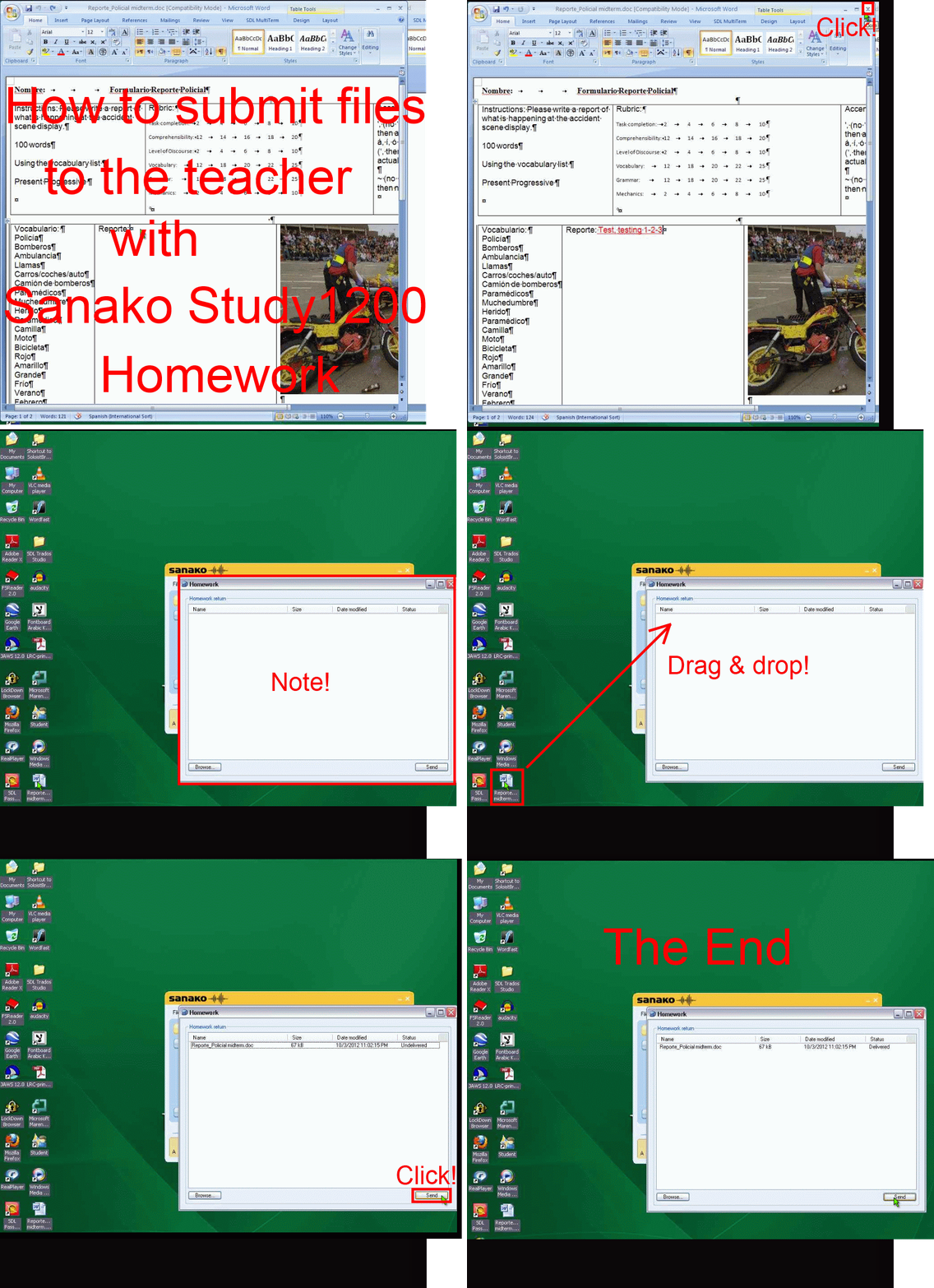
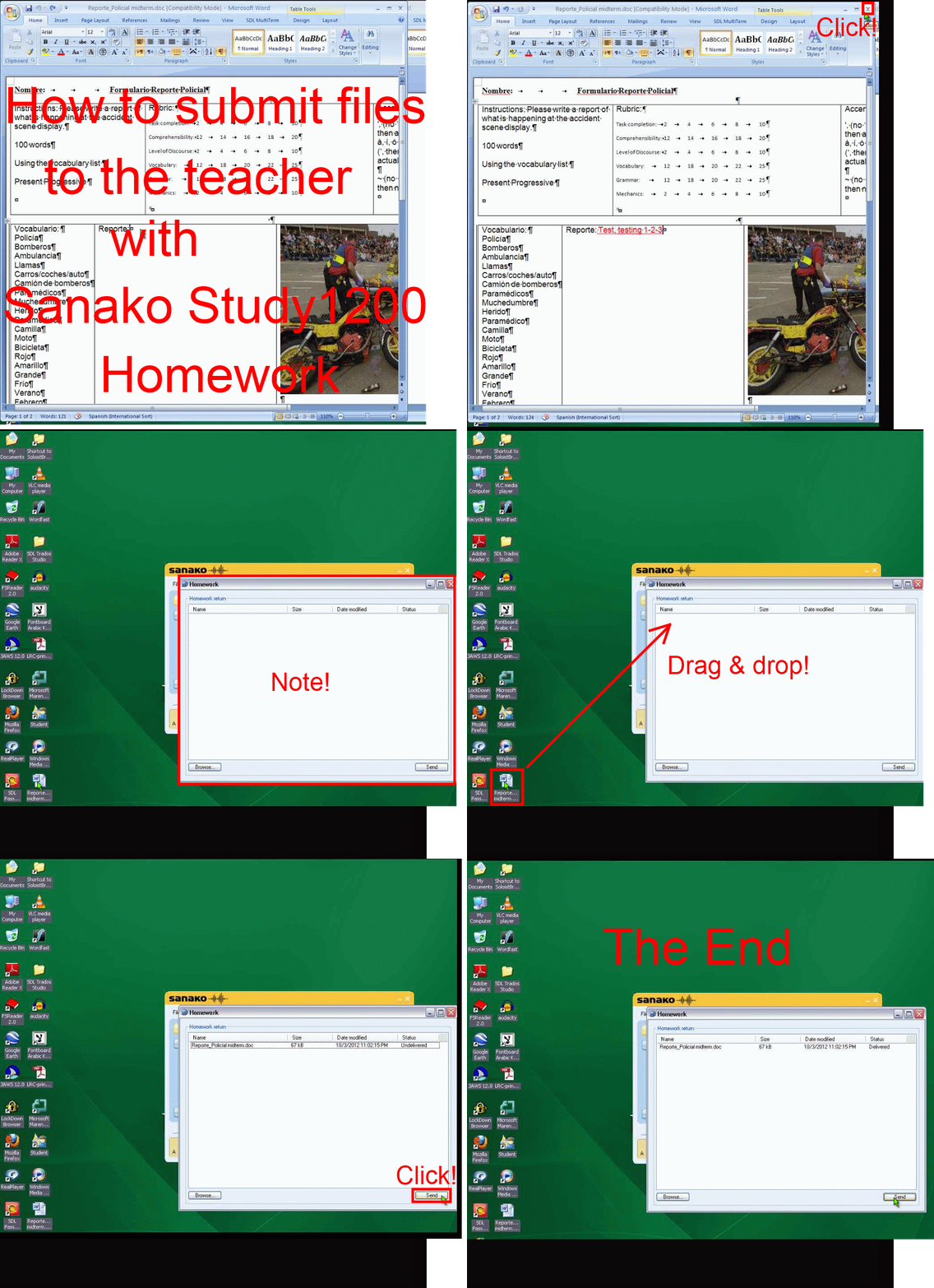
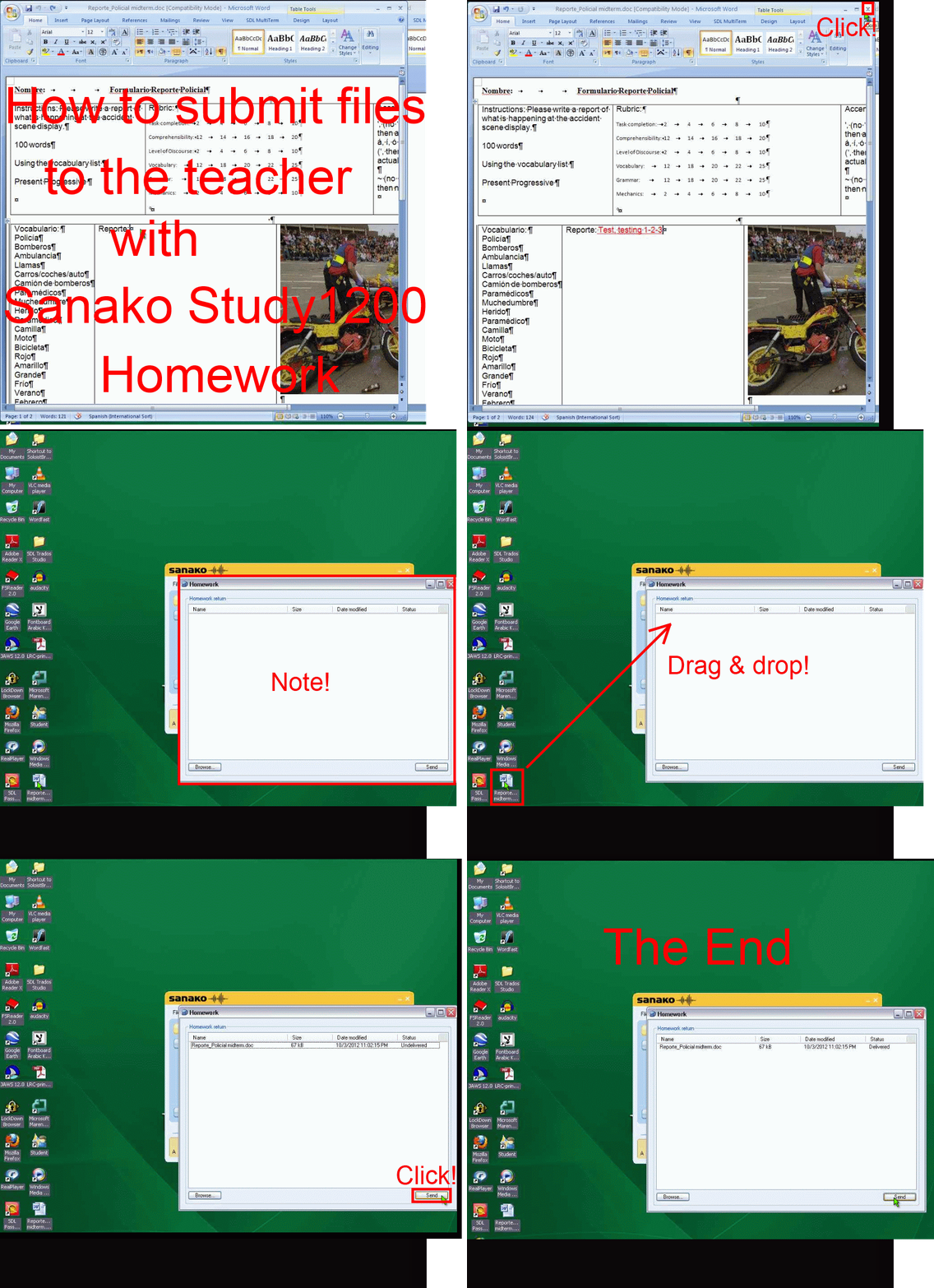
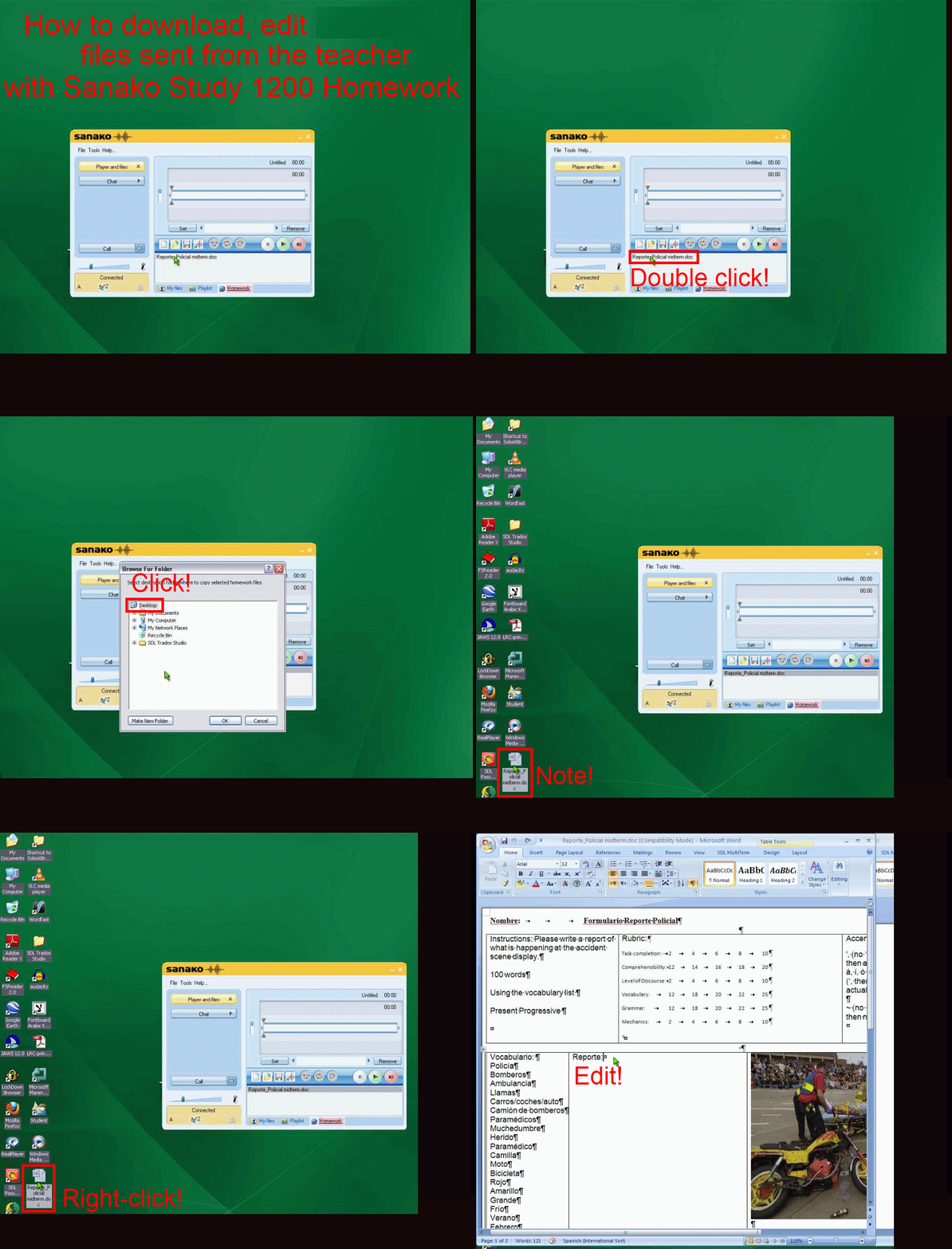
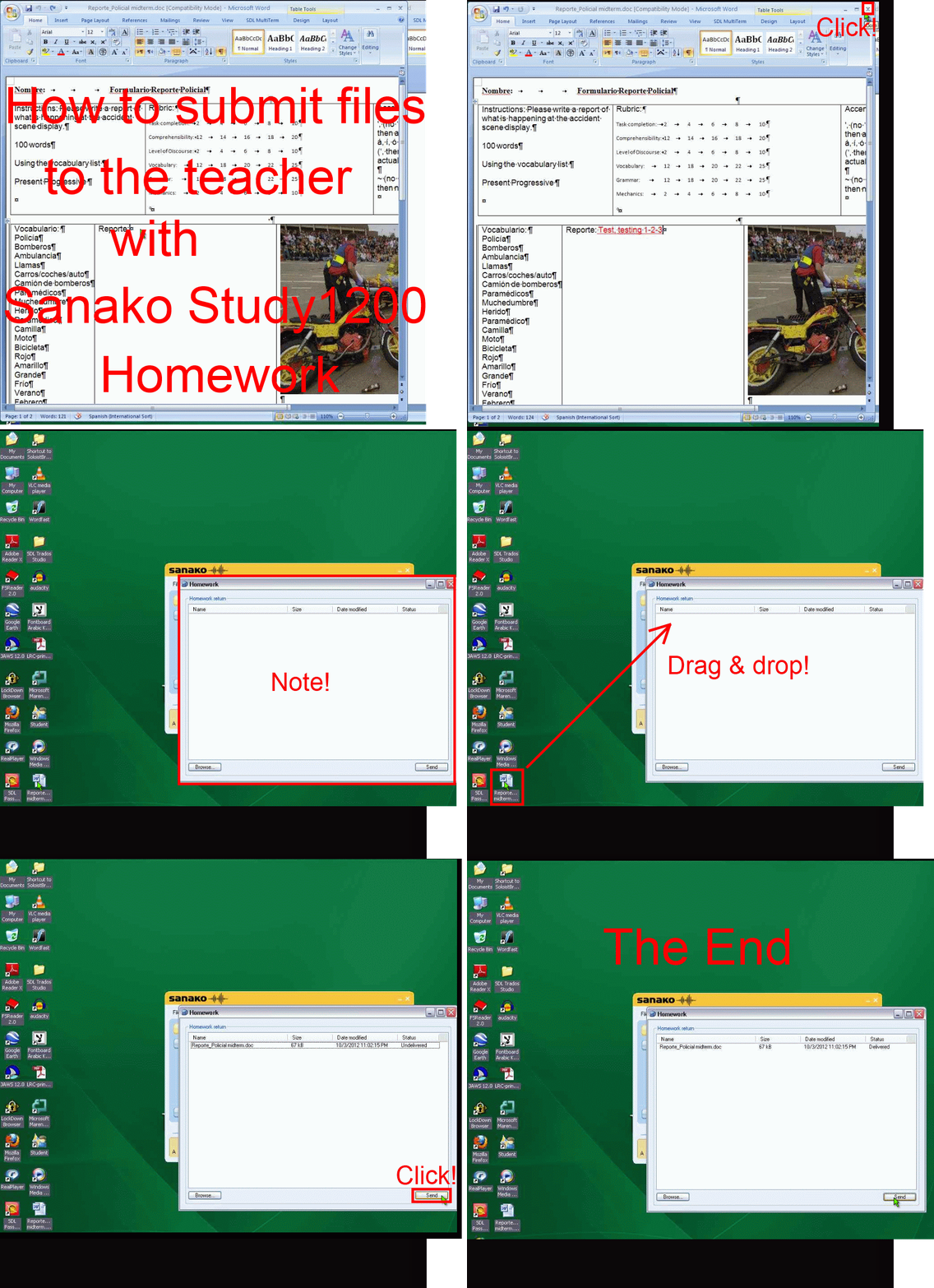
How student downloads, edits and submits files sent from the teacher with Sanako Study 1200 Homework –the ultimate training summary….
2012/10/16
Leave a comment
…using animated GIFs. (Here are the parts 1+2 that your teacher has to do). Slower? Click , 0.50sec, 0.75sec, 1sec, 2sec, 3sec, 4sec, 5sec, 6sec, 7sec, 8sec, 9sec, 10sec.
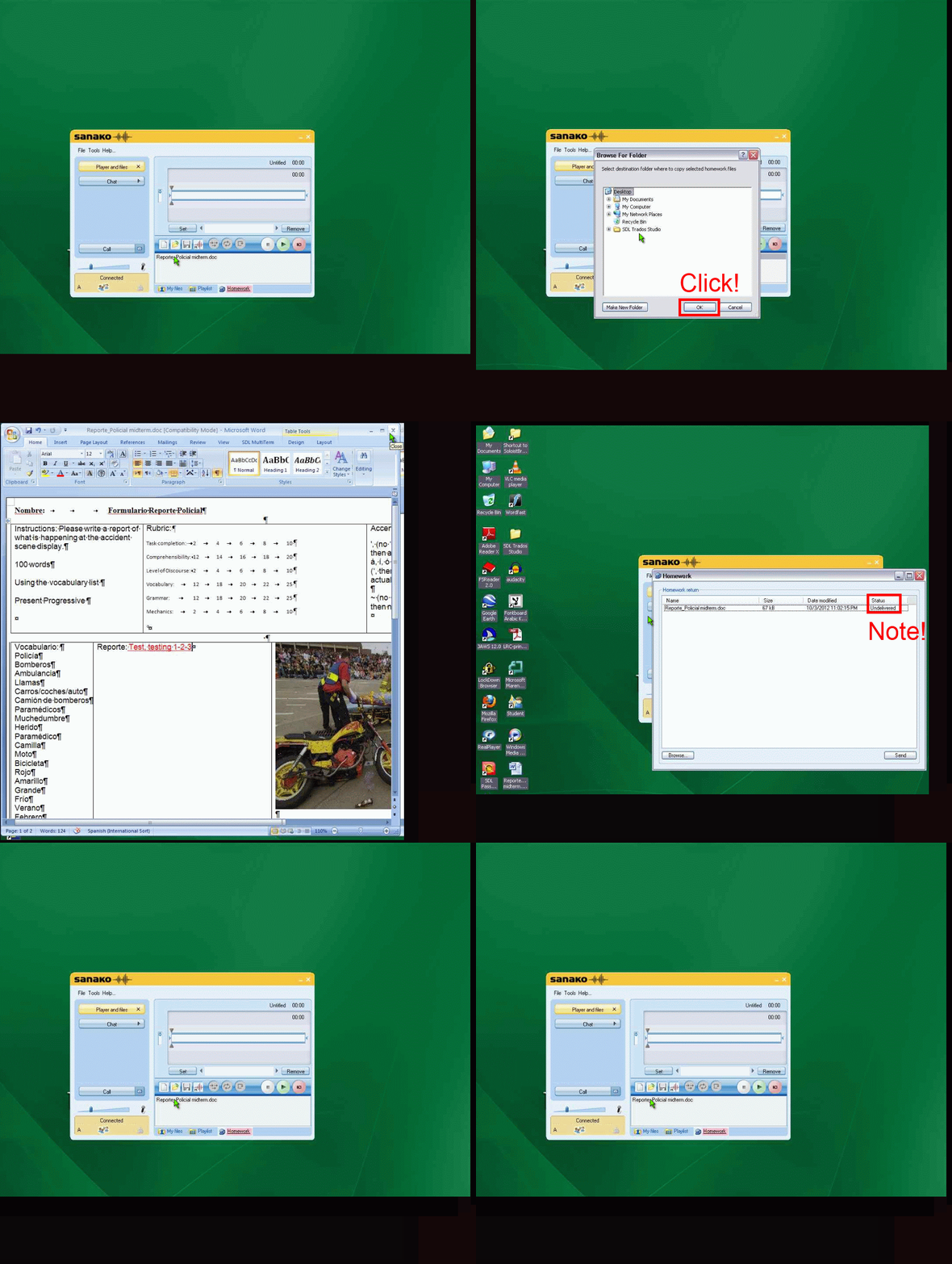
UPDATE: Now also split into
- PART 1: download from teacher (Here are the parts 1+2 that your teacher has to do). Slower? Click , 0.50sec, 0.75sec, 1sec, 2sec, 3sec, 4sec, 5sec, 6sec, 7sec, 8sec, 9sec, 10sec.

- PART 2: submission to teacher(Here are the parts 1+2 that your teacher has to do). Slower? Click , 0.50sec, 0.75sec, 1sec, 2sec, 3sec, 4sec, 5sec, 6sec, 7sec, 8sec, 9sec, 10sec.

How to fix “no audio” on the computers with black Sanako headsets
2012/10/10
Leave a comment
- First, show the Sanako student application (e.g. from button:Start / Student).
- Is the Volume Control slider set to 0? Move it up where it says “Adjust volume”:

- Still hear no audio playing on the black Sanako headsets? Then the volume slider was likely moved to 0 since the headset was not detected: On the rear of the computer, check the connection
- of the blue headset plug into the USB extension cord, and
- of the extension cord into the rear of the computer.



Questions? Read the About. Or just ask me a quick Our Databases: Resources with calendars -- Language learning material Moodle Sites, multimedia files -- films


FAQs for LRC student staff or for students or for teachers. To search our FAQs, in the browser addressbar, add after "https://plagwitz.wordpress.com/feed/?tag=faqs+/" "+TAG1" (from tag cloud below) OR "https://plagwitz.wordpress.com/feed/tag=faqs
&category_name=" "CAT1" (from category hierarchy below). OR search both categories and tags, and multiple TAGs/CATs (connect with "," for OR-search, with "+" for AND-search), like so: https://plagwitz.wordpress.com/feed/?tag=TAG1+TAG2+...TAGn&category_name=CAT1
+CAT2+...CATn"
Other ways to find help
If you cannot find it here, look there: 5,500 Language-Learning Links and Programs for learning or teaching 150 languages
Shortcuts:Our Lists, Our Maps, LRC Staff Moodle Site,LRC Project Moodle Site, 49erexpress, UNCC Moodle, Student Recordings: s:claslcslrcsanakostudent
Learning usage samples: Sanako oral exam, Kaltura webcam presentation, Dictation with speech recognition, Sanako written exam, Chinese and Japanese interactive stroke-order practice
Test the Sanako Installer, Webbrowser Popup Konfigurator for XP, or Windows7, faster LRC TeacherPC Log-in Let MS facilitate diacritics writing by installing for you US-International keyboard layout
This is my personal blog (Google+). The views expressed on these pages are mine alone and not those of my employer. The information in this weblog is provided “AS IS” with no warranties, and confers no rights.
 Thomas' Work Space