Archive
Archive for the ‘Student-Computers’ Category
LRC headset test on PCs
2014/01/02
Leave a comment
- Log in on a PC.
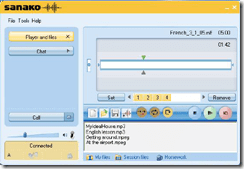
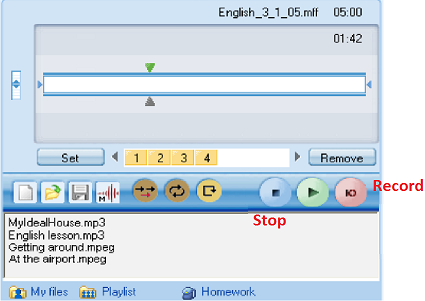
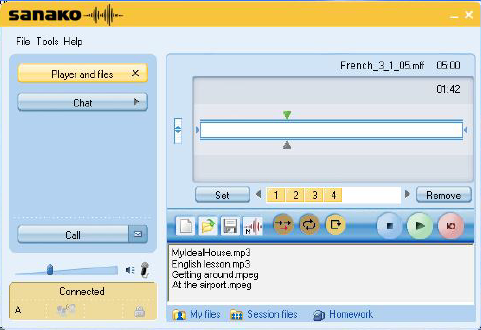
- Launch the Sanako student recorder form the desktop:

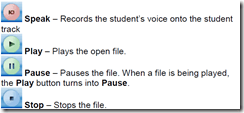
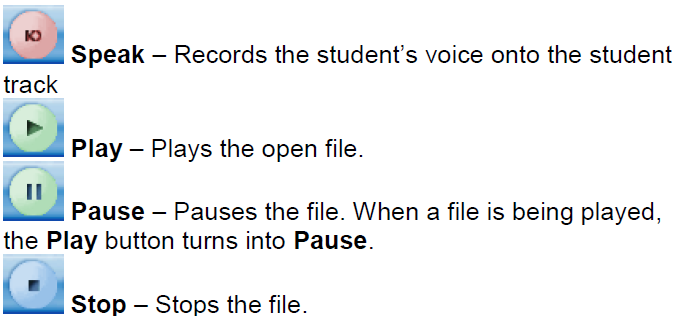
- Click the red recording button then record for 5 sec (speak into the microphone; then tab the microphone with your finger several times, to make sure you are recording through this source), then the blue stop button
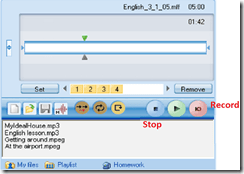
- Click the green Play (from beginning):
- can you hear yourself speaking/ the noise from the tabs?
- turn your head left and right: can you still hear (sometimes a short cuts out the sound).
- If not check headsets cables as described in LRC routine walkthrough for classroom PCs (Sanako headsets) or in LRC routine walkthrough for listening and group room stations(brown headsets).
- If it still does not work, report Computer # on clip board.

LRC daily walkthrough for classroom PCs
2014/01/02
Leave a comment
- Find a time when the classroom is not busy on the LRC calendar – if necessary, do it earlier rather than later.
- If somebody else than coordinator or director is logged onto the teacher computer, tell the LRC coordinator.
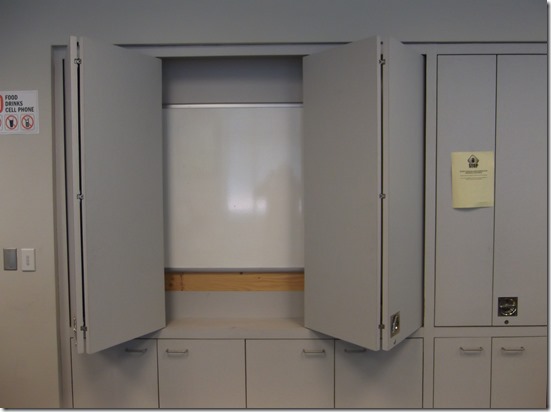
- Check the projector? Turned off , screen up
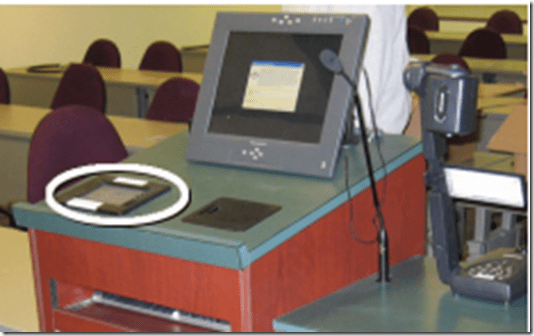


- Make sure classroom blinds are closed

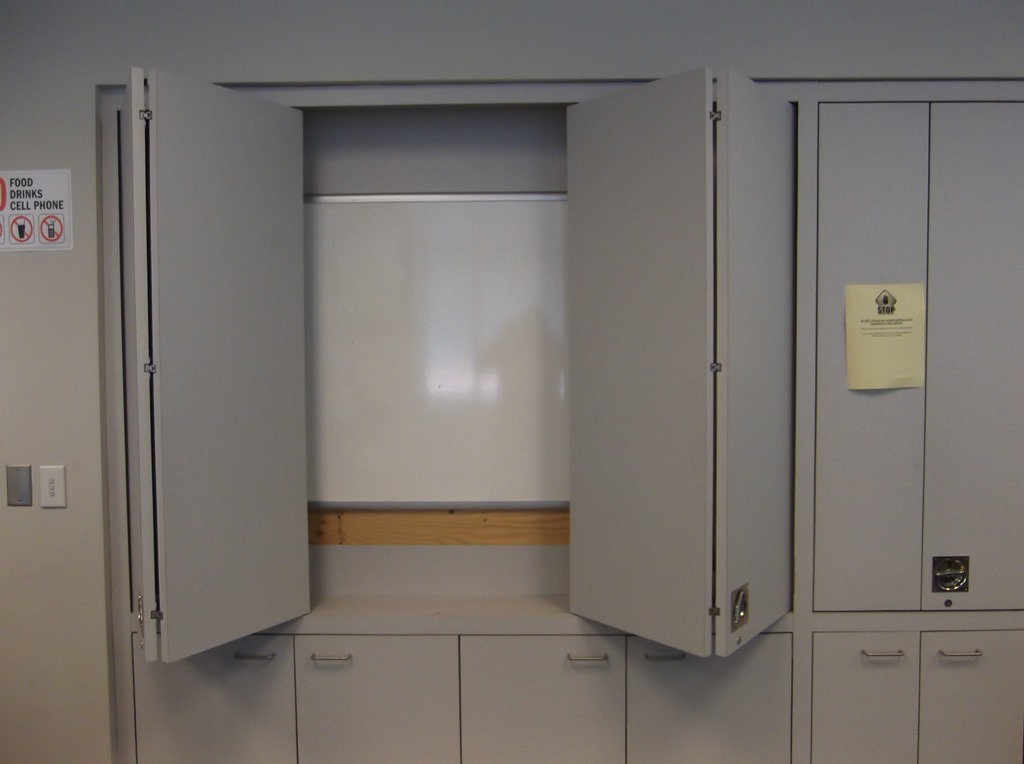
- Make sure the classroom whiteboard is clean
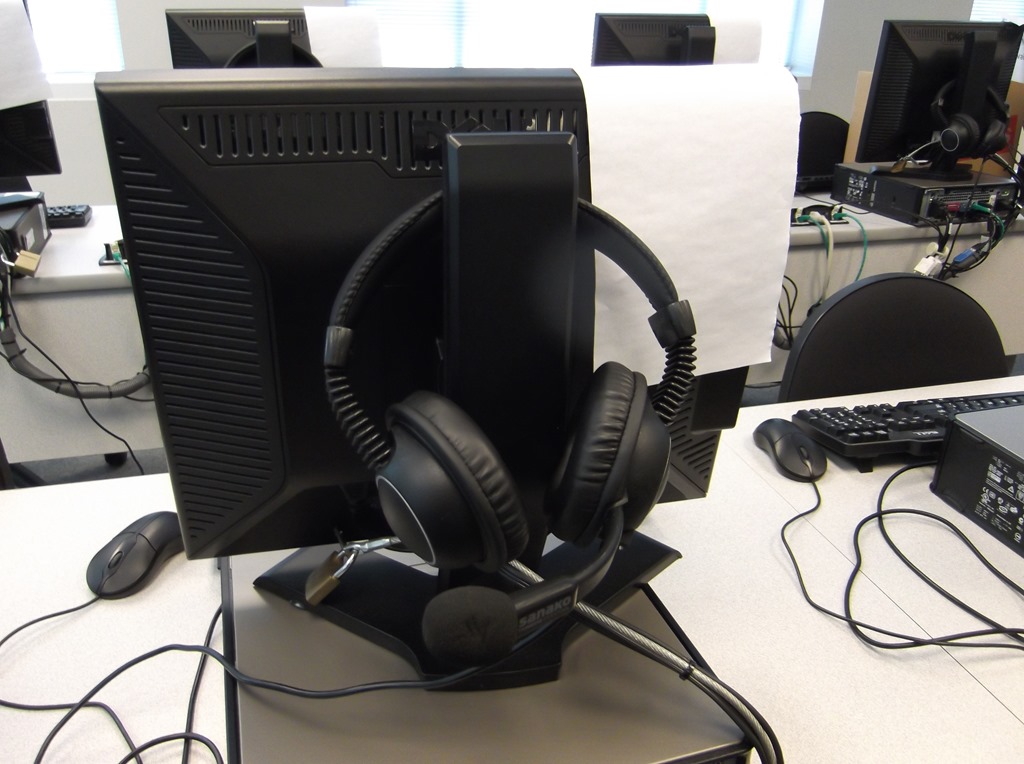
- Make sure headsets are
- hanging on the back of the monitor in the classroom (each headset on the computer it is connected to, and not a neighboring computer).

- and are
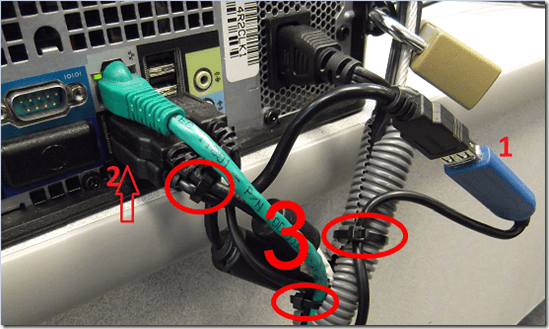
- firmly plugged in
- plugged in firmly AND and in the correct (= bottom left) USB port
- cable-tied ((spares in coed436 box “office supplies”).


How to create screencasts of student presentations for the language learner ePortfolio in the digital audio lab
2013/11/08
Leave a comment
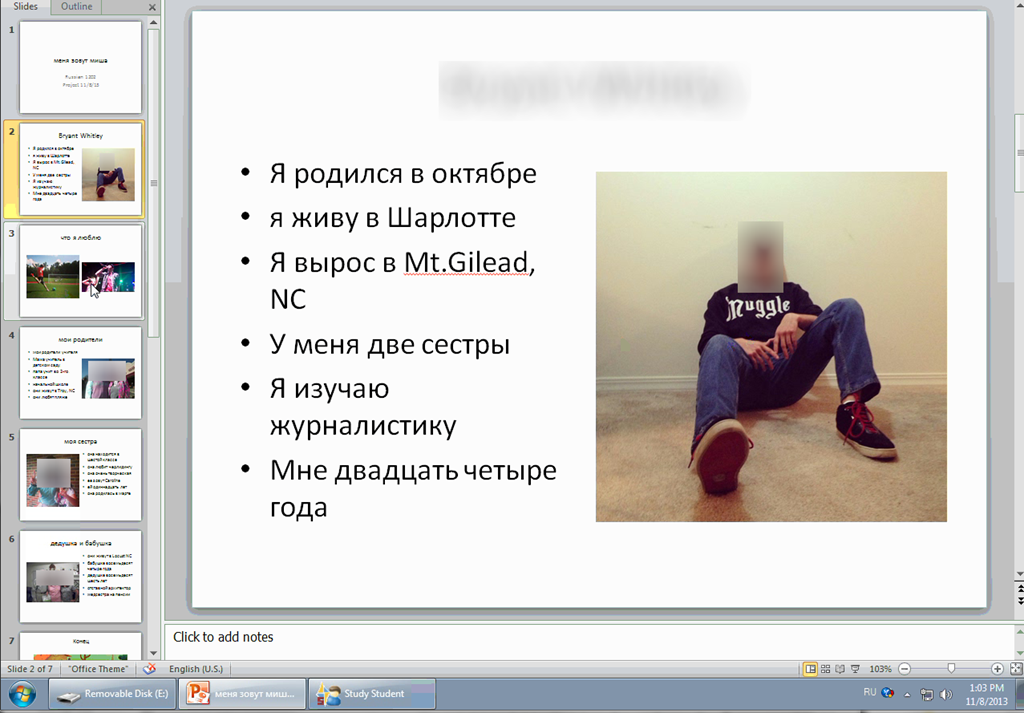
- Students can now easily video-record their own screens during class presentations – not only when using PowerPoint; instead students could demo a website, like their Facebook page.
- Last year, we were limited to PowerPoint’s record slideshow with timing and narration feature, and either send the PPSX (small, but requires the PowerPoint viewer) or the “Save as” video (new in PowerPoint 2010; computing intensive and large file size).
- Now with MS-Community Clips, screencasts are
- minimal effort to create (keyboard shortcut WIN+ALT+R or T; save on desktop; drag/drop into Sanako homework folder)
- and little effort to distribute:
- Students could have uploaded to a Moodle’ file upload assignment (default file size limit: 64MB) or Kaltura file upload assignment (not sure whether there is a size limit). This seems more suitable for assignments with screencasts recordings.
- In this instance
- Sanako collected the Homework files to the Sanako share,
- my langlabemailer emailed them as attachment (so far tested to allow for 25MB attachment size, the equivalent of 7-8 minute screencast, a hefty space to fill in L2! We also established: 45MB is too much…
 ) to the originating student and teacher, for review, grading –
- and – provided it passes muster as an attractive and significant piece – possibly for re-use in the student’s language learner ePortfolio.
- In addition,
- Before the presentations, the teacher easily collaborated on proof-reading the slide decks of individual students, by using the Sanako Remote control screen sharing feature.
- During the presentation, students followed more closely – which seemed to increase their attention and comprehension -, thanks to audio and screen being shared to them from the presenter, using the Sanako’s “Model student” feature.
Categories: Arabic, audience-is-teachers, digital-audio-lab, e-languages, English, eportfolio, Farsi, French, German, Greek (modern), Hindi, Italian, Japanese, learning-usage-samples, Mandarin, multimedia-recording, office-software, Portuguese, presentations, Presenter-Computer, Russian, Spanish, Speaking, Student-Computers
file-upload, homework-activity, kaltura, langlabemailer, model-student, moodle, ms-community-clips, ms-powerpoint, sanako-study-1200, screensharing, videos
View a path to where you can start troubleshooting Pearson MyLanguageLab Wimba Voice Java
2013/11/06
Leave a comment
We used to do proctored LRC chapter exams using this textbook online component, but the Wimba Voice student recording tools stopped working, although a possible solution has been proposed with the problem report. This screencast leads to an exercise where more testing (each supported browser will behave differently – this is Chrome) is possible:: 
How to record your screen with MS-Community Clips
2013/11/06
Leave a comment
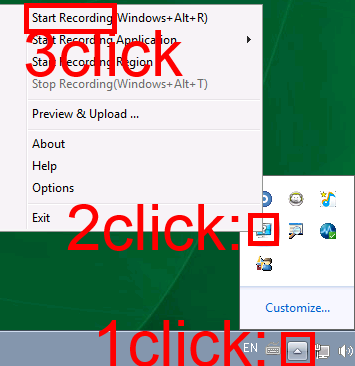
- During presentations, when creating demonstrations etc., it can be useful to record your screen (and your voice, if you speak into the headphone microphone). In the LRC, we have MS Community Clips pre-installed for this purpose. To start recording:
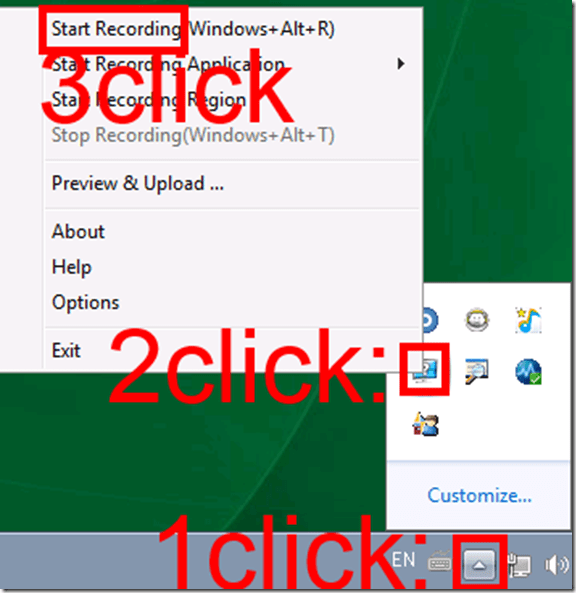
- To stop recording, follow the same steps, but in step 3 choose “stop”.
- Or forget about the menus and remember the keyboard shortcuts: WIN+ALT+R or T.
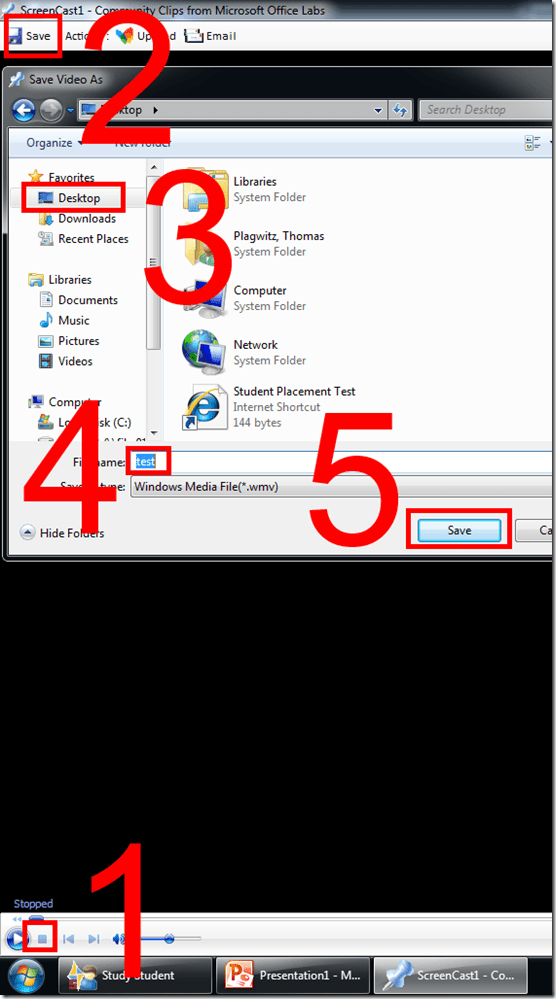
- The video will play automatically. Click stop, menu: Save, Save your recording where you need it (e.g. Desktop).
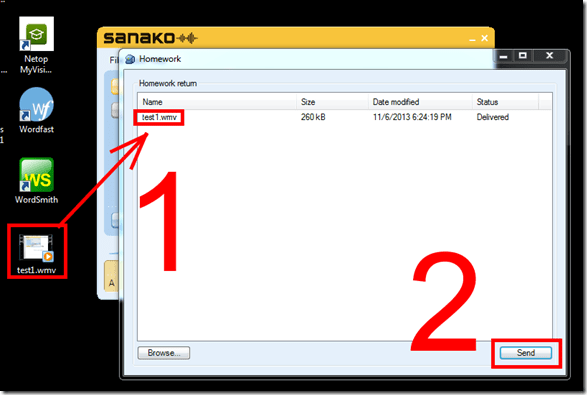
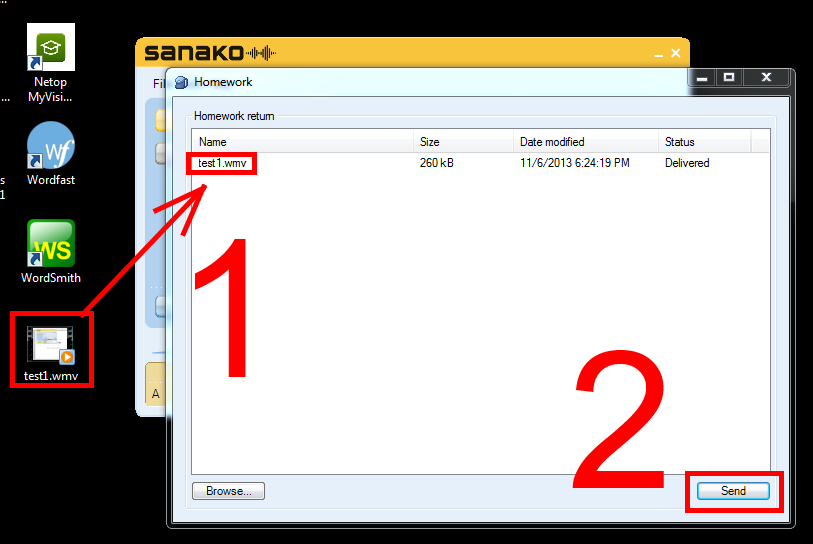
- If your teacher wants you to submit your recording, in the LRC you can drop it into the Sanako Homework window and “send” it:

How to run a microphone test before taking an ACTFL exam on languagetesting.com
2013/10/28
Leave a comment
- To avoid having your test recordings rejected for quality reasons (and having to take the entire test again), please run this simple microphone test OUTSIDE of languagetesting.com:
- This microphone test can be run either
- at the listening stations (see sign 433a, brown headsets) or
- (PREFERABLY) in the main classroom (see sign 434, black headsets).
- After logging in, put the headphones on. No need to re-plug anything.
- From the desktop, open Audacity
 .
. - In Audacity, Press the red RECORD button
 .
. - Speak into the microphone.
- Check the results:
- You should see something like this:

- Press the green PLAY button
 and listen to your recording.
 - Does the recording look AND sound OK?
- NO: let the LRC staff at the reception desk know the computer number and switch computers.
- Yes: Save the recording using menu: File / Export / [name = number of computer].mp3 to your “my documents” folder (if your test gets rejected, you have evidence that you ran the test and that the LRC headset hardware you used was o.k.).
- You should see something like this:
- This microphone test can be run either
- You also need to run the test WITHIN languagetesting.com (which just tests for volume, not for quality).


Switch to Color Scheme Basic not working for students
2013/10/25
Leave a comment
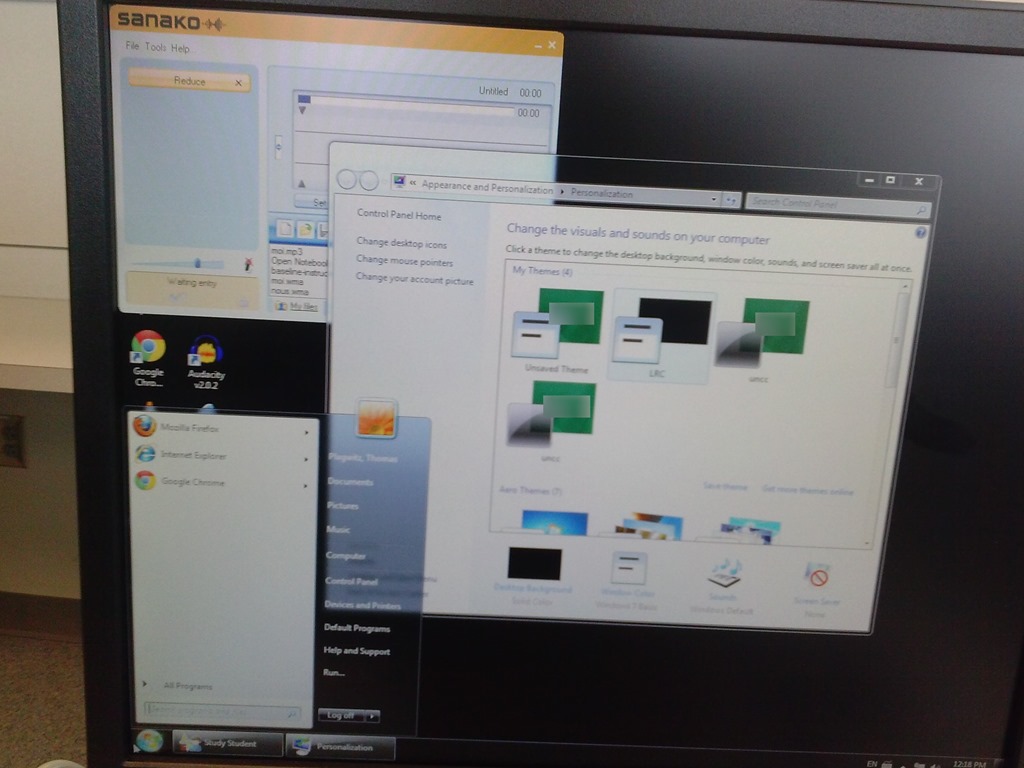
- Works for me:

- Does not work for students for whom it primarily has to work:

- Strangely, student seems to be not stuck on the original, but on an unsaved theme:


Can we get rid of Adobe Acrobat Reader’s Accessibility Setup Assistant dialogue?
2013/10/03
Leave a comment

For users not registered in AD as needing Accessibility this is distracting.
example os from the teacher station, assumed that is the same in the base image.


Questions? Read the About. Or just ask me a quick Our Databases: Resources with calendars -- Language learning material Moodle Sites, multimedia files -- films


FAQs for LRC student staff or for students or for teachers. To search our FAQs, in the browser addressbar, add after "https://plagwitz.wordpress.com/feed/?tag=faqs+/" "+TAG1" (from tag cloud below) OR "https://plagwitz.wordpress.com/feed/tag=faqs
&category_name=" "CAT1" (from category hierarchy below). OR search both categories and tags, and multiple TAGs/CATs (connect with "," for OR-search, with "+" for AND-search), like so: https://plagwitz.wordpress.com/feed/?tag=TAG1+TAG2+...TAGn&category_name=CAT1
+CAT2+...CATn"
Other ways to find help
If you cannot find it here, look there: 5,500 Language-Learning Links and Programs for learning or teaching 150 languages
Shortcuts:Our Lists, Our Maps, LRC Staff Moodle Site,LRC Project Moodle Site, 49erexpress, UNCC Moodle, Student Recordings: s:claslcslrcsanakostudent
Learning usage samples: Sanako oral exam, Kaltura webcam presentation, Dictation with speech recognition, Sanako written exam, Chinese and Japanese interactive stroke-order practice
Test the Sanako Installer, Webbrowser Popup Konfigurator for XP, or Windows7, faster LRC TeacherPC Log-in Let MS facilitate diacritics writing by installing for you US-International keyboard layout
This is my personal blog (Google+). The views expressed on these pages are mine alone and not those of my employer. The information in this weblog is provided “AS IS” with no warranties, and confers no rights.
 Thomas' Work Space