Archive
Archive for the ‘Presenter-Computer’ Category
How to fix a crash of the teacher station control panel
2013/08/15
Leave a comment
- Problem: control panel on the teacher station unresponsive (both hardware and software buttons). No AV and on/off switching.
- Cause: Octo switch in the AV cabinet crashed (it needs replacing).
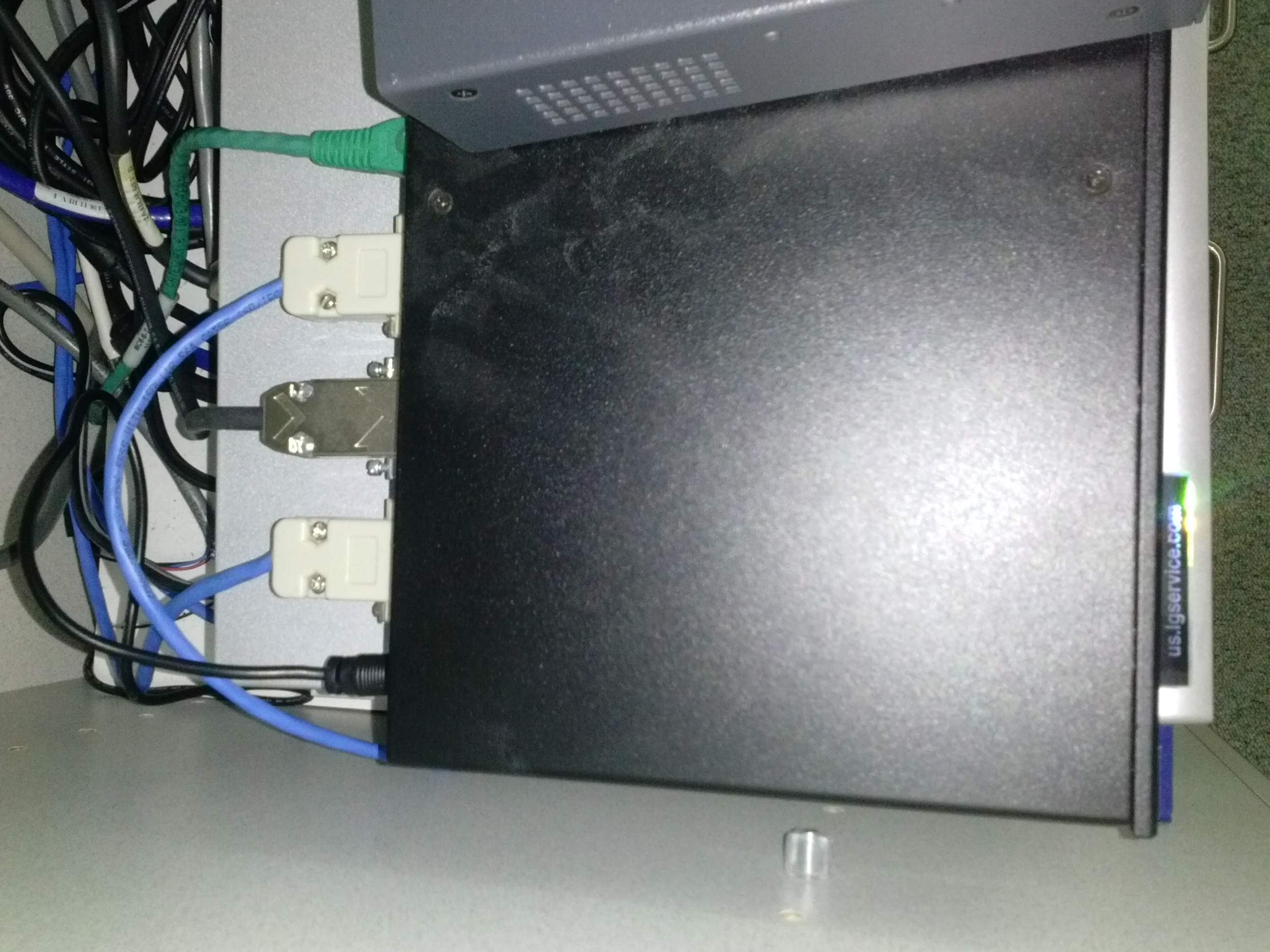
- Resolution: Open the door to the AV cabinet and powercycle the switch (= unplug and replug the lower thin black cable in the 1st or top rightmost thin black cable in the 2nd photo). Or use the call button (still functional) and wait for help.


Sanako Study 1200 classroom map can now scroll to fit on small screens
2013/08/09
Leave a comment
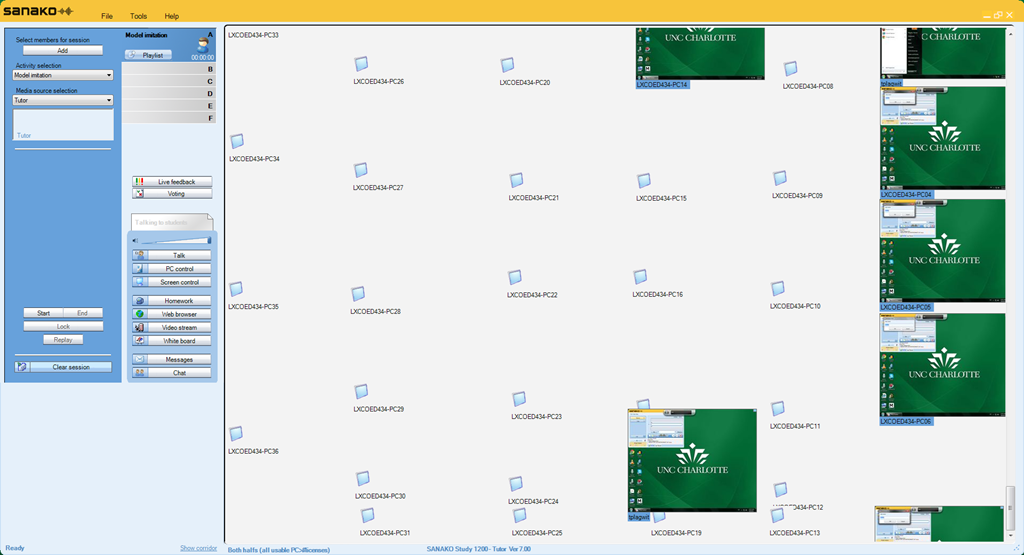
- We are now on Sanako Study 1200 ver 7.
- As you can see in this thumbnail view (note the vertical scrollbar on the right), it does help,
-

-
but not enough. Here is why:
-
I can get it to scroll only vertically.
-
I can only marginally move the student icons off the map when I use the GUI (ctrl-shift drag&drop). Wondering whether I have to dig into the XML source to force an even wider layout…
Categories: e-languages, Presenter-Computer
classroom-layout, sanako-study-1200
LRC Teacher podium AV switch
2013/07/05
Leave a comment
- Even though we may soon swap the switch, here is how the AV switch needs to be connected for the teacher computer’s left screen to get projected to the dual projector screens:


How not to have to join a Saba Centra online class from the LRC late, for lack of speaking capabilities
2013/05/06
Leave a comment
- Problem: We continue getting reports from teachers that students who try to participate in a Saba Centra online class from the LRC listening station computers (with analogue headphones) experience a considerable delay in joining and cause disruption to online classes since they have to troubleshoot their microphones, for lack of being audible online.
- Root cause: Saba Centra on startup automatically selects the “microphone” as recording device…
- Workaround:
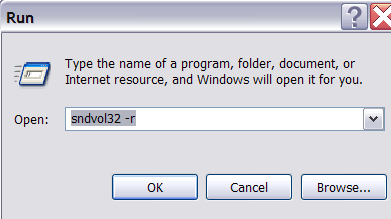
- On XP, click “Start”, click “Run”, type (without quotes) “SndVol32 –R” (meaning: “SoundVolume for Recording”), click “OK” which opens the volume mixer for recording devices. The radio button selected will be “Rear input”.

- Start Saba Centra.
- Switch back to the volume mixer you opened in step 1. Note that the radio button now selected is “Microphone”. This is wrong for the listening stations (and the teacher station) in the LRC. Switch it back to “Rear input” (you know that your headset is supposed to be plugged into the rear).

- And off you go… Plus note: There is no need for “expensive” workarounds like:
- haphazardly trying to replug headphones,
- purchasing your own USB headphones,
- hogging the main classroom with its USB headphones.
- On XP, click “Start”, click “Run”, type (without quotes) “SndVol32 –R” (meaning: “SoundVolume for Recording”), click “OK” which opens the volume mixer for recording devices. The radio button selected will be “Rear input”.

Categories: audience-is-language-learning-center-staff, audience-is-language-learning-center-temp-staff, audience-is-students, audience-is-teachers, Distance-education-format-is-Synchronous, e-learning, Listening-Stations, Presenter-Computer, presenter-computer, service-is-configuring-learning-tools, service-is-testing-troubleshooting-debugging, Speaking
audio, FAQs, saba-centra
How a teacher can easily restart the Sanako Study 1200 licensing classroom server when experiencing a crash
2013/04/26
Leave a comment
- Try clicking and running this (http://goo.gl/lTVLc), if you see that:

- this is for
- if your sanako tutor hangs with status message "verifying tutor" and you are confronted with the error dialogue "Connection to the communication platform has been disconnected and the system is not able to communicate with the classroom server anymore"
- And if you run the classroom server on the same computer as the tutor (as we do)
- And if you have checked your "network connection", like gone to a website, and it is restored (e.g. If you simply had unplugged your the cable)?
- And if you do not want to "restart your system if needed" since, as in our case, that takes a big chunk time out of your class
- Hint: this can’t fix your network if that is the root cause, but may be able to work around temporary service outages.

Text messaging in class using Sanako Study 1200
2013/04/04
Leave a comment
Students click:  – Tutors click:
  . Stop endless spelling out of URL’s or queuing with raised hands during class. Your students will
  .
.
How a teacher can see student computer screens in Sanako Study 1200–the ultimate training summary
2013/04/04
Leave a comment




Questions? Read the About. Or just ask me a quick Our Databases: Resources with calendars -- Language learning material Moodle Sites, multimedia files -- films


FAQs for LRC student staff or for students or for teachers. To search our FAQs, in the browser addressbar, add after "https://plagwitz.wordpress.com/feed/?tag=faqs+/" "+TAG1" (from tag cloud below) OR "https://plagwitz.wordpress.com/feed/tag=faqs
&category_name=" "CAT1" (from category hierarchy below). OR search both categories and tags, and multiple TAGs/CATs (connect with "," for OR-search, with "+" for AND-search), like so: https://plagwitz.wordpress.com/feed/?tag=TAG1+TAG2+...TAGn&category_name=CAT1
+CAT2+...CATn"
Other ways to find help
If you cannot find it here, look there: 5,500 Language-Learning Links and Programs for learning or teaching 150 languages
Shortcuts:Our Lists, Our Maps, LRC Staff Moodle Site,LRC Project Moodle Site, 49erexpress, UNCC Moodle, Student Recordings: s:claslcslrcsanakostudent
Learning usage samples: Sanako oral exam, Kaltura webcam presentation, Dictation with speech recognition, Sanako written exam, Chinese and Japanese interactive stroke-order practice
Test the Sanako Installer, Webbrowser Popup Konfigurator for XP, or Windows7, faster LRC TeacherPC Log-in Let MS facilitate diacritics writing by installing for you US-International keyboard layout
This is my personal blog (Google+). The views expressed on these pages are mine alone and not those of my employer. The information in this weblog is provided “AS IS” with no warranties, and confers no rights.
 Thomas' Work Space