Archive
How to improve learning center staff communications using Windows Live Messenger instant group messaging through live@edu. A running log
- Our 1st line of support – student temp staff – is not able to answer all questions and troubleshoot all issues that LRC clients come up with.
- We are experimenting with enabling quick escalation of issues from 1st line to 2nd and 3rd line using instant messaging.
- live@edu provided our university staff and student accounts with access to Windows Live Messenger instant messaging, including useful sub features
- presence: see faster who is (or is not) there to help you by the colored presence icons. The convention in MS software is a green ball for available:

- group messaging: UNCC-LRC created and invited to a “LRC Staff” group that includes student temp and permanent staff.
- presence: see faster who is (or is not) there to help you by the colored presence icons. The convention in MS software is a green ball for available:
- Here is what comes up when temp staff logs into the computer (sorry, no linking to Windows user IDs, but then again, we do not have this form of single sign-on in our other systems either):


- Here are the options we start with (which need refinement)


Failure due to timeouts when capturing image from Symantec-Ghost
- do not thin I Have not seen that before: image capture starts successfully, but client times out in the middle; happens repeatedly both during the day and at night?

- What else to try?
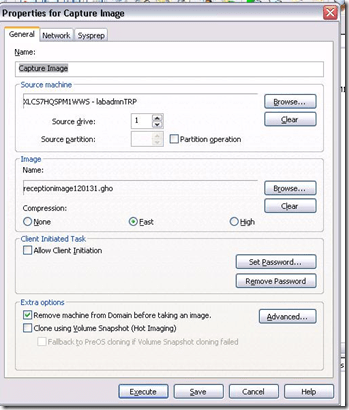
- Solution/workaround: inconclusive. First try w/o Deepfreeze installed and with high compression worked. But third try without any changes had also finally succeeded (although deploying that image was not tested).


How we improve client service through changes to the reception desk computer image
- These browser windows will now load automatically when student staff logs into the reception desk computers:
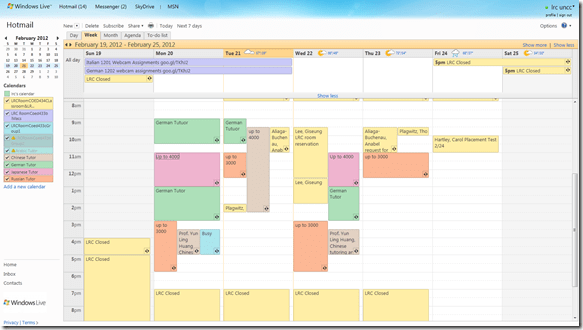
- Safari: In the entrance area, we display the live calendar of LRC events and services, containing the schedule of events (classes and other room and computer bookings from our bookable resources):
- Internet explorer
- is used by clients exclusively
- displays only the 49erexpress login screen in full screen
- clients do not close, but only log off
- dependent application windows can be opened from there
- Moodle
- Ninermail
- Firefox
- is used by LRC Assistants exclusively
- better overview thanks to fewer duplicate tabs
- immediate access to online spreadsheets
- bookable LRC resources
- film collection
- Moodle teaching resources
- LRC homepage, displayed for walk-in clients in the entrance area:

- Safari: In the entrance area, we display the live calendar of LRC events and services, containing the schedule of events (classes and other room and computer bookings from our bookable resources):


How we reorganized the reception area to improve support of circulation and small group work
The new reception desk is meant to secure the entrance to Coed436. To secure the circulation equipment, we do not let students into COED436 anymore, whether they are trying to check out equipment or for other reasons (except if they need to see the LRC coordinator). Hand all equipment to students over the counter. The door to Coed436 has to be locked when the LRC Assistant leaves the reception desk (it always can be unlocked from inside).
We also carved out 2 small group work spaces in the LRC entrance area. They can be used by language tutors with their students, and by other small student groups, including for assigned film viewing. These work spaces currently do not have to be booked, but they can be. Bookings take precedence over walk-ins. Send meeting requests to LRCRoomCoed433c@uncc.edu (Group1 next to entrance), LRCRoomCoed433d@uncc.edu (Group 2)). The calendar on the reception desk will display the bookings.
We moved 3 more iMacs (with built-in web cameras) into the main classroom (currently available to students only when all other iMacs are in use). All the iMacs in the main classroom actually have now also their own “room”: LRCroomCoed433b@uncc.edu (iMacs), but we are not requiring this “room” to be booked (yet). We are considering this in an attempt to avoid pile-ups of students trying to take video recording assignment. First we monitor actual usage patterns, especially nearing assignment dead-lines.
New “rooms”, and other equipment types are highlighted in green on our list of bookable resources.


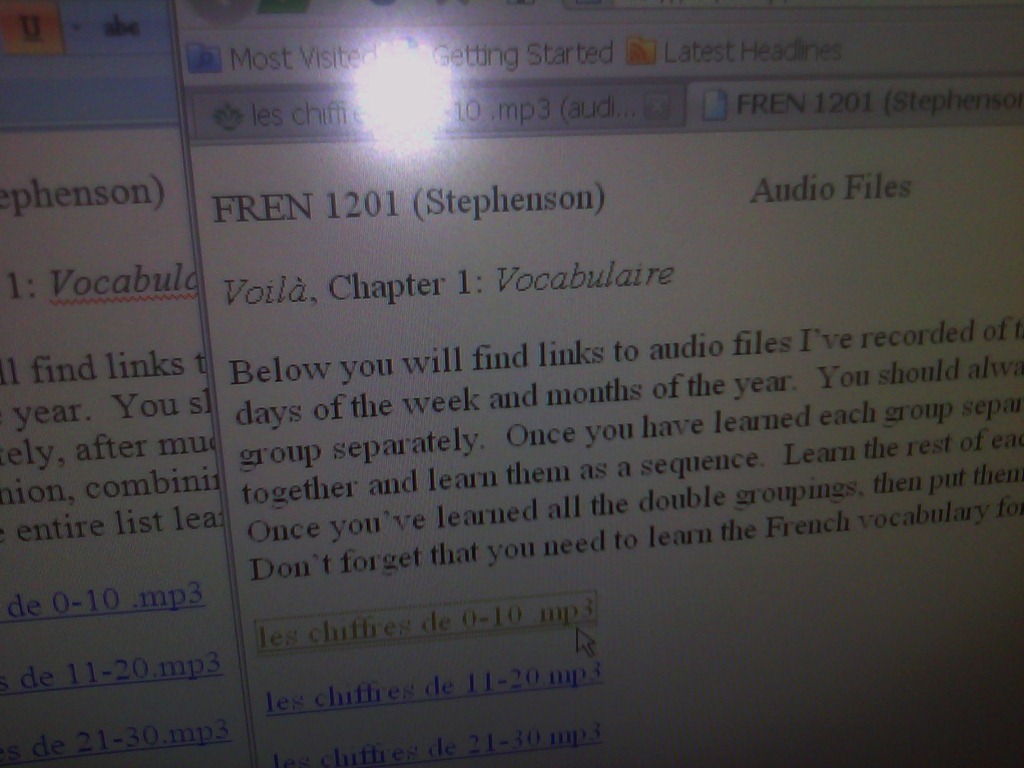
Students get an error when trying to open links from MS-Word file
- Error reads: “”this operation has been cancelled due to restrictions in effect on this computer”.
- Immediate workaround:
- right-click on the link, choose copy, open a web browser window
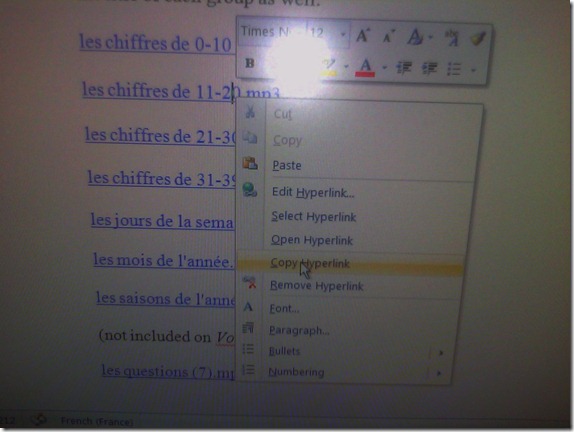 and paste the link into the address bar, browse to it from there.
 - File / Save as / Web page. From where you saved the web page, double click to open it in the your web browser, click the links form within there.

- Have you tried saving your MS-Word files to the new SkyDrive.live.com (login with your NINERNET password) yet? Students can choose to open MS-Word documents in either MS-Word or their web browser which should also bypass the problem.
- right-click on the link, choose copy, open a web browser window
- Solution: Investigating. Seems related to no “default browser set” in XP Control Panel / Internet options. If you cannot live with the workaround, do ask your System Administrator. Or stay tuned

How we improve LRC assistants’ and tutors’ visibility using name tags
- We posted name tag holders on lanyards at the bulletin board behind the reception desk.
- When you come in, take one, insert your student id card, and wear it during your shift.
- At the end of your shift, do not forget to return the name tag holders to the bulletin board for the next LRC assistant/tutor.


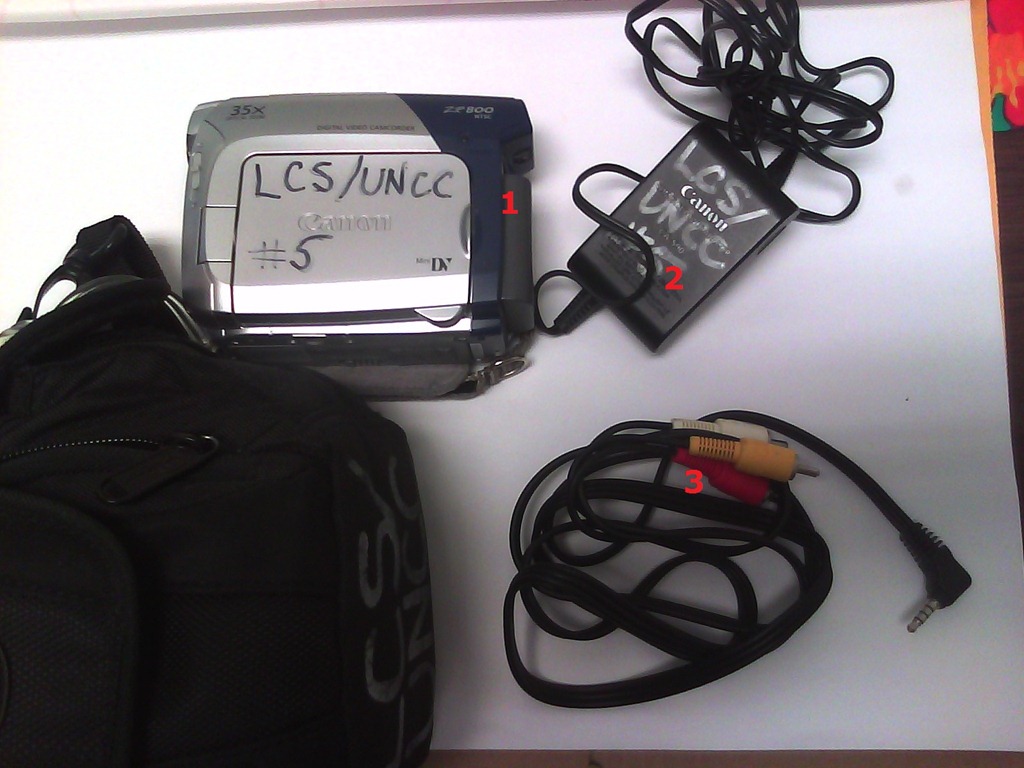
How to check if components of Canon camera (01-10) are complete
- Battery
- Battery Charger
- AV cable – FIREWIRE cables for transferring video are not included, we do not have enough. Use in the LRC only.



Questions? Read the About. Or just ask me a quick Our Databases: Resources with calendars -- Language learning material Moodle Sites, multimedia files -- films


FAQs for LRC student staff or for students or for teachers. To search our FAQs, in the browser addressbar, add after "https://plagwitz.wordpress.com/feed/?tag=faqs+/" "+TAG1" (from tag cloud below) OR "https://plagwitz.wordpress.com/feed/tag=faqs
&category_name=" "CAT1" (from category hierarchy below). OR search both categories and tags, and multiple TAGs/CATs (connect with "," for OR-search, with "+" for AND-search), like so: https://plagwitz.wordpress.com/feed/?tag=TAG1+TAG2+...TAGn&category_name=CAT1
+CAT2+...CATn"
Other ways to find help
If you cannot find it here, look there: 5,500 Language-Learning Links and Programs for learning or teaching 150 languages
Shortcuts:Our Lists, Our Maps, LRC Staff Moodle Site,LRC Project Moodle Site, 49erexpress, UNCC Moodle, Student Recordings: s:claslcslrcsanakostudent
Learning usage samples: Sanako oral exam, Kaltura webcam presentation, Dictation with speech recognition, Sanako written exam, Chinese and Japanese interactive stroke-order practice
Test the Sanako Installer, Webbrowser Popup Konfigurator for XP, or Windows7, faster LRC TeacherPC Log-in Let MS facilitate diacritics writing by installing for you US-International keyboard layout
This is my personal blog (Google+). The views expressed on these pages are mine alone and not those of my employer. The information in this weblog is provided “AS IS” with no warranties, and confers no rights.
 Thomas' Work Space