Archive
Archive for the ‘LRCRoomCoed433’ Category
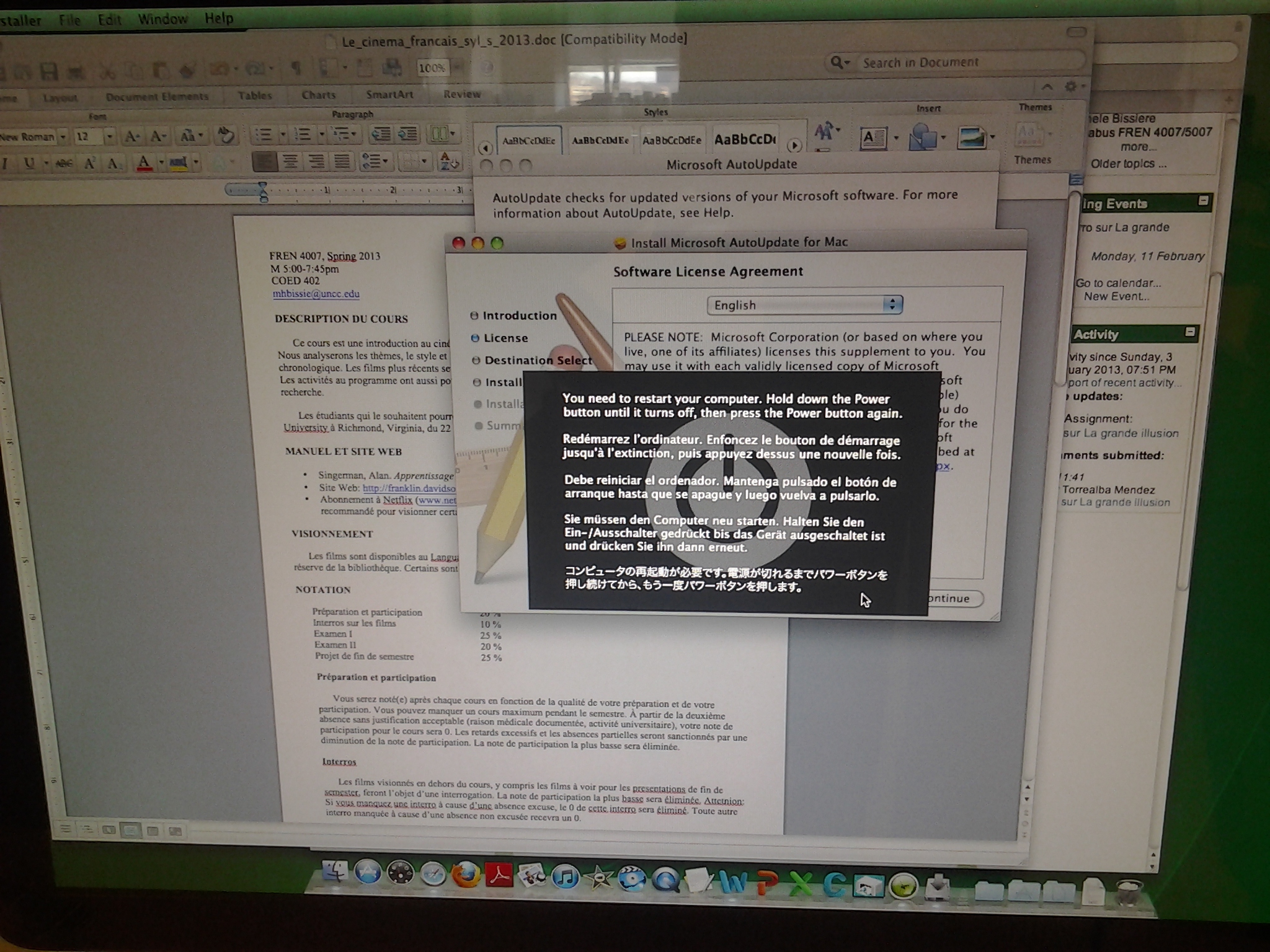
Why is Mac OS X forcing power cycle?
2013/02/05
Leave a comment
Categories: e-infrastructure, iMacs
mac
If you cannot log into Windows because of accessibility dialogues offering you help
2013/01/23
Leave a comment
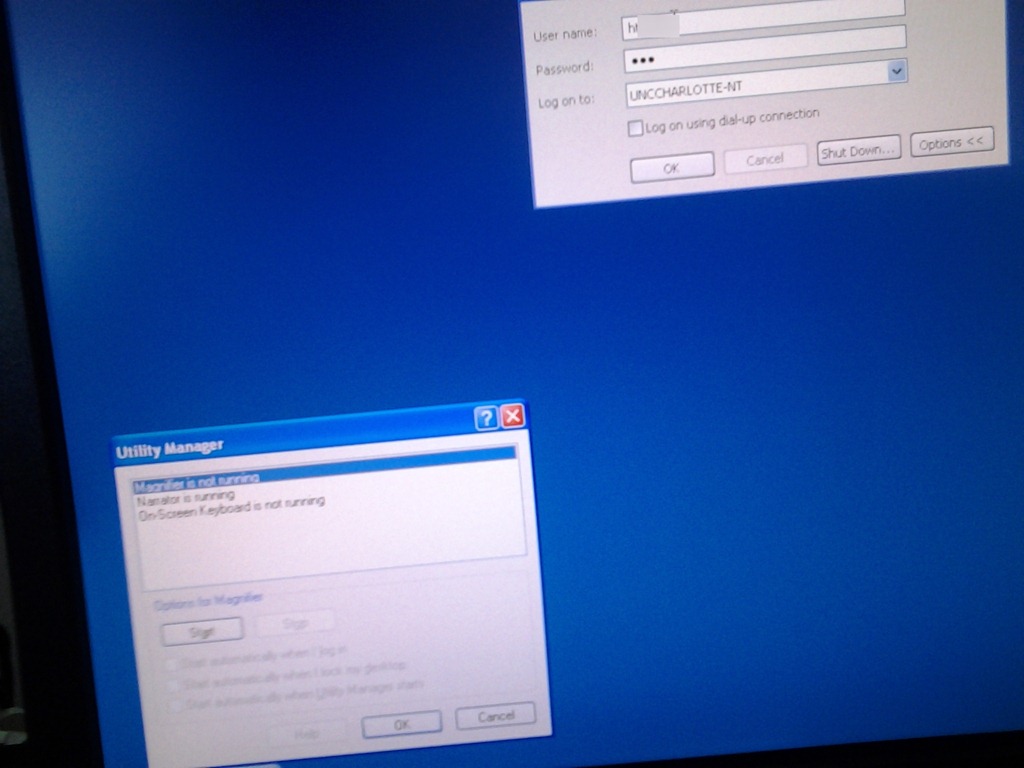
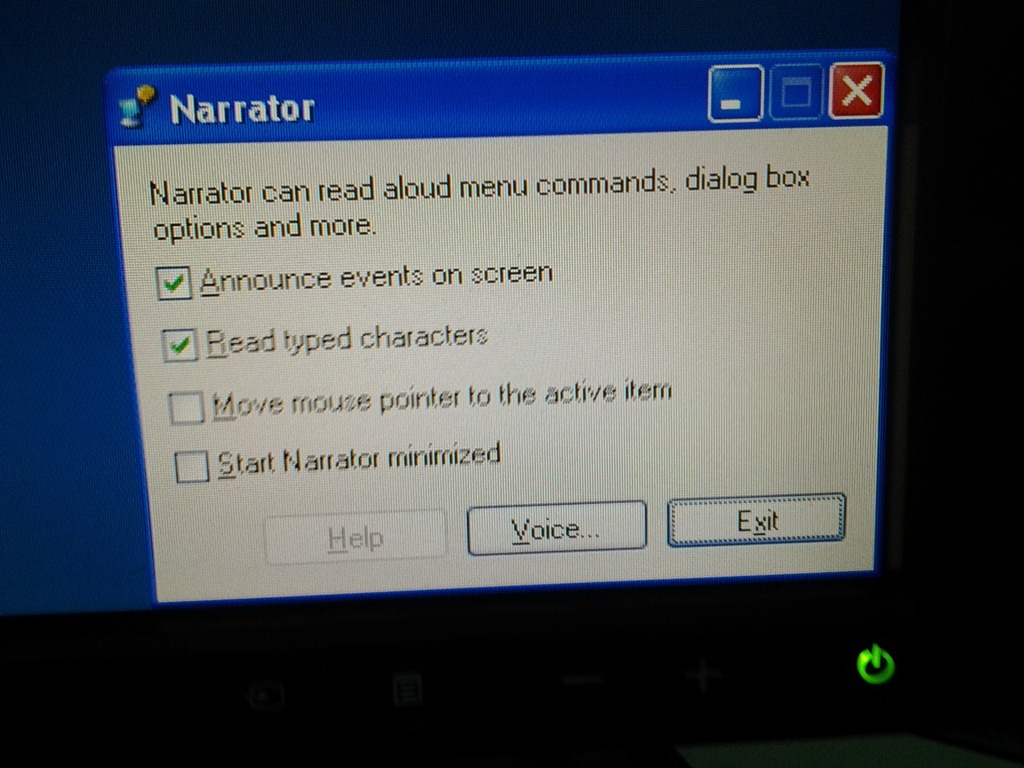
- Symptom: You cannot log in since accessibility tool dialogues (like above) come up when typing your password
- Workaround: Restart the computer (and make sure you have no item sitting on the keyboard while doing so, usual suspects: textbooks, bags). If you do not want to restart, but fix it immediately, you can read more about Windows XP accessibility features and keyboard shortcuts here.
- Root cause: You may have activated Windows accessibility features by erroneously depressing for a long time or repeatedly pressing a modifier key while the LRC computer was on the welcome screen. You may not run into this behavior from your personal computer (or read here how to disable Windows 7 Sticky and Filter Keys), but the LRC needs to be ADA compliant. Think of it as another LRC language tool that sometimes may get into your way temporarily if you do not study the language, but that you would not want to miss for the language you do study.
Phishing warning from Safari on reception desk computers…
2012/11/07
Leave a comment
… is a harmless glitch. The root cause is that the computers are sometimes extremely slow to start up. We resolved the issue today by simply restarting (not just logging off and back in).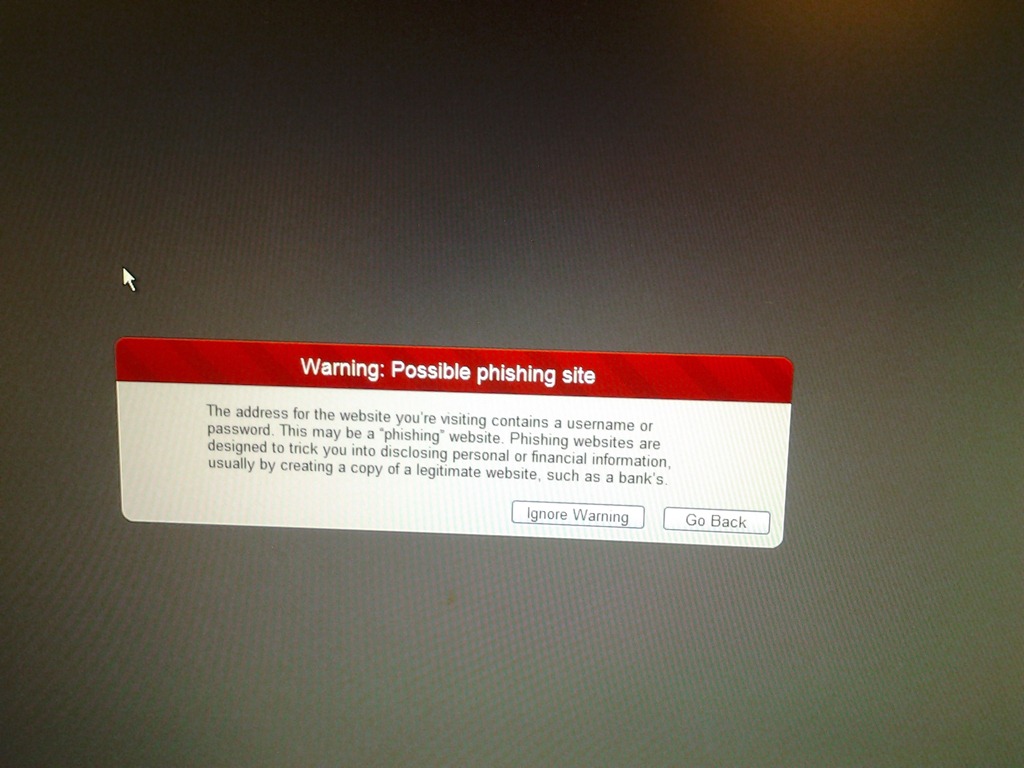
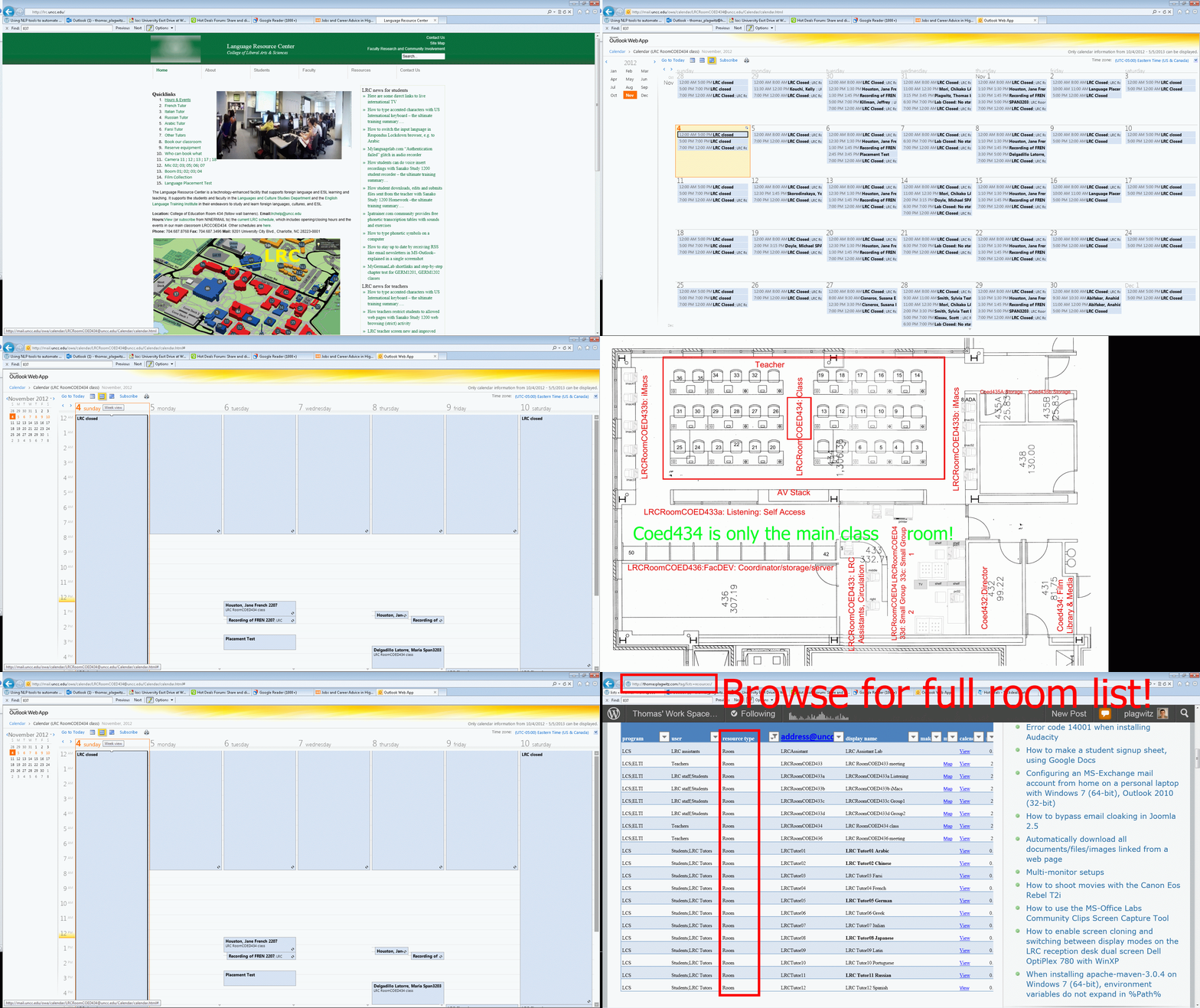
How to view LRC hours&events ….
2012/11/04
Leave a comment
How to switch the input language in Respondus Lockdown browser, e.g. to Arabic
2012/10/23
Leave a comment
- Short answer:
- Right-click the Language bar on the taskbar and choose “Restore the Language bar”, like so:

- This makes the language bar a floating toolbar on top of the screen, like here:
 . This floating toolbar you can still access when in Lockdown browser.
 - The language bar can be temperamental, you may need to bring it up again, try switching back and forth between input fields.
- Long Answer:
- Respondus Lockdown browser blocks many functionalities, including the shortcut combination to change input languages (usually LEFT ALT + SHIFT) and access to the Language bar on the task bar.
- This is not an issue when your quiz is in a western language and you have US- international keyboard layout configured as your default (which lets you type most Western diacritics without need for keys blocked by Respondus Lockdown browser )
- It is an issue with e.g. Arabic. You cannot even temporarily set Arabic to your default input language before starting lockdown browser, since then you cannot log in (with MS Maren IME, you can override the Arabic default to enter your username in western characters, but not the password. Respondus Lockdown Browser is built on Internet Explorer, but it does not share the cookies, so being logged into your LMS in Internet Explorer does not carry over to your Lockdown Browser session).
- Workaround: See above.


How the LRC can help you proctoring your computer-based make-up exams
2012/10/15
Leave a comment
- We are testing
- whether we can offer proctored make-up exams for students that missed scheduled (publisher website- or Moodle-based) computerized exams that were held in the LRC. We have not been given additional resources for this service, so we have to set it up as smoothly as possible – as you and your students will desire also.
- Alternatively, you could administer your exam in your office, like you used to, but now using your office computer (where presumably you tested the exam in the first place – the LRC can temporarily borrow you a headset
- or we could group schedule all remaining students for a make-up in the main LRC classroom maybe during class meeting (likely more secure and quicker, but taking away from contact hours). Both the presence of the teacher and the lrc director may be required.
- The teacher gives
- to the studentthe exam’s
- step-by-step instructions (depends on your exam website, look at my example here regarding mylanguagelab tests (version 2012-10): goo.gl/g8q5g),
- or, if the exam is self-explanatory to the student (nothing ever seems to be, so if you want to go this route, please be prepared to troubleshoot with your students, the LRC can only help with making step-by-step guides beforehand), the link, i.e. login (e.g. mygermanlab: goo.gl/JUSUC) and exact location of exam (either path for manual browsing or (preferably, if at all possible) a direct link);
- duration
- deadline
- to the LRC coordinator the exam password. The LRC coordinator publishes the password in LRC Moodle forum “sticky notes” (to which only LRC staff has access).
- to the studentthe exam’s
- The student
- From her NINERMAILcalendar
- prepares a new/meeting request,
- “subject: [your course number] make-up exam”,
- to “resource:” lrcroomcoed433c @uncc.edu AND lrcroomcoed433d@uncc.edu, our small group rooms,
- uses the tab:”scheduling assistant” to find a free (= white, not-blocked) time-slot with the exam duration and before the exam deadline,
- and deletes that group room that s/he does not need before actual sending the meeting request (For the quietest experience, s/he should also stir clear of tutoring hours, subject:”up to ####” in the other group room http://mail.uncc.edu/owa/calendar/LRCRoomCOED433c@uncc.edu/Calendar/calendar.html http://mail.uncc.edu/owa/calendar/LRCRoomCOED433d@uncc.edu/Calendar/calendar.html ).
- The student can get help withmaking this meeting request at the LRC reception desk, including booking the room on the fly, but no group room may be immediately available for walk-in clients).
- cancels the meeting request if s/he changes her mind, to make the room available to other (we record the check-in time to report offenders who prevent other students from taking their make-up exams). Only in our 2 group rooms next to the reception desk the student can be (loosely) monitored by LRC assistants serving as proctors from behind the reception desk. We can test before term start if your website can use additional security features like Sanako controlled web browsing or Respondus Lockdown browser.
- prepares a new/meeting request,
- comes to the LRC shortly before her scheduled time slot,
- logs in on the computer in her group room first (to speed things up);
- opens her meeting request on the reception desk computer to receive a check-in code from the LRC assistant into the meeting request and “sends update”;
- places any personal possession behind the reception desk;
- opens the exam instructions (e.g. goo.gl/g8q5g) on the group room computer;
- Following instructions therein, goes to the exam website on the group room computer, opens the exam, so that the LRC assistant can type in the password from the LRC Moodle forum “sticky notes” without letting the examinee know the password.
- TBA: Will we require students to get a checkout code? The LRC assistants are not in a position to enforce exam deadlines; your testing software likely should be.
- From her NINERMAILcalendar
Delete the Flash Global Settings if the iMacs webcam displays black frame only
2012/10/11
Leave a comment
- Problem: Safari and (not recommended after last testing round) Firefox both hung on iMAC6 when a student tried to do a Moodle Kaltura Webcam assignment and got to the built-in ISight camera display page.
- Cause: maybe a Flash security problem accessing the web cam? maybe security dialogue was not answered by the student correctly earlier, and the “preference”stored in her account?
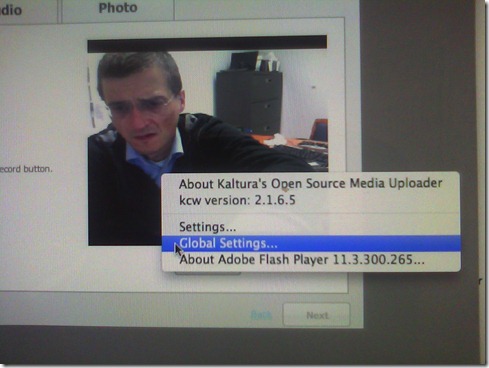
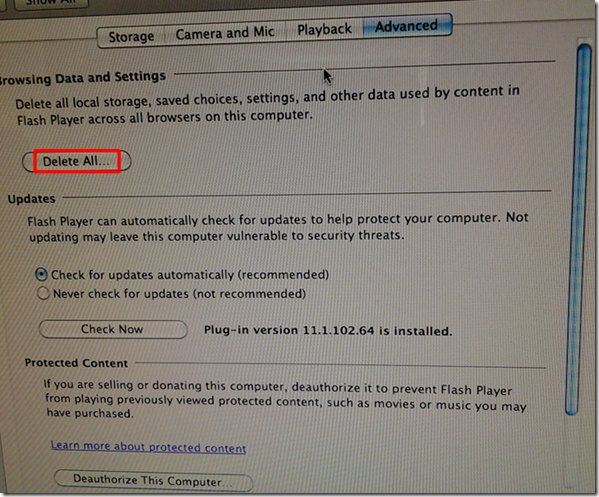
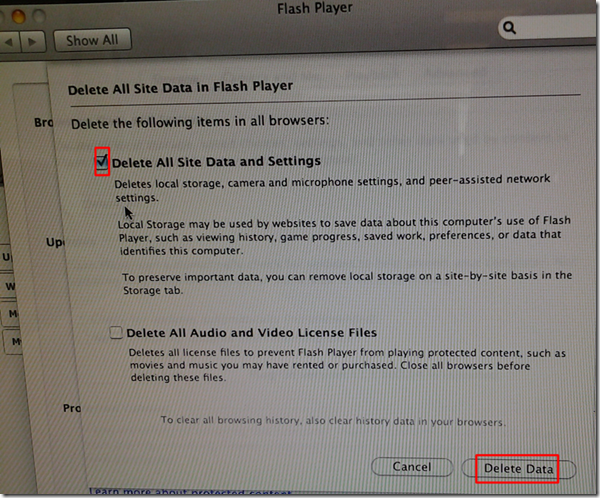
- Solution (presumably): System started working again after I deleted the Flash Global settings, by right-clicking on the webcam video preview window like so:
-
- Ceterum censeo that we need a computer management infrastructure if we want to use MACs for language learning technology. Faronics-Deepfreeze would have prevented this problem, provided we have a software imaging system (CASPER coming up apparently) that can let us start with a usable image, and the staff time to learn and configure 2 usable OS images and dual usable computer management infrastructures. TCO now > TCO dual OS infrastructure > TCO web cams for 45 PCs.


No audio on listening stations and group rooms, and workaround
2012/09/26
Leave a comment
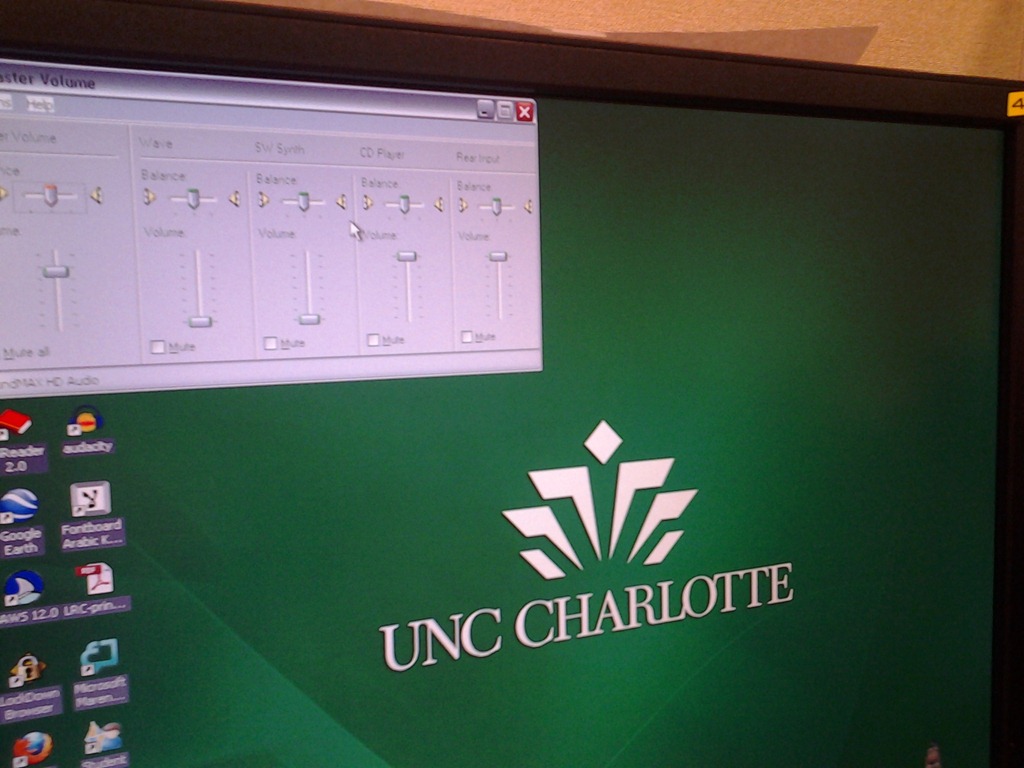
- Symptom: Headsets work (test feedback by putting microphone near headset speakers), but audio files from internet do not play with sound.
- Cause: having to support 2 different kinds of headsets (USB with built-in soundcard versus traditional analog) in one PC software image.
- The workaround
- for temp staff is to start / run / sndvol32.exe and up the low volume sliders here:

- for permanent staff is to unfreeze any computers that have been missed previously
 and put this script into the all users startup folder now: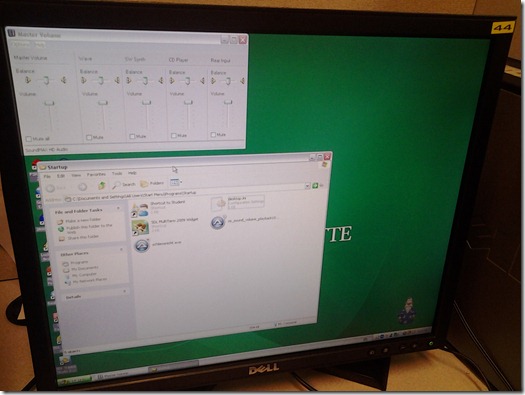
- The solution: standardize on USB headsets when you get a chance.


Categories: audience-is-language-learning-center-staff, audience-is-language-learning-center-temp-staff, e-infrastructure, Institution-is-University-of-North-Carolina-Charlotte, Listening-Stations, service-is-it-managing, service-is-testing-troubleshooting-debugging, small-group-work-spaces
audio, FAQs


Questions? Read the About. Or just ask me a quick Our Databases: Resources with calendars -- Language learning material Moodle Sites, multimedia files -- films


FAQs for LRC student staff or for students or for teachers. To search our FAQs, in the browser addressbar, add after "https://plagwitz.wordpress.com/feed/?tag=faqs+/" "+TAG1" (from tag cloud below) OR "https://plagwitz.wordpress.com/feed/tag=faqs
&category_name=" "CAT1" (from category hierarchy below). OR search both categories and tags, and multiple TAGs/CATs (connect with "," for OR-search, with "+" for AND-search), like so: https://plagwitz.wordpress.com/feed/?tag=TAG1+TAG2+...TAGn&category_name=CAT1
+CAT2+...CATn"
Other ways to find help
If you cannot find it here, look there: 5,500 Language-Learning Links and Programs for learning or teaching 150 languages
Shortcuts:Our Lists, Our Maps, LRC Staff Moodle Site,LRC Project Moodle Site, 49erexpress, UNCC Moodle, Student Recordings: s:claslcslrcsanakostudent
Learning usage samples: Sanako oral exam, Kaltura webcam presentation, Dictation with speech recognition, Sanako written exam, Chinese and Japanese interactive stroke-order practice
Test the Sanako Installer, Webbrowser Popup Konfigurator for XP, or Windows7, faster LRC TeacherPC Log-in Let MS facilitate diacritics writing by installing for you US-International keyboard layout
This is my personal blog (Google+). The views expressed on these pages are mine alone and not those of my employer. The information in this weblog is provided “AS IS” with no warranties, and confers no rights.
 Thomas' Work Space