Archive
How a teacher creates audio recordings for use with Sanako Student Voice Insert mode
- One of the Sanako Student player’s useful features geared toward language learning activities, is that it can save the teacher the time and effort for inserting pauses into their audio recordings, so that students can record responses into them.
- Meaning the teacher can just press the red speak button
 and record through the entire file in one sitting.
 - The teacher can still help students finding their way around the file, especially where to insert their own audio recording responses, by adding aural cues.
- This can be done in minimal time: I once saw a teacher use a bicycle bell – and why not, if it saves time.
- A spoken instruction “Respond”/”Answer in 10 seconds” is not more difficult to spot (unless only the voice graph is being browsed) and might be even better.
- If you have spare time:
- You can post-edit the file with audacity, generating and inserting sinus tones.
- You can use the Sanako player to insert bookmarks instead of cues.
- Meaning the teacher can just press the red speak button
- As long as students have been instructed to how to use voice insert recording mode with the Sanako student recorder.
- This is for self access of students to teacher recorded files – be it during class or homework.
- If you want to record students under exam conditions, a similar insert recording feature is available within the activity: Model imitation, but not with a pre-recorded file, only when the live teacher is the program source students listen to for cues.

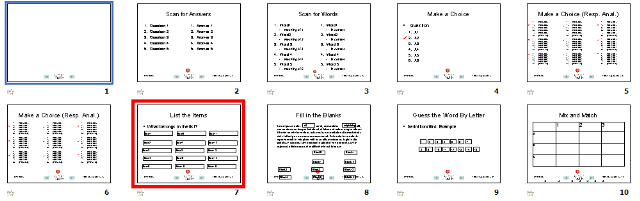
A PowerPoint Template to base your clicker-like face-to-face class exercises on
- Enables easy exercise creation:
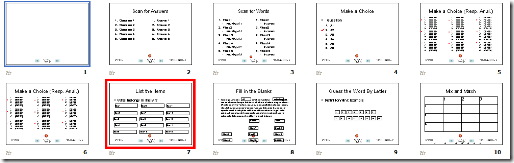
- Resides on S:\coas\lcs\labs\lrctest\templates\Teacher.pot;
- Requires MS-PowerPoint 2010, as installed on the teacher computer in LRCRoomCoed434.
- Training videos are available for download here (requires Windows Media Player on Windows, as installed in the LRCRoomCoed434).
- powerpoint_template_overview_default_slide.wmv
- powerpoint_template_sequential_slides.wmv
- powerpoint_template_interactive_slides.wmv
- Usage samples available on request from
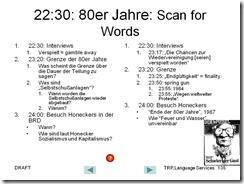
- German Beginners,

- Intermediate

- and Advanced Classes.


New Teacher MAC Computer in Coed037 with Final Cut Pro 3
- A new Mac Mini on the teacher podium was installed today in Coed037.
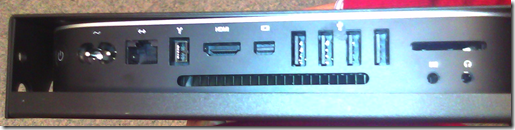
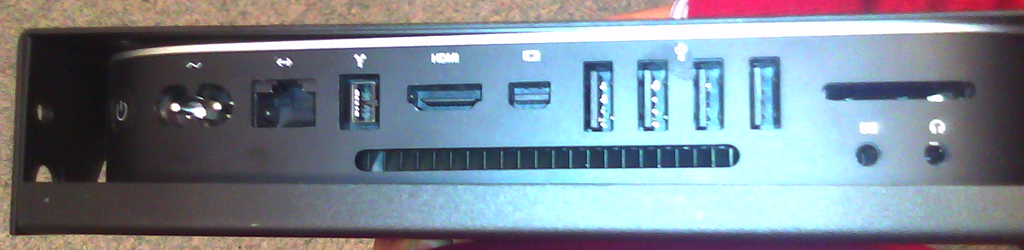
- Because of case size difference, the new Mac Mini had to be installed on the right side wall of the podium, unlike the old one which was smaller and fit on the keyboard tray.
- It is still switched through the podium as before:
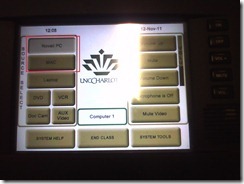
- For logging in, use the generic, not your personal account.
- Standard current ITS MAC image.
- Final Cut Pro 3
- was installed into the image, and run.
- Media components (Audio content, Motion content) allegedly have also been included in this install.
- We also added MPEG Streamclip 1.9.2. Note, however, that the non-beta version does not have the YouTube.com download capability mentioned here earlier (you will get this error more focused):
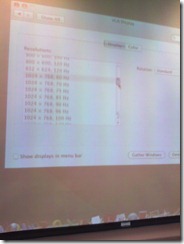
- Because of podium monitor incompatibility, we could not increase the screen resolution to the minimum 1280*800 required Final Cut Studio 3.
 We nevertheless were able to start Final Cut pro. You can permanently bypass this warning dialog if you see it, and report problems.
- Because of podium monitor incompatibility, we could not increase the screen resolution to the minimum 1280*800 required Final Cut Studio 3.
- We also permanently bypassed this firewire error:

- And here is the result:



LRC Facilities: Coed037 (Film studies lab)
- The classroom
- old layout (wall-facing, 1 row along wall):
- new layout Fall 2011 (front-facing, 2 columns along both side walls):

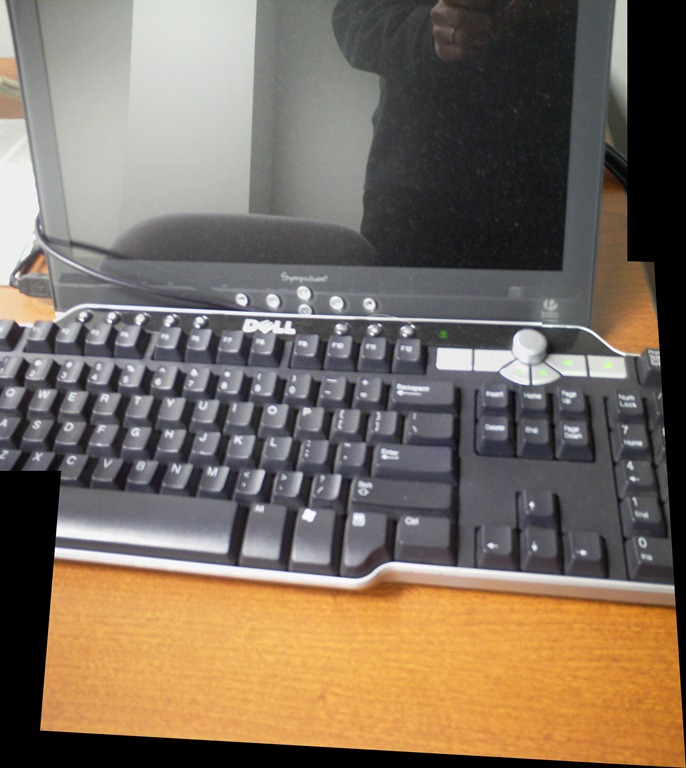
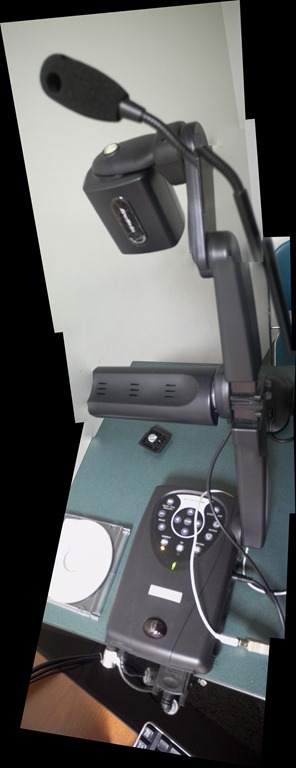
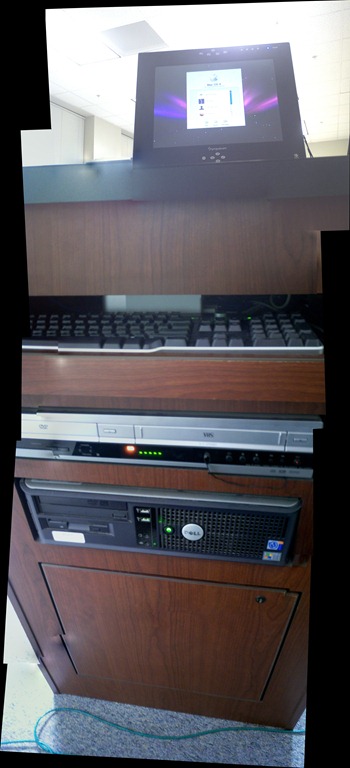
- The teacher computer (an upgrade is in the works):


Keyboard overlay stickers improve foreign character writing support in the LRC
Some non-western, but character-based languages benefit from having keyboard overlay stickers installed. Here is a list of what the LRC has:
| Amount | Languages | installed@ |
| 3 | Arabic | 1 list. station, 2 rightmost computers in the front row of the left (teacher perspective) half of the main classroom |
| 2 | Farsi | 2 rightmost computers in the middle row of the left (teacher perspective) half of the main classroom |
| 1 | Greek | 1 list. station |
| 3 | Russian | 1 list. station, 2 rightmost computers of the rear row of the left (teacher perspective) half of the main classroom |
Here are photos of the Arabic and Cyrillic keyboards:
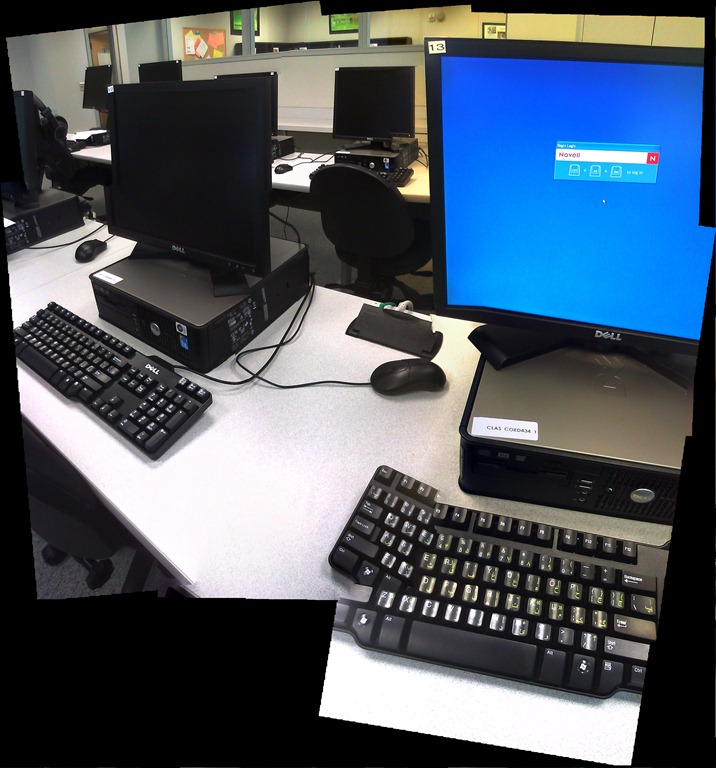

We installed the stickers, so that they reflect the software layout of the keyboard that you get when choosing the respective language from the international toolbar. Note that the letters marked in red on the Cyrillic keyboard picture below are not supported by the Russian keyboard layout:
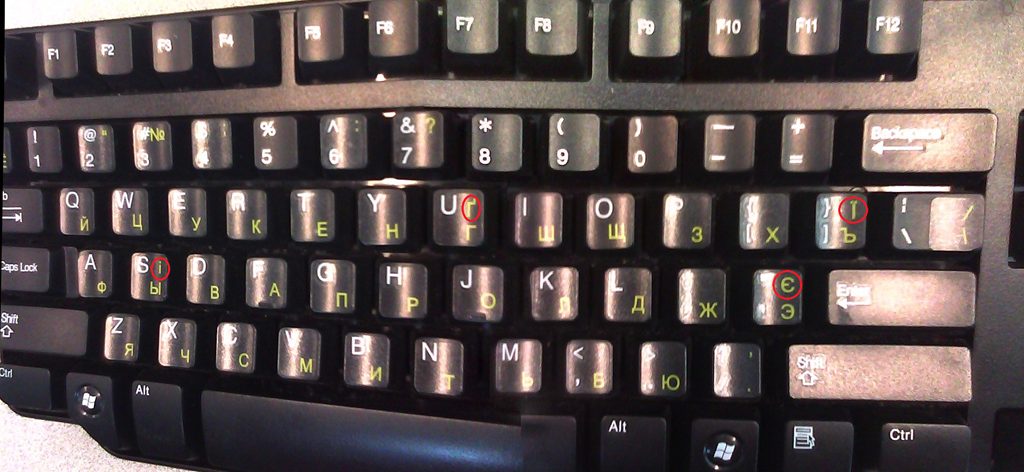
Since only one set can be added to any existing physical keyboard, the teacher computer keyboard can not have an overlay. The student computers with overlays are the listening stations and computers 6,7,12,13,18,19 on the LRC layout map.
Remember that the On-screen-keyboard software remains accessible at all PC’s through clicking “Start”, “Run”, typing “OSK”, clicking "OK".
Example where you can get your own keyboard overlay stickers.
The on-screen keyboard (OSK) for foreign language character input on MS-Windows
A little known, but useful tool for non-western languages which can not be represented by the us-international keyboard layout, when no hardware keyboard is available:
The Windows on screen keyboard reflects the soft keyboard installed via Control panel / Regional and language options / Text input languages. and selected via the language toolbar, like so:

Easiest access, click Start, click Run, type “osk”, click “OK”. Or try this on XP: 


Questions? Read the About. Or just ask me a quick Our Databases: Resources with calendars -- Language learning material Moodle Sites, multimedia files -- films


FAQs for LRC student staff or for students or for teachers. To search our FAQs, in the browser addressbar, add after "https://plagwitz.wordpress.com/feed/?tag=faqs+/" "+TAG1" (from tag cloud below) OR "https://plagwitz.wordpress.com/feed/tag=faqs
&category_name=" "CAT1" (from category hierarchy below). OR search both categories and tags, and multiple TAGs/CATs (connect with "," for OR-search, with "+" for AND-search), like so: https://plagwitz.wordpress.com/feed/?tag=TAG1+TAG2+...TAGn&category_name=CAT1
+CAT2+...CATn"
Other ways to find help
If you cannot find it here, look there: 5,500 Language-Learning Links and Programs for learning or teaching 150 languages
Shortcuts:Our Lists, Our Maps, LRC Staff Moodle Site,LRC Project Moodle Site, 49erexpress, UNCC Moodle, Student Recordings: s:claslcslrcsanakostudent
Learning usage samples: Sanako oral exam, Kaltura webcam presentation, Dictation with speech recognition, Sanako written exam, Chinese and Japanese interactive stroke-order practice
Test the Sanako Installer, Webbrowser Popup Konfigurator for XP, or Windows7, faster LRC TeacherPC Log-in Let MS facilitate diacritics writing by installing for you US-International keyboard layout
This is my personal blog (Google+). The views expressed on these pages are mine alone and not those of my employer. The information in this weblog is provided “AS IS” with no warranties, and confers no rights.
 Thomas' Work Space