Archive
Best way I found to merge WordPress.com tags
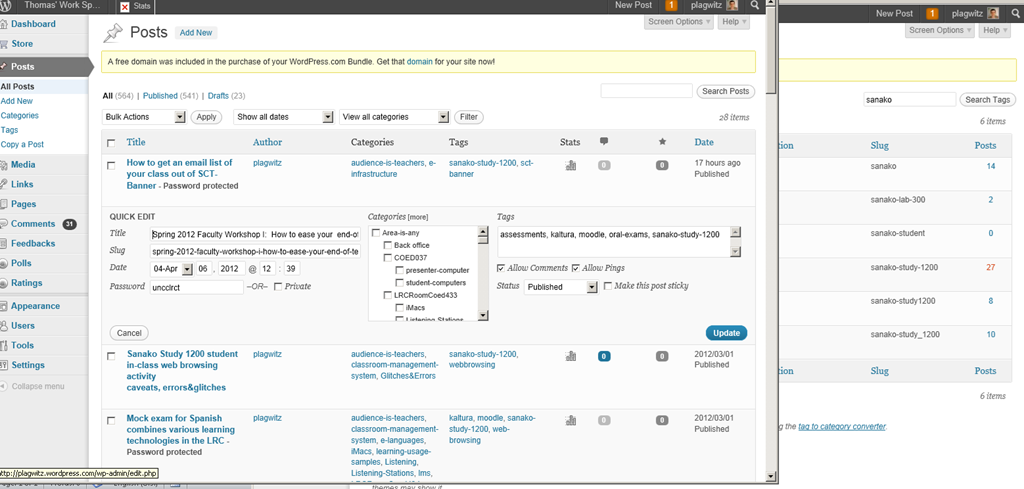
I am talking about merging spurious variant tags into one canonical form. This is a workaround for the fact that you cannot just update when the update could require wordpress.com to merge the article set form the old tag into an existing article set under the new tag. The work around involves accessing the spurious tags from the admin / tags interface (window on the right); then opening the "posts" for each spurious tag in a new window. In the posts window to the left, do the "quick edit". I tried saving myself some deleting in the left window by, after opening the left window, deleting the tag in the right window; but the old tag has already been preloaded for the Quick edit into the left window . Well, Quick edit makes it pretty painless. Is a global search/replace for wordpress.com conceivable? Warning: Don’t hit "Edit" after deleting the tag and try to go back – you will have to hunt for your posts manually.
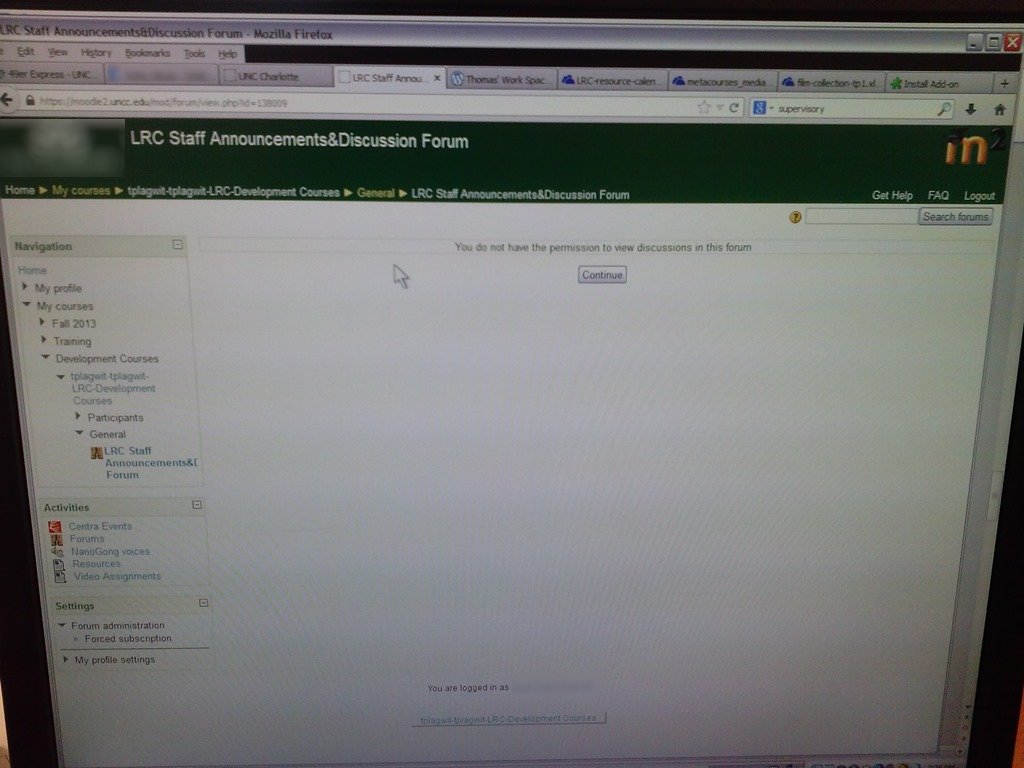
How to work around “You do not have the permission to view discussions in this forum” in Moodle 2
- Problem: My student staff (not sure which subset, but more than 1) gets this error in a development course that I use as a groupware when they access a news forum (that they are even force-subscribed to).
![image_thumb[12]](https://thomasplagwitz.com/wp-content/uploads/2013/10/image_thumb12_thumb1.png?w=600&h=451 "image_thumb[12]")
![CAM03124_thumb[4]](https://thomasplagwitz.com/wp-content/uploads/2013/10/cam03124_thumb4_thumb.jpg?w=600&h=451 "CAM03124_thumb[4]")
- The answers for “you do not have the permission to view discussions in this forum moodle” can be found here: I actually had to deal with this issue within the last few months. I found that to allow users to see the “News” section on the front page, you must override the role to allow: mod/forum:viewdiscussion
- Do not seem to apply here: In https://moodle2.uncc.edu/admin/roles/permissions.php?contextid=466096, Permitted students are already allowed to “View discussionsmod/forum:viewdiscussion”
- Permitted students should probably have permissions also to “Reply to newsmod/forum:replynews”
![image_thumb[10]](https://thomasplagwitz.com/wp-content/uploads/2013/10/image_thumb10_thumb1.png?w=546&h=1389 "image_thumb[10]")
- Also for one of the student in question (I have spotchecked only 2), I can see no suspicious activity missing:
![image_thumb[7]](https://thomasplagwitz.com/wp-content/uploads/2013/10/image_thumb7_thumb.png?w=375&h=554 "image_thumb[7]")
- Root cause:
- Students have no role in a Moodle2 Development type course .
- Workarounds:
- Assign students a role manually (tedious, and you can only assign “course manager”.
- Change the course type to Project (but then you cannot quiz students).
- Solution: a more flexible design of Project and Development courses in a future version of Moodle?
![image_thumb[12]](https://thomasplagwitz.com/wp-content/uploads/2013/10/image_thumb122.png "image_thumb[12]")
![CAM03124_thumb[4]](https://thomasplagwitz.com/wp-content/uploads/2013/10/cam03124_thumb4.jpg "CAM03124_thumb[4]")
![image_thumb[10]](https://thomasplagwitz.com/wp-content/uploads/2013/10/image_thumb102.png "image_thumb[10]")
![image_thumb[7]](https://thomasplagwitz.com/wp-content/uploads/2013/10/image_thumb71.png "image_thumb[7]")
How to upload a folder with many files in Moodle 2–the ultimate training
- …using animated .gifs. Different speed? 0.25sec,0.5sec, 0.75sec, 1sec, , 2sec, 3sec, 4sec, 5sec, 6sec, 7sec, 8sec, 9sec, 10sec. 1.5sec

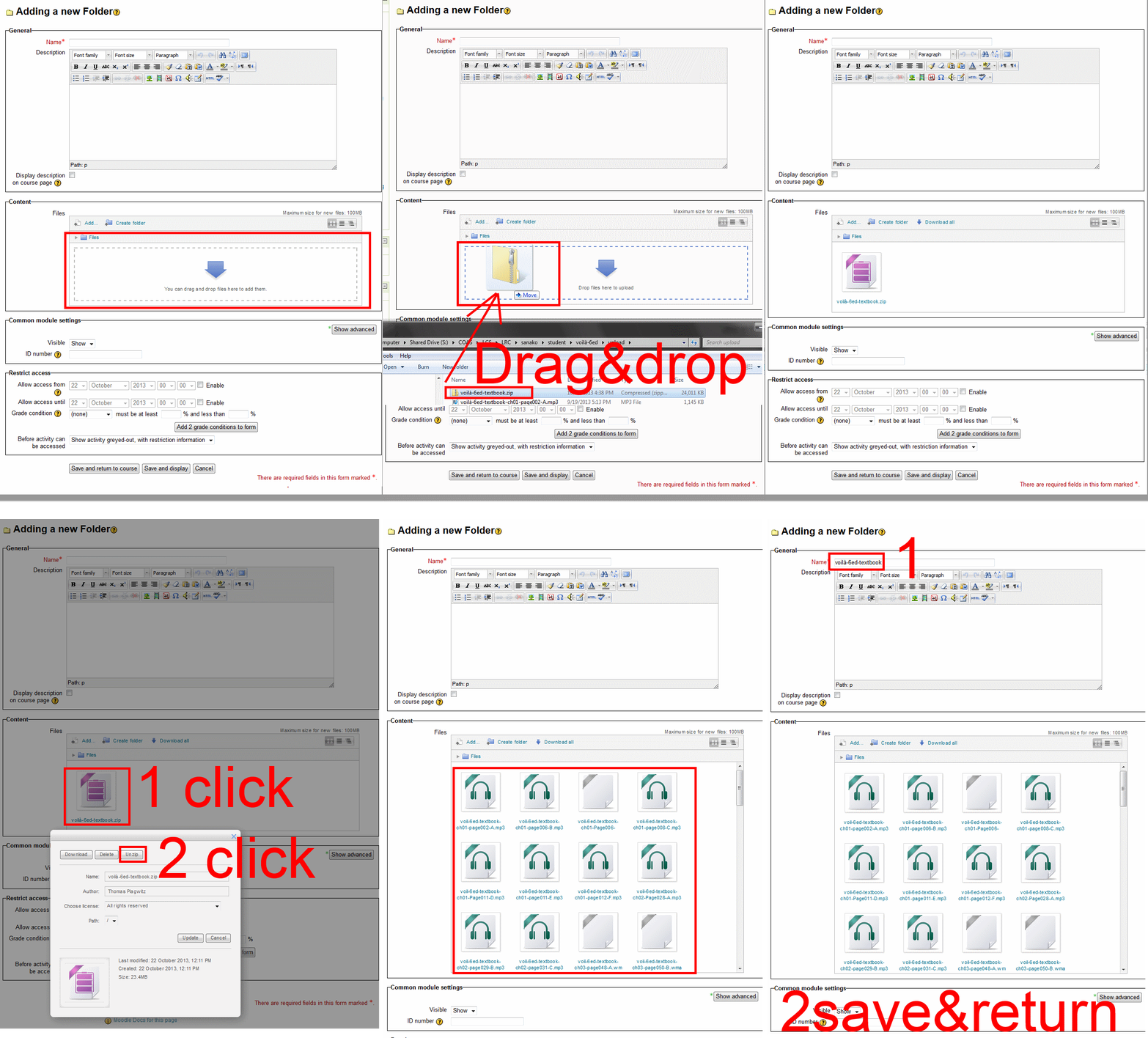
- And the answer is: You now can simply drag-and-drop a zip file (provided you are using a recent web browser). Start with “Turn editing on”, “Add resource”, “Folder”, and then proceed like so:
- Easy enough, but you can still save time: If your folder is reusable not only between terms, but also teachers (sections etc.), I suggest doing this in our Moodle metacourses (once).
- If you want to use an existing instead of adding a new folder, a slightly different way to manage your multiple files upload in Moodle 2 is described here.
How can I configure my PC to write in Arabic
- In Windows past XP, you can just choose – without first installing support for Right-to-left languages – by pressing +R, typing ïntl.cpl”, clicking ”OK”, clicking ”keyboards and languages”and “change keyboard”.
- An Arabic keyboard layout that is commonly preferred by Westerners (closer to the phonetic layout of the keyboard) is a separate download: https://thomasplagwitz.com/2013/01/06/imrans-phonetic-keyboard-for-arabic/
- A transliterating IME (type on a Western keyboard sounds as you speak, pick suggestions in Arabic letters from a dropdown menu).
- Popular choices are Google Input Arabic: http://www.google.com/inputtools/windows/
- Microsoft Maren: offers more, also morphological analysis. Transliteration tool is linked at the bottom of this post: https://thomasplagwitz.com/2011/06/09/ms-maren-morph-helps-read-arabic-web-pages/ .
How teachers can include a link to their metacourse content in their Moodle course
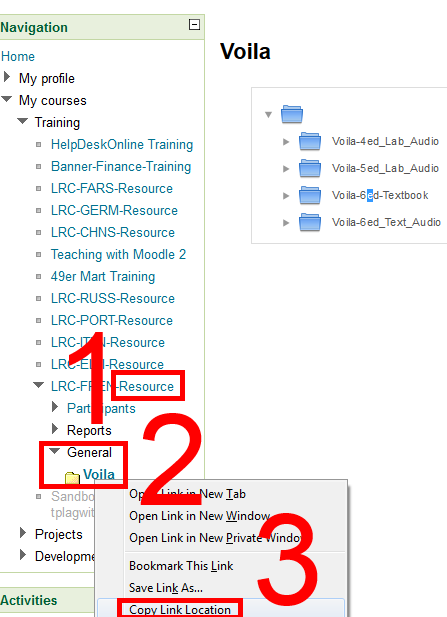
- How teachers get the metacourse link:
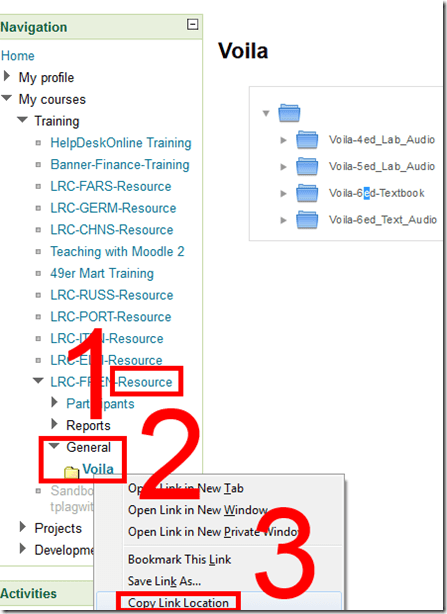
- Find your metacourse and expand (1).
- find your resource (the textbook is actually “Voilà”, but we want to make extra sure there are no non-ASCII compatibility issues) and right-click (2).
- Click “copy link location” (3).
- How to use the metacourse link in your actual course:
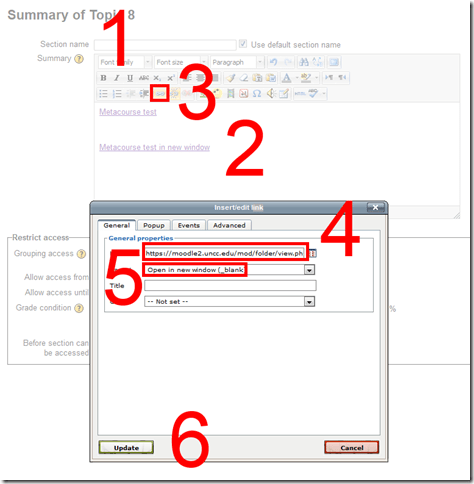
- You can e.g. start a new topic (0).
- Add title (1).
- Add text (2).
- Add link to text (3).
- Paste link from clipboard. (4)
- I you choose open in new window (5), following the link will not navigate the student away from your actual course in the main web browser window.
- Result:
 Caveats:
 - FireFox opens in a new tab, even if you in Moodle request to open in a new window.
- You can only link to the root folder of a Moodle Metacourse. If there are multiple content sets within your textbook folder, please advise your student of the name.

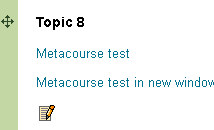
Upgrade to the Moodle 2 on the LRC reception desk computers is overdue…
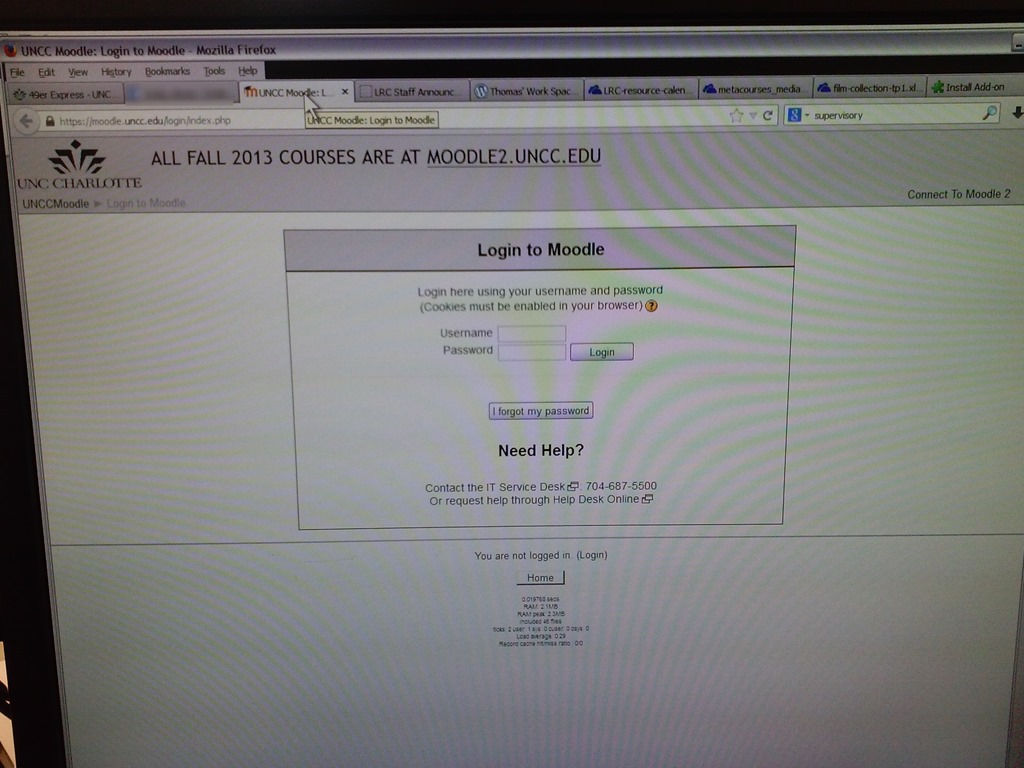

It will be fixed eventually – let me know if not.
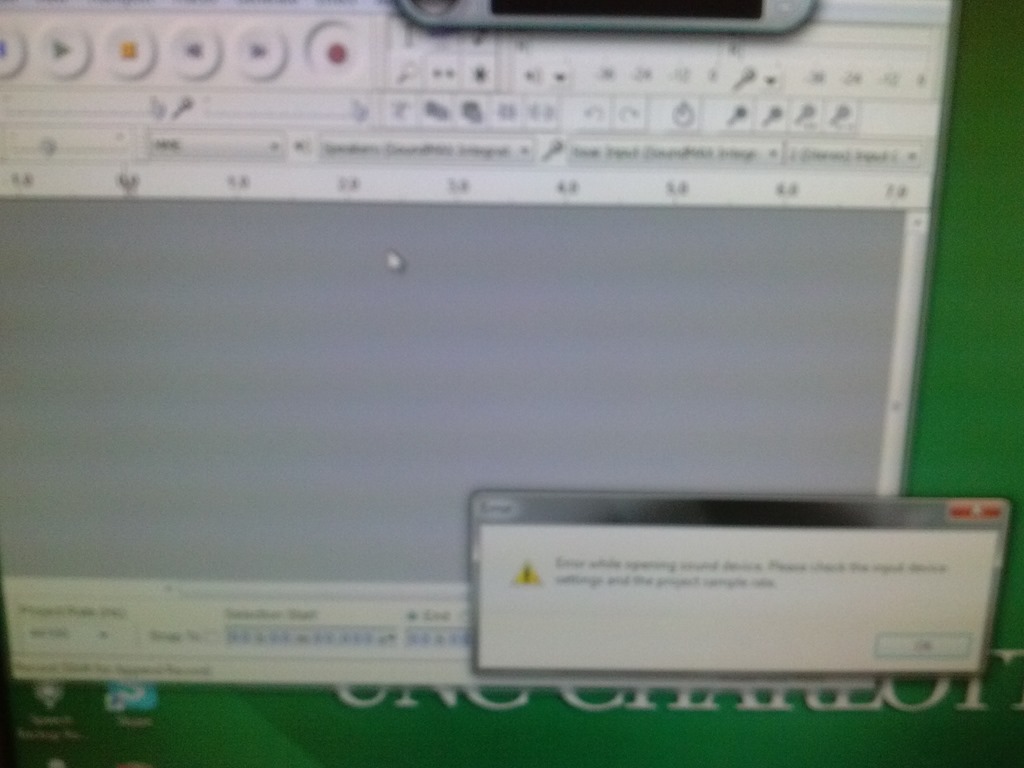
Audacity on startup automatically selects the "microphone" as recording device…
- Which is a problem if we do not use the front microphone jack, but rather the rear input:
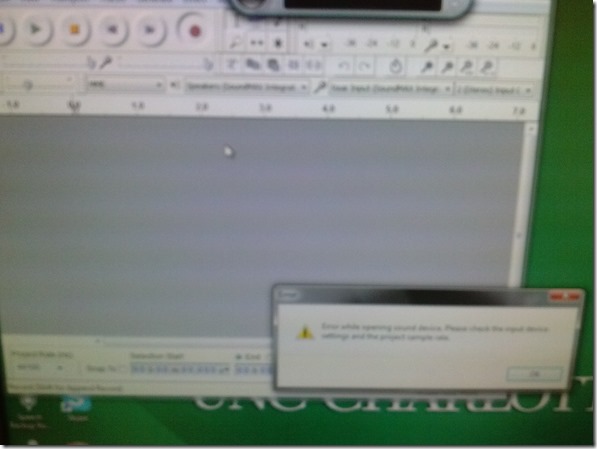
- Seems to be still an issue on the Group computers….
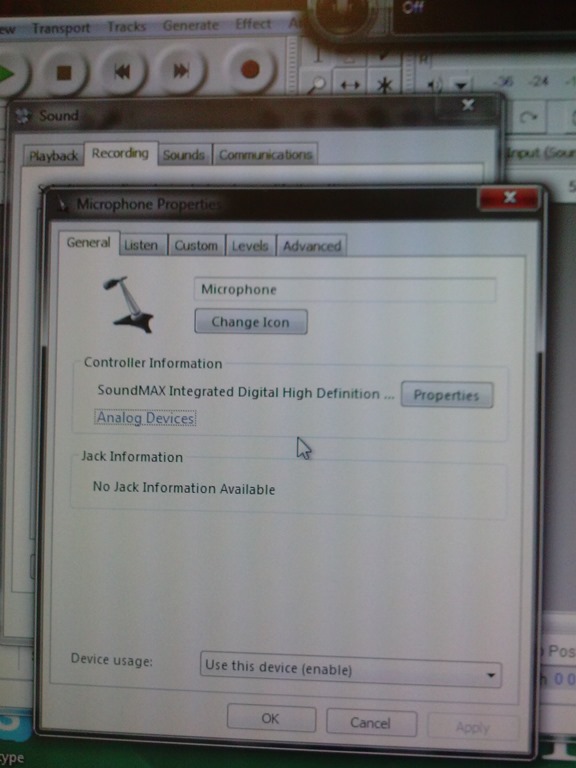
- Solution is the same as found and documented for the listening stations in relation to problems students had with how Saba Centra handles audio hardware, disable the front jack in mmsys.cpl of Windows7:

How a teacher can easily grade a NanoGong audio recording assignment in Moodle
- Similar to grading video recording assignments with Moodle Kaltura, You can enter in 2 ways:
- By clicking on the assignment like your students:
- Or by clicking on Activities: NanoGong Voices
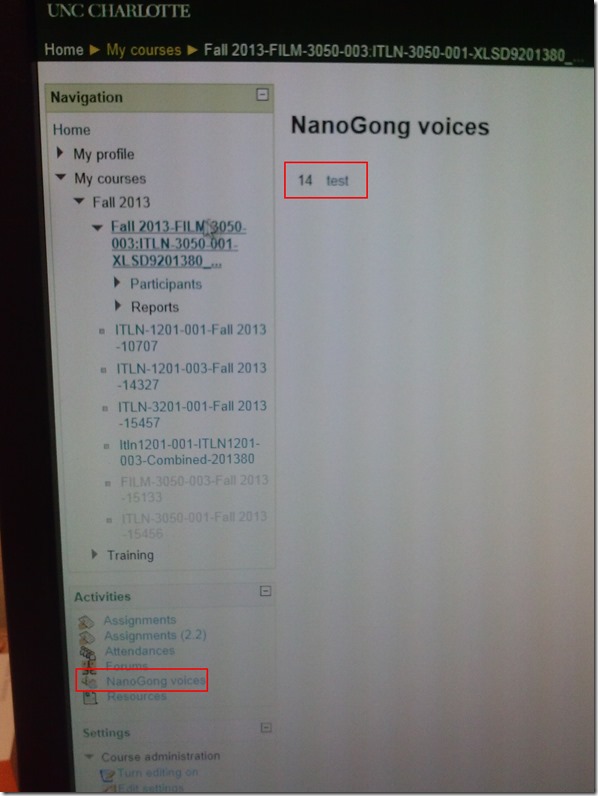
- By clicking on the assignment like your students:
- Before you make it to the assignment page and can see the NanoGong plugin, you may have to bypass some Java warning dialogues.
- On the assignment page:
- Click (1) speaker symbol for the recorder control to show up.
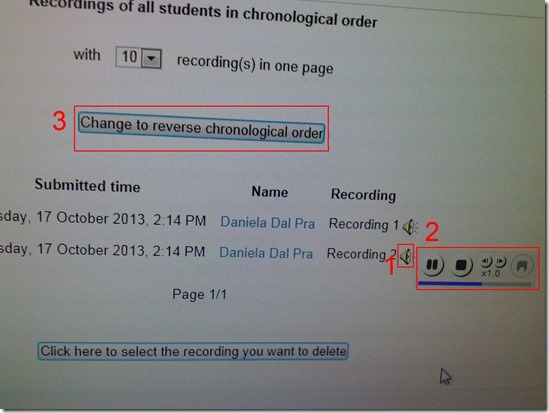
- You can also
- enter (1) feedback
- or (2) re-sort the submissions – we had to click this once for the recordings to actually shows up (seems to refresh the page).

- I have not had the chance to see the results in the Gradebook, but here are some screenshots from blogs of users that have:

- Click (1) speaker symbol for the recorder control to show up.




Questions? Read the About. Or just ask me a quick Our Databases: Resources with calendars -- Language learning material Moodle Sites, multimedia files -- films


FAQs for LRC student staff or for students or for teachers. To search our FAQs, in the browser addressbar, add after "https://plagwitz.wordpress.com/feed/?tag=faqs+/" "+TAG1" (from tag cloud below) OR "https://plagwitz.wordpress.com/feed/tag=faqs
&category_name=" "CAT1" (from category hierarchy below). OR search both categories and tags, and multiple TAGs/CATs (connect with "," for OR-search, with "+" for AND-search), like so: https://plagwitz.wordpress.com/feed/?tag=TAG1+TAG2+...TAGn&category_name=CAT1
+CAT2+...CATn"
Other ways to find help
If you cannot find it here, look there: 5,500 Language-Learning Links and Programs for learning or teaching 150 languages
Shortcuts:Our Lists, Our Maps, LRC Staff Moodle Site,LRC Project Moodle Site, 49erexpress, UNCC Moodle, Student Recordings: s:claslcslrcsanakostudent
Learning usage samples: Sanako oral exam, Kaltura webcam presentation, Dictation with speech recognition, Sanako written exam, Chinese and Japanese interactive stroke-order practice
Test the Sanako Installer, Webbrowser Popup Konfigurator for XP, or Windows7, faster LRC TeacherPC Log-in Let MS facilitate diacritics writing by installing for you US-International keyboard layout
This is my personal blog (Google+). The views expressed on these pages are mine alone and not those of my employer. The information in this weblog is provided “AS IS” with no warranties, and confers no rights.

