Archive
PowerPoint 2010 upgrade from 2007 disables setup show display on secondary screen
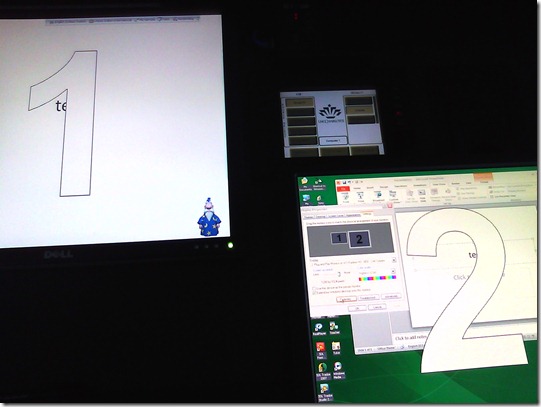
- Symptom: Without hardware changes (a visualizer that seemed to enter into the equation as an AV source seems to have been ruled out as culprit), PowerPoint cannot display show from primary right screen to secondary left screen.
- Cause: Upgrade to PowerPoint 2010 from 2007, but seems really an underlying video driver limitation that has given us grieve in our – admittedly uncommon: 1024*768 on secondary, projector-connected screen, dictated by the projector – setup before.
- Workaround: Make the 1024*768 left screen the primary screen.
- Upside: this allows to project the show to the class, but teacher can still move the underlying PowerPoint presentation onto the right screen (for previewing answers. The PowerPoint 2010 upgrade did fix the PowerPoint 2007 bug that interactive animations from PowerPoint 2003 where briefly revealed on slide load before they went into the default hidden state).
- Downsides:
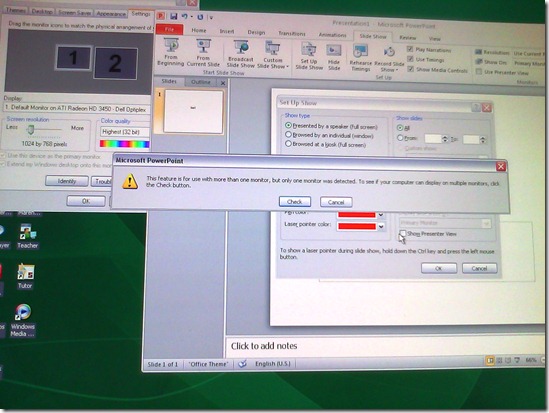
- Presenter view is still not possible, complains about seeing only one screen connected, even though “Check” button brings up the windows screen properties dual screen.
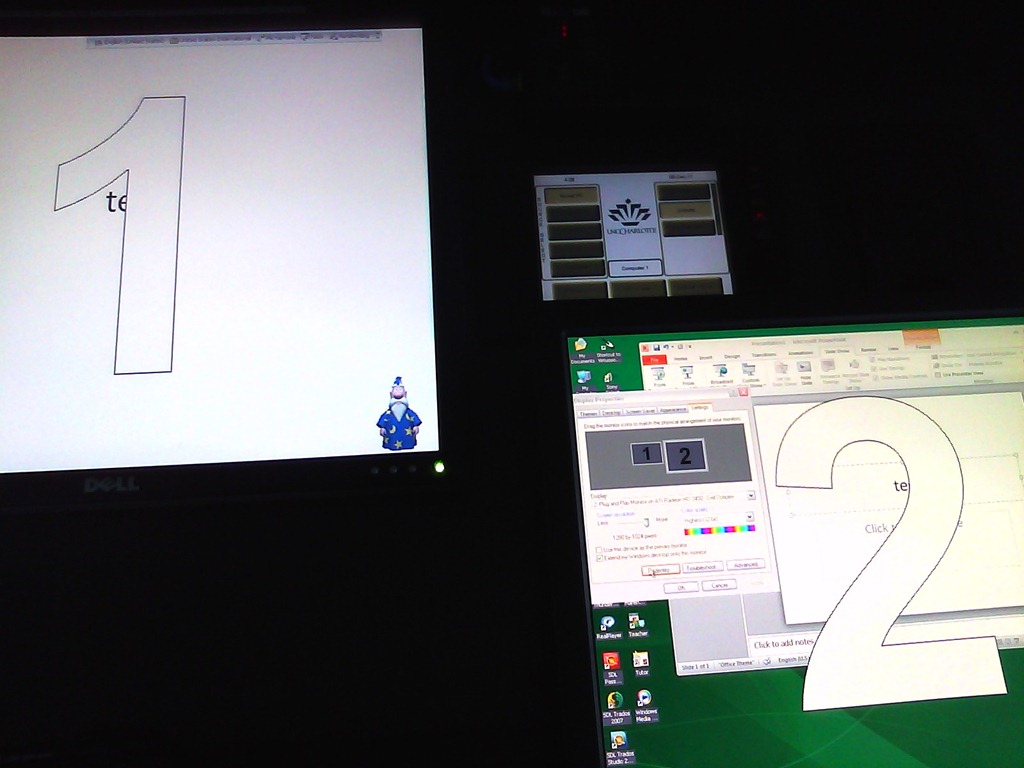
- The Windows taskbar displays on the left screen, so teacher staging is visible to the class when projector is on (as it always was with a single screen. Only the secondary right screen added a staging area for the teacher).
- Presenter view is still not possible, complains about seeing only one screen connected, even though “Check” button brings up the windows screen properties dual screen.
- Upside: this allows to project the show to the class, but teacher can still move the underlying PowerPoint presentation onto the right screen (for previewing answers. The PowerPoint 2010 upgrade did fix the PowerPoint 2007 bug that interactive animations from PowerPoint 2003 where briefly revealed on slide load before they went into the default hidden state).

How to book LRC resources – explained in one screenshot
You can come to the LRC reception desk to book an item (you will still need to log into your NINERMAIL). But you can also self-help, and get immediate confirmation, from any device with access to your NINERMAIL:
If you have a basic LRC classroom booking scenario, send to the room lrcroomcoed434@uncc.edu what looks like “an email that includes times”: Go to your Ninermail inbox. Using the little triangle icon, unfold the “New” menu. Click menu item “Meeting request”. In the window, that opens, in the “Resources:” field, put lrcroomcoed434@uncc.edu. In the “Subject:”, put your course number. Enter start and end times of your classes visit. In the upper left, Click “Send”. Within a few seconds you receive a response email from the room in OWA: If you did not check the “Scheduling Assistant” tab, you may be asked to reschedule because of a conflict. If you fail to get a response, something went wrong, did you mistype the address? OWA remembers and suggests it after first use, but the first time you need to get it right.
For more advanced scenarios (beyond #3 below), first find the email address of our bookable resources, then book it like so:

More on repeating/recurrence here.
More Moodle Kaltura video assignments here: French
- Yay! You can find the assignment right on your course home page:


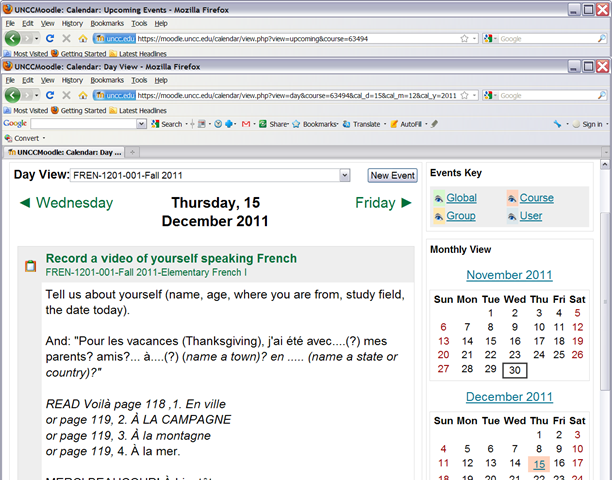
- Provided you do not miss the deadline – visit your calendar
 , better load your deadlines into NINERMAIL at term start
 - Come to the LRC to record your Moodle video assignment and practice speaking with our webcams.


How to start the term with making your Moodle courses available to your students
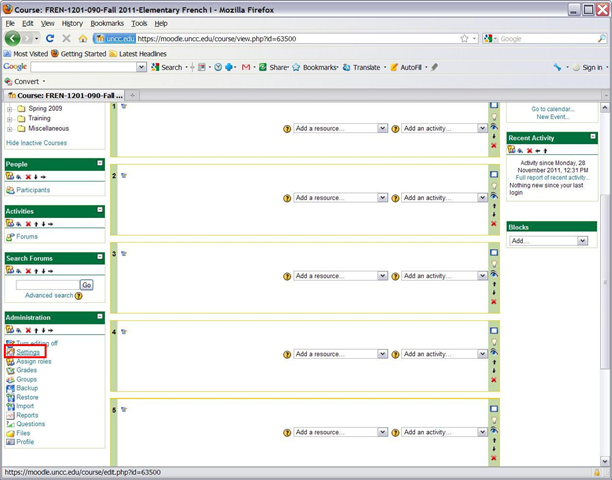
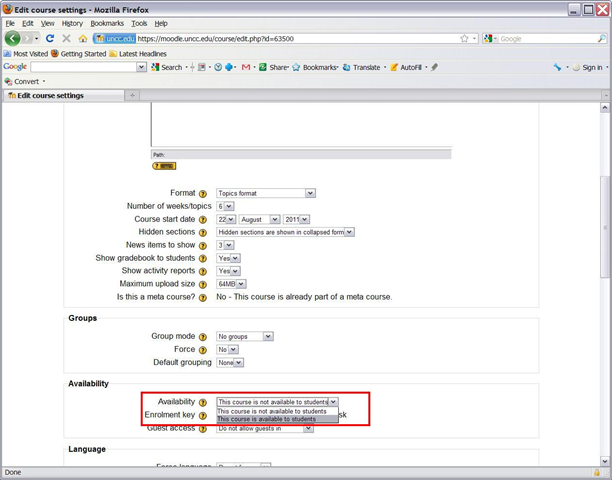
- Three simple steps:

-


- Beats making courses available by default, when you might still refine them.

How to duplicate assignments in Moodle course sections by importing
- Limitation: You cannot use other users’content. Use the backup/restore content procedure instead.
- Benefits are:
- You can save the time it would take to redo the assignment from scratch.
- plus avoid breaking things when you try and copy the assignment over manually: this built –in way does not break links.
- But have to jump through these hoops:
- Start here:
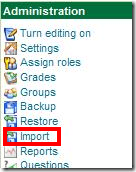
- Choose your source course which has the assignment:
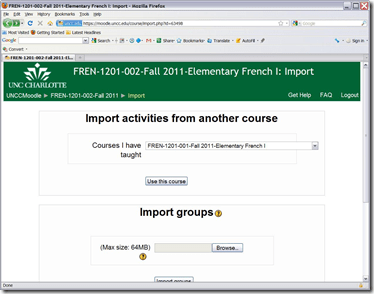
- Then choose what assignment you want to import:
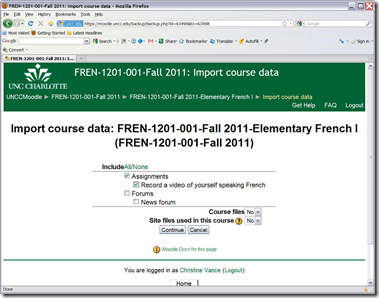
- Jump

- through
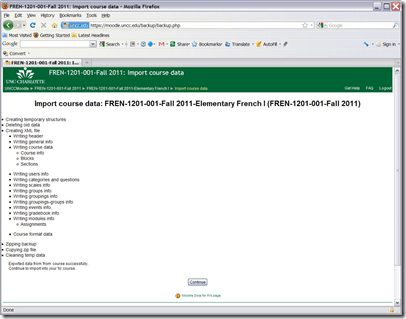
- the

- hoops

- done:
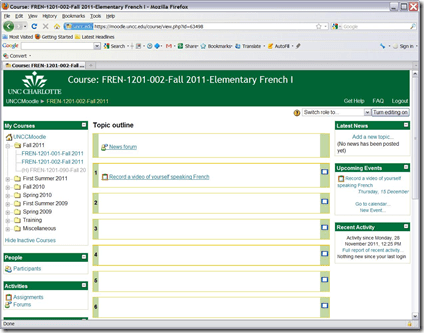
- Choose your source course which has the assignment:
- Start here:


Deepfreeze sees no clients
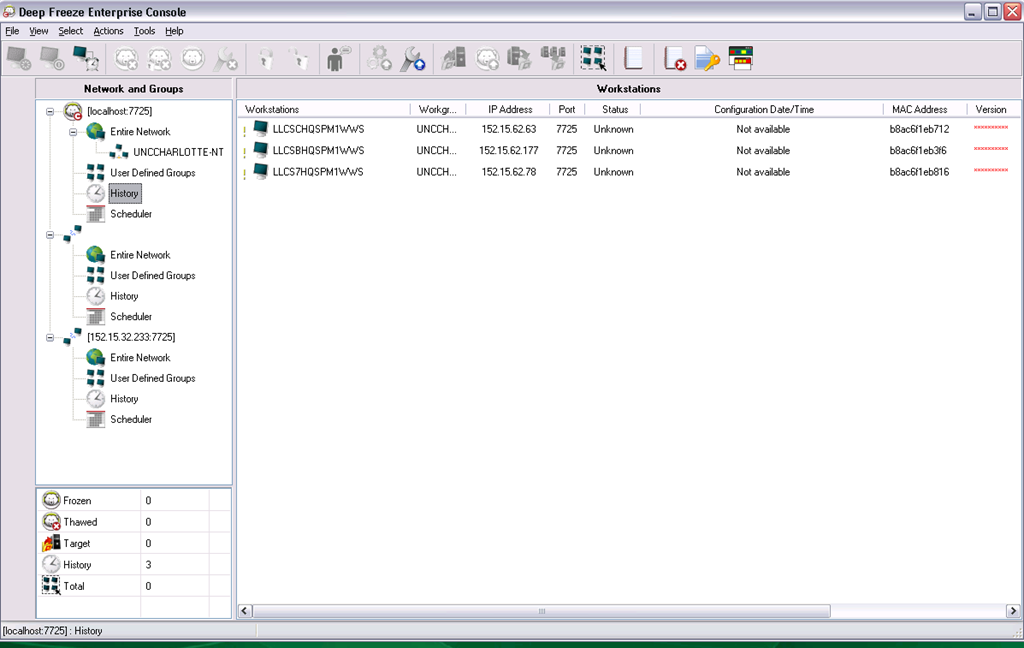
- Problem: Deepfreeze Console cannot see its clients anymore, including the ones that remain in history from before:
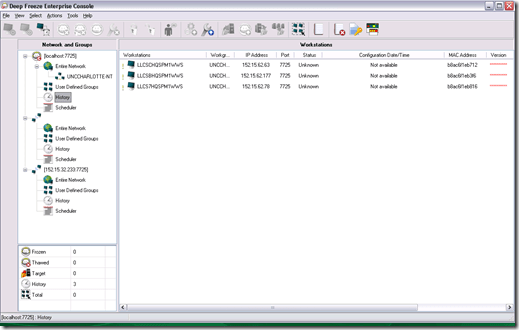
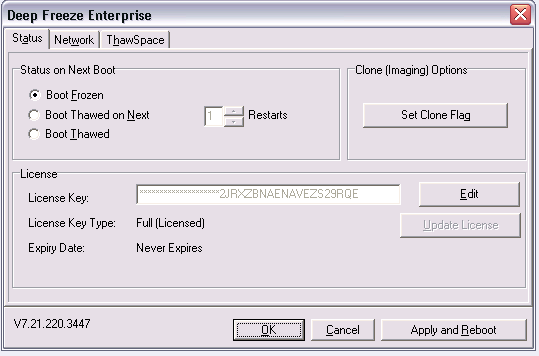
- Here is the client status on one of the frozen computers in history:
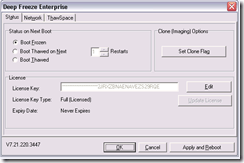
- Solution: This can happend when the client cannot connect to the Deepfreeze server. Make sure that you have the current server address.
Protected: Login stopped working?
SkyDrive updated
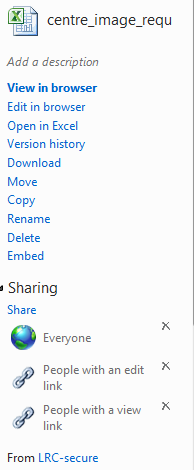
- A timely upgrade for use of Office online in a mixed business environment:


- Results in:

- Better sharing is just one of the improvements: Read more here. A bit more “more” what the different options entail is available here.




Questions? Read the About. Or just ask me a quick Our Databases: Resources with calendars -- Language learning material Moodle Sites, multimedia files -- films


FAQs for LRC student staff or for students or for teachers. To search our FAQs, in the browser addressbar, add after "https://plagwitz.wordpress.com/feed/?tag=faqs+/" "+TAG1" (from tag cloud below) OR "https://plagwitz.wordpress.com/feed/tag=faqs
&category_name=" "CAT1" (from category hierarchy below). OR search both categories and tags, and multiple TAGs/CATs (connect with "," for OR-search, with "+" for AND-search), like so: https://plagwitz.wordpress.com/feed/?tag=TAG1+TAG2+...TAGn&category_name=CAT1
+CAT2+...CATn"
Other ways to find help
If you cannot find it here, look there: 5,500 Language-Learning Links and Programs for learning or teaching 150 languages
Shortcuts:Our Lists, Our Maps, LRC Staff Moodle Site,LRC Project Moodle Site, 49erexpress, UNCC Moodle, Student Recordings: s:claslcslrcsanakostudent
Learning usage samples: Sanako oral exam, Kaltura webcam presentation, Dictation with speech recognition, Sanako written exam, Chinese and Japanese interactive stroke-order practice
Test the Sanako Installer, Webbrowser Popup Konfigurator for XP, or Windows7, faster LRC TeacherPC Log-in Let MS facilitate diacritics writing by installing for you US-International keyboard layout
This is my personal blog (Google+). The views expressed on these pages are mine alone and not those of my employer. The information in this weblog is provided “AS IS” with no warranties, and confers no rights.
 Thomas' Work Space