Archive
How do I make a video out of my PowerPoint Presentation?
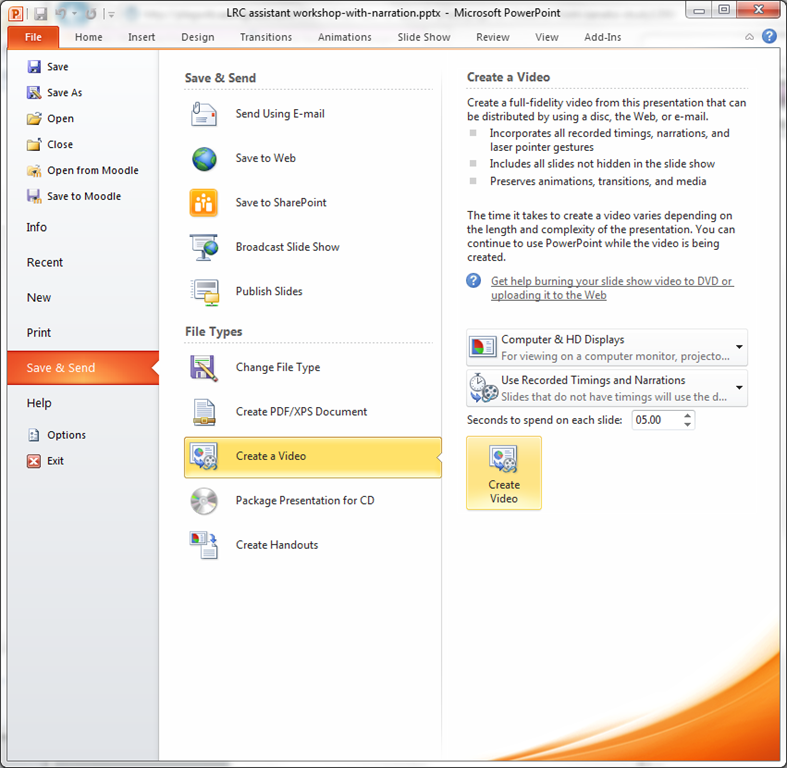
- Many streets may lead to Rome, but here is the "One Microsoft way”, built into PowerPoint 2010: http://office.microsoft.com/en-us/powerpoint-help/turn-your-presentation-into-a-video-HA010336763.aspx: You can essentially “save as” video, including recorded narrations. You have to have your media inserted in 2010 format. Here is a walk-through:
- under “file”, “save&send”, use “create video”

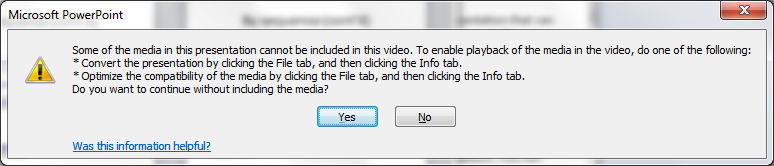
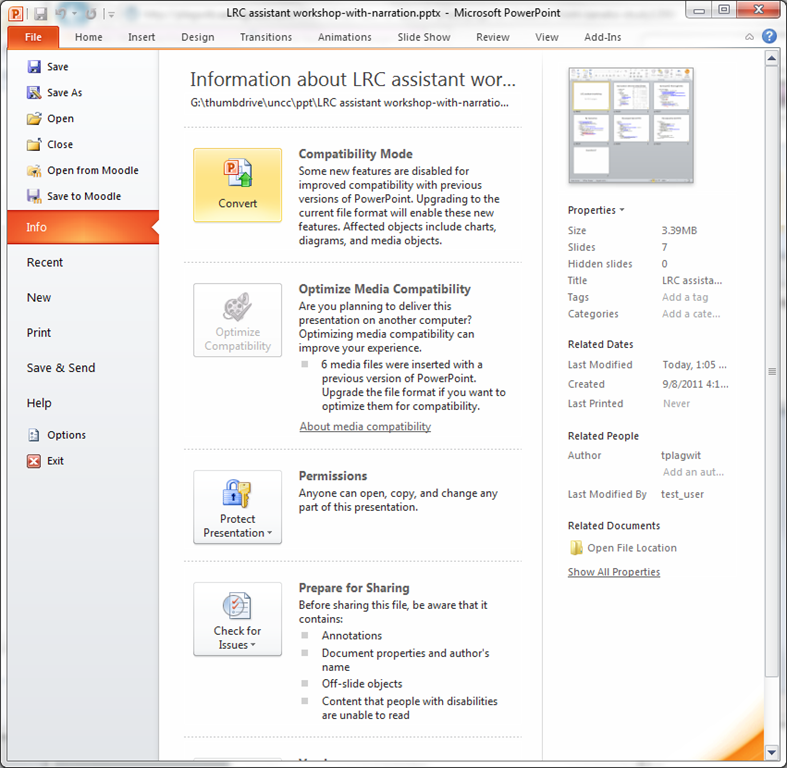
- if you get a compatibility error like so:
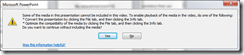
- follow the instructions given;

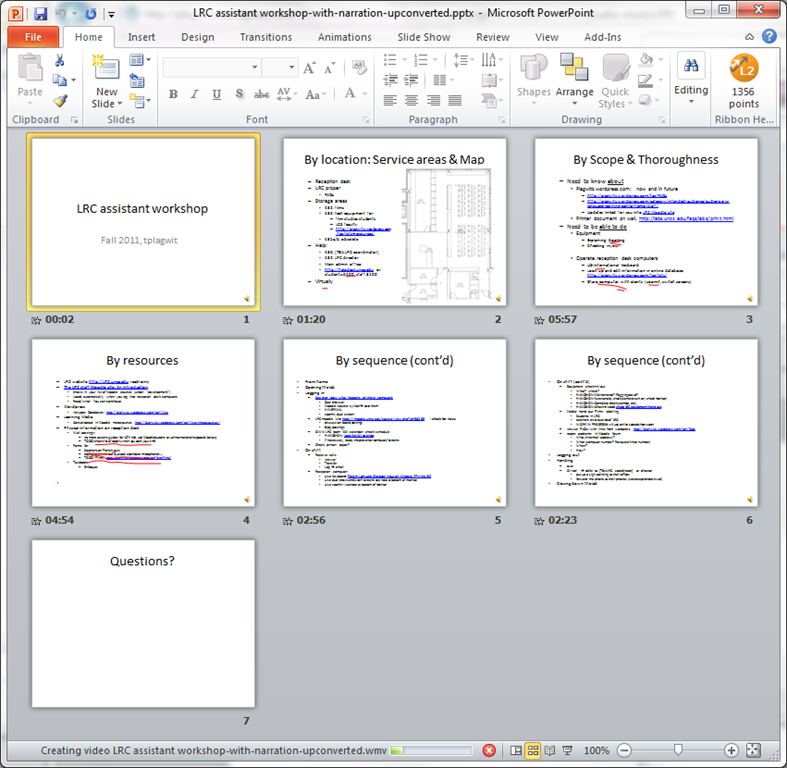
- watch the progress bar:
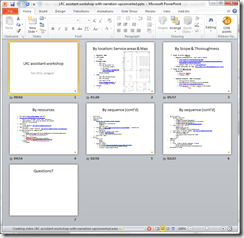
- Takes over 60 minutes with on average over 50% CPU of an Intel i5 with 8 GB Ram, to produce a 75MB file of 920*760 and less than 18 minutes in length. But this video streams from MS-SkyDrive.
Successful test of the new streaming video recording assignment for language proficiency assessment in Moodle.
- Video recordings allow for a more authentic assessment of spoken language proficiency. Today, we could test a new Moodle video assignment type for Almut’s Summer II Elementary German II class: Preparing a natural sounding statement on one’s favorite holiday. This Moodle assignment type is an extension to students of the teacher video upload tool using a service Kaltura – we hinted at that earlier.
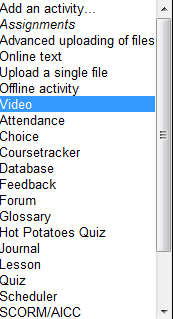
- Teachers, when editing their Moodle course, can find this assignment type in the dropdown: Activity as “Video”.

- The assignment options: Note that creating a video assignment is pretty much the same as creating other assignments in Moodle, and so is grading, except instead of reading, you view the submission, right within the web page.

- An example of guiding questions for a recording assignment is here (topic: holiday, language: German):

- Here is how the teacher sees the student submission in the gradebook.


- Caveat: in Safari, we were not able to close the video popup, after viewing it from the class roster, and could only back out of the entire gradebook. Instead, from the roster, first open the page with the individual student submission, and review the video there on that page:

- For the student experience, see here.
- Further reading: The CTL has a number of step-by-step instructions which we recommend for further reading: Student Video Assignment, and specifically for students: Upload a Video for a Video Assignment; for instructors: Grading Video Assignment Submissions.
- The LRC had originally prepared to record the students with our old, handheld mini-DV cameras, import the movie into iMovie or Windows Movie Maker, then find a way to get the files (with easily identifiable submitter names) to the teachers. Hitherto, our best option was compression of the video to to fit into the Moodle 64MB file upload size limit (which, even if you decide to shoot and produce your video elsewhere and bring it as an uploadable file to the assignment , does not apply to the Video assignment either).
- Preliminary testing seems to indicate that video recording of pairs/dialogues is also possible with the LRC’s webcam setup . However, because of the angle restrictions, capturing such sessions will be less natural.
- Overall, the new Moodle video assignment seems a major improvement for all parties – students, teachers and support –, and can help with more authentic assessment of


MS-Expression Encoder 3: Workaround to force video cropping
In MS-Expression Encoder 3, the video cropping feature in the “Enhance”tab is broken, unless you use the workaround for cropping in this screencast.
Moodle: Video Assignment
Kaltura has been integrated into our Moodle system to enable video upload as an assignment type. Teachers can upload videos already now. It seems that students will be able to upload videos starting with the fall term.
Video source can be a webcam which could be interesting for language proficiency assessment, including – if the pieces can be gotten out of Moodle and into an ePortfolio system – to demonstrate longitudinal progression in proficiency.
The videos get stored on the Kaltura servers and redelivered in form of a Flash plug-in – in between happens a transcoding so that results are not available immediately. You can see us waiting for it at the end of this Kaltura video assignment upload screencast demo:
UNCC showed off our use of Kaltura at Educause 2011. You can see example applications quoted in the attached Kaltura use slide deck.
Finally, here is a test and walk-through of an elementary language course homework assignment using Kaltura.
How to do language proficiency assessment with AV recordings, using Moodle’s Single file upload assignment
You can do video assessments of your students in the LRC. Given that we currently have only one webcam for this pilot project, reserve early. We have no teacher controlled class examination video (or audio) recording facilities currently.
However, students can upload their results to Moodle, provided their teacher has created a single file upload assignment. We have tested this to work in our Moodle installation with video files to 64MB, which is more than 20 minutes of simple “talking head” footage recorded in the LRC (@320*240, 15fps resolution WMV, captured with Windows Moviemaker on Windows XP).
Please consult the screencast demo of the Moodle single file upload assignment creation and actual video upload here.
How to shoot movies with the Canon Eos Rebel T2i
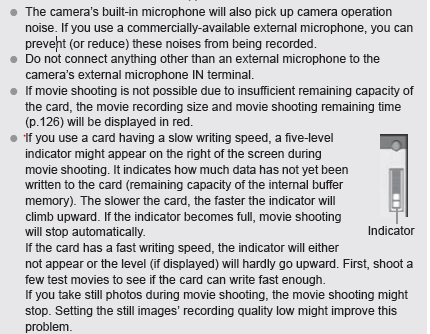
Note: Also read the recording stops FAQs.
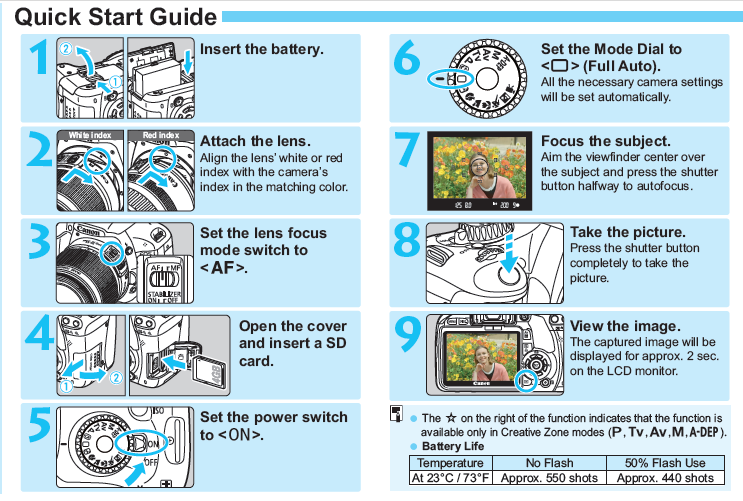
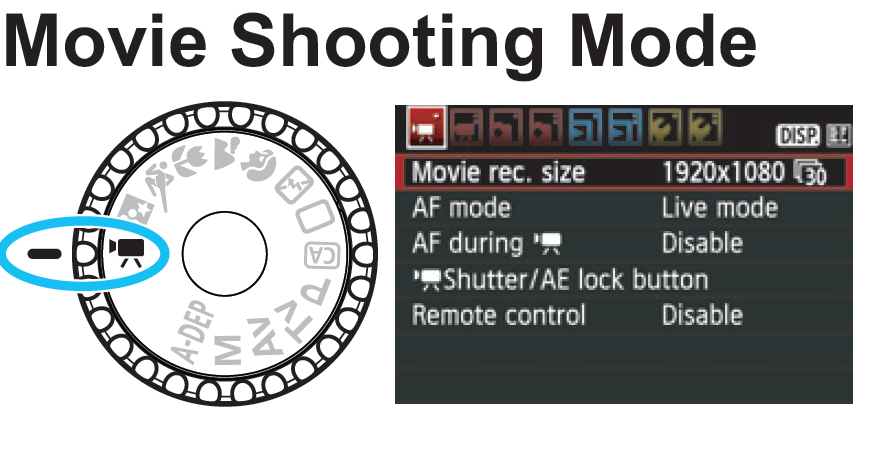
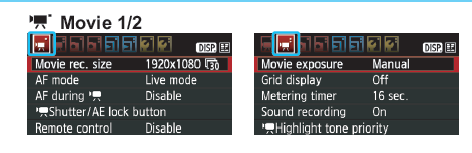
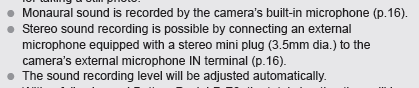
Here are the most relevant pages for movie shooting from the manual/quick which can be downloaded from the products page:


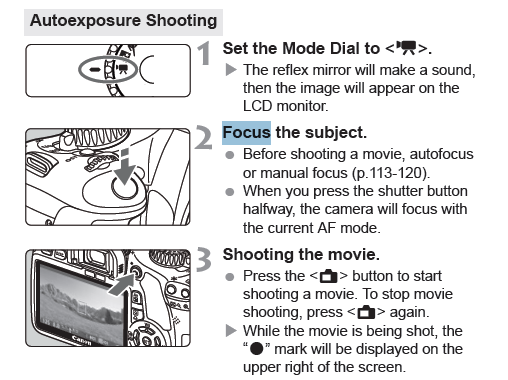
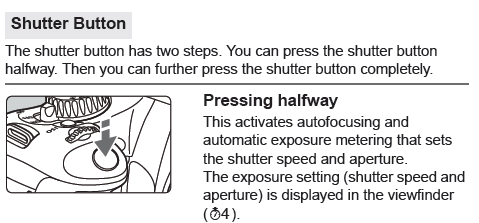

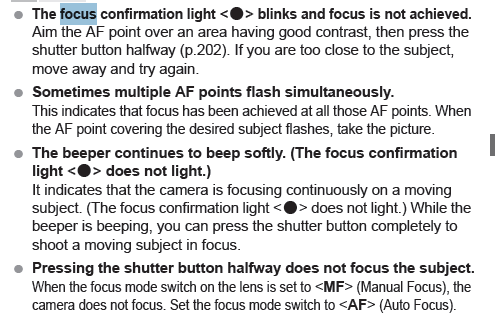
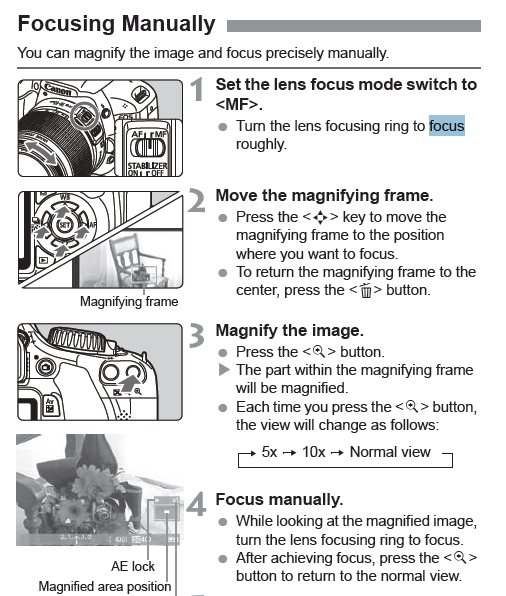
How to view non-displaying video files on Windows XP, using VideoLan VLC player
Not an uncommon sight when trying to play video files, given that Windows XP is an 11-year old operating system:

It may come as no surprise that Windows XP -despite a number of upgrades of its built-in Windows Media Player application -, lacks native support for newer video codecs (= what the computer needs to understand the compression of video data, does not map 1-to-1 with video file formats. Video codec support in Windows 7 has been much improved).
If you run into the common problem that, when trying to play a video on your computer, only the audio displays, try downloading, installing and playing the freeware, open-source, cross-platform VideoLan VLC player from here.
If VideoLan cannot display your video either, download, extract, start and open the video with this utility from here , to diagnose which codecs your video files uses, like so:
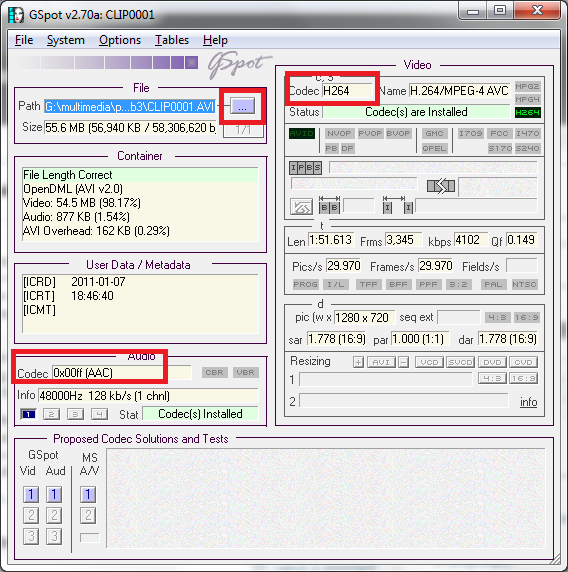
You may find it easier to pass only this codec information to local IT support than the actual video source file. However, before trying to install missing video codecs from unverified internet sources, make sure to consult local IT support (a lot of malware is distributed with video codec packs).
Video mirroring bug on dual screen systems, and a workaround
System: Vista 64-Bit SP2;
Monitors: 2 23’’ LCD screens, side-by-side in portrait mode, with Windows extended to secondary screen.
Video Card: Nvidia 9600GT
Driver Version: 8.17.12.5896 Microsoft windows hardware compatibility publisher
After downloading this driver from Windows Update, I noticed that when spanning a video window (observed in Windows Media Player and LC VideoLan; and codecs: MPEG-2, DivX 5.x/6.x, XviD ISO MPEG-4, H264), mirrors the image (wn Window mode; full screen mode unwilling to span both monitors anyway), like so:
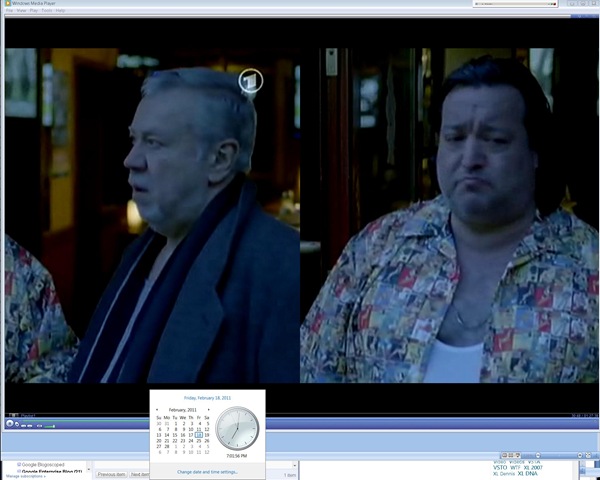
Moving the mouse pointer over the video image (player window is not sufficient), however, fixes the issue:

A bit of a nuisance, but no newer driver has been released yet on Windows Update, so I decided to work around the issue like this .


Questions? Read the About. Or just ask me a quick Our Databases: Resources with calendars -- Language learning material Moodle Sites, multimedia files -- films


FAQs for LRC student staff or for students or for teachers. To search our FAQs, in the browser addressbar, add after "https://plagwitz.wordpress.com/feed/?tag=faqs+/" "+TAG1" (from tag cloud below) OR "https://plagwitz.wordpress.com/feed/tag=faqs
&category_name=" "CAT1" (from category hierarchy below). OR search both categories and tags, and multiple TAGs/CATs (connect with "," for OR-search, with "+" for AND-search), like so: https://plagwitz.wordpress.com/feed/?tag=TAG1+TAG2+...TAGn&category_name=CAT1
+CAT2+...CATn"
Other ways to find help
If you cannot find it here, look there: 5,500 Language-Learning Links and Programs for learning or teaching 150 languages
Shortcuts:Our Lists, Our Maps, LRC Staff Moodle Site,LRC Project Moodle Site, 49erexpress, UNCC Moodle, Student Recordings: s:claslcslrcsanakostudent
Learning usage samples: Sanako oral exam, Kaltura webcam presentation, Dictation with speech recognition, Sanako written exam, Chinese and Japanese interactive stroke-order practice
Test the Sanako Installer, Webbrowser Popup Konfigurator for XP, or Windows7, faster LRC TeacherPC Log-in Let MS facilitate diacritics writing by installing for you US-International keyboard layout
This is my personal blog (Google+). The views expressed on these pages are mine alone and not those of my employer. The information in this weblog is provided “AS IS” with no warranties, and confers no rights.
 Thomas' Work Space