Archive
Posts Tagged ‘student.exe’
Protected: Update: obsolete, our faculty simply run http://goo.gl/e0ljX instead of needing to know about: Installation options to choose for installing the free “lite” Sanako student recorder….
2012/11/19
Enter your password to view comments.
Sanako Light Recorder insert recording has no teacher track audio, but voice graph?
2012/11/19
Leave a comment
- UPDATE: We reinstalled and this time made sure we restarted the system, and voice-insert is working fine now.
- We are trying to introduce having teachers using the Sanako voice-insert feature to issue spoken feedback into student assessment recordings, since the Sanako Recorder makes voice-insert as easy as
- the (repeated) click of red “speak” button
- and a “save as” (default format MFF preferred).
- On a teacher computer, we recorded and saved as
- either MFF (fast for the teacher to save; we were hoping to have the students download the free Sanako light recorder to be able to play this format;
- or WMA.
- We tested playing back, and hear the student original audio recording, but could not hear the teacher insertion, no matter whether we tried
- in the Sanako light recorder
- or in Windows Media Player.
- Because of the proprietary formats, it is a bit difficult to troubleshoot this. Audacity won’t open either audio format.
- In the Sanako light recorder, we can see the audio inserted in the 2nd track (lower) in the voice graph:
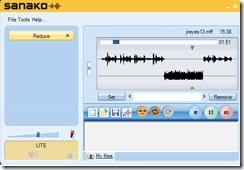

- Is this a licensing restriction? No, even the free light recorder can do this. See here for the installation options to choose when running the studentrecorder.exe on the teacher computer.
- Investigating… Update:
- Must be demonstration effect, as voice insert works fine on my office computer, as expected and it had before.
- Will try the usual suspects when getting my hands on this computer again (refresh, restart, reinstall, replace hardware…)…

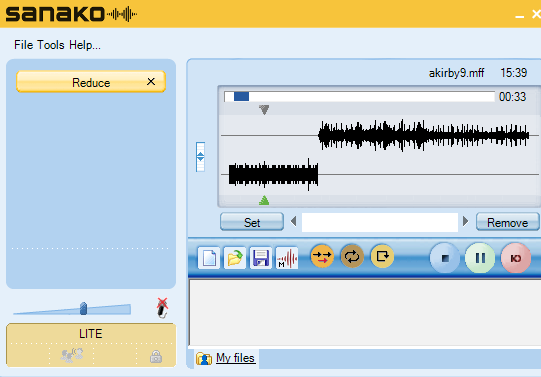
Sanako Study 1200 StudentRecorder.exe install in the LRC
2012/10/17
Leave a comment
Here is the screencast recording I made during local installation:  . It includes the install option “static classroom” and (near the end) our classroom name.
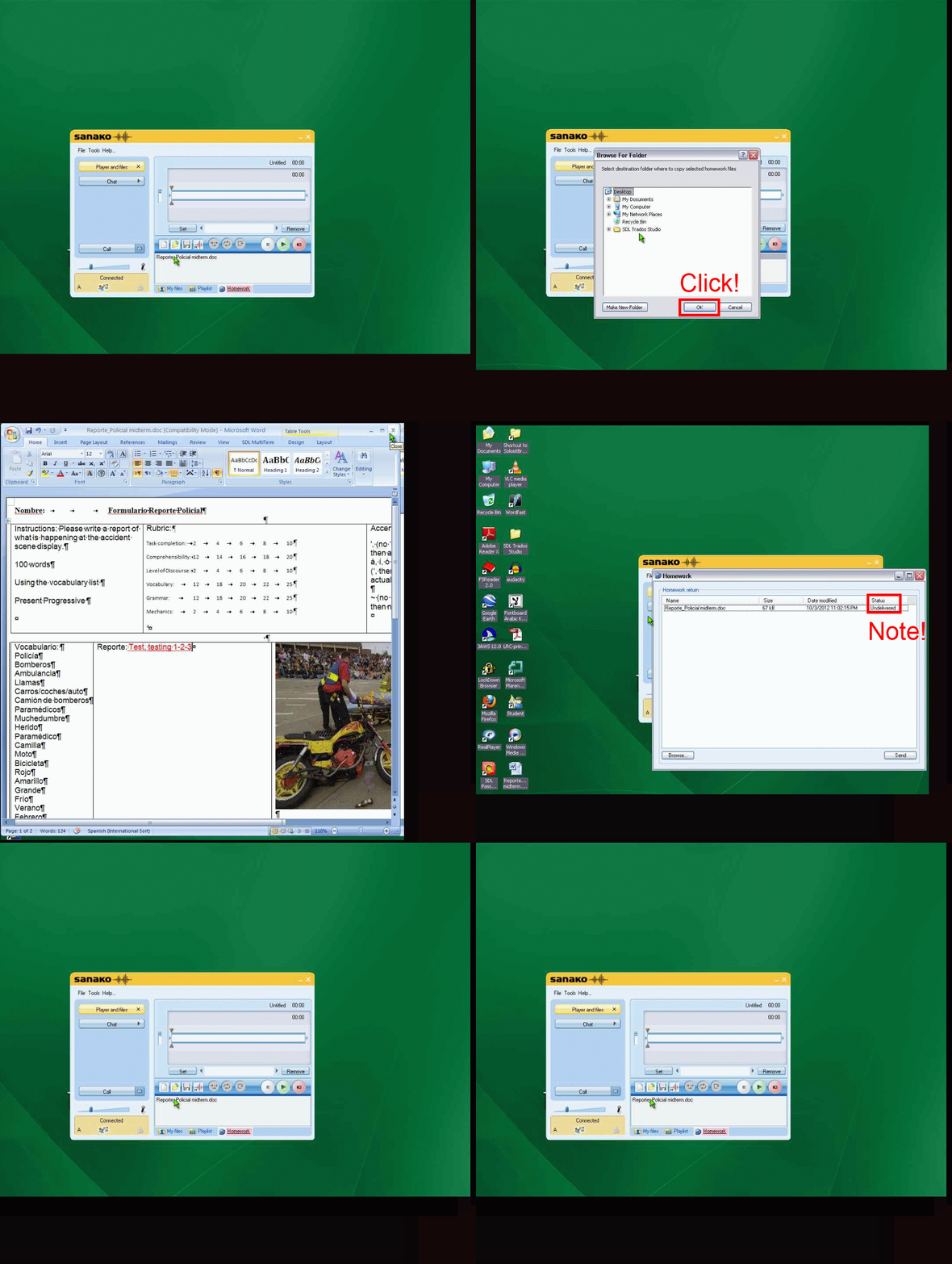
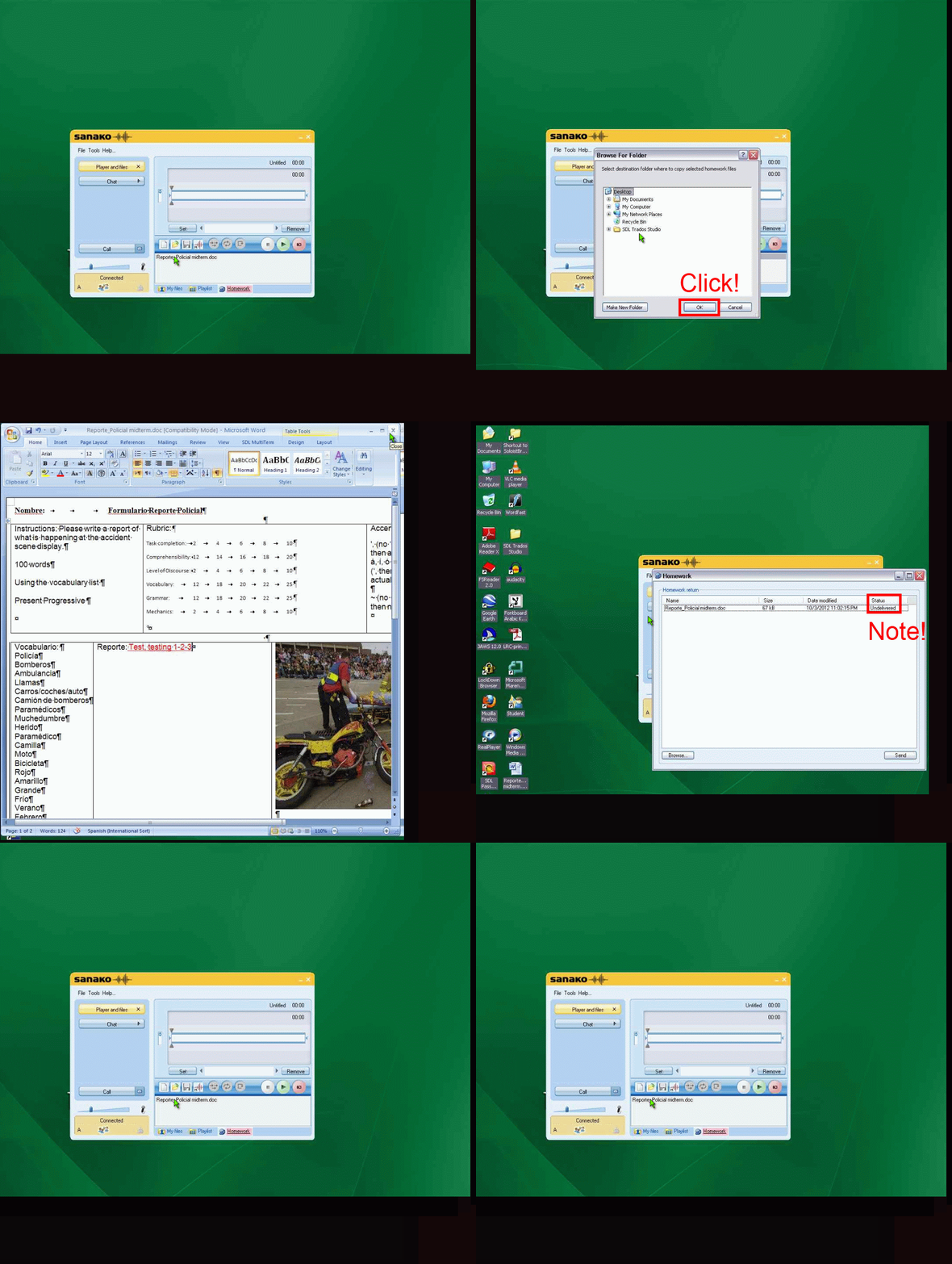
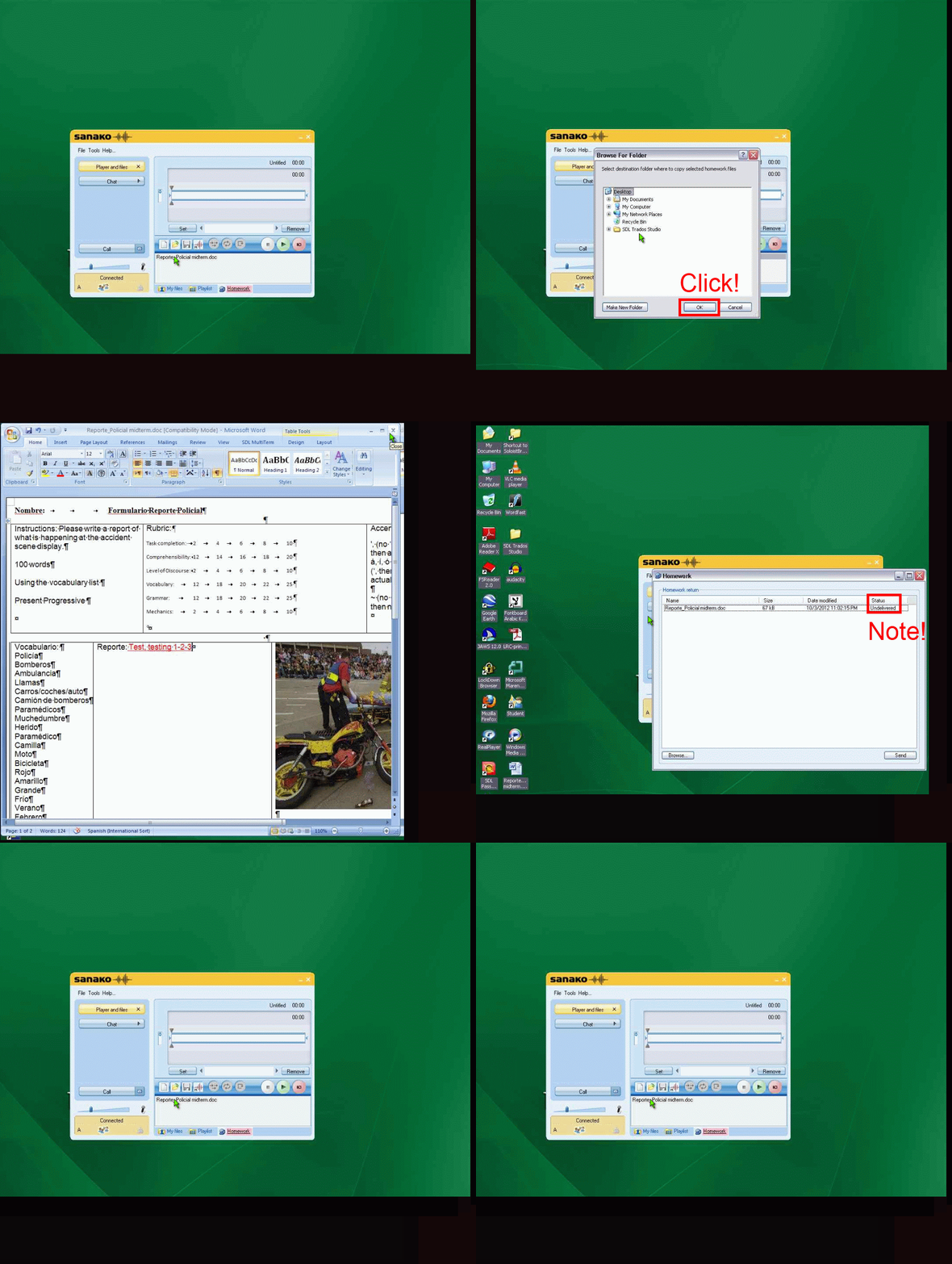
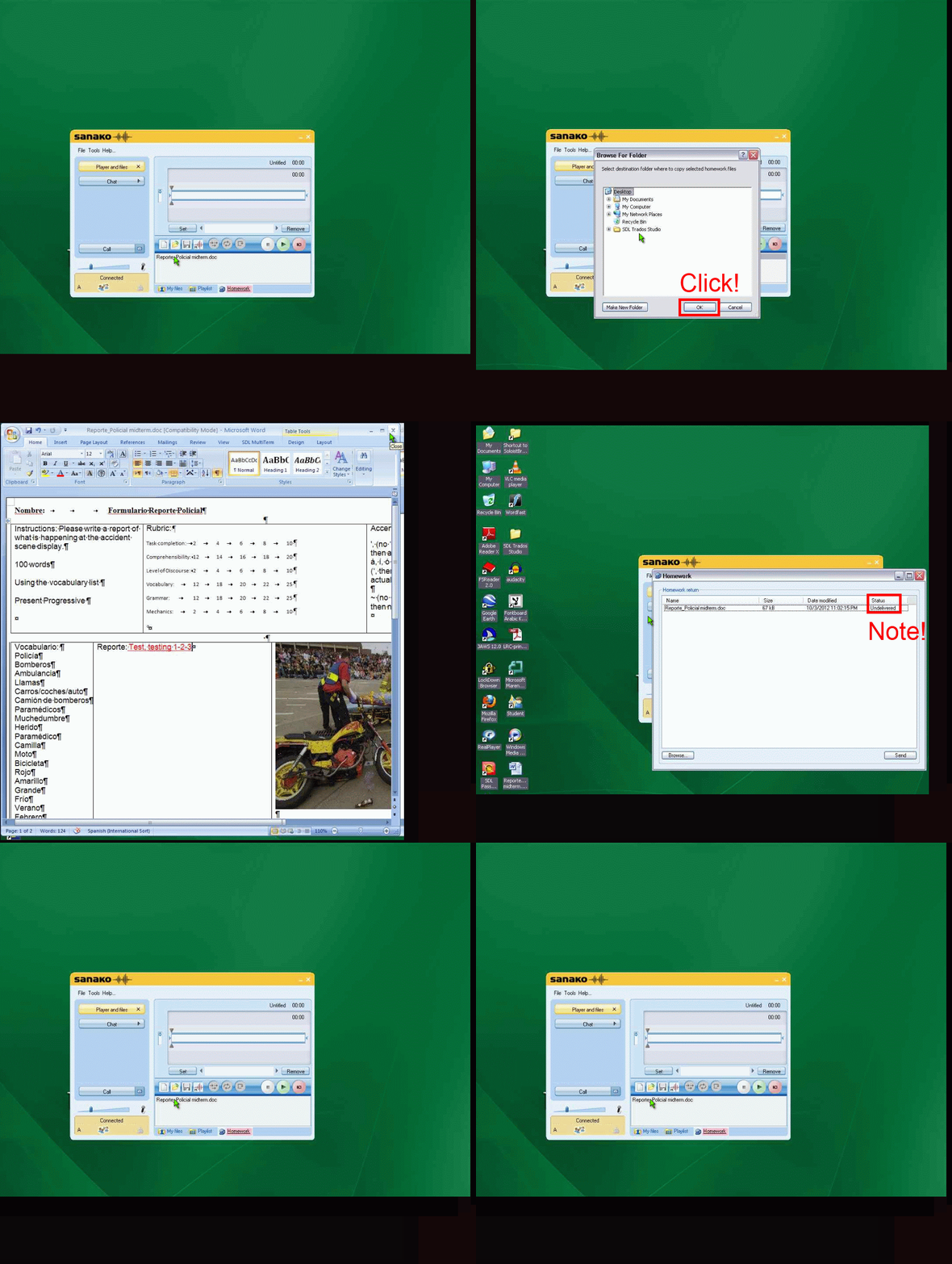
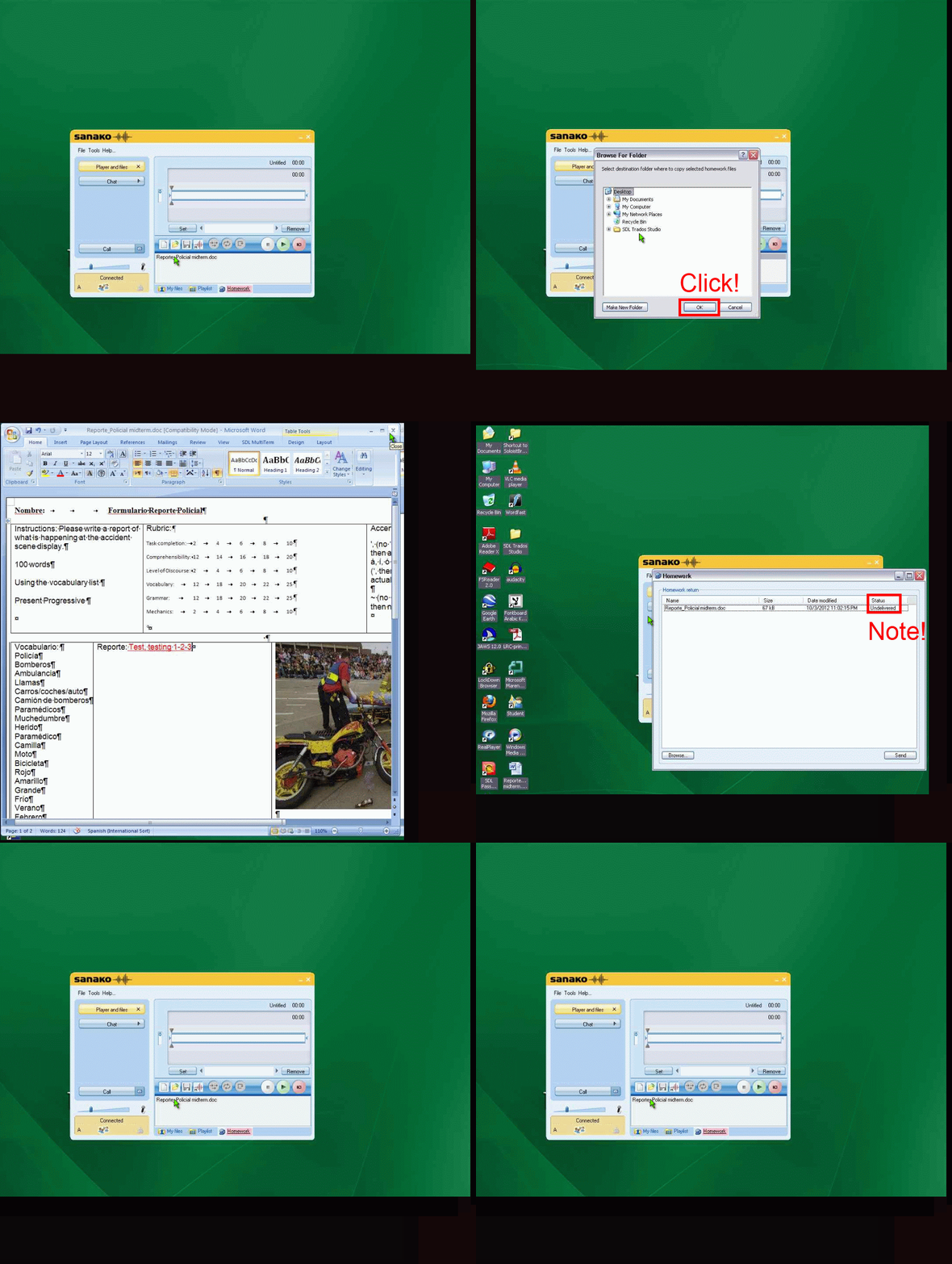
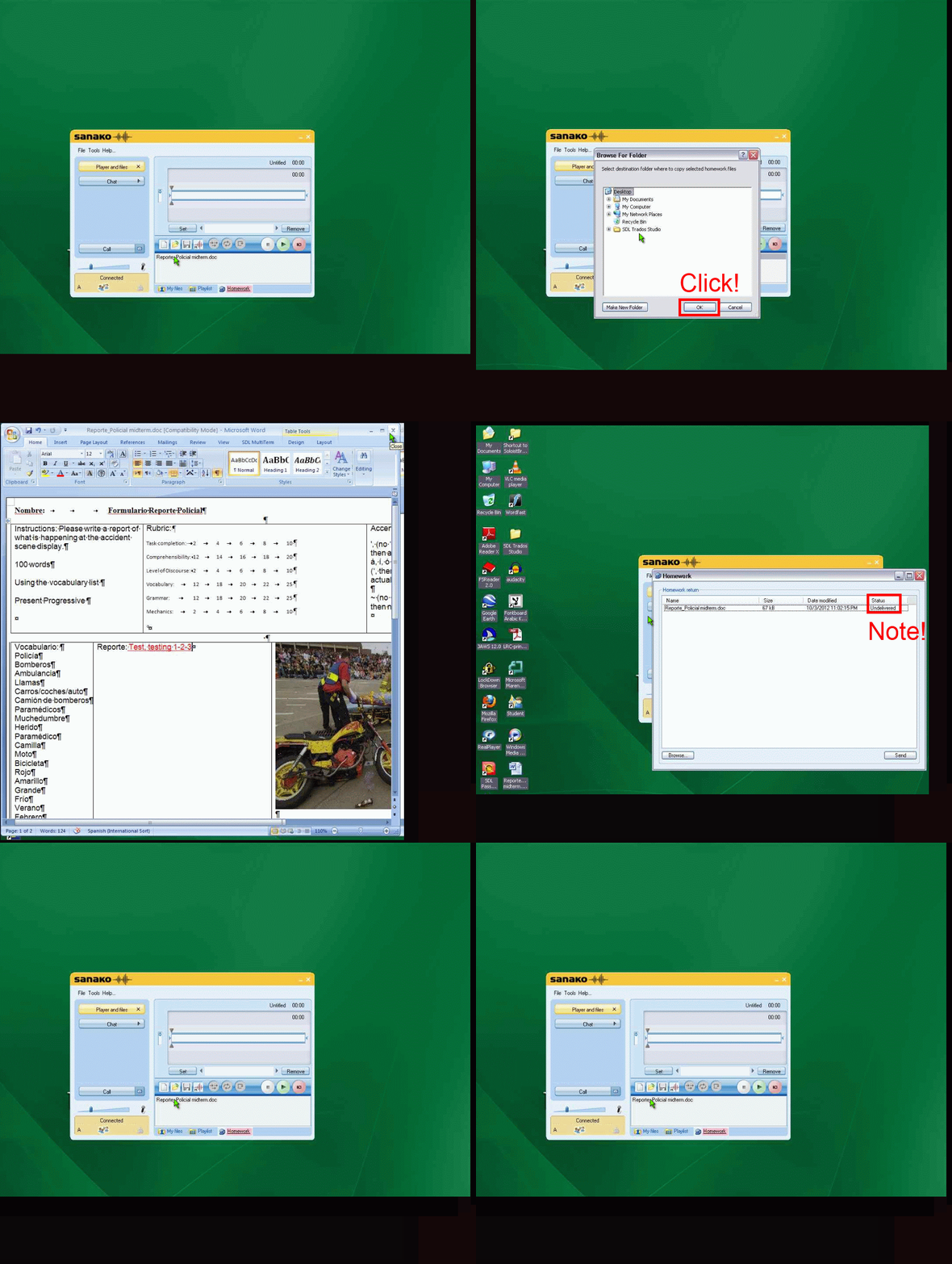
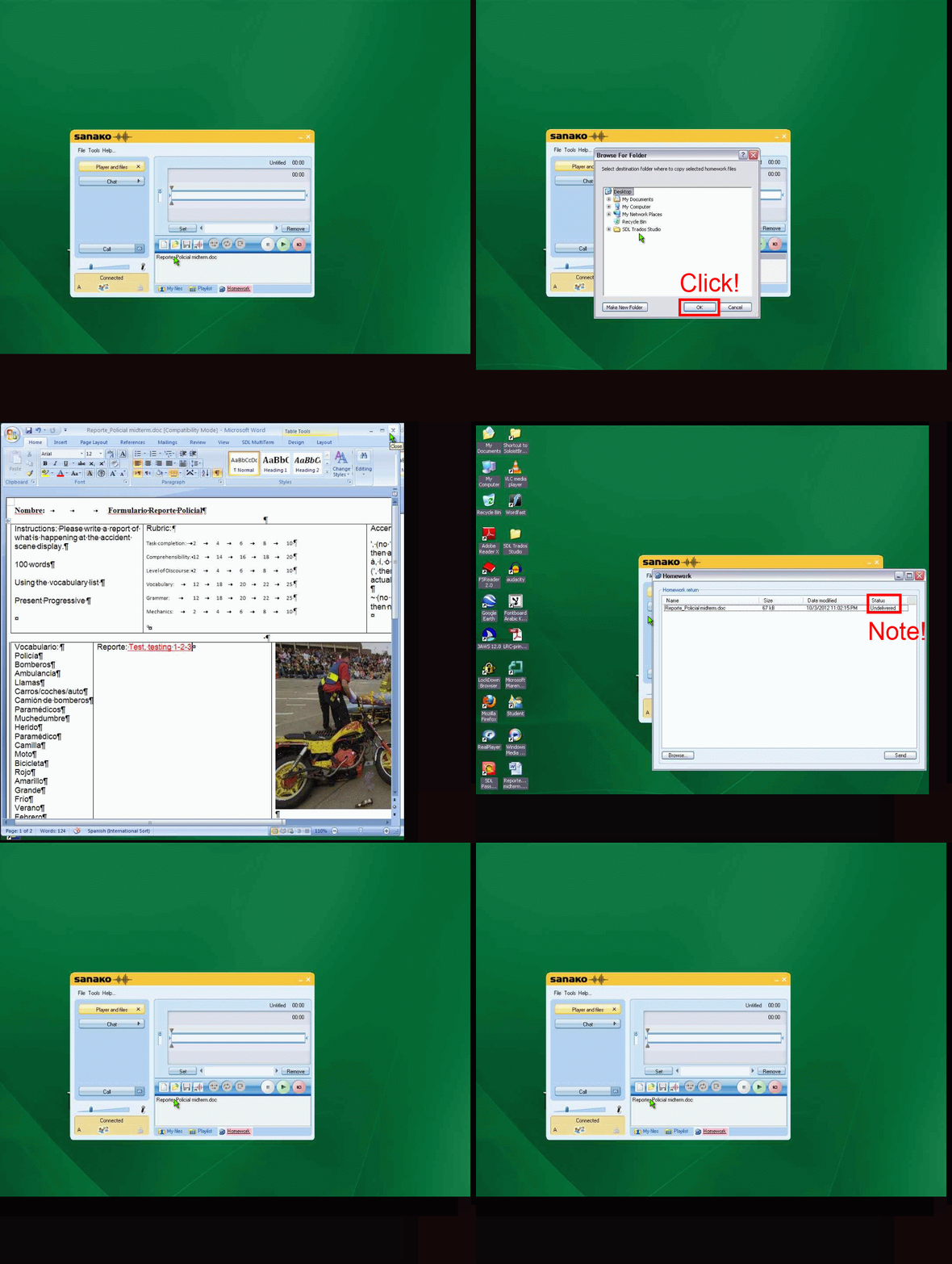
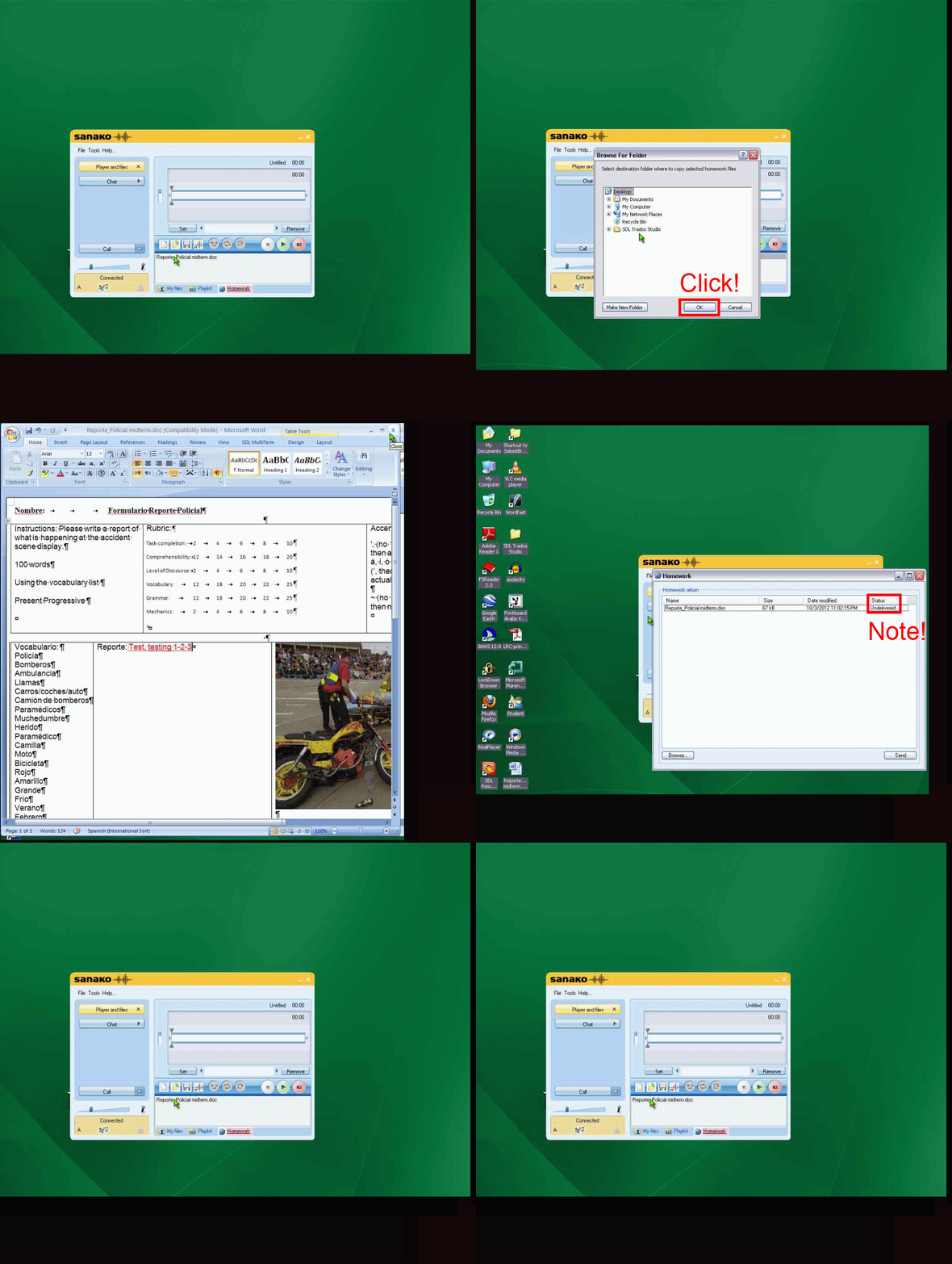
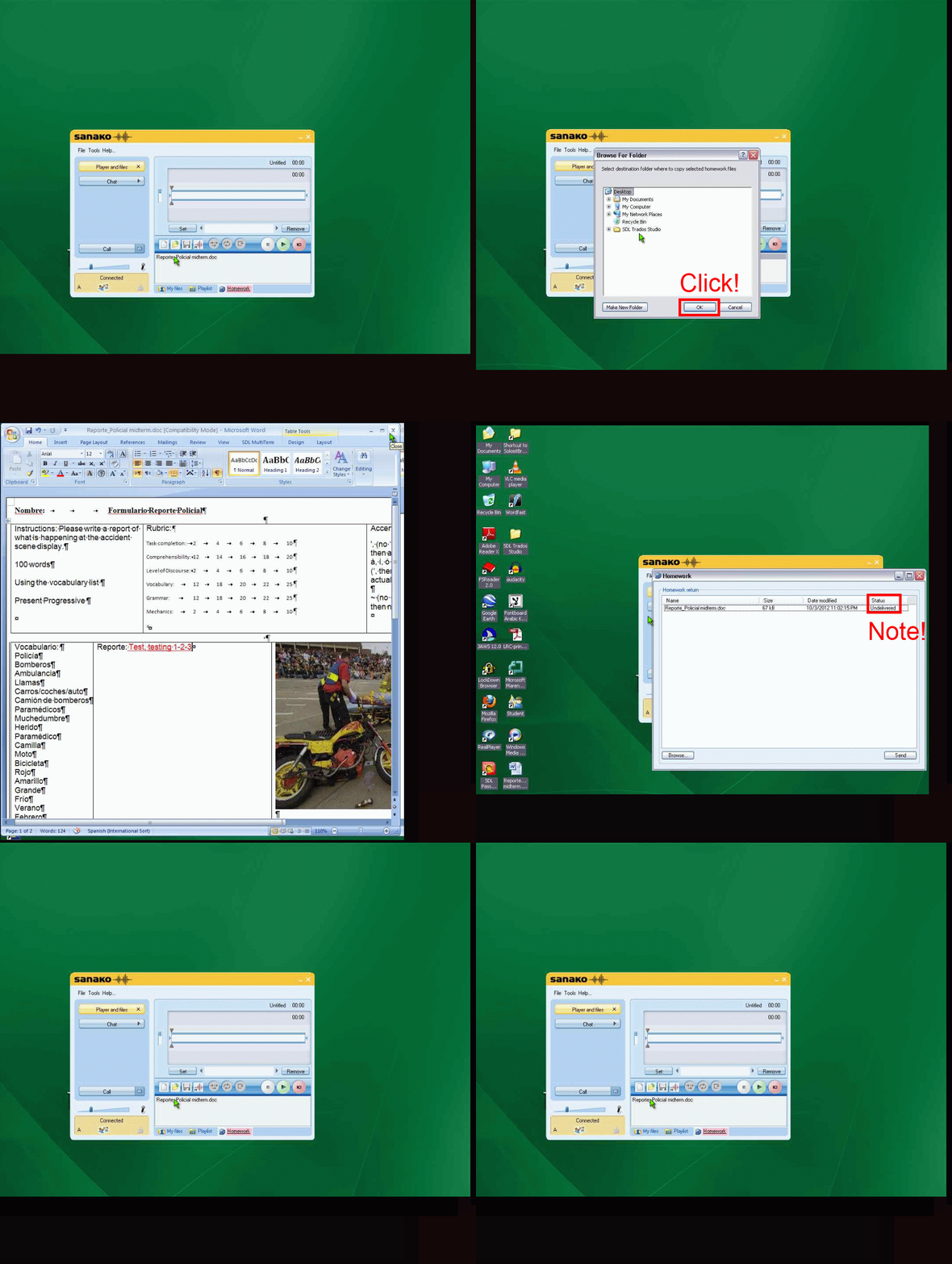
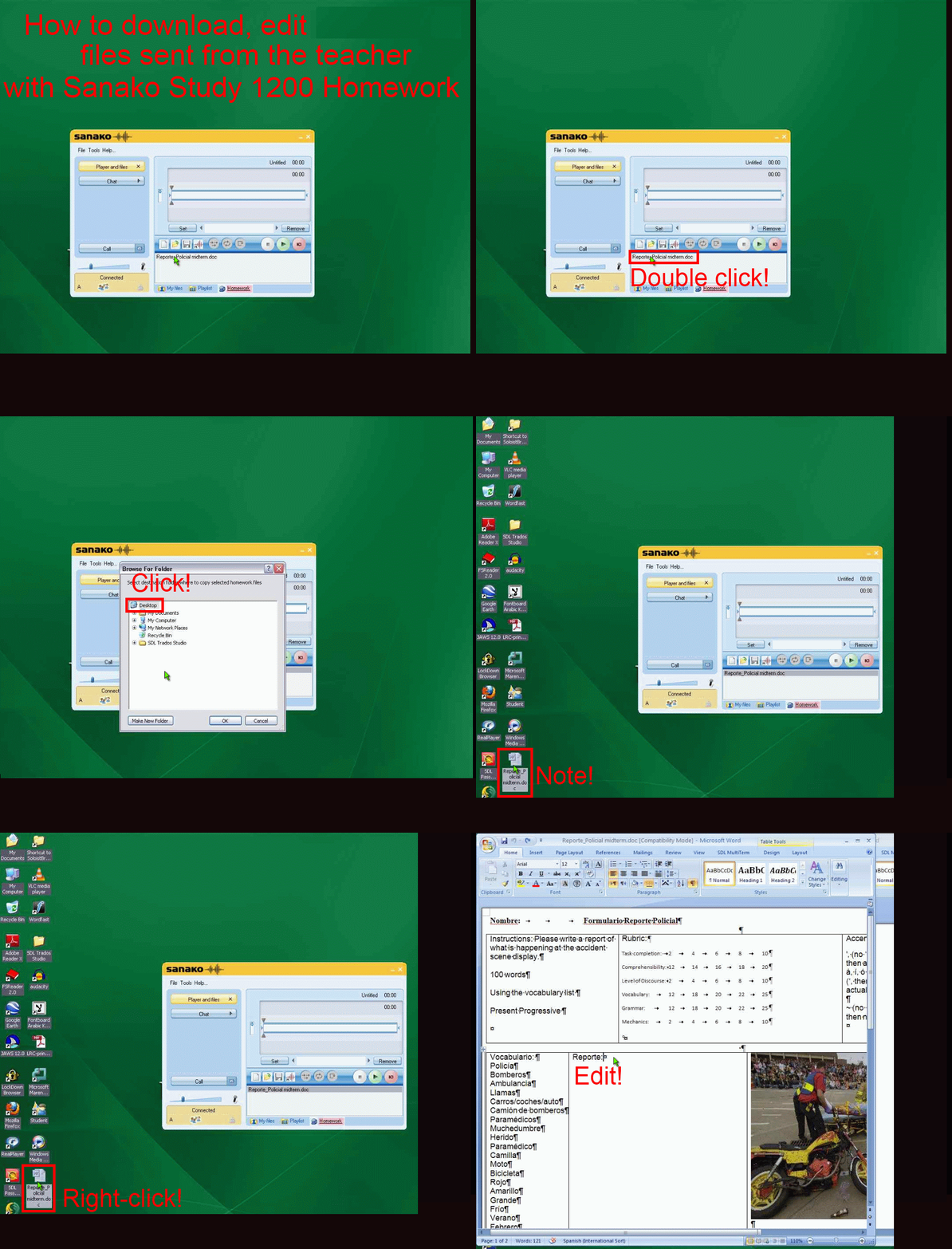
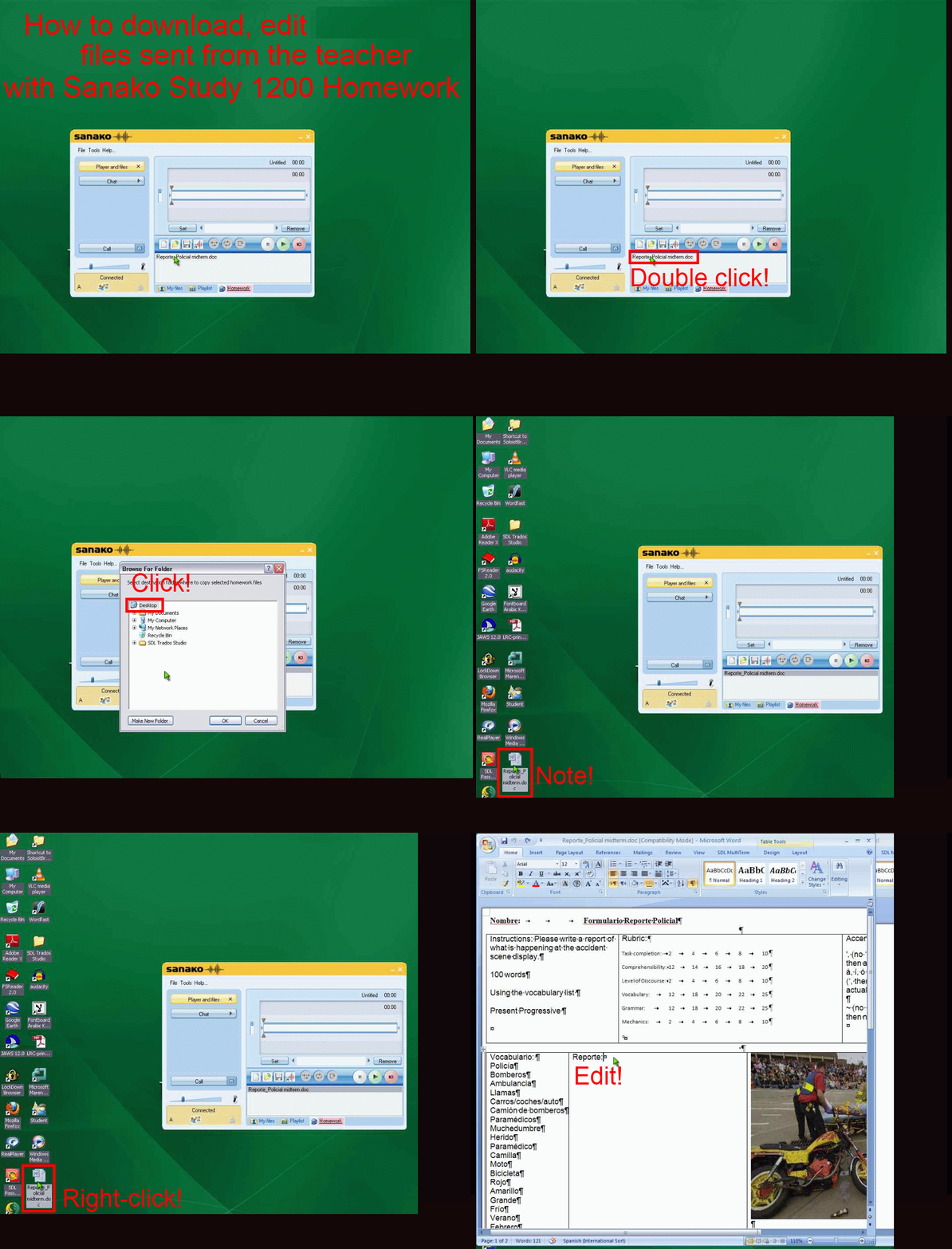
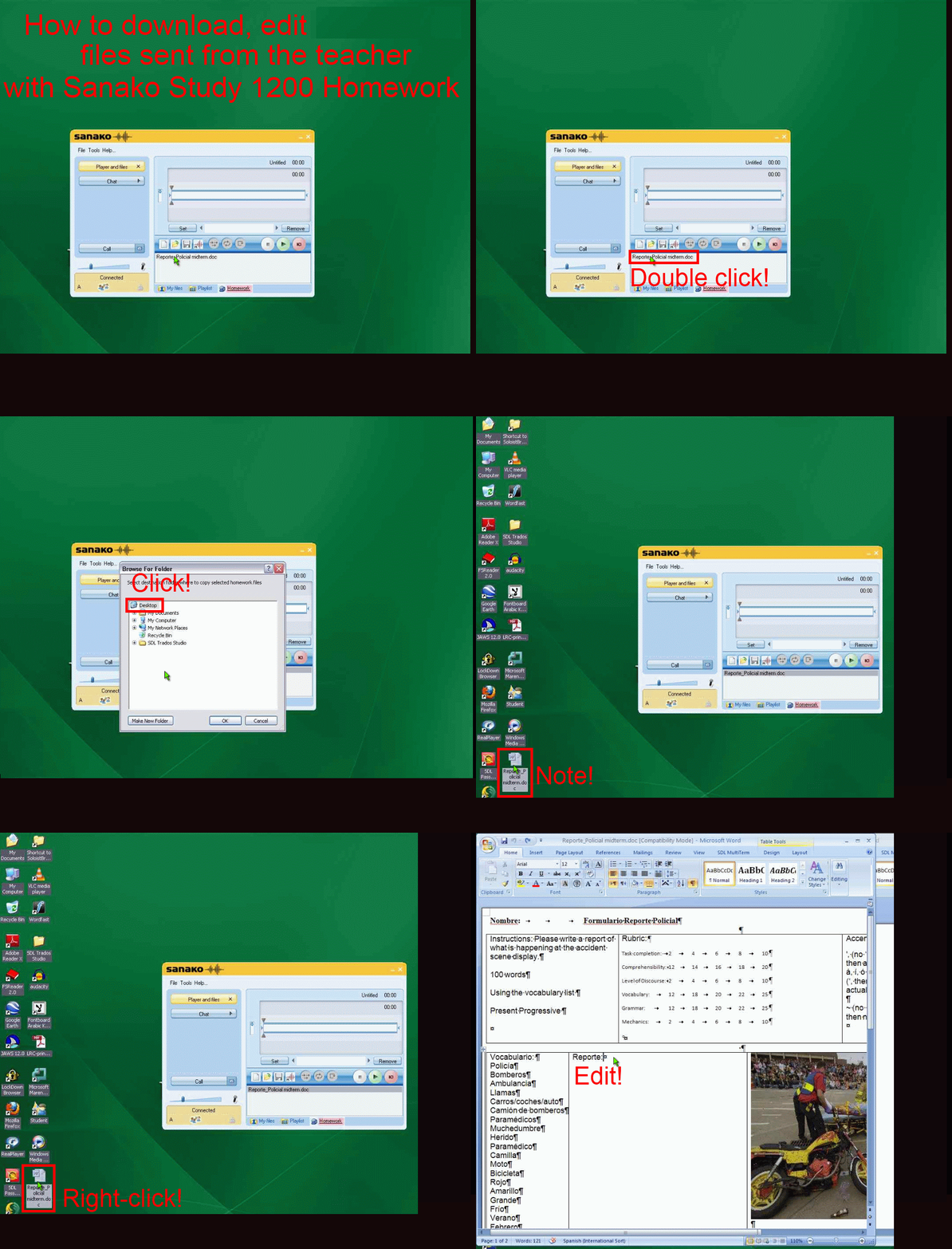
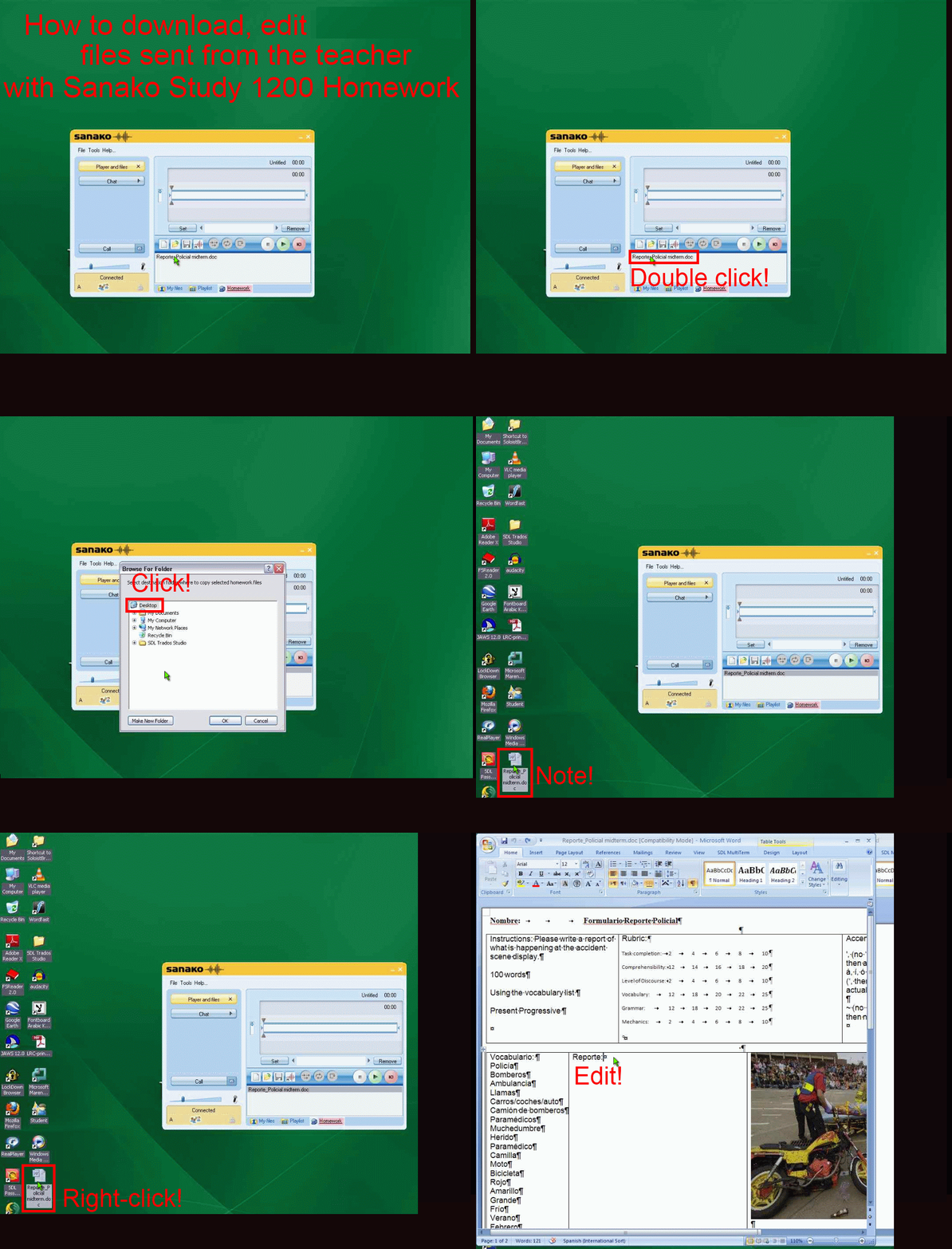
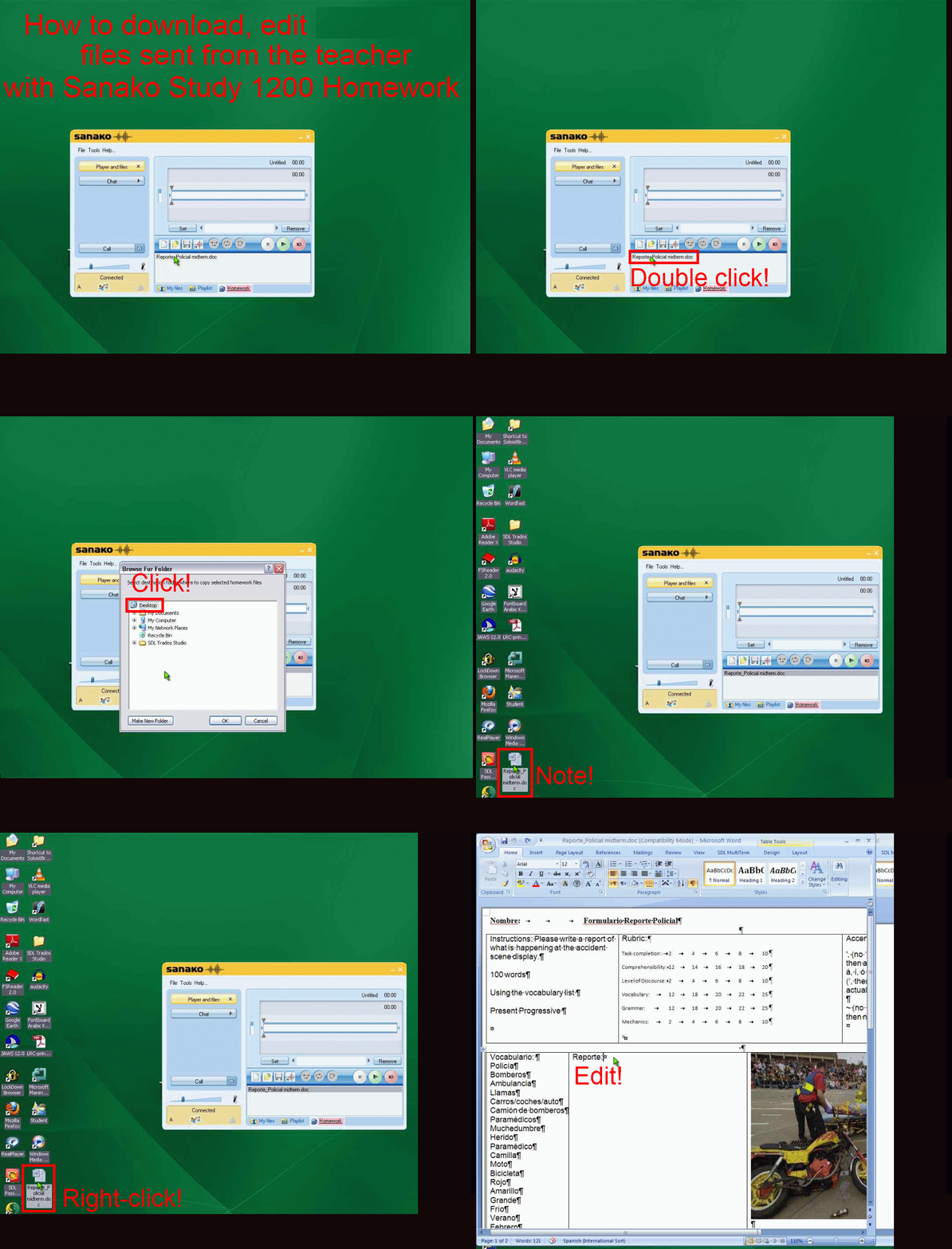
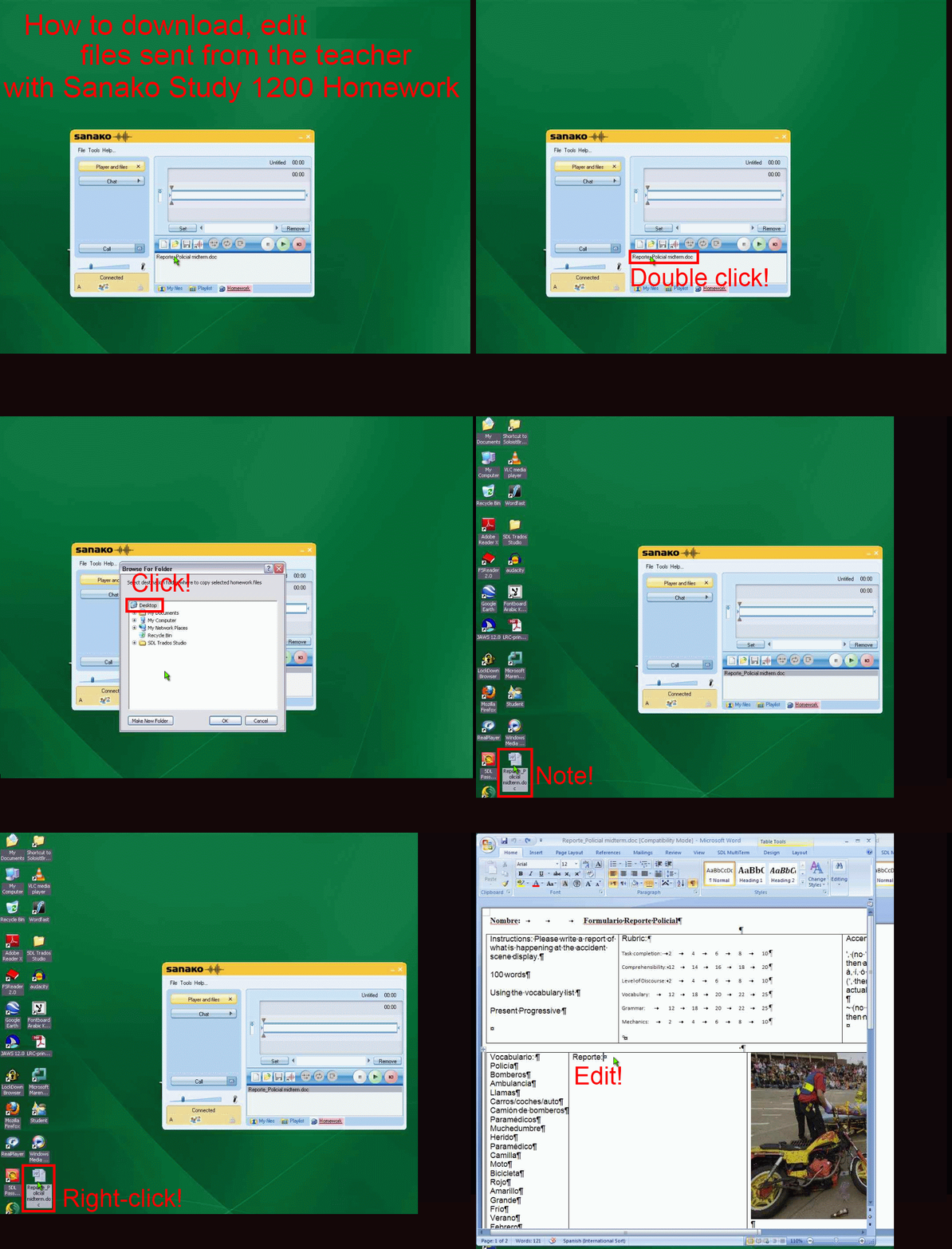
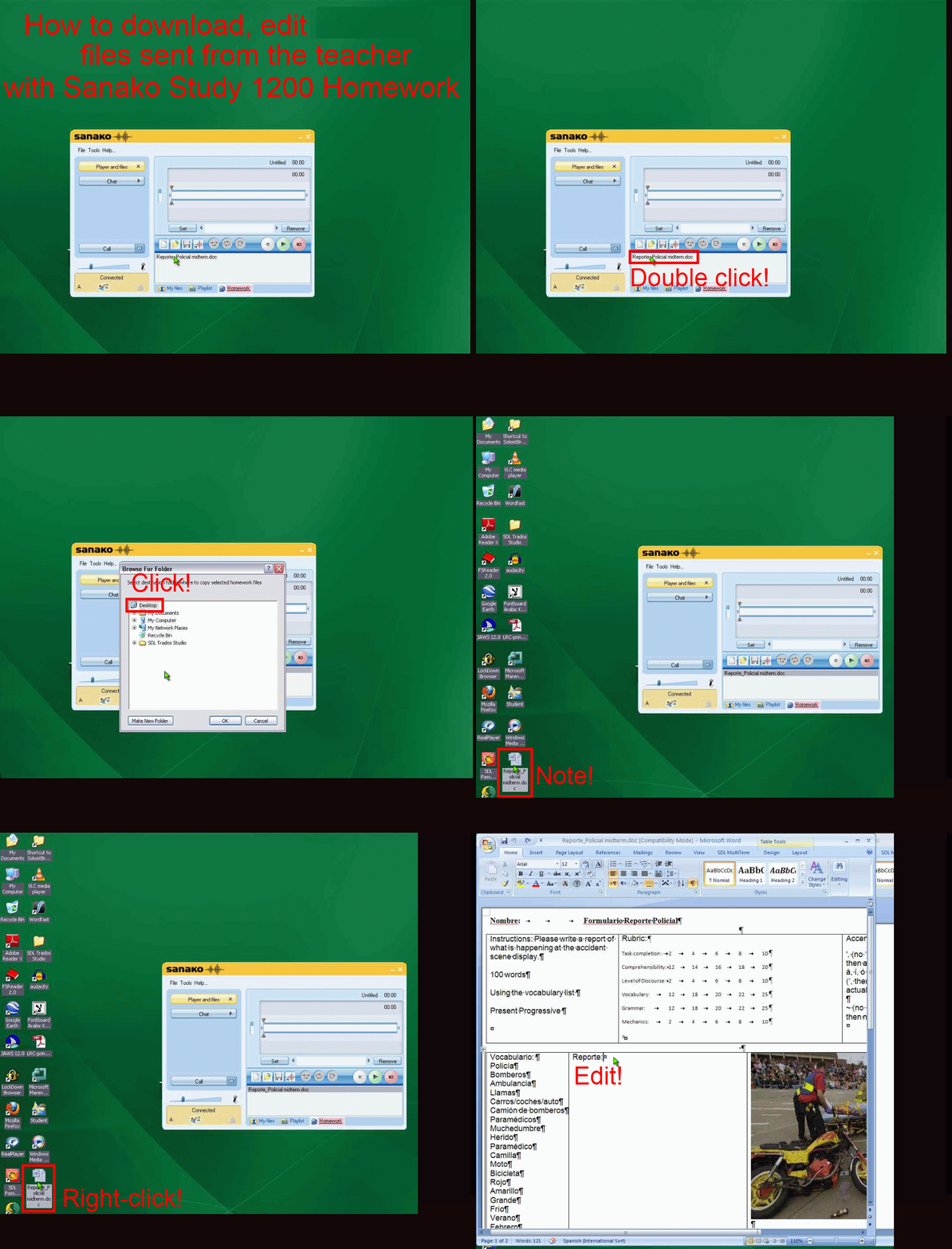
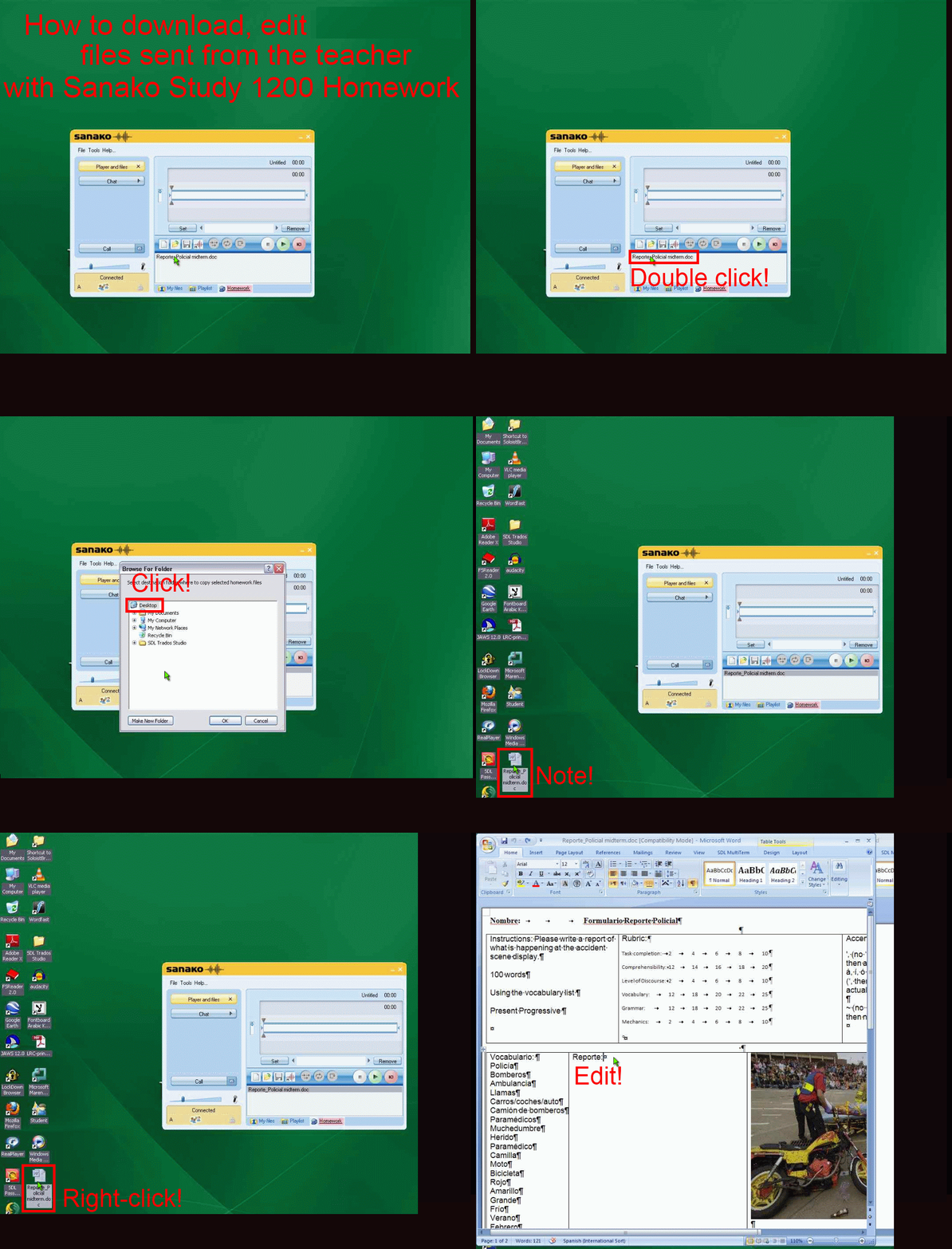
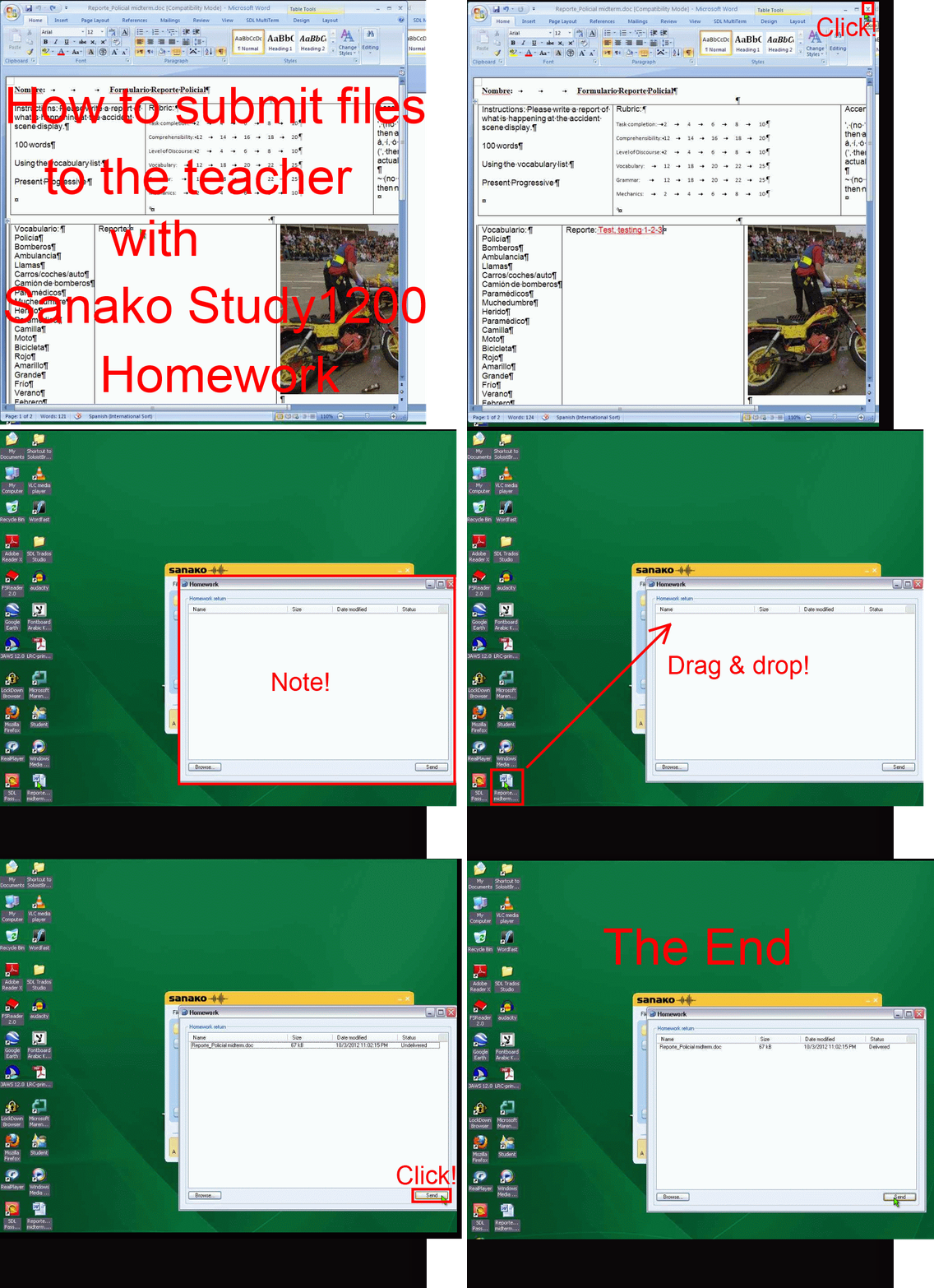
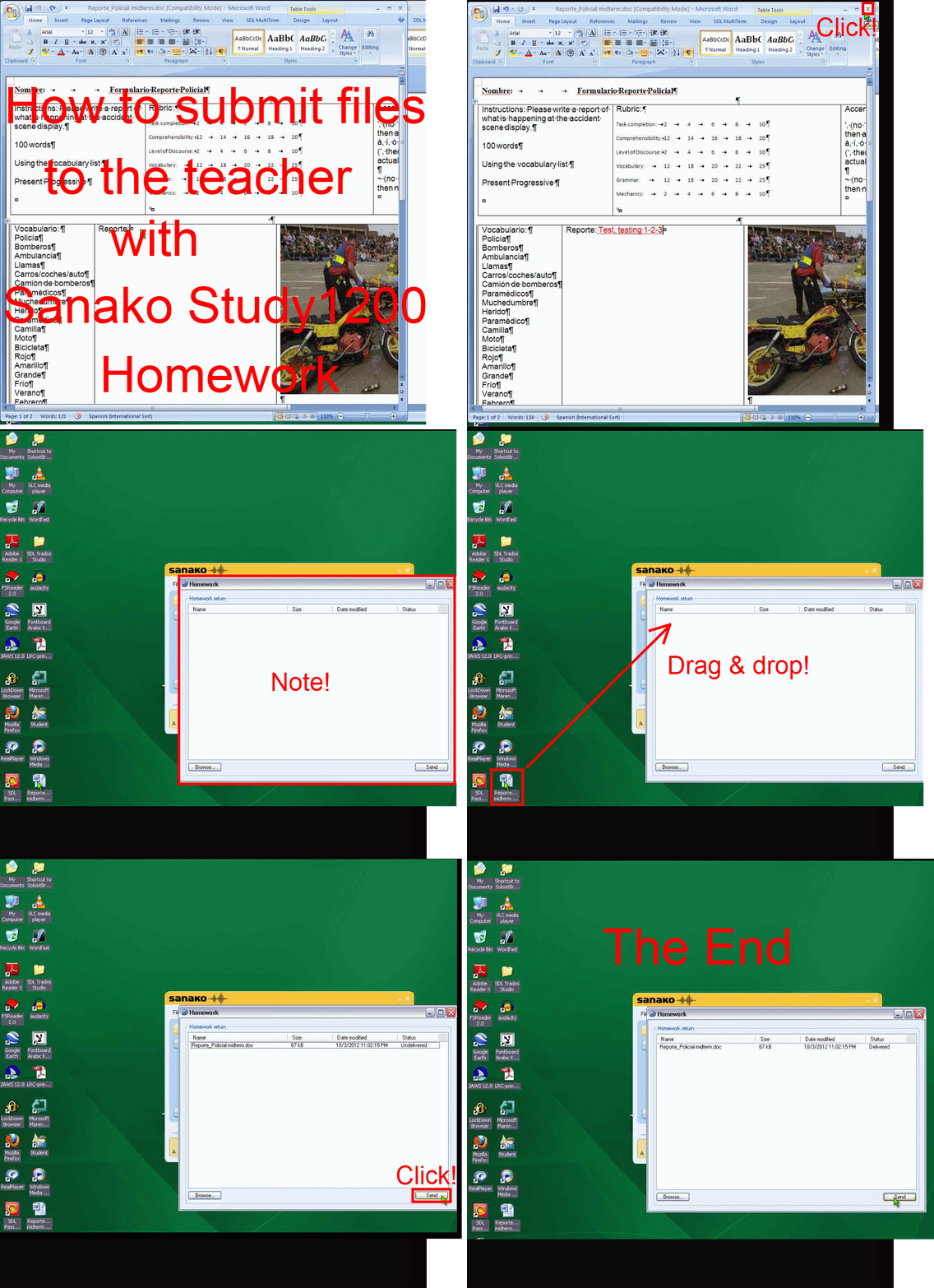
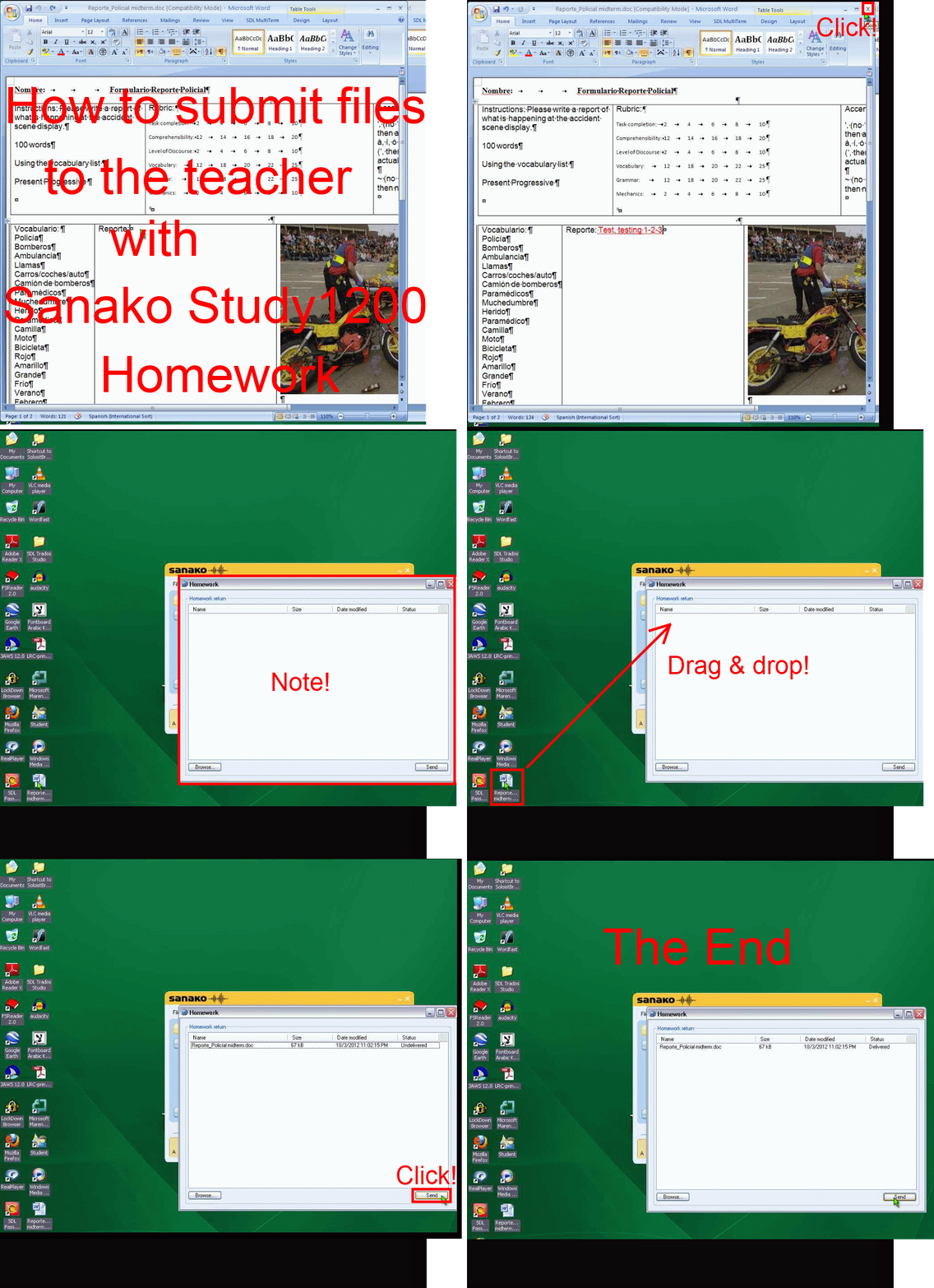
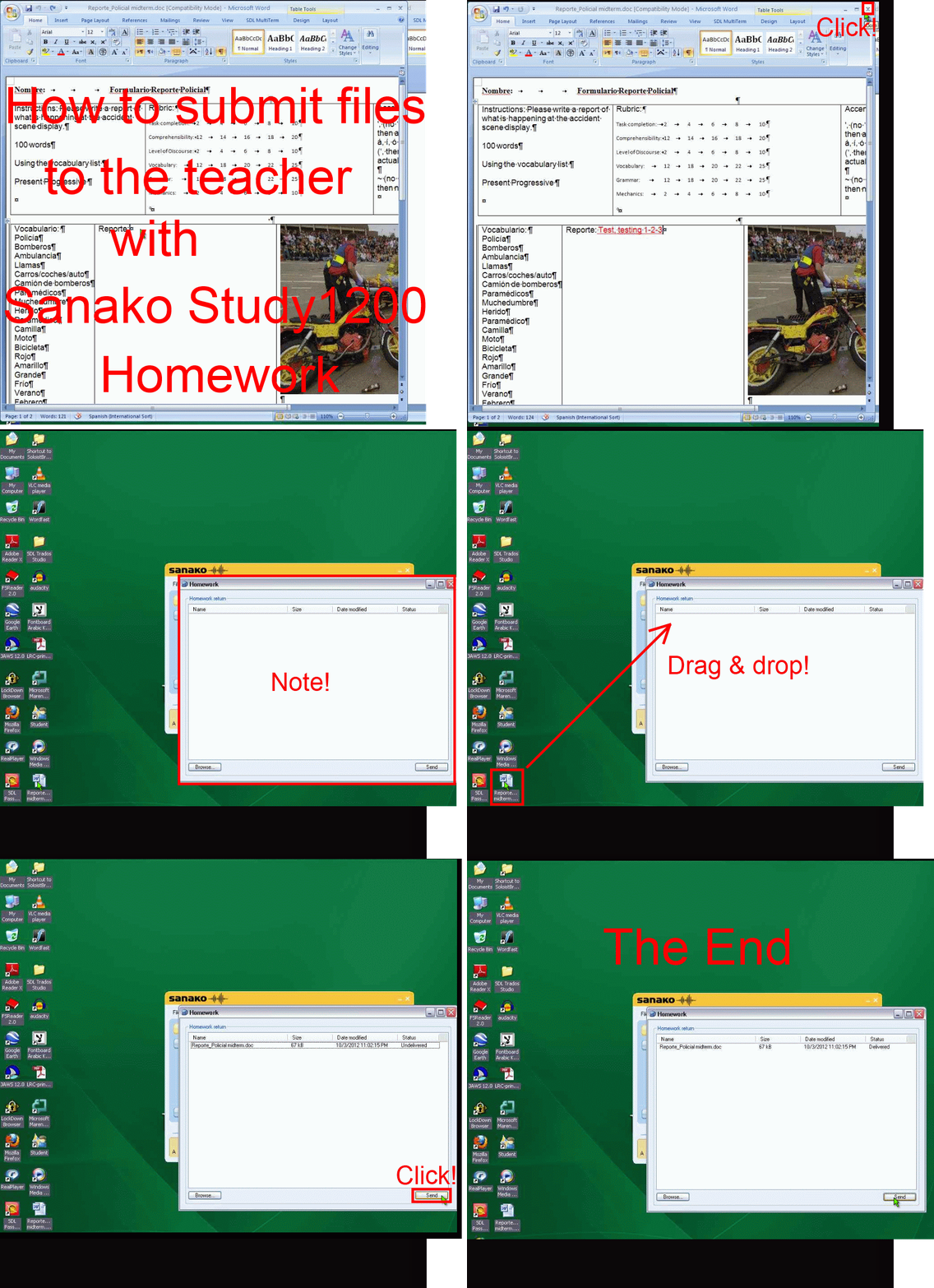
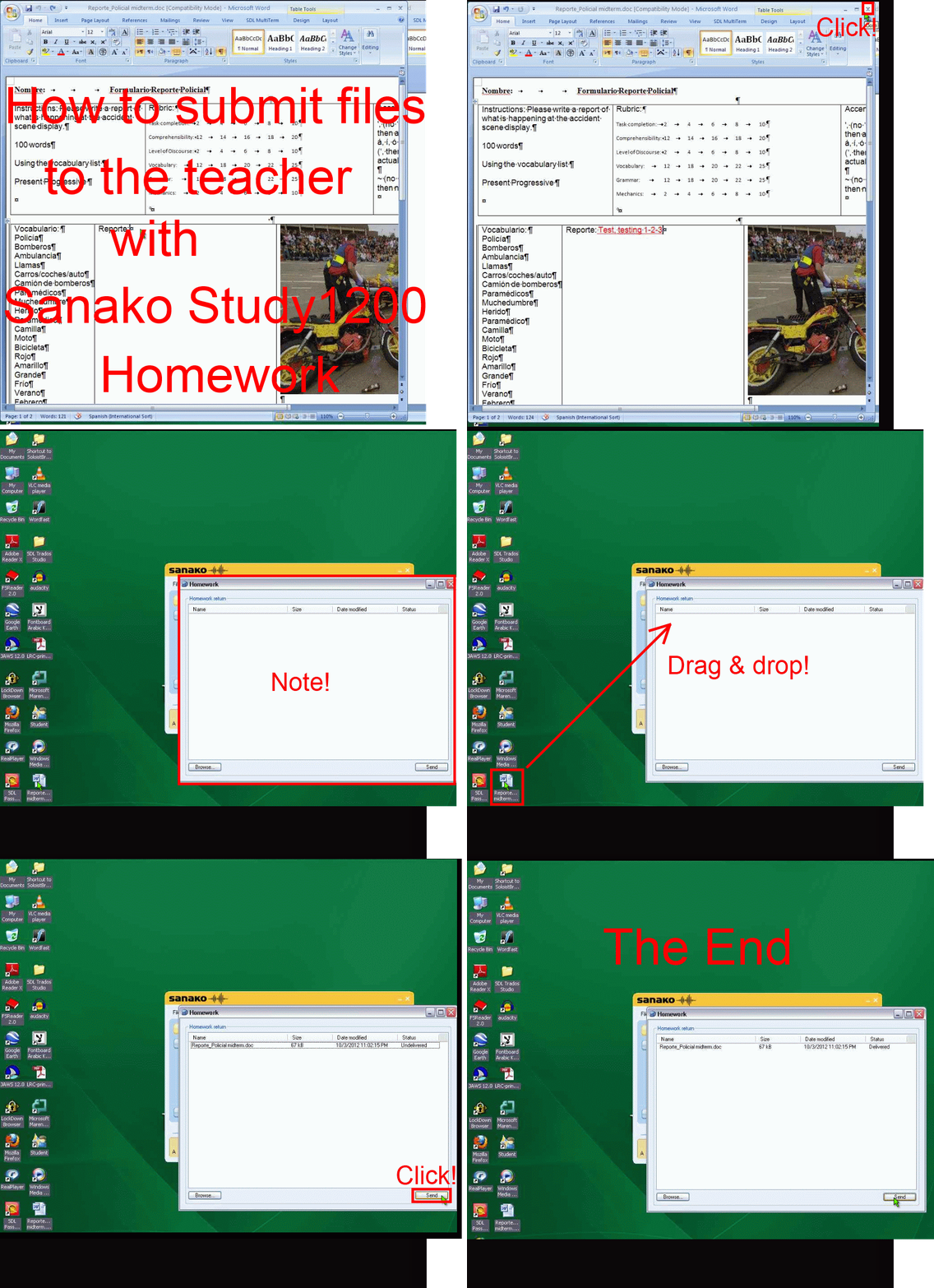
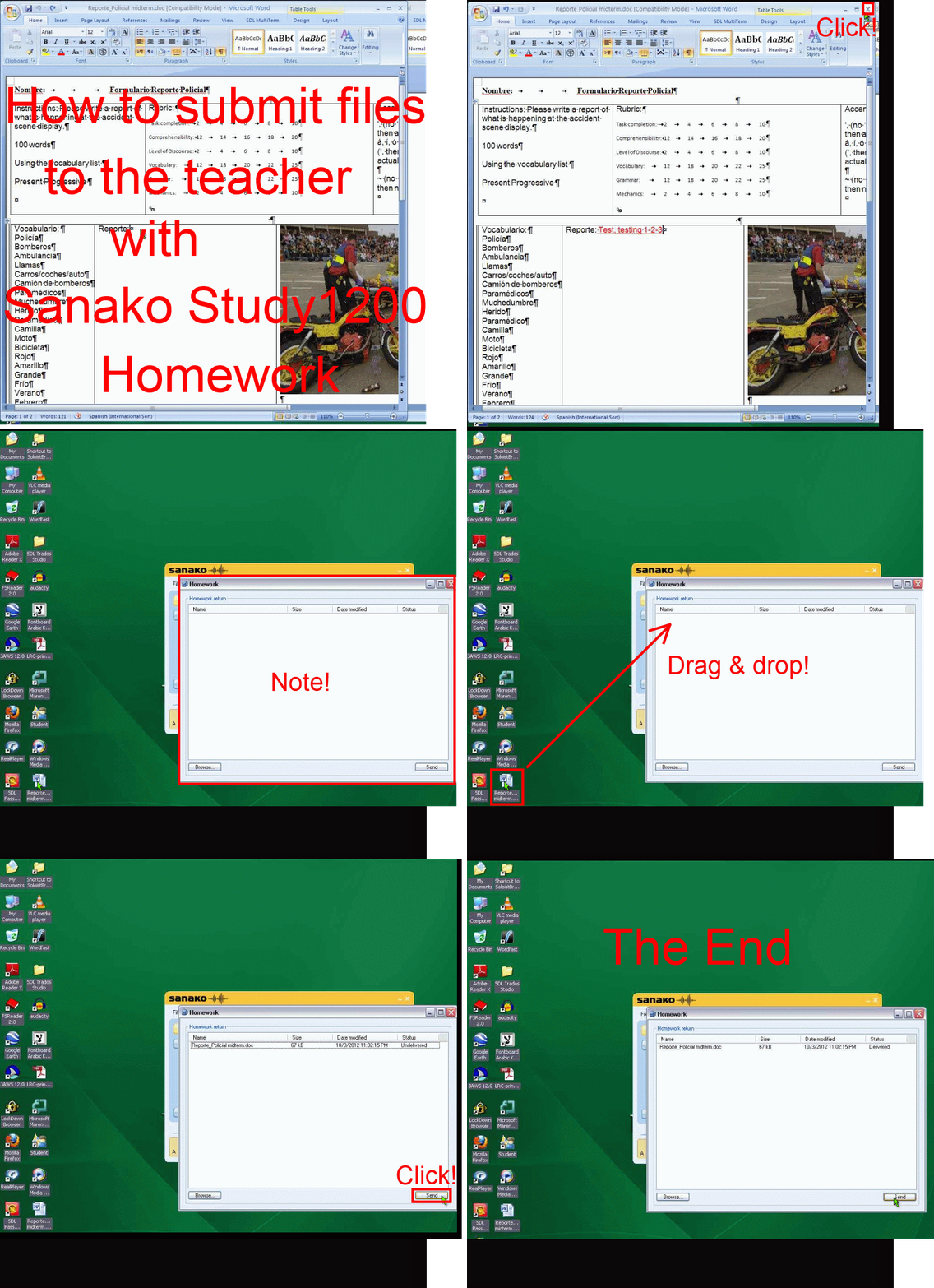
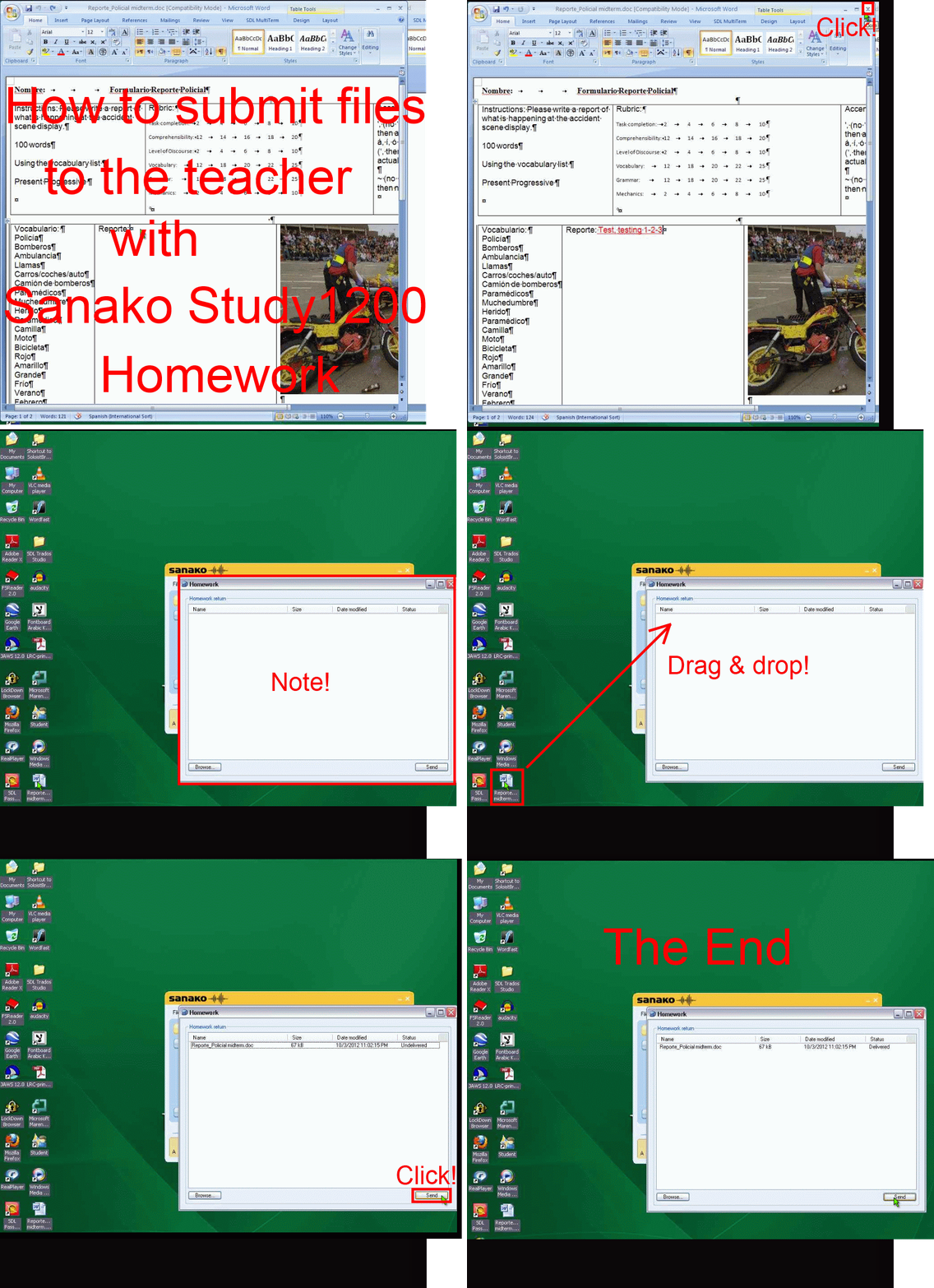
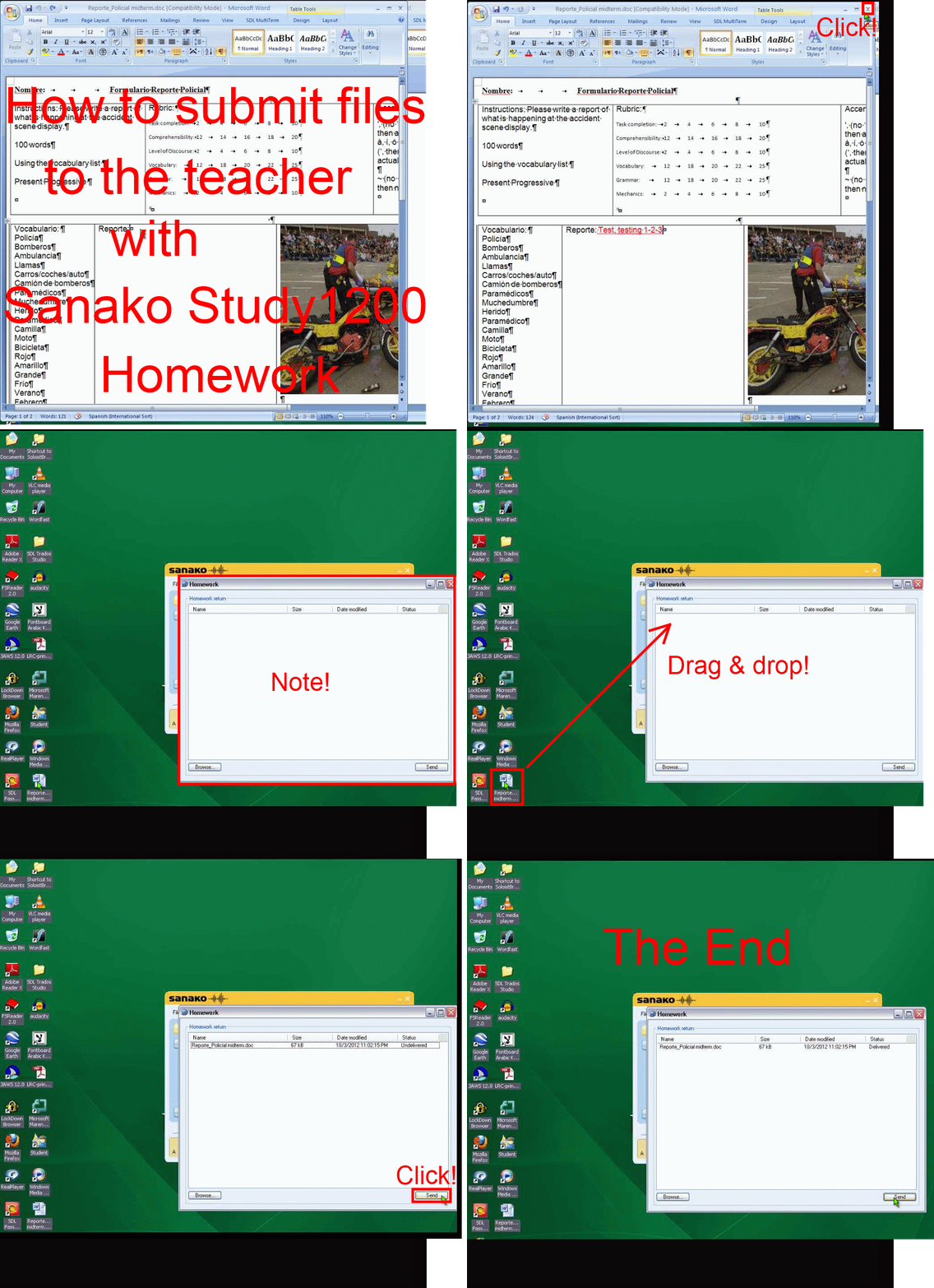
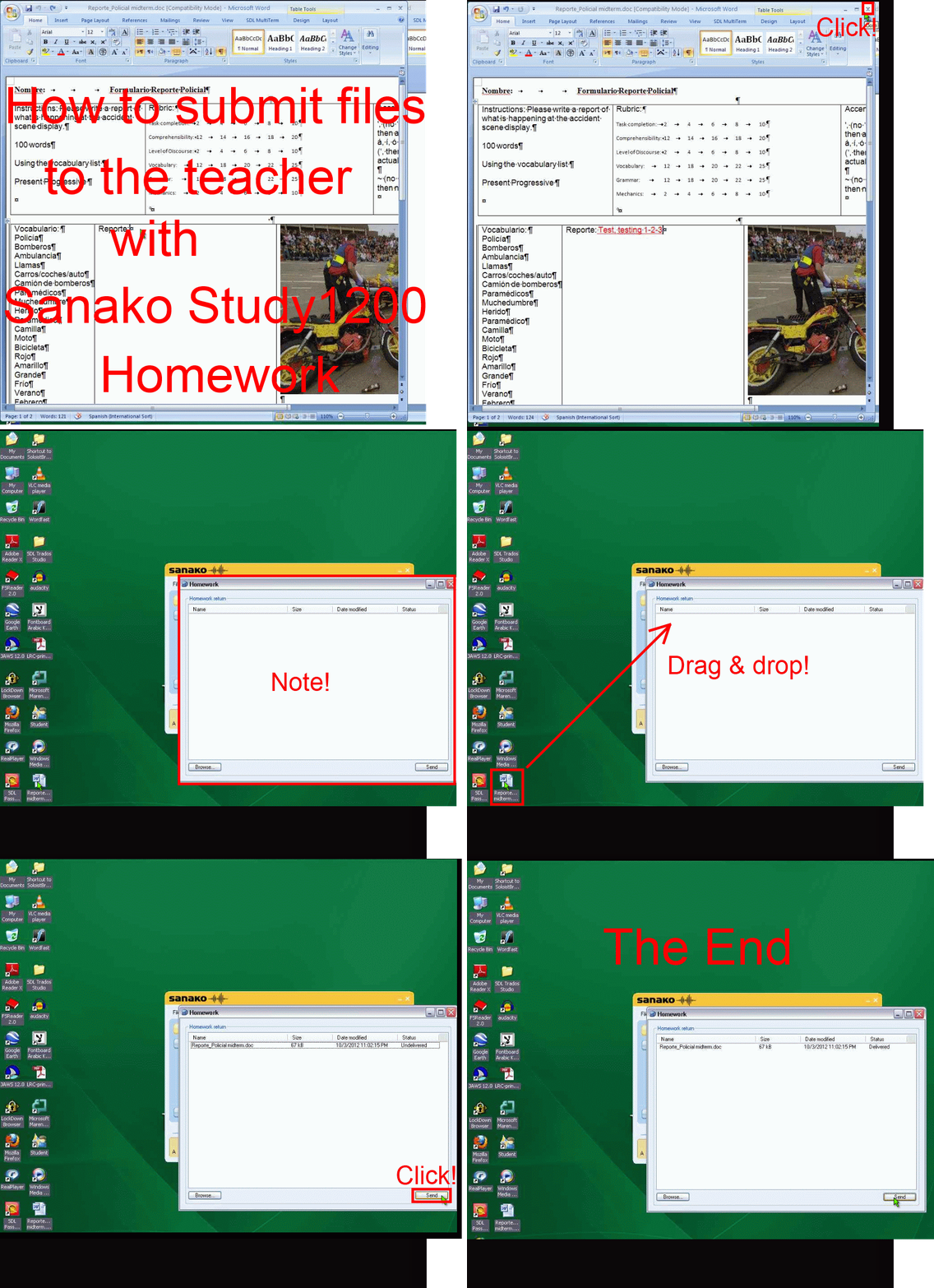
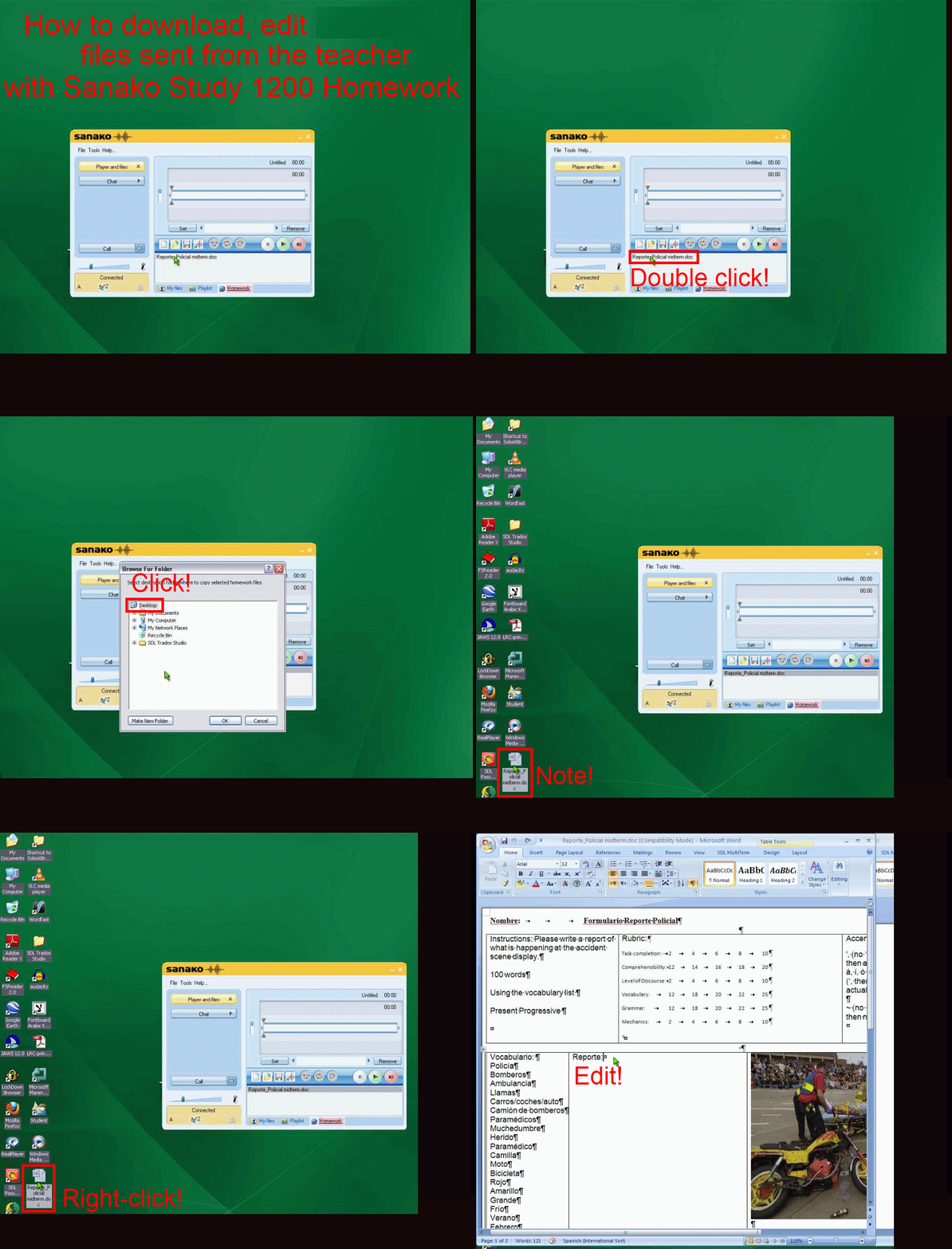
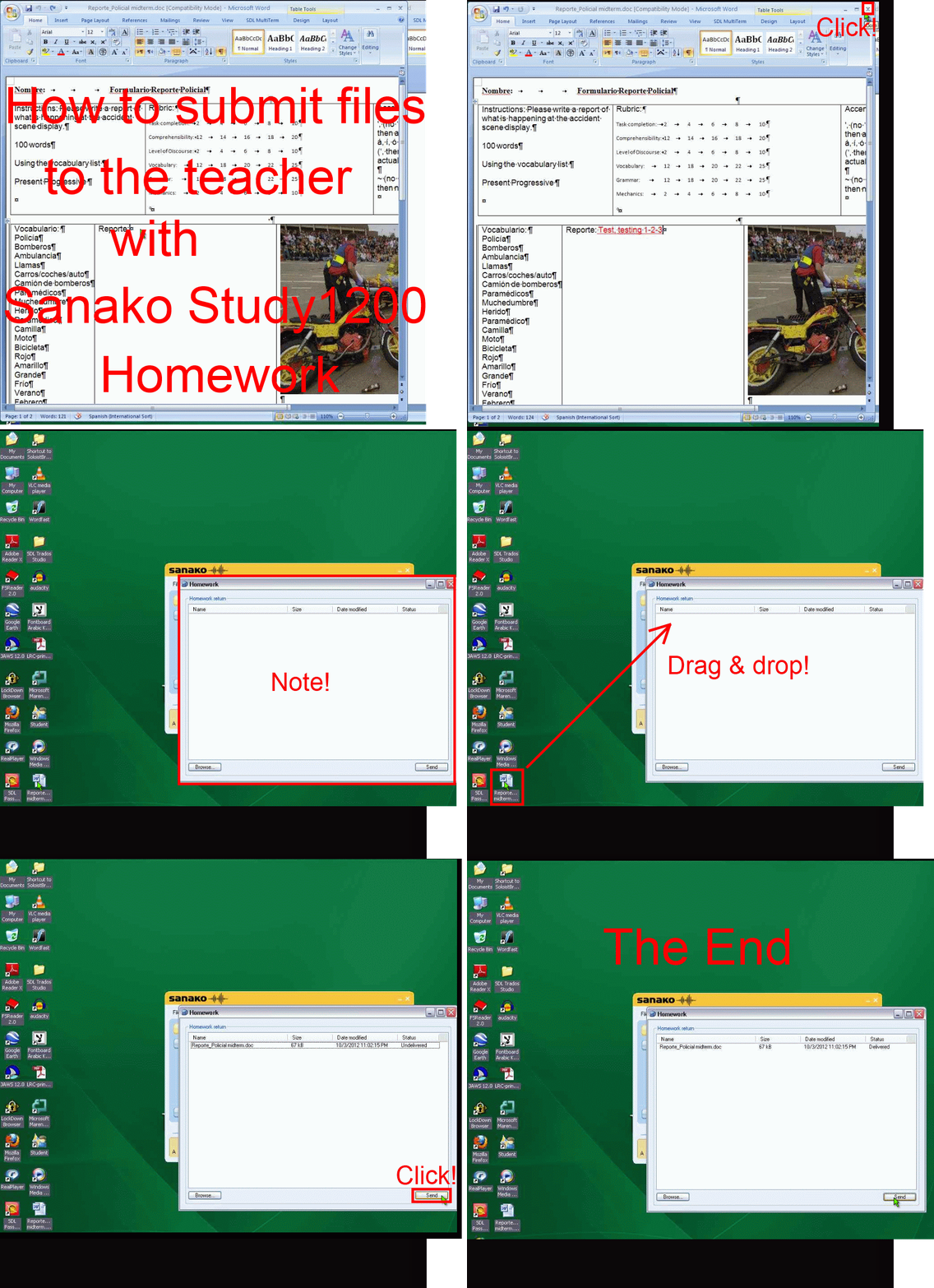
How student downloads, edits and submits files sent from the teacher with Sanako Study 1200 Homework –the ultimate training summary….
2012/10/16
Leave a comment
…using animated GIFs. (Here are the parts 1+2 that your teacher has to do). Slower? Click , 0.50sec, 0.75sec, 1sec, 2sec, 3sec, 4sec, 5sec, 6sec, 7sec, 8sec, 9sec, 10sec.
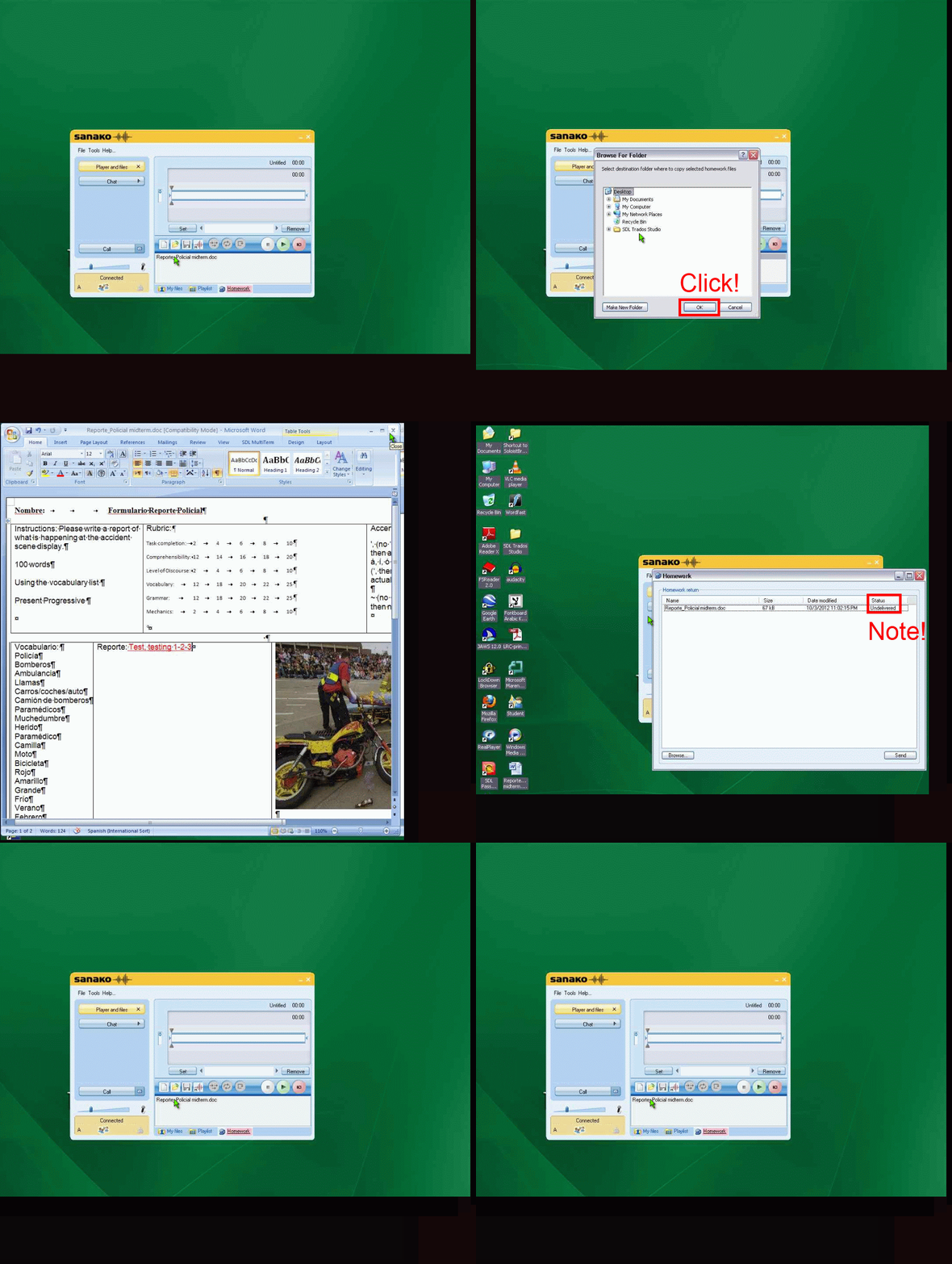
UPDATE: Now also split into
- PART 1: download from teacher (Here are the parts 1+2 that your teacher has to do). Slower? Click , 0.50sec, 0.75sec, 1sec, 2sec, 3sec, 4sec, 5sec, 6sec, 7sec, 8sec, 9sec, 10sec.

- PART 2: submission to teacher(Here are the parts 1+2 that your teacher has to do). Slower? Click , 0.50sec, 0.75sec, 1sec, 2sec, 3sec, 4sec, 5sec, 6sec, 7sec, 8sec, 9sec, 10sec.

Spring 2012 Faculty Workshop II: Oral Proficiency testing with Audacity/Sanako
2012/04/30
Leave a comment
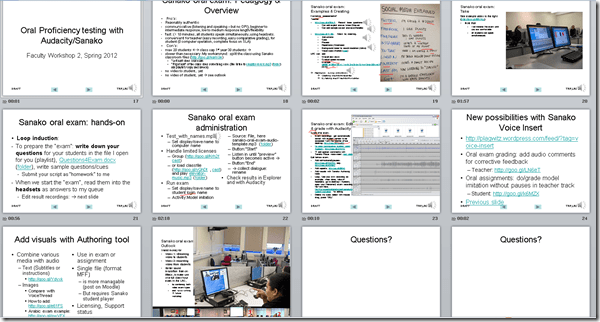
- View screens (best viewed side by side, but note that left and right screen are not synchronized):
- for full slide show (note the included short links for convenient further reading), left screen

- for Sanako interface and full audio track, right screen
 .
.
- for full slide show (note the included short links for convenient further reading), left screen
- Table of contents:
- Overview of a Sanako Oral Exam
- Examples of Exam teachers’ exam question recordings
- Example of a Sanako Exam
- Loop induction
- creating an exam question recording
- by taking a Sanako exam as a student
- Step-by-Step of administering a Sanako oral exam
- Grading Sanako oral exam student files
- Sanako voice insert for
- facilitating recording oral assignments for student without hard-coded pauses
- commenting on student responses during grading
- Sanako voice insert for
- Sanako authoring tool for providing visual on top of aural cues to students

Categories: Absolute-Beginner, Advanced, Arabic, audience-is-teachers, Beginner, digital-audio-lab, e-languages, English, Farsi, French, German, Greek (modern), Hindi, Intermediate, Italian, Japanese, Korean, Listening, Mandarin, multimedia-recording, Polish, Portuguese, Presenter-Computer, Russian, Screencasts, service-is-assessing, service-is-learning-materials-creation, Slideshows, Spanish, Speaking, step-by-step-guides, Student-Computers, Swahili, workshops, Yoruba
audacity, authoring-tool, sanako-study-1200, student.exe
How a teacher can use Sanako voice insert to easily add spoken comments to students’ Sanako oral proficiency exams
2012/04/25
Leave a comment
- All other things equal (given a limited amount of time), teachers can provide more and better corrective feedback on student oral proficiency recordings if, during their grading, they could easily insert their own oral comments into the students’ recordings (delivered as MP3 files to teachers’ desktops after Sanako oral exams).
- Both the Sanako Tutor and Student Player have a voice insert mode that is much easier and quicker to use than (albeit not free as) editing the student audio in Audacity (which we still recommend for bare-bone viewing/listening because of Audacity’s capability of loading and displaying multiple tracks simultaneously).
- Fortunately, Sanako tutor/student player are available on the teacher/student station PCs in the LRC (the latter’s insert function is available when the PC connected to the running Sanako Tutor on the teacher station).
- How easy and fast is it to use this? As you can see in this demo screencast on how to use Sanako voice insert to add spoken comments into your students’ Sanako oral exams
 , voice insert only requires:
 - a click on the voice insert button in the center, whenever a user wants to speak during listening,
- and, from the top left menu, a “file”/ “save as” at the end.
- In a next step – not only during the grading process –, how easy is it to distribute student recordings made with Sanako to students? That is TBA:a different story.
How a teacher creates audio recordings for use with Sanako Student Voice Insert mode
2012/01/24
Leave a comment
- One of the Sanako Student player’s useful features geared toward language learning activities, is that it can save the teacher the time and effort for inserting pauses into their audio recordings, so that students can record responses into them.
- Meaning the teacher can just press the red speak button
 and record through the entire file in one sitting.
 - The teacher can still help students finding their way around the file, especially where to insert their own audio recording responses, by adding aural cues.
- This can be done in minimal time: I once saw a teacher use a bicycle bell – and why not, if it saves time.
- A spoken instruction “Respond”/”Answer in 10 seconds” is not more difficult to spot (unless only the voice graph is being browsed) and might be even better.
- If you have spare time:
- You can post-edit the file with audacity, generating and inserting sinus tones.
- You can use the Sanako player to insert bookmarks instead of cues.
- Meaning the teacher can just press the red speak button
- As long as students have been instructed to how to use voice insert recording mode with the Sanako student recorder.
- This is for self access of students to teacher recorded files – be it during class or homework.
- If you want to record students under exam conditions, a similar insert recording feature is available within the activity: Model imitation, but not with a pre-recorded file, only when the live teacher is the program source students listen to for cues.

Categories: Arabic, audience-is-teachers, documentation, English, Farsi, French, German, Greek (modern), Hindi, Italian, Japanese, Korean, Listening, Mandarin, Polish, Portuguese, presenter-computer, Russian, service-is-learning-materials-creation, software, Spanish, Speaking, Student-Computers, Swahili, Yoruba
audio, recording, sanako-study-1200, student.exe, voice-insert
Sanako comparative recording exercises using Moodle
2012/01/13
Leave a comment
- Comparative recordings are one of the best-established practices in SLA with technology. We can implement them here using:
- The Sanako Study 1200 language lab software installed in LRCRoomCoed434 facilitates comparative recordings by students, based on a teacher-provided model audio, with its student dual track recorder software.
- Moodle’s Simple file upload assignment aids in managing the workflow,
- from delivering the audio file with the model recording to the student
- to organizing, assessing and grading the student input.
- For the teacher
- to create such an exercise, she
- creates an audio recording that serves as a model for the student pronunciation – a special application of our Audacity recording introduction. It is advised, however, to insert clear cues for the student to start his repetition.
- creates a Moodle’s Simple file upload assignment to which she attaches the audio recording
- continue with How a teacher grades a Moodle simple file upload assignment
- to create such an exercise, she
-
For the students to take such an exercise:
- How a student takes a Moodle Simple file upload assignment
- TBA: Sanako Student Recorder
Categories: Absolute-Beginner, Arabic, audience-is-teachers, Beginner, documentation, e-languages, English, Farsi, French, German, Greek (modern), Intermediate, Italian, Japanese, Korean, Mandarin, Polish, Portuguese, Russian, software, Spanish, Speaking, Student-Computers, Yoruba
moodle, sanako-study-1200, student.exe


Questions? Read the About. Or just ask me a quick Our Databases: Resources with calendars -- Language learning material Moodle Sites, multimedia files -- films


FAQs for LRC student staff or for students or for teachers. To search our FAQs, in the browser addressbar, add after "https://plagwitz.wordpress.com/feed/?tag=faqs+/" "+TAG1" (from tag cloud below) OR "https://plagwitz.wordpress.com/feed/tag=faqs
&category_name=" "CAT1" (from category hierarchy below). OR search both categories and tags, and multiple TAGs/CATs (connect with "," for OR-search, with "+" for AND-search), like so: https://plagwitz.wordpress.com/feed/?tag=TAG1+TAG2+...TAGn&category_name=CAT1
+CAT2+...CATn"
Other ways to find help
If you cannot find it here, look there: 5,500 Language-Learning Links and Programs for learning or teaching 150 languages
Shortcuts:Our Lists, Our Maps, LRC Staff Moodle Site,LRC Project Moodle Site, 49erexpress, UNCC Moodle, Student Recordings: s:claslcslrcsanakostudent
Learning usage samples: Sanako oral exam, Kaltura webcam presentation, Dictation with speech recognition, Sanako written exam, Chinese and Japanese interactive stroke-order practice
Test the Sanako Installer, Webbrowser Popup Konfigurator for XP, or Windows7, faster LRC TeacherPC Log-in Let MS facilitate diacritics writing by installing for you US-International keyboard layout
This is my personal blog (Google+). The views expressed on these pages are mine alone and not those of my employer. The information in this weblog is provided “AS IS” with no warranties, and confers no rights.
 Thomas' Work Space