Archive
How Teachers grade Student recordings from the Sanako Lab 300
-
Teacher on their office PC (MAC users talk to OTS at loyola.edu) can press
 windows-key+e, and in the window, that opens,
 -
browse to the student mp3 recordings in the “studentcollect” folder or in “their” folder on S:\[put teacher name here] (no S: drive on office PC? read the “Shortcuts” section on http://plagwitz1.spaces.live.com, right hand side, under my portrait),
-
open the student recording file, either by doubleclicking to, presumably, open it in Windows Media Player, or, preferably, by selecting multiple files, right-clicking and chosing “Open with” to open them for comparative grading in Audacity).

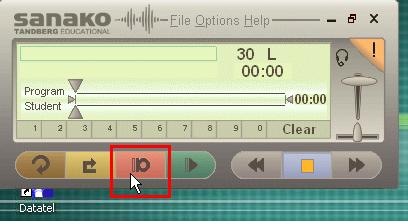
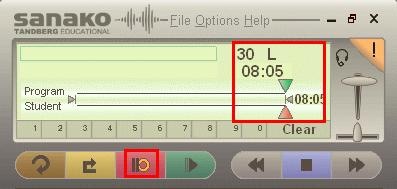
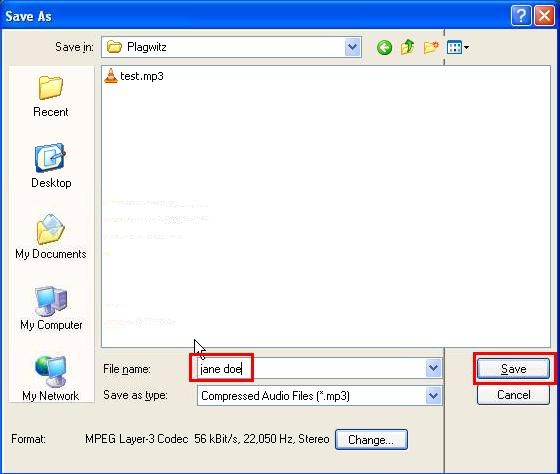
How students make audio recordings using Sanako Lab300 Media Assistant






How to configure a re-imaged (syspreped) Sanako Lab 300
1. On each of the 30 student computers in the main lab MH441, log in as user “llc-staff”.
2. In the Windows taskbar, click “start”, “run”, type: “c:\Program Files\Sanako\Lab\Lab300\duo\config.exe”, click “OK”.
3. In the “Media Assistant Duo” window that opens, change the field “Workstation number” to the last (one or two: omit leading zeros) digit(s) of the white label at the edge of the monitor that you are working at:
4. 
5. Click button “Finish”, then restart the computer.
Bonus hint:
If your lab goes down again in the middle of the term, check whether your IT department has set up new computers on the sub-network whose network names conflict with the Crossroad naming scheme of the Sanako Lab 300, as seen in the above dialogue and set in the Lab 300 crossroad settings dialogue.

Sanako Lab300 Final exam: Movie listening comprehension with grammar, vocabulary cloze
Here is a raw (unedited) video of a final exam in a German 202 class.
It was delivered with Sanako Lab 300 in a synchronous face-to-face teaching environment.
Students (re)viewed a movie (Lola rennt), while doing target language subtitle-based with self-developed (MS-Word templates using VBA) fill-in-the-gap exercises on grammar and vocabulary – listening comprehension.
Apart from the teacher managing the exam distribution on the Sanako Lab 300 Teacher computer, you can see the teacher watching the students taking the exams – each thumbnail with subtitle text in the Sanako Mosaic window represents one student computer.
The students get the benefit of AI: lookup of internet resources (which is enabled through VBA with double-click on words in a subtitle which leads to the default dictionary, in this case set to http://dict.leo.org), as well as a dropdown menu with more advanced Dictionaries and Encyclopedia.
The students also get the benefit of immediate AI feedback to their input – better basis for learning than receiving a corrected homework or exam in a, time-wise, complete disconnect from the learning activity (and the feedback is faster than if it were web-based, since it is local to the client computer).
The teacher gets the benefit of an easy overview of students learning, of routine corrections being performed by AI in the exercise template, and, where s/he finds additional guidance is needed – even if not in this outcome exam situation, then during similar preparatory face-to-face activities – , can – with the help of the Sanako audio and student computer remote control system – immediately connect to a student for additional instruction at “teachable moments” (Example here).
How AI and human intelligence can blend in the language lab to form personalized instruction

- An example from long before mobile computing but still: While I personally like communicative uses of the language lab infrastructure best (pairing, group conferences, with recording, screen sharing, collaborative writing),
- the above (click image to download and play WMV video, also on MAC – sorry, file won’t transcode) may be the 2nd best :
- The student is engaged
- primarily with a listening (comprehension) exercise using authentic target language media (German chanson),
- also with some light writing (recognition of vocabulary words)
- and receives automated feedback in response form quiz template.
- The communicative aspect is added
- through seamless, effortless, surgical and last not least private teacher intervention or “remote assistance”
- when the teacher (“automonitoring” all LAB300 students one after the other) notices from afar (even though thumbnail-sized, hence the large fonts of the quiz template)
- how the current automated error feedback may not be enough of an explanation, but may have created “a teachable moment”:
- Student heard phonetically correctly, but not etymologically. German “Fahrstuhl”, not “Varstuhl””: literally a “driving chair” – after this little intervention, likely a quite memorable compound.
- A good example how language lab computers need not get “in between you and your student”, but connect you – just like has become an everyday reality, in the meantime, in the social web world.
- The student is engaged


Questions? Read the About. Or just ask me a quick Our Databases: Resources with calendars -- Language learning material Moodle Sites, multimedia files -- films


FAQs for LRC student staff or for students or for teachers. To search our FAQs, in the browser addressbar, add after "https://plagwitz.wordpress.com/feed/?tag=faqs+/" "+TAG1" (from tag cloud below) OR "https://plagwitz.wordpress.com/feed/tag=faqs
&category_name=" "CAT1" (from category hierarchy below). OR search both categories and tags, and multiple TAGs/CATs (connect with "," for OR-search, with "+" for AND-search), like so: https://plagwitz.wordpress.com/feed/?tag=TAG1+TAG2+...TAGn&category_name=CAT1
+CAT2+...CATn"
Other ways to find help
If you cannot find it here, look there: 5,500 Language-Learning Links and Programs for learning or teaching 150 languages
Shortcuts:Our Lists, Our Maps, LRC Staff Moodle Site,LRC Project Moodle Site, 49erexpress, UNCC Moodle, Student Recordings: s:claslcslrcsanakostudent
Learning usage samples: Sanako oral exam, Kaltura webcam presentation, Dictation with speech recognition, Sanako written exam, Chinese and Japanese interactive stroke-order practice
Test the Sanako Installer, Webbrowser Popup Konfigurator for XP, or Windows7, faster LRC TeacherPC Log-in Let MS facilitate diacritics writing by installing for you US-International keyboard layout
This is my personal blog (Google+). The views expressed on these pages are mine alone and not those of my employer. The information in this weblog is provided “AS IS” with no warranties, and confers no rights.
 Thomas' Work Space