Archive
Meeting Requests in OWA – from the source
How to book LRC resources – explained in one screenshot
You can come to the LRC reception desk to book an item (you will still need to log into your NINERMAIL). But you can also self-help, and get immediate confirmation, from any device with access to your NINERMAIL:
If you have a basic LRC classroom booking scenario, send to the room lrcroomcoed434@uncc.edu what looks like “an email that includes times”: Go to your Ninermail inbox. Using the little triangle icon, unfold the “New” menu. Click menu item “Meeting request”. In the window, that opens, in the “Resources:” field, put lrcroomcoed434@uncc.edu. In the “Subject:”, put your course number. Enter start and end times of your classes visit. In the upper left, Click “Send”. Within a few seconds you receive a response email from the room in OWA: If you did not check the “Scheduling Assistant” tab, you may be asked to reschedule because of a conflict. If you fail to get a response, something went wrong, did you mistype the address? OWA remembers and suggests it after first use, but the first time you need to get it right.
For more advanced scenarios (beyond #3 below), first find the email address of our bookable resources, then book it like so:

More on repeating/recurrence here.
Protected: Sharing the LRC main classroom, using LRC Calendar LRCRoomCoed434
LRC Outlook/Exchange 2010 Resource Calendaring: How to display a Room/Staff/Tutor calendar aggregate at the reception desk using live@edu
- The LRC needs an overview aggregate calendar of its many rooms and services for clients in the entrance area. This should be always on display on the higher one of the reception area dual screen computers when screens are in extended mode
- From the calendar mailbox in OWA , these calendars can and have been published to the internet.
- LRC assistants can load and bookmark multiple (published or shared) calendars in their OWA, but there are limitations
- We do not want to clutter LRC Assistants OWA with LRC calendars more than we have to.
- OWA displays calendars (currently = 2011) only side-by-side, there is no overlay (=aggregate) mode like in Outlook 2010, and only up to 5 simultaneously, again unlike Outlook 2010 (30) (Students do not have Outlook (although it is being considered installing it on student staffed computers).
- A standard web browser allows for display of only one (HTML) calendar at a time in a web browser.
- ICS compatible applications like live@edu
- LRC assistants can load and bookmark multiple (published or shared) calendars in their OWA, but there are limitations
- can display many (=aggregate) ICS-based calendars in overlay mode.
- In addition, it is easy to change the display color (like in Outlook 2010) and display color (unlike in Outlook 2010, for me at least).
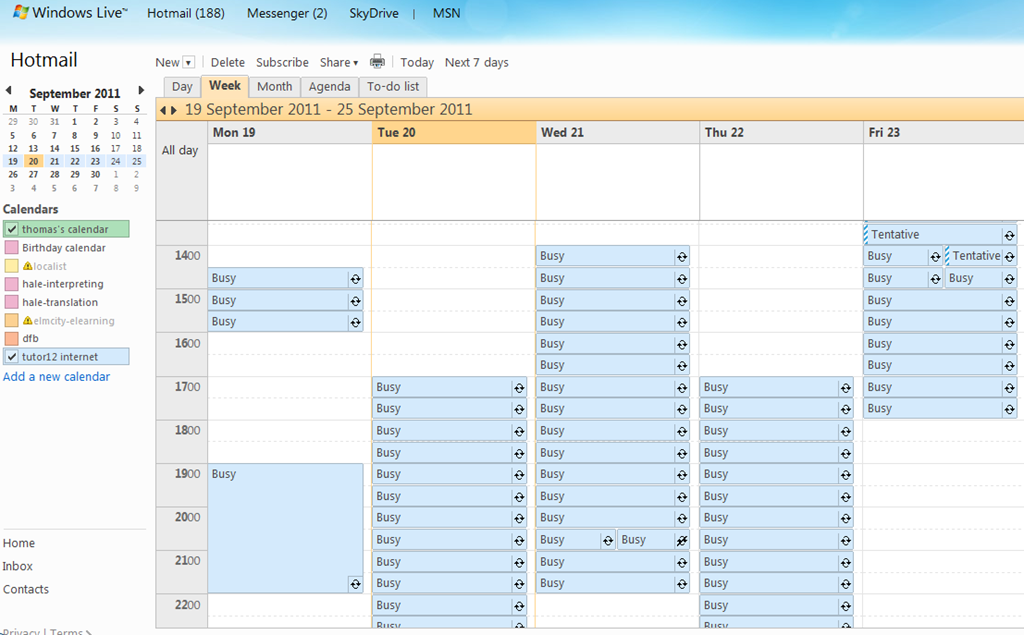
- In live@edu, this looks promising:

- To display more meaningful/less misleading subjects than “Busy” for pseudo-rooms (“offices” like LRC assistants or language tutors), add a subject (office name “LRC Assistant”or max class-level tutored).
- To have LRC assistants easily and consistently load this aggregate calendar view,
- we need to give tutors the password to uncc-lrc credentials – being “friends” not enough (which makes their own access to SkyDrive which we finally achieved yesterday useless – unless they log in as themselves and as uncc-lrc in 2 different browsers)
- However, I have not found a way to aggregate calendar ics files and display them without password (ideally in Joomla)
- Workaround: use a AutoIT auotmation script that runs when LRC Assistant logs in form the All users Startup Folder.

How not to book LRC equipment: Scheduling conflicts
- Do not send a meeting request to an item for a time when the item has a prior meeting request.
- The tab: scheduling assistant within the meeting request you edit is there to tell you when items have prior meeting requests.
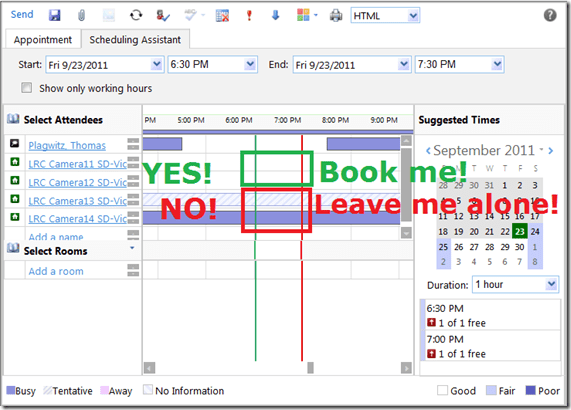
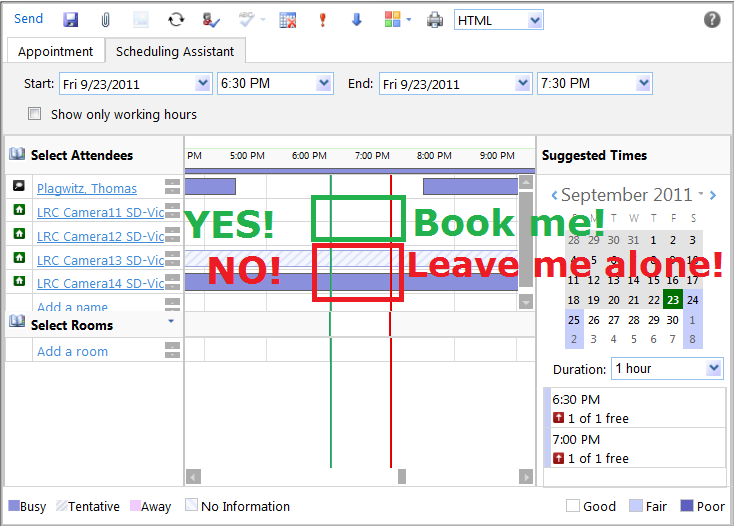
- A “blocked” timeline denotes a prior meeting request: The item has already been booked (solid block) or requested (hatched block) during the start and end time of your meeting. Do not crash their party.
- “blank” timeline means “item is free”. Go ahead: You can request a meeting with this item between your start and end time.
- Once you have this overview, you can easily remove, by right-clicking on the resource, extra resources that you cannot book or could, but which you do not need:

- Once the university has mail-enabled your cloud-accounts on campus, we will have a computer decline such conflicting requests automatically, and force you to start over with a new meeting request. It will be still worth your while memorizing the above: You can save time and avoid disappointment.

Protected: Exchange 2010 Resource Mailboxes: Running Log
LRC Outlook/Exchange 2010 Resource Calendaring: How students can view resource "Calendars from the Internet" in web browser and OWA
- Want a shorter version?
- Students, unless specifically TBA:invited, will encounter a permission problem when trying to view calendars like staff.
- Instead, students can use the scheduling assistant to view a basic version of the resource’s calendar. This works “out of the box”.
- Students can also view an advanced version of the resource’s calendars (one-time, or bookmark this link in your web browser – hope you know how to synch your bookmarks between all the devices you use…). This requires little work: click on the “view” link in the “student calendar” column of our list of LRC resources that you can book or check out, to see the current calendar in your web browser:

- For students who check the calendar of a resource regularly (e.g. to see when the LRC main classroom is available for your self-access/the tutor in your language, for help), it is better to “bookmark” the resources’ calendars in NINERMAIL. Here is how:
- Copy the URL for the calendar you just opened, from the web browser address bar:
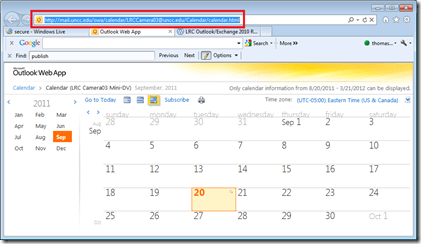
- Go to NINERMAIL, click on the lower left “Calendar-icon”
 to unfold the “My Calendars” list
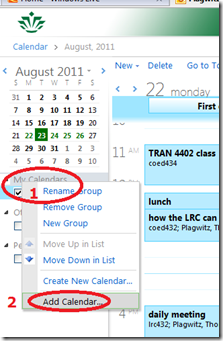
  in the left pane, then right-click on “My Calendars”, choose “Add Calendar”
 .
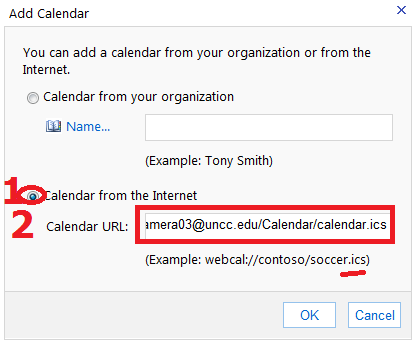
. - In the “Calendar URL” field, paste URL of the calendar you just opened, but replace “html” at the end with “ics”:
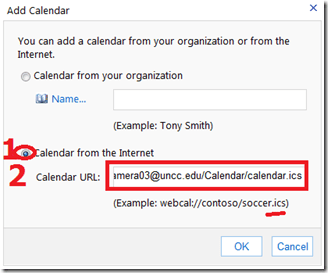 , click “OK”.
 - For on-premise users in OWA (seems OWA stirs on-premise users to the superior intranet calendars, which would be good. But what if the intranet calendar has not been shared with this user, but internet sharing is intended?), This may not work as advertised (neither with protocol http and webcal) OR just need a lot of time (~12hours?) to synchronize,
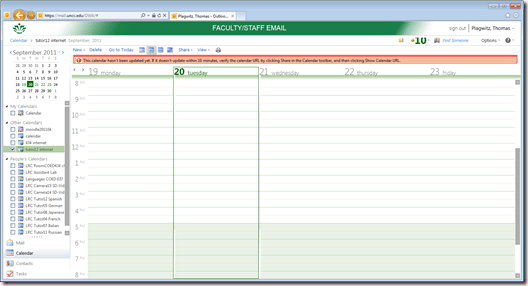 while it works (both with protocol http and webcal) when subscribing from Windows Live?
 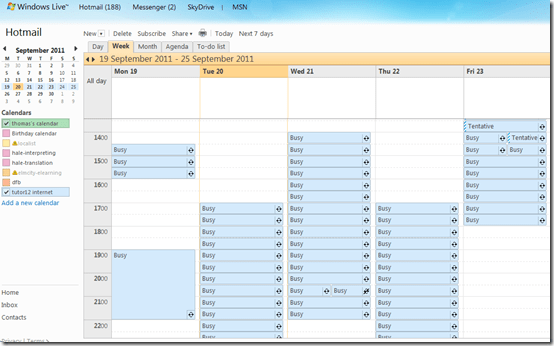 . Most importantly for us (as we have now tested), it works for students with accounts in the cloud from NINERMAI.
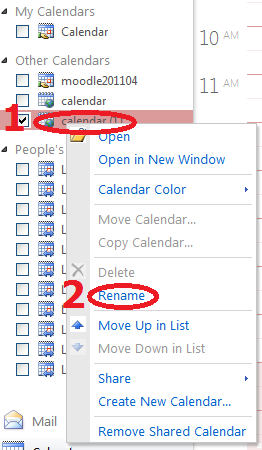
 - OWA remembers your internet calendar subscriptions, and you can easily display or hide them, using the checkboxes it provides. To keep an overview over your calendars added from the internet, you need to rename them, by right-clicking on them, like so:




Time-zone issues when creating meeting requests
Do the clouds change with the time zones you are in, or can the cloud also change your time zone?  We are seeing strange inconsistencies of time zones in meeting requests with on-premise resource mailboxes from hosted student accounts…
When students say they see the “correct” time in *their* calendar, they should verify their time zone settings. In OWA/NINERMAIL, upper right corner: Options / See All Options / left menu: Settings / top menu: Calendar / you can check your time zone. In OWA / upper right corner: Options / See All Options / left menu: Settings / top menu: Regional / bottom drop-down:, you can change your time zone, like in the last dropdown here:

From setting up calendaring infrastructure for a university using Windows Live Accounts only, I remember that users, when they manually created their accounts, failed to look at the time zone dropdown. So instead of at Greenwich time, they ended up at Pacific time which seems the default for MS products.
That’s one of the reasons why I am glad not having to use Windows Live Accounts for the enterprise anymore. Now how can time zones be not set up properly for student accounts in a hosted environment? And this time we see not only the Pacific, but also Monrovia… 
The answer seems to be: Even though large institutions may be creating 25000 accounts when they start using live@edu, there seems to be no way to set a default time zone in live@edu to where the client predominantly does business. It seems still the server time that sets the default offered to the new user on login. I could tell you a story or two why that needs fixing…


Questions? Read the About. Or just ask me a quick Our Databases: Resources with calendars -- Language learning material Moodle Sites, multimedia files -- films


FAQs for LRC student staff or for students or for teachers. To search our FAQs, in the browser addressbar, add after "https://plagwitz.wordpress.com/feed/?tag=faqs+/" "+TAG1" (from tag cloud below) OR "https://plagwitz.wordpress.com/feed/tag=faqs
&category_name=" "CAT1" (from category hierarchy below). OR search both categories and tags, and multiple TAGs/CATs (connect with "," for OR-search, with "+" for AND-search), like so: https://plagwitz.wordpress.com/feed/?tag=TAG1+TAG2+...TAGn&category_name=CAT1
+CAT2+...CATn"
Other ways to find help
If you cannot find it here, look there: 5,500 Language-Learning Links and Programs for learning or teaching 150 languages
Shortcuts:Our Lists, Our Maps, LRC Staff Moodle Site,LRC Project Moodle Site, 49erexpress, UNCC Moodle, Student Recordings: s:claslcslrcsanakostudent
Learning usage samples: Sanako oral exam, Kaltura webcam presentation, Dictation with speech recognition, Sanako written exam, Chinese and Japanese interactive stroke-order practice
Test the Sanako Installer, Webbrowser Popup Konfigurator for XP, or Windows7, faster LRC TeacherPC Log-in Let MS facilitate diacritics writing by installing for you US-International keyboard layout
This is my personal blog (Google+). The views expressed on these pages are mine alone and not those of my employer. The information in this weblog is provided “AS IS” with no warranties, and confers no rights.
 Thomas' Work Space