Archive
Posts Tagged ‘MS-Word’
How to get access to the LRC Sanako (teacher materials, student recordings) from your office or home PC
2013/05/15
1 comment
- Run the Sanako Installer (first meant for faculty offices only, but now faculty also want to have access from home, so I added that functionality).
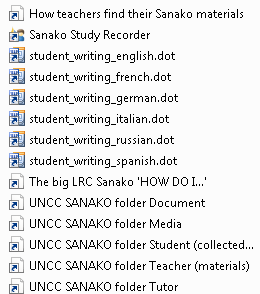
- On your office and or home PC, you get a folder “SANAKO” on your desktop. This folder will contain all you need to access student assessments from past classes or upload learning materials for future classes:
- In the office:
 : It is sufficient to click the additional “UNCC…” links at the bottom of the list .
 - At home:
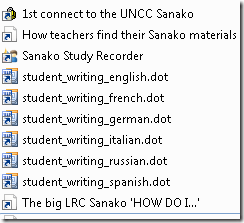
- Click “1st connect…” and log into the campus.
- Click “How teachers find…”, log in with the blog password, open the PDF, click the links in the PDF to the Sanako off-campus folders, log in again with the network credentials as shown in the PDF (sigh…).
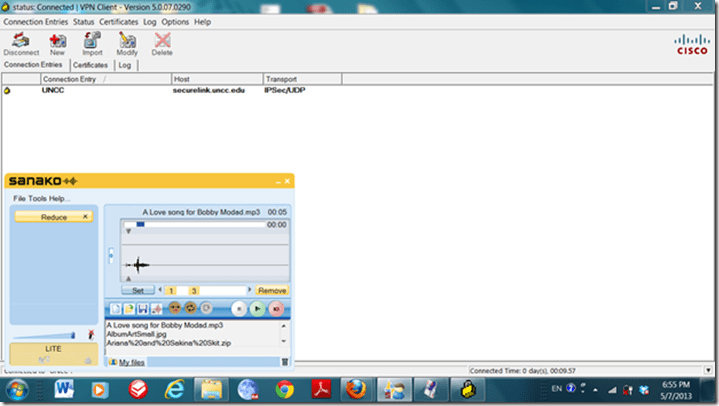
- EXAMPLE: Here you can see on a faculty home PC:
- the sanako recorder and campus connector:
- the SANAKO desktop folder shortcuts:

- You get the Word templates only if you can use them (have WORD installed – remember you can install MS-Office with your free faculty license from here).
- (No, you won’t get the “UNCC…”shortcuts at home, we simplified since.)
- the sanako recorder and campus connector:
- Both office and home:
- Drag any audio files into the Sanako study recorder window (further reading on why the Sanako study recorder is useful for teachers).
- Need to record? configure your microphone in Sanako study recorder, menu Tools.
- In the office:


Categories: audience-is-teachers, documentation, e-infrastructure, e-languages, faculty-offices, Institution-is-University-of-North-Carolina-Charlotte, service-is-configuring-learning-tools, service-is-it-managing, service-is-programming
autoit, iallt2013, MS-Word, sanako-study-1200, sanakorecorderinstall.exe, student.exe, vpn
How you can share MS-Office files via MS-OneNote instead of directly through MS-SkyDrive
2013/01/02
Leave a comment
- Simple steps:
- Drag and drop your MS-Office File to your MS-OneNote page.
- When prompted, choose to “insert a copy” (rather than merely linking the original file).

- This puts a copy of the file in the MS-OneNote folder on your local drive,
- which (file and folder) gets synched with your online (MS-SkyDrive) version,
- which, if you shared it, gets synched with the MS-OneNote folder on the local drive of the PC of the person you are sharing with,
- who, by double-clicking, can open and edit his synched local version of MS-Office file in the corresponding MS-Office application.
- Stepping back:
- Benefit: If you have a working MS-OneNote-based workflow, embedding MS-Office file can quickly extend this workflow.
- Risk: If you do not share the MS-OneNote with other editors, you should have no problem. Be aware, though, that concurrency is limited. Unlike accessing the MS-Office file in MS-Office through Office Web apps from MS-SkyDrive directly, editing the MS-Office file from MS-OneNote does not block updating the MS-Office file on remote computers – so expect synching conflicts later if you do not manage concurrency (e.g. by limiting editing sessions).

Categories: e-infrastructure, office-software
2010, MS-Excel, ms-o, ms-office, ms-onenote, MS-Word
How teachers prepare files for oral exam with Sanako Study 1200
2012/12/18
Leave a comment
- For an oral exam with visual cues (example), make a PowerPoint slideshow by
- finding images, e.g. online
- (e.g using Google image search,
- and optionally advanced search,
- and optionally filtering by clip art.
- and optionally advanced search,
- (e.g using Google image search,
- saving found images to a local folder (e.g. “my documents”),
- using them with PowerPoint’s PhotoAlbum feature
- saving the result as [your username]_[your class####]_oral-exam##.pptx.
- finding images, e.g. online
- For an oral exam with aural cues,
- if you do not have the Sanako student recorder installed on your PC yet,
- Follow the instructions here to install it for use in your office (or even at home – make sure you have access to the network share with the recordings if you want give aural feedback with insert recording)
- or come to the LRC to record where the Sanako is set up be default;
- fill out our oral exam MS-Word template (sample question included) from here (use the lower right menu download button).
-
Start the Sanako student recorder (in the LRC or on your own computer – if in need, you can borrow one of headsets in this this list),
- press the red record-button in the center right, as shown here and
- read out the MS-word template, row by row, that you just filled out.
- Once done, press the blue stop button.
- Go to Menu: file / save as/ [your username]_[your class####]_oral-exam##.mp3.
- if you do not have the Sanako student recorder installed on your PC yet,
- Normally (it is still being worked on),
- you could save all files in a special Sanako folder visible on the desktop of your office PC,
- from which I, as soon as you let me know about the files, can pick them up in my office to finalize them for delivery in the LRC and
- from which you can pick up the final version in the classroom to when administering the exam in the Sanako lab.
- Questions remain? Come to the LRC reception desk during regular business hours with this blog post to be walked through this step-by-step.
Fall 2012 Faculty Workshop II: Clinic on creating teaching materials for use with the Sanako
2012/11/22
Leave a comment
- (Being planned and scheduled, therefore this post is a work in progress, please stay tuned: ).
- As a continuation (and practical application ) of our previous Intermediate Sanako Teaching Techniques Workshop (and a repetition of our Learning material creation Clinic from the summer), we will create learning materials.
- Bring some ideas and materials. The Sanako and entire LRC infrastructure aims to lower the technical authoring requirements.
- We can record remotely, all authoring teachers at the same time, your source (model/question material) which you will be able to distribute as easily (“ loop induction”) from the Sanako teacher station. Bring some questions your students should be able to respond to in L2, and be prepared to read some text that you want them to repeat, for pronunciation practive
- We can author hand-outs for so-called “homework” (actually reading and writing, with supervision and collection by the teacher as easy as the handout): It just takes opening one of our customized LRC MS-Word templates. I will hand out (more loop induction) “homework” files to aid your work. Bring some texts and essay writing tasks
- PowerPoint exam files with visual cues: bring some ideas for vocabulary quizzes.
Categories: announcements, audience-is-teachers, digital-audio-lab, documentation, e-languages, Institution-is-University-of-North-Carolina-Charlotte, learning-usage-samples, Listening, LRCRoomCoed434, Reading, service-is-learning-materials-creation, Speaking, workshops, Writing
MS-Word, sanako-study-1200, templates
Announcing new MS-Word templates for writing assignments during face-to-face-classes in the LRC
2012/11/08
Leave a comment
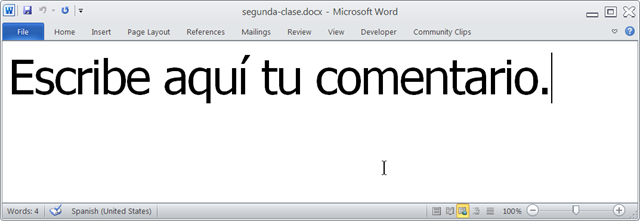
- Benefits
- MS-Word is technology that has become “transparent”for most users:
- Have teachers focus on assignment pedagogy, not authoring technology.
- Have students focus on the target language, not authoring technology.
- Document is protected (for restricting formatting to predefined Word-styles):
- Have students focus on form or content, but not on distracting formatting issues.
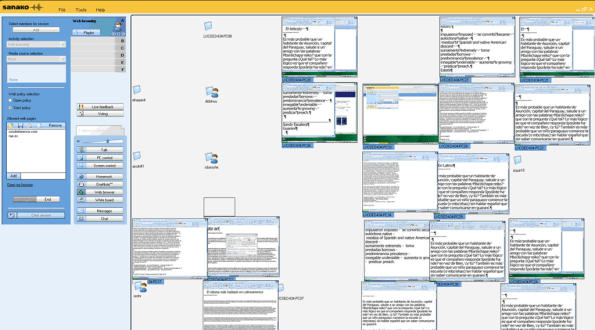
- Styles are designed to facilitate teacher monitoring students’ work using Sanako screensharing, like so:
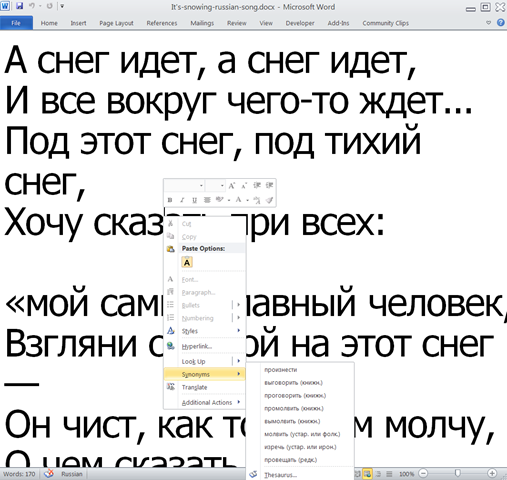
- Take advantage of MS-Office Proofing tools (templates are preset for your target language).
- Take advantage of easy assignment file management with Sanako homework activity.
- Take advantage of internet lookup process, especially pedagogical if you combine with Sanako controlled-web-browsing activity
- MS-Word is technology that has become “transparent”for most users:
- Requirements:
- Teacher
- The easiest is to save the writing template for your language in C:\Program Files\Microsoft Office\Templates\1033 (or if your run 32-bit MS-Word on a 64-bit Windows, C:\Program Files (x86)\Microsoft Office\Templates\1033)
- Then base your writing assignment document on the template (e.g. by double-clicking the template in the folder you saved it to).
- Then save your writing assignment to your class material folder on the Sanako network share (from the office or in the LRC).
- In class, launch the Sanako homework activity.
- Student: none other than downloading and submitting the Sanako homework.

- Teacher
Categories: announcements, audience-is-teachers, classroom-management-system, e-languages, office-software, Presenter-Computer, service-is-configuring-learning-tools, service-is-learning-materials-creation, service-is-programming, Student-Computers, Writing
homework-activity, MS-Word, sanako-study-1200, screensharing, templates, trpStudentWriting, web-browsing-activity
How teachers can use MS-Word Mail merge with filtering and if-then-else to quickly provide personalized feedback based to students depending on grade
2012/10/18
Leave a comment
- Intelligence is adaptation to feedback. Providing personalized feedback to students depending on their performance could make student development much more successful.
- Intelligence is expensive. How can the teacher provide personalized feedback time-efficiently? Likely by blending artificial intelligence with her own.
- Sounds like Sci-fi? A great practical example, using existing familiar IT infrastructure, you can find here: MS-Word’s (2010; 2007 works the same) mail merge feature, on the basis of a downloaded Moodle gradebook with student results, can customize semi-automatically your reusable feedback email message template to individual recipient’s performance and needs:
- Step-by-step instructions: http://teaching.uncc.edu/moodle/grade-book/how-to/using-mail-merge-grade-book.
- Screencast of the webinar instruction: http://mt202.sabameeting.com/SiteRoots/main/User/GuestAttend.jhtml?pb=true&s_guid=0000018151460000013a0a22cfb39443&domain=/Customers/uncc&domain=/
Categories: audience-is-teachers, e-learning, grading, lms, office-software, Screencasts, step-by-step-guides
MS-Word
Protected: How to show the Developer Tab in the MS-Word 2007/2010 Ribbon
2012/10/04
Enter your password to view comments.
Categories: audience-is-teachers, documentation, office-software, Writing
2007, 2010, developer-tab, MS-Word
More ways of making minor changes to a domain-joined, deepfrozen computer lab image
2012/09/21
Leave a comment
- Re-imaging a domain-joined, deep-frozen Windows XP language lab using Symantec Ghost and Deepfreeze can be a drawn-out process.
- Minor fixes can be achieved by unfreezing and using a Symantec-Ghost file task and a script that loads the default user registry hive – here is how:
-
sTempHive = """HKEY_USERS\Test"""
'//vista and up: sDefaultUserHive = """%USERPROFILE%\..\Default\NTUSER.DAT"""sDefaultUserHive = """%USERPROFILE%\..\Default User\NTUSER.DAT"""
sSName = oUtility.ScriptName
set oShell = WScript.CreateObject ("Wscript.Shell")
- and alters it before freezing the lab again. Here are some examples of such fixes:
- change the default keyboard (after users logs in):
oLogging.CreateEntry sSName & ": Setting US-International as Default Keyboard Layout",LogTypeInfoRegPath = "HKEY_USERS\Test\Keyboard Layout\Substitutes\"oshell.RegWrite Regpath & "00000409", "00020409", "REG_SZ"
If Err<>0 Then
oLogging.CreateEntry sSName & ": Failed to update Default Keyboard Layout setting",LogTypeErrorZTIProcess=60
Exit Function
End If
- change visibility of the developer tab in the ribbon of MS-Word:
oLogging.CreateEntry sSName & ": Setting MS-Word Developer Toolbar to show",LogTypeInfoRegPath = "HKEY_USERS\Test\Software\Microsoft\Office\14.0\Word\Options\"oshell.RegWrite Regpath & "DeveloperTools", "1", "REG_SZ"
If Err<>0 Then
oLogging.CreateEntry sSName & ": Failed to update S-word developer tools settings",LogTypeErrorZTIProcess=40
Exit Function
End If
- change the SDL-Trados licensing server IP:
oLogging.CreateEntry sSName & ": Setting Default User Trados license server",LogTypeInfoRegPath = "HKEY_USERS\Test\Software\Trados\Shared\Licence"oshell.RegWrite Regpath & "Licence_file", "27000@10.18.189.231", "REG_SZ"
If Err<>0 Then
oLogging.CreateEntry sSName & ": Failed to update Default User Trados license server setting",LogTypeErrorZTIProcess=35
Exit Function
End If
oLogging.CreateEntry sSName & ": Setting Default User Screensaver timeout settings",LogTypeInfoRegPath = "HKEY_LOCAL_MACHINE\SOFTWARE\FLEXlm License Manager"oshell.RegWrite Regpath & "Trados_License_File", "27000@10.18.189.231;27000@xlcs4sbynj1www", "REG_SZ"
If Err<>0 Then
oLogging.CreateEntry sSName & ": Failed to update Screensaver to timeout settings",LogTypeErrorZTIProcess=30
Exit Function
End If
- change the default keyboard (after users logs in):
- On Ghost:
- We create a Ghost file task that points to the wsf file with the current changes we want to implement:

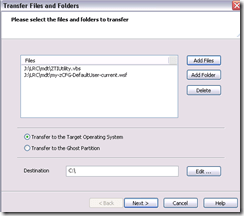
 To apply other changes, just change the filename of your script , e.g.:
- to apply to other computers, just change the target in the ghost task.
- Output:

- These scripts use the ZTIUtility.vbs from the MDT.
- You may have to update the location: <script language="VBScript" src="ZTIUtility.vbs"/>.
- For a while, the logging success made me believe I I had accessed the ntuser.dat and had run into registry permission settings loading it. In fact, I just did not resolve to the XP path of the ntuser.dat. Take advantage of the the logging facilities that come with MDT: Here are your logs on the client:
 .
. - Read the logs with TRACE32, part of the SMS 2003 Toolkit 2.
- Result: Provided the client has been cleanly frozen, and the domain user has no profile created before on this machine, and his profile is based on the altered default user profile, his HKCU will inherit the changes:







Questions? Read the About. Or just ask me a quick Our Databases: Resources with calendars -- Language learning material Moodle Sites, multimedia files -- films


FAQs for LRC student staff or for students or for teachers. To search our FAQs, in the browser addressbar, add after "https://plagwitz.wordpress.com/feed/?tag=faqs+/" "+TAG1" (from tag cloud below) OR "https://plagwitz.wordpress.com/feed/tag=faqs
&category_name=" "CAT1" (from category hierarchy below). OR search both categories and tags, and multiple TAGs/CATs (connect with "," for OR-search, with "+" for AND-search), like so: https://plagwitz.wordpress.com/feed/?tag=TAG1+TAG2+...TAGn&category_name=CAT1
+CAT2+...CATn"
Other ways to find help
If you cannot find it here, look there: 5,500 Language-Learning Links and Programs for learning or teaching 150 languages
Shortcuts:Our Lists, Our Maps, LRC Staff Moodle Site,LRC Project Moodle Site, 49erexpress, UNCC Moodle, Student Recordings: s:claslcslrcsanakostudent
Learning usage samples: Sanako oral exam, Kaltura webcam presentation, Dictation with speech recognition, Sanako written exam, Chinese and Japanese interactive stroke-order practice
Test the Sanako Installer, Webbrowser Popup Konfigurator for XP, or Windows7, faster LRC TeacherPC Log-in Let MS facilitate diacritics writing by installing for you US-International keyboard layout
This is my personal blog (Google+). The views expressed on these pages are mine alone and not those of my employer. The information in this weblog is provided “AS IS” with no warranties, and confers no rights.
 Thomas' Work Space