Archive
Has the “text effects” cheese been moved only in Word 2013 styles?
Used to have its own separate button – don’t despair, it is still there, now under the “Format” button:

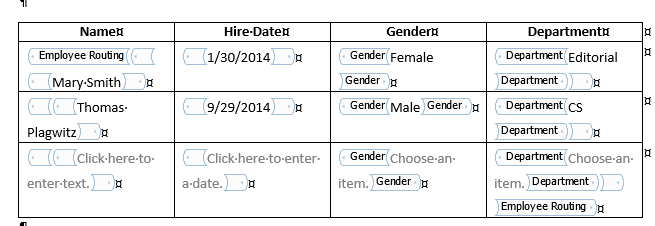
We can nest controls in repeating content controls, including repeating content controls
- Just saying, since it seems not easy to find within web search results the ones that nest nesting….
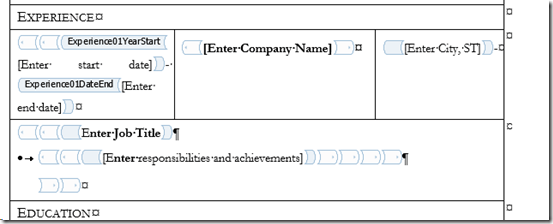

- Have not tried accessing the results in OpenXML yet which will have to be done via the control ID
- since repeating:

- does not autoincrement the titles and tags.

- since repeating:


MS-OneDrive “Get link” incompatible with MS-Word “Always create backup copy”, use MS-OneDrive versioning instead
- Symptoms:
- If I edit my local MS-OneDrive copy with MS-Word, my collaborators lose access to the most recent copy via the link I shared with them.
- Worse, the new file MS-Word generates when the backup is created, won’t get automatically synched with MS-OneDrive, and no sync error seems to get flagged in Explorer.
- Root cause (presumably):
- When saving in MS-Word, I can see my focus moving to the backup file

- MS-Word, when creating a backup of the original file, actually rather creates a “fore-up”: The original file gets renamed (“Backup of…”) and the recent changes get copied into a new file.
- The MS-OneDrive link keeps pointing to the old file “Backup of…”, “when after (which one can see normally, if the user renames a file manually, is a desirable feature)
- Workaround: I managed to manually upload the files that got out off synch.
- When saving in MS-Word, I can see my focus moving to the backup file
- Solution:
- Turn MS-Word backup off, it is not compatible with MS-OneDrive under File / Options /Advanced / section: Save:

- Rather, rely on the MS-OneDrive versioning.
- Turn MS-Word backup off, it is not compatible with MS-OneDrive under File / Options /Advanced / section: Save:


How to install and use a free dictionary/encyclopedia app in MS-Word 2013
Installing is easy (our example is Wikipedia): Right-click a word, pick “define” from the context menu, the click download in the side pane for the app you choose.

Usage is also easy: To look up phrases, select, right-click and choose define: 
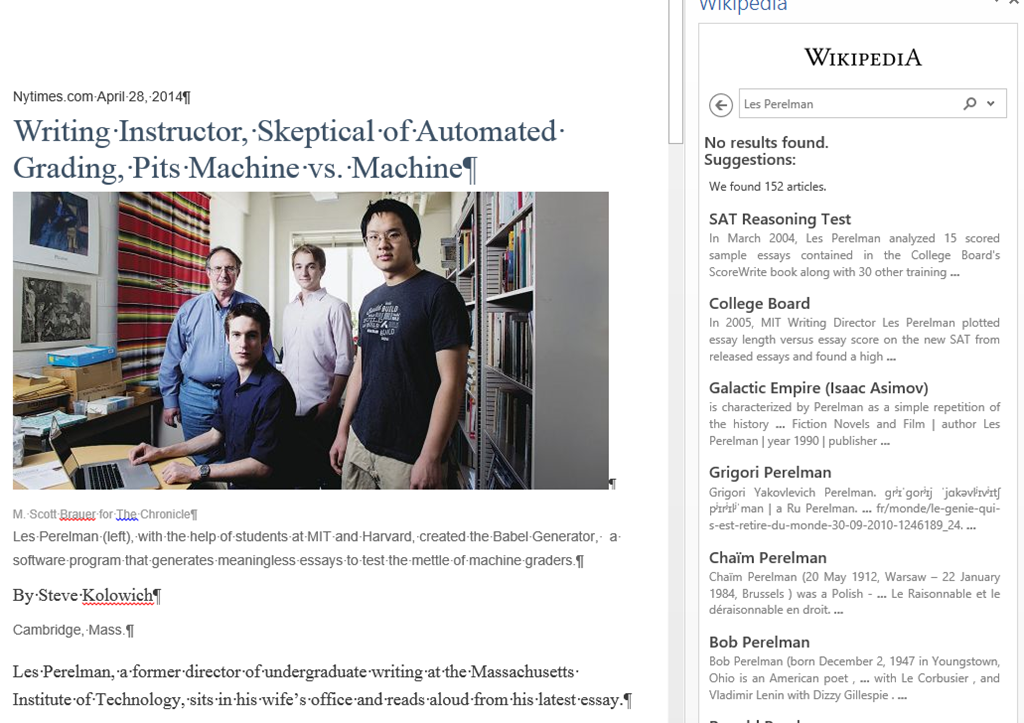
To look up individual words, you can also just double-click the word: 
You can also click “Expand”: 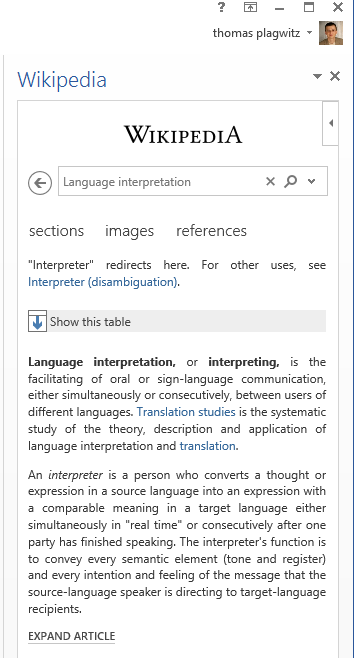
To install more dictionaries after the first one, click Insert / Apps for Office. 

You can search for your L2 (too many to list): 
It works for base forms: 
But I cannot lemmatize (ouch): 
I found out that when I go to Insert/ My Apps/ See all :  , I can show more than one app in the side pane.
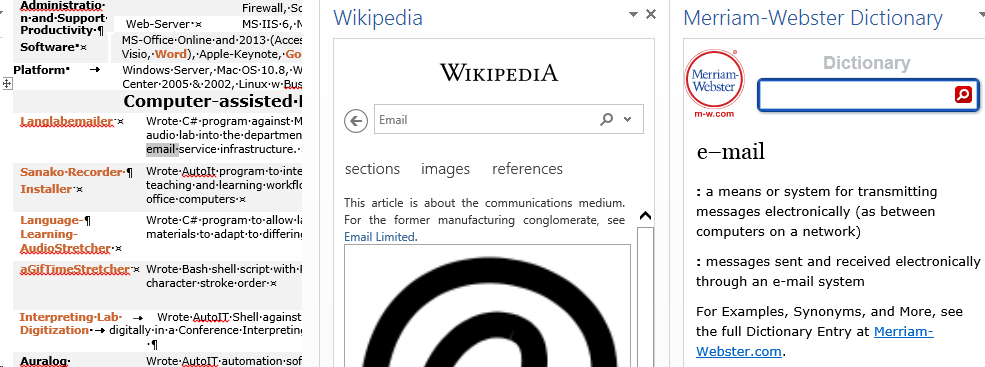
However,how o I change the default lookup that happens on double click on a word?
Example 5: Watch how you can dictate to Windows speech-recognition (e.g. in English) and correct results in MS-Word

- Important: Listen carefully: I am not a native speaker, but have a reasonably low amount of errors, because it enunciate, speak clearly and slowly, and separate the words.
- Consider it part of the exercise that you will have to re-read and re-type some your output – use track changes in MS-Word:
- Make it a game: How good can you get?
- If you get really good at it, make a screencast like this one and include it in your Mahara ePortfolio as authentic evidence of your foreign language proficiency.
- Overall, it’s like how I refer to cycling: Beats walking. Anytime.

Code documentation for a quiz template based on MS-Word
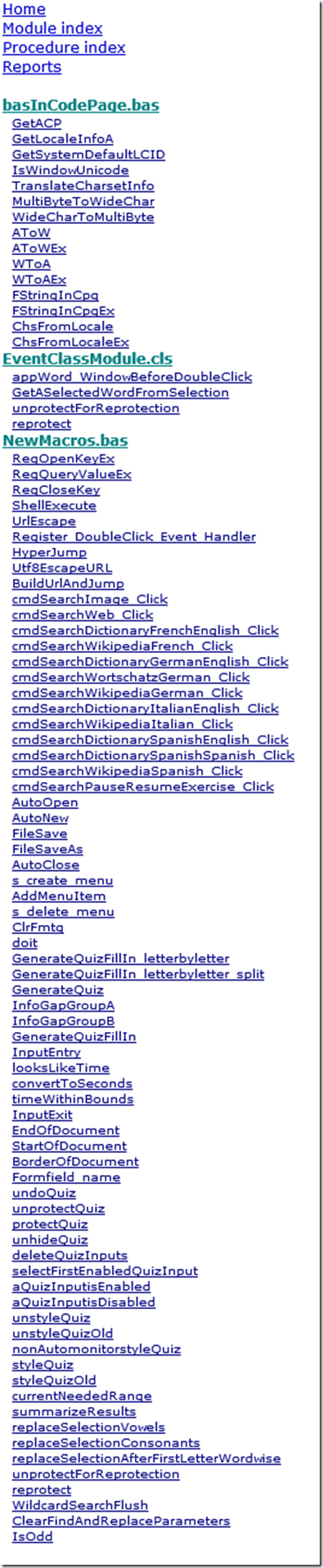
- trpQuizGenerator allows for using simple markup (view training here) to produce cloze quizzes in large fonts, for easy screen sharing through the face-to-face classroom management system (see samples of quizzes based on this template here.)
- Click the table of contents below to browse the VBA documentation built with Aivosto.
How to compare two MS-Word documents for plagiarism detection
- You could start with the document properties
- some students leave even the author and editing time in. However, author does not prove any wrong doing, a student may have borrowed a laptop, including its MS-word installation, to author a document and submit it
- It may actually be more of an indicator of something illicit if document properties are empty.
- Students have likely used the “Document inspector”:
- (1): File / (2) Info, (3) view the properties (this document looks like it had its privacy information removed), you can use (4) to view even more.
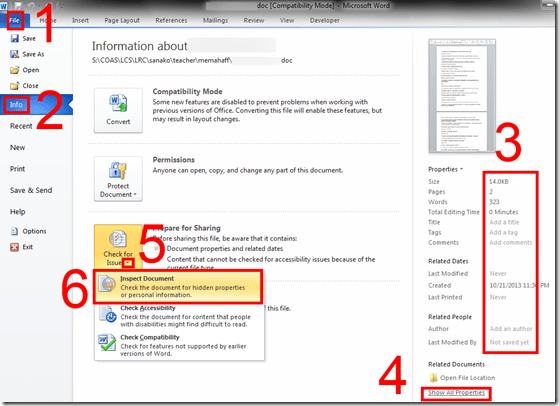
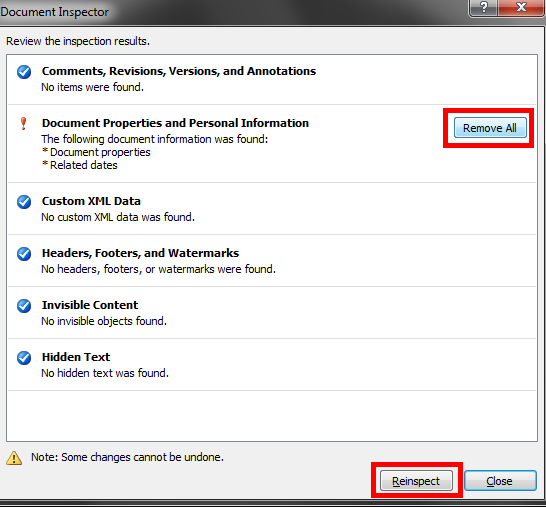
- to remove all privacy relevant information, like so: (5) unfold “check for issues”, (6) “inspect document””,
- in the window: “document inspector”, click
 , you will be given the option to “remove all”personal information:
- (1): File / (2) Info, (3) view the properties (this document looks like it had its privacy information removed), you can use (4) to view even more.
- However, removing personal information can be perfectly legitimate, unless something else was assigned. And it does not help plagiarizers cover their tracks anyway, for…
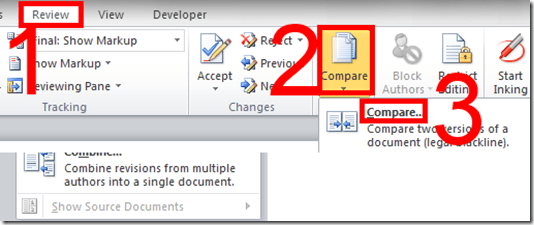
- …there is the more substantial “compare” documents feature which (even though it was developed for the legal profession, as blackline) tracks what really counts: content changes.
- Access it form the ribbon’s “review” tab:
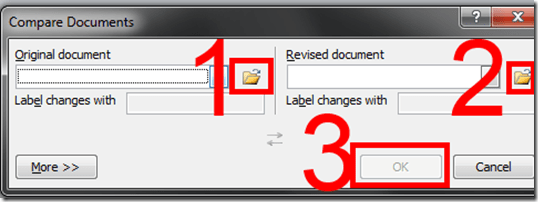
- point the tool to your 2 documents:
- make your life easier by selecting on the “review” tab to view only content changes (formatting comparisons is noise for plagiarism detection):

- You get a handy (here blurred, but still demonstrating the amount of similarity (=black), compared with changes (= blue), between the 2 documents ) overview of (from the left)
- list of changes
- view of changes in a merged document (which you can save)
- original document
- secondary (likely plagiarized) document:

- The feature is nice, but only moderately intelligent (see the first match, I would obviously not count that as substantially different) and best used with discretion, to make it easier for a teacher to decide how likely it is that these similarities are accidental.
- In this instance, even if the teacher questions are not counted, it seems obvious that only minor alterations were made to the original document and many responses, including quite lengthy sentences, are entirely the same.
- While this *is* an instructional use, you can find happier instructional uses of MS-Word’s reviewing/tracking changes feature here.
- Access it form the ribbon’s “review” tab:





Questions? Read the About. Or just ask me a quick Our Databases: Resources with calendars -- Language learning material Moodle Sites, multimedia files -- films


FAQs for LRC student staff or for students or for teachers. To search our FAQs, in the browser addressbar, add after "https://plagwitz.wordpress.com/feed/?tag=faqs+/" "+TAG1" (from tag cloud below) OR "https://plagwitz.wordpress.com/feed/tag=faqs
&category_name=" "CAT1" (from category hierarchy below). OR search both categories and tags, and multiple TAGs/CATs (connect with "," for OR-search, with "+" for AND-search), like so: https://plagwitz.wordpress.com/feed/?tag=TAG1+TAG2+...TAGn&category_name=CAT1
+CAT2+...CATn"
Other ways to find help
If you cannot find it here, look there: 5,500 Language-Learning Links and Programs for learning or teaching 150 languages
Shortcuts:Our Lists, Our Maps, LRC Staff Moodle Site,LRC Project Moodle Site, 49erexpress, UNCC Moodle, Student Recordings: s:claslcslrcsanakostudent
Learning usage samples: Sanako oral exam, Kaltura webcam presentation, Dictation with speech recognition, Sanako written exam, Chinese and Japanese interactive stroke-order practice
Test the Sanako Installer, Webbrowser Popup Konfigurator for XP, or Windows7, faster LRC TeacherPC Log-in Let MS facilitate diacritics writing by installing for you US-International keyboard layout
This is my personal blog (Google+). The views expressed on these pages are mine alone and not those of my employer. The information in this weblog is provided “AS IS” with no warranties, and confers no rights.
 Thomas' Work Space

How to get Square brackets (and hide comments) with ISO690 in Word 2013 bibliography styles
<!– trp: –>
[
–>
ISO 690YOURNAMEHERE