Archive
How can I configure my PC to write in Arabic
- In Windows past XP, you can just choose – without first installing support for Right-to-left languages – by pressing +R, typing ïntl.cpl”, clicking ”OK”, clicking ”keyboards and languages”and “change keyboard”.
- An Arabic keyboard layout that is commonly preferred by Westerners (closer to the phonetic layout of the keyboard) is a separate download: https://thomasplagwitz.com/2013/01/06/imrans-phonetic-keyboard-for-arabic/
- A transliterating IME (type on a Western keyboard sounds as you speak, pick suggestions in Arabic letters from a dropdown menu).
- Popular choices are Google Input Arabic: http://www.google.com/inputtools/windows/
- Microsoft Maren: offers more, also morphological analysis. Transliteration tool is linked at the bottom of this post: https://thomasplagwitz.com/2011/06/09/ms-maren-morph-helps-read-arabic-web-pages/ .
"Server busy” error?
- This dialogue appears regularly on student log in:
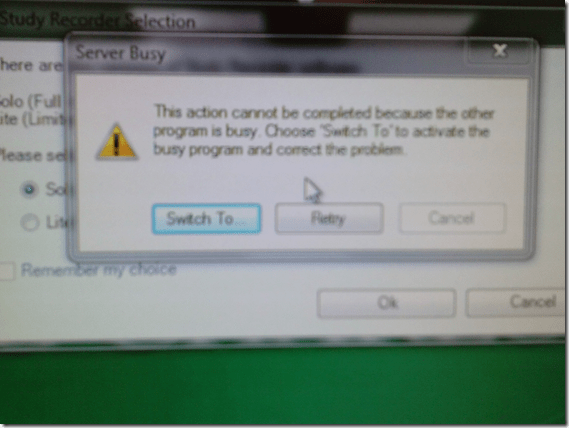
- Update: This seems to have disappeared in the 2nd half of the term.
How to have Microsoft add US-International keyboard layout shortcuts for you automatically
Add the United States-International keyboard layout (Microsoft Fix it 50558). Saves you reading and following the rest of the instructions here: http://support.microsoft.com/kb/306560.
Save 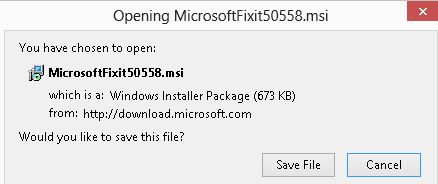 ,open:
  and agree:
 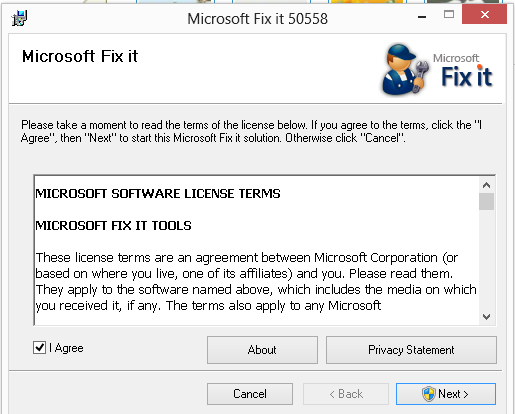 .
.
You will get:
International.
| Press this key | Then press this key | Resulting character |
| ‘(APOSTROPHE) | c, e, y, u, i, o, a | ç, é, ý, ú, í, ó, á |
| "(QUOTATION MARK) | e, y, u, i, o, a | ë, ÿ, ü, ï, ö, ä |
| `(ACCENT GRAVE) | e, u, i, o, a | è, ù, ì, ò, à |
| ~(TILDE) | o, n, a | õ, ñ, ã |
| ^(CARET) | e, u, i, o, a | ê, û, î, ô, â |
For Windows 7, in Windows Vista, and Windows XP. Finally, view this if you are still on Windows 3.1. 
Which browser and operating system we could get which Moodle Kaltura webcam assignments to work in
Below please find our current (work in progress) test matrix. Use one of the combinations that worked (“YES”) to avoid problems when taking or grading webcam assignments (or come to the LRC where we set up a working combination). You can view your version of the Kaltura video player and of Adobe Flash by right-clicking on the Kaltura video window.
Protected: How you can speed up log-in on the LRC teacher computer at the beginning of your class
New keyboard shortcuts for diacritics on LRC Teacher PC
- The US international keyboard layout that has come with MS-Windows for many years (though – except in the LRC – not set as default, you need to enable it in the control panel) greatly facilitates typing of characters for most languages that use Roman script with common diacritical marks, but does not cover Pinyin and similar diacritical marks.
- Carly from Carleton, as avid a language teacher as a technologist, had the great idea to extend Microsoft’s US-international keyboard so as to include all the Pinyin tone marks (and other accents useful for linguists). Here is the upshot, extracted from her instructions, but excluding what (either shortcut or (use of common accents within Pinyin is now covered also below) purpose) has not changed from the shortcuts of the non-extended US-international keyboard that used to be the default in the LRC:
-
What you want Which keys you press (before comma is “dead” key = no result until after next key) Example acute accent, pinyin 2nd tone
‘(=apostrophe), vowel
á é í ó ú
grave accent, pinyin 4th tone
`(=grave), vowel
à è ì ò ù
macron accent, pinyin 1st tone
hyphen, vowel
ā ē ī ō ū
pinyin 3rd tone
%(=shift+5), vowel
e.g. ǎ ě ǐ ǒ ǔ
ü with pinyin tones
Accent, double-quote
e.g. ǖ ǘ ǚ ǜ
letter with dot below
; (=shift+period), letter
e.g.

letter with double acute
: (=shift+;) , o or u
ő, ű, Ő, Ű
- We are offering the extended US-international keyboard this as an optional keyboard on the teacher and student PCs with Windows 7.
- To select the new keyboard layout, use the language toolbar, click on 2nd option:
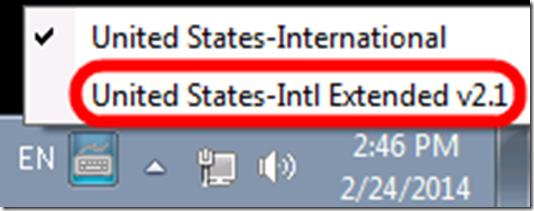
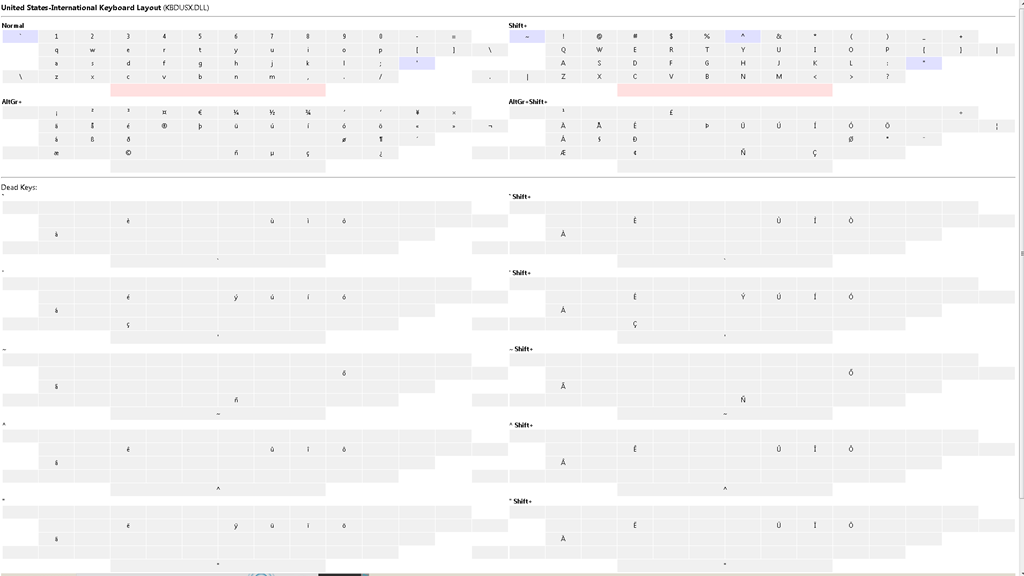
- To explore the new keyboard layout use the Windows On-screen keyboard which will let you peek ahead after your pressed a dead key.
- To bypass a special dead key (= get the normal behavior of the key), press SPACE after it.

Does the Sanako Study 1200 tutor set the input language to Chinese (traditional)?
- Or why is my input language set to Chinese after the Sanako tutor install:

- Unclear whether the tutor install has an effect on the default language, but we observed this problem earlier on an XP computer that also had the Sanako study 1200 tutor.

Character Input Methods for SLA (Western)
For studying (typing) Western Languages (= need for diacritics only; whether you have a US keyboard hardware or UK which is pretty similar), we recommend the MS Windows US International Keyboard layout which is based on “dead keys”.
Currently installed in the LLC are the Language Bar (floating on top of screen or accessible from the taskbar) with these keyboard layouts:
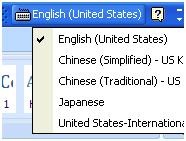
Keyboard layout settings are application/window specific, and “US” (non-international) is still the default for new applications/windows, so prepare to switch after you start a new application;
There are keyboard shortcuts for switching, however, “Key settings”: “switch between input languages” , using LEFT ALT + SHIFT, does not work. Workaround: use the language bar for switching:
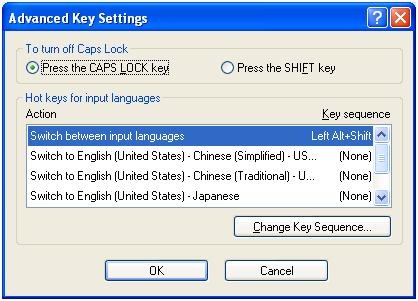
Windows keyboard layout settings can be temperamental – if you find you cannot switch to a certain layout anymore, you may have to restart the computer.
Use the following keyboard shortcuts to enter diacritics more easily:
|
Press (together, then release) |
then press |
Example Result |
|
` (accent grave) |
any letter that can have this accent, e.g. "a”, also cedilla ç |
à |
|
‘ (apostrophe) |
á |
|
|
^ (caret)- |
â |
|
|
~ (tilde) |
ã |
|
|
” (double quotation marks) |
ä |
|
|
CTRL+& |
Z or z |
æ |
|
rightALT+ |
X or x |
œ |
|
rightAlt+n |
|
ñ |
|
ALT+CTRL+? |
|
¿ |
|
rightAlt+? |
|
|
|
ALT+CTRL+! |
|
¡ |
|
rightAlt+1 |
|
|
|
rightAlt+s |
S |
ß |
To access the original, now dead keys, press space bar after pressing the dead key.
|
Modifiers(blue)/Layout |
Note the new modifier = “dead” keys, indicated by light blue color (click to enlarge) |
|
Normal |
|
|
|
|
|
Shift |
|
|
|
US International |
|
|
|
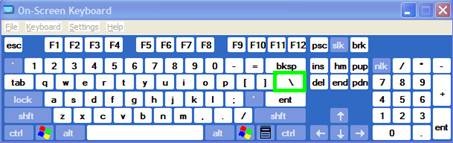
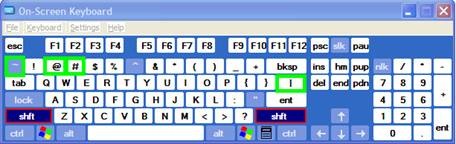
Screencast of US International in action here: deadkeys.wmv
Interactive Demo of installation procedure (personal computers outside of the LLC) here: keyboard_usinternational.swf
Planned improvements:
- Use LEFT ALT+Shift to switch to (Software) “Keyboard Layout” “United-States International”.
- Use other keyboard short cuts to access a desired keyboard layout directly
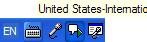
- Dock the “Language Bar” in the Taskbar, then hover over it to make sure you selected the proper “Keyboard Layout”.
· 


Questions? Read the About. Or just ask me a quick Our Databases: Resources with calendars -- Language learning material Moodle Sites, multimedia files -- films


FAQs for LRC student staff or for students or for teachers. To search our FAQs, in the browser addressbar, add after "https://plagwitz.wordpress.com/feed/?tag=faqs+/" "+TAG1" (from tag cloud below) OR "https://plagwitz.wordpress.com/feed/tag=faqs
&category_name=" "CAT1" (from category hierarchy below). OR search both categories and tags, and multiple TAGs/CATs (connect with "," for OR-search, with "+" for AND-search), like so: https://plagwitz.wordpress.com/feed/?tag=TAG1+TAG2+...TAGn&category_name=CAT1
+CAT2+...CATn"
Other ways to find help
If you cannot find it here, look there: 5,500 Language-Learning Links and Programs for learning or teaching 150 languages
Shortcuts:Our Lists, Our Maps, LRC Staff Moodle Site,LRC Project Moodle Site, 49erexpress, UNCC Moodle, Student Recordings: s:claslcslrcsanakostudent
Learning usage samples: Sanako oral exam, Kaltura webcam presentation, Dictation with speech recognition, Sanako written exam, Chinese and Japanese interactive stroke-order practice
Test the Sanako Installer, Webbrowser Popup Konfigurator for XP, or Windows7, faster LRC TeacherPC Log-in Let MS facilitate diacritics writing by installing for you US-International keyboard layout
This is my personal blog (Google+). The views expressed on these pages are mine alone and not those of my employer. The information in this weblog is provided “AS IS” with no warranties, and confers no rights.
 Thomas' Work Space