Archive
Posts Tagged ‘ms-outlook’
ICS corruption in Moodle calendar events?
2012/11/28
Leave a comment
- I am seeing once again a large number of events loaded as internet calendar into MS-Outlook via an iCal link default to the same day:

- This time the iCal sources is Moodle, but it also displays the iCal feed internally so:

- I observed a similar issue when loading certain Drupal calendars into MS-Outlook, only that
- it seems to have affected only certain sites on the same (?) Drupal instance (is this user input error?)
- Events defaulted to the current day in MS-Outlook – the Moodle issue does not.
- All events were effected – not so in this Moodle issue.


Categories: documentation, Glitches&Errors, lms
calendaring, drupal, ical, moodle, ms-outlook
How to stay up to date by receiving RSS like email newsletters in MS-Outlook– explained in a single screenshot
2012/10/10
Leave a comment


How to load the university Drupal calendars into your favorite calendar application
2012/04/26
Leave a comment
- If you go to our university calendar webpages, you may see

- a top menu allowing you to select either Year,Month,Week, or Day
- a bottom right corner calendar icon (why not the well established ics icon?) which, changing with the view you selected, points to the same (directory) link as the views, but resolves to an ICS file when clicked in your browser
- The default action on click is an open/save option: either way, AFAIK, you will download and point your desktop calendar application (e.g. MS-Outlook) to this file. Even if you do this only per year, this is not only tedious, but the hope that nothing will change in the course of things seems futile.
- The best way that I have found to make this a live calendar subscription is this: in your ICS-compatible calendar application, where it asks you for the calendar URL, load one of the links provided under the calendar icon, e.g. that for the year. But before clicking “OK”, remove anything (= any filter) after “ical” portion of the link.
- In MS-Outlook, this procedure looks like this:

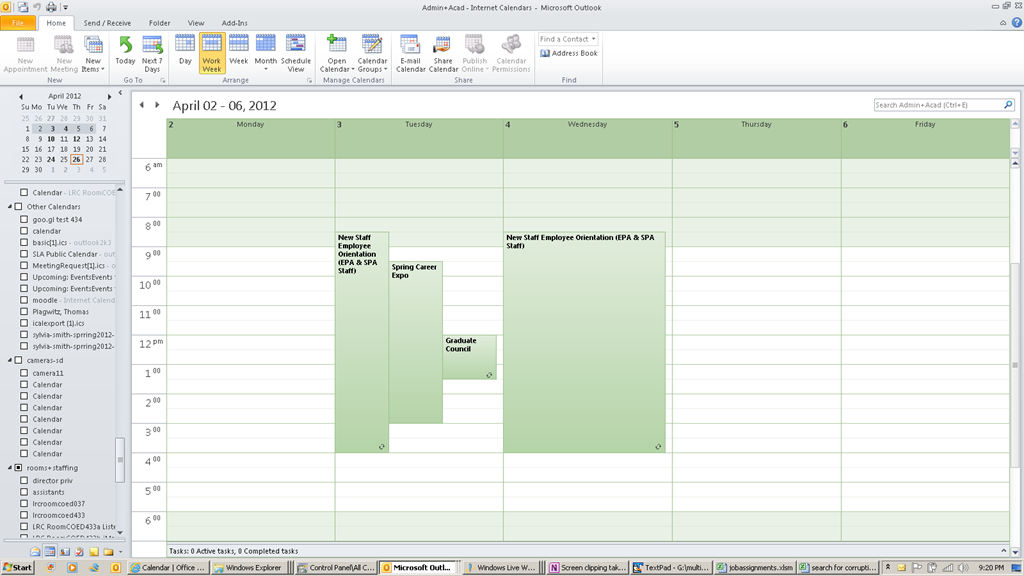
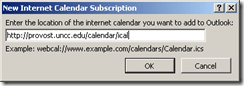 , and the result looks like this: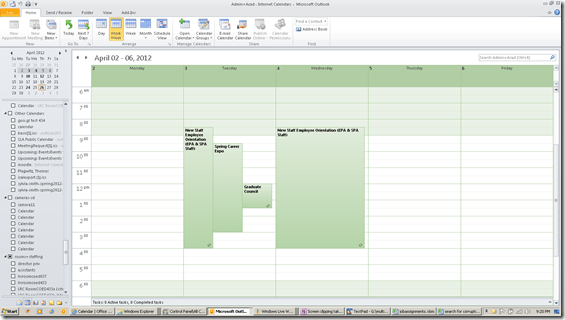
- If you open the downloadable ICS, an open it (mental note: are there other iCAL readers to examine the data, short of loading the calendar into your desktop, phone or cloud calendar software?) you will notice that these calendars are a Drupal-based offering: “PRODID:-//Drupal iCal API//EN”
- Sample Links
- Calendar examples for your web browser: http://provost.uncc.edu/calendar, http://registrar.uncc.edu/calendar
- Calendar year ICS examples for your calendar reader: http://provost.uncc.edu/calendar/ical/2012, http://registrar.uncc.edu/calendar/ical/2012
- The provost’s calendar includes the registrar’s calendar: Administrative and Academic. the color-coding will be lost in translation when loading via ICS. I have not found a way to load the Administrative calendar separately, to use my calendar application to manage the coloring.
- Are there more calendar pages that are of general interest?


Protected: New resources mailboxes not visible in the GAL for student accounts in live@edu?
2012/02/09
Enter your password to view comments.
Categories: audience-is-IT-staff, e-infrastructure, Glitches&Errors
2007, 2010, 2011, calendaring, gal, ms-exchange, ms-outlook, publishing, resources, scheduling
Protected: live@edu Resource mailboxes not autoaccepting when requested from cloud?
2012/02/07
Enter your password to view comments.
Categories: audience-is-IT-staff, e-infrastructure, Reception-desk
2007, 2010, 2011, autoaccept-agent, calendaring, live@edu, ms-exchange, ms-outlook, resources, scheduling
Sharing vs. subscribing to Calendars in OWA/Ninermail
2012/02/02
Leave a comment
- Why does this matter? Different information may be visible to you, especially shared calendars can display more sensitive information than internet published calendars.
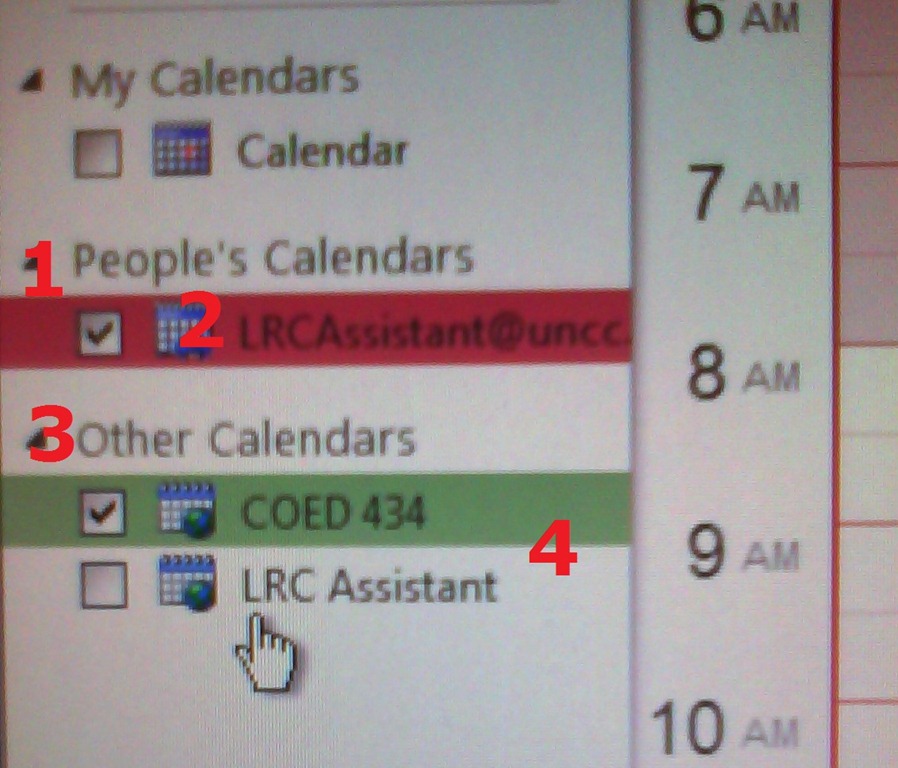
- How can I tell the difference? Apart from the amount of information that gets displayed to you, different calendar types appear :
- in a different place:
- Shared calendars appear under (1) heading “people” (even if it is a room or other resource),
- subscribed calendars under (3) heading “Other Calendars”
- with a different type of name:
- Shared calendars have as name the email address (2) “@uncc.edu”
- subscribed calendars have as default name only “calendar”. Only if you rename the calendar, it has a meaningful identifier, like was done here (4)
- in a different place:

LRC Outlook/Exchange 2010 Resource Calendaring: How to alter meeting times in OWA
2012/01/23
Leave a comment
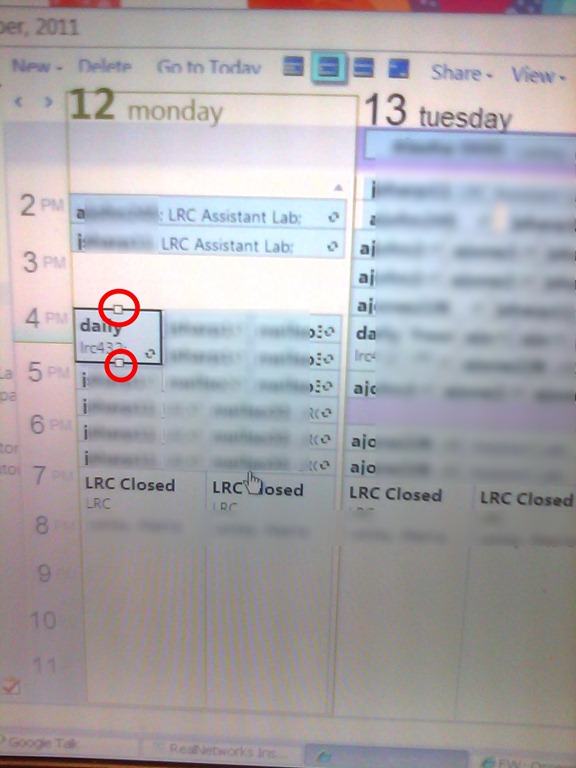
- If you are the meeting organizer (you initiated the meeting request), in your NINERMAIL/OWA calendar, just click on the meeting and drag the meeting start and/or end time with your left mouse button in the desired new location (works like in Outlook), and send updates (this will not affect for the series of a recurring meeting, only the current occurence):
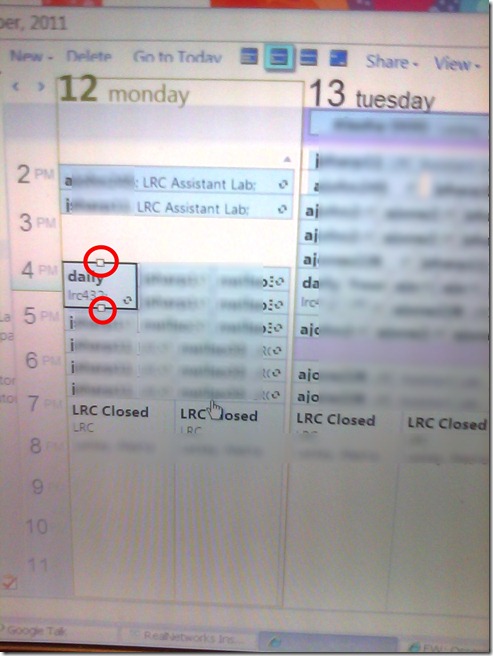
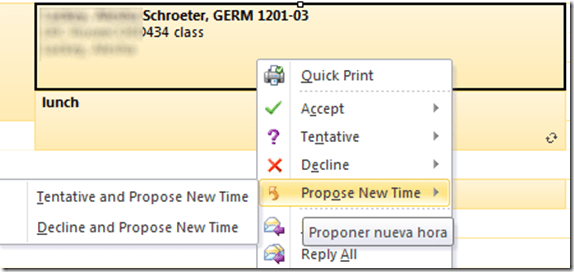
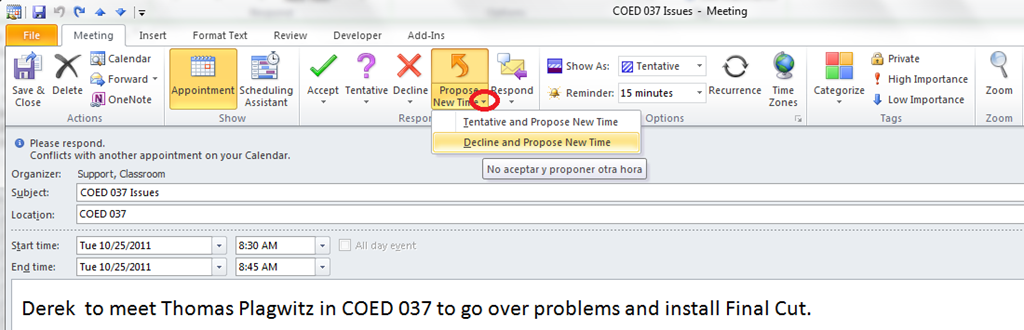
- If you are not the meeting organizer, the meeting organizer, when requesting a meeting with you, may have allowed you to “Request a new time”: use the corresponding button (screenshots are for Outlook):
- in the meeting request:
 .
.
- in the meeting request:
- or in the calendar item context menu

Categories: audience-is-language-learning-center-staff, audience-is-language-learning-center-temp-staff, audience-is-students, audience-is-teachers, e-infrastructure, office-software, service-is-documenting
2007, 2010, 2011, calendaring, changing, meeting-requests, ms-exchange, ms-outlook, resources, scheduling
LRC Resource mailboxes configuration using PowerShell
2012/01/16
Leave a comment
See below or click for larger view.


Questions? Read the About. Or just ask me a quick Our Databases: Resources with calendars -- Language learning material Moodle Sites, multimedia files -- films


FAQs for LRC student staff or for students or for teachers. To search our FAQs, in the browser addressbar, add after "https://plagwitz.wordpress.com/feed/?tag=faqs+/" "+TAG1" (from tag cloud below) OR "https://plagwitz.wordpress.com/feed/tag=faqs
&category_name=" "CAT1" (from category hierarchy below). OR search both categories and tags, and multiple TAGs/CATs (connect with "," for OR-search, with "+" for AND-search), like so: https://plagwitz.wordpress.com/feed/?tag=TAG1+TAG2+...TAGn&category_name=CAT1
+CAT2+...CATn"
Other ways to find help
If you cannot find it here, look there: 5,500 Language-Learning Links and Programs for learning or teaching 150 languages
Shortcuts:Our Lists, Our Maps, LRC Staff Moodle Site,LRC Project Moodle Site, 49erexpress, UNCC Moodle, Student Recordings: s:claslcslrcsanakostudent
Learning usage samples: Sanako oral exam, Kaltura webcam presentation, Dictation with speech recognition, Sanako written exam, Chinese and Japanese interactive stroke-order practice
Test the Sanako Installer, Webbrowser Popup Konfigurator for XP, or Windows7, faster LRC TeacherPC Log-in Let MS facilitate diacritics writing by installing for you US-International keyboard layout
This is my personal blog (Google+). The views expressed on these pages are mine alone and not those of my employer. The information in this weblog is provided “AS IS” with no warranties, and confers no rights.
 Thomas' Work Space